Search the Community
Showing results for tags 'admin'.
-
Version 1.1.0
1 download
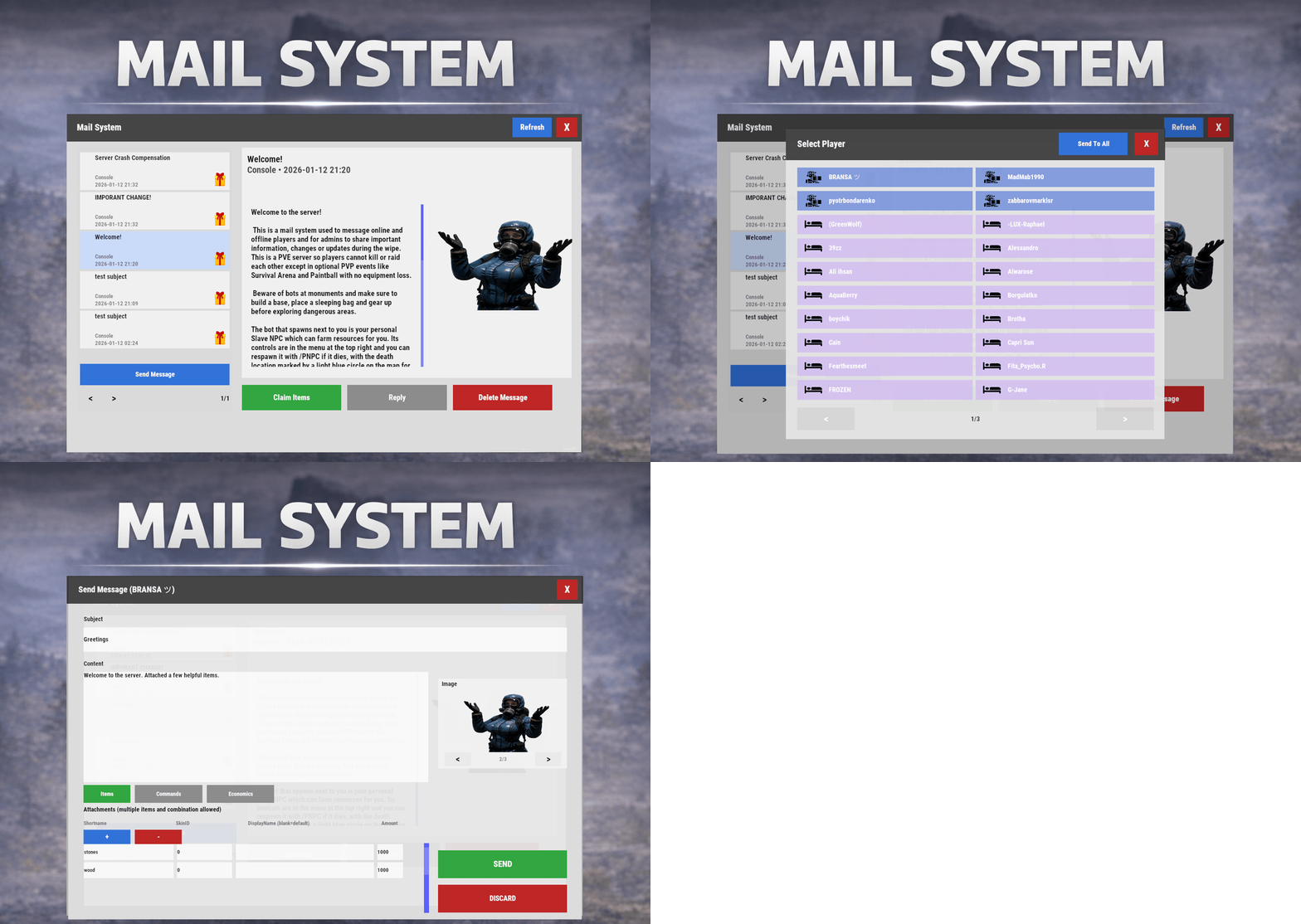
Mail System is an in-game mail and notification system for Rust servers, allowing players to send "emails" to online and offline players. Admins will also bnefit from being able to include attachments such as items, commands, and economy rewards. Designed for wipes, announcements, rewards, crash compensation and direct communication, Mail System ensures both online and sleeping players receive admin communication, as well as providing a great way for players to message each other anytime via a simple UI that players can access at any time. Perfect For Admin announcements Server rules and new player welcome messages Compensations Reward delivery Event prizes Player to Player communication Core Features Persistent inbox per player Messages are delivered even when players are currently offline Configurable inbox limits per player - oldest message deleted if limit exceeded. Optional wipe-based inbox clearing Simple message creation Ability to input subject and message content Recipient can be easily selected via a player picker UI, with unique colors and icons for Online/Sleeper/Staff Optional image per message via ImageLibrary. Available Image URLs (recommend square images eg 512x512) can be configured. Default/Example images have been included. Clean scrollable UI and configurable max length for long messages. Admins can easily include a combination of items, economies, or commands ran against the recipient. Messages and attachments can also be created via console commands, perfect for use in other plugins. Known Limitation: Rust does not currently have a functional multi-line support (as in, hitting enter to create a line break won't create a line break for the recipient). However. when typing message content, entering \n will create a new line in the resulting message as shown in attached screenshots. Facepunch is aware of this and UI input functionality will be updated accordingly. Unread notifications Notification sound upon receiving new message Visual indicator for unread messages and attachments Customizable position and size of on-screen notification bell Attachments & Rewards Each message can include any combination of: Item rewards Multiple items per message Custom display names Optional skin IDs Inventory-safe claiming Command rewards Ability to run server commands on claim Supports placeholders to ensure command is run against the recipient (%steamid%) Repeatable command execution via amount entry Economy rewards Economics ServerRewards TCBank each handled independently, with clear failure feedback if unavailable or failed Players claim attachments directly from the inbox with a single click and receive a clear summary of what was successfully claimed and what failed, if anything. 🛠 Admin & Console Tools Send messages with attachments: Using In-game UI Using Console commands Attach rewards and images using simple flag-based commands Ability to include attachments is admin permission based Target: Individual players All players (Online and Sleepers) Customization Customize HUD icon and unread indicators Customize online/sleeper/staff icons Built-in notification HUD position & size editor (no config guessing) Customize available images which can be included in messages. Adjust HUD colors Configure subject/message max lengths and inbox size. Localization via lang files Chat Commands: /inbox - Opens the Inbox UI where players can view and send/reply messages /sendmail "PlayerName" - optional chat command to send message to specific player without going through inbox/player picker /inbox_top - Admin command to view players with largest inbox sizes /inbox_clear "PlayerName" - Admin command to clear a specific player's inbox /notif_iconpos - Admin command to reposition and resize the notification icon (auto saves) Permissions: mailsystem.send - required to be able to send messages mailsystem.admin - required to add attachments via UI and run admin commands Console command functionality Console commands can be used for both messaging and attachment delivery using flags, with included option to select which image will appear in the message Basic command structure is as follows: mail.send <playername OR SteamID OR *> "<subject>" "<content>" [flags] Using the * star sign in place of recipient will send the message to all players. Available flags are desribed below and may be used multiple times and in any order: Image Flag: -img <number> Sets the message image. Uses the image list from the config Index starts at 0 0 = first image, 1 = second, etc. _______________________________ Item Flag: -item <shortname> <amount> <skinId> optional:"displayName" Adds an item attachment. skinId may be 0 Custom name is optional If omitted, the item’s default name is used _______________________________ Commands Flag: -cmd "<name>" "<command>" <amount> Runs a server command when claimed. amount specified how many time to run the command. It defaults to 1 Supports %steamid% and %name% wildcards - useful when sending to all players or via other plugins. "name" is what the player will see as the attachment name (instead of seeing the command itself) _______________________________ Economy Flag: -eco <type> <amount> Adds a currency attachment. Supported types: Economics ServerRewards TCBank _______________________________ Example Console Commands: Below are some example console commands. Note you can use \n\n for following text to start as a new paragraph Simple message only to single player(with image) mail.send PlayerName "Welcome!" "Welcome to the server. Enjoy your stay!" -img 0 Simple message only to all players (with image) mail.send * "Server Notice" "Welcome to the server everyone!" -img 0 Single item attachment (with image) mail.send PlayerName "Resource Gift" "Here are some materials to get you started." -img 1 -item wood 2000 0 Item attachment with custom display name and specific skinID (with image) mail.send PlayerName "Special AK" "You have received skinned HV pistol ammo." -img 2 -item rifle.ak 1 987654321 "Very Cool AK" Multiple items (with image) mail.send PlayerName "Supply Drop" "A mix of useful resources." -img 0 -item wood 3000 0 -item stones 2000 0 -item metal.fragments 500 0 Command attachment (with image) mail.send PlayerName "Starter Kit" "Claim this message to receive your starter kit." -img 1 -cmd "Starter Kit" "kit give %steamid% starter" Economy reward (Economics) (with image) mail.send PlayerName "Welcome Bonus" "You have received a currency reward." -img 0 -eco Economics 1000 Mix of Items + Economics (with image) mail.send PlayerName "Builder Pack" "Resources and money to help you build." -img 2 -item wood 4000 0 -item stones 4000 0 -eco Economics 2500 Mix of Items and Command (TWO vip kits) (with image) mail.send PlayerName "VIP Trial" "Enjoy a one time VIP kit." -img 1 -item scrap 250 0 -cmd "VIP Kit" "kit give %steamid% VIP" 2 Full mixed attachments (items + command + economy) (with image) mail.send PlayerName "Welcome Package" "Everything you need to get started." -img 0 -item wood 3000 0 -item ammo.pistol.hv 100 0 -cmd "Starter Kit" "kit give %steamid% starter" -eco Economics 1500 Full mixed attachments to all players (note using \n\n to create a new paragraph within message content) (with image) mail.send * "Attention Citizens!" "Thank you for being awesome.\n\nAttached some gifts." -img 0 -item wood 3000 0 -item ammo.pistol.hv 100 0 -cmd "Starter Kit" "kit give %steamid% starter" -eco Economics 1500 If using the commands within a JSON (config) file, you will need to ensure you escape the quotes with a backslash (place a backslash before any quote sign), for example: mail.send %SteamID% \"Welcome!\" \"Welcome to the server!\n\n This is a mail system used to message online and offline players and for admins to share important information, changes or updates during the wipe\n\nWe hope you have a great time\" -item ammo.pistol.hv 100 0 \"\" -img 1 If you’re looking for a modern replacement for chat spam, manual kit commands, or unreliable reward delivery, Mail System provides a polished, user-friendly solution that players will instantly understand and appreciate. I have done my best to document the full functionality, but if any doubt do not hesitate to open a support request.$19.99 -
Version 1.3.0
2 downloads
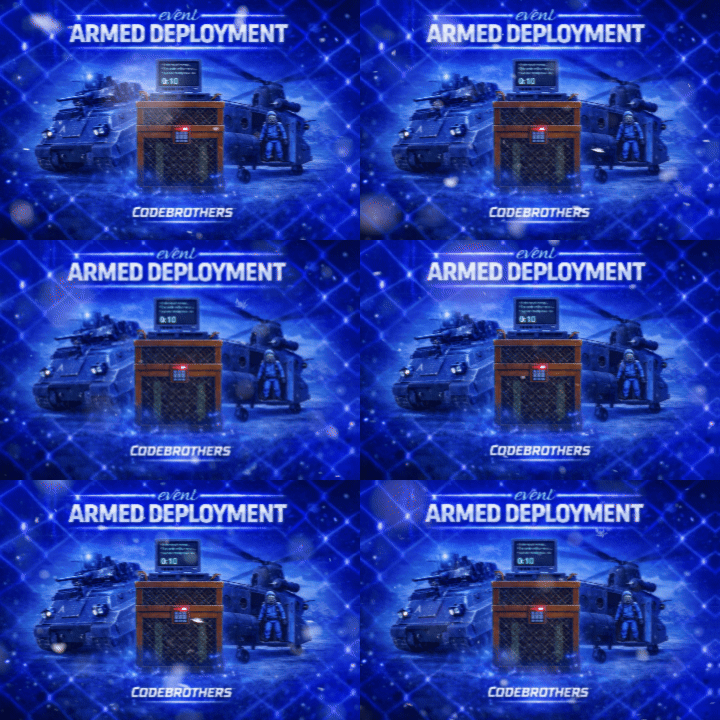
About Armed Deployments Bring Rust monuments to life with cinematic, high-intensity combat events. Armed Deployment dynamically delivers a Bradley APC, heavy scientists, and a hackable locked crate to any location you choose — all inserted by an immersive Chinook deployment sequence. Watch as a Chinook approaches the target zone, descends, deploys hostile forces, and extracts — creating a truly memorable server event that feels built into the game rather than scripted. Players must eliminate all threats and destroy the Bradley APC before they can claim the locked crate and its rewards. Features • Spawn deployments anywhere on the map • Cinematic Chinook delivery and extraction • Heavy Scientists with controlled roaming • Bradley APC with movement blocking • Hackable Locked Crate rewards • Dynamic deployment radius and map marker • Server-side UI progress tracking • Automatic cleanup and despawn timers • Admin-controlled start and cancellation • Automated deployments with configurable intervals • Fully configurable values Chat Commands (Admin Only) /adpanel Toggles the Armed Deployment admin UI panel Permissions ArmedDeployment.admin Required to start, cancel, or automate Armed Deployments Configuration { "Auto": false, "AutoMin": 60, "RandMon": true, "ManLoc": { "X": 0, "Y": 0, "Z": 0 }, "Mons": { "airfield": true, "trainyard": true, "powerplant": true, "military_tunnel": true, "launch_site": true, "water_treatment": true, "dome": true, "satellite": true, "junkyard": true, "excavator": false, "harbor": true, "arctic_base": true, "lighthouse": false, "gas_station": false, "supermarket": false, "mining_outpost": false, "sewer_branch": false, "oil_rig_small": false, "oil_rig_large": false }, "SciCnt": 12, "BradCnt": 1, "EvtRad": 150, "MaxAttempts": 10, "ChApproachH": 80, "ChApproachD": 400, "ChSpeed": 25, "ChHoverH": 15, "ChDescentH": 50, "ChExitD": 500, "MinClearH": 40, "ObstacleRad": 30, "MonSearchRad": 80 } Default values are optimized for performance and cinematic impact. Notes This plugin is designed to feel vanilla-friendly, cinematic, and performance-aware. It works especially well on servers that want high-risk, high-reward PvP encounters without relying on random world events. Feedback, suggestions, and feature requests are always welcome. Created by CodeBrothers Check out our other work on Codefling$19.99 -
Version 1.0.5
3 downloads
TCLocator – Find Your Tool Cupboards (Without Cheating) Ever forget where you put your Tool Cupboard? TCLocator lets players temporarily reveal their authorized TCs on the map with a simple command — then quietly removes the markers so gameplay stays fair. Players only see their own cupboards, admins can see everything, and markers auto-despawn after a configurable time or instantly with /tc off. No permanent map clutter. Just quick, clean information when you need it. Features Players see only TCs they’re authorized on Admins can view all TCs Per-player map markers (no global spam) Markers auto-hide after X seconds (configurable) Marker labels show who placed the TC TC Limits by permission Supports shop marker or crate marker Lightweight, no data files, wipe-safe Commands /tc → Show your authorized TCs /tc all → (Admin) Show all TCs /tc.stash → Show player stash Permissions tclocator.use tclocator.admin tclocator.limit.1 tclocator.limit.2 tclocator.limit.3 tclocator.limit.4$4.99 -
Version 1.0.9
23 downloads
Custom Vehicle Admin Tools CustomVehicleAdminTools is a collection of admin utilities designed specifically for Karuza Custom Vehicles in Rust. It gives server admins additonal features such as visibility of player owned vehicled, access and recovery tools for custom vehicles. Built for real moderation needs: ownership checks, vehicle relocation and recovery, repairs and drowned vehicle detection. CustomVehicleAdminTools is built with safety and compatibility in mind: it only targets Karuza Custom Vehicles, never interfering with vanilla Rust vehicles, and all admin actions are non-destructive to prevent accidental damage or permanent changes. Every feature is fully permission-based, allowing precise control over who can use each tool, and all visual debugging elements automatically expire after a short duration to avoid client clutter or long-term visual noise. Features: Vehicle Ownership & Inspection Lock Bypass Vehicle Move/Relocate Tool Instant Vehicle Repair Underwater Vehicle Detection List Vehicles Owned by a Player List all vehicles Separate permission for each function Commands: /kowner Shows the owner (name and SteamID) of the Karuza custom vehicle you are looking at. /klockbypass Bypass the codelock on the vehicle you are looking at. This authorises you on the vehicle. Run command again to de-authorise yourself. /kmove Moves a Karuza custom vehicle in two steps: Look at a vehicle and run /kmove to select it. Look at a destination point and run /kmove again to move the vehicle there. /krepair Instantly repairs the Karuza custom vehicle you are looking at to full health /kunderwater Detects Karuza custom vehicles that are underwater, draws visual markers (sphere, arrow, and label) showing their location and prints their positions to chat. /kplayerveh <player name or SteamID> (OPTIONAL: radius) Lists and visually marks all Karuza custom vehicles owned by a specific player. Optionally limits results to a radius around the admin. Each matching vehicle is highlighted with a temporary sphere and label. /kvehall (OPTIONAL: radius) Lists and visually marks all Karuza custom vehicles owned by a specific player. Optionally limits results to a radius around the admin. Each matching vehicle is highlighted with a temporary sphere and label. Permissions: customvehicleadmintools.owner - required for /kowner customvehicleadmintools.bypass - required for /klockbypass customvehicleadmintools.move - required for /kmove customvehicleadmintools.repair - required for /krepair customvehicleadmintools.underwater - required for /kunderwater customvehicleadmintools.listbyowner - required for /kplayerveh customvehicleadmintools.listall - required for /kvehall$6.99 -

Version 2.5.8-beta4
304 downloads
SmartWarnings simplifies and streamlines your server moderation by providing means to consistently Warn your players for misconduct. Gone are the times when you leave manual notes at sleeping players, for this plugin creates a smooth but intimidating pop-up window displaying clearly to the player what they've done wrong and how to learn from it. From version v2.5.0 you can now extend highly customizable actions to trigger based on your custom warnings. The imagination is the limit! Rule enforcement has never been easier before. Features Easily dispatch warnings to players and clans with a simple chat command /warn cookiemonster "leave the jar alone you bastard" Booom done! /warn clan "C00KiEZ" "no cookiemonsters allowed in the jar!!" Maybe their collective brain power is needed to understand! Announces Warnings in public Global Chat (Enabled by default, can be toggled in config) Give your Players a sense of transparent justice by displaying the dispatched warning to everyone in public. This is beneficial as players will learn what not to do from other's mistakes! Offline Players can receive warnings, no problem! Displays a pop-up window with the warning IMMEDIATELY if they are online, or as soon as the player wakes up from sleep upon connecting. Create custom presets for common violations. Presets can be made for example to reflect the server rules, it can be configured so that your admins can type /warn joe rule1 and it will spell out the entire rule 1 in the warning. Presets can have an Expiration date which will remove the warning, allowing non-repeating offenders to be cleared if they're well behaving in the long term. Presets can have a Warning Point weight which will give them different severity that can influence when to trigger an Automatic Ban (if enabled). Automatically Ban players with X amount of Warnings or Warning Points (Disabled by default, can be toggled in config) With this feature Enabled a player will be Automatically Banned when reaching the configured Warning amount or Warning Points. For example, configure 3 warnings to be max and enable auto ban will ban a player when the third warning has been dispatched. Supports Temporary Autobans (Disabled by default, can be toggled in config) If you're the kind of type that believes in second chances, when configured it bans the player lets them know when they're welcome back! Optional feature: Clear the player's warning when autobanned (True by default), This can conveniently be set to False if you want the player to be instantly auto banned next time a warning is dispatched. Extensive Logging both File based and Discord! Every move is logged in the oxide/logs/SmartWarnings folder so that you can have full traceability. Optional feature: Configure Discord Webhook links to log Warnings and/or Autobans to Discord. Persist Warnings across wipes, when you don't want to be forgiving! Set "Clear all warnings on wipe" to false and warnings will not be cleared when a new wipe is detected. NOTE: This requires that you exclude/do not remove the oxide/data/SmartWarnings_Playerdata.json file, if you're using tools to auto wipe and it gets deleted, so will the warnings. Customizable Branding Set your Server Name and custom Warning Pop-up Icon to make this plugin match your server's style! (NEW in v2.5.0) Transparency of the pop-up window can now be customized in the config! (NEW in v2.5.0) VANILLA SAFE mode: Warning display in Chat instead of GUI pop-up Warnings will be dispatched through chat and freeze the player until they acknowledge the warning. No use of GUI allows it to be vanilla safe! Acknowledge notification is fully customizable! (NEW in v2.5.0) AUTOMOD: Fully customizable command actions on X warning points Define any custom command to be executed at X warning point. This allows you to integrate with any other plugin for example mute, jails or whatever really. For example: set to mute on 2 warning points, kick on 4 warning points, teleport to jail on 6 warning points. NOTE: AutoMod actions are triggered incrementally by total warning points added to the player. This means if you configure Mute on 1 point and Kick on 3 points and give the player a warning worth 4 points, the player will be both kicked and muted. AutoMod feature can conveniently be configured together with AutoBan feature, but keep in mind to set the point/warning thresholds to line up properly. I.e. automod actions should not be on higher point level than autoban, because then player will be banned already before any actions are executed. (NEW in v2.5.5) Battlemetrics Bans & Warnings integration AutoBans will sync with Battlemetrics, duration, reason and note will be added to give context to what banned the player. Warnings will add note to the player in Battlemetrics, so you can easily track their warning history even through the BM console! Warnings will add a flag to the player in Battlemetrics, so you can easily differentiate players in the list who have warnings and not through the BM console! Click here for guide how to set up Battlemetrics integration. (NEW in v2.5.8) MySQL Database Support (allows Multi Server Warning Sync) You can now configure the plugin to use a MySQL Database as its data source. This will allow Warnings to be synced across multiple Rust servers if they are configured towards the same MySQL database. Planned future features Your ideas & feedback? Commands /warn <player name or id> "reason OR preset" Dispatches a warning with a custom reason or preset Requires permission: smartwarnings.admin /warn info <player name or id, leave blank to see yourself> Shows the amount of warnings, warning points and the individual warning details in chat. Requires permission: smartwarnings.admin to see other players. Default permission can only see their own warnings. /warn clear <player name or id> <id or ALL> Clear a specific warning ID by specifying the warning number, or specify ALL to clear all player warnings. (NEW in v2.5.0) Requires elevated permission: smartwarnings.admin.canclear /warn clan <clan tag> "reason OR preset" Dispatches a warning with a custom reason or preset to an entire clan (Requires Clans plugin) Requires permission: smartwarnings.admin /warn unfreezeall Unfreezes all players who are currently frozen due to not acknowledging any warnings, really only needs to be used in any emergency scenario where the player would not be unfrozen normally (Please report these scenarios, this command is purely proactive and will be removed when its not needed anymore) Requires permission: smartwarnings.admin Configuration { "Warning Presets": { "spam": { "Reason": " §1 - Spamming", "Points": 1, "ExpirationDays": 3.0 }, "toxic": { "Reason": " §2 - Toxic behaviour", "Points": 2, "ExpirationDays": 7.0 }, "sign": { "Reason": " §3 - Inappropriate signage", "Points": 2, "ExpirationDays": 7.0 }, "grief": { "Reason": " §4 - Griefing", "Points": 4, "ExpirationDays": 7.0 }, "group": { "Reason": " §5 - Group Limit violation", "Points": 5, "ExpirationDays": 7.0 } }, "System Settings": { "Max Warnings": 5, "Default Warning Expiration time (Days)": 7, "Announce Warnings in Global Chat": true, "Show players who issued the warning": true, "Server Name": "MyRustServer", "Clear all Warnings on Server Wipe": true, "Use MySQL database": false, "Warning Popup - GUI Enable - Set to false to use only chat (SAFE FOR VANILLA SERVER)": false, "Warning Popup - GUI Icon": "https://i.imgur.com/oImKq4X.png", "Warning Popup - GUI Opacity": 0.85, "Optional: Send anonymous analytics data about plugin usage": true, "Config Version": { "Major": 2, "Minor": 5, "Patch": 8 } }, "MySQL Database Settings": { "MySQL Host": "", "Port": 3306, "Database": "", "Username": "", "Password": "" }, "Battlemetrics Settings": { "API Token": "", "Organization ID": "", "Server ID": "", "Banlist ID": "" }, "Autoban Settings": { "How many points until automatic ban (Set 0 for Disable)": 0, "How many warnings until automatic ban (Set 0 for Disable, Recommended: Same as Max Warnings)": 0, "How long to ban in minutes (Set 0 for Permanent)": 2880, "Clear the players Warnings on AutoBan (Default: True)": true }, "Discord Settings": { "Webhook URL - Post Warnings to Discord (Leave blank to Disable)": "", "Webhook URL - Post Autobans to Discord (Leave blank to Disable)": "" }, "AutoMod Settings": { "Mute on 2 warning points": { "PointTrigger": 2, "ExecuteCommand": "mute {0} {1}", "ClearPointsOnTrigger": false }, "Kick on 4 warning points": { "PointTrigger": 4, "ExecuteCommand": "kick {0} {1}", "ClearPointsOnTrigger": true } } } Language Configuration The plugin allows a comprehensive customization of all text output for your needs. Edit the oxide/lang/en/SmartWarnings.json { "NO_PERM": "You don't have permission to use this command.", "NO_MATCH": "Could not find a match for player name or steamid", "GUI_BUTTON_ACKNOWLEDGE_WARNING": "I ACKNOWLEDGE THIS WARNING AND WILL FOLLOW THE RULES", "GUI_HEADER": "You have received a warning", "GUI_ISSUEDBY": "<color=#FFFFFF>Warning issued by {0} at {1}</color>", "GUI_ISSUEDAT": "<color=#FFFFFF>Warning issued at {0}</color>", "GUI_WARNING_TEXT": "<color=#cc0000>Repeated violations may lead to temporary or permanent banishment from this server.</color>\n\n<color=#d9d9d9>You should review the server rules immediately by typing /info in chat and clicking on the RULES tab.\nTo remove this pop-up, acknowledge this warning by clicking the button below.\nIf you feel this was an incorrect warning please reach out to our Staff via Discord.</color>", "CHAT_ACKNOWLEDGE_TEXT": "<color=#00FF00><size=12>Warning Acknowledged: You're now unfrozen and free to go.\n</size></color><size=9>Please review the server rules by typing /info in chat to avoid getting warned in the future.</color>\n\nIf you feel this was an incorrect warning please reach out to our Staff via Discord.</size>", "ANNOUNCE_WARNING_TEXT": "<color=#DC143C>{0} has been warned!\nFurther violations will lead to disciplinary action.</color>\n<color=#A9A9A9>Reason: {1}", "ANNOUNCE_WARNING_ISSUEDBY": "\n\n<size=10>Warning Issued by: {0}</size></color>", "REASON": "REASON", "AUTOBAN_PERMANENT_MESSAGE": "AutoBanned: You were permanently banned due to reaching max warnings.", "AUTOBAN_TEMPORARY_MESSAGE": "AutoBanned: You are banned until {0} due to reaching max warnings." } For example to change is the detailed warning text: You can edit the GUI_WARNING_TEXT row in the language file. Dependencies & Integrations Requires: DiscordMessages for Discord webhook functionality. Integrates with EnhancedBanSystem, autoban feature will detect if the plugin is installed and issue a ban with it, if not it will use the native Rust ban functionality. OPTIONAL: Plugin Usage Analytics The plugin optionally sends analytics about your server (Oxide version, Plugin version, Plugin configuration, Server Name, OwnerID and ModeratorID) to gauge usage of the plugin and to improve support. You can toggle this feature in the configuration.$16.99 -
Version 2.2.4
3,005 downloads
Admin Map is an innovative plugin for the game of Rust, designed to make server administration easier and improve the quality of the gaming experience. Focused on optimization and functionality, this plugin provides admins with the tools to effectively control players, minimizing the negative impact on the server and other participants. Main features: Interactive map with players: Admin Map provides server admins with a detailed and user-friendly map showing the positions of all players. This allows admins to easily monitor player activity and movements, and quickly detect suspicious activity. Large variety of different admin map layers: - Marker, - Text , - Sleeper, - TC, - Stash, - Sleeping Bag Quick Commands on Players: The plugin allows admins to perform quick actions on players directly from the map. Send messages, punish or help players in real time, minimizing reaction time and increasing interaction efficiency. Minimal server load: One of the key features of Admin Map is its low server load. All processing takes place solely on the client side, which means that the plugin will not slow down the server or create additional delays for players. This makes it an ideal choice even for servers with high traffic. Ease of use: The plugin's intuitive user interface provides admins with easy access to functionality. Navigating the map, sending commands and monitoring players is done with minimal effort, making server administration easy. Customization: Admin Map provides admins with the option to customize the functionality to suit their needs. Scanning area, available commands, buttons, permissions and other options. Hardcore bypass: Admins will be able to access the map on servers with the hardcore game mode installed. After permission is granted, it is necessary to rejoin the server Support in RUST+: You will be able to view players online on the map directly in your phone without going to the server! Admin Map is an innovative solution that combines convenience, functionality and optimization. It provides administrators with tools to effectively manage players without negatively impacting gameplay and other server participants. The Admin Map plugin is an essential asset for any Rust server administrator looking to create a comfortable and safe gaming environment. Permissions: adminmap.allow - for use adminmap and hardcore bypass adminmap.<button perm> - any permissions specified in the button settings adminmap.teleport2marker - teleportation by marker via CTRL+RMB adminmap.invis - hide player from the player map adminmap.rust+ - enable rust+ admin map adminmap.rust+.invis - hide from rust+ admin map (recommended in case of giving the map to players) Commands: /amap - show sidebar /amap off - disable everything and hide the sidebar Color designations on the cupboards map: Default Config: { "Auto show sidebar panel": true, "Open the admin menu instead of the action menu": false, "Text Map Settings": { "Font size": 8.0, "Use color generation for teams?": true, "Color for team": "ffaf4d", "Color for solo player": "9bd92f", "Color for sleeper": "404040" }, "Command Buttons": [ { "Permission (adminmap.<perm>)": "", "Label": "TP", "Command": "teleport {steamid}", "Color": "1 1 1 1" }, { "Permission (adminmap.<perm>)": "", "Label": "TP2ME", "Command": "teleport {steamid} {admin.steamid}", "Color": "1 1 1 1" }, { "Permission (adminmap.<perm>)": "", "Label": "INV", "Command": "/viewinv {username}", "Color": "1 1 1 1" }, { "Permission (adminmap.<perm>)": "", "Label": "SPECTATE", "Command": "spectate {steamid}", "Color": "1 1 1 1" }, { "Permission (adminmap.<perm>)": "", "Label": "KILL", "Command": "kill {steamid}", "Color": "0.9 0.1 0.25 1" }, { "Permission (adminmap.<perm>)": "", "Label": "KICK", "Command": "kick {steamid}", "Color": "0.9 0.1 0.25 1" }, { "Permission (adminmap.<perm>)": "", "Label": "SHOW\nTEAMMATES", "Command": "adminmap.cmd show_player_teammates {steamid}", "Color": "1 1 1 1" }, { "Permission (adminmap.<perm>)": "", "Label": "SHOW\nPRIVLIDGES", "Command": "adminmap.cmd show_player_privlidges {steamid}", "Color": "1 1 1 1" }, { "Permission (adminmap.<perm>)": "", "Label": "SHOW\nSLEEPING\nBAGS", "Command": "adminmap.cmd show_player_sleepingbags {steamid}", "Color": "1 1 1 1" }, { "Permission (adminmap.<perm>)": "", "Label": "SHOW\nSTASHES", "Command": "adminmap.cmd show_player_stashes {steamid}", "Color": "1 1 1 1" } ] } Button Library: Give item to player for AdminMenu by k1lly0u | Minimum required version 1.0.1 { "Permission (adminmap.<perm>)": "", "Label": "GIVE", "Command": "adminmenu.callback {steamid}.4;adminmenu.callback {steamid}.4", "Color": "1 1 1 1" } Permanent ban { "Permission (adminmap.<perm>)": "", "Label": "BAN", "Command": "ban {steamid}", "Color": "1 0 0 1" } View backpack (for Backpack Pro) { "Permission (adminmap.<perm>)": "", "Label": "Backpack", "Command": "/b {steamid}", "Color": "1 1 1 1" } View backpack (for Backpacks plugin from uMod) { "Permission (adminmap.<perm>)": "", "Label": "Backpack", "Command": "viewbackpack {steamid}", "Color": "1 1 1 1" } Spectate { "Permission (adminmap.<perm>)": "", "Label": "SPECTATE", "Command": "spectate {steamid}", "Color": "1 1 1 1" } If you want to add buttons here, message me on my discord server$20.00 -
Version 1.0.0
11 downloads
WelcomeMessage.cs Description : - This plugin allows you to display a welcome message on players' screens when they arrive on the server. They can also click a button to execute a command, such as opening a menu. Settings : - HUD colors - Display time (20s) - Welcome text (Welcome <player> !) - Button text (INFO) -Button command (say.chat /info) F1 Commands : - wm.test (to test the UI. Only admin) Permissions : - oxide.grant user <steamID/user> welcomemessage.use WuyZar's Discord : https://discord.gg/NVwRcQwGwh Game interface :$2.00 -

Version 1.5.0
70 downloads
BanSystem Ultra Advanced Ban, Warning, and IP Protection System for Your Server BanSystem Ultra is a powerful moderation plugin designed to give you complete control over player management. It allows you to ban players temporarily or permanently by SteamID or IP address, automatically detecting and blocking alternate accounts that share the same IP. Intelligent Ban System Automatic IP & SteamID Bans: When a player is banned, their IP address is automatically added to the ban list. If another player connects using a banned IP, they will be instantly blocked. This prevents ban evasion and multiple account abuse. Multi-IP Detection: The plugin scans your ban data for repeated IPs. If multiple accounts share the same banned IP, all of them will be automatically banned — perfect for catching alternate accounts. Team Ban Option: If a player receives a permanent ban, you can configure the plugin to also ban their entire team. Ideal for competitive or clan-based servers where team accountability matters. Warning System Manage player behavior with a fully configurable warning system: - Issue warnings with customizable reasons. - Automatically ban players temporarily or permanently after reaching a set number of warnings. - Configure how many warnings trigger a ban and how long the ban should last. Example: 3 warnings → 1-day ban 6 warnings → 7-day ban 10 warnings → permanent ban All of this is fully adjustable in the configuration file. Ban History Every banned player receives a detailed entry in the Ban History database, including: - Ban reason - Ban date and duration - Total ban count To clear the ban history, simply delete the file: oxide/data/BanSystemUltra/BanHistory.json Commands Ban Commands Chat and Console: ban <steamid> <time> <reason> → Temporary ban ban <steamid> <reason> → Permanent ban Examples: Console and Chat Commands: ban 76561198200022991 30d24h60m "Bug Abusing" ban 76561198200022991 "Cheating" Check Ban Stats: Chat and Console: banstats <steamid> - Sends the player’s ban statistics to your configured Discord webhook. Warn Commands: warn <steamid> <reason> Example: warn 76561198200022991 "Racism" - If the player reaches the maximum number of warnings (defined in config), they will be automatically banned with the last warning’s reason. Example Ban Message: Connection Rejected – You are banned from this server for 7 days (Reason: Racism) Default Configuration { "Send Mesages to DiscordWeebhook? Requieres DiscordApi plugin!": true, "Configuration for Discord Weebhook Url!": "", "Ban the player during the connection if his banned IP is detected in the data? (It will search all the data if there is any banned IP like the player's)": true, "Use messages in Embed? (false = normal / true = Embed)": true, "Ban player team if the player gets permanent ban? (Bans full team permanently aswell)": true, "Use permanent bans via warnings?": true, "Number of maximum warns after permanent ban": 10, "Use temporary bans via warnings?": true, "Ban duration after X warnings (Warnings - ban days (in days))": { "2": 1, "6": 7, "8": 14 }, "Discord weebhook url to send banstats": "", "Send messages to chat about: Warns, bans and unbans?": true, "Config Version (DON'T MODIFY)": "1.5.0" }$10.00 -

Version 1.2.2
34 downloads
AdminStats - Server Monitor HUD Keep an eye on your server health while you play! AdminStats is a lightweight, always-visible HUD that shows real-time server performance metrics to administrators. Perfect for server owners who want to monitor performance while testing plugins, building, or just playing. What does it show? Server FPS - Color-coded (green = good, yellow = warning, red = critical) with a mini graph showing the last 30 seconds Players Online - Current / Maximum Entities - Total world entities Memory - Server RAM usage Network Traffic - Incoming and outgoing bandwidth Uptime - Time since last server restart Two Display Modes Full Mode - All stats in a compact panel Minimal Mode - Just FPS, super tiny, stays out of your way Switch between modes anytime with /adminstats.mode Easy Positioning Place the HUD wherever you want: Top Left Top Right Bottom Left Bottom Right Custom position Adjust margins to fit perfectly with your other UI elements. Commands /adminstats - Toggle HUD on/off /adminstats.mode - Switch between full and minimal mode Features Zero performance impact - updates once per second Auto-enables for admins on connect Sleek blur background that fits Rust's style Multi-language support (English, Portuguese, Spanish) Fully configurable colors, size, and position Permission-based (adminstats.use) Perfect for: Testing new plugins while monitoring server health Identifying performance issues in real-time Keeping track of player count and entity buildup Server owners who like to stay informed Lightweight. Unobtrusive. Essential.Free-
- 1
-

-
- #admin stats
- #stats
- (and 15 more)
-

Version 0.1.4
202 downloads
A plugin for collecting game statistics with database support, compatible with both SQL and web API methods. This functionality empowers website owners to display the desired statistics from the database on their sites. Moreover, it offers the capability to send data via API, which proves highly beneficial in scenarios where your gaming server and database reside on separate machines and the database restricts connections beyond localhost. Please note that an instruction manual will be included in the downloaded file and it is imperative for users to read it thoroughly. Collecting(The full list is available below in the section Collected Data) : Server information; Team information; Clan information(in future); Feedback(F7) information; Report(F7) information; Player information. Sending data through: direct MySQL; via API(POST query) to MySQL. { "Unique ID of the current server": 0, "Database upload method. 0 - disabled, 1 - via API, 2 - via MySQL": 1, "Interval in seconds at which an attempt to load changes into the database will occur": 300.0, "Is it worth logging messages to the console when uploading to the database?": true, "API - Service URL": "https://site.com/ExtendedStats/index.php", "API - Service access key": "GlBRw-elM6v-gjko3-cxSDk-Tsy7B", "MySQL - Host": "localhost", "MySQL - Port": 3306, "MySQL - Database name": "db_playrust", "MySQL - Username": "root", "MySQL - Password": "root", "Database table name - Servers": "db_servers", "Database table name - Teams": "db_teams", "Database table name - Clans": "db_clans", "Database table name - Feedbacks": "db_feedbacks", "Database table name - Reports": "db_reports", "Database table name - Players": "db_players", "Database table name - Players Balances": "db_players_balances", "Database table name - Players Stats": "db_players_stats", "Database table name - Players Farms": "db_players_farms", "Database table name - Players Gambling": "db_players_gambling", "Database table name - Players Kills": "db_players_kills", "Database table name - Players Explosions": "db_players_explosions", "Database table name - Players Raids": "db_players_raids", "Is it worth clearing saved statistics when a wipe is detected?": true, "Is it worth clearing the database when a wipe is detected?": true, "List of statistic categories to clear when a wipe is detected. Leave empty to recreate defaults": [ "players", "teams", "clans", "feedbacks", "reports" ], "Dictionary of display names for deployable entities by key": {}, "Wipe ID": null, "Version": { "Major": 0, "Minor": 1, "Patch": 4 } } ServerData: ServerName ServerIdentity ServerIP ServerPort QueryPort ServerDescription ServerHeader ServerURL ServerTime ServerTags GameTags MaxPlayers ServerEntities ServerFPS ServerAvgFPS ServerUptime ServerMap MapSize MapSeed FirstSave LastSave WipeID ServerVersion ServerProtocol RconPort RconPassword TeamData: TeamID TeamName CreatorID LeaderID TeamMembers ClanData(Temporarily not working) : ClanID ClanName CreatorID LeaderID ClanMembers FeedbackData(Since the corresponding Oxide hook has shifted, not all types of feedback are processed) : ID UserID Subject Type Message Time ReportData: ID UserID TargetID TargetName Subject Type Message Time PlayerData: Info: UserID DisplayName Flags Language GroupsList TeamID ClanID BanReason Connection: PlayedTime - requires the PlaytimeTracker/PlayTimeRewards plugins IdleTime - requires the PlaytimeTracker/PlayTimeRewards plugins Connections Ping FirstConnectionIP LastConnectionIP FirstConnectionDate LastConnectionDate Balance: Balance - requires the Economics plugin BankBalance - requires the BankSystem plugin Points - requires the ServerRewards plugin Experience Reputation - requires the ReputationMaster plugin Statistics: TimeAlive - updates only after the player's death TimeSleeping - updates only after the player's death DistanceWalked - updates only after the player's death DistanceRun - updates only after the player's death TimeWilderness - updates only after the player's death TimeInBase - updates only after the player's death TimeInMonument - updates only after the player's death TimeSwimming - updates only after the player's death TimeFlying - updates only after the player's death TimeBoating - updates only after the player's death TimeDriving - updates only after the player's death Wounded WoundsInflicted WoundAssisted WoundRecovered DamageInflicted DamageTaken - updates only after the player's death Healed - updates only after the player's death ShotsFired - updates only after the player's death ShotsHit ExcavatorStarts BearTrapInflicted BearTrapSteps MineInflicted MineSteps HandcuffsApplied Handcuffed PhoneCalls PhoneCallsTimeout MissionsStarted MissionsSucceeded MissionsFailed DeployedsList MonumentsList - requires the MonumentsWatcher plugin Farming: Barrels UnderWaterCrates ShreddedEntities DetectResourceFlags GreenDoors BlueDoors RedDoors FishAttempts Guts Supplies ExcavatorSupplies Chinooks Surveys ChickensHatched ChickenEggs BeehiveXP Blueprints CraftList GatherList RecycleList BuyerPurchaseList BuyerSpentList SellerSalesList SellerRevenueList CratesList FishList Gambling: BWG_Spins BWG_WinSpins BWG_SpendScraps BWG_WinScraps Slot_Spins Slot_WinSpins Slot_SpendScraps Slot_WinScraps Poker_Games - Placeholder Poker_WinGames - Placeholder Poker_SpendScraps - Placeholder Poker_WinScraps - Placeholder BlackJ_Games BlackJ_WinGames BlackJ_StandoffGames BlackJ_SpendScraps BlackJ_WinScraps RPS_Wins RPS_Losses RPS_Draws Kills: Kills FriendlyKills Deaths Suicides Beehives Chickens FarmChickens Snakes Boars Stags Horses Wolves Bears Polarbears Panthers Tigers Crocodiles Sharks PlayerNPCs Scientists Zombies Patrols Bradleys KillVehicles: PedalBikes MotorBikes Cars RowBoats RHIBs SubmarinesSolo SubmarinesDuo Tugs MiniHelis AttackHelis ScrapHelis Balloons Trains TrainWagons TrainCabooses Snowmobiles Ballistas BatteringRams Catapults SiegeTowers HitParts KillParts KillWeapons Explosions: Rockets RocketsHV RocketsIncendiary RocketsSmoke RocketsMissile RocketsMLRS Torpedoes ExplosiveAmmo Ammo40mmExplosive Ammo40mmSmoke GrenadesF1 GrenadesMolotov GrenadesFlash GrenadesSmoke GrenadesBean SatchelCharges C4Explosives PropaneBombs FireBombs Raids: Cupboards Doors Windows Foundations Ceilings Walls Doorways WindowFrames Stairs Hatches ExtWoodenGates ExtWoodenWalls ExtStoneGates ExtStoneWalls ExtIceWalls ExtIceShortWalls RaidedConstructionsList RaidedDeployableConstructionsList RaidableBases: RBEasy RBMedium RBHard RBExpert RBNightmare$19.99 -

Version 2.0.9
80,504 downloads
Convenient GUI manager for player and group permissions. Allows assignment of player permissions. (online or sleeping) Allows assignment of group permissions. Allows one-click removal of all players from a group. (group page - "Remove All") Allows adding/removing a player from groups. Supports unlimited plugins/permissions/groups Up to 60 plugins per-page. Up to 40 permissions per-page. Up to 40 user groups per-page Allows for local and sql backup and recall of all permissions or groups. Permissions. permissionsmanager.allowed - Allows players to use GUI. Plugin can be used with this permission, or by any Admin : Auth Level 2. Chat commands. /perms data - Backup and restore permissions and/or groups - local data file and/or SQL. ** /perms OR /perms player - Opens GUI player list, allowing a player to be chosen. /perms group - Opens GUI group list, allowing a group to be chosen. /perms player <playername> - Opens permissions GUI for the specified player. /perms group <groupname> - Opens permissions GUI for the specified group. Console commands. EmptyGroup <groupname> - Removes all players from the specified group. Configuration. Global. Chat - Title colour Chat - Message colour GUI - Label colour GUI - On colour GUI - Off colour GUI - AllPerPage - Sets All/None option to per-page, or per plugin. Options - GUI Transparency 0-1 Options - Plugin BlockList - ex. "playerranks,botspawn" Block list must be lower case, comma separated, no spaces, and no final comma, as above. Useful tool for picking CUI colours - RGB Decimal - Take the RGB Normalized decimal output, and remove all commas. ** Please note that with data backups : SQL saving is accumulative - Saving adds current permissions/group data to whatever was already saved. Local data file saving is not accumulative. It overwrites any existing backup with the current server permissions/groups. FAQ. Q: I'm trying to revoke permission(Y) for a player, but it says "Inherited". A: The player is in a group(X) which is also granted permission(Y). Solution: Revoke permission (Y) from group(X) or remove the player from group(X). Q: I removed a player from group(X), but they still have permission(Y). A: This is the opposite of the above. This player must have been independently granted permission(Y) at some time. Solution: Revoke permission(Y) from the player.Free- 221 comments
- 34 reviews
-
- 39
-
-

-
- #permissions
- #admin
- (and 7 more)
-

Version 1.0.3
172 downloads
Death tracker is an administration tool that allows server admins to restore player items via rcon or in-game, in the event a player dies for reasons beyond their control. The plugin will detail: The location of the death (grid + coordinate). The damage type that the player took. Whether they were connected to the server or not. Who killed them (along with the userid). The date and time of the death. The players inventory, item backpack contents, and their backpack plugin contents (if they dropped). Admins can select items from the UI to see more details about the item such as the items condition, amount, ammo, armor slots and other parameters (such as buffs from ItemPerks). You can also toggle whether the item will be restored from this menu, allowing you to exclude certain items from being restored if required. In order to use the following commands in game, you must have the deathtracker.admin permission. Command: dt Use: Access the DeathTracker restore menu in-game. Command: dt.,rcon deaths <userid> Use: Returns information for each death stored for the specified player. Command: dt.rcon query <userid> <index> Use: Returns detailed information about the specified death for the player at the specified index (item lists etc). Command: dt.rcon restore <userid> <index> Use: Restores the items to the specified player from the specified index.$14.99 -
Version 1.0.1
26 downloads
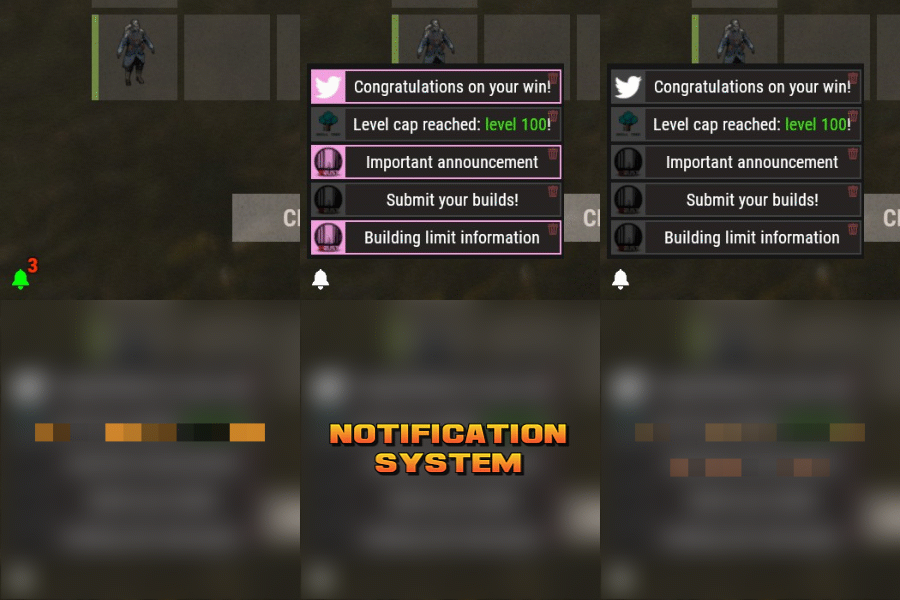
Notification Systems is a versatile plugin designed to deliver messages directly to players on your server — even when they’re offline. Seamlessly integrate it into other plugins, such as Skill Tree, or trigger notifications manually through commands for complete flexibility. Each notification can include a custom title, message, and an optional redemption button, giving you the power to reward players with items, currency, points, or trigger client-side commands — all tailored to your server’s needs. The idea behind the plugin is to allow server owners to send critical information to players, with the option to run commands that target said players. For example, you can send a notification to all players that have joined your server (regardless of their online status), with a redemption button that will give each of them 500 scrap. The following commands can be run in your server console, or player console (with the notificationsystem.admin permission). The commands are broken up in 3 sections: Title, body, redemptions, each of which is differentiated using "[]". Parameters: Userid: target player's Steam64 id. Message icon id: the skin id that you want to appear on the notification list. Setting to 0 will default to the message item id icon. Message item id: the item image you want to appear on the notification list (-769647921 = skull.trophy). Setting to 0 will default o the config icon. Title: Must be formatted with square brackets and surrounded by quotation marks like so: "[Title here]" Body: Must be formatted the same way as the title, with square brackets and quotation marks, like so: "[description here]" Redemptions: Must also have the square brackets and quotation marks, but also allow for an optional parameter of running it as a server command or client command. Here is the formatting for running a server command: "[(inventory.giveto {id} scrap 500, true)]" Here is the formatting for running a client command: "[(chat.say "/sprize", false)]" Here is the formatting for running both: "[(inventory.giveto {id} scrap 500, true),(chat.say "/sprize", false)]" Command: notification.add <userid> <message icon id> <message item id> "[Title]" "[Description]" "[(command1,bool:isServer)(command2,bool:isServer)]" Command: notification.all <message icon id> <message item id> "[Title]" "[Description]" "[(command1,bool:isServer)(command2,bool:isServer)]" Example of a full command: notification.add 123445667878213 "[Title goes here]" "[Here is my message, there are many others like it, but this is mine]" "[(inventory.giveto {id} scrap 500. true)]" notification.all "[Title goes here]" "[Here is my message, there are many others like it, but this is mine]" "[(inventory.giveto {id} scrap 500. true)]" void AddAll(string title, string body, int itemID, ulong picID = 0, string sprite = null, List<(string, bool)> commands = null) void Add(ulong id, string title, string body, int itemID, ulong picID = 0, string sprite = null, List<(string, bool)> commands = null)$11.99- 3 comments
-
- 1
-
-
- #notify
- #notification
- (and 7 more)
-

Version 1.2.0
78 downloads
Allows you to restrict certain commands and actions for admins, monitor their activities, and prevent admin abuse. Features Command Blocking: Prevents specified commands from being executed by certain admins. Action Blocking: Disables interactions like looting, building, or interacting with vehicles, cupboards, and more. Team Management: Manage the admins team and their permissions. Anti-Abuse: Detects abusive behavior with configurable actions such as kick or ban. Action Logging: Logs movements and interactions. Permissions adminrestrictions.limitactions - limit the admin actions. adminrestrictions.ignore - ignores a specific admin. Configuration Note: Anti-Abuse will disable damage and teleport the player back to his previous location upon detection.$19.99- 6 comments
-
- 2
-
-
- #admin
- #restrictions
- (and 14 more)
-
Version 1.4.1
3,603 downloads
Manage your Rust server easier and more efficiently with the AdminMenu plugin. Track players, interact with them, edit their data and permissions, as well as change server convars and manage plugins. Features: Menu retains its state after closing, you won't lose everything you did before. Ability to fully translate the menu into any language. Large range of permissions for each action, will allow you to flexibly customize the admin menu for each group of administrators. Quick menu that allows you to perform quick actions Full list of players with the ability to filter by online, offline, admins and moderators. Also has a frame of different colors depending on the level of authorization. Wide range of information and actions for the selected player. Editing convars with search. Has a complete list of editable convars with descriptions for some of them. Extensive issue menu by category, with easy management of name, skin and amount (manual, +1, +100, +1000, +10000). Plugin management menu. It is possible to reload, unload or load a plugin easily and quickly. Updates occur in real time. Ability to create your own custom buttons that execute several commands Quick Start: You install the plugin in the plugins folder. Give yourself the adminmenu.fullaccess permission. Commands, use one of your choice, one for the player and one for the admin group: o.grant user [name or steamid] adminmenu.fullaccess o.grant group admin adminmenu.fullaccess Press the X button (swap seat button) or type adminmenu in the console. Enjoy Useful stuff: You can quickly open a player in the admin menu. To do this, point at the player and press X. You don't have to hover over the player exactly, you will be able to open players within a certain radius of the place you are looking at. CUSTOM BUTTONS Custom buttons are buttons that when pressed will execute commands on behalf of the administrator, commands can be several, below will be the details. At the moment, custom buttons can be created in two places: in the quick menu and in the menu when selecting a player. These places are separated in the config. Button Fields: "Execution as server" - Call the command on behalf of the server, not the administrator "Label" - Text that will be on the button, for each such inscription creates a field in the lang file, accordingly you can translate this text into several languages. "Commands" - Array of commands that will be executed on behalf of the administrator. Chat commands require a special entry, see examples. "Permission"- permission to display and use the button. You need to write the permission that will be after "adminmenu.". Example: if you enter the permission "test" the permission will be adminmenu.test "Position" - The location for the button, the first number is responsible for the row number, the second for the position within the row, starts from 0.There are limits of locations, if you have gone beyond the limit - the button will not be displayed. Common Tags: {adminUID} - administrator's id. {position} - administrator coordinates (underfoot) {view_position} - the position where the administrator is looking (can be used for spawning or something similar) {view_direction_forward} - forward view direction of the administrator {view_direction_backward} - the direction the administrator is looking backwards {view_direction_left} - direction of the administrator’s view to the left {view_direction_right} - administrator’s view direction to the right Tags for target only: {steamid}, {steamID}, {userID}, {STEAMID}, {USERID} - mean the same thing, namely the id of the selected player. {target_position} - target coordinates (underfoot) Example of commands: chat.say \"/{chat command}\" vanish ban {steamID} teleport {steamID} {adminUID} More information about the grant menu: The grant menu includes the full list of items including hidden items as well as custom items created by the CustomItemDefinitions library. The menu can be accessed from the navigation or from the menu of the selected player. When issuing itself has categories. Search works in any registry by any part of the name or short name. Has a page system at any stage. More information about the buttons in the Quick Menu: [Teleport to 0 0 0] - Teleport to coordinates 0 0 0. Requires adminmenu.quickmenu.teleportto000 permission [Teleport to Deathpoint] - Teleport to your deathpoint. Requires adminmenu.quickmenu.teleporttodeath permission [Teleport to Spawn point] - Teleport to a random spawn point. Requires adminmenu.quickmenu.teleporttospawnpoint permission [Kill Self] - Kill Self, kills even when immortal. Does not require permission. [Heal Self] - Fully heal yourself. Requires adminmenu.quickmenu.healself permission [Call Heli] - Call Helicopter to yourself (arrives in time). Requires adminmenu.quickmenu.helicall permission [Spawn Bradley] - Spawn bradley on yourself. Requires adminmenu.quickmenu.spawnbradley permission More information about the buttons in the menu of the selected player: [Teleport Self To] - Teleport yourself to the selected player. Requires adminmenu.userinfo.teleportselfto permission [Teleport To Self] - Teleport the selected player to yourself. Requires adminmenu.userinfo.teleporttoself permission [Teleport To Auth] - Teleportation to random authorization (TC). Requires adminmenu.userinfo.teleporttoauth permission [Teleport to Deathpoint] - Teleportation to a player's deathpoint. Requires adminmenu.userinfo.teleporttodeath permission [Heal] - Full healing, including metabolism. Requires adminmenu.userinfo.fullheal permission [Heal 50%] - Half healing. Requires adminmenu.userinfo.halfheal permission. [View Inventory] - View and edit player's inventory. Requires adminmenu.userinfo.viewinv permission [Strip Inventory] - Clear player's inventory. Requires adminmenu.userinfo.stripinventory permission [Unlock Blueprints] - Unlock all Blueprints. Requires adminmenu.userinfo.unlockblueprints permission [Revoke Blueprints] - Reset all Blueprints. Requires adminmenu.userinfo.revokeblueprints permission. [Kill] - Kill a player. Requires adminmenu.userinfo.kill permission [Kick] - Kick a player. Requires adminmenu.userinfo.kick permission [Ban] - Ban a player. Requires adminmenu.userinfo.ban permission More information about the buttons in the menu of the selected group: [Remove Group] - Remove group, has confirmation. Requires adminmenu.groupinfo.removegroup permission [Clone Group] - Clone group with the ability to copy users. Requires adminmenu.groupinfo.clonegroup permission Permissions: adminmenu.use - Ability to use admin menu with basic set. Open tab quick menu (each button has its own permission, without permissions is present only kill yourself button) and the list of players. adminmenu.fullaccess - Full access to all functions without the need for each permission, includes also adminmenu.use. It is recommended to give only to the main administrators. adminmenu.quickmenu.teleportto000 - Access to the button in the quick menu, teleportation to coordinates 0 0 0 0. adminmenu.quickmenu.teleporttodeath - Access to the button in the quick menu, teleportation to the point of your death. adminmenu.quickmenu.teleporttospawnpoint - Access to the button in the quick menu, teleportation to a random spawn point. adminmenu.quickmenu.healself - Access button in quickmenu, heal yourself completely. adminmenu.quickmenu.helicall - Access to the button in the quick menu, call a helicopter to yourself (arrives in time). adminmenu.quickmenu.spawnbradley - Access button in quickmenu, spawn bradley. adminmenu.userinfo.teleportselfto - Access to the button in the menu of the selected player, teleportation to the selected player. adminmenu.userinfo.teleporttoself - Access to the button in the menu of the selected player, teleport the selected player to himself. adminmenu.userinfo.teleporttoauth - Access to the button in the menu of the selected player, teleportation to random authorization (TC). adminmenu.userinfo.teleporttodeath - Access to the button in the menu of the selected player, teleportation to the place of death of the player. adminmenu.userinfo.fullheal - Access to the button in the menu of the selected player, full healing, including metabolism. adminmenu.userinfo.halfheal - Access to the button in the menu of the selected player, half healing. adminmenu.userinfo.viewinv - Access to the button in the selected player's menu, view and edit the player's inventory. adminmenu.userinfo.stripinventory - Access to the button in the menu of the selected player, clear the player's inventory. adminmenu.userinfo.unlockblueprints - Access the button in the menu of the selected player, unlock all drafts. adminmenu.userinfo.revokeblueprints - Access to the button in the menu of the selected player, reset all drafts. adminmenu.userinfo.kill - Access the button in the selected player's menu to kill the player. adminmenu.userinfo.kick - Access the button in the selected player's menu to kick the player. adminmenu.userinfo.ban - Access to the button in the menu of the selected player, ban the player. adminmenu.groupinfo.removegroup - Access to the button in the menu of the selected group, the ability to remove the group. adminmenu.groupinfo.clonegroup - Access to the button in the menu of the selected group, the ability to clone the group. adminmenu.convars - View and edit convars. adminmenu.permissionmanager - View and edit permissions in groups, player groups, create, delete and clone groups (requires additional permissions from these buttons). adminmenu.pluginmanager - Access to plugin management, reloading, unloading, loading plugins. adminmenu.give - Access to give resources, as well as yourself and the selected player.$25.00 -
Version 1.0.2
7 downloads
xPermissionManager A modern, intuitive, and powerful permission management tool for Rust servers. xPermissionManager provides a complete visual interface for managing user and group permissions directly ingame. No more console commands, guesswork, or digging through permission lists. Everything is organized, accessible, and easy to control through an straight forward UI. Whether you're adjusting a single permission, overseeing full group structures, or assigning temporary access, xPermissionManager gives server owners a fast and efficient possibility to do so. Plugin Preview (Video) Full Permission Control Grant or revoke any permission from groups or individual players. Timed Permission System Assign temporary permissions that automatically expire (e.g., 30m, 1h, 1d, 1w, custom durations). Timed Group Memberships Add players to groups for a limited time - Perfect for kits, VIP, special events or whatever. Comprehensive UI A clean and intuitive interface for browsing permissions, switching groups, managing users, and applying timed access. User & Group Browsing View all available groups, check individual player permissions, and toggle them instantly. Clear Feedback Every change is acknowledged with clear messages to help admins avoid mistakes. Permission xpermissionmanager.use // Allows a player to open and use the xPermissionManager UI Chat Commands /xpm /xpmuser <name or steamID> /xpmtimed /xpmgroups /xpm [Opens the Permission Manager UI] PERMISSION OR ADMIN REQUIRED /xpmuser <name or steamID> [Opens the UI for managing a specific player’s permissions/groups] PERMISSION OR ADMIN REQUIRED /xpmtimed [Shows all active timed permissions for a player. Includes remaining duration and whether they came from a group] /xpmgroups [Shows all active timed group memberships for a player] Console Commands </> API$11.99-
- 1
-

-
- #permission
- #manager
- (and 20 more)
-

Version 1.0.0
3 downloads
NexusRestartManager is a professional Rust server lifecycle plugin that manages restarts, wipe tracking, Discord notifications, and native decay configuration COMMANDS (ADMIN): • Restart server: /nrm restart <seconds> [reason] Example: /nrm restart 300 Server update • Cancel a scheduled restart: /nrm cancel COMMANDS (PLAYERS): • View wipe info : /nrmwipe • View wipe info: /nextwipe PERMISSIONS: Admins must have: nexusrestartmanager.admin Grant using your permissions plugin (Oxide/Carbon). oxide.grant user <playername_or_steamid> nexusrestartmanager.admin carbon.grant user <playername_or_steamid> nexusrestartmanager.admin DISCORD FEATURES (AUTOMATIC): • Server Online message (status + wipe cycle) • Restart Scheduled message (countdown + reason) • Server Offline message (uptime + wipe age + wipe cycle) • No duplicate or spam messages • No fake player counts DECAY SETTINGS (CONFIG ONLY): This plugin uses Rust’s native decay system. Example: "Decay": { "Upkeep period (minutes)": 1440 } • 1440 = normal (vanilla) decay • Higher number = slower decay • Lower number = faster decay • Applies automatically on server start and wipe • No commands required IMPORTANT NOTES: • Requires Oxide/Carbon Discord extension for Discord messages • Does NOT wipe blueprints • Does NOT force wipes (tracking only) • Lightweight and production safe This plugin uses a Discord webhook to send server status messages. STEP 1: Create a Discord webhook 1. Open Discord 2. Go to your server 3. Right-click the channel you want messages in 4. Click "Edit Channel" 5. Go to "Integrations" 6. Click "Webhooks" 7. Click "New Webhook" 8. Copy the Webhook URL STEP 2: Add webhook to the plugin config 1. Start the server once with the plugin installed 2. Stop the server 3. Open this file: oxide/config/NexusRestartManager.json or use carbon config 4. Paste your webhook URL into: "Discord": { "Webhook URL": "PASTE_URL_HERE" } STEP 3: Save the file and restart the server • Do NOT reload for first setup • Restart the server fully STEP 4: Verify it works • When the server starts, Discord should show "Server Online" • Run: /nrm restart 60 Test • You should see a restart message in Discord$9.99 -

Version 2.0.3
10 downloads
Play To Win A complete, COMMUNTIY SERVER SAFE configurable playtime-based reward and VIP progression system for Rust. Features ✔ Awards points automatically as players stay online ✔ Points accumulate at configurable intervals ✔ Players redeem free VIP via a command ✔ Custom VIP duration ✔ Fully customizable messages with placeholders ✔ /points to show stats, playtime & VIP ✔ Full admin control through chat commands ✔ Force-expire free VIP (single or all) ✔ Discord Webhook logging for all events Commands: /freevip - claim freevip or check progress /points - check stats / points amount /awardpoints (name) (amount) - give points to a player /expirevip (player) - expire a player's free VIP /expireallvip - expire free VIP for all players admin permission: playtowin.admin Config: { "Command": "freevip", "AwardInterval": 60, "VipDurationSeconds": 604800, "PointsPerInterval": 10, "PointsCost": 500, "DiscordWebhookUrl": "", "Messages": { "NotEnoughPoints": "You need {hoursneeded} more hours to redeem VIP.", "Balance": "Your balance: {points}/{cost} points.", "VipRedeemed": "You redeemed {durationdays} days of VIP.", "VipExpired": "Your free VIP has expired.", "PointsInfo": "Points: {points}, Playtime: {hours}h, VIP: {viptime}.", "AdminGavePoints": "{admin} gave {added} points to {player}. Total: {points}.", "AdminSetPoints": "{admin} set {player}'s points from {old} to {set}.", "AdminRemovedPoints": "{admin} removed {removed} points from {player}. Total: {points}.", "ForceExpired": "{admin} force-expired VIP for {player}.", "ForceExpiredAll": "{admin} expired VIP for {removed} players." } }$7.49- 6 comments
- 1 review
-
- 1
-
-
- #vip
- #community
- (and 3 more)
-

Version 1.0.5
83 downloads
Enables administrators to perform administrative actions anonymously, hiding their profile when they use in-game chat as well as within the game environment, displaying 'ADMIN' instead of their nickname above their character. Commands /aa - Admin Anon Enable /aa - Admin Anon Disable Permissions adminanon.use - Enables anonymity in the game. Permission Recommendation: We recommend adding the permission to the individual user rather than to a group. For example, grant the permission to John Doe directly, not to the "admin" group (even if John Doe belongs to that group). Change Color This plugin allows Rust admins to hide their identity in the chat. To change the username color for the "ADMIN" group, configure the "admin" group in BetterChat. Changes in BetterChat will automatically reflect in the plugin. Steps: 1. Open BetterChat Configuration: Locate and edit BetterChat.json. 2. Edit the "admin" group: Change the username color for the "admin" group. 3. Save and Apply Changes: Save and reload BetterChat & AdminAnon (Just in case) Change avatar admin ? Changing the admin's avatar is unnecessary for this plugin, as its purpose is to hide the admin's identity, not to impersonate another player. Configuration { "Stay Anonymous After Reconnecting": false, "Properties": [ { "Name": "ADMIN", "Better Chat Group": "admin", "Required Permission": "adminanon.use" } ] } Data (example) { "PlayerData": { "76561198196941415": { "Groups": [ "admin", "default" ], "Name": "ADMIN", "Better Chat Group": "admin", "Required Permission": "adminanon.use" } } } Language (EN) { "No Permission": "<size=12>You don't have permission to use this command</size>", "No Profile Permission": "<size=12>You don't have permission to use this profile</size>", "Admin Anon Enabled": "<size=12>Admin Anon has been <color=#00fa9a>ENABLED</color></size>", "Admin Anon Disabled": "<size=12>Admin Anon has been <color=#00fa9a>DISABLED</color></size>", "Admin Anon Changed": "<size=12>Fake identity has changed to <color=#00fa9a>{0}</color></size>", "Requested Fake Identify Not Found": "<size=12>Requested fake identity is not found</size>", "No Fake Identities Available": "<size=12>No fake identities available</size></size>", "Fake Identify Not Found": "<size=12>Fake identity is not found</size>", "Data Corrupted Up": "<size=12>Data is corrupt</size>" }$6.00 -

Version 1.0.3
18 downloads
Stop guessing whether your warning messages in chat were actually noticed. Tired of sending important warnings as an admin via RCON or global chat and never being sure who actually read them? AdminWarn is built to give admins certainty. AdminWarn is designed for manual warning delivery. This is not an automated warning system. Every warning is intentionally sent by an admin using commands. At the same time, AdminWarn handles warnings smartly and automatically in the background. Warnings sent to offline players are stored and shown automatically when the player next joins, even days later. For individual online players, warnings remain stored until acknowledged, then are automatically cleared. All data is wipe-aware and cleaned up automatically on server wipes. Instead of relying on admin-sent chat warnings that can get lost, ignored, or missed while players are AFK, AdminWarn delivers a mandatory, player-specific GUI warning directly on the player’s screen. Each warning includes a configurable sound effect, using only built-in, local in-game sounds. No external or custom audio files are used. This is not an auto chat message. It is a visual warning that requires player acknowledgment. Even if the player closes the game without confirming it, the warning will reappear on the next login until acknowledged. No hard movement lock is applied. Warnings can be sent via RCON, server console, or in-game admin console (F1). In-game commands /warn and /warnall are used to manually send warnings. /warn can target individual players whether they are online or offline, while /warnall applies only to online players. Discord webhook logs clearly confirm when warnings are acknowledged. Global warnings apply only to online players and do not generate Discord logs, preventing spam and rate-limit issues. How It Works? 1) Admin sends warning (chat/RCON) → Message is delivered via GUI with sound 2) Player must acknowledge → Cannot play until clicking button (No movement lock, only a visual GUI barrier) 3) Offline player support → Warnings sent to offline players are saved and displayed via GUI when they join 4) Data management → Auto-clears on wipe Key Features - GUI warning that requires player confirmation - Works online/offline - Warnings save for offline players - Global warnings - Warn all online players at once - Discord logging - Track acknowledged warnings - Wipe detection - Auto-clear data on server wipe - Professional interface - Clean GUI with sound effects - UTC-based date display - All timestamps are shown in UTC (Coordinated Universal Time) Performance AdminWarn is built with an optimized and efficient code structure, making its presence virtually unnoticeable on the server. It runs smoothly during long uptimes and maintains stable hook memory and performance values under normal server conditions. Wipe Behavior - Restarts: Data preserved (approved warnings are auto-deleted for data optimization) - Server wipe: All warning data automatically cleared - No manual cleanup needed (Most of the time, it is not necessary) Commands ➤ Admin Chat Commands: /warn <player>|<steam64ID> <message> /warnall <message> ➤ Console/RCON Commands: warn <player>|<steam64ID> <message> warnall <message> Note: Player names are not unique and may include different alphabets or special characters. To avoid ambiguity, using Steam64ID is strongly recommended when sending warnings. Permissions Oxide/Carbon oxide.grant group admin adminwarn.admin c.grant group admin adminwarn.admin Discord Webhook Logging When enabled, sends acknowledgement logs to Discord: Player name Warning message Read status (online/after reconnect) Timestamp Does NOT log warning sending (only acknowledgements) Does NOT log global warning acknowledgements (due to DC rate limits) Configuration { "Clear data on wipe": true, "Discord Log Enabled": false, "Discord Webhook URL": "", "Show Date in GUI": true, "Warning sound": "assets/prefabs/building/wall.frame.shopfront/effects/metal_transaction_complete.prefab" } Lang/en { "NoPermission": "You don't have permission to use this command.", "WarnUsage": "Usage: /warn <player name or steamid> <message>", "PlayerNotFound": "Player not found. Use SteamID for offline players.", "DuplicateWarning": "Duplicate warning prevented for player {0}", "WarningSent": "Warning sent to {0}: {1}", "WarningSaved": "Warning saved for offline player {0}.", "WarnAllUsage": "Usage: /warnall <message>", "WarnAllSent": "Global warning sent to {0} online players: {1}", "ConsoleWarnUsage": "Usage: warn <player name or steamid> <message>", "ConsoleWarnAllUsage": "Usage: warnall <message>", "AcknowledgeThanks": "Thank you for acknowledging the warning.", "GuiTitle": "SERVER WARNING", "GuiButtonText": "✔ I ACKNOWLEDGE", "GuiDatePrefix": "Date", "GuiWarningFormat": "Hello {0}, you have received a warning." }$18.99 -

Version 1.3.3
220 downloads
This plugin adds logs of players action and convenient control panel for viewing them. Features Logs KIlls + Destruction of buildings (detailed description of the killed / destroyed, distance and what killed 'weapon, damage type etc.') Death (detailed description of the killer, the distance and how player was killed 'weapon, damage type etc.') Respawn (location of respawn and on the sleeping bag or not) Teams (create, invite, accept, leave) Loot (crates, personal boxes, wounded players and all other "lootable" entities) Authorization (in code locks, tool cups, turrets) Construction (everything that builds) Transport (the moment of boarding the transport) Convenient and functional control panel Convenient search for online players Search by name or steam ID throughout the database The ability to conveniently select the date and time, as well as view individual categories of logs Teleport to the log location and its visualization (available only for admins) The history of searching and viewing profiles Save of all the nicknames of the player with whom he logged into the server The first and last connection The database is optimized as much as possible, the data is split, which allows you to store a large number of logs for a long time The ability to clear the database on wipe and players who have not logged on server for a long time, in automatic mode The ability to turn off the log globally and turn it on for certain players Filters for logs The plugin is fully localized for EN and RU languages Permission admineye.usemenu - for open and use panel Command /ae - for open panel Time Zones Time zone its different time between 0 UTC and player time UTC. You need add to configuration all time zones of your admins in seconds. How do it? Go to site UTC Time Standart select city, then you will get the difference in hours behind its + ahead its - Then you need multiply hours to second ( -6 * 3600 ) Done - its difference between zones. Write in config "Washington" : -21600 Then administrator must select (only once) his zone in menu "Time Zones", else plugin use default time zone config Discord At first you must create and copy discord Webhook, then paste url at config (you can use different channels) if you want change color, choose Colors, copy 0xNNNNNN, then paste Here, copy number and paste at config ^_^ Filters If you dont want use filters, set it EMPTY If you want have specific logs, then add short prefabs names to filter EX. For kills - player, scientistnpc_bradley, wall and etc. For loots - names of crates, names of looting ents and etc. For auths - turrets, toolcups For builts - wall, floor and other deployeble entities TEST SERVER Join our test server to view and experience all our unique features yourself! Copy the IP Address below to start playing! connect 194.147.90.147:28015 Future plans Add console commands for search logs Add discord support for send logs (implemented) Add more logs I am waiting for your suggestions for improvement in the discussions Video Config { "Main settings": { "Enable delete all data on wipe": false, "Delete old players data every X hours [0 - off](It works on server startup or plugin reload)": 40, "After how many days the player's data is considered old": 14, "Time zone difference in seconds (set automatically by server zone)": 10800.0, "Time zone of counties (in seconds)": { "New York": -18000, "Moscow": 10800, "Berlin": 3600, "Paris": 3600, "Canberra": 39600, "London": 0, "Beijing": 28800, "Rome": 3600, "Washington": -21600 }, "Permission for use menu": "admineye.usemenu" }, "Log settings": { "Enable logging of kill for all": true, "Enable logging of death for all": true, "Enable logging of respawn for all": true, "Enable logging of team for all": true, "Enable logging of loot for all": true, "Enable logging of auth for all": true, "Enable logging of buildings for all": true, "Enable logging of mount for all": true, "Discord webhooks for logs": { "kills": { "Webhook url": "", "Color": 15105570 }, "deaths": { "Webhook url": "", "Color": 15548997 }, "respawns": { "Webhook url": "", "Color": 2067276 }, "teams": { "Webhook url": "", "Color": 3066993 }, "loots": { "Webhook url": "", "Color": 3447003 }, "auths": { "Webhook url": "", "Color": 9807270 }, "builts": { "Webhook url": "", "Color": 15658993 }, "mounts": { "Webhook url": "", "Color": 10181046 } } }, "Config version": { "Major": 1, "Minor": 2, "Patch": 0 } }$20.00 -
Version 1.0.0
44 downloads
ServerPeriods.cs Description : - This plugin offers a complete periodic event system for your Rust server, allowing you to create structured game phases with customizable restrictions. Each period can independently control PvP, raiding, gathering, and building permissions, providing a dynamic gameplay experience. It includes a persistent, real-time user interface displaying the current period name and remaining time, with an automatic "Next Period" indicator, and the execution of custom server commands for each period. Settings : - HUD colors - Custom periods (name/perms/time/commands) F1 Commands : - p.start (to start the periods) - p.stop (to stop the periods) - p.next (to move on to the next period) - p.prev (to move on to the previous period) Permissions : - ownerid <steamID/user> WuyZar's Discord : https://discord.gg/NVwRcQwGwh Chat messages : Game interface :$6.50- 4 comments
-
- 2
-
-
-
- #event
- #tournament
- (and 17 more)
-
Version 1.6.0
4,453 downloads
UltimateLocker - Lock Everything, Auto Lock & Auto Closing UltimateLocker - Lock Everything, Auto Lock & Auto Closing, allows you to place Code Locks/Key Lock on Vehicles, Furnaces, Weapon Racks, Turrets, Mining Quarry, Pump Jack, Motorbike, Motorbike With Sidecar, Pedal Bike, Pedal Trike, Deployable Items and much more. Plus you can decide whether to automatically position the code locks, with many configurations and share locks with your clan/team members. You can also enable automatic closing by positioning door closers automatically or manually, change the closing delay time and decide on which entities to enable it. Place Code Lock wherever you want, Auto Lock and Auto Closing (Door Closer) with a single plugin, 3 plugin in 1. You can decide which entities to enable Code Lock on or Door Closer. Block any entity you want, including electrical, industrial, crafting, research, farming, etc. It has commands for administrators to lock, unlock and remove Code Locks/Key Lock. Include support for new CodeLock: Flight Control Codelock and option to automatically use the Flight Control Codelock skin. IMPORTANT: Added the ability to also place Key Locks, in addition to Code Locks. Place Code Lock/Key Lock wherever you want with a single plugin: Vehicle Locks Motorbike, Motorbike With Sidecar, Pedal Bike, Pedal Trike Rust item lock Windows Lock Automatic lock closing when dismount of the vehicle Code Lock support for Medieval entities: Mounted Ballista, Battering Ram, Catapult, Siege Tower, Ballista Medieval entities block usage: opening/closing doors, reloading/firing ammo, mounting, driving, pushing, pulling, etc... Furnaces, Refineries, and more Weapon Rack Lock Block any entity you want, including electrical, industrial, crafting, research, farming, etc. Farming Lock Electricity Lock / Electrical Lock Industrial Lock Construction Lock Mining Quarry, Pump Jack Items Lock Trap Lock Turrets Lock Misc Lock Fun Lock Deployable Lock And so on... EXAMPLES OF OPERATION/USE: Some examples of how the plugin works when there is a Code Lock/Key Lock to which you do not have access: Usage block/loot furnaces, refineries, electric furnaces, water dispensers, industrial conveyor, industrial crafter, car lift, elevator, small generator, metal shop front, dropbox, mail box, vending machine, etc... Usage block: workbench, research table, repair table, computer station, mixing table, etc... Device Identifier: If the Auto Turrets, CCTV Camera, PTZ CCTV Camera, etc..., are locked with Code Lock/Key Lock, you cannot access them remotely if you do not have access to Code lock/Key Lock, even if you know the identification number. Block use and loot of vehicles, including horses Block use and loot of vehicles, including Motorbike, Motorbike With Sidecar, Pedal Bike, Pedal Trike. Automatic lock closing when dismount of the vehicle Code Lock support for Medieval entities: Mounted Ballista, Battering Ram, Catapult, Siege Tower, Ballista Medieval entities block usage: opening/closing doors, reloading/firing ammo, mounting, driving, pushing, pulling, etc... Block use and loot of: Mining Quarry, Pump Jack. Auto Turret authorization lock, rotation, attack mode, remote control, lock to change identification ID. Locking loot and usafe of SAM Site. Lock to change camera identification ID and remote control. Block personal Quarry Mining usage and loot FARM: fertilizer container block, sowing block, harvesting/cutting plants and clone, or harvesting dead plants, composter lock, Beehive lock, Chicken Coop lock, Cooking Workbench lock, Planter Box lock, etc... Weapon rack: weapons storage and collection block, weapon reloading, weapon exchange. Blocking the insertion and removal of electrical cables and pipes from the various components. Blocking the use of electrical components: switching on/off switches, switches, buttons, changing timer duration and much more... Blocking use and frequency change of transceiver components, RF Broadcaster, RF Receiver. Blocking the use of some entertainment objects such as the piano, drums, boom box, arcade games, etc... Block fun objects such as Strobe Light, Laser Light, Sound Light, Neon Sign, etc... And much more, with new items that will be added in future releases or at your suggestion via a request for support or comment AUTO LOCK: The plugin integrates an automatic positioning system for Code Lock or Key Lock. Using the /autolock or /codelock command the player can manage all the settings: Sharing locks with clan/team members. Create a code lock pin and/or update all your codelock pins with 1 click. Create a Guest pin for your Code Lock and/or update all Guest pins of your code locks with 1 click. Enable the ability to use Key Locks, if you do not have Code Locks in your inventory. Streamer mode: to hide the display of the Code Lock pin on the screen. In addition, there will be many other options that can be enabled/disabled. These options will be available based on how the plugin has been configured. For example: has the ability to place the code lock on the furnaces been enabled? Then there will be the option to enable and/or disable the automatic positioning of the locks on the furnaces. And so on for all the other configurations. And many other new features and features that will arrive with the next plugin updates. ---------- AUTO CLOSING (DOOR CLOSER): The plugin integrates a system for automatic closing, via Door Closer, of various entities. The player can change the settings through a simple and intuitive interface and apply these settings automatically or manually. Using the /autolock or /codelock command and by pressing the button "Auto Closing Settings" the player can manage all the settings: CODE LOCK AUTO SKIN: The plugin allows you to automatically change the code lock skin, automatically switching the skin to the Flight Control Codelock skin. To use this feature, the player must own the DLC. DLC ownership check can be bypassed via configuration or permission (⚠ Only allowed on creative/test servers, otherwise you violate Facepunch’s TOS! ⚠) CONFIGURATION "Disable ownership checking on DLC/Skins. (⚠ Only allowed on creative/test servers, otherwise you violate Facepunch's TOS! ⚠) Default false": false PERMISSION ultimatelocker.bypass.dlc_skin_required - Permission to bypass DLC or Skin ownership checks. With this permission, you can use DLC or Skins you don’t own. PERMISSIONS: ultimatelocker.use - Allows you to use the plugin to place Code Locks/Key Locks. ultimatelocker.admin - Allows you to execute some commands reserved for administrators. ultimatelocker.bypass.lock_deploy_vehicle_check - Allows you to bypass these controls when deploying the lock on vehicles: Requires Building Privilege to place Code Locks Requires Building Privilege to place Code Locks in unowned vehicles Allow deployment of Code Lock in unowned vehicles ultimatelocker.bypass.force - Allows you to bypass Code Locks/Key Locks. (FOR ADMIN USE!!!) ultimatelocker.bypass.dlc_skin_required - Permission to bypass DLC or Skin ownership checks. With this permission, you can use DLC or Skins you don’t own. ultimatelocker.autolock.enabled - This role is required to be able to use the automatic positioning system of Code Lock or Key Lock. ultimatelocker.autolock.nolockrequired - With this role you do not need to have the Code Lock in your inventory, the Code Lock will be placed even if you do not have one. ultimatelocker.autoclosing.enabled - This role is required to be able to use the automatic closing system, Door Closer. ultimatelocker.autoclosing.nodoorcloserrequired - With this role you do not need to have the Door Closer in your inventory, the Door Closer will be placed even if you do not have one. COMMANDS FOR PLAYERS Commands can be typed in chat (by putting the / character in front of the command), or from console. /autolock or /codelock -- Open Auto Lock/Auto Closing settings UI. /locker -- Command to add lock manually. /closer -- Command to add door closer manually. /uncloser -- Command to remove door closer manually. /ul code <code> -- Change the Code Lock code of the entity you are looking at, if you own the entity or if it belongs to a clan/team member. /ul codeall <code> -- Change the Code Lock code on all entities owned by the player. /ul ctime <time> -- Set the closing delay time (seconds) for the Door Closer you are looking at. ---------- COMMANDS FOR ADMIN Commands can be typed in chat (by putting the / character in front of the command), or from console. To use these commands you must have the role: ultimatelocker.admin /ul unlock -- Unlock the Code Lock/Key Lock of the entity you are watching. /ul unlockall <steamID> -- Unlock all player Code Locks/Key Locks. /ul lock -- Lock the Code Lock/Key Lock of the entity you are watching. /ul lockall <steamID> -- Lock all player Code Locks/Key Locks. /ul remove -- Removes the Code Lock/Key Lock of the entity you are watching. /ul removeall <steamID> -- Removes all player Code Locks/Key Locks. /ul code <code> -- Change the Code Lock code of the entity you are looking at. Instead of <code> you must insert the new code. Must consist of 4 numbers. /ul codeall <code> <steamID> -- Change the Code Lock code on all entities owned by the player. You must pass the steamID of the player whose code you want to change instead of the <steamID>. Instead of <code> you must insert the new code. Must consist of 4 numbers. /ul show -- Shows the Code Lock code of the entity you are looking at. -------------------- NB: To use these commands you must set the configuration AllowAdminToBypassCodeLock to be set to true or have the role ultimatelocker.bypass.force. -------------------- Commands can be added or modified in the configuration file: /oxide/config/UltimateLocker.json CLAN/TEAM If the player is part of a clan/team, he can block, unlock or remove Code Locks/Key Locks placed by other teammates, if enabled in the configurations. CONFIGURATION The settings and options can be configured in the UltimateLocker under the config directory. The use of an editor and validator is recommended to avoid formatting issues and syntax errors. { "TimeZone": "Europe/London", "ChatPrefix": "UltimateLocker", "AllowAdminToBypassCodeLock (Allows admin to bypass Code Lock without using commands). Default False.)": false, "Disable ownership checking on DLC/Skins. (⚠ Only allowed on creative/test servers, otherwise you violate Facepunch's TOS! ⚠) Default false": false, "Chat Command": [ "ul", "ultimatelocker" ], "Skin Blacklist Configuration": { "Lock: Block lock for entity with this skin": [], "Door Closer: Block door closer for entity with this skin": [] }, "Auto Lock Configuration": { "Chat Command": [ "autolock", "codelock" ], "Add Lock manually - Chat Command": "locker", "Use only Key Lock. [true] to allow only Key Lock. [false] to allow both Key Lock and Code Lock. (Default: FALSE)": false, "RESYNC DEFAULT SETTINGS for all players. If set to [true], resets all player settings to the default settings configured. Once the settings are reset, the parameter will automatically be reset to false. (Default: FALSE)": false, "FORCE SHARE LOCKS WITH CLAN/TEAM MEMBERS. [true] to force all players to share locks with clan/team members. [false] to force all players to NOT share locks with clan/team members. [null] to use the player's default settings by UI. (Default: null)": null, "Auto Lock Category Configuration": { "Is automatic lock enabled on Doors enabled.": true, "Is automatic lock enabled on Windows enabled.": true, "Is automatic lock enabled on Boxes enabled.": true, "Is automatic lock enabled on Storage Container enabled.": true, "Is automatic lock enabled on Lockers enabled.": true, "Is automatic lock enabled on TC (Cupboards) enabled.": true, "Is automatic lock enabled on Vehicles enabled.": true, "Is automatic lock enabled on Medieval entity enabled.": true, "Is automatic lock enabled on Furnace enabled.": true, "Is automatic lock enabled on Vending Machine enabled.": true, "Is automatic lock enabled on Composter enabled.": true, "Is automatic lock enabled on Mixing Table enabled.": true, "Is automatic lock enabled on Planter enabled.": true, "Is automatic lock enabled on Auto Turret enabled.": true, "Is automatic lock enabled on SAM Site enabled.": true, "Is automatic lock enabled on Traps enabled.": true, "Is automatic lock enabled on Weapon Rack enabled.": true, "Is automatic lock enabled on Stash enabled.": true, "Is automatic lock enabled on Neon Sign enabled.": true, "Is automatic lock enabled on Other Custom Entities enabled.": true, "Is automatic lock enabled on Other Lockable Entities enabled.": true }, "Player default settings": { "Allow automatic lock placement by default. (Default: TRUE)": true, "Allow automatic placement of Key Locks if there are no Code Locks in the inventory. (Default: TRUE)": true, "Allow Guest Code by default. (Default: FALSE)": false, "Allow automatic Share locks with clan/team members by default. (Default: TRUE)": true, "Enable streamer mode by default. (Default: FALSE)": false, "Allow automatic lock on Doors by default. (Default: TRUE)": true, "Allow automatic lock on Boxes by default. (Default: FALSE)": false, "Allow automatic lock on Storage Container by default. (Default: FALSE)": false, "Allow automatic lock on Lockers by default. (Default: TRUE)": true, "Allow automatic lock on TC (Cupboards) by default. (Default: TRUE)": true, "Allow automatic lock on Vehicle by default. (Default: TRUE)": true, "Allow automatic lock closing when dismount of the vehicle by default. (Default: TRUE)": true, "Allow automatic lock on Medieval entity by default. (Default: FALSE)": false, "Allow automatic lock on Furnace by default. (Default: FALSE)": false, "Allow automatic lock on Vending Machine by default. (Default: FALSE)": false, "Allow automatic lock on Composter by default. (Default: FALSE)": false, "Allow automatic lock on Mixing Table by default. (Default: FALSE)": false, "Allow automatic lock on Planter by default. (Default: FALSE)": false, "Allow automatic lock on Auto Turret by default. (Default: FALSE)": false, "Allow automatic lock on SAM Site by default. (Default: FALSE)": false, "Allow automatic lock on Traps by default. (Default: FALSE)": false, "Allow automatic lock on Weapon Rack by default. (Default: TRUE)": true, "Allow automatic lock on Stash by default. (Default: FALSE)": false, "Allow automatic lock on Neon Sign by default. (Default: FALSE)": false, "Allow automatic lock on Other Lockable Entities by default. (Default: FALSE)": false, "Allow automatic lock on Other Custom Entities by default. (Default: FALSE)": false }, "Player Auto Closing default settings": { "Allow automatic closing by default. (Default: FALSE)": false, "Allow automatic closing of Door by default. (Default: FALSE)": false, "Allow automatic closing of Double Door by default. (Default: FALSE)": false, "Allow automatic closing of Window by default. (Default: FALSE)": false, "Allow automatic closing of Garage by default. (Default: FALSE)": false, "Allow automatic closing of Ladder Hatch by default. (Default: FALSE)": false, "Allow automatic closing of External Gate by default. (Default: FALSE)": false, "Allow automatic closing of Fence Gate by default. (Default: FALSE)": false, "Allow automatic closing of Legacy Wood Shelter Door by default. (Default: FALSE)": false } }, "Auto Closing Configuration": { "Add Door Closer manually - Chat Command": "closer", "Remove Door Closer manually - Chat Command": "uncloser", "Player Can Remove Door Closer? (If set to FALSE, only allows removal via command /uncloser). (Default: TRUE)": true, "Pickup Door Closer Refund. (Default: TRUE)": true, "Enable automatic closing of Door. (Default: FALSE)": false, "Enable automatic closing of Double Door. (Default: FALSE)": false, "Enable automatic closing of Window. (Default: FALSE)": false, "Enable automatic closing of Garage. (Default: FALSE)": false, "Enable automatic closing of Ladder Hatch. (Default: FALSE)": false, "Enable automatic closing of External Gate. (Default: FALSE)": false, "Enable automatic closing of Fence Gate. (Default: FALSE)": false, "Enable automatic closing of Legacy Wood Shelter Door. (Default: FALSE)": false, "Minimum Closing Delay Time. (Default: 10 seconds)": 10, "Maximum Closing Delay Time. (Default: 60 seconds)": 60, "Default Closing Delay Time. (Default: 30 seconds)": 30 }, "Requires Building Privilege to place Code Locks. (Default: TRUE)": true, "Requires Building Privilege to place Code Locks in unowned vehicles. (Default: FALSE)": false, "Allow deployment of Code Lock in vehicles owned by other players. (Default: FALSE)": false, "Allow deployment of Code Lock in unowned vehicles. (Default: TRUE)": true, "Auto claim unowned vehicles when deploying locks. (Default: FALSE)": false, "Auto replace vehicle ownership when deploying locks. (Default: FALSE)": false, "Allow pushing vehicles blocked by the Code Lock (Default: TRUE)": true, "Allow pushing vehicles blocked by the Code Lock if present in your Building Privilege. (Default: TRUE)": true, "Set player as owner when placing a Mining Quarry or Pump Jack (also static). (Default: TRUE)": true, "Enable Lock": { "Vehicles": [ { "ItemName": "Minicopter", "EnableLock": true, "PrefabName": "assets/content/vehicles/minicopter/minicopter.entity.prefab", "RequiredPermission": [ "" ] }, { "ItemName": "Scrap Transport Helicopter", "EnableLock": true, "PrefabName": "assets/content/vehicles/scrap heli carrier/scraptransporthelicopter.prefab", "RequiredPermission": [ "" ] }, { "ItemName": "Attack Helicopter", "EnableLock": true, "PrefabName": "assets/content/vehicles/attackhelicopter/attackhelicopter.entity.prefab", "RequiredPermission": [ "" ] }, { "ItemName": "Armored / Hot Air Balloon", "EnableLock": true, "PrefabName": "assets/prefabs/deployable/hot air balloon/hotairballoon.prefab", "RequiredPermission": [ "" ] }, { "ItemName": "Row Boat", "EnableLock": true, "PrefabName": "assets/content/vehicles/boats/rowboat/rowboat.prefab", "RequiredPermission": [ "" ] }, { "ItemName": "RHIB", "EnableLock": true, "PrefabName": "assets/content/vehicles/boats/rhib/rhib.prefab", "RequiredPermission": [ "" ] }, { "ItemName": "Tugboat", "EnableLock": true, "PrefabName": "assets/content/vehicles/boats/tugboat/tugboat.prefab", "RequiredPermission": [ "" ] }, { "ItemName": "Submarinesolo", "EnableLock": true, "PrefabName": "assets/content/vehicles/submarine/submarinesolo.entity.prefab", "RequiredPermission": [ "" ] }, { "ItemName": "Submarine Duo", "EnableLock": true, "PrefabName": "assets/content/vehicles/submarine/submarineduo.entity.prefab", "RequiredPermission": [ "" ] }, { "ItemName": "Horse", "EnableLock": true, "PrefabName": "assets/rust.ai/nextai/testridablehorse.prefab", "RequiredPermission": [ "" ] }, { "ItemName": "Tomaha Snowmobile", "EnableLock": true, "PrefabName": "assets/content/vehicles/snowmobiles/tomahasnowmobile.prefab", "RequiredPermission": [ "" ] }, { "ItemName": "Snowmobile", "EnableLock": true, "PrefabName": "assets/content/vehicles/snowmobiles/snowmobile.prefab", "RequiredPermission": [ "" ] }, { "ItemName": "Sedan", "EnableLock": true, "PrefabName": "assets/content/vehicles/sedan_a/sedantest.entity.prefab", "RequiredPermission": [ "" ] }, { "ItemName": "2 Module Car", "EnableLock": true, "PrefabName": "assets/content/vehicles/modularcar/2module_car_spawned.entity.prefab", "RequiredPermission": [ "" ] }, { "ItemName": "3 Module Car", "EnableLock": true, "PrefabName": "assets/content/vehicles/modularcar/3module_car_spawned.entity.prefab", "RequiredPermission": [ "" ] }, { "ItemName": "4 Module Car", "EnableLock": true, "PrefabName": "assets/content/vehicles/modularcar/4module_car_spawned.entity.prefab", "RequiredPermission": [ "" ] } ], "Deployables": [ { "ItemName": "Large Furnace", "EnableLock": true, "PrefabName": "assets/prefabs/deployable/furnace.large/furnace.large.prefab", "RequiredPermission": [ "" ] }, { "ItemName": "Furnace", "EnableLock": true, "PrefabName": "assets/prefabs/deployable/furnace/furnace.prefab", "RequiredPermission": [ "" ] }, { "ItemName": "Legacy Furnace", "EnableLock": true, "PrefabName": "assets/prefabs/deployable/legacyfurnace/legacy_furnace.prefab", "RequiredPermission": [ "" ] }, { "ItemName": "Refinery", "EnableLock": true, "PrefabName": "assets/prefabs/deployable/oil refinery/refinery_small_deployed.prefab", "RequiredPermission": [ "" ] }, { "ItemName": "Electric Furnace", "EnableLock": true, "PrefabName": "assets/prefabs/deployable/playerioents/electricfurnace/electricfurnace.deployed.prefab", "RequiredPermission": [ "" ] }, { "ItemName": "Stone Fireplace", "EnableLock": true, "PrefabName": "assets/prefabs/deployable/fireplace/fireplace.deployed.prefab", "RequiredPermission": [ "" ] }, { "ItemName": "BBQ", "EnableLock": true, "PrefabName": "assets/prefabs/deployable/bbq/bbq.deployed.prefab", "RequiredPermission": [ "" ] }, { "ItemName": "Hobo Barrel", "EnableLock": true, "PrefabName": "assets/prefabs/misc/twitch/hobobarrel/hobobarrel.deployed.prefab", "RequiredPermission": [ "" ] }, { "ItemName": "Storage Barrel B", "EnableLock": true, "PrefabName": "assets/prefabs/misc/decor_dlc/storagebarrel/storage_barrel_b.prefab", "RequiredPermission": [ "" ] }, { "ItemName": "Storage Barrel C", "EnableLock": true, "PrefabName": "assets/prefabs/misc/decor_dlc/storagebarrel/storage_barrel_c.prefab", "RequiredPermission": [ "" ] }, ............ ] }, "VersionNumber": { "Major": 1, "Minor": 6, "Patch": 0 } } TimeZone: Default: Europe/London ChatPrefix: -- Chat message prefix. Skin Blacklist Configuration: Skins that are not allowed for auto-lock or auto-close can be entered here. If the entity has one of these skins, auto-lock or auto-close will not work. "Skin Blacklist Configuration": { "Lock: Block lock for entity with this skin": [], "Door Closer: Block door closer for entity with this skin": [] }, AllowAdminToBypassCodeLock (Allows admin to bypass Code Locks/Key Locks without using commands). Default FALSE. Disable ownership checking on DLC/Skins. (⚠ Only allowed on creative/test servers, otherwise you violate Facepunch’s TOS! ⚠): Disable DLC/Skin ownership check, to be used only on CREATIVE or TEST servers. Using this option on PVP or PVE servers will result in a warning or ban from the Rust server list by Facepunch. Default false Chat Command: Here you can add, edit or delete Commands can be typed in chat (by putting the / character in front of the command), or from console. Requires Building Privilege to place Code Locks: Requires Building Privilege to place Code Locks/Key Lock. Default: TRUE Requires Building Privilege to place Code Locks in unowned vehicles: Requires Building Privilege to place Code Locks/Key Lock in unowned vehicles. Default: FALSE Allow deployment of Code Lock in vehicles owned by other players: Allow deployment of Code Lock in vehicles owned by other players. Default: FALSE Allow deployment of Code Lock in unowned vehicles: Allow deployment of Code Lock in unowned vehicles. Default: TRUE Auto claim unowned vehicles when deploying locks: Auto claim unowned vehicles when deploying locks. Default FALSE Auto replace vehicle ownership when deploying locks: Auto replace vehicle ownership when deploying locks. Default FALSE Allow pushing vehicles blocked by the Code Lock: Allow pushing vehicles/horses blocked by the Code Lock. Default: TRUE Sets player as owner when placing a Mining Quarry or Pump Jack (also static): Set the player as owner of the Mining Quarry or Pump Jack placed (also those statistics). Default: TRUE Allow pushing vehicles blocked by the Code Lock if present in your Building Privilege: Allow pushing vehicles/horses blocked by the code lock if present in the player's building authorization zone. Default: TRUE Enable Lock: Here you can set which entities to enable, on which you can place a Code Lock/Key Lock. ItemName: The name of the entity EnableLock: Whether or not to enable Code Lock/Key Lock placement for this entity. RequiredPermission: Here you can specify the roles required to be able to insert a Code Lock/Key Lock in the entities enabled in the configuration. You can specify 1 or more roles, and as long as the player has at least one of these roles he can enter the Code Lock/Key Lock. Here you can specify the roles required to be able to insert a Code Lock/Key Lock in the entities enabled in the configuration. You can specify 1 or more roles, and as long as the player has at least one of these roles he can enter the Code Lock/Key Lock. When you enter a role, a server-side role will be created which must then be assigned to the player, here are some examples. "RequiredPermission”: [ "vip_1”]: In this case the ultimatelocker.vip_1 role will be created, it will be necessary to assign this role to the player to enable the insertion of the Code Lock/Key Lock in the configured entity. "RequiredPermission”: [ "user_1”, "vip_2” ]: In this case the ultimatelocker.user_1 and ultimatelocker.vip_2 roles will be created and it will be necessary to assign one of these roles to the player (or even both) to enable the insertion of the Code Lock/Key Lock in the configured entity. The role name must respect certain parameters and can only contain these alphanumeric characters: a-z A-Z 0-9 . _ – Any unsupported characters will be removed, the space character will be replaced by the _ character. AUTO LOCK - CONFIGURATION Chat Command: Here you can specify 1 or more commands to open the UI for Auto Lock settings Add Lock manually -- Chat Command: Command to add lock manually. Default /locker Use only Key Lock. [true] to allow only Key Lock. [false] to allow both Key Lock and Code Lock-- If [true] allow only Key Lock. [false] to allow both Key Lock and Code Lock. Default FALSE If set to true, only new codelocks placed will not be shared, old codelocks will remain shared (if they were shared) RESYNC DEFAULT SETTINGS for all players. If set to [true], resets all player settings to the default settings configured. Once the settings are reset, the parameter will automatically be reset to false: Default settings are applied only 1 time, when the player runs the plugin for the first time. With this option you can reset all default settings for all players, useful when you change a default setting and want it to be applied to all players. The field must be set to true and the plugin restarted, at the end of the restart all players will have the new default settings that have been configured and the parameter is reset to false, for successful reuses. Default false FORCE SHARE LOCKS WITH CLAN/TEAM MEMBERS. [true] to force all players to share locks with clan/team members. [false] to force all players to NOT share locks with clan/team members. [null] to use the player's default settings by UI: This setting allows you to choose how to handle automatic sharing of locks with clan/team members. Default null true: If set to true, locks will be automatically shared with all clan/team members. The player will not be able to change this setting from the plugin UI. false: If set to false, locks will NOT be automatically shared with all clan/team members. The player will not be able to change this setting from the plugin UI. null: If set to null, the player will be able to enable or disable automatic lock sharing with clan/team members, via the plugin UI. -------------------- Auto Lock Category Configuration: This configuration allows you to enable or disable auto-lock regardless of the enabled entities. You can enable/disable auto-lock for each category: Is automatic lock enabled on Doors enabled.: Default true Is automatic lock enabled on Windows enabled.: Default true Is automatic lock enabled on Boxes enabled.: Default true Is automatic lock enabled on Storage Container enabled.: Default true Is automatic lock enabled on Lockers enabled.: Default true Is automatic lock enabled on TC (Cupboards) enabled.: Default true Is automatic lock enabled on Vehicles enabled.: Default true Is automatic lock enabled on Medieval entity enabled.: Default true Is automatic lock enabled on Furnace enabled.: Default true Is automatic lock enabled on Vending Machine enabled.: Default true Is automatic lock enabled on Composter enabled.: Default true Is automatic lock enabled on Mixing Table enabled.: Default true Is automatic lock enabled on Planter enabled.: Default true Is automatic lock enabled on Auto Turret enabled.: Default true Is automatic lock enabled on SAM Site enabled.: Default true Is automatic lock enabled on Traps enabled.: Default true Is automatic lock enabled on Weapon Rack enabled.: Default true Is automatic lock enabled on Stash enabled.: Default true Is automatic lock enabled on Neon Sign enabled.: Default true Is automatic lock enabled on Other Custom Entities enabled.: Default true Is automatic lock enabled on Other Lockable Entities enabled.: Default true -------------------- Player default settings: Allow automatic …. …. by default: The settings that start with "Allow automatic …. …. by default", are the basic settings once the Auto Lock system is enabled. EXAMPLE: If you have Auto Lock enabled and have the setting "Allow automatic lock on Doors by default = true", then it will be set to automatically place the code lock /key lock on doors by default. After that the player can change this setting via the UI. This applies to all basic "allow configuration properties”. -------------------- Allow automatic lock closing when dismount of the vehicle by default.: If the vehicle has a lock, the lock will be automatically closed when you dismount the vehicle, so as to avoid leaving vehicles open and potentially stolen. Default TRUE AUTO CLOSING (DOOR CLOSER) - CONFIGURATION Add Door Closer manually -- Chat Command: Command to add door closer manually. Default /closer Remove Door Closer manually – Chat Command: Command to remove door closer manually. Default /uncloser Player Can Remove Door Closer? (If set to FALSE, only allows removal via command /uncloser): If set to FALSE the DoorCloser cannot be removed by hammer or other plugins (example RemoverTool), but only by the command /uncloser. Default TRUE Pickup Door Closer Refund: If set to FALSE, the Door Closer will not be refunded when removed via hammer or other plugins (example RemoverTool). Default TRUE Enable automatic closing of Door. (Default: FALSE): Enable automatic closing for Single Doors. Permission is still required: ultimatelocker.autoclosing.enabled Enable automatic closing of Double Door. (Default: FALSE): Enable automatic closing for Double Doors. Permission is still required: ultimatelocker.autoclosing.enabled Enable automatic closing of Window. (Default: FALSE): Enable automatic closing for Windows. Permission is still required: ultimatelocker.autoclosing.enabled Enable automatic closing of Garage. (Default: FALSE): Enable automatic closing for Garage. Permission is still required: ultimatelocker.autoclosing.enabled Enable automatic closing of Ladder Hatch. (Default: FALSE): Enable automatic closing for Ladder Hatch. Permission is still required: ultimatelocker.autoclosing.enabled Enable automatic closing of External Gate. (Default: FALSE): Enable automatic closing for External Gate. Permission is still required: ultimatelocker.autoclosing.enabled Enable automatic closing of Fence Gate. (Default: FALSE): Enable automatic closing for Fence Gate. Permission is still required: ultimatelocker.autoclosing.enabled Enable automatic closing of Legacy Wood Shelter Door. (Default: FALSE): Enable automatic closing for Legacy Wood Shelter Door. Permission is still required: ultimatelocker.autoclosing.enabled Minimum Closing Delay Time. (Default: 10 seconds): Minimum delay time usable for automatic closing, Door Closer. Maximum Closing Delay Time. (Default: 60 seconds): Maximum delay time that can be used for automatic closing, Door Closer. Default Closing Delay Time. (Default: 30 seconds): Default delay time for automatic closing, Door Closer. -------------------- Player Auto Closing default settings: Allow automatic closing .... .... by default: The settings that start with "Allow automatic closing .... .... by default", are the basic settings once the Auto Closing system is enabled. EXAMPLE: If you have set "Allow automatic closing of Door by default. (Default: FALSE)": true", automatic closing for doors will be applied automatically. LOCALIZATION The plugin, therefore the automatic messages and statistics, are translated into the following languages: English Italian Spanish French German Dutch Turkish Russian Ukrainian Chinese (Simplified -- zh-CN) Chinese (Traditional -- zh-TW) Translation files are located in the /oxide/lang folder, here is an example of a /oxide/lang/en/UltimateLocker.json translation file. You can add translations for other languages by adding them to the folder: /oxide/lang AVAILABLE ENTITIES VEHICLES: Minicopter, Scrap Transport Helicopter, Attack Helicopter, Armored / Hot Air Balloon, Kayak, Row Boat, RHIB, Tugboat, Submarine Solo, Submarine Duo, Horse, Tomaha Snowmobile, Snowmobile, Sedan, 2 Module Car, 3 Module Car, 4 Module Car, Motorbike, Motorbike With Sidecar, Pedal Bike, Pedal Trike, Mounted Ballista, Battering Ram, Catapult, Siege Tower, Ballista DEPLOYABLES: Large Furnace, Furnace, Legacy Furnace, Refinery, Electric Furnace, Stone Fireplace, BBQ, Hobo Barrel, Medieval Large Wood Box, Storage Barrel B, Storage Barrel C, Black Box, Abyss Horizontal Storage Tank, Abyss Vertical Storage Tank, Bamboo Barrel, Wicker Barrel, Krieg Storage Crates, Krieg Storage Barrel, RHIB Storage, Wall Cabinet, Clothing Mannequin, Metal Shop Front, Dropbox, Mail Box, Vending Machine, Computer Station, Twitch Rivals Desk, Mixing Table, Composter, Small Planter Box, Large Planter Box, Minecart Planter, Bath Tub Planter, Rail Road Planter, Hitch & Trough, Small Water Catcher, Large Water Catcher, Water Barrel, Powered Water Purifier, Fluid Switch & Pump, Repair Bench, Research Table, Workbench Level 1, Workbench Level 2, Workbench Level 3, Button, Switch, Smart Switch, Timer, Small Generator, SAM Site, Auto Turret, Flame Turret, Shotgun Trap, Modular Car Lift, Snow Machine, Fogger-3000, Elevator, Mining Quarry, Pump Jack, Tall Weapon Rack, Horizontal Weapon Rack, Wide Weapon Rack, Weapon Rack Stand, Frontier Bolts Single Item Rack, Frontier Horseshoe Single Item Rack, Frontier Horns Single Item Rack, Small Stash, Chippy Arcade Game, Strobe Light, Laser Light, Sound Light, Small Neon Sign, Medium Neon Sign, Large Neon Sign, Medium Animated Neon Sign, Large Animated Neon Sign, Search Light, CCTV Camera, PTZ CCTV Camera, RF Broadcaster, RF Receiver, Industrial Conveyor, Industrial Crafter, Wheelbarrow Piano, Junkyard Drum Kit, Boom Box, Chinese Lantern, Chinese Lantern White, Tuna Can Lamp, Lantern, Camp Fire, Cursed Cauldron, Skull Fire Pit, Jack O Lantern Angry, Jack O Lantern Happy, Wood Shutters, Triangle Planter Box, Triangle Rail Road Planter, Single Plant Pot, Beehive, Chicken Coop, Cooking Workbench, Engineering Workbench, Hopper. NEW ENTITIES New entities will be added with future releases. If you want to request the addition of a specific entity, feel free to open a support request and it will be added to the plugin. ENTITY IMAGE PREVIEW VEHICLES: Minicopter Scrap Transport Helicopter Attack Helicopter Hot Air Balloon Armored Hot Air Balloon Kayak Row Boat RHIB Tugboat Submarine Solo Submarine Duo Horse Snowmobile Tomaha Snowmobile Sedan 2 Module Car 3 Module Car 4 Module Car Motorbike Motorbike With Sidecar Pedal Bike Pedal Trike Mounted Ballista Battering Ram Catapult Siege Tower Ballista DEPLOYABLES: Large Furnace Furnace Legacy Furnace Small Oil Refinery Electric Furnace Stone Fireplace Barbeque (BBQ) Hobo Barrel Storage Barrel Vertical Storage Barrel Horizontal Metal Shop Front Drop Box Abyss Horizontal Storage Tank Abyss Vertical Storage Tank Bamboo Barrel Wicker Barrel Black Box Wall Cabinet Clothing Mannequin Krieg Storage Crates Krieg Storage Barrel Mail Box Vending Machine Computer Station Twitch Rivals Desk Mixing Table Composter Small Planter Box Large Planter Box Minecart Planter Bath Tub Planter Rail Road Planter Hitch & Trough Triangle Planter Box Triangle Rail Road Planter Single Plant Pot Beehive Chicken Coop Cooking Workbench Engineering Workbench Hopper Small Water Catcher Large Water Catcher Water Barrel Powered Water Purifier Fluid Switch & Pump Repair Bench Research Table Workbench Level 1 Workbench Level 2 Workbench Level 3 Button Switch Smart Switch Timer Small Generator SAM Site Auto Turret Flame Turret Shotgun Trap Modular Car Lift Snow Machine Fogger-3000 Elevator Mining Quarry Pump Jack RHIB Storage Wood Shutters Medieval Large Wood Box Tall Weapon Rack Horizontal Weapon Rack Wide Weapon Rack Weapon Rack Stand Frontier Bolts Single Item Rack Frontier Horseshoe Single Item Rack Frontier Horns Single Item Rack Small Stash Chippy Arcade Game Strobe Light Laser Light Sound Light Small Neon Sign Medium Neon Sign Large Neon Sign Medium Animated Neon Sign Large Animated Neon Sign Search Light CCTV Camera PTZ CCTV Camera RF Broadcaster RF Receiver Industrial Conveyor Industrial Crafter Wheelbarrow Piano Junkyard Drum Kit Boom Box Chinese Lantern Chinese Lantern White Tuna Can Lamp Lantern Camp Fire Cursed Cauldron Skull Fire Pit Jack O Lantern Angry Jack O Lantern Happy$10.99 -
Version 1.0.2
266 downloads
Lets you "trim" bushes via a command! Great for RP/PVE servers where a player doesnt want a bush to be at. Simply give yourself the permission, run the command while standing at the base of the bush and click enter! Poof its gone! Features * Ability to trim bushes via position and a command * Comes with customizable commands, permissions, and radius to detect bushes Commands * Trim Bush: /trimbush (default) Permissions * Allow Trimmiing Bushes: bushtrimmer.allowFree -

Version 1.0.4
126 downloads
Watchlist is a lightweight but powerful tool that alerts admins when specific players connect to the server. Whether you're online or offline, you'll get real-time in-game notifications and Discord alerts with fully configurable message templates and role pings. The built-in UI makes managing the watchlist easy, with support for sorting, filtering, teleporting, and note-taking. Players can be added or removed manually or straight from RustAdmin with custom commands. Very useful tool to keep you and your staff one step ahead. Configuration { "Discord Webhook URL": "https://discord.com/api/webhooks/your/webhook/url", (Your Webhook URL) "Ping Role": false, (Whether to ping a role when player comes online on discord, e.g: @Admin) "Role ID": 0, (Discord Roll Id to ping) "Purge Watchlist on Wipe": false, (whether to purge on wipe) "Purge Players List on Wipe": true, (performance, every player is stored in a file, it is recommended to clear this on wipe) "Enable UI": true, (plugin can be run entirely without UI if desired) "UI Color Scheme (Options: dark, light, rust)": "dark", ( UI styles ) "Custom Colors": { (customise the UI for your server) "PrimaryBackground": "0 0 0 0.95", "SecondaryBackground": "0.15 0.15 0.15 1", "HeaderBackground": "0.1 0.1 0.1 1", "ButtonPrimary": "0.2 0.7 0.2 0.9", "ButtonSecondary": "0.3 0.3 0.3 1", "ButtonDanger": "0.7 0.2 0.2 0.9", "TextPrimary": "1 1 1 1", "TextSecondary": "0.7 0.7 0.7 1", "OnlineIndicator": "0.2 0.8 0.2 1", "OfflineIndicator": "0.8 0.2 0.2 1", "RowEven": "0.12 0.12 0.12 0.95", "RowOdd": "0.15 0.15 0.15 0.95", "ActiveItem": "0.4 0.4 0.4 1", "AlertBackground": "0.8 0.2 0.2 0.95", "AlertText": "1 1 1 1" }, "UI Scale": 1.0, (scales the UI as desired) "Main UI Position": { "AnchorMin": "0.2 0.1", "AnchorMax": "0.8 0.9" }, "Font Size": { "Title": 20, "Header": 14, "Normal": 12, "Small": 10 }, "UI Animation": true, (enables ui animations) "Enable Sound Alert": true, (plays sound when watchlist player comes online) "Alert Sound": "assets/bundled/prefabs/fx/notice/item.select.fx.prefab", (choose which sound you want from rust prefab sounds) "Alert Duration (seconds)": 10.0, ( hlow long the alert is displayed in-game when a player comes online - only admins see this) "Show Visual Alert": true, (enable / disable the in-game alert) "Send Discord Add/Remove Notifications": true ( enable discord logging of adding/removing watchlist players) "Max Cached Players": 3000, (Performance, set this lower to reduce the memory used by the plugin this populates the player list with the last x number of players to join your server, ordered by latest) "Alert Cooldown Seconds": 120, (Prevents alert spam when players reconnect) "Startup Alert Grace Seconds": 60, (waits before firing watchlist alerts after server starts) "Auto Expire Days (0 = disabled)": 0, (auto expire watchlist players after number of days) "Send Prune Discord Notifications": true, (sent prune notification to discord) "Prune Report Max Per Embed": 10, (max players in prune message, prevents breaching discord embed count) "Prune Report Include Notes": false, "Enable Diagnostics": false (enable this for plugin performance stats and diagnostic information) } COMMANDS Chat: /watchlist Opens the Watchlist UI (requires permission) /wl <steamid> "<note>" Adds a player to the watchlist with a note (requires watchlist.admin permission) /wlr <steamid> Removes a player from the watchlist (requires watchlist.admin permission) /wlist Lists all watched players in chat (requires watchlist.admin permission) Console: watchlist.add <steamid> "<note>" Adds a player to the watchlist Example: watchlist.add 76561198000000000 "Suspected Cheater" watchlist.remove <steamid> Removes a player from the watchlist watchlist.list Lists all watched players in the server console wl <steamid> "<note>" Adds a player to the watchlist with a note (can be used via rcon) wlr <steamid> Removes a player from the watchlist (can be used via rcon) wlist Lists all watched players in the server console (can be used via rcon) purgewl Clears the entire watchlist (requires watchlist.admin permission) PERMISSIONS watchlist.admin Full access to all commands and features watchlistui.toggle Allows UI toggle via `/watchlist` command RUSTADMIN INTEGRATION You can integrate Watchlist directly with **RustAdmin** to add or remove players with a single click. Add to Watchlist Command to Execute: wl ${playerSteamid} "From RustAdmin" Tick "Show Command Output in a Dialog" (optional) Remove from Watchlist Command to Execute: wlr ${playerSteamid} Tick "Show Command Output in a Dialog" (optional)$4.99



.thumb.png.ccf8a947948c9eb1445ad21a7931247b.png)