localhost/phpmyadmin
localhost/phpmyadmin - The URL http://localhost/phpmyadmin is the de-facto standard entry point for managing local MySQL or MariaDB databases through a graphica.
The URL http://localhost/phpmyadmin is the de-facto standard entry point for
managing local MySQL or MariaDB databases through a graphical web interface.
It is widely used on development machines with stacks such as XAMPP, WAMP,
MAMP, LAMP, Laragon and Docker-based environments.
This guide explains in depth:
what localhost/phpmyadmin is, what it is used for, which applications rely on it,
what you can do with it, how to set it up correctly, and how to troubleshoot the most common
problems developers encounter.
What Is localhost/phpmyadmin?
phpMyAdmin is an open-source PHP application that provides a web-based interface for
administering MySQL and MariaDB databases. When you access
http://localhost/phpmyadmin, you are opening phpMyAdmin running on your local
web server (Apache, Nginx with PHP-FPM, etc.) and connected to a database server on
localhost.
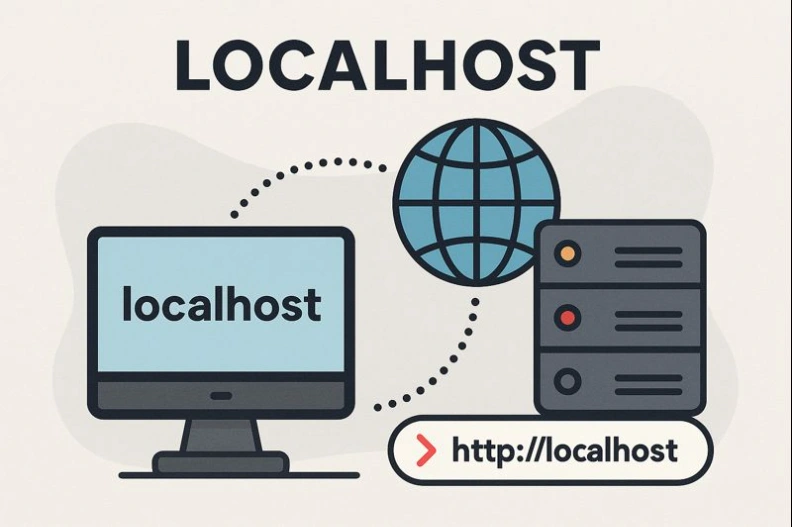
In other words:
localhostrefers to your own machine (typically127.0.0.1)./phpmyadminis the URL path (alias / directory) where the phpMyAdmin application is installed.
| Component | Role | Example |
|---|---|---|
| Web Server | Serves phpMyAdmin PHP files | Apache, Nginx |
| PHP | Executes phpMyAdmin application code | PHP 7.x / 8.x |
| Database Server | Stores data you manage | MySQL or MariaDB |
| Browser | Displays phpMyAdmin UI | Chrome, Firefox, Edge, etc. |
When all these components work together, you can log in via
http://localhost/phpmyadmin and manage your databases without using the
command line.
What Is phpMyAdmin Used For on Localhost?
On a local development environment, phpMyAdmin is primarily used to:
- Create, modify, and delete databases for your projects.
- Create, alter, and drop tables, including fields, indexes, and constraints.
- Run SQL queries using an integrated SQL editor.
- Import and export data in formats like SQL, CSV, and JSON.
- Manage database users, passwords, and privileges.
- Inspect and debug data generated by your applications.
- Optimize and repair tables to maintain performance.
Instead of typing commands like CREATE DATABASE or ALTER TABLE in
a terminal, you can perform nearly all operations with a graphical interface and a few clicks.
Which Applications and Stacks Use localhost/phpmyadmin?
Many local web development stacks either bundle phpMyAdmin or are commonly used together with it.
Here are the most typical setups where you will find or configure /phpmyadmin.
1. Desktop Stacks That Often Include phpMyAdmin
- XAMPP (Windows, macOS, Linux) – typically serves phpMyAdmin at
http://localhost/phpmyadmin. - WAMP (Windows) – usually offers a menu shortcut opening
http://localhost/phpmyadmin. - MAMP (macOS, Windows) – may provide phpMyAdmin via a custom port:
http://localhost:8888/phpMyAdmin/. - Laragon (Windows) – exposes phpMyAdmin or Adminer on a built-in URL (e.g.,
http://localhost/phpmyadminor custom). - LAMP on Linux – phpMyAdmin is often installed separately via the OS package manager and mapped to
/phpmyadmin.
| Stack | Default URL | Notes |
|---|---|---|
| XAMPP | http://localhost/phpmyadmin |
Preconfigured alias; Apache and MySQL controlled via XAMPP Control Panel. |
| WAMP | http://localhost/phpmyadmin |
Accessible via WAMP tray icon. |
| MAMP | http://localhost:8888/phpMyAdmin/ |
Uses custom port; case of "phpMyAdmin" sometimes matters. |
| LAMP (Ubuntu) | http://localhost/phpmyadmin |
Alias configured by package installer or manually via Apache config. |
2. Applications That Commonly Rely on phpMyAdmin
While frameworks and CMSs do not require phpMyAdmin to function, developers frequently use
localhost/phpmyadmin when working with:
- WordPress – manage the database behind a local WordPress site.
- Laravel, Symfony, CodeIgniter, Yii – inspect tables created by migrations and seeds.
- Drupal, Joomla, Magento, PrestaShop – debug content, configuration, and e-commerce data.
- Custom PHP applications – verify queries and data structures during development.
What Can You Do with phpMyAdmin on Localhost?
phpMyAdmin is powerful enough to cover almost all daily database operations during development. Below are some advanced capabilities beyond basic CRUD (Create, Read, Update, Delete).
Database Design & Schema Management
- Create databases with specific collations (e.g.,
utf8mb4_general_ci). - Define tables, primary keys, unique and foreign keys via a graphical editor.
- Use the Designer or Relation View to visualize relationships between tables.
Query Development & Optimization
- Write custom SQL in the SQL tab with syntax highlighting.
- Explain query plans using
EXPLAINto identify performance bottlenecks. - View indexes, row counts, and table status information to tune performance.
SELECT p.id, p.title, u.name
FROM posts AS p
JOIN users AS u ON u.id = p.user_id
WHERE p.published_at >= '2025-01-01'
ORDER BY p.published_at DESC;
Backup, Migration & Data Exchange
- Export entire databases or specific tables as
.sqldumps. - Import database dumps from production into your local environment.
- Exchange data in CSV or JSON for analytics or integration tests.
User and Permission Management
- Create application-specific users with limited privileges.
- Grant, revoke or adjust permissions such as
SELECT,INSERT,UPDATE,DELETE. - Harden your local environment to better mirror production security policies.
How to Correctly Set Up localhost/phpmyadmin
There are several ways to set up phpMyAdmin locally. The exact steps depend on your OS and stack. Below are the most common approaches and recommended practices.
1. Prerequisites
- Installed web server (Apache or Nginx).
- Installed PHP (with extensions such as
mysqliand/orpdo_mysql). - Installed MySQL or MariaDB server.
- PHP configured to run with your web server (mod_php, PHP-FPM, etc.).
Many distributions and stacks bundle all the above for you (XAMPP, WAMP, MAMP, Laragon). In these cases, phpMyAdmin is often preinstalled or available with a few clicks.
2. Setup via XAMPP (Windows, macOS, Linux)
- Install XAMPP from the official site.
- Open the XAMPP Control Panel and start Apache and MySQL.
- In your browser, navigate to
http://localhost/phpmyadmin. - Log in using:
- User:
root - Password: (often empty by default in local XAMPP; can vary)
- User:
-
If you changed the Apache port (for example to 8080), access
http://localhost:8080/phpmyadmininstead.
3. Setup via WAMP or MAMP
WAMP (Windows):
- Install WAMP.
- Start the WAMP server (tray icon should turn green).
- Left-click the WAMP icon and choose phpMyAdmin, or open
http://localhost/phpmyadmin. - Log in with your MySQL credentials (often
rootwith a password you defined during installation).
MAMP (macOS / Windows):
- Install MAMP.
- Start the MAMP servers.
- Click “Open WebStart page” and then select phpMyAdmin or open:
http://localhost:8888/phpMyAdmin/(port may differ in your setup).
4. Setup on a LAMP Stack (Linux – Ubuntu/Debian example)
On a typical Ubuntu LAMP server, you can install phpMyAdmin via the package manager:
sudo apt update
sudo apt install apache2 mysql-server php php-mysql
sudo apt install phpmyadmin
During installation, you might be prompted to:
- Choose the web server (Apache) to configure automatically.
- Configure the phpMyAdmin database and administrative user.
After installation, ensure that the phpMyAdmin Apache configuration is enabled
(for example, by verifying that a file like /etc/apache2/conf-enabled/phpmyadmin.conf exists).
sudo systemctl restart apache2
Then open http://localhost/phpmyadmin and log in with your MySQL/MariaDB credentials.
5. Manual Installation in the Web Root
- Download phpMyAdmin from the official site: phpMyAdmin.net.
- Extract the archive into your web root, for example:
- Windows (XAMPP):
C:\xampp\htdocs\phpmyadmin - Linux:
/var/www/html/phpmyadmin
- Windows (XAMPP):
- Rename
config.sample.inc.phptoconfig.inc.php. - Edit
config.inc.phpand set a secret (blowfish) phrase:$cfg['blowfish_secret'] = 'change_this_to_a_random_long_string'; - Ensure that the web server user has permission to read the phpMyAdmin directory.
- Restart the web server and open
http://localhost/phpmyadmin.
6. Securing phpMyAdmin on Localhost
Even on localhost, good security practices are important, especially if you share networks or use port forwarding.
- Set a strong MySQL root password. Avoid using an empty password, even locally.
- Create dedicated database users for each project with only the required privileges.
-
Restrict access to phpMyAdmin by IP or by HTTP authentication if needed. For Apache:
<Directory "/var/www/html/phpmyadmin"> Require local </Directory> -
Change the alias from
/phpmyadminto something less predictable (e.g.,/db-admin) if your local machine is exposed.
How to Solve Common localhost/phpmyadmin Problems
While working with phpMyAdmin locally, you may encounter errors related to configuration, authentication or server availability. Below are frequent problems and their typical solutions.
1. localhost/phpmyadmin Returns 404 Not Found
Symptoms: Your browser shows a 404 error page when you open /phpmyadmin.
Possible causes:
- phpMyAdmin is not installed in your web root.
- The alias or directory name is different (e.g.,
/phpMyAdminor custom path). - You are using another port or virtual host.
Solutions:
- Verify that the phpMyAdmin folder exists (e.g.,
htdocs/phpmyadmin). - Check whether the URL path is case-sensitive in your environment.
- If Apache is using a different port, include it in the URL:
http://localhost:8080/phpmyadmin. - On Linux, confirm that the Apache configuration for phpMyAdmin is enabled:
/etc/apache2/conf-enabled/phpmyadmin.conf.
2. Error 1045: Access denied for user 'root'@'localhost'
Symptoms: After entering credentials, phpMyAdmin shows:
#1045 - Access denied for user 'root'@'localhost' (using password: YES/NO)
Possible causes:
- You are using an incorrect password for the MySQL root user.
- Authentication method (e.g.,
auth_socketon Linux) differs from what phpMyAdmin expects. - The phpMyAdmin configuration forces specific credentials.
Solutions:
-
Confirm your MySQL root password from the terminal:
mysql -u root -p -
If you can log in via terminal but not via phpMyAdmin, adjust the user authentication
method (e.g. switch from
auth_sockettomysql_native_passwordon Linux). -
Check
config.inc.phpto ensure the authentication type is appropriate:$cfg['Servers'][1]['auth_type'] = 'cookie'; // recommended for localhost -
Avoid hard-coding credentials in
config.inc.phpunless you understand the security impact.
3. Error 2002: MySQL Server Has Gone Away / Connection Refused
Symptoms: phpMyAdmin shows 2002 errors or reports that it cannot connect to the MySQL server.
Possible causes:
- MySQL/MariaDB server is not running.
- The server is listening on a different port or socket.
- Configuration in
config.inc.phppoints to the wrong host or port.
Solutions:
-
Ensure MySQL is running:
# Windows (XAMPP): # Start MySQL from XAMPP Control Panel # Linux (systemd): sudo systemctl status mysql sudo systemctl start mysql -
Check the host and port in
config.inc.php:$cfg['Servers'][1]['host'] = '127.0.0.1'; $cfg['Servers'][1]['port'] = '3306'; // adjust if you use another port - Restart both the database server and web server after configuration changes.
4. 403 Forbidden or Access Denied to /phpmyadmin
Symptoms: Opening /phpmyadmin returns a 403 Forbidden error.
Possible causes:
- Apache/Nginx is configured to block access to the phpMyAdmin directory.
- Directory permissions are too restrictive at OS level.
Solutions:
-
Inspect your web server configuration. Example Apache directive allowing local access:
<Directory "/var/www/html/phpmyadmin"> Options FollowSymLinks DirectoryIndex index.php AllowOverride All Require local </Directory> -
Ensure the directory is readable by the web server user (e.g.
www-dataon Linux). - If you changed the alias or moved the folder, update the configuration accordingly and restart Apache.
5. Token Mismatch / Session or Cookie Issues
Symptoms: phpMyAdmin logs you out unexpectedly or shows errors about invalid tokens.
Possible causes:
- Browser cookies are corrupted or blocked.
- Incorrect or missing
blowfish_secretinconfig.inc.php. - Session configuration conflicts in PHP.
Solutions:
- Clear browser cookies for
http://localhostand log in again. - Set a proper blowfish secret:
$cfg['blowfish_secret'] = 'a_long_random_secret_here_12345!'; -
Ensure PHP sessions directory is writable and that there are no
session.save_pathissues.
6. phpMyAdmin Is Very Slow on Localhost
Symptoms: Loading the phpMyAdmin interface or browsing large tables feels slow.
Possible causes:
- Huge databases with many tables or rows.
- Sorting or filtering large result sets without indexes.
- Limited resources on the local machine (CPU, RAM).
Solutions:
- Limit the number of rows displayed per page in phpMyAdmin settings.
- Add appropriate indexes to frequently queried columns.
- Use
EXPLAINto analyze slow queries and optimize them. - Close unnecessary applications consuming resources on your machine.
Related Articles
-
localhost:4200
localhost:4200 - When you see http://localhost:4200 in documentation or tutorials, you are almost certainly looking at the default address of an Angular develop.
-
localhost/wordpress
localhost/wordpress - The URL http://localhost/wordpress is the classic address for a local WordPress installation on a developer’s machine. When you install Wo.
-
localhost/wordpress/wp-admin
localhost/wordpress/wp-admin - When you work with WordPress on your own machine, the URL http://localhost/wordpress/wp-admin is the gateway to your local WordPr.
-
localhost/xampp
localhost/xampp - The URL http://localhost/xampp is the default web path for the XAMPP Dashboard, a local administration interface installed with the XAMPP pack.
-
localhost:8080
localhost:8080 - When you see http://localhost:8080 in a browser or configuration file, it refers to a web service running on your own machine, bound to the TCP.
-
localhost:3000
localhost:3000 - URLs like http://localhost:3000 appear constantly in modern web development tutorials, documentation, and project readme files. This address us.
-
localhost:8000
localhost:8000 - The URL http://localhost:8000 is one of the most commonly used addresses in local web development. It points to a web server running on your ow.
-
localhost:5774 (Dapodik)
localhost:5774 (Dapodik) - The address http://localhost:5774 is specifically associated with the Aplikasi Dapodik (Data Pokok Pendidikan), an official Indonesia.
Reviews
No approved reviews yet.