localhost/wordpress
localhost/wordpress - The URL http://localhost/wordpress is the classic address for a local WordPress installation on a developer’s machine. When you install Wo.
The URL http://localhost/wordpress is the classic address for a
local WordPress installation on a developer’s machine. When you install WordPress
into a folder called wordpress inside your local web server’s document root,
this URL becomes the frontend homepage of that site.
This guide explains, in detail:
- What localhost/wordpress is and how it works.
- What it is used for in real-world development workflows.
- Which applications and stacks commonly serve WordPress at this path.
- What you can do with a site running at
http://localhost/wordpress. - How to correctly set it up from scratch.
- How to solve common problems and errors for local WordPress sites.
What Is localhost/wordpress Exactly?
The URL http://localhost/wordpress points to a WordPress site installed
in a directory named wordpress inside the document root of your local web server.
The document root is the main web-accessible folder of your local stack.
| Component | Example | Description |
|---|---|---|
| Protocol | http:// |
Standard HTTP (no SSL) used by default in local environments. |
| Host | localhost |
Your own machine (loopback IP, usually 127.0.0.1). |
| Path | /wordpress |
Subdirectory in the document root that contains a WordPress installation. |
Typical document root locations where the wordpress folder is placed:
- XAMPP (Windows):
C:\xampp\htdocs\wordpress - WAMP (Windows):
C:\wamp64\www\wordpress - MAMP (macOS/Windows):
/Applications/MAMP/htdocs/wordpress - LAMP (Linux):
/var/www/html/wordpress
When you visit http://localhost/wordpress, the local web server (Apache, Nginx)
executes WordPress’s index.php file in that folder and serves the site’s frontend.
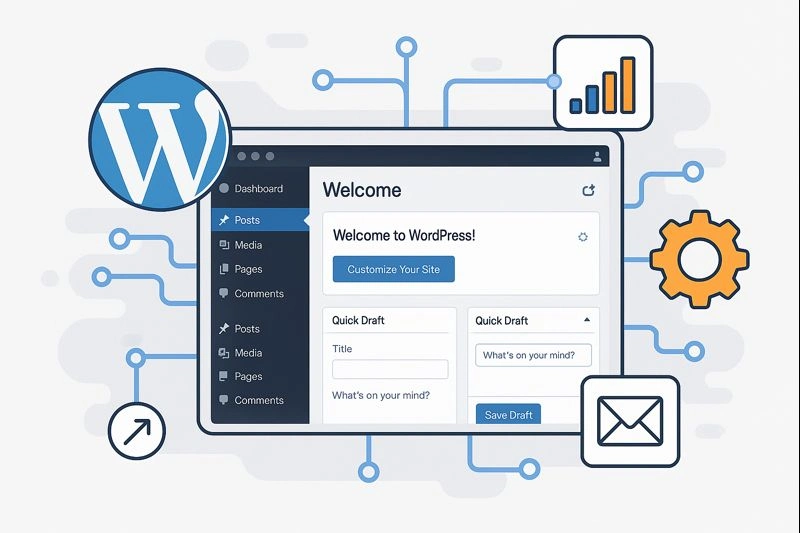
What Is localhost/wordpress Used For?
Running WordPress on localhost/wordpress is a standard way to create a
development, testing or staging environment on your own machine. Typical use cases:
-
Theme development
Build and test custom themes locally before deploying to a live server. -
Plugin development
Develop, debug and fine-tune plugins without affecting any real users. -
Site prototyping
Experiment with content structure, design and site layout before going live. -
Learning & training
Practice WordPress administration, configuration and coding in a safe environment. -
Migration & redesign
Import a backup of a live site, test a redesign on localhost, and only then push changes to production.
Because it is local, localhost/wordpress is isolated from the internet: mistakes,
errors or experiments are visible only to you (unless you intentionally expose the site).
Which Applications and Stacks Commonly Use localhost/wordpress?
Almost any PHP-enabled local stack can host WordPress at /wordpress, but some
environments are especially common.
1. Classic Local Stacks (XAMPP, WAMP, MAMP, LAMP)
These stacks bundle a web server, a database server and PHP in one package:
- XAMPP – Apache, MariaDB/MySQL, PHP, Perl.
- WAMP – Apache, MySQL, PHP on Windows.
- MAMP – Apache, MySQL, PHP on macOS/Windows.
- LAMP – Linux, Apache, MySQL/MariaDB, PHP.
In these setups, you typically:
- Start Apache and MySQL via a control panel or services.
- Create a database via
http://localhost/phpmyadmin. - Place WordPress files into a
wordpressfolder under the document root. - Access the site at
http://localhost/wordpress.
2. Docker-Based Development Environments
Many modern workflows use Docker images for WordPress. A typical setup might:
- Map a WordPress container’s port 80 to
localhost(often with a custom port). - Expose the application at something like
http://localhost:8000/wordpressor via a custom virtual host.
Conceptually, /wordpress is still a WordPress root folder; only the underlying
server implementation differs.
3. One-Click WordPress Tools
Tools like Local WP, DevKinsta, DDEV, Lando or similar often use custom local domains
(such as https://mysite.local) rather than localhost/wordpress.
However, the principles and structure of the WordPress installation remain essentially the same.
What Can You Do with a Site at localhost/wordpress?
A fully functional WordPress instance at http://localhost/wordpress can do nearly
everything a live site can do, but without public exposure.
1. Full Content Management
- Create and edit posts and pages.
- Organize content with categories and tags.
- Build menus and internal link structures.
You can test content hierarchies, taxonomies and URL structures to optimize SEO and UX before launch.
2. Design & Theme Development
- Install and customize themes from the WordPress repository.
- Build custom themes or child themes and iterate quickly.
- Test layout responsiveness across different screen sizes.
<?php
// Example: enqueue a custom stylesheet in a theme's functions.php
function mytheme_enqueue_assets() {
    wp_enqueue_style(
        'mytheme-main',
        get_stylesheet_directory_uri() . '/assets/css/main.css',
        [],
        '1.0.0'
    );
}
add_action( 'wp_enqueue_scripts', 'mytheme_enqueue_assets' );
?>
3. Plugin Testing & Integration
- Evaluate plugins for SEO, security, caching, forms, e-commerce, etc.
- Identify compatibility issues before using plugins on a production site.
- Develop and debug custom plugins using local error logs and debuggers.
4. Performance & Security Experiments
- Measure performance impact of different themes and plugins.
- Test security hardening, custom user roles and capabilities.
- Practice backup and restore procedures with local databases and files.
5. Database-Level Operations
- Explore the WordPress database schema (tables like
wp_posts,wp_users,wp_options). - Run SQL queries in
phpMyAdminor CLI tools for advanced operations. - Test search & replace operations before doing them on live sites.
How to Correctly Set Up localhost/wordpress
A proper setup requires a functioning local server stack, a database, and WordPress files placed in the right directory. The following steps outline a typical installation.
1. Install and Start Your Local Stack
- Install XAMPP, WAMP, MAMP or configure a LAMP stack.
- Start the web server (Apache) and database server (MySQL/MariaDB).
- Verify that
http://localhost/loads a default page from your stack.
2. Create a Database for WordPress
- Open
http://localhost/phpmyadmin(or your DB management tool). - Create a new database, for example:
wordpressorwp_local. - Note the database name, username, password and host (usually
root, blank password,localhoston local stacks).
3. Download and Extract WordPress
- Download WordPress from the official site.
- Extract the archive.
- Copy the contents into your document root under a folder named
wordpress:- XAMPP:
C:\xampp\htdocs\wordpress - WAMP:
C:\wamp64\www\wordpress - MAMP:
/Applications/MAMP/htdocs/wordpress - LAMP:
/var/www/html/wordpress
- XAMPP:
4. Configure wp-config.php
- Rename
wp-config-sample.phptowp-config.php. - Edit it and set database connection details:
<?php define( 'DB_NAME', 'wordpress' ); define( 'DB_USER', 'root' ); define( 'DB_PASSWORD', '' ); // or your local DB password define( 'DB_HOST', 'localhost' ); ?> - Optionally define debug settings for development:
define( 'WP_DEBUG', true );
define( 'WP_DEBUG_LOG', true );
define( 'WP_DEBUG_DISPLAY', false );
5. Run the Installation Wizard
- Visit
http://localhost/wordpressin your browser. - Select a language and continue.
- Fill in:
- Site title
- Administrator username
- Administrator password
- Email address
- Click “Install WordPress”.
- When finished, click “Log In” to access
http://localhost/wordpress/wp-admin.
6. Example Local Setup Summary
| Item | Example Local Value |
|---|---|
| Frontend URL | http://localhost/wordpress |
| Admin URL | http://localhost/wordpress/wp-admin |
| Database name | wordpress |
| DB user | root |
| DB host | localhost |
How to Solve Common localhost/wordpress Problems
Local WordPress installations frequently expose configuration issues that are easy to fix once you know where to look. Below are the most common problems and their typical solutions.
1. “Error Establishing a Database Connection”
Symptom: Opening http://localhost/wordpress shows a database connection error.
Causes:
- Incorrect
DB_NAME,DB_USER,DB_PASSWORDorDB_HOSTinwp-config.php. - MySQL/MariaDB server is not running.
- The database does not exist or was removed.
Fix:
- Verify the database exists in phpMyAdmin.
- Check credentials in
wp-config.php:define( 'DB_NAME', 'wordpress' ); define( 'DB_USER', 'root' ); define( 'DB_PASSWORD', '' ); define( 'DB_HOST', 'localhost' ); - Ensure the database server is running in your stack control panel.
2. 404 Errors on Pretty Permalinks
Symptom: http://localhost/wordpress loads, but URLs like
/wordpress/sample-post/ return 404 errors.
Causes:
- Apache
mod_rewriteis not enabled. .htaccessfile is missing or not writable.- Permalinks not saved in Settings.
Solutions:
- In WordPress admin, go to Settings > Permalinks and click “Save Changes”.
- Ensure the generated
.htaccessexists in thewordpressfolder and contains rules like:<IfModule mod_rewrite.c> RewriteEngine On RewriteBase /wordpress/ RewriteRule ^index\.php$ - [L] RewriteCond %{REQUEST_FILENAME} !-f RewriteCond %{REQUEST_FILENAME} !-d RewriteRule . /wordpress/index.php [L] </IfModule> - Enable
mod_rewritein Apache and restart the server (for example in XAMPP/WAMP).
3. CSS/JS Not Loading (Site Looks “Broken”)
Symptom: The site at /wordpress loads without CSS or with missing JavaScript files.
Possible causes:
- Incorrect
siteurlorhomevalues in the database. - Mixed
http://andhttps://URLs. - Wrong folder name or moved installation path.
Quick fix via wp-config.php:
define( 'WP_HOME', 'http://localhost/wordpress' );
define( 'WP_SITEURL', 'http://localhost/wordpress' );
After adding these lines, clear your browser cache and reload the site.
4. Redirect Loops or “Too Many Redirects”
Symptom: Visiting http://localhost/wordpress or /wp-admin causes
repeated redirects and the browser reports a loop.
Common reasons:
- Misconfigured
siteurl/home(e.g. pointing to a different path or HTTPS). - Plugin forcing HTTPS or a different domain.
- Incorrect settings in
.htaccess.
Solutions:
- Force correct URLs using
WP_HOMEandWP_SITEURLas shown above. - Temporarily disable plugins by renaming the
wp-content/pluginsdirectory. - Check and simplify
.htaccessto the default WordPress rules for local dev.
5. White Screen / Blank Page
Symptom: http://localhost/wordpress or /wp-admin shows a blank
white screen with no output.
Causes:
- PHP fatal errors with display turned off.
- Broken theme or plugin code.
- Insufficient memory limit.
Debug steps:
- Enable debugging in
wp-config.php:define( 'WP_DEBUG', true ); define( 'WP_DEBUG_LOG', true ); define( 'WP_DEBUG_DISPLAY', true ); // for local dev you may show errors - Check
wp-content/debug.logfor detailed errors. - Disable plugins (rename the
pluginsfolder) and switch to a default theme. - Increase memory limit:
define( 'WP_MEMORY_LIMIT', '256M' );
6. “Page Not Found” When Moving or Renaming /wordpress
Symptom: After renaming the wordpress folder or moving files,
localhost/wordpress or other URLs fail.
Reasons:
- The database still stores old URLs in
siteurlandhome. - Internal links, widgets and menu items still point to the old path.
Fix:
- If you change the folder name, immediately adjust:
WP_HOME/WP_SITEURLinwp-config.php, or- the
siteurlandhomevalues in thewp_optionstable.
- Use a search-and-replace tool (or SQL) to update internal URLs if necessary.
Related Articles
-
localhost:8181
localhost:8181 - The address http://localhost:8181 is a commonly used endpoint for custom development servers, admin dashboards, microservices, API gateways, te.
-
localhost:9999
localhost:9999 - The address http://localhost:9999 is a common endpoint used by developers for running custom web servers, backend APIs, admin dashboards, micro.
-
localhost:5000
localhost:5000 - When you work with modern web development tools, you will often see URLs like http://localhost:5000 in documentation, tutorials, and configurat.
-
localhost/index.php
localhost/index.php - When you type http://localhost/index.php into your browser, you are usually hitting the main PHP entry file in the document root of your l.
-
localhost:443
localhost:443 - The address https://localhost:443 refers to the default port used by HTTPS web servers. Port 443 is the globally standardized port for secure HT.
-
localhost:81
localhost:81 - The address http://localhost:81 refers to a web server running on your own machine, listening on TCP port 81. This port is frequently used as an.
-
localhost:888
localhost:888 - The address http://localhost:888 refers to a web service running on your computer on TCP port 888. This is an uncommon but completely valid port.
-
localhost:5173
localhost:5173 - Modern frontend tooling depends on fast local environments, instant feedback loops, and developer-first build systems. If you are working with.
Reviews
No approved reviews yet.