localhost:5000
localhost:5000 - When you work with modern web development tools, you will often see URLs like http://localhost:5000 in documentation, tutorials, and configurat.
When you work with modern web development tools, you will often see URLs like
http://localhost:5000 in documentation, tutorials, and configuration files. This
address typically refers to a local development server running on your own machine, bound
to the TCP port 5000. It is especially common in Python ecosystems such as
Flask, FastAPI (when configured), and other lightweight HTTP services.
In this detailed article, you will learn:
- What localhost:5000 actually means in networking terms.
- What it is used for in real development workflows.
- Which applications and frameworks commonly run on port 5000.
- What you can do with a service listening on
localhost:5000. - How to correctly set up servers on port 5000 with different stacks.
- How to solve common problems related to
localhost:5000.
What Does localhost:5000 Mean?
The address http://localhost:5000 is composed of three essential elements:
| Component | Example | Description |
|---|---|---|
| Protocol | http:// |
Indicates that the communication uses the HTTP protocol, without encryption. |
| Host | localhost |
Special hostname pointing to your own machine (loopback interface, typically 127.0.0.1). |
| Port | 5000 |
TCP port number where a web server or service is listening for incoming requests. |
By default, HTTP uses port 80. If you type http://localhost without a
port, your browser will connect to port 80 automatically. When you explicitly type
http://localhost:5000, you instruct the browser to connect to port 5000
instead, which is commonly reserved for development services.
In practice:
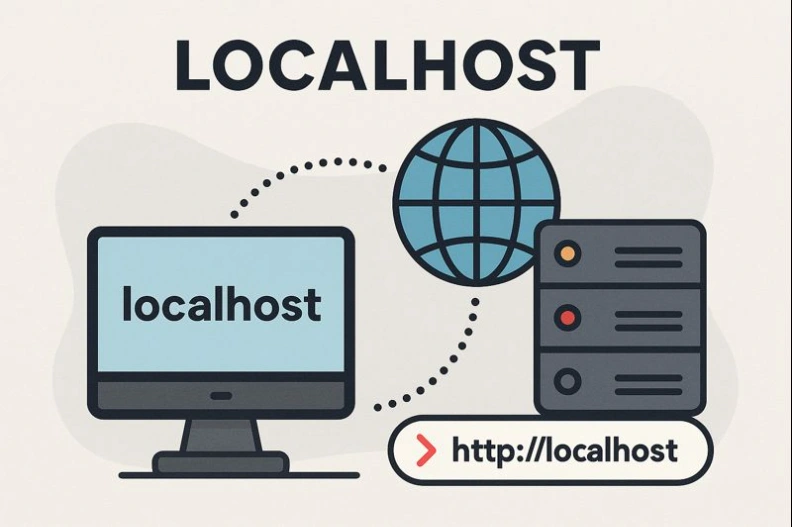
localhostmeans “this computer”.:5000identifies which application on your computer should handle the request.- Multiple services can run simultaneously on different ports (e.g., 3000, 5000, 8000, 8080).
What Is localhost:5000 Used For?
Port 5000 is widely used as a development port. It is not reserved for any specific protocol by default, so frameworks and tools commonly adopt it as a convenient choice. Typical use cases include:
-
Local web application development
Running small web applications for testing user interfaces, routing, and business logic. -
REST APIs and microservices
Exposing HTTP APIs that frontends, mobile apps, or test scripts can call during development. -
Backend services in a multi-service architecture
One service may run onlocalhost:5000while others run on different ports. -
Internal tools and admin panels
Hosting developer dashboards, test tools, or internal admin UIs locally.
The key idea is that localhost:5000 is not public by default. It is accessible only on your machine unless you intentionally configure your system to expose it to your local network or the internet.
Which Applications and Frameworks Commonly Use localhost:5000?
While any application can bind to port 5000, some frameworks are particularly associated with it.
1. Python Flask Development Server
Flask, a popular micro web framework for Python, famously uses port 5000 by default for its built-in development server.
from flask import Flask

app = Flask(__name__)

@app.route('/')
def index():
    return '<h1>Hello from localhost:5000</h1>'

if __name__ == '__main__':
    app.run()  # Defaults to http://127.0.0.1:5000
Running this script and visiting http://localhost:5000 in your browser will display
the "Hello" message.
2. Other Python Frameworks and Tools
- FastAPI (when configured to use port 5000 with Uvicorn or Hypercorn).
- Quart or other async Python frameworks, similarly configured.
- Custom Python scripts that start a simple
http.serveror custom HTTP services.
# Example: run a FastAPI app on port 5000
uvicorn main:app --host 127.0.0.1 --port 5000
3. Node.js and Other Language Runtimes
While Node.js projects often choose ports like 3000, 4000 or 5173, many teams purposely use port 5000 for local APIs or when they want a consistent convention across different languages.
// Minimal Express.js server on localhost:5000
const express = require('express');
const app = express();
const PORT = 5000;

app.get('/', (req, res) => {
  res.send('<b>Node server on localhost:5000</b>');
});

app.listen(PORT, 'localhost', () => {
  console.log(`Server running at http://localhost:${PORT}`);
});
4. Containers and Reverse Proxies
Containers and reverse proxies commonly map internal container ports to port 5000 on the host during local testing.
# Example: map container port 80 to localhost:5000
docker run -p 5000:80 my-web-image
This way, the inside of the container listens on port 80, but your local machine accesses it via
http://localhost:5000.
What Can You Do with a Service on localhost:5000?
Once you have a web server or API running on localhost:5000, you can treat it like a
small, private “internet” hosted on your own machine. Some practical scenarios include:
1. Build and Test APIs
- Design REST, GraphQL or RPC-style endpoints.
- Use tools like Postman, Insomnia or curl to send requests.
- Experiment with authentication, headers, and status codes.
# Example: test an API endpoint on localhost:5000
curl -X GET http://localhost:5000/api/users
2. Develop and Debug Web Applications
With your application running on localhost:5000, you can:
- Debug templates, routes, and controllers.
- Inspect network requests in the browser’s developer tools.
- Quickly restart the server when you change code (hot reload in many dev setups).
3. Integrate Services in a Local Microservice Architecture
In a microservice-style architecture, it is common to run multiple local services on different ports:
- Service A:
localhost:5000 - Service B:
localhost:5001 - Service C:
localhost:5002
These services can communicate with each other using HTTP, allowing you to test service boundaries, fault tolerance, and failure scenarios in isolation.
How to Correctly Set Up a Server on localhost:5000
The configuration steps vary between technologies, but the general process looks like this:
- Ensure port 5000 is available (not used by another process).
- Configure your server application to listen on port 5000.
- Start the server and verify it is running without errors.
- Open
http://localhost:5000in your browser or test withcurl.
1. Check if Port 5000 Is Free
Use system tools to identify processes using port 5000.
| Operating System | Example Command | Description |
|---|---|---|
| Windows | netstat -aon | find "5000" |
Shows which process (PID) is using port 5000. |
| Linux / macOS | sudo lsof -i :5000 |
Lists processes listening on port 5000. |
If another process is already bound to 5000, stop that process or choose a different port.
2. Configure Flask on Port 5000 (Default)
Flask automatically uses port 5000 if none is specified. To be explicit, you can do:
if __name__ == '__main__':
    app.run(host='127.0.0.1', port=5000, debug=True)
The host parameter 127.0.0.1 restricts access to localhost only (a good
default for development). If you want to access it from another device on your LAN, you could
use 0.0.0.0, but be aware of the security implications.
3. Configure Node.js (Express) on Port 5000
const express = require('express');
const app = express();
const PORT = process.env.PORT || 5000;

app.get('/', (req, res) => {
  res.send('Express app on localhost:5000');
});

app.listen(PORT, '127.0.0.1', () => {
  console.log(`Listening at http://localhost:${PORT}`);
});
Here we default to port 5000 but allow overriding it via the PORT environment
variable, which is a common, flexible pattern.
4. Configure a Simple Python HTTP Server on Port 5000
from http.server import HTTPServer, SimpleHTTPRequestHandler

server_address = ('127.0.0.1', 5000)
httpd = HTTPServer(server_address, SimpleHTTPRequestHandler)
print('Serving on http://localhost:5000')
httpd.serve_forever()
This provides a quick static file server for testing HTML, CSS, and JavaScript without a full framework.
5. Configure Docker Port Mapping to 5000
docker run --name my-app -p 5000:5000 my-image
In this example, both your host and container use port 5000. You can adjust the mapping to
5000:80 or any other combination depending on your container’s internal port.
How to Solve Common localhost:5000 Problems
Working with local servers always involves some troubleshooting. Below are typical issues
related to localhost:5000 and their practical solutions.
1. “Address Already in Use” / EADDRINUSE
Symptom: When starting your server, you receive an error such as:
OSError: [Errno 98] Address already in use
Error: listen EADDRINUSE: address already in use :::5000
Cause: Another process is already bound to port 5000 on your machine.
Solution:
- Identify the process using port 5000 (with
netstatorlsof). - Terminate that process if you no longer need it.
- Alternatively, change your application’s port to a free one (e.g., 5001, 8000, 8080).
2. Browser Error: “This Site Can’t Be Reached” or “Connection Refused”
Symptom: You open http://localhost:5000, but the browser reports that it
cannot connect.
Possible causes:
- The server is not running or crashed on startup.
- The server is running on another port (for example, 8000 instead of 5000).
- The server is bound to a different network interface.
Steps to fix:
- Check your terminal logs to confirm that the server started successfully.
- Verify the configured port in your code or configuration file.
- If the server is bound to
0.0.0.0,127.0.0.1, or a specific IP, adjust your URL accordingly.
3. 404 Not Found on localhost:5000
Symptom: The server responds, but you see an HTTP 404 error when accessing certain paths.
Common reasons:
- The route or endpoint you are requesting does not exist.
- Your SPA or frontend router is not configured to fallback to
index.html. - Static files are not served from the expected directory.
How to fix:
- Check the list of defined routes or endpoints in your framework.
- For SPAs, configure a catch-all route to return the main HTML file.
- Ensure that static file directories and URLs align with your server configuration.
4. CORS Issues When Frontend and Backend Use Different Ports
Symptom: A frontend (e.g., on localhost:3000) cannot call an API on
localhost:5000 due to CORS (Cross-Origin Resource Sharing) errors.
Explanation: Browsers treat each unique combination of protocol, domain, and port as a
separate origin. So localhost:3000 and localhost:5000 are different
origins.
Solution (example in Flask):
from flask import Flask
from flask_cors import CORS

app = Flask(__name__)
CORS(app, origins=['http://localhost:3000'])

@app.route('/api/data')
def data():
    return {'message': 'OK'}
In production, you should restrict allowed origins carefully, but during development it is common to allow a specific frontend origin.
5. Firewall or Security Software Interference
Symptom: The server appears to run, but connections—even from the local machine—are blocked or time out.
Potential causes:
- Security software or firewall rules blocking local ports.
- Corporate policies that restrict non-standard ports.
Steps to address:
- Temporarily disable or adjust firewall rules for local traffic on port 5000.
- Consult system or network administrators if you are on a managed environment.
- Consider switching to a different allowed port if restrictions cannot be changed.
6. Host Binding Mismatch (localhost vs 0.0.0.0)
Symptom: Your logs indicate that the server is running, but you cannot access it via the expected IP or hostname.
Explanation: When you start a server, you specify not only the port, but also the network interface (host) it listens on:
127.0.0.1orlocalhost– Accepts connections only from your machine.0.0.0.0– Accepts connections from all network interfaces (LAN, etc.).- Specific IP address – Accepts connections only on that address.
Example (Flask) for LAN testing:
app.run(host='0.0.0.0', port=5000)
This allows other devices on your network to access http://YOUR_LAN_IP:5000. Always
consider security and never expose a debug server to the public internet.
Related Articles
-
localhost:4200
localhost:4200 - When you see http://localhost:4200 in documentation or tutorials, you are almost certainly looking at the default address of an Angular develop.
-
localhost/wordpress
localhost/wordpress - The URL http://localhost/wordpress is the classic address for a local WordPress installation on a developer’s machine. When you install Wo.
-
localhost/wordpress/wp-admin
localhost/wordpress/wp-admin - When you work with WordPress on your own machine, the URL http://localhost/wordpress/wp-admin is the gateway to your local WordPr.
-
localhost/xampp
localhost/xampp - The URL http://localhost/xampp is the default web path for the XAMPP Dashboard, a local administration interface installed with the XAMPP pack.
-
localhost:8080
localhost:8080 - When you see http://localhost:8080 in a browser or configuration file, it refers to a web service running on your own machine, bound to the TCP.
-
localhost:3000
localhost:3000 - URLs like http://localhost:3000 appear constantly in modern web development tutorials, documentation, and project readme files. This address us.
-
localhost:8000
localhost:8000 - The URL http://localhost:8000 is one of the most commonly used addresses in local web development. It points to a web server running on your ow.
-
localhost:5774 (Dapodik)
localhost:5774 (Dapodik) - The address http://localhost:5774 is specifically associated with the Aplikasi Dapodik (Data Pokok Pendidikan), an official Indonesia.
Reviews
No approved reviews yet.