localhost:8080
localhost:8080 - When you see http://localhost:8080 in a browser or configuration file, it refers to a web service running on your own machine, bound to the TCP.
When you see http://localhost:8080 in a browser or configuration file, it refers to a
web service running on your own machine, bound to the TCP port 8080. This address is extremely
common in development environments for APIs, frontend dev servers, Java application servers,
reverse proxies, and many other tools.
In this detailed guide, we will cover:
- What exactly localhost:8080 means.
- What it is typically used for in modern development stacks.
- Which applications and frameworks commonly run on
localhost:8080. - What you can practically do with a service running on this port.
- How to correctly set it up for different technologies.
- How to diagnose and solve common
localhost:8080problems.
What Does localhost:8080 Actually Mean?
The address localhost:8080 is composed of two key parts:
| Part | Value | Meaning |
|---|---|---|
| Host | localhost |
Special hostname pointing to the local machine (usually IP 127.0.0.1). |
| Port | 8080 |
TCP port number where a web server or service is listening for HTTP requests. |
| Protocol | http:// |
Indicates unencrypted HTTP traffic (as opposed to https://). |
By default, HTTP uses port 80. When you type http://localhost with no port,
your browser automatically assumes port 80. If instead you type http://localhost:8080,
the browser explicitly connects to port 8080 on your local machine.
Port 8080 is often used as:
- An alternative HTTP port when 80 is already in use or requires administrator privileges.
- A dedicated port for development servers (for example, running APIs or frontends separately).
- A port for local administration consoles, dashboards, or monitoring tools.
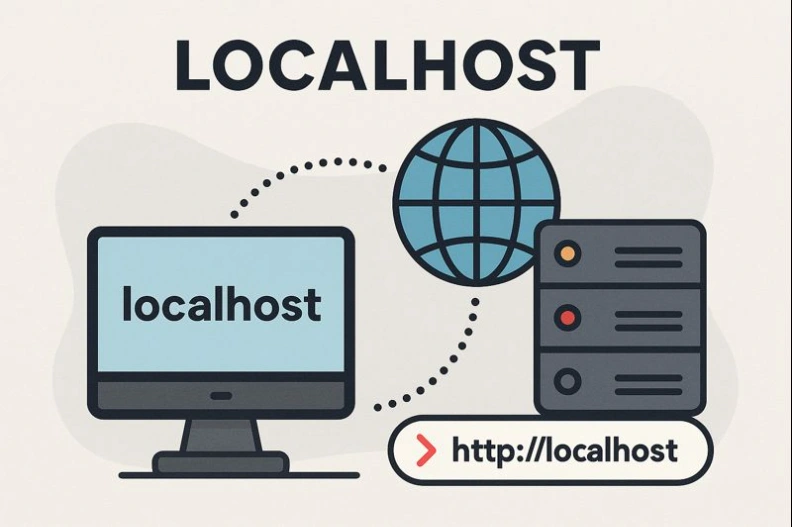
What Is localhost:8080 Used For?
In real-world development workflows, localhost:8080 is frequently chosen because it is:
- Easy to remember and widely recognized among developers.
- A non-privileged port that does not require root/administrator access on most systems.
- Free by convention in many stacks, though still subject to conflicts if reused by other tools.
Typical use cases include:
-
Running a backend HTTP API locally while a frontend runs on another port
(for example
localhost:3000orlocalhost:5173). - Testing Java application servers such as Tomcat, Jetty, or Spring Boot apps that listen on port 8080 by default.
- Hosting local admin panels like monitoring dashboards, reverse proxy UIs, or tooling GUIs.
- Serving static websites or SPA bundles during development with lightweight HTTP servers.
Which Applications Commonly Use localhost:8080?
Many frameworks and tools either default to port 8080 or are often configured to use it. Some typical categories are listed below.
1. Java Application Servers and Frameworks
- Apache Tomcat – often runs on
http://localhost:8080by default. - Spring Boot – default embedded Tomcat container listens on port 8080.
- Jetty and Undertow – frequently configured on 8080 for local development.
# Example Spring Boot configuration:
server.port=8080
2. Node.js & JavaScript Development Servers
While many JavaScript tools use ports like 3000, 4200, 5173, or 5174, it is also very common to explicitly configure them to use 8080 instead, especially when imitating production setups or avoiding conflicts.
- Express.js HTTP servers.
- Custom REST or GraphQL APIs.
- Local proxies that forward requests to other dev services.
// Simple Express.js app on localhost:8080
const express = require('express');
const app = express();

app.get('/', (req, res) => {
  res.send('Hello from localhost:8080');
});

app.listen(8080, 'localhost', () => {
  console.log('Server running at http://localhost:8080');
});
3. Containers, Reverse Proxies and Tooling
- Docker containers exposing HTTP services mapped to
8080on the host. - Nginx/Apache reverse proxies forwarding from port 8080 to internal services.
- Local admin interfaces for databases, caches, or search engines (when configured that way).
# Example Docker run mapping a container's port 80 to localhost:8080
docker run -p 8080:80 my-image
What Can You Do with a Service on localhost:8080?
Running a service on localhost:8080 gives you a controlled environment for testing,
debugging, and experimentation. Some typical practical scenarios include:
1. Develop and Test Web APIs Locally
- Implement REST endpoints and test them with tools like Postman or curl.
- Simulate authentication, authorization, and session handling.
- Log requests and responses to understand application behavior.
# Example API test
curl http://localhost:8080/api/users
2. Run Frontend and Backend on Separate Ports
A common pattern is:
- Frontend dev server on
http://localhost:3000orhttp://localhost:5173. - Backend API on
http://localhost:8080.
This allows:
- Clear separation of concerns between UI and API.
- Hot-reloading frontends independently of backend restarts.
- Realistic simulation of cross-origin interactions via CORS settings.
3. Simulate Production-Like Ports and Routing
Sometimes production uses non-standard ports (for example, running behind a reverse proxy or
load balancer). Using localhost:8080 locally helps mirror that setup:
- Configure the same base URLs and health-check endpoints.
- Test routing rules and path-based forwarding.
- Prepare for container-based deployment where port 8080 is common internally.
How to Correctly Set Up localhost:8080
The exact setup steps depend on the technology you are using (Apache, Nginx, Node.js, Java, etc.). However, some general principles apply across all stacks.
1. Make Sure Port 8080 Is Free
Before binding a new service to port 8080, you should verify that no other process is using it.
| OS | Command (examples) | Purpose |
|---|---|---|
| Windows | netstat -aon | find "8080" |
List processes listening on port 8080. |
| Linux / macOS | sudo lsof -i :8080 |
Show which process is using port 8080. |
If another application already uses 8080, either stop it or choose another available port.
2. Configure Apache to Listen on Port 8080
On Apache HTTP Server, you can enable localhost:8080 by adding a Listen
directive and a matching <VirtualHost> block.
# httpd.conf or ports.conf
Listen 8080

<VirtualHost *:8080>
    ServerName localhost
    DocumentRoot "/var/www/project"

    <Directory "/var/www/project">
        Options Indexes FollowSymLinks
        AllowOverride All
        Require all granted
    </Directory>
</VirtualHost>
After editing, restart Apache:
# Linux
sudo systemctl restart apache2

# Windows (XAMPP/WAMP)
# Use the control panel to stop and start Apache
3. Configure Nginx to Serve on Port 8080
For Nginx, you just need a server block that listens on 8080.
server {
    listen 8080;
    server_name localhost;

    root /var/www/project;
    index index.html index.php;

    location / {
        try_files $uri $uri/ /index.php?$args;
    }
}
Then reload Nginx:
sudo nginx -s reload
4. Configure Node.js (Express) on Port 8080
In Node.js, you choose the port in your server code:
const express = require('express');
const app = express();
const PORT = process.env.PORT || 8080;

app.get('/', (req, res) => {
  res.send('<b>Running on localhost:8080</b>');
});

app.listen(PORT, 'localhost', () => {
  console.log(`Server is live at http://localhost:${PORT}`);
});
Run the app (for example, node server.js) and open
http://localhost:8080 in your browser.
5. Configure Spring Boot on Port 8080 (or Change It)
Spring Boot uses port 8080 by default. To explicitly set or change the port, use:
# src/main/resources/application.properties
server.port=8080
Or in application.yml:
server:
  port: 8080
Start the application and then browse to http://localhost:8080.
How to Solve Common localhost:8080 Problems
Even with a correct configuration, it is very common to hit issues such as "connection refused", "port already in use", or unexpected 404 errors. Below are frequent problems and typical fixes.
1. Port 8080 Already in Use (EADDRINUSE)
Symptom: Your server fails to start, and the log shows something like:
Error: listen EADDRINUSE: address already in use :::8080
Solution:
- Find the process occupying port 8080 using
netstatorlsof. - Stop or reconfigure that process, or choose a different port for your application.
- Check for "orphan" dev servers left running in the background.
2. Connection Refused / Site Cannot Be Reached
Symptom: Browser shows an error similar to: “This site can’t be reached – localhost refused to connect.”
Common causes:
- The web server or dev server is not running.
- The server is listening on a different port (e.g., 3000 instead of 8080).
- The server is bound to
127.0.0.1but you are connecting via a different interface.
Steps to fix:
- Confirm that your process is running and not crashing immediately.
- Check the port in the configuration or code (is it 8080?).
- Check the host binding (e.g.,
localhost,127.0.0.1or0.0.0.0).
3. 404 Not Found on localhost:8080
Symptom: Web server responds but you get a 404 error for the requested URL.
Typical causes:
- Document root or static file path is misconfigured.
- SPA (Single Page App) routing not configured to fallback to
index.html. - Reverse proxy forwarding paths incorrectly.
Solutions:
-
For Apache/Nginx, verify that
DocumentRootorrootmatches your project directory. -
For SPAs (React, Vue, Angular), configure the server to redirect unknown paths to
index.html. -
For reverse proxies, check your
locationandproxy_passrules.
4. CORS or Mixed-Content Issues with Frontend on Another Port
Symptom: JavaScript frontend (e.g., on localhost:3000) fails to call
API endpoints on localhost:8080 due to CORS or mixed-content errors.
Explanation: Different ports are considered different origins. Browsers apply CORS rules and HTTPS mixed-content rules between ports.
Solutions:
-
Configure your API on
localhost:8080to allow CORS from the frontend origin. - If using HTTPS on one origin, prefer HTTPS on both to avoid mixed-content warnings.
- For development only, you may temporarily relax CORS, but tighten it again before production.
// Example Express.js CORS setup (development)
const cors = require('cors');
app.use(cors({
  origin: 'http://localhost:3000',
  credentials: true
}));
5. Firewall or Security Software Blocking Port 8080
Symptom: Service appears to run, but connections to localhost:8080 are
blocked or time out, especially when testing from other devices on the network.
Solutions:
- For local-only usage, ensure your firewall is not blocking loopback connections (usually it does not).
-
If you deliberately expose
0.0.0.0:8080to your LAN, configure firewall rules to allow incoming traffic on port 8080. - Double-check corporate security policies or VPN settings that might restrict local ports.
6. Wrong Host Binding (0.0.0.0 vs localhost)
Symptom: The service logs that it is running on port 8080, but you cannot access it through the expected address.
Explanation: Servers can bind to different interfaces:
127.0.0.1orlocalhost– accessible only from the local machine.0.0.0.0– listens on all interfaces (localhost and LAN IPs).- Specific IP (for example
192.168.x.x) – accessible only via that address.
Solution: Set the appropriate host depending on your needs:
// Node example: listen on all interfaces
app.listen(8080, '0.0.0.0', () => {
  console.log('Server accessible from local network on port 8080');
});
For purely local development, localhost or 127.0.0.1 is usually sufficient
and more secure.
Related Articles
-
localhost:4200
localhost:4200 - When you see http://localhost:4200 in documentation or tutorials, you are almost certainly looking at the default address of an Angular develop.
-
localhost/wordpress
localhost/wordpress - The URL http://localhost/wordpress is the classic address for a local WordPress installation on a developer’s machine. When you install Wo.
-
localhost/wordpress/wp-admin
localhost/wordpress/wp-admin - When you work with WordPress on your own machine, the URL http://localhost/wordpress/wp-admin is the gateway to your local WordPr.
-
localhost/xampp
localhost/xampp - The URL http://localhost/xampp is the default web path for the XAMPP Dashboard, a local administration interface installed with the XAMPP pack.
-
localhost:3000
localhost:3000 - URLs like http://localhost:3000 appear constantly in modern web development tutorials, documentation, and project readme files. This address us.
-
localhost:8000
localhost:8000 - The URL http://localhost:8000 is one of the most commonly used addresses in local web development. It points to a web server running on your ow.
-
localhost:5774 (Dapodik)
localhost:5774 (Dapodik) - The address http://localhost:5774 is specifically associated with the Aplikasi Dapodik (Data Pokok Pendidikan), an official Indonesia.
-
localhost:9000
localhost:9000 - The URL http://localhost:9000 is frequently used by developers when running local services such as PHP-FPM (FastCGI), Node.js applications, Web.
Reviews
No approved reviews yet.