localhost:9000
localhost:9000 - The URL http://localhost:9000 is frequently used by developers when running local services such as PHP-FPM (FastCGI), Node.js applications, Web.
The URL http://localhost:9000 is frequently used by developers when running
local services such as PHP-FPM (FastCGI), Node.js applications, Webpack/Vite bundlers,
API gateways, or service proxies. Port 9000 is not a standard HTTP port
but is widely adopted in development workflows because it avoids conflicts with common ports like
3000, 4200, 5173, and 8000.
This detailed guide explains:
- What
localhost:9000means - What it is commonly used for
- Which technologies run on port 9000
- What you can do with a service running at
http://localhost:9000 - How to properly set it up
- How to fix frequent
localhost:9000problems
What Is http://localhost:9000?
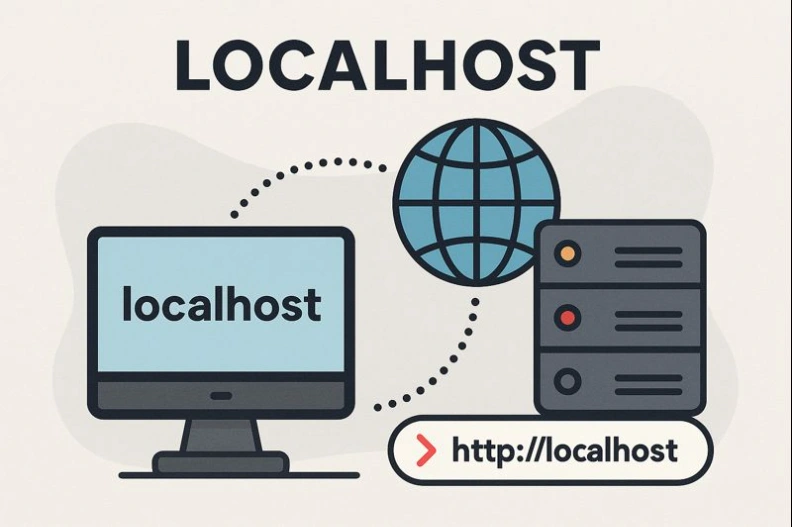
In networking terms, localhost:9000 means your browser is connecting to a server
running on your own computer (localhost → 127.0.0.1), specifically on
TCP port 9000.
| Component | Example | Description |
|---|---|---|
| Protocol | http:// |
Standard local development HTTP |
| Host | localhost |
Your machine (loopback 127.0.0.1) |
| Port | 9000 |
User-defined port commonly used for dev servers |
If no service is listening on port 9000, the browser returns a “connection refused” or “site can’t be reached” error.
What Is localhost:9000 Used For?
Port 9000 is widely used for:
- PHP-FPM (FastCGI server)
- Node.js development servers
- Webpack Dev Server / Vite preview
- Local API services
- Reverse proxies / gateway services
- Background daemons for frameworks
Which Applications Commonly Use Port 9000?
1. PHP-FPM (Very Common)
Many Linux and macOS systems run PHP-FPM on port 9000 by default:
listen = 127.0.0.1:9000
Nginx then forwards PHP file requests to localhost:9000 using FastCGI:
location ~ \.php$ {
    fastcgi_pass 127.0.0.1:9000;
    include fastcgi_params;
    fastcgi_param SCRIPT_FILENAME $document_root$fastcgi_script_name;
}
Note: PHP-FPM on port 9000 normally does not serve a webpage directly—it processes PHP scripts when Nginx passes requests to it.
2. Node.js Servers Configured for 9000
const express = require('express');
const app = express();
const PORT = 9000;

app.get('/', (req, res) => res.send('<h1>Node.js running on localhost:9000</h1>'));
app.listen(PORT, () => console.log(`Listening on http://localhost:${PORT}`));
Developers often choose port 9000 when ports 3000, 8000, or 8080 are already in use.
3. Webpack Dev Server / Vite
While not default, many teams configure bundlers to run on port 9000:
webpack-dev-server --port 9000vite --port 90004. MinIO Console (S3-Compatible Storage)
The MinIO admin dashboard often runs on port 9000 by default:
- Server:
http://localhost:9000 - Console:
http://localhost:9001
5. Reverse Proxies & API Gateways
Developers sometimes expose a local unified gateway on port 9000 to consolidate multiple backend services.
What Can You Do with a Service Running on localhost:9000?
1. Run Local API Servers
Port 9000 is often used for backend JSON APIs in microservice setups.
2. Test Web Applications
When running a frontend or backend locally, localhost:9000 can serve HTML, JSON, or full web apps.
3. Handle PHP Execution (via PHP-FPM)
Although PHP-FPM itself doesn’t display a page, it executes PHP code passed from Nginx.
4. Serve Admin Dashboards or Monitoring Tools
Port 9000 is ideal for dashboards that should not conflict with other common dev ports.

How to Correctly Set Up a Server on Port 9000
1. Check if Port 9000 Is Free
| System | Command | Description |
|---|---|---|
| Windows | netstat -aon | find "9000" |
Shows any process listening on port 9000 |
| Linux/macOS | sudo lsof -i :9000 |
Lists active processes bound to port 9000 |
2. Start a Node.js Server on Port 9000
node server.js3. Configure PHP-FPM on Port 9000
PHP-FPM settings file (e.g. www.conf):
listen = 127.0.0.1:9000Nginx forwards requests to PHP-FPM:
fastcgi_pass 127.0.0.1:9000;4. Docker Port Mapping
docker run -p 9000:9000 myappCommon localhost:9000 Problems & Solutions
1. “Connection Refused” Error
Causes:
- No service running on port 9000
- Firewall blocking local connections
- PHP-FPM running but not serving HTTP directly
Fix: Start the correct server or configure Nginx/Apache to route correctly.
2. Port 9000 Already in Use
Fix:
- Terminate the process using port 9000
- Or change to an alternative port:
npm start -- --port=9001
3. PHP-FPM Shows No Webpage
PHP-FPM is not a web server. You must configure Nginx or Apache to forward .php requests.
4. CORS Issues With APIs on Port 9000
If your frontend runs on another port (3000, 4200, 5173), CORS errors may occur.
Solutions:
- Enable CORS on your backend
- Or use a proxy (Angular/React/Vite dev servers)
5. Browser Caching or Mixed Content Errors
Clear browser cache or ensure all resources are loaded consistently via HTTP/HTTPS on the same port.
Related Articles
-
localhost:4200
localhost:4200 - When you see http://localhost:4200 in documentation or tutorials, you are almost certainly looking at the default address of an Angular develop.
-
localhost/wordpress
localhost/wordpress - The URL http://localhost/wordpress is the classic address for a local WordPress installation on a developer’s machine. When you install Wo.
-
localhost/wordpress/wp-admin
localhost/wordpress/wp-admin - When you work with WordPress on your own machine, the URL http://localhost/wordpress/wp-admin is the gateway to your local WordPr.
-
localhost/xampp
localhost/xampp - The URL http://localhost/xampp is the default web path for the XAMPP Dashboard, a local administration interface installed with the XAMPP pack.
-
localhost:8080
localhost:8080 - When you see http://localhost:8080 in a browser or configuration file, it refers to a web service running on your own machine, bound to the TCP.
-
localhost:3000
localhost:3000 - URLs like http://localhost:3000 appear constantly in modern web development tutorials, documentation, and project readme files. This address us.
-
localhost:8000
localhost:8000 - The URL http://localhost:8000 is one of the most commonly used addresses in local web development. It points to a web server running on your ow.
-
localhost:5774 (Dapodik)
localhost:5774 (Dapodik) - The address http://localhost:5774 is specifically associated with the Aplikasi Dapodik (Data Pokok Pendidikan), an official Indonesia.
Reviews
No approved reviews yet.