Search the Community
Showing results for tags 'spawn'.
-
Version 1.1.1
122 downloads
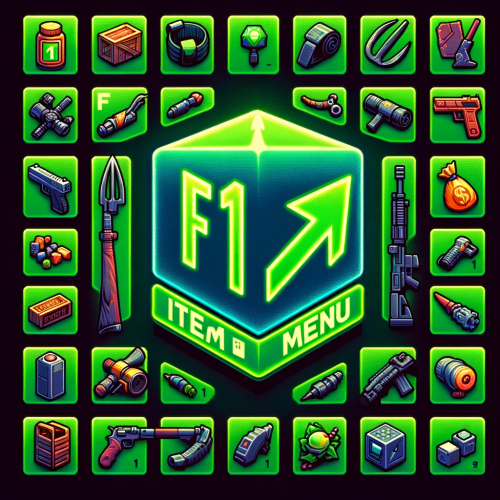
The "F1 Item Menu" plugin allows players to open an interactive menu to select items in Rust and add them to their inventory using a simple command. The plugin provides a user-friendly interface with a search function and page navigation for convenient browsing of available items. Command: /f1menu - Opens the F1 item menu, allowing the player to select items and add them to their inventory. Permissions: f1itemmenu.f1 - This permission is required to use the /f1menu command. How to Use the Plugin: 1. To open the menu, the player enters the /f1menu command, provided they have the f1itemmenu.f1 permission. 2. In the menu, the player can search for items by entering a search term and clicking "Search." 3. The player can navigate through the available items by clicking the arrow buttons (< and >) to go to the previous or next page. 4. After selecting an item, the player is presented with another menu to specify the quantity of the chosen item. 5. The player can then choose the desired quantity (1, 10, 100, 1000, 10000) and click "Close" to exit the menu. 6. The selected item is automatically added to the player's inventory. { "Enable Discord Webhook": true, "Webhook URL": "", "Username": "Rust Server", "Avatar URL": "", "Discord Message Format": "Player **{playerName}** has taken **{quantity}** of **{itemName}**." }$15.95 -
Version 1.0.6
78 downloads
Ready to elevate your modded Rust server by allowing players to spawn a variety of vehicles through chat commands? With this plugin, players gain the ability to spawn vehicles, you can use any vehicle prefab in the game that you want making exploration and transportation within the game effortlessly convenient. The plugin comes with optional restrictions to balance gameplay, including limits on the number of vehicles a player can have and cooldown timers and blocks to prevent spamming at certain timers or certain areas. Customization options are extensive, allowing server admins to adjust spawning methods and spawn distances, fuel amounts, and even specific permissions for different vehicles. Additionally, the plugin supports UI customization for a seamless integration with your server's interface. Whether for rapid movement across the map or just adding fun elements to your server, Vehicle Spawner ensures that your adventures in Rust are never a dull moment. Key Features Spawn any vehicle prefab in the game you can add or remove any that you want to the config. Limit the number of vehicles per player to maintain server balance. Customizable vehicle spawn settings, spawn method options, cooldowns and permissions. UI support for easy vehicle management for players, no commands needed. Special conditions for vehicle spawning, including safe zone, authorized, raid and combat block checks. Permissions vehiclespawner.use vehiclespawner.ui Key bind input BUTTON.FIRE_THIRD ( Middle mouse button ) Press/click it to toggle the Vehicle Menu UI on screen. Hold it down while menu is minimized to fully open it. Commands /vehiclemenu Allows players to toggle UI. /no <Config Chat Command> Allows players to remove a vehicle type by placing /no before the chat command from the config. /destroyall Allows player to remove all there vehicles at once. Default Configuration: Note: you can add as many vehicles as you want using the prefab path. { "MsgSettings": { "Message Icon SteamID": "76561197960839785", "Message Prefix": "[VehicleSpawner]", "Message Prefix Color": "#5af" }, "Prefabs": { "Attack Helicopter": { "AutoMount": false, "BlockButAllowInBuildingAuthorized": false, "BlockButAllowInSafeZone": false, "BlockInAuthorizedArea": true, "BlockInBuildingBlocked": true, "BlockInSafeZone": true, "BlockOnLand": false, "ChatCommands": [ "attack", "myattack", "attackheli", "myattackheli", "attackhelicopter", "myattackhelicopter", "atkheli", "atk", "myatk", "myatkheli" ], "CooldownTimer": 180.0, "DisableUIButton": false, "FuelAmount": 0, "LockFuel": false, "Permission": "vehiclespawner.attackhelicopter", "PrefabPath": "assets/content/vehicles/attackhelicopter/attackhelicopter.entity.prefab", "Rotation": { "x": 0.0, "y": 90.0, "z": 0.0 }, "SkySpawn": false, "SkySpawnHeight": 50.0, "SpawnDelay": 10.0, "SpawnDistance": 8.0, "SpawnHeight": 3.0, "SpawnOption": 1, "UseTracks": false }, "Balloon": { "AutoMount": false, "BlockButAllowInBuildingAuthorized": false, "BlockButAllowInSafeZone": false, "BlockInAuthorizedArea": true, "BlockInBuildingBlocked": true, "BlockInSafeZone": true, "BlockOnLand": false, "ChatCommands": [ "balloon", "myballoon", "hotairballoon", "myhotairballoon", "myhab", "hab" ], "CooldownTimer": 120.0, "DisableUIButton": false, "FuelAmount": 0, "LockFuel": false, "Permission": "vehiclespawner.balloon", "PrefabPath": "assets/prefabs/deployable/hot air balloon/hotairballoon.prefab", "Rotation": { "x": 0.0, "y": 90.0, "z": 0.0 }, "SkySpawn": false, "SkySpawnHeight": 50.0, "SpawnDelay": 10.0, "SpawnDistance": 12.0, "SpawnHeight": 3.0, "SpawnOption": 1, "UseTracks": false }, "Car": { "AutoMount": false, "BlockButAllowInBuildingAuthorized": false, "BlockButAllowInSafeZone": false, "BlockInAuthorizedArea": true, "BlockInBuildingBlocked": true, "BlockInSafeZone": true, "BlockOnLand": false, "ChatCommands": [ "sedan", "mysedan", "car", "mycar" ], "CooldownTimer": 180.0, "DisableUIButton": false, "FuelAmount": 0, "LockFuel": false, "Permission": "vehiclespawner.car", "PrefabPath": "assets/content/vehicles/sedan_a/sedantest.entity.prefab", "Rotation": { "x": 0.0, "y": 0.0, "z": 0.0 }, "SkySpawn": false, "SkySpawnHeight": 50.0, "SpawnDelay": 10.0, "SpawnDistance": 6.0, "SpawnHeight": 3.0, "SpawnOption": 1, "UseTracks": false }, "Chinook": { "AutoMount": false, "BlockButAllowInBuildingAuthorized": false, "BlockButAllowInSafeZone": false, "BlockInAuthorizedArea": true, "BlockInBuildingBlocked": true, "BlockInSafeZone": true, "BlockOnLand": false, "ChatCommands": [ "chinook", "mychinook", "ch47", "mych47" ], "CooldownTimer": 180.0, "DisableUIButton": false, "FuelAmount": 0, "LockFuel": false, "Permission": "vehiclespawner.chinook", "PrefabPath": "assets/prefabs/npc/ch47/ch47.entity.prefab", "Rotation": { "x": 0.0, "y": 240.0, "z": 0.0 }, "SkySpawn": false, "SkySpawnHeight": 50.0, "SpawnDelay": 10.0, "SpawnDistance": 10.0, "SpawnHeight": 3.0, "SpawnOption": 1, "UseTracks": false }, "Horse": { "AutoMount": false, "BlockButAllowInBuildingAuthorized": false, "BlockButAllowInSafeZone": false, "BlockInAuthorizedArea": true, "BlockInBuildingBlocked": true, "BlockInSafeZone": true, "BlockOnLand": false, "ChatCommands": [ "horse", "myhorse" ], "CooldownTimer": 180.0, "DisableUIButton": false, "FuelAmount": 0, "LockFuel": false, "Permission": "vehiclespawner.horse", "PrefabPath": "assets/rust.ai/nextai/testridablehorse.prefab", "Rotation": { "x": 0.0, "y": 0.0, "z": 0.0 }, "SkySpawn": false, "SkySpawnHeight": 50.0, "SpawnDelay": 10.0, "SpawnDistance": 5.0, "SpawnHeight": 3.0, "SpawnOption": 1, "UseTracks": false }, "Minicopter": { "AutoMount": false, "BlockButAllowInBuildingAuthorized": false, "BlockButAllowInSafeZone": false, "BlockInAuthorizedArea": true, "BlockInBuildingBlocked": true, "BlockInSafeZone": true, "BlockOnLand": false, "ChatCommands": [ "mini", "mymini", "minicopter", "myminicopter" ], "CooldownTimer": 0.0, "DisableUIButton": false, "FuelAmount": 0, "LockFuel": false, "Permission": "vehiclespawner.minicopter", "PrefabPath": "assets/content/vehicles/minicopter/minicopter.entity.prefab", "Rotation": { "x": 0.0, "y": 90.0, "z": 0.0 }, "SkySpawn": false, "SkySpawnHeight": 50.0, "SpawnDelay": 0.0, "SpawnDistance": 5.0, "SpawnHeight": 3.0, "SpawnOption": 1, "UseTracks": false }, "RHIB": { "AutoMount": false, "BlockButAllowInBuildingAuthorized": false, "BlockButAllowInSafeZone": false, "BlockInAuthorizedArea": true, "BlockInBuildingBlocked": true, "BlockInSafeZone": true, "BlockOnLand": true, "ChatCommands": [ "rhib", "myrhib", "mybigboat", "bigboat" ], "CooldownTimer": 10.0, "DisableUIButton": false, "FuelAmount": 0, "LockFuel": false, "Permission": "vehiclespawner.rhib", "PrefabPath": "assets/content/vehicles/boats/rhib/rhib.prefab", "Rotation": { "x": 0.0, "y": 0.0, "z": 0.0 }, "SkySpawn": false, "SkySpawnHeight": 50.0, "SpawnDelay": 5.0, "SpawnDistance": 10.0, "SpawnHeight": 3.0, "SpawnOption": 1, "UseTracks": false }, "Row Boat": { "AutoMount": false, "BlockButAllowInBuildingAuthorized": false, "BlockButAllowInSafeZone": false, "BlockInAuthorizedArea": true, "BlockInBuildingBlocked": true, "BlockInSafeZone": true, "BlockOnLand": true, "ChatCommands": [ "rowboat", "row", "myrow", "myrowboat", "boat", "myboat" ], "CooldownTimer": 10.0, "DisableUIButton": false, "FuelAmount": 0, "LockFuel": false, "Permission": "vehiclespawner.rowboat", "PrefabPath": "assets/content/vehicles/boats/rowboat/rowboat.prefab", "Rotation": { "x": 0.0, "y": 0.0, "z": 0.0 }, "SkySpawn": false, "SkySpawnHeight": 50.0, "SpawnDelay": 3.0, "SpawnDistance": 9.0, "SpawnHeight": 3.0, "SpawnOption": 1, "UseTracks": false }, "Scrap Transport Helicopter": { "AutoMount": false, "BlockButAllowInBuildingAuthorized": false, "BlockButAllowInSafeZone": false, "BlockInAuthorizedArea": true, "BlockInBuildingBlocked": true, "BlockInSafeZone": true, "BlockOnLand": false, "ChatCommands": [ "scrap", "myscrap", "heli", "myheli", "helicopter", "myhelicopter", "scrappy", "myscrappy", "scraptransport" ], "CooldownTimer": 10.0, "DisableUIButton": false, "FuelAmount": 0, "LockFuel": false, "Permission": "vehiclespawner.scraptransporthelicopter", "PrefabPath": "assets/content/vehicles/scrap heli carrier/scraptransporthelicopter.prefab", "Rotation": { "x": 0.0, "y": 180.0, "z": 0.0 }, "SkySpawn": false, "SkySpawnHeight": 50.0, "SpawnDelay": 5.0, "SpawnDistance": 8.0, "SpawnHeight": 3.0, "SpawnOption": 1, "UseTracks": false } }, "Settings": { "AmountOfPrefabsAllowedAtOnce": 2, "BlockNearPlayer": { "IgnoreTeam": true, "PlayerDistance": 5.0, "UsePlayerDistance": true }, "DestroyOnDeath": true, "DestroyOnDisconnect": true, "GlobalSpawnCooldownTimer": 10.0, "UseCombatBlocked": true, "UseRaidBlocked": true }, "UiPermission": "vehiclespawner.ui", "UsePermission": "vehiclespawner.use" } PREVIEW / TUTORIAL VIDEOS COMING SOON!$5.00 -
Version 2.8.4
46,688 downloads
This plugin does not have its own functionality. This plugin is only used as an API for other plugins. Supported Plugins AirEvent HarborEvent WaterEvent Satellite Dish Event Power Plant Event Junkyard Event BossMonster BetterNpc Defendable Bases Defendable Homes Water Patrol Convoy Armored Train Sputnik Space Cobalt Laboratory XDChinookEvent IQSphereEvent IQBoss Christmas API ScientistNPC SpawnNpc(Vector3 position, JObject configJson) Creates an NPC position – NPC position on the map configJson - NPC parameters void AddTargetRaid(CustomScientistNpc npc, HashSet<BuildingBlock> foundations) Sets NPC targets for a raid npc - NPC for which you need to specify the target for the raid foundations - list of foundations, for the NPC raid void AddTargetGuard(CustomScientistNpc npc, BaseEntity target) Sets an NPC target to guard npc - NPC for whom you need to set a target that he will guard target - an entity that needs to be guarded by an NPC void ChangeHomePosition(CustomScientistNpc npc, Vector3 pos) Changes the NPC point of the home npc - NPC who needs to change the point of the home pos - new point of the home BasePlayer GetCurrentTarget(CustomScientistNpc npc) Gets the current target for the NPC npc - NPC who needs to get his current target If you need Npcs to be able to fight with other Npcs, then set the value of CanTargetOtherNpc inside the plugin to trueFree -
Version 1.0.14
487 downloads
Random Trader is a plugin that spawns a random shop along the side of the road, and is loaded with a randomly chosen shop profile. When a player interacts with the vending machine they are presented with randomly selected items from the shop profile, which are given random stock amounts and a random scrap/econ/SRP price. The plugin allows for the minimum and maximum stock and price values to be set in the config, and allows for the number of items displayed to be adjusted. The plugin comes with 4 loot tables by default: Clothing Weapons Tools Random items The following shops are automatically added if you own the relevant plugins Cooking EpicLoot Installing the plugin is as simple as dropping some files inside of your oxide folders. Ensure CopyPaste and ImageLibrary are loaded on your server. The plugin will acquire the files from my dropbox and stores them in the appropriate folder. If you own Cooking and/or EpicLoot, both plugins will automatically create profiles for RandomTrader in your config. Command: spawntrader Usage: /spawntrader <profile name> Example: /spawntrader weapons - will spawn a random shop with the weapons profile loaded. Command: despawntrader Usage: /despawntrader <profile name> Example: /despawntrader weapons - will despawn the weapons shop if it is spawned. Command: rtremovestoredata Usage: /rtremovestoredata <profile name> Example: /rtremovestoredata cooking - deletes the data for cooking from your config. Command: rtfindnewshops Usage: /rtfindnewshops Example: /rtfindnewshops - Finds new shops that are not in the config and saves them to the config. Useful for forcing external plugins to load their shop profiles in (Cooking/EpicLoot). Command: rtcheckpoints Usage: /rtcheckpoints Example: /rtcheckpoints - shows you the potential spawn locations for the shops. randomtrader.use - required to access the shop. randomtrader.admin - required to manually spawn/despawn vending machines. Config example: https://pastebin.com/MvcdBtTb$14.99- 24 comments
- 1 review
-
- 4
-

-

-
- #vending
- #vending machine
- (and 6 more)
-

Version 1.0.7
414 downloads
Gun Game is a high-intensity PvP game mode where players compete to be the first to reach the final weapon by earning kills. Each kill advances the player to the next weapon in a fully customizable progression list, keeping the action fresh and engaging. The plugin creates a dedicated arena high in the sky, completely separated from the main map, to host the event. When players join the event, they are teleported from their current location to the event lobby, with all of their items, modifiers and metabolism stats stored safely by the plugin. Server owners can create any number of weapon profiles for players to progress through. The plugin will choose randomly between each profile at the beginning of each round. The plugin ships with 2 default profiles: Standard - Starts with revolver, ends with m249 and is 21 weapons long. Reverse - Starts with m249, ends with a sword and is 23 weapons long. This plugin works with most PVE plugins. Spawns an arena when the game begins and removes it when the game ends (no Rust-Edit required). Saves players inventory, metabolism and modifiers when they enter, and restores them when they leave. Configurable amount of kills per weapon to progress to the next weapon in the track. Supports refilling of ammo, and healing when a player gets a kill (configurable). Multiple respawn methods. Customizable clothing for players, with the option to have separate clothing for the leader. Supports custom item, server rewards and economic rewards for winners, as well as participants (based on a configurable threshold). Global scoreboard tracking wins, kills and deaths. Command: ggstart <arena name> Description: Starts the gun game event using the specified arena. Permission: gungame.admin Command: ggend Description: Ends the active gun game event. Permission: gungame.admin Command: ggsetcentrepoint <arena name> Description: Sets the spawn location for the specified arena. Permission: gungame.admin There are a number of commands that can be changed in the config that handle: Joining an event [default: ggjoin] Leaving an event [default: ggleave] Restoring items from a previous event [default: ggrestore] Accessing the scoreboard [default: ggscore] // Returns if the player is enrolled in the event. public bool IsEventPlayer(BasePlayer player); // Called when the arena has spawned and the lobby is about to start. void OnGunGameStart(); // Called when the game is ending. void OnGunGameEnd(); // Called when a player leaves an event. void OnEventLeave(BasePlayer player, string eventName); // Called when a player is attempting to join the event. Return non-null to prevent. object OnEventJoin(BasePlayer player, string eventName); // Called after a player has successfully joined the event, had their weapons stripped and has been teleported to the lobby. void OnEventJoined(BasePlayer player, string eventName); Very special thanks to Nobody and the guys and girls on Aussie Outpost PVE for their help with testing and feedback!$19.99 -
Version 1.0.0
2 downloads
BarrelEventsPro – Advanced Automated Barrel Event System BarrelEventsPro is a powerful and fully configurable barrel event plugin for Rust servers. It transforms ordinary barrels into dynamic, scheduled, map-wide events that increase player activity, improve loot control, and reduce administrator workload. Create small surprises for your players. You can define your own commands to spawn and hide barrels at specific locations, or run your customized barrel presets as events and present them to your players. During events, hints can be shown to guide players. Barrels break in a single hit, and rewards are automatically added to the player’s inventory. All rewards are fully configurable, and you can even change the barrel prefab itself. This is not just barrel spawning — it is a complete event system. Admin Control Commands /barrelevent start – Manually start the event /barrelevent stop – Stop the current event /barrelevent status – View the event status and remaining time /barrelevent next – Check the interval scheduling status Alternatively, as shown in the examples, you can define your own commands in the configuration file, customize their behavior, and create events simply by typing them in chat. Examples: /fuelred · /scrapbarrel · /mixedbarrel Preconfigured Commands Fully permission-based Permission: barreleventspro.use Automatic Event Scheduling Choose how and when events start: Interval Mode – Events start automatically at random intervals Fixed Time Mode – Events start at specific server times Combined Mode – Maximum flexibility Additional options: Configurable event duration Automatic event stop and cleanup Advanced Barrel Spawning During an active event: Barrels spawn every X seconds Random amount per spawn cycle Active barrel limit (maximum cap) Smart spawning logic: Avoids water Avoids monuments Avoids players Respects world edge buffers Raycast-based ground placement All spawn locations are safe, clean, and performance-friendly. Preset & Reward System Command-Based Presets Create unlimited barrel presets via the configuration file: Custom prefab per preset One-hit break option Multiple reward items Optional amount overrides per command Examples: /fuelred · /scrapbarrel · /mixedbarrel Admins (or authorized players) can instantly spawn reward barrels. Smart Reward Distribution Rewards are given directly to the player who breaks the barrel If the inventory is full: Drop items on the ground (optional) Or safely remove them Default barrel contents can be fully stripped to prevent exploits Grid Hint & Announcement System Live Map Grid Announcements Automatic broadcasts when barrels spawn Configurable announcement intervals Grid range support (example: H12–J14) Displays current / maximum barrel count Fully customizable messages Example: Barrels spotted around H13–J15 (8/20) Perfect for encouraging map exploration. Automatic Cleanup & Safety Event barrels are tracked individually At event end: Only event barrels are removed Optional auto-despawn after X minutes Optional cleanup on plugin unload No orphaned entities No memory leaks If you want, I can also: Shorten this for a uMod plugin page Convert it into a feature list + screenshots layout Prepare a changelog or README.md version$4.59 -
Version 1.0.0
3 downloads
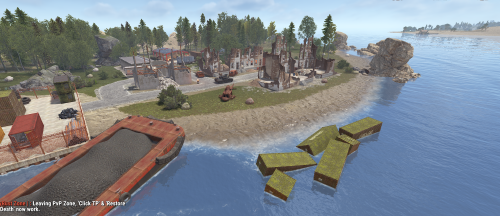
Node-Loot Island V2 Welcome to the next evolution of resource-rich gameplay. Node-Loot Island V2 is a condensed, feature-packed version of the original Node Island, rebuilt from the ground up to provide a more intense and rewarding experience for your players. Key Features Action-Packed Layout: While smaller in scale, this version is designed for high-stakes engagement. It features tight, close-quarters areas specifically built to fuel the fast-paced PvP action your players crave. Handcrafted Terrain: Every inch of the island is custom-made. Explore a diverse landscape filled with handcrafted dips, rock formations, and rolling hills that provide natural cover and tactical advantages. The Urban Guardian: A Bradley APC now patrols the central city area. Players will need to use strategy and teamwork to bypass or destroy this mechanical beast to reach the most valuable loot. Rich Resource Nodes: True to its name, the island remains a premier destination for resource gathering, perfectly balancing high-tier loot with high-risk combat. Optimized: Designed with performance in mind for high-population servers. For any Assistance or questions Please contact me on Discord @silent_creations$4.99 -
![More information about "[RC] Pinata Event"](https://codefling.com/uploads/monthly_2025_12/PinataEvent.thumb.png.6424c0598f55de984b553d21f75a56f3.png)
Version 2.4.1
5 downloads
PinataEvent Author: MEMUARE Version: 2.4.1 Game: Rust Type: Automated World Event Description PinataEvent is a fully automated global event system that spawns a special Pinata attached to a tree. Players must find and destroy the pinata to receive valuable loot. The event runs automatically every 3–4 hours (random) and also supports manual admin control. Core Features Fully automatic event system Random spawn interval (3–4 hours by default) Safe biome protection (no desert, snow, rocks, water, monuments) Automatic removal of old Pinata before new spawn Native Rust HUD notification (no UI plugins required) Sound effects around the Pinata Configurable loot system Admin-only commands Multi-language support (EN + RU) Commands /pinata.start Admin force start the event /pinata.tp Admin teleport to the active Pinata Configuration { "AutoStartEnabled": true, "AutoStartMinMinutes": 180.0, "AutoStartMaxMinutes": 240.0, "Loot": [ { "shortname": "sulfur", "min": 1000, "max": 1000, "chance": 100.0 }, { "shortname": "metal.fragments", "min": 500, "max": 500, "chance": 100.0 } ] } Added Console commands: pinata.start - Console command for event start pinata.stop - Console command for event stop Added Winner Detection System Automatically detects the player who destroyed the pinata Full API Hook support for other plugins OnPinataEventStarted OnPinataEventEnded OnPinataEventWinner(BasePlayer player) Safety & Stability Proper cleanup on plugin unload enableSaving = false for spawned entities$12.99 -
Version 1.1.3
131 downloads
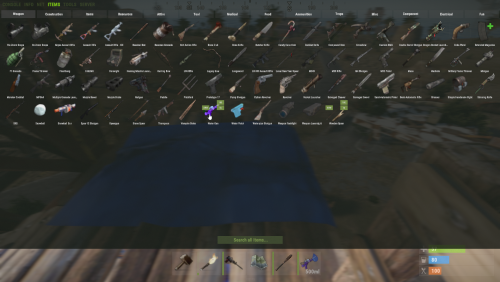
Easily give access to Rusts F1 Spawn Menu! That's permission based with blacklisting support and customizable F1 Spawn button amounts! Features: * Ban whole categories or Items using their ShortName or ItemID's * Allow Admins or Developers to bypass F1 spawn * Control the amounts it gives on the 1k button & 100 buttons! * ItemID, Amount, SkinID, Conditions. * Shops & other 3rd party plugins. * DLC items only spawn if you are the Admin or the player has bought the DLC for that item. * TODO: Genetics & BPs. Perms: f1spawn.use | needed to use F1 Menu. f1spawn.bypass | needed to bypass blocked Items. Chat & Console Commands: /give itemID amount skin condition | everything past itemID are optional args /givearm itemID amount skin condition | everything past itemID are optional args give steamID-or-Name itemID amount skin condition | everything past itemID are optional args givearm steamID-or-Name itemID amount skin condition | everything past itemID are optional args Configuration File: { "Ignore: Disabled 0, Admin 2, Developer 3": 0, "Set F1 1000 button spawn amount": 1000, "Set F1 100 button spawn amount": 100, "Set F1 Spawn liquids with max water": true, "Ban Categories: Weapon 0, Construction 1, Items 2, Resources 3, Attire 4, Tool 5, Medical 6, Food 7, Ammunition 8, Traps 9, Misc 10, Component 11, Electrical 12, Fun 13": [ 10 ], "Ban Items using: ShortNames (Easy to Read)": [ "explosive.timed", ], "Ban Items using: ItemIDs (Slightly Faster)": [ 143803535, ] }$9.99 -
Version 1.0.4
21 downloads
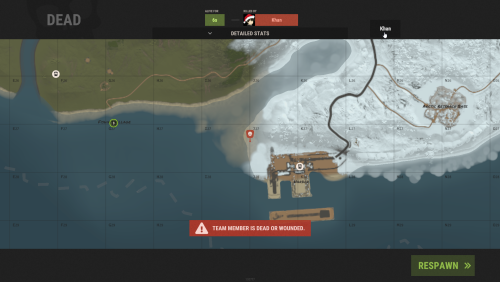
Team Spawner makes regrouping with your team fast, simple, and player-friendly. Its clean, auto-generated UI lets players quickly select teammates directly from the death screen—no manual commands or reliance on beds and sleeping bags required. Perfect for fast-paced, action-packed team PvP. Features powerful restriction controls: Monument Blocking – Prevent team spawning near key monuments. Player State Blocking – Restrict spawning when swimming, sleeping, mounted, inside elevators, or on the cargo ship. Condition Blocking – Prevent usage while raid-blocked, combat-blocked, building-blocked, or on cooldown. Whether you’re running a casual or competitive server, Team Spawner gives server owners full flexibility while providing players with a seamless team experience. You can also create various permission based cool-down restrictions inside the config and simply grant players there permission based cool-down restriction. Notes: Requires Monument Finder from umod for monument blocking to work. ( Simply add the plugin ) Permissions teamspawner.use - needed to use the plugin. config cool down permissions will look like this: teamspawner.cooldown.vip Config { "GUI Settings": { "Main Panel Default: #000000, 0f": { "A": 0.0, "Hex": "#000000" }, "Content Panel Default: #000000, 0f": { "A": 0.0, "Hex": "#000000" }, "Buttons Default: #000000, 0.4f": { "A": 0.4, "Hex": "#000000" }, "Text Default: #FFFFFF, 0.7f": { "A": 0.7, "Hex": "#FFFFFF" } }, "Block Types": { "swimming": true, "sleeping": true, "mounted": true, "monument": true, "cargo ship": true, "elevator": true, "raid blocked": true, "combat blocked": true, "building blocked": true, "cooldown blocked": true }, "Permission Based CoolDown times in seconds": { "vip": 150, "default": 300 }, "Blocked Monuments": { "airfield_1": false, "arctic_research_base_a": false, "bandit_town": false, "cave_large_hard": false, "cave_large_medium": false, "cave_large_sewers_hard": false, "cave_medium_easy": false, "cave_medium_hard": false, "cave_medium_medium": false, "cave_small_easy": false, "cave_small_hard": false, "cave_small_medium": false, "compound": false, "desert_military_base_a": false, "desert_military_base_b": false, "desert_military_base_c": false, "desert_military_base_d": false, "excavator_1": false, "ferry_terminal_1": false, "fishing_village_a": false, "fishing_village_b": false, "fishing_village_c": false, "gas_station_1": false, "harbor_1": false, "harbor_2": false, "ice_lake_1": false, "ice_lake_2": false, "ice_lake_3": false, "ice_lake_4": false, "junkyard_1": false, "launch_site_1": false, "lighthouse": false, "military_tunnel_1": false, "mining_quarry_a": false, "mining_quarry_b": false, "mining_quarry_c": false, "nuclear_missile_silo": false, "oilrig_1": false, "oilrig_2": false, "powerplant_1": false, "radtown_small_3": false, "satellite_dish": false, "sphere_tank": false, "stables_a": false, "stables_b": false, "supermarket_1": false, "swamp_a": false, "swamp_b": false, "swamp_c": false, "trainyard_1": false, "underwater_lab_a": false, "underwater_lab_b": false, "underwater_lab_c": false, "underwater_lab_d": false, "warehouse": false, "water_treatment_plant_1": false, "water_well_a": false, "water_well_b": false, "water_well_c": false, "water_well_d": false, "water_well_e": false } } Supports the ability to add more Languages using oxides multi language file system: { "Unavailable": "team member is dead or wounded.", "Sleeping": "team member is sleeping.", "Swimming": "team member is swimming.", "Mounted": "team member is mounted.", "Cargo": "team member is aboard cargo.", "Elevator": "team member is using an elevator.", "BuildingBlocked": "team member is building blocked.", "RaidBlocked": "team member is raid blocked.", "CombatBlocked": "team member is combat blocked.", "MonumentBlocked": "team member is monument blocked.", "CoolDownBlocked": "cooldown blocked: {0}" }$14.99 -
Version 1.3.3
9,589 downloads
This plugin adds variety of NPC sets with very high number of parameter sets on standard and custom monuments. Also it is added during dropping the server AirDrop, locked crate and destroying a tank or helicopter Dependencies (optional, not required) AlphaLoot CustomLoot True PVE Kits Economics Server Rewards IQEconomic PveMode Custom maps Maps that have default settings for their custom monuments. For these maps, you will not need to create places for the appearance of NPCs, they have already been created by the map developer and are located inside the archive when buying the map You can also download all these files for all maps here Detroit: Irreparable Damage Oregon 2: Last Hope Lostly Island Frontier – American Old West Oregon: Land of Dead Badlands Foreign Lands Namalsk Kong: Skull Island Destroyed World Deathland Dreamland Last Train Pandora Railway Island Wasteland Cataclysm: Fury of Nature Last Oasis Crazy Island Standard monuments This item of the plugin settings is used for appearing NPCs in all standard monuments. All these settings are located in the Monument folder (oxide/data/BetterNpc/Monument). Each file in this folder corresponds to a standard monument If there is no standard monument file in the folder, you can create it (you need to name the file the same way as the standard monuments on the map inside the game). You can copy the settings from any other standard monument Configuration parameters: Enabled? [true/false] – It allows to enable/disable the appearance of NPC on the monument. If you need NPCs appearing on the map and don’t need it on another map, you can use this option simply The size of the monument – this parameter contains two values. It is the length and width of the monument. This parameter is necessary for random appearance of NPC on the monument and indication of limits of removal of standard NPCs on the monument (if it is necessary) Remove other NPCs? [true/false] – It deletes the standard NPCs inside the limits of this monument Presets – It is a list of all the NPC presets to appear on the monument (the description of the NPC preset settings is located below) Custom monuments This item of the plugin settings is responsible for the appearance of NPCs on custom monuments. All these settings are located in the Custom folder (oxide/data/BetterNpc/Custom). Each file in this folder corresponds to a custom monument If you have bought a map with already configured NPC appearance files for custom monuments you will copy these files into the Custom folder. If you want to create and configure the appearance of NPC in your custom location on the map, you will use the command in the administrators’ chat /SpawnPointAdd {name} (see the description of this command below in the instruction) Configuration parameters: Enabled? [true/false] – It allows to enable/disable the appearance of NPC on the monument. If you need NPCs appearing on the map and don’t need it on another map, you can use this option simply Position – It is a position of the custom monument on the map Rotation – It is a rotation of the custom monument on the map (this parameter is necessary for using custom places to appear of NPC on the monument, if the monument is used on more than one map) Radius – It is the radius of the custom monument from the position on the map Remove other NPCs? [true/false] – It removes the standard NPCs inside the limits of this monument Presets – It is a list of all the NPC presets to appear on the monument (the description of the NPC preset settings is located below) Roads This item of the plugin settings is used to appear NPCs on all types of roads. All these settings are located in the Road folder (oxide/data/BetterNpc/Road). Each file in this folder corresponds to a particular road type ExtraNarrow – It is a narrow, unpaved walkway ExtraWide It is a wide, paved, two-lane, beltway road Standard – It is a regular, paved road Configuration parameters: Enabled? [true/false] – It allows to enable/disable the appearance of NPC on the road. If you need NPCs appearing on the map and don’t need it on another map, you can use this option simply Presets – It is a list of all the NPC presets to appear on the road (the description of the NPC preset settings is located below) Biomes This item of the plugin settings is used to appear NPCs on all types of biomes. All these settings are located in the Biome folder (oxide/data/BetterNpc/Biome). Each file in this folder corresponds to a particular biome type (Arctic, Arid, Temperate, Tundra) Configuration parameters: Enabled? [true/false] – It allows to enable/disable the appearance of NPC on the biome. If you need NPCs appearing on the map and don’t need it on another map, you can use this option simply Presets – It is a list of all the NPC presets to appear on the biome (the description of the NPC preset settings is located below) In-game events This item of the plugin settings is used to appear the NPCs in standard Rust events. All of these settings are located in the Event folder (oxide/data/BetterNpc/Event). Each file in this folder corresponds to its own type of event The supported events: When the plane drops the server AirDrop, it will be guarded by specific NPC presets CH47 – When the chinook drops a locked crate during patrolling the map, it will be guarded by specific NPC presets Bradley – When someone destroys a tank, its crates will be guarded by specific NPC presets Helicopter – When someone shoots down a patrol helicopter, its crates will be guarded by specific NPC presets Configuration parameters: Enabled? [true/false] – It allows to enable/disable the appearance of NPC on the event. If you need NPCs appearing on the map and don’t need it on another map, you can use this option simply Radius – NPC appearance radius Presets – It is a list of all the NPC presets to appear on the event (the description of the NPC preset settings is located below) The NPC preset parameters Enabled? [true/false] – It is enabling/disabling the preset Minimum numbers – Day – It is the minimum number of NPCs from the day preset Maximum numbers – Day – It is the maximum number of NPCs from the day preset Minimum numbers – Night – It is the minimum number of NPCs from the night preset Maximum numbers – Night – It is the maximum number of NPCs from the night preset NPCs setting – It is all NPC settings of this preset (see the description of NPC settings for details) Type of appearance (0 – random; 1 – own list) – It is a type of NPC appearance. You can create your own list of places of NPC appearance. The NPC will appear only randomly. This parameter is not used in Road appearance types Own list of locations – It is your own list of NPC appearances. You need to use the number of locations at least the maximum possible number of NPCs in this preset. This parameter is not used in Road appearance types The path to the crate that appears at the place of death – It is the full path to the crate prefab that appears at the place of death of an NPC. If you don’t need this parameter, you should leave this blank Which loot table should the plugin use (0 – default; 1 – own; 2 – AlphaLoot; 3 – CustomLoot; 4 – loot table of the Rust objects; 5 – combine the 1 and 4 methods) – It is the type of the NPC loot table in this preset. Type 5 includes two types (1 and 4) at the same time and locates items from both types Loot table from prefabs (if the loot table type is 4 or 5) – It is a setting of the loot tables from Rust objects. You can see the loot table of Rust objects description for more details Own loot table (if the loot table type is 1 or 5) – It’s NPC’s own loot table. You can see the description of your own loot table for more details The NPC settings description Names is a list of NPC names. It is selected from the list randomly Health – It’s the HP amount of the NPC Roam Range – It’s the patrolling area distance. It’s the distance that the NPC can move from the place of appearance during patrolling Chase Range – It’s the chase range of the target. It’s the distance that the NPC can chase his target from the place of appearance Attack Range Multiplier – It’s the attack range multiplier of the NPC’s weapon Sense Range – It’s a target detection radius Target Memory Duration [sec.] – It’s the time that the NPC can remember his target Scale damage – It’s the damage multiplier from NPC to the player Aim Cone Scale – It’s the spread of NPC shooting, the default value in Rust is 2. It doesn’t take negative values Detect the target only in the NPCs viewing vision cone? [true/false] – It’s the parameter that allows detecting the target only in a certain NPC viewing. If you want to detect the target in 360 degrees, you will set the parameter "False” Vision Cone – It’s the NPC viewing. The range of values is from 20 to 180 degrees. If the previous parameter is False, this parameter is not used Speed – It’s the NPC speed. The default value in Rust is 5 Minimum time of appearance after death [sec.] – It’s the minimum time of NPC appearance after the death. This parameter is not used in the NPC Event places Maximum time of appearance after death [sec.] – It’s the maximum time of NPC appearance after the death. This parameter is not used in the NPC Event places Disable radio effects? [true/false] – You can disable/enable radio effects Is this a stationary NPC? [true/false] – If this parameter is True, the NPC will not move or run Remove a corpse after death? [true/false] – This parameter can control the deleting of NPC corpses (only backpacks are left). This parameter improves efficiency if there are a lot of NPCs Wear items – It’s a list of NPCs’ clothes and armor Belt items – It’s a list of weapons and items NPCs’ fast slots. Medical syringes are used for healing. If you give grenades to an NPC, he will use them. Smoke grenades are used for creating smoke screens (if you don’t need them, you should remove them from your inventory). If you give a Rocket Launcher to an NPC, he will raid the target’s building (if the target is inside it) Kits – It gives a pack of Kits plugin. If you don’t need this parameter, you should leave this blank. I recommend using the previous 2 points to configure NPC items A description of the Rust loot table settings Minimum numbers of prefabs –It’s the minimum numbers of prefabs that are needed to appear in the NPC loot table Maximum numbers of prefabs –It’s the maximum numbers of prefabs that are needed to appear in the NPC loot table Use minimum and maximum values? [true/false] – this parameter specifies whether to use the minimum and maximum numbers to limit the number of items List of prefabs – It’s a list of prefabs that need to add in the loot table. It is necessary to indicate the full path to the prefab and the probability of falling out this prefab A description of the own loot table settings Minimum numbers of items – It’s the minimum number of items Maximum numbers of items – It’s the maximum number of items Use minimum and maximum values? [true/false] – this parameter specifies whether to use the minimum and maximum numbers to limit the number of items List of items – It’s a total list of all items that can fall out in the NPC loot table. You can specify any standard items, their blueprints and any skinned or custom items The commands in the chat (for admins only) /SpawnPointPos {name} – To show the local admin’s position coordinates relative to the place where the NPC {name} appears /SpawnPointAdd {name} – To create the NPC appearance point {name} in the Admin’s custom coordinates. A file with this name will be created in the folder Custom and you can configure it as you need /SpawnPointAddPos {number} {name} – To write the local admin’s coordinate into the preset with the positional number {number} (starting from 1) to the place where the NPC {name} appears /SpawnPointAddWear {number} {name} – To write all the admin’s dressed clothes into the preset with the positional number {number} (starting from 1) to the place where the NPC {name} appears /SpawnPointAddBelt {number} {name} – To write all the admins’ quick slots cells into a preset with the positional number {number} ( starting from 1) to the place where the NPC {name} appears /SpawnPointShowPos {number} {name} – To show to the Admin all the custom NPC appearance points in the preset with the positional number {number} ( starting from 1) in the place where the NPC {name} appears /SpawnPointReload {name} – Reload Spawn Point with the name {name} Console commands (RCON only) ShowAllNpc – Shows the number of all NPCs of the BetterNpc plugin on your server Hooks object CanAirDropSpawnNpc(SupplyDrop supplyDrop) – It is called before an NPC appearance to guard an AirDrop. The returning of a non-zero value stops an NPC appearance object CanCh47SpawnNpc(HackableLockedCrate crate) – It is called before an NPC appearance to guard a locked chinook crate. The returning of a non-zero value stops an NPC appearance object CanBradleySpawnNpc(BradleyAPC bradley) – It is called before an NPC appearance to guard the boxes from crushed Bradley. The returning of a non-zero value stops an NPC appearance object CanHelicopterSpawnNpc(BaseHelicopter helicopter) – It is called before an NPC appearance to guard the crates from crushed patrol helicopter. The returning of a non-zero value stops an NPC appearance API void DestroyController(string name) – It destroys the place of appearance NPC with the name {name} void CreateController(string name) – It creates the place of appearance NPC with the name {name} These APIs can be used with standard monuments, custom monuments (NPC locations) and roads. The name of this monument is in standard monuments {name}. It is the name of the file in the Custom and Road folder in custom monuments and roads My Discord: KpucTaJl#8923 Join the Mad Mappers Discord here! Check out more of my work here! Creator of the default configuration – jtedal$30.00 -
Version 3.0.0
159 downloads
Video : Features : - Randomized loot respawn intervals, configurable for each monument. Example: { "Monuments": { "ferry terminal": { "Allowed Groups": [ "red", "blue", "green", "crate", "barrel", "elite", "diesel", "loot_barrel" ], "Respawn Max Time": 600, "Respawn Min Time": 300 }, "fishing village": { "Allowed Groups": [ "red", "blue", "green", "crate", "barrel", "elite", "diesel", "loot_barrel" ], "Respawn Max Time": 600, "Respawn Min Time": 300 } } } - Default respawn time is set between 30-60 minutes but can be fully adjusted through the configuration. - Automatically removes monuments that no longer exist after a server wipe, keeping the configuration clean and up-to-date. Supported Crates [ Not only the containers shown below , almost every container in the game is now supported! ]: Supported Monuments : All Game Monuments Additional Settings : { "General": { "Enable When Player Dont Finish Looting Containers Will Drop Loot On Ground": true } }$19.99 -
Version 1.1.0
1,705 downloads
A plugin that spawns in NPC controlled RHIBS which act as stationary patrols in the ocean and along the coastline waiting and looking for players. Once engaged, players have the choice to attack them for loot or flee for their lives! Description This plugin will spawn RHIBs with NPCs on your server that will act as stationary patrols, they will remain in place and search for players that enter their sight, at which point they will pursue the player. The player has the option of escaping the patrol, or they can fight the NPCs and if successful and victorious, you can take the loot they hold in their boat! Should the player have a base on the beach, or decide to hide inside anywhere near the waters edge, the NPCs will not hesitate to pull out their rocket launchers and go to work trying to raid their defensive positions! In the configuration for the plugin you can create several patrol presets, each having their own population on the map. Adjust also the amount of NPCs in the boat, their clothing and weapons, all of their parameters for difficulty and challenge, as well as adjust and customize the loot table for each preset, including custom spawn locations for the stationary patrols. The best map for the plugin to work is a map with a lot of sea. I can recommend the maps of the Mad Mappers team developers.: Land Of Enmity Arhipelago Dependencies Required NpcSpawn Plugin Config en - example of plugin configuration in English ru - example of plugin configuration in Russian My Discord: KpucTaJl#8923 Join the Mad Mappers Discord here! Check out more of my work here!$30.00- 191 comments
- 4 reviews
-
- 7
-
-
-

-
- #boat
- #facepunch
- (and 15 more)
-

Version 1.0.8
689 downloads
This plugin will add multiple extended magazines to your server Description Facepunch just released the extended magazine into the game, which adds 25% to the capacity of ammo that it can originally hold With Custom Magazine's, you can now add several types of extended magazines! By default, you can now also add 50%, 75%, and even 100% capacity increases! At 100%, this will double any weapons capacity! You can change those capacity increase percentages in the configuration, remove them, or even add your own! You can configure spawning of these items in standard Rust crates! Console commands (RCON only) givemagazine {skinid} {steamid} - This is the console command to give an extended magazine from the plugin configuration with a Steam Workshop SkinID ({skinid}) to a player using their SteamID ({steamid}) Plugin Config en - example of plugin configuration in English ru - example of plugin configuration in Russian My Discord: KpucTaJl#8923 Join the Mad Mappers Discord here! Check out more of my work here!$10.00 -

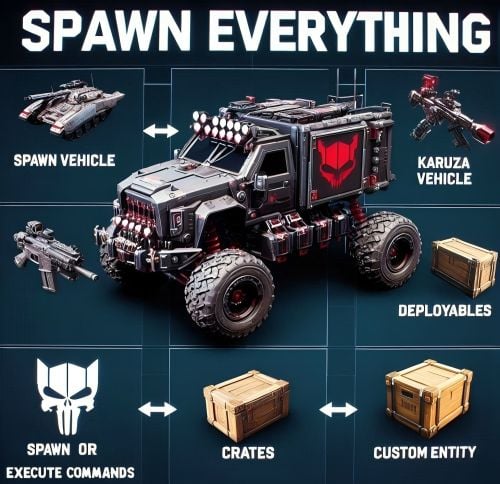
Version 1.4.8
1,445 downloads
Spawn Everything - Spawn Vehicle, Karuza Vehicle, Deployables, Bases, Item, Recycler, Crates, Custom entity, Execute Commands, Loots, Pickup Entity, Pickup Vehicles, Deploy Nature, Instant Airdrop, and much more... Spawn Everything - Spawn all entity, Bases, Item, loot, Pickup Entity, Pickup Vehicles, Deploy Nature, Instant Airdrop, allows you to spawn any entity or execute commands, all by using an item, pickup entity or vehicles, and much more. It is already configured to generate vehicles by default, including custom vehicles from Karuza, Crates, Locked Crate, Deployables, Casino items and much more. Through the configuration you can add other entities that can be generated, just enter a prefab name, or a command if you do not have a prefab name, and set the skin of the item that will be used. It also allows you to limit the spawn, for example if you do not have building permits, avoid spawning in water or allow it only in water, also being able to choose the minimum depth of the water, allow or not spawn inside buildings, monuments and more. It is also possible to pick up the generated entity/vehicles, using the hammer. You can add items to the in-game shop, loot, or wherever you want. Spawn Bases using copy paste or other plugin. You can also Deploy Nature and enable instant airdrop. Compatible with Oxide/Umod and Carbon. ALL AVAILABLE ENTITIES Here you can find a file with all the entities currently available and the various information on the item to create to spawn the entity ALL AVAILABLE ENTITIES PLAYLIST - VIDEO EXAMPLE Below you can see an example video on how to use the plugin. -------------------- SOME EXAMPLES OF USE: Some examples of how the plugin works and the entities that can be spawned by default. Vehicle Spawn Spawn Custom Vehicles by Karuza Pickup Entity Pickup Vehicle Pickup Karuza Vehicle Spawn Recycler Deploy Nature Ability to enable instant airdrop. Spawn NPC vehicles, such as Bradley, Patrol helicopter, CH47 (Chinook 47) Spawn loot boxes, such as the: Locked Crate, Oil Rig Locked Crate, Bradley APC Crate, Patrol Helicopter Crate, Elite Tier Crate, Elite Tier Crate - Underwater Labs. Crater for mines, to place mines where you want. Survey Crater - For Mining Quarry, Survey Crater Oil - For Pump Jack. Spawn Bases using copy paste or other plugin Spawn Casino entities Spawn custom entities And much more PERMISSIONS: spawneverything.admin -- Allows the use of commands reserved for admins, such as giving items for entity spawning to players. spawneverything.fuel.unlimited -- If the entity to be spawned is a vehicle, the vehicle will not need fuel to run. The same can be achieved via the configuration file, for each individual entity. spawneverything.nodamage.enabled -- Spawned entities will not take damage if the player has this permission. spawneverything.spawn.not_enabled -- Allows you to spawn entities that have not been enabled in the configuration file. spawneverything.spawn.bypass_building_privilege -- Allows you to spawn entities even if you don't have building permissions, for entities that require building permissions to spawn. spawneverything.spawn.bypass_tc -- Allows entities to be spawned, for entities that cannot be spawned near any Tool Cupboard (TC). spawneverything.spawn.bypass_monument -- Allows entities to be spawned in monuments, for entities that cannot be spawned in monuments. spawneverything.spawn.bypass_road_rails -- Allows entities to be spawned to the road/rails, for entities that cannot be spawned to the road/rails. spawneverything.spawn.bypass_only_outside -- Allows entities to spawn inside buildings, for entities that cannot be spawned inside buildings. spawneverything.spawn.bypass_water -- Allows entities to spawn in water, for entities that cannot be spawned in water. spawneverything.spawn.bypass_respawn_conditions -- Allows you to bypass condition checking for respawned entities after they have been picked up. Picked up entities will always be respawned in the max condition. COMMANDS FOR PLAYERS Commands can be typed in chat (by putting the / character in front of the command), or from console. /se pickup -- Command to pick up entities, without the hammer. COMMANDS FOR ADMIN Commands can be typed in chat (by putting the / character in front of the command), from console or Rcon. To use these commands you must have the role: spawneverything.admin /se <skinID> <quantity> -- Allows you to give the item to spawn the entity, to yourself. You need to pass these parameters: skinID of the configured entity The quantity of items. /se <skinID> <quantity> <steamID> -- Allows you to give the item to spawn the entity, to a player. You need to pass these parameters: skinID of the configured entity The quantity of items. The SteamID of the player to give the items to Commands can be added or modified in the configuration file: /oxide/config/SpawnEverything.json ENTITY PICK UP You can collect the generated entity using the hammer. By collecting the entity, you will be given back the item for the entity's spawn. To collect the entity you need to hold down the SHIFT key and hit the entity with the hammer. You can only collect entities that have been enabled for collection in the configuration file. Depending on the configurations/roles, the picked up entities can be respawned to the conditions they were in when they were picked up or to the maximum conditions. INSTANT AIRDROP In the plugin configuration, you can enable instant airdrop. USE VIA SHOP, LOOT. VENDING MACHINE The plugin can use any item for entity spawning. You need to generate an item with a certain skin id, to get the item that allows the entity to spawn. The name of the item to use and the skin id are present in the configuration file: Item name (That will be used to spawn the entity. Default grenade.flashbang) SkinID You can add these items to the in-game Shop, to the loot, in the Vending Machine or wherever you want, very easily. For example, this item spawns a minicopter: Item: grenade.flashbang | SkinID: 3366887420 or ItemID: -936921910 | SkinID: 3366887420 CONFIGURATION The settings and options can be configured in the SpawnEverything.json under the config directory. The use of an editor and validator is recommended to avoid formatting issues and syntax errors. { "TimeZone": "Europe/London", "Chat Command": [ "se", "spawneverything", "spawner" ], "ChatPrefix": "SpawnEverything", "Add spawnable Resource/Nature to your configuration. (Default: FALSE)": false, "Add Karuza Custom Vehicles to your configuration. (Default: FALSE)": false, "Instant Supply Signal Settings": { "Enable instant Supply Signal drop. Default: FALSE": false, "Spawn Only Outside bases. Default: TRUE": true, "Spawn Cooldown (seconds). [Minimum 1 seconds]. Default: 1": 1, "Bypass Fancy Drop to avoid conflicts with the launch of the Supply Signal. Default: TRUE": true }, "Role Permission": { "vip1": { "Priority. (lower = higher priority)": 1, "Always regenerate picked up entities at maximum conditions. Default FALSE": false, "Global maximum number of active entities for each Enabled Spawnable Entity. (-1 no limit)": -1, "Maximum number of active entities for each Enabled Spawnable Entity. Value = SkinID, Limits (Number of active entities. -1 no limit)": {} }, "vip2": { "Priority. (lower = higher priority)": 2, "Always regenerate picked up entities at maximum conditions. Default FALSE": false, "Global maximum number of active entities for each Enabled Spawnable Entity. (-1 no limit)": -1, "Maximum number of active entities for each Enabled Spawnable Entity. Value = SkinID, Limits (Number of active entities. -1 no limit)": {} }, "vip3": { "Priority. (lower = higher priority)": 3, "Always regenerate picked up entities at maximum conditions. Default FALSE": false, "Global maximum number of active entities for each Enabled Spawnable Entity. (-1 no limit)": -1, "Maximum number of active entities for each Enabled Spawnable Entity. Value = SkinID, Limits (Number of active entities. -1 no limit)": {} }, "default": { "Priority. (lower = higher priority)": 100, "Always regenerate picked up entities at maximum conditions. Default FALSE": false, "Global maximum number of active entities for each Enabled Spawnable Entity. (-1 no limit)": -1, "Maximum number of active entities for each Enabled Spawnable Entity. Value = SkinID, Limits (Number of active entities. -1 no limit)": {} } }, "Entity Drop Item": [ { "Enabled": false, "DisplayName": "Spawn Minicopter", "Description": "Spawn Minicopter", "Item name (That will be used to spawn the entity. Default grenade.flashbang)": "grenade.flashbang", "Spawn PrefabName": "assets/content/vehicles/minicopter/minicopter.entity.prefab", "SkinID": 3366887420, "Item can be stacked? FALSE, the entity will be respawned in the same condition it was in when picked. TRUE, the entity will always be respawned as new. Default: FALSE": false, "Spawn Position Offset": { "Right": 0.0, "Forward": 0.0, "Up": 0.0 }, "Spawn Rotation Offset": { "X": 0.0, "Y": 0.0, "Z": 0.0 }, "Entity Type. Default Rust": "Rust", "Can Pick Up Entity. Default false": true, "Custom Radius Check": 0.0, "Execute Player Commands": [], "Execute Player Commands As Admin": false, "Execute Server Commands": [], "Spawn Cooldown (seconds)": 0, "Usage Cooldown. Cooldown for reuse (seconds) (0 no cooldown)": 0, "Requires Building Privilege to Spawn Entity. (Default: TRUE)": true, "Minimum spawn distance from any Tool Cupboard (TC). [0 = Disabled] (Default: 0)": 0, "Allow Spawn in Monuments. (Default: FALSE)": false, "Disable Spawn in Monuments and Monuments radius. (Default: FALSE)": false, "Disable Spawn On Road/Rails. (Default: FALSE)": false, "Minimum spawn distance from Road/Rails. (Default: 0)": 0, "Spawn Only Outside": true, "Dont Spawn In Water": true, "Requires Water": false, "Minimum Water Depth": 0.0, "Armored": false, "Unlimited Fuel": false, "Fuel Amount": 0 }, { "Enabled": false, "DisplayName": "Spawn Attack Helicopter", "Description": "Spawn Attack Helicopter", "Item name (That will be used to spawn the entity. Default grenade.flashbang)": "grenade.flashbang", "Spawn PrefabName": "assets/content/vehicles/attackhelicopter/attackhelicopter.entity.prefab", "SkinID": 3366893095, "Item can be stacked? FALSE, the entity will be respawned in the same condition it was in when picked. TRUE, the entity will always be respawned as new. Default: FALSE": false, "Spawn Position Offset": { "Right": 0.0, "Forward": 0.0, "Up": 0.0 }, "Spawn Rotation Offset": { "X": 0.0, "Y": 0.0, "Z": 0.0 }, "Entity Type. Default Rust": "Rust", "Can Pick Up Entity. Default false": true, "Custom Radius Check": 0.0, "Execute Player Commands": [], "Execute Player Commands As Admin": false, "Execute Server Commands": [], "Spawn Cooldown (seconds)": 0, "Usage Cooldown. Cooldown for reuse (seconds) (0 no cooldown)": 0, "Requires Building Privilege to Spawn Entity. (Default: TRUE)": true, "Minimum spawn distance from any Tool Cupboard (TC). [0 = Disabled] (Default: 0)": 0, "Allow Spawn in Monuments. (Default: FALSE)": false, "Disable Spawn in Monuments and Monuments radius. (Default: FALSE)": false, "Disable Spawn On Road/Rails. (Default: FALSE)": false, "Minimum spawn distance from Road/Rails. (Default: 0)": 0, "Spawn Only Outside": true, "Dont Spawn In Water": true, "Requires Water": false, "Minimum Water Depth": 0.0, "Armored": false, "Unlimited Fuel": false, "Fuel Amount": 0 }, { "Enabled": false, "DisplayName": "Spawn Scrap Transport Helicopter", "Description": "Spawn Scrap Transport Helicopter", "Item name (That will be used to spawn the entity. Default grenade.flashbang)": "grenade.flashbang", "Spawn PrefabName": "assets/content/vehicles/scrap heli carrier/scraptransporthelicopter.prefab", "SkinID": 3366892516, "Item can be stacked? FALSE, the entity will be respawned in the same condition it was in when picked. TRUE, the entity will always be respawned as new. Default: FALSE": false, "Spawn Position Offset": { "Right": 0.0, "Forward": 0.0, "Up": 0.0 }, "Spawn Rotation Offset": { "X": 0.0, "Y": 0.0, "Z": 0.0 }, "Entity Type. Default Rust": "Rust", "Can Pick Up Entity. Default false": true, "Custom Radius Check": 0.0, "Execute Player Commands": [], "Execute Player Commands As Admin": false, "Execute Server Commands": [], "Spawn Cooldown (seconds)": 0, "Usage Cooldown. Cooldown for reuse (seconds) (0 no cooldown)": 0, "Requires Building Privilege to Spawn Entity. (Default: TRUE)": true, "Minimum spawn distance from any Tool Cupboard (TC). [0 = Disabled] (Default: 0)": 0, "Allow Spawn in Monuments. (Default: FALSE)": false, "Disable Spawn in Monuments and Monuments radius. (Default: FALSE)": false, "Disable Spawn On Road/Rails. (Default: FALSE)": false, "Minimum spawn distance from Road/Rails. (Default: 0)": 0, "Spawn Only Outside": true, "Dont Spawn In Water": true, "Requires Water": false, "Minimum Water Depth": 0.0, "Armored": false, "Unlimited Fuel": false, "Fuel Amount": 0 }, { "Enabled": false, "DisplayName": "Spawn Hot Air Balloon", "Description": "Spawn Hot Air Balloon", "Item name (That will be used to spawn the entity. Default grenade.flashbang)": "grenade.flashbang", "Spawn PrefabName": "assets/prefabs/deployable/hot air balloon/hotairballoon.prefab", "SkinID": 3366893631, "Item can be stacked? FALSE, the entity will be respawned in the same condition it was in when picked. TRUE, the entity will always be respawned as new. Default: FALSE": false, "Spawn Position Offset": { "Right": 0.0, "Forward": 0.0, "Up": 0.0 }, "Spawn Rotation Offset": { "X": 0.0, "Y": 0.0, "Z": 0.0 }, "Entity Type. Default Rust": "Rust", "Can Pick Up Entity. Default false": true, "Custom Radius Check": 0.0, "Execute Player Commands": [], "Execute Player Commands As Admin": false, "Execute Server Commands": [], "Spawn Cooldown (seconds)": 0, "Usage Cooldown. Cooldown for reuse (seconds) (0 no cooldown)": 0, "Requires Building Privilege to Spawn Entity. (Default: TRUE)": true, "Minimum spawn distance from any Tool Cupboard (TC). [0 = Disabled] (Default: 0)": 0, "Allow Spawn in Monuments. (Default: FALSE)": false, "Disable Spawn in Monuments and Monuments radius. (Default: FALSE)": false, "Disable Spawn On Road/Rails. (Default: FALSE)": false, "Minimum spawn distance from Road/Rails. (Default: 0)": 0, "Spawn Only Outside": true, "Dont Spawn In Water": true, "Requires Water": false, "Minimum Water Depth": 0.0, "Armored": false, "Unlimited Fuel": false, "Fuel Amount": 0 }, { "Enabled": false, "DisplayName": "Spawn Armored Hot Air Balloon", "Description": "Spawn Armored Hot Air Balloon", "Item name (That will be used to spawn the entity. Default grenade.flashbang)": "grenade.flashbang", "Spawn PrefabName": "assets/prefabs/deployable/hot air balloon/hotairballoon.prefab", "SkinID": 3366893925, "Item can be stacked? FALSE, the entity will be respawned in the same condition it was in when picked. TRUE, the entity will always be respawned as new. Default: FALSE": false, "Spawn Position Offset": { "Right": 0.0, "Forward": 0.0, "Up": 0.0 }, "Spawn Rotation Offset": { "X": 0.0, "Y": 0.0, "Z": 0.0 }, "Entity Type. Default Rust": "Rust", "Can Pick Up Entity. Default false": true, "Custom Radius Check": 0.0, "Execute Player Commands": [], "Execute Player Commands As Admin": false, "Execute Server Commands": [], "Spawn Cooldown (seconds)": 0, "Usage Cooldown. Cooldown for reuse (seconds) (0 no cooldown)": 0, "Requires Building Privilege to Spawn Entity. (Default: TRUE)": true, "Minimum spawn distance from any Tool Cupboard (TC). [0 = Disabled] (Default: 0)": 0, "Allow Spawn in Monuments. (Default: FALSE)": false, "Disable Spawn in Monuments and Monuments radius. (Default: FALSE)": false, "Disable Spawn On Road/Rails. (Default: FALSE)": false, "Minimum spawn distance from Road/Rails. (Default: 0)": 0, "Spawn Only Outside": true, "Dont Spawn In Water": true, "Requires Water": false, "Minimum Water Depth": 0.0, "Armored": true, "Unlimited Fuel": false, "Fuel Amount": 0 }, { "Enabled": false, "DisplayName": "Spawn Kayak", "Description": "Spawn Kayak", "Item name (That will be used to spawn the entity. Default grenade.flashbang)": "grenade.flashbang", "Spawn PrefabName": "assets/content/vehicles/boats/kayak/kayak.prefab", "SkinID": 3366894316, "Item can be stacked? FALSE, the entity will be respawned in the same condition it was in when picked. TRUE, the entity will always be respawned as new. Default: FALSE": false, "Spawn Position Offset": { "Right": 0.0, "Forward": 0.0, "Up": 0.0 }, "Spawn Rotation Offset": { "X": 0.0, "Y": 0.0, "Z": 0.0 }, "Entity Type. Default Rust": "Rust", "Can Pick Up Entity. Default false": true, "Custom Radius Check": 0.0, "Execute Player Commands": [], "Execute Player Commands As Admin": false, "Execute Server Commands": [], "Spawn Cooldown (seconds)": 0, "Usage Cooldown. Cooldown for reuse (seconds) (0 no cooldown)": 0, "Requires Building Privilege to Spawn Entity. (Default: TRUE)": true, "Minimum spawn distance from any Tool Cupboard (TC). [0 = Disabled] (Default: 0)": 0, "Allow Spawn in Monuments. (Default: FALSE)": false, "Disable Spawn in Monuments and Monuments radius. (Default: FALSE)": false, "Disable Spawn On Road/Rails. (Default: FALSE)": false, "Minimum spawn distance from Road/Rails. (Default: 0)": 0, "Spawn Only Outside": true, "Dont Spawn In Water": false, "Requires Water": true, "Minimum Water Depth": 0.5, "Armored": false, "Unlimited Fuel": false, "Fuel Amount": 0 }, ........................................ ], "VersionNumber": { "Major": 1, "Minor": 4, "Patch": 1 } } TimeZone: -- Default: Europe/London Chat Command: -- Here you can add, edit or delete Commands can be typed in chat (by putting the / character in front of the command), or from console. ChatPrefix: -- Chat message prefix. Show Pick Up Entity Confirm Dialog: -- If enabled, show a confirmation dialog when you want to collect the entity for added security and to avoid unintentional errors. Default: TRUE Add spawnable Resource/Nature to your configuration -- If set to TRUE, adds all Resources/Nature to the configuration. Default: FALSE Add Karuza Custom Vehicles to your configuration: -- If set to TRUE, adds all Karuza custom vehicles to the configuration. Default: FALSE INSTANT AIRDROP Configuration for instant airdrop: Enable instant Supply Signal drop: -- If enabled, Supply Drops arrive instantly. Default: FALSE Spawn Only Outside bases: -- Enable Supply Signals to spawn only outside bases. Default: TRUE Spawn Cooldown (seconds). [Minimum 1 seconds]: -- Sets a wait time before the Supply Drop arrive, once the Supply Signal is thrown. Minimum 1 seconds. Default: 1 Bypass Fancy Drop to avoid conflicts with the launch of the Supply Signal: -- If enabled, bypasses the FancyDrop plugin to avoid conflicts. Default: TRUE GROUPS AND LIMITS - ROLE PERMISSION The plugin creates 4 default groups: Default, vip1, vip2, vip3. You can add more groups or rename groups. For example, if you change the group vip1 to vip_elite, the permission spawneverything.vip_elite will be created If you create a new group, for example vipvanilla, the permission spawneverything.vipvanilla will be created. In the configuration file there is this configuration for managing groups: Role Permission: Here you can set the configurations for the various roles: Priority. (lower = higher priority) -- Each group has its own property, the lower this number is, the more important the group is. This is useful in the case where a player has more roles assigned. In this case, the group with the lowest priority will be assigned, the most important group. Negative numbers are also allowed. Always regenerate picked up entities at maximum conditions: Force entity respawn to always be at maximum conditions, even for picked up entities. Default FALSE Global maximum number of active entities for each Enabled Spawnable Entity. (-1 no limit): Global limit that applies to all entities. Determines how many entities of the same type can be in use at the same time. Default -1 (no limit) Maximum number of active entities for each Enabled Spawnable Entity. Value = SkinID, Limits (Number of active entities. -1 no limit): Number of entities of the same type that can be in use at the same time. Here you can specify the limit for each individual SkinID. The limit applied here overrides the global limit. Configuration example: "Maximum number of active entities for each Enabled Spawnable Entity. Value = SkinID, Limits (Number of active entities. -1 no limit)": { "3366887420": -1, "3366892516": 20, "3366893095": 0 } SPAWNABLE ENTITY: ITEM CONFIGURATION Here you will insert all the items with their configurations for the spawn of any entity. Enabled: -- If set to FALSE, the entity cannot be spawned. You can bypass this check with the permission: spawneverything.spawn.not_enabled DisplayName: -- The name of the Item that the player will see when he clicks on it with the mouse. Description: -- A description of the entity that will be spawned. It has no effect on the player's Item, it is just for internal use to remind you what this Item does. Item name (That will be used to spawn the entity. Default grenade.flashbang): -- Here you need to specify the name of the item that will be used to spawn this entity. Spawn PrefabName: -- Here you enter the name of the Prefab that will be generated. It is not mandatory, you can not enter the Prefab Name and instead execute commands that you can define later in the configuration. SkinID: -- Here you enter the SkinID that will be applied to the item. Based on the SkinID, a different Item will be generated for the spawn of different entities. You can use existing SkinIDs on the Steam Workshop or create your own Skin. Item can be stacked? FALSE, the entity will be respawned in the same condition it was in when picked. TRUE, the entity will always be respawned as new: FALSE: the entity will be respawned in the same condition it was in when picked. TRUE: the entity will always be respawned as new. Default: FALSE Entity Type -- This field is used by the plugin to understand if it is a Rust entity or an entity generated by another plugin. If you do not know what to enter, leave it as default: Rust Can Pick Up Entity. Default false -- Here you can decide whether the entity can be picked up with the hammer or not. It is recommended to disable picking for all items that generate Loot, to avoid abuse. Spawn Position Offset: -- Here you can specify the position to add relative to the entity spawn point, to fine-tune the positions of entities. Right: Moves the entity to the right. Use a negative value to move the entity to the left Forward: Moves the entity forward. Use a negative value to move the entity backwards. Up: Moves the entity up. Use a negative value to move the entity down. Spawn Rotation Offset -- Here you can specify the coordinates to add relative to the entity's spawn point, to fine-tune the rotation of the entities. X: Rotate the entity on the X-axis Y: Rotate the entity on the Y-axis Z: Rotate the entity on the Z-axis Custom Radius Check -- Each spawn checks if there are entities that collide and the radius, within which to check, is automatically determined based on the size of the entity. But in some cases it is necessary to define a custom radius. Here you can decide the radius within which to check if there are entities that collide with the spawn. Execute Player Commands: -- Here you can enter 1 or more commands that will be executed when the Item is launched. You can use some placeholders that can be passed to the commands %%msg%%: This placeholder can be used to send a message to the player, here is an example command: "%%msg%% test command": This will send a message to the player with the text: "test command" "%%msg%% %%steamid%%": This will send a message to the player with the text: player steamID %%steamid%%: This placeholder is used to insert the player's steamID into the command. %%username%%: This placeholder is used to insert the player username into the command. %%displayName%%: This placeholder is used to insert the player display name (include clan tag) into the command. %%spawnCoordinateX%%: This placeholder is used to insert the spawn coordinate X into the command. %%spawnCoordinateY%%: This placeholder is used to insert the spawn coordinate Y into the command. %%spawnCoordinateZ%%: This placeholder is used to insert the spawn coordinate Z into the command. %%spawnRotationX%%: This placeholder is used to insert the spawn rotation X into the command. %%spawnRotationY%%: This placeholder is used to insert the spawn rotation Y into the command. %%spawnRotationZ%%: This placeholder is used to insert the spawn rotation Z into the command. %%mapGrid%%: This placeholder is used to insert the map grid into the command. %%mapGridLetter%%: This placeholder is used to insert the map grid letter into the command. %%mapGridNumber%%: This placeholder is used to insert the map grid number into the command. -------------------- Here are some possible command examples: "deposit %%steamid%% 1000": Will deposit 1000 RP into the player's account (Economics plugin) "inventory.giveto %%steamid%% "short name" "amount" ": This will send a certain amount of items to the player. Execute Player Commands As Admin: -- If set to TRUE, runs the command as Admin. Useful for running commands that require server-side Admin permissions. Default: FALSE Execute Server Commands: -- Run a command on the server console with server privileges. Allow administrative commands such as spawning entities, changing game variables, managing players, etc. Bypass normal player permission restrictions, as the command is executed as if it were entered directly into the server console. Useful if you want to run a command, that a player normally could not execute, because he does not have permissions. You can use the same placeholders as the property: Execute Player Commands Spawn Cooldown (seconds): -- Sets a wait time before the entity is spawned, once the item is thrown. Usage Cooldown. Cooldown for reuse (seconds) (0 no cooldown): Cooldown for entity reuse. Default 0 seconds Spawn Only Outside: -- If set to TRUE, the entity can only spawn outside of buildings or on the roof. It cannot spawn inside the building. Useful for vehicles or large entities, to avoid them getting stuck inside the base. Default: TRUE. You can bypass this check with the permission: spawneverything.spawn.bypass_only_outside Allow spawning entity only where you have Building Privilege -- If set to TRUE, spawning is only allowed where you have building permissions. Default: FALSE. You can bypass this check with the permission: spawneverything.spawn.bypass_building_privilege Requires Building Privilege or zones without TC to Spawn Entity: -- If set to TRUE, building permissions will be required to spawn an entity or zones without TC. Default: TRUE. You can bypass this check with the permission: spawneverything.spawn.bypass_building_privilege Minimum spawn distance from any Tool Cupboard (TC). [0 = Disabled] -- Minimum spawn distance from any Tool Cupboard (TC). [0 = Disabled]. Default: 0. You can bypass this check with the permission: spawneverything.spawn.bypass_tc Allow Spawn in Monuments: -- If set to FALSE, the entity cannot be spawned inside the monument, but can be spawned outside the monument, within the radius of the monument (Radius means the red radius visible when for example trying to build near a monument). Default: FALSE. You can bypass this check with the permission: spawneverything.spawn.bypass_monument Disable Spawn in Monuments and Monuments radius: -- If set to true, the entity cannot be spawned inside the monument and outside the monument, within the radius of the monument (Radius means the red radius visible when for example trying to build near a monument). Default: FALSE. You can bypass this check with the permission: spawneverything.spawn.bypass_monument Disable Spawn On Road/Rails -- Disable entity spawn on the road/rails. Default: FALSE. You can bypass this check with the permission: spawneverything.spawn.bypass_road_rails Minimum spawn distance from Road/Rails -- Minimum distance from the road/rails for the entity to spawn. Default: 0. You can bypass this check with the permission: spawneverything.spawn.bypass_road_rails Dont Spawn In Water: -- If set to TRUE, the entity cannot be spawned in water. Useful for vehicles that cannot go in water. Warning: There is one exception. In very shallow water, entities can still be spawned, for example near the coast. The water must not be deeper than 0.5 meters. Default: FALSE. You can bypass this check with the permission: spawneverything.spawn.bypass_water Requires Water: -- If set to TRUE, the entity can only be spawned in water, useful for vehicles that can only operate in water, such as boats. Default: FALSE Minimum Water Depth: -- If the entity can only be spawned in water, you can decide the minimum depth of the water. Useful to avoid spawning large entities in very shallow water so they do not get stuck. Default: 0 Meters = Any depth. The value cannot be negative. No Damage -- If set to TRUE, entities will not take damage. Disable resource production, for example for entities of type Resource/Nature -- If set to TRUE, entities do not produce resources, useful for entities of type Resources/Nature Armored: -- There are entities that have the same Prefab Name, but 1 of the 2 can be generated with armor. In this case, you can decide which entity should have armor, For example Armored Hot Air Balloon. Unlimited Fuel: -- If the entity is a vehicle, you can choose to spawn the entity with unlimited fuel. This configuration does not apply to Karuza's custom vehicles. You can bypass this check with the permission: spawneverything.fuel.unlimited Fuel Amount: -- If the entity is a vehicle, you can decide how much fuel the entity will spawn with. Default: 0 fuel. You can bypass this check with the permission: spawneverything.fuel.unlimited NB: At least 1 of the 2 fields between Spawn PrefabName and Execute Commands is mandatory LOCALIZATION The plugin is translated into the following languages: English Italian Spanish French German Dutch Turkish Russian Ukrainian Chinese (Simplified - zh-CN) Translation files are located in the /oxide/lang folder,here is an example of a /oxide/lang/en/SpawnEverything.json translation file. You can add translations for other languages by adding them to the folder: /oxide/lang ALL AVAILABLE ENTITIES Here you can find a file with all the entities currently available and the various information on the item to create to spawn the entity ALL AVAILABLE ENTITIES ---------------------------------------- AVAILABLE ENTITIES By default the plugin is configured with these entities that can be generated: VEHICLES: Minicopter, Attack Helicopter, Scrap Transport Helicopter, Hot Air Balloon, Armored Hot Air Balloon, Kayak, Row Boat, RHIB, Tugboat, Submarine Solo, Submarine Duo, Horse, Snowmobile, Tomaha Snowmobile, Sedan, 2 Module Car, 3 Module Car, 4 Module Car, Motorbike, Motorbike With Sidecar, Pedal Bike, Pedal Trike. KARUZA CUSTOM VEHICLES: All Karuza special vehicles are included, you need to enable the property in the config file to use them. Requires Karuza Vehicles plugin. SPECIAL VEHICLES: Bradley APC, Patrol Helicopter, Chinook 47. SPECIAL ENTITIES: Train Casino - Lucky Caboose, Blackjack Machine (Caboose), Card Table (Caboose), Slot Machine (Caboose), Card Table - A, Card Table - B, Card Table - C, Card Table - D, Slot Machine, Recycler, Recycler Safe Zone, Present Drop, Desk A Static CRATE: Locked Crate, Oil Rig Locked Crate, Bradley APC Crate, Patrol Helicopter Crate, Elite Tier Crate, Elite Tier Crate - Underwater Labs. CRATER: Survey Crater - For Mining Quarry, Survey Crater Oil - For Pump Jack. RESOURCES/NATURE: Deployment of entities of type Resources/Nature, such as trees NEW ENTITIES You can add as many entities as you want via the configuration file. If you have any difficulties or need to add a particular entity, feel free to open a support request and it will be added to the plugin. New entities will be added with future releases of the plugin. ENTITY IMAGE PREVIEW: Spawn Minicopter Spawn Attack Helicopter Spawn Scrap Transport Helicopter Spawn Hot Air Balloon Spawn Armored Hot Air Balloon Spawn Kayak Spawn Row Boat Spawn RHIB Spawn Tugboat Spawn Submarine Solo Spawn Submarine Duo Spawn Horse Spawn Snowmobile Spawn Tomaha Snowmobile Spawn Sedan Spawn 2 Module Car Spawn 3 Module Car Spawn 4 Module Car Spawn Motorbike Spawn Motorbike With Sidecar Spawn Pedal Bike Spawn Pedal Trike Spawn Recycler Spawn Recycler Safe Zone Spawn Bradley APC Spawn Patrol Helicopter Spawn Chinook 47 Spawn MLRS Launcher Spawn Survey Crater - For Mining Quarry Spawn Survey Crater Oil - For Pump Jack Spawn Locked Crate Spawn Oil Rig Locked Crate Spawn Bradley APC Crate Spawn Patrol Helicopter Crate Spawn Elite Tier Crate Spawn Elite Tier Crate - Underwater Labs Spawn Train Casino - Lucky Caboose Spawn Casino - Blackjack Machine (Caboose) Spawn Casino - Card Table (Caboose) Spawn Casino - Slot Machine (Caboose) Spawn Card Table - A Spawn Card Table - B Spawn Card Table - C Spawn Card Table - D Spawn Casino - Slot Machine Spawn Present Drop Spawn Desk A Static SPAWN ALL KARUZA VEHICLES SPAWN BASES EXECUTE COMMANDS AND MUCH MORE... Swamp Tree A Swamp Tree B Swamp Tree C Swamp Tree D Swamp Tree E Swamp Tree F Arctic Forest - Douglas Fir A Snow Arctic Forest - Douglas Fir B Snow Arctic Forest - Douglas Fir C Snow Arctic Forest - Pine A Snow Arctic Forest - Pine C Snow Arctic Forest - Pine Dead Snow A Arctic Forest - Pine Dead Snow B Arctic Forest - Pine Dead Snow C Arctic Forest - Pine Dead Snow D Arctic Forest - Pine Dead Snow E Arctic Forest - Pine Dead Snow F Arctic Forest - Pine Sapling A Snow Arctic Forest - Pine Sapling B Snow Arctic Forest - Pine Sapling C Snow Arctic Forest - Pine Sapling D Snow Arctic Forest - Pine Sapling E Snow Arctic Forestside - Pine A Snow Arctic Forestside - Pine B Snow Arctic Forestside - Pine D Snow Arctic Forestside - Pine Dead Snow E Arctic Forestside - Pine Dead Snow F Arctic Forestside - Pine Sapling D Snow Arctic Forestside - Pine Sapling E Snow Arid Beachside - Palm Tree Short A Arid Beachside - Palm Tree Short B Arid Beachside - Palm Tree Short C Arid Beachside - Palm Tree Small A Arid Beachside - Palm Tree Small B Arid Beachside - Palm Tree Small C Arid Cactus 1 Arid Cactus 2 Arid Cactus 3 Arid Cactus 4 Arid Cactus 5 Arid Cactus 6 Arid Cactus 7 Arid Field - Palm Tree Short A Arid Field - Palm Tree Short B Arid Field - Palm Tree Short C Arid Field - Palm Tree Small B Arid Field - Palm Tree Small C Arid Forest - Palm Tree Medium A Arid Forest - Palm Tree Short A Arid Forest - Palm Tree Short B Arid Forest - Palm Tree Short C Arid Forest - Palm Tree Tall A Arid Forest - Palm Tree Tall B Arid Forestside - Palm Tree Short A Arid Forestside - Palm Tree Short B Arid Forestside - Palm Tree Short C Bushes Arctic - Willow Snow A Bushes Arctic - Willow Snow B Bushes Arctic - Willow Snow C Bushes Arctic - Willow Snow D Bushes Arctic - Willow Snow Small A Bushes Arctic - Willow Snow Small B Bushes Arctic Forest - Spicebush A Snow Bushes Arctic Forest - Spicebush C Snow Bushes Arctic Forest - Willow Snow A Bushes Arctic Forest - Willow Snow B Bushes Arctic Forest - Willow Snow C Bushes Arctic Forest - Willow Snow D Bushes Arid Desert - Creosote C Bushes Arid Desert - Creosote D Bushes Arid Desert - Mormon Tea A Bushes Arid Desert - Mormon Tea B Bushes Arid Desert - Mormon Tea C Bushes Arid Desert - Mormon Tea D Bushes Arid Dry - Creosote A Bushes Arid Dry - Creosote B Bushes Arid Grass - Creosote A Bushes Arid Grass - Creosote B Bushes Arid Grass - Creosote C Bushes Arid Grass - Creosote D Bushes Arid Ocotillo A Bushes Arid Ocotillo B Bushes Arid Ocotillo C Bushes Arid Ocotillo D Bushes Arid Ocotillo - Dry A Bushes Arid Ocotillo - Dry B Bushes Arid Ocotillo - Dry C Bushes Arid Ocotillo - Dry D Bushes Temperate - Spicebush A Bushes Temperate - Spicebush B Bushes Temperate - Spicebush C Bushes Temperate - Spicebush D Bushes Temperate - Willow A Bushes Temperate - Willow B Bushes Temperate - Willow C Bushes Temperate - Willow D Bushes Tundra - Spicebush A Bushes Tundra - Spicebush B Bushes Tundra - Spicebush C Bushes Tundra - Spicebush D Temperate Beachside - Birch Small Temperate Beachside - Birch Tiny Temperate Field - American Beech D Temperate Field - American Beech E Temperate Field - Birch Small Temperate Field - Birch Tiny Temperate Field Large - Oak B Temperate Field Large - Oak C Temperate Field Large - Oak D Temperate Field - Oak E Temperate Field - Oak F Temperate Field - Pine B Temperate Field - Pine D Temperate Forest - American Beech A Dead Temperate Forest - American Beech A Temperate Forest - American Beech B Temperate Forest - American Beech C Temperate Forest - Birch Big Temperate Forest - Birch Large Temperate Forest - Birch Medium Temperate Forest Pine - American Beech A Temperate Forest Pine - American Beech B Temperate Forest Pine - American Beech C Temperate Forest Pine - Birch Big Temperate Forest Pine - Birch Large Temperate Forest Pine - Douglas Fir A Temperate Forest Pine - Douglas Fir B Temperate Forest Pine - Douglas Fir C Temperate Forest Pine A Temperate Forest Pine C Temperate Forestside - American Beech D Temperate Forestside - American Beech E Temperate Forestside - American Beech E Dead Temperate Forestside - Birch Medium Temperate Forestside - Birch Small Temperate Forestside - Birch Tiny Temperate Forestside Pine - Douglas Fir D Temperate Forestside Pine B Temperate Forestside Pine D Tundra Field - Birch Big Tundra Field - Birch Large Tundra Field - Birch Medium Tundra Field - Birch Small Tundra Field - Birch Tiny Tundra Field - Pine Dead D Tundra Field - Pine Dead E Tundra Field - Pine Dead F Tundra Field Pine A Tundra Field Pine B Tundra Field Pine D Tundra Field Pine Sapling A Tundra Field Pine Sapling B Tundra Field Pine Sapling C Tundra Field Pine Sapling D Tundra Field Pine Sapling E Tundra Forest - Birch Big Tundra Forest - Birch Large Tundra Forest Dead - Douglas Fir C Tundra Forest - Pine Dead A Tundra Forest - Pine Dead B Tundra Forest - Pine Dead C Tundra Forest - Pine Dead D Tundra Forest - Pine Dead E Tundra Forest - Pine Dead F Tundra Forest - Douglas Fir A Tundra Forest - Douglas Fir B Tundra Forest - Douglas Fir C Tundra Forest - Douglas Fir D Tundra Forest - Pine A Tundra Forest - Pine C Tundra Forest - Pine Dead A Tundra Forest - Pine Dead B Tundra Forest - Pine Dead C Tundra Forest - Pine Dead D Tundra Forest - Pine Dead E Tundra Forest - Pine Dead F Tundra Forest - Pine Sapling A Tundra Forest - Pine Sapling B Tundra Forest - Pine Sapling C Tundra Forest - Pine Sapling D Tundra Forest - Pine Sapling E Tundra Forestside - Birch Medium Tundra Forestside - Birch Small Tundra Forestside - Birch Tiny Tundra Forestside - Douglas Fir D Small Tundra Forestside - Pine B Tundra Forestside - Pine D Wood Pile Stone Ore Metal Ore Sulfur Ore Driftwood 1 Driftwood 2 Driftwood 3 Driftwood 4 Driftwood 5 Driftwood Set 1 Driftwood Set 2 Driftwood Set 3 Logs Dry - Dead Log A Logs Dry - Dead Log B Logs Dry - Dead Log C Logs Snow - Dead Log A Logs Snow - Dead Log B Logs Snow - Dead Log C Logs Wet - Dead Log A Logs Wet - Dead Log B Logs Wet - Dead Log C$10.99- 67 comments
- 8 reviews
-
- 6
-
-
-
- #spawn everything
- #spawn
- (and 32 more)
-
Version 1.0.5
25 downloads
Monument Beds allows players to respawn at randomized locations around selected monuments directly from the death screen. All behavior is fully configurable, allowing server owners to enable or disable specific monuments as needed. Supported locations include Outpost, Bandit Camp, Large Oil Rig, and 42+ additional monuments. The plugin creates multiple bed spawn points within each monument’s range when it initially loads and randomly selects an exact spawn location on respawn. This provides fair, varied spawns while preventing predictable or exploitable locations. More features and functionality are planned for future updates. Note: Monument Finder is required to be installed on the server for this plugin to function correctly. List of Monuments supported: Config$9.99-
- 1
-
-
- #monument beds
- #monument bed
- (and 13 more)
-
Version 1.0.0
3 downloads
Make your players spawn in epic style on your server. Narnia Lobby is a safe zone where players will spawn on your server with beautiful decorations inspired by The Chronicles of Narnia saga. CONTAINS: Four spawn points. One deer spawn point. Wardrobe with access to the outside. Decorations from The Chronicles of Narnia. Layers: biome, topology, splat, and terrain height. Mountain. TIP: Have fun SUPPORT: https://discord.badgyver.com$9.90 -
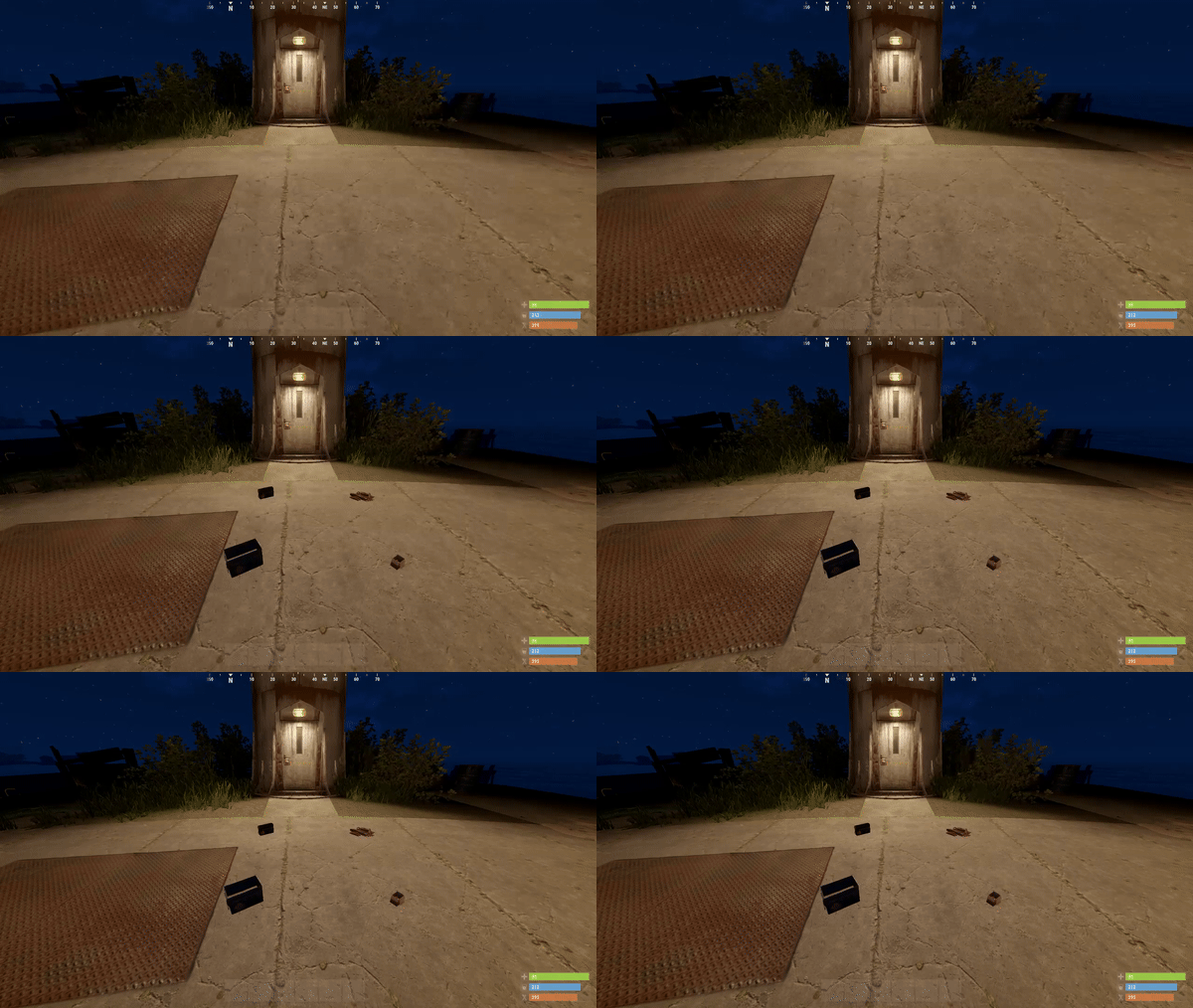
Version 2.1.0
22 downloads
LootSpawnerPlus is an advanced, performance-optimized Rust plugin designed to make loot spawning more dynamic and customizable. With this plugin, server admins can easily create and manage loot spawn points directly through a clean and intuitive user interface (UI). Whether you need random quantities, random intervals, or a combination of both, LootSpawnerPlus gives you full control with zero memory leaks and excellent performance. Key Features • Full UI Management: Manage all loot spawn configurations directly from the in-game UI. No need for complex commands or editing files manually! • Random Quantity & Interval: Choose whether your loot spawns at random quantities, random intervals, or both. Customize the behavior to suit your server's needs. • Easy Configuration: Spawn loot at specific locations and set timers and quantities, all with just a few clicks. • Performance Optimized: LootSpawnerPlus is designed with efficiency in mind, ensuring your server stays lag-free even with numerous spawn points. • Memory Leak-Free: Enjoy a smooth, stable experience with zero memory leaks. • Simple Command: Use the command /lootspawnerplus to access to the UI and manage all spawn settings. How It Works Once installed, admins can configure loot spawns using a highly intuitive UI system. Adjust settings like: • Spawn Name • Item Name • Position (X, Y, Z) • Quantity: Set a fixed amount or enable random quantities for a more dynamic loot experience. • Interval: Set a fixed spawn interval or enable random intervals for unpredictability. Why LootSpawnerPlus? • Flexibility: Control over both random intervals and quantities means you can fine-tune loot spawning to create the perfect gameplay experience. • Performance: The plugin is crafted with high performance in mind, ensuring that even with many loot spawns, server performance is never compromised. • No Memory Leaks: Say goodbye to memory leaks! LootSpawnerPlus ensures your server runs smoothly over time. Command /lootspawnerplus - Open the loot spawn UI and manage spawn points. Make loot management on your Rust server easier, more dynamic, and more efficient with LootSpawnerPlus! Example Config: { "Spawn1": { "Interval": 30.0, "IsEnabled": true, "IsRandomInterval": true, "IsRandomQuantity": false, "ItemName": "ammo.rifle", "Position": { "x": 0.0, "y": 0.0, "z": 0.0 }, "Quantity": 16, "RandomIntervalMax": 60.0, "RandomIntervalMin": 30.0, "RandomQuantityMax": 60, "RandomQuantityMin": 10, "SpawnName": "Spawn1" } }$14.99 -
Version 1.0.9
4,791 downloads
UI spawn amount/time control for monument crates, keycards, barrels, etc. MonumentSpawnControl provides a UI per vanilla monument, listing each spawn group for that monument, with controls for spawn population, respawn timer, and max amount to respawn per cycle. Each group can be emptied, filled, enabled, or disabled, with one click. Respawn durations are in minutes. Where there are multiple monuments of the same name (e.g. Lighthouse), they are all controlled by the same settings. Notes Does not offer control over RustEdit created monument spawns. Does not govern spawners which are part of a puzzle, as these have their own reset criteria. Chat commands. /msc - Usable by admin, or with permission. Permissions. monumentspawncontrol.allowed Configuration. ButtonColour "0.7 0.32 0.17 1" ButtonColour2 "0.4 0.1 0.1 1" - Used for disabled / inactive. Config also stores an entry per monument with information per spawn group. There is no need to edit or view this - It’s all controllable by in-game UI. Useful tool for picking CUI colours - RGB Decimal.Free -
Version 2.0.0
20 downloads
The pack contains several statue and spawn point prefabs: -two versions of dragons. -the christ of rio de janeiro. -an angel of death. -a horse. -crying poseidon. -a skeleton column structure. -two types of spawn point. New Statues: - Grifo - Tieso 1 hand forward - Tieso 2 hands up - Tieso 3 hands to the sword - Tieso 4 with shield - Tieso 5 with amphora Readme.txt$10.00-
- 7
-
-
-
- #statues
- #spawn point
- (and 3 more)
-

Version 0.1.1
24 downloads
This addon for RoamingNPCs allows you to dynamically control RNPCs spawn based on hours after wipe and current amount of players online, helping to create a balanced experience. Population Control • Setup specific bots presets as the wipe progresses — customize which RNPCs appear after 6h, 12h, 24h, and beyond. • You can make early wipes feel balanced and late wipes stay challenging with various RNPCs presets. • Integrates with your existing RoamingNPC presets. Adaptive Limits • Limit the max number of active RNPCs based on how many players are online at the moment. • Keep a balance between players and bots. • Keep the server performance smooth during peak hours. Map Markers • Optionally show live markers for all RNPCs on map. • Display RNPC's base locations on map (requires RNPCs Buildings Addon). • Customize colors, names, radius, refresh rate, and visibility duration. Requirements • RoamingNPCs Plugin Video Demo of Map Markers: Configuration: { "Available bots by wipe hours (key - hours after wipe, value - list of bot's setup names from main config)": { "6": [ "bob_resources_farmer", "john_looter" ], "12": [ "alfred_hunter", "austin_fighter" ], "24": [ "alfred_hunter", "austin_fighter", "bob_resources_farmer", "john_looter" ] }, "Limits based on amount of players online": { "Limit amount of active bots based on amount of players online?": false, "Limits (key - min amount of players, value - max amount of bots)": { "0": 5, "5": 4, "10": 3, "15": 2, "20": 1, "25": 0 } }, "Markers to show all RoamingNPCs on map": { "Enable these markers?": true, "Display name": "NPC {name}", "Refresh rate in seconds": 1.0, "Duration": 0, "Radius": 0.2, "Color 1": "#313647", "Color 2": "#435663", "Alpha": 0.75 }, "Markers to show all RoamingNPC's bases on map (RNPCs Buildings Addon)": { "Enable these markers?": false, "Display name": "Base of NPC {name}", "Refresh rate in seconds": 0.0, "Duration": 0, "Radius": 0.2, "Color 1": "#313647", "Color 2": "#435663", "Alpha": 0.75 } }$4.90 -
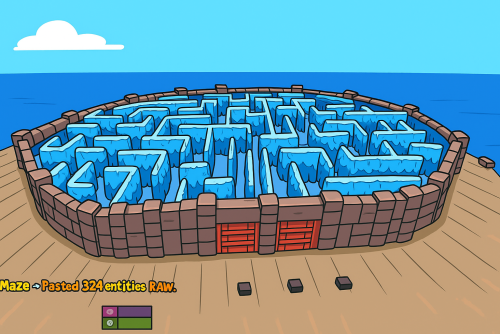
Version 1.0.1
17 downloads
What's Maze Spawnable? The Maze spawnable plugin adds intensive pvp combat within a maze environment. Players navigate through the maze, engaging in intense battles to eliminate opponents and be the last man standing. Spawnable Maze Arena (No need for RustEdit to spawn the arena in the map) A Spawnable Maze Arena is included with the plugin for free Support for Both Solo & Team maze Configuration options for the maze Multiple arena setup Automatic schedule setup Setup winning rewards Spawns all the dead player's loot after the maze ends (Winner takes all) Discord Webhook Notification Just plug and play Commands Start & Stop Commands: /mazestart <ArenaName> - Starts the arena if it is available. /mazestop - Force stops the arena if it’s running (be cautious). Maze Admin Commands: /maze_admin create <ArenaName> - Creates a new arena with the specified name. /maze_admin edit <ArenaName> - Starts editing the specified arena. /maze_admin list - Shows all available arenas from data. /maze_admin remove <ArenaName> - Removes the arena from data. /maze_admin stopedit - Stops editing the current arena. /maze_admin copyarena <radius> - Copies entities around your position within the given radius to the selected arena. /maze_admin pastecopyraw - Pastes the copied arena data at your current position. /maze_admin pasterawclear - Clears all pasted entities from the world. /maze_admin drawarena_on - Draws the visual debug markers and outlines of the current arena. /maze_admin drawarena_off - Stops drawing the arena visualization. /maze_admin radius <value> - Sets the main arena radius (for visualization and bounds). /maze_admin wallradius <value> - Sets the wall radius around the arena center. /maze_admin meshheight <value> - Sets the vertical mesh height used for visualization and structure height. Permissions - MazeSpawnable.admin - Required to Start maze or editing arena Configuration Video Showcase Support$25.00 -

Version 2.0.0
31 downloads
Ore Spawn Scaler is a professional, high-performance ore generation system designed to give server administrators complete control over the ore population. Replace Rust's unpredictable default spawns with a fully customizable, grid-based engine that ensures balanced and optimized resource distribution across your entire map. Main Features Interactive UI: A sleek, modern, and intuitive in-game UI allows administrators to modify all core spawning parameters in real-time without needing to edit configuration files. Grid-Based Spawning: Distributes ore nodes across the map using a fully configurable grid system for even and predictable placement, with options to add random offsets for a more natural look. Biome-Specific Probabilities: Define unique spawn probabilities for Stone, Metal, and Sulfur in each of Rust's four biomes (Temperate, Arid, Tundra, Arctic), giving you unparalleled control over your server's resource landscape. Advanced Spawn Control: Intelligently prevents ore from spawning in unwanted areas, including in water, near player buildings, inside monuments, on roads, or on excessively steep slopes. High-Performance Engine: Utilizes a highly optimized, queue-based batch spawning system to generate thousands of nodes with minimal impact on server performance, ensuring a smooth experience for your players. In-Game Map Visualization: Administrators can instantly view all spawned ore nodes directly on the in-game map. Nodes are represented by color-coded markers, making it easy to verify spawn densities and patterns at a glance. Full Customization: Control everything from spawn density (grid size) and batch sizes to minimum distances from players and buildings. Permissions orespawnscaler.use: Grants administrative access to the main configuration UI (/oregen) and allows usage of the UI buttons to save, reload, and reset the ore spawns. orespawnscaler.show: Grants access to commands for displaying and hiding the ore node markers on the in-game map. Chat Commands /oregen: Opens the main configuration UI. /oreshow: Displays all custom-spawned ore nodes on the player's map for 30 seconds. /orehide: Clears the ore node markers from the player's map. /orehelp: Shows a list of available commands in chat. Config { "Stone Settings": { "Grid Size": 150.0, "Prefab Path": "assets/bundled/prefabs/autospawn/resource/ores/stone-ore.prefab", "Biome Probabilities": { "Arid Biome": 0.3, "Temperate Biome": 0.4, "Arctic Biome": 0.2, "Tundra Biome": 0.35 }, "Enabled": true }, "Metal Settings": { "Grid Size": 200.0, "Prefab Path": "assets/bundled/prefabs/autospawn/resource/ores/metal-ore.prefab", "Biome Probabilities": { "Arid Biome": 0.25, "Temperate Biome": 0.3, "Arctic Biome": 0.35, "Tundra Biome": 0.25 }, "Enabled": true }, "Sulfur Settings": { "Grid Size": 180.0, "Prefab Path": "assets/bundled/prefabs/autospawn/resource/ores/sulfur-ore.prefab", "Biome Probabilities": { "Arid Biome": 0.4, "Temperate Biome": 0.25, "Arctic Biome": 0.15, "Tundra Biome": 0.3 }, "Enabled": true }, "Debug Mode": false, "Spawn Delay (seconds)": 1.0, "Min Distance From Players": 175.0, "Min Distance From Buildings": 28.0, "Water Buffer Height": 1.5, "Max Slope Angle": 35.0, "Batch Size": 10 }$9.99 -

Version 1.1.2
1,361 downloads
Loading Messages is a high-performance plugin that features customizable loading panel messages with adjustable display times and icons. Custom Messages for Queued and Loading Players Language Support - Display messages in local languages Loading Messages on Respawn and Teleport Loading Screens Configurable Display Time per Message High Performance Plugin! Loading Messages has three main message types: Queued - When a player is in the server queue Joining - When a player is joining the server Loading - The loading screen displayed when a player is teleporting or in a pending gamemode state Each custom type allows for options including icon ID, next message display time & message content. Loading Messages can use the following rich text tags - color, b, u, and i To display local languages set: "Use Language Support": true in you configuration. Custom languages will only be displayed after the first time a user connects to the server. Add multiple languages in the configuration listing: "Lang Messages": { "es-ES": { "Queue Messages": [ { "iconID": "0", "NextMessageTime": 5.0, "Message": "Estás en la cola" }, { "iconID": "0", "NextMessageTime": 5.0, "Message": "Por favor espera" }, { "iconID": "0", "NextMessageTime": 5.0, "Message": "Reporta tramposos usando f7" } ] } } You can see a list of most of the icons by going to https://fontawesome.com/icons.$9.99- 45 comments
- 7 reviews
-
- 3
-
-
-
- #loading messages
- #loading
- (and 15 more)
-
Version 1.0.3
9 downloads
xCustomCrates - You can create custom crates where the command, prefab, items and chance are configurable. - Custom Crate spawns infront of the player. (If triggered by a command) - You can add as many custom crates as you want. INFO: It doesn't add each item in your custom crate only because you configure it -> As example if you have a crate with 2 items, 20% and 30% chance, the crate can also be empty because its only a 20 and 30% chance to be in it. This works as expected and designed. Commands ======================================== As per out default config. ======================================== spawntools xNullPointer95 spawnelite xNullPointer95 ======================================== You can also use partial name ======================================== spawntools xNull spawnelite xNull Default Config { "Crates": [ { "Command": "spawntools", "PrefabPath": "assets/bundled/prefabs/radtown/crate_tools.prefab", "ItemsPerCrate": 2, "LootTable": [ { "ShortName": "hammer", "Amount": 1, "Chance": 60 }, { "ShortName": "hatchet", "Amount": 1, "Chance": 80 } ] }, { "Command": "spawnelite", "PrefabPath": "assets/bundled/prefabs/radtown/crate_elite.prefab", "ItemsPerCrate": 3, "LootTable": [ { "ShortName": "rifle.ak", "Amount": 1, "Chance": 10 }, { "ShortName": "ammo.rifle", "Amount": 60, "Chance": 50 }, { "ShortName": "explosive.timed", "Amount": 1, "Chance": 5 } ] } ] }$9.00
.thumb.png.d8730004887666a2775699ef18eb252c.png)