Blog Archives
[BETA] v3.1.4 Now Available
New version of Unreal X-Editor is now available. Click on “Check For Updates” to download or visit Downloads page.
Changelog:
–New Toast Notifications
–New Function Finder
–New Integrated Application: Clean UDK Leftovers
–New Integrated Application: Lightmass Tweaker
–Added Go To Function option [Limited]
–Added new option to delete UDK quarantined content
–Added Two new option to package viewer right click menu
–Added Load Map option under UDK Editor
–Added Wrap-Up option inside Code Editor Right Click Menu
–Added custom parameters for Client Game
–Added “Procedural Roads by online|offworld” under Snippets in Startup Template
–Improved New File Dialog
–Improved Unhandled Exception Reporter now includes Master Reset
–Improved Code Explorer now lists all functions and events (native, final and all other)
–Users can now choose what to launch when compilation finishes
–Failure to read Class Tree cache will no longer crash Unreal X-Editor
–Building Class Autocomplete now works in the background
–UDK Compile and Game options will now automatically load on startup
–All open tabs will now be saved upon exit and will reopen on startup
–Fixed some classes not being added in Class Tree
–Fixed defaultproperties not copying correctly on some classes when extending from Package View
–Fixed “Paste” right click menu not being enabled sometimes
–Fixed X-Editor Log showing incorrect ini name when deleting from INI Explorer
New Feature: Find Function
I added a new feature called Find Function in Unreal X-Editor which lists function usages. The way it works is when you right click on any function name and select “Find Function”, you will see a list that shows where this function is used or overrided.
Screenshots:
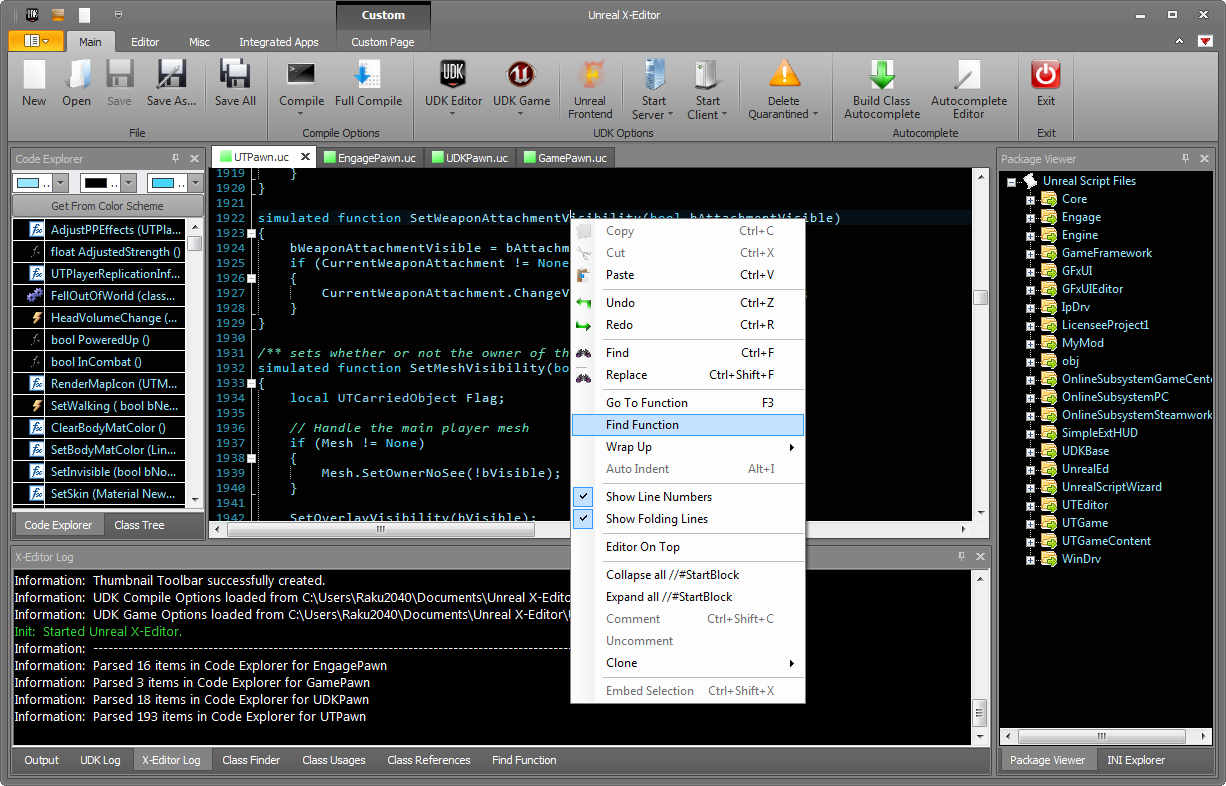
Click for larger image

Click for larger image
[TIP] Change Player Models based on Team for Multiplayer Team Deathmatch
In my game i implemented Team Deathmatch a few days ago but was struggling to update player mesh based on Team. But today i finally managed to do it and decided to share incase if anyone else is facing the same problem.
In your custom Team Deathmatch Game class add the below code:
function class<Pawn> GetDefaultPlayerClass(Controller C)
{
    if (C.PlayerReplicationInfo.Team.GetTeamNum() == 0)
    {
        return class'Team0PawnClass';
    }
    return class'Team1PawnClass';
}
Thats it! We just override the GetDefaultPlayerClass function to get the player model based on Team.
Hope you find this useful.
New Features: Load Map & Wrap Up
Heeey Everyone. 😀
Here is a quick update of two new features that will be available in the next version of Unreal X-Editor. Hope you all likes it. 🙂
Load Map: Now UDK Editor will load your map right on startup instead of default map templates. Simply click on your map name and press UDK Editor button.

Select your map name and UDK Editor will start it.
Wrap Up: Now you can quickly embed your selected text with these flow statements and Macros.

Wrap Up Option

Result after selecting “For” option.
Go To Function/Declaration preview
Been working hard on this for quite a few days and now i have something to share with you :). This feature will be included in the next version. Honestly it has its limitations and i hope to resolve them sooner or later.
Screenshot:

In this case Unreal X-Editor automatically parse the word “super” and opens UTPawn class. (Click for larger image)
Result:

Unreal X-Editor automatically navigates to function PostBeginPlay. (Click for larger image)
Attaching Actors WITHOUT UnrealScript or Kismet
This quick video shows you how to attach actors (meshes, lights etc) together right inside the editor without touching UnrealScript or Kismet.
[CODE] Save your game to My Documents using DLLBind
Hello everyone 😀
In this tutorial i will tell you how to save your game to end-users My Documents folder with any file extension you want. This tutorial will make use of UDK’s DLLBind feature and to create this DLL i used C# language.
NOTE: Download includes C# source code including the DLL file + UnrealScript Files. In case you want to change anything you will need Microsoft Visual Studio Express (FREE) or above.
1: Download the above file and extract the DLL file to your UDK Installation Directory\Binaries\Win32\UserCode folder.
2: Extract SaveGameBase.uc and CustomPlayerController.uc and CustomGameInfo.uc to your UDK Installation Directory\Development\Src\MyMod\Classes folder.
3: Do a full recompile and Start UDK Game using CustomGameInfo and use the functions SaveGame and LoadGame functions.
I have commented everything in UnrealScript files. If you have any doubt feel free to ask me in the comments section. 🙂

 Unreal X-Editor