Blog Archives
New Feature: Document Map
Here is a new feature that you can expect in next version of Unreal X-Editor. Its called Document Map.

Document Map
Using this you can easily navigate large files. Since its docked you can undock it and move around. 🙂
New Features: Load Map & Wrap Up
Heeey Everyone. 😀
Here is a quick update of two new features that will be available in the next version of Unreal X-Editor. Hope you all likes it. 🙂
Load Map: Now UDK Editor will load your map right on startup instead of default map templates. Simply click on your map name and press UDK Editor button.

Select your map name and UDK Editor will start it.
Wrap Up: Now you can quickly embed your selected text with these flow statements and Macros.

Wrap Up Option

Result after selecting “For” option.
Go To Function/Declaration preview
Been working hard on this for quite a few days and now i have something to share with you :). This feature will be included in the next version. Honestly it has its limitations and i hope to resolve them sooner or later.
Screenshot:

In this case Unreal X-Editor automatically parse the word “super” and opens UTPawn class. (Click for larger image)
Result:

Unreal X-Editor automatically navigates to function PostBeginPlay. (Click for larger image)
Are you a Game Developer? Then register here for jobs!

Register for free and get game related jobs
Gamejobster is a website where Game developers and graphic designers can sell their design services online. When someone find your listed job useful they will buy your job. Once you’ve successfully delivered the client’s order, you get credited on your Gamejobster account after 3 days (or less. depending on how early the client “approves” the order. If he doesn’t approve within 3 days, it will get automatically approved by Gamejobster.)
After a buyer approves the order, you’ll still have to wait for 7 days before you can withdraw the money you made through your Paypal account. Gamejobster primarily set this up to avoid fraudulent activities, Paypal disputes that may occur & other issues with the order. After 7 days is over, you’ll get the option to withdraw your money via Paypal.
Some more notes regarding Gamejobster payments:
Gamejobster gets a 10% commission for each sale you make. We use this money to keep the site running
How To Post A Job
Creating a job on Gamejobster is a very simple process. Firstly make sure you are logged in. You will see a section that says; ” I will….for $”. All you need to do is fill in the blank space with what you are willing to do for $, and then press the “continue” button. You will then be taken to a page where you can fill in the details of your job.
Category And Description
The first thing to do is to choose a category for your job. Then you need to write a description telling your potential clients what you are offering and what your experience is. This is where you sell yourself. You have 500 words to do this, so think carefully about what you want to say.
Instructions
The next thing you have to do is give instructions to your buyer. This is only seen after your client purchases your listed job. Tell them what information you require from them in order to be able to complete the job.
Tags
Tags will help potential clients to find your job when searching Gamejobster, and will also show up in other jobs that are similar to your own.
Maximum Days To Complete
You need to indicate how long it will take for you to do the work and submit it to your client. Remember to factor in time zone differences and other commitments. It is important to be realistic and stick to the time allocated, otherwise your client may cancel and leave bad feedback.
Image
Make sure your job has a image. Having the right image could make the difference between success or failure on Gamejobster. Try to find a image that relates to your job and is attractive.
Video
Making a video about your job can help it to sell. It gives you a opportunity to explain in detail what you job is all about. It also helps people to see there is a real person behind the job, and can help people to feel more comfortable hiring you. It would seem that jobs with a video sell much better than those without one. Make sure you say that it is exclusive to Gamejobster or it will not pass the moderator.
Your Job will appear immediately in the listings. If you have a video it will be moderated and will get approved by a moderator. This can take 10 minutes or more.
So what are you waiting for! Go ahead and register for FREE and start earning.
[BETA] v3.1.3 Now Available
New version of Unreal X-Editor is now available. Click on “Check For Updates” to download or visit Downloads page.
Changelog:
–New Unhandled Exception Reporter now shows error message
–New Bug Reporter (Misc Tab)
–Implemented UDK GFx Exporter By Mougli
–Improved Class Tree
–Added setting to turn off automatic focusing upon mouse hover
–Added various Tree Settings
–Added 2 Color Schemes
–Fixed UDK Editor shortcut and UDK Game shortcut not saving
–Fixed “Exception Occured: The process cannot access the file…bla bla bla” message when compiling
v3.0 Class Usage Finder
I’ve added some features which i believe will save a lot of time in development. One of the feature is “Class Usage Finder“. In the below screenshot, you can see some of the new options after right clicking on my selected class name.

Click to see larger image
In the below screenshot, you can see what happens after selecting “Find usages for AK_Weapon“. It will display the results with where you used the class name, Line Number and location of that script file.

Click for larger image
Another v3.0 Screenshots
Hello everyone…I’ve been working on v3.0 for quite sometime and now i decided to post two new screenshots.
In this screenshot, you can see a new Template window with some tutorial buttons that re-directs to some of the most popular and useful UDK/UnrealScript tutorials. You’ll be able to submit new Presets, Snippets and Tutorials which i’ll include in each update. I have improved Ribbon customization too. Now user can right click on any Ribbon icon and add it to Custom Page (NOTE: Custom Page can be renamed to whatever name you like).
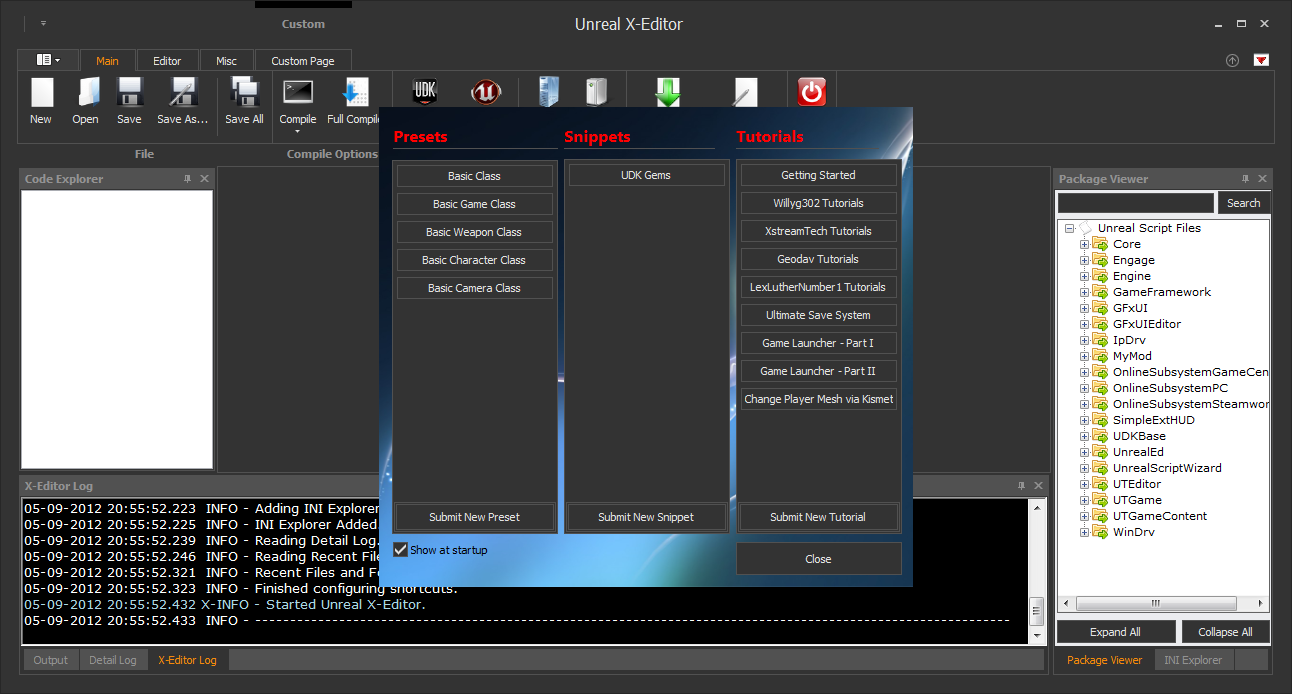
Click for larger image
And in this screenshot you can see its now possible to open the original UC File which you extended from with a single click.

Click for larger image
Cant wait to share it with you guys! 😀

 Unreal X-Editor