Search the Community
Showing results for tags 'stack'.
Found 15 results
-
Version 1.5.20
1,550 downloads
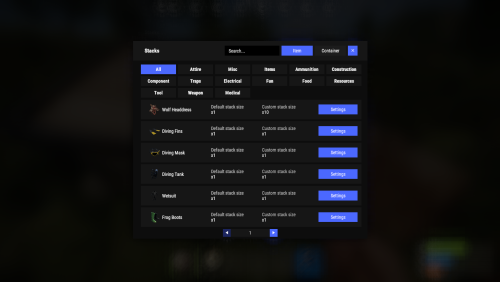
New plugin for changing item stacks and their multipliers in containers with convenient customization right in the game Commands stacks - open an UI stacks sethandstack [stack size] - set the stack size for the item in hand stacks setstack [short name] [stack size] - set the stack size for the item Permissions stacks.admin - using a plugin Config { "Commands": [ "stacks" ], "Work with Notify?": true, "Changing multiplies in containers using a hammer": false, "Default Multiplier for new containers": 1.0 } Containers Data { "assets/bundled/prefabs/static/bbq.static.prefab": { "Image": "https://i.imgur.com/L28375p.png", "Multiplier": 1.0 }, "assets/bundled/prefabs/static/hobobarrel_static.prefab": { "Image": "https://i.imgur.com/v8sDTaP.png", "Multiplier": 1.0 }, "assets/bundled/prefabs/static/recycler_static.prefab": { "Image": "https://i.imgur.com/V1smQYs.png", "Multiplier": 1.0 }, "assets/bundled/prefabs/static/repairbench_static.prefab": { "Image": "https://i.imgur.com/8qV6Z10.png", "Multiplier": 1.0 } ... Items Data [ { "ShortName": "hat.wolf", "Name": "Wolf Headdress", "Default Stack Size": 10, "Custom Stack Size": 0 }, { "ShortName": "fogmachine", "Name": "Fogger-3000", "Default Stack Size": 2, "Custom Stack Size": 0 }, { "ShortName": "strobelight", "Name": "Strobe Light", "Default Stack Size": 1, "Custom Stack Size": 0 }, { "ShortName": "kayak", "Name": "Kayak", "Default Stack Size": 1, "Custom Stack Size": 0 }, { "ShortName": "minihelicopter.repair", "Name": "MC repair", "Default Stack Size": 1, "Custom Stack Size": 0 }, { "ShortName": "scraptransportheli.repair", "Name": "ScrapTransportHeliRepair", "Default Stack Size": 1, "Custom Stack Size": 0 }, ...$19.95- 69 comments
- 11 reviews
-
- 6
-

-

-

-
- #stacks
- #chest stacks
- (and 9 more)
-
Version 1.2.3
977 downloads
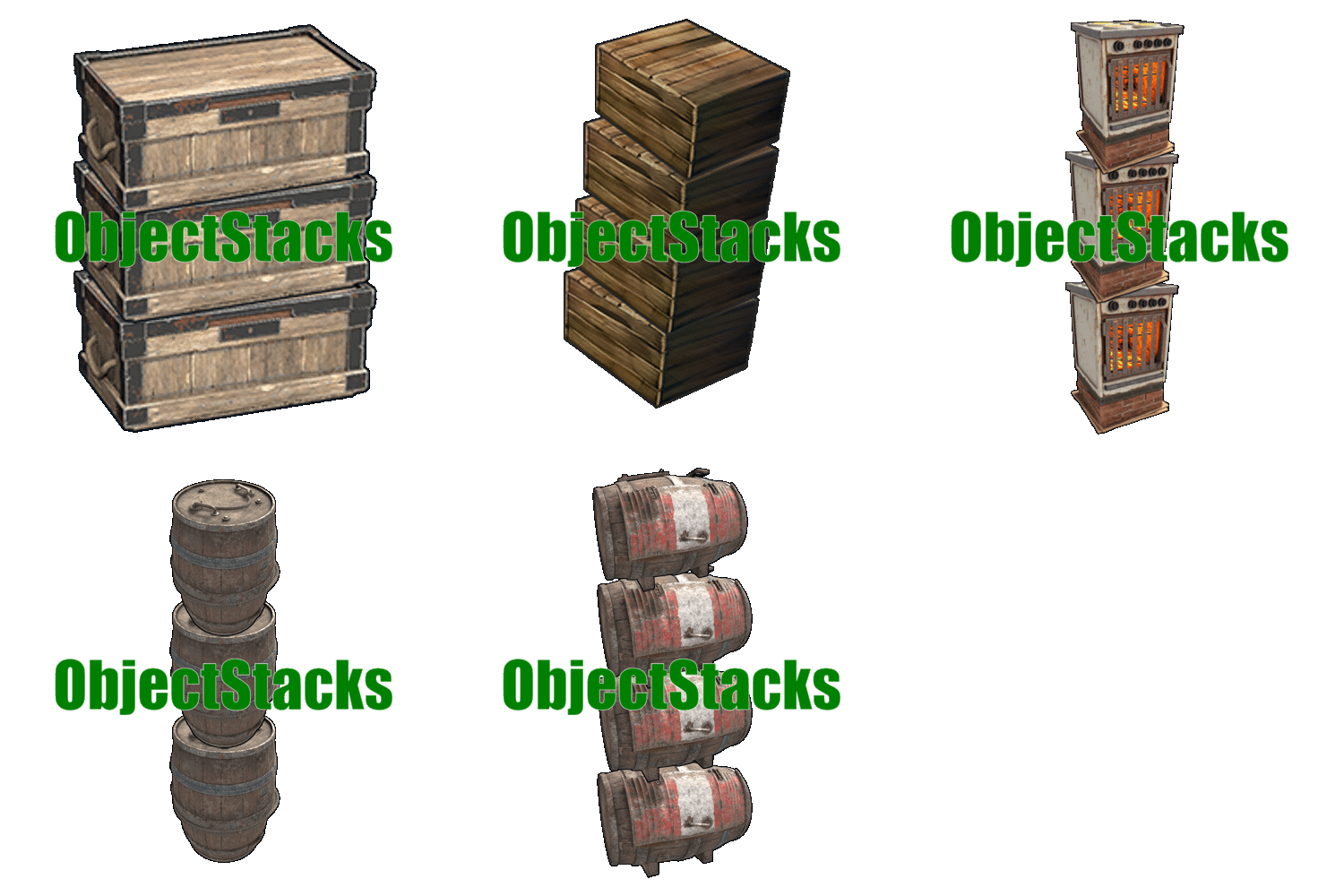
Tired of cluttered bases? ObjectStacks allows players to stack deployable objects vertically, creating organized, space-efficient storage areas and base layouts. Simply right-click while holding a deployable item to stack it on top of an existing object of the same type. Perfect for organizing furnaces, storage containers, generators, and more! Features of ObjectStacks One-Click Stacking: Right-click to stack objects - no commands needed, just intuitive gameplay Precise Vertical Spacing: Customizable Y-Offset for each object type ensures perfect alignment and prevents clipping Permission-Based Stacking Limits: Control how many objects each player group can stack (e.g., regular users: 2, VIPs: 4) Building Privilege Restriction: Optional restriction to Tool Cupboard zones to maintain game balance Smart Stability System: Automatic stability checking prevents floating structures and ensures realistic placement Skin Blacklist System: Prevent stacking of specific item skins that might cause visual or gameplay issues Tugboat Integration: Full support for stacking on tugboats with automatic parenting and stability bypass Ground Protection: Prevents stacked objects from falling when base objects are removed, maintaining structural integrity Automatic Permission Management: All permissions are automatically registered based on your configuration Comprehensive Logging: Optional logging system with multiple levels (None, File, Console, All) for debugging Wide Compatibility: Supports storage containers, electrical items, composters, and many more deployable objects Easy Configuration: Simple JSON configuration file - add new objects in minutes Usage To stack an object: Hold the deployable item you want to stack in your hands Look at an existing object of the same type (must be within 3 meters) Press right-click (secondary fire button) The item will be automatically placed on top at the correct height Cooldown: There's a 0.5 second cooldown between stacking attempts to prevent spam-clicking. Permissions Permissions follow the format: objectstacks.<shortname>.<group> Permission Format Explanation: objectstacks - Plugin prefix <shortname> - The shortname defined in the object's configuration (e.g., "box_wooden", "electric_furnace") <group> - Your custom group name (e.g., "use", "vip", "premium") Examples: objectstacks.storage_barrel_b.use - Regular users can stack up to 2 storage barrels (limit set in config) objectstacks.storage_barrel_b.vip - VIP users can stack up to 4 storage barrels objectstacks.electric_furnace.use - Regular users can stack up to 2 furnaces objectstacks.electric_furnace.vip - VIP users can stack up to 4 furnaces Important: The plugin uses the highest limit among all permissions the player has. If a player has both objectstacks.box_wooden.use (limit: 2) and objectstacks.box_wooden.vip (limit: 4), they will be able to stack up to 4 boxes. Supported Objects Storage Containers: Wooden Box (small) Large Wooden Box Storage Barrel B Storage Barrel C Coffin Storage Medieval Large Wooden Box Bamboo Barrel Wicker Barrel Abyss Barrel (Vertical and Horizontal) Electrical Items: Electric Furnace Small Generator Small Fuel Generator Rechargeable Battery (Small, Medium, Large) Other: Composter Note: You can add any deployable object to the configuration. Simply find its prefab path and configure the Y-Offset and permissions. Configuration Guide Logging Level: None - Disable all logging File - Log to files in oxide/logs (or carbon/logs) Console - Log to server console All - Log to both files and console Can stack only in Building Privileged zones?: When set to true, players can only stack objects within Tool Cupboard zones (or on tugboats). This prevents excessive stacking in public areas and maintains game balance. Set to false to allow stacking anywhere. Blacklisted Skins: Array of skin IDs that cannot be used for stacking. Add skin IDs here to prevent stacking of problematic skins. Example: [123, 1223] Permissions & their amount of stacked objects allowed: Dictionary mapping permission names to stacking limits. The limit represents the maximum number of objects that can be stacked in a single stack. Objects and offsets: Dictionary mapping object prefab paths to their configuration: YOffset - Vertical spacing between stacked objects (in meters) Shortname - Used for permission names (format: objectstacks.<shortname>.<group>) FAQ Q: How do I stack objects? A: Hold the item in your hands, look at an existing object of the same type (within 3 meters), and right-click. The item will be automatically stacked on top. Q: Why isn't stacking working for me? A: Check these requirements: The object type must be configured in the plugin You need the appropriate permission (e.g., objectstacks.box_wooden.use) You must not have exceeded your stacking limit If "Only in Building Privileged zones" is enabled, you must be in a Tool Cupboard zone The item skin must not be blacklisted There must be enough stability at the placement location You must be looking at the object (within 3 meters) The object you're looking at must be the same type as the item in your hands Q: How do I add a new object to the configuration? A: Follow these steps: Find the object's prefab path (use spawn command in F1 console or check Rust documentation) Add an entry to "Objects and offsets": "assets/prefabs/path/to/object.prefab": { "YOffset": 1.0, "Shortname for permissions (objectstacks.THISNAME.[use/vip/etc.])": "my_object" } Add permissions with limits: "objectstacks.my_object.use": 2, "objectstacks.my_object.vip": 4 Reload the plugin: o.reload ObjectStacks (Oxide) or c.reload ObjectStacks (Carbon) Q: What is Y-Offset and how do I determine the right value? A: Y-Offset is the vertical spacing between stacked objects, measured in meters. To determine the right value: Check the object's height in-game or in Unity Set Y-Offset slightly larger than the object's height to prevent clipping Common values: 0.5-0.7 for small objects, 1.0-1.5 for medium objects, 1.5-2.0 for large objects Test and adjust as needed - you can see the spacing immediately when stacking Q: How do stacking limits work? A: Limits control the maximum number of objects that can be stacked in a single stack. The plugin counts all objects of the same type in the vertical column and prevents stacking beyond the limit. The plugin uses the highest limit from all permissions the player has. Q: Can I stack objects outside Tool Cupboard zones? A: Yes, if you set "Can stack only in Building Privileged zones?": false in the config. By default, this is set to true to maintain game balance. Q: Does stacking work on tugboats? A: Yes! ObjectStacks fully supports tugboats. When stacking on a tugboat: Stability checks are bypassed Objects are automatically parented to the tugboat Building privilege restrictions don't apply Q: What happens if I remove a base object from a stack? A: The plugin includes ground protection via the OnEntityGroundMissing hook. If you remove a base object, stacked objects above will check if there's another object of the same type below them. If found within the Y-Offset range, they won't fall, preventing accidental destruction. Q: How do I find the prefab path for an object? A: Several methods: Use spawn command in F1 console - it shows prefab paths as you type Check the default config for examples of similar objects Look up Rust prefab documentation online Use server console commands that list prefabs Q: Can I prevent specific skins from being stacked? A: Yes! Add the skin ID to the "Blacklisted Skins" array in the config. For example: "Blacklisted Skins": [123, 1223, 4567] Q: What does the error message "Building blocked!" mean? A: This means "Can stack only in Building Privileged zones?" is enabled, and you're trying to stack outside a Tool Cupboard zone. Either move to a TC zone, or disable this setting in the config. Q: What does "Not enough stability to place the entity" mean? A: The plugin checks if the placement location has enough structural support. If you see this message, try stacking in a different location or ensure there's proper foundation below. Q: Where can I see an example configuration? A: The default config file generated by the plugin contains comprehensive examples of all supported objects. You can use it as a template when adding new objects.$21.95 -
Version 2.8.29
14,728 downloads
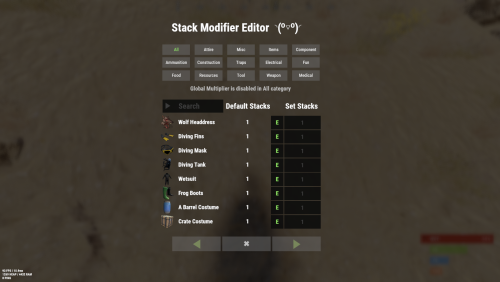
Stack Modifier is a performance-focused plugin that enhances and refines item stacking behavior in Rust. Features Includes GUI Editor - Blocks Player movements while using GUI Editor Including Keybinds! Adds NEW Stacking Support for the following. liquids ( like bota bags etc ) Stacking of Fuel Containers (hats, tools, etc.) Stacking of Guns Weapon Attachments Stacking of Skins Works with SkinBox plugins Supports stacking armor slot armors Supports Genetic Stacking Supports Food Spoil stacking Stacking of Custom Items Stacking of Custom Items with Custom Display Names Stacking of Key Cards without losing the stack when swiping Stacking Candy Cane Club without losing the stack while lick Support for modified presents for unwrapping Limits wearable clothing items to stack sizes of 1! ( on the player wear container only ) Limits weapon attachments to stack sizes of 1! ( On the weapon its self! so you can have bigger stacks! ) The largest possible value in C# is 2,147,483,647 Which means anything over this stack-size will break the plugin Patches All Industrial Conveyor stack issues! ( Yes custom items no problems! ) -- THIS IS NOW IT"S OWN PLUGIN AS AN ADDON. 4-2-2025 STACK MODIFIER INDUSTRIAL ADDON: Known Conflicts RoadBradley & HeliSignals Are doing item creations wrong and setting the item.name field as vanilla item display names thus breaking stack support. ( don't set a vanilla display name only set them if its custom names as the fix ) Conveyor Stacks Not needed & conflicts, stack-modifier already does this & has config settings for it. Davids Shop UI ( recently changed how his default data files are createdfor items ) ( you need to generate a new Items.json file and re-do custom items / pricing inside it to fix stack bugs with old data files ) Magic Coin uses some of the same hooks set up config in it correctly to not conflict Custom Skin Stack Fix not needed this handles it properly Stack Size Controller cannot have 2 of the same plugins basically Extra Loot causes a stacking bug when a reboot occurs with skinned items preventing old skinned items from stacking with new skinned items IndustrialCustomSkinsFix not needed stack-modifier has the same patch in it. IQAlcoholFarm by BadMandarin/Mercury is not supported & will cause stack bugs / problems ( could be supported with an author update, but current version is not supported ) ItemPerks by imthenewguy Causes stack bugs/problems just by having this plugin on your server due to harmony patching done inside it + repair logic is bugged. Item creation is also not handled properly resulting in duplication issues with Conveyor movements nothing can be done about that. ( plugin requires a full rewrite for proper support & repairs. ) Plugins that do not handle Item Creation Correctly: ( Which break stacks ) Custom Item Drops by Machine ( Always sets the vanilla display name when its supposed to be null for vanilla items ) XP System by fastburst ( Always sets the vanilla display name when its supposed to be null for vanilla items ) Copy Paste ( Items created by copy paste its self will not stack since item creation is not handled properly ) This list will be constantly updated as devs fix their code accordingly & new ones are discovered to be flawed. Getting Started - Click Either Link to play video Video One Video Two Permissions stackmodifier.admin - Allows players access to the UI Editor. Chat Commands /stackmodifier -- Opens Editor UI, Must enable config option "Enable UI Editor": true /stackmodifier.reset ( is also console cmd ) -- Requires stackmodifier.admin perm ( resets stack-sizes ) /resetvenders -- Requires being an admin, only resets facepunches messed-up vendors, not all /stackmodifiercolor <inputpanel|inputtext|text|transparent> <color> <alpha|ex, 0.98> Example /stackmodifiercolor inputpanel #207086 0.25 UI Editor Commands set 8 -- Inside a categories Search Bar, type set and a value and it will apply it to the whole category, reset -- Inside a categories Search Bar type reset hit the enter key or click out of the field and it resets it. multiply -- Inside a categorie use the Search Bar & type multiply and a value and it will apply it to the whole category. if you reset or set, re-click the Category Tab to refresh it before making more changes! Otherwise you will have to do your first edit twice for it to start working again UI Editor Without Images? * At the top of the config you will see the following setting set to true save and reload. "Disable Images for UI Editor": false, < Disables images and allows full use Having Problems? * Warning this plugin is not compatible with custom-skins-stacks-fix plugin since this already handles everything. * If you already have a plugin that modifies the rust stack sizes you will first need to remove that plugin. * Then you simply load Stack Modifier onto your server open the config and start editing the Modified values to your new stack-size amounts! * When you are done simply save and reload the plugin! ( oxide. reload StackModifier ) * Alternatively you can utilize the built-in UI Editor and not ever need to touch the config! * Admins - Auth level 2 will always be ignored. * This plugin is not compatible with BetterVanish, I only support Vanish from umod. How to revert to vanilla? * Run the reset command while having the stackmodifier.admin perm or Unload Stack Modifier, delete the config, and restart your server. * It will reset the config back to vanilla settings allowing you to start over. API Hooks Interface.CallHook("OnStackSizeUpdated"); //called after the plugin updates the stack sizes on server reboots & when reloading the plugin. //It's also still called right after the UI editor is closed from modifying. //Inside the oxide hook I use called OnItemAddedToContainer theirs a hook of mine, if called mine will not touch it or fix the stacks. if (Interface.CallHook("OnIgnoreStackSize", player, item) != null) return; ## Configuration { "Disable Industrial Conveyor Patch (true = disabled)": false, "Industrial Conveyor Max Stack Size Per Move Default = 60": 130, "Industrial Conveyor Move Frequency Default = 5 (Lower = faster moving)": 3, "Disable Weapon Attachment stack fix (Unsubscribes from both OnWeaponModChange & CanMoveItem)": false, "Disable Wearable Clothes fix (Unsubscribes from OnItemAddedToContainer)": false, "Disable Ammo/Fuel duplication fix (Recommended false)": false, "Disable Candy Cane Club Lick fix & unwrap fix (Unsubscribes from OnItemAction)": false, "Disable OnCardSwipe fix (Unsubscribes from OnCardSwipe)": false, "Enable VendingMachine Ammo Fix (Recommended)": true, "Enable UI Editor": true, "Disable Images / Toggles off Images for UI Editor": false, "Sets editor command": "stackmodifier", "Sets reset command for both console & chat": "stackmodifier.reset", "Sets editor color command": "stackmodifiercolor", "Sets Default Category to open": "All", "Stack Modifier UI Title": "Stack Modifier Editor ◝(⁰■¿⁰)◞", "UI - Stack Size Label": "Default Stacks", "UI - Set Stack Label": "Set Stacks", "UI - Search Bar Label": "Search", "UI - Back Button Text": "◀", "UI - Forward Button Text": "▶", "UI - Close Label": "✖", "Colors": { "InputPanel": { "Hex": "#0E0E10", "Rgb": "0.0549019607843137 0.0549019607843137 0.0627450980392157 0.98" }, "InputText": { "Hex": "#FFE24B", "Rgb": "1 0.886274509803922 0.294117647058824 0.15" }, "TextColor": { "Hex": "#FFFFFF", "Rgb": "1 1 1 1" }, "Transparency": { "Hex": "#", "Rgb": "0 0 0 0.95" } }, "Category Stack Multipliers": { "Attire": 1, "Misc": 1, "Items": 1, "Ammunition": 1, "Construction": 1, "Component": 1, "Traps": 1, "Electrical": 1, "Fun": 1, "Food": 1, "Resources": 1, "Tool": 1, "Weapon": 1, "Medical": 1 }, "Stack Categories": { "Attire": { "hat.wolf": { "DisplayName": "Wolf Headdress", "Modified": 10 }, "horse.shoes.basic": { "DisplayName": "Basic Horse Shoes", "Modified": 10 } }, "Misc": { "fogmachine": { "DisplayName": "Fogger-3000", "Modified": 10 }, "sickle": { "DisplayName": "Sickle", "Modified": 10 } }, "Items": { "kayak": { "DisplayName": "Kayak", "Modified": 10 }, "map": { "DisplayName": "Paper Map", "Modified": 10 } }, "Ammunition": { "ammo.grenadelauncher.buckshot": { "DisplayName": "40mm Shotgun Round", "Modified": 20 }, "ammo.rocket.sam": { "DisplayName": "SAM Ammo", "Modified": 10 } }, "Construction": { "door.double.hinged.metal": { "DisplayName": "Sheet Metal Double Door", "Modified": 10 }, "building.planner": { "DisplayName": "Building Plan", "Modified": 10 } }, "Component": { "bleach": { "DisplayName": "Bleach", "Modified": 2 }, "vehicle.module": { "DisplayName": "Generic vehicle module", "Modified": 10 } }, "Traps": { "trap.bear": { "DisplayName": "Snap Trap", "Modified": 30 }, "samsite": { "DisplayName": "SAM Site", "Modified": 10 } }, "Electrical": { "ceilinglight": { "DisplayName": "Ceiling Light", "Modified": 10 }, "wiretool": { "DisplayName": "Wire Tool", "Modified": 100 } }, "Fun": { "firework.boomer.blue": { "DisplayName": "Blue Boomer", "Modified": 200 }, "telephone": { "DisplayName": "Telephone", "Modified": 10 } }, "Food": { "apple": { "DisplayName": "Apple", "Modified": 100 }, "woodtea.pure": { "DisplayName": "Pure Wood Tea", "Modified": 100 } }, "Resources": { "skull.human": { "DisplayName": "Human Skull", "Modified": 10 }, "wood": { "DisplayName": "Wood", "Modified": 10 } }, "Tool": { "tool.instant_camera": { "DisplayName": "Instant Camera", "Modified": 10 }, "bucket.water": { "DisplayName": "Water Bucket", "Modified": 10 } }, "Weapon": { "gun.water": { "DisplayName": "Water Gun", "Modified": 10 }, "spear.wooden": { "DisplayName": "Wooden Spear", "Modified": 10 } }, "Medical": { "blood": { "DisplayName": "Blood", "Modified": 100 }, "bandage": { "DisplayName": "Bandage", "Modified": 30 } } } }$24.99- 194 comments
- 22 reviews
-
- 21
-
-

-
-

-
- #stacks
- #rust stacks
- (and 22 more)
-

Version 1.0.0
6 downloads
Stack Size Controller – Balanced Configuration Packs Includes 4 different configs. Pick one to use, or use different configs on multiple servers. Some stack values are based on the gather rate; however, overall, resources and similar items are set higher based on player experience and community feedback. Server Compatibility - Suitable for 3x, 5x, 10x and PvE servers - If higher stack sizes are desired, the 3x preset can safely be used on 2x servers without causing major balance issues or technical problems Professionally Designed & Tested All configurations are manually created from scratch and are not auto-generated or simple default edits. Each configuration has been: - Actively tested on live servers for over 2 years - Used on long-running, active servers - Adjusted based on real player behavior and feedback - Balanced with economic flow and recycler outputs in mind The goal is to improve quality of life without breaking progression or server economy. Balanced Design Philosophy Not every item is meant to be stacked. Below are the core principles behind how these configurations are designed. Durability & Skin Safety Weapons, clothing, doors, and certain electrical items are intentionally excluded from stacking. These items rely on durability (condition) mechanics and often support skins. Stacking them may cause condition conflicts, incorrect durability behavior, skin desynchronization, and inventory-related bugs. To maintain server stability and predictable gameplay, these item types are deliberately kept unstacked. Explosives & Economy Control F1 Grenades, Smoke Grenades, and similar explosive items are intentionally excluded from stacking or only increased by reasonable amounts. This approach helps prevent gunpowder inflation, balance abuse, and uncontrolled progression. Stackable Item Categories - Resources (Some resources have been stacked above the normal limits in line with strong player demand, especially wood and stone, among others.) - Components (Excessive stacking has not been applied in order to maintain recycling balance; it has been kept at a controlled and balanced level.) - Food items - Medical items - Ammunition Easy Installation 1. Choose one of the 4 configuration presets 2. Copy StackSizeController.json into your config folder 3. Oxide.reload StackSizeController OR c.reload StackSizeController Required Plugin This configuration pack requires the Stack Size Controller plugin. You can download it for free from uMod: https://umod.org/plugins/stack-size-controller$12.99-
- 1
-
-
- #stack size controller
- #stacks
- (and 25 more)
-
Version 2.2.4
16,251 downloads
Say goodbye to configuration and data files. This plugin lets yo edit the loot of (almost) every lootable object directly over a custom UI. It also includes a graphical stack size editor thus making it ideal for anyone who is not familiar with editing config files. Do not use in combination with any other stack size controller or loot plugin. NEW with version 2.1.16: Improved item search You can now search for hidden items by adding h: to the start of your search (e.g. the search h:cable will show the cable tunnel item which is hidden by default). This works in both item editor and stack size controller. Full support for CustomItemDefinitions NEW with version 2.1.7: Direct Loot Refresh Players with the permission loottable.test can use a button to directly refresh the loot in the crate they are currently looting. Features: User friendly GUI - no need to edit config files Loot configuration for every prefab in the game Stack size controller supports individual stack sizes for every prefab Support for custom items Support for third party plugins Fully backwards compatible with version 1.x.x Default config included for every prefab Configuration for Smelting Speed, Recycler Speed and Efficiency Supply Drop configuration Supported prefabs: Crates, Barrels NPCs Trees, Ores, Animal corpses Excavator, Quarries Christmas Presents, Eggs, Loot Bags Collectables like Hemp, Corn, etc. Additional Configuration: Smelting Speed Supply Drop Recycler Speed / Efficiency Commands: loottable - Open the Loottable UI loottable reload - Manually refresh loot loottable remove_dlc_items - Remove all DLC items from your loot configs. This action can not be undone Permission: loottable.edit - Required to use the Loottable UI Required Dependencies (Oxide only): Image Library: https://umod.org/plugins/image-library Translations: This plugin fully supports translation. Out of the box only english is included. For item names to be translated, the plugin https://umod.org/plugins/rust-translation-api is required. English translations are located in /oxide/lang/en/Loottable.json For Developers: Loot Api: Developers can use the Loot Api to register loot profiles for custom NPCs or other plugin related loot. It is highly recommended to use the provided wrapper to access the API. Documentation is also included: https://gist.github.com/TheKiiiing/53a37e8bbb48d8a24c8e8b21b9da37ac Loot Api Example: void OnLoottableInit() { LoottableApi.ClearPresets(); LoottableApi.CreatePresetCategory(this, "Crates"); LoottableApi.CreatePreset(this, "c_locked", "Locked Crate", "crate_hackable"); LoottableApi.CreatePreset(this, "c_elite", "Elite Crate", "crate_elite"); LoottableApi.CreatePreset(this, "c_military", "Military Crate", "crate_military"); LoottableApi.CreatePreset(this, "c_normal", "Normal Crate", "crate_normal"); LoottableApi.CreatePresetCategory(this, "NPCs"); LoottableApi.CreatePreset(this, true, "npc_cargo", "Cargo Ship NPC", "npc_militunnel"); LoottableApi.CreatePreset(this, true, "npc_control", "Control Center NPC", "npc_militunnel"); } void SpawnNpc() { // Spawn NPC here ScientistNPC npc; // Assign a loot preset to the NPC LoottableApi.AssignPreset(this, scientist, "npc_control"); } void SpawnCrate() { // Spawn crate here LootContainer crate; // Assign a preset to the crate if (LoottableApi.AssignPreset(this, container, "c_locked")) { // The container has been filled with loot return; } else { // The container is not handled by Loottable // Default loot logic goes here } } The resulting configuration page would look like this: Custom Items API: Developers can use the Custom Items Api to add a custom item to the Loottable item list. If an item is marked as persistent it will remain in the custom item list until it is removed by ClearCustomItems. All non-persistent items will be removed after the plugin that registered them has been unloaded. (void) AddCustomItem(Plugin plugin, int itemId, ulong skinId) (void) AddCustomItem(Plugin plugin, int itemId, ulong skinId, bool persistent) //(v1.0.27 or higher) (void) AddCustomItem(Plugin plugin, int itemId, ulong skinId, string customName) (void) AddCustomItem(Plugin plugin, int itemId, ulong skinId, string customName, bool persistent) //(v1.0.27 or higher) (void) ClearCustomItems(Plugin plugin) //(v1.0.27 or higher) Hooks: (void) OnLoottableInit() This hook is called when Loottable is ready to receive API calls. This happens either on server boot or when the plugin is loaded. Use this hook to register custom items and loot presets. (object) OnContainerPopulate(LootContainer container) This hook is called every time a loot container is about to be populated with loot. Returning a non-null value prevents the plugin from spawning loot into that crate. (object) OnCorpsePopulate(LootableCorpse corpse) This hook is called every time an npc corpse is about to be populated with loot. Returning a non-null value prevents the plugin from spawning loot into that corpse. (object) OnCustomAirdrop(SupplySignal signal) This hook is called every time a custom supply drop is about to be delivered. Returning a non-null value will cancel the custom supply drop. Outdated documentation for Version 1: New with version 1.0.27: Custom Items can now be created and edited directly in the GUI. They can be created from any existing item and modified in the Item Select menu You can now create and load backups of your configuration. Commands (F1 or Server Console): loottable.backup load <name> - Load backup with the given name from the backups folder (will wipe your current configuration) loottable.backup create <name> - Create backup of everything with the given name Backups will be created in the data/Loottable/backups folder. To load a backup, the backup file needs to be present in that folder. When creating backups in the in-game console, the permission loottable.debug is required. IMPORTANT: DO NOT LOAD BACKUPS FORM SOURCES YOU DO NOT TRUST, they might cause harm to your server New with version 1.0.16: Custom Items: Now you can add custom items used by other plugins directly to your loot table. Other plugins can can register these items using the api (documentation below). Screenshots: Overview of crates and their current loot table Stacksize Editor Commands: loottable - Open the editor loottable refresh - Manually refresh crate loot loottable flags - List available flags (explained below) loottable flags <name> <1|0> - Enable / disable a certain flag loottable reload_vanilla_profiles - Manually re-download vanilla loot profiles (only for debuging) Permission: loottable.edit - Required to use the editor Flags: There are flags to disable some limits in the editor. Only enable these flags if you really need to as they might cause unexpected behavior of the editor. There are currently 3 flags available: Debug If enabled, the Debug flag provides more detailed information about errors and other actions in the editor. Don't enable this flag unless you want your console full of spam. UnlockGatherMultiplier allows you to use gahter multipliers less than one and higher than 1000. Note that multipliers less than one might lead to unexpected results in some cases. DisableItemLimit Probably the safest flag to use is DisableItemLimit as it simply lets you set stack sizes and every other item amount in the editor as high as 2,147,483,647 which is the biggest possible value of a 32-bit integer. UnlockFurnaceMultiplier lets you use any value as the furnace speed multiplier. Don't enable this flag unless you know what you are doing, since the default value range from 0.1 to 100 should cover most use cases and larger values might impact server performance. UnlockItemMultiplier unlocks the multiplier when multiplying a loot table. DisableStackingHooks will disable all stacking related hooks. Enable if you encounter problems when stacking items. RefreshLootOnExit controls if all crates get refreshed after closing the editor or when reloading the plugin. Enable this only for testing, there might be an increase in entities. Refer to the Commands section for more information about enableing flags. Vanilla Configurations: Since version 1.0.7 there are vanilla loot profiles available for most crates and NPCs. These profiles can be loaded using the "Load default loot table" button at the top center of the editor. DISCLAIMER: The vanilla loot profiles in the editor might not exactly match the vanilla loot distribution of the game as it uses a completely different loot distribution system than Rust. These profiles rather serve as a reference point for custom loot profiles. Important for Carbon users: In order for this plugin to work with carbon, Harmony references need to be enabled. This can be done with the following command: c.harmonyreference 1 Required Dependencies (Oxide only): Image Library: https://umod.org/plugins/image-library Custom Items API: Add a custom item to the item list. If an item is marked as persistent it will remain in the custom item list until it is removed by ClearCustomItems. All non-persistent items will be removed after the plugin that registered them has been unloaded. (void) AddCustomItem(Plugin plugin, int itemId, ulong skinId) (void) AddCustomItem(Plugin plugin, int itemId, ulong skinId, bool persistent) //(v1.0.27 or higher) (void) AddCustomItem(Plugin plugin, int itemId, ulong skinId, string customName) (void) AddCustomItem(Plugin plugin, int itemId, ulong skinId, string customName, bool persistent) //(v1.0.27 or higher) (void) ClearCustomItems(Plugin plugin) //(v1.0.27 or higher) Example: Its recommended to delay the call a little bit to make sure Loottable is loaded private void Init() { timer.In(1f, () => { Loottable?.Call("AddCustomItem", this, -946369541, 2664651800, "High Quality Fuel"); }); } Hooks: (object) OnContainerPopulate(LootContainer container) This hook is called every time a loot container is about to be populated with loot. Returning a non-null value prevents the plugin from spawning loot into that crate. (object) OnCorpsePopulate(LootableCorpse corpse) This hook is called every time an npc corpse is about to be populated with loot. Returning a non-null value prevents the plugin from spawning loot into that corpse. (object) OnCustomAirdrop(SupplySignal signal) This hook is called every time a custom supply drop is about to be delivered. Returning a non-null value will cancel the custom supply drop.$40.00- 1,093 comments
- 36 reviews
-
- 17
-
-
-
- #loot
- #customloot
- (and 13 more)
-
Version 1.0.0
2 downloads
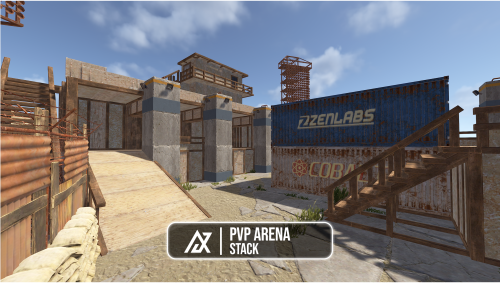
Stack is a classic MW3 Call of Duty map, that I have remade for Rust. This arena was designed primarily for 2v2 style PvP, but it can easily be adapted for other game modes and uses. The arena has a total prefab count of 1,289. If you would like small adjustments or custom changes made, feel free to reach out to me on Discord and I would be happy to help. Disclaimer: Some non-visible areas of the map are intentionally left unfinished to reduce prefab count. All player visible areas within the arena are fully complete.$12.99 -
Version 1.1.10
216 downloads
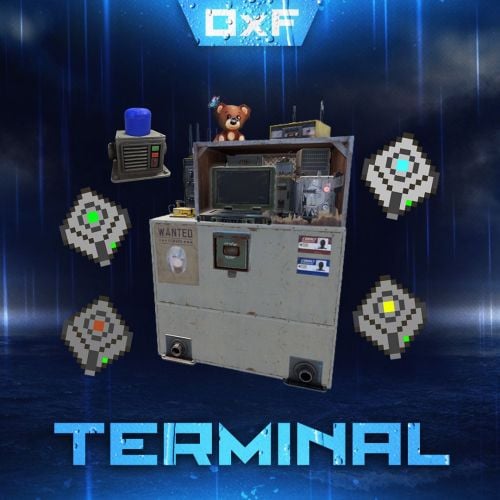
Terminal is an indispensable item that will allow players to manage the resources of the house in one place! Just as importantly, it is not just a conditional button on the screen or something similar, but a complete new item that is placed in the house, which gives a nice user experience to any player that likes interaction. Its multifunctionality will allow the player to use it for a variety of purposes, from simple resource management to building a terminal-only resource factory. Interested? Then let's get to the details. Examples of uses: Getting remote access to resources, the ability to take resources from several storages at once, as well as put them in them. The ability to use the terminal as one big chest thanks to the cells of different levels, available import and export pipes will allow to realize the delivery of resources to the production tools Building a plant powered by terminal alone Many other clever uses, like a chest in the buffer of the house connected to the terminal. Combining uses Features: Similar type items are displayed combined in one slot, where you can see the total quantity and take the required quantity. Two modes of operation: wireless and cellular. Full-featured new placeable item Works with industrial pipes Ability to create different cells (by standard there are 4 levels) Cells have their own stack size just for them. Intelligent movement that will not allow you to store more items in the boxes than allowed The terminal has a convenient search for items in the user's language, not only in English Demo Video: Installation instructions Installing dependencies CustomEntities. Go to Github, click Clone -> Download ZIP, then transfer CustomEntities.cs to the folder with plugins. CustomItemDefinitions. Go here, download and install in the plugins folder. Download purchased this plugin and install it in the plugins folder the same way. Done Quick Start: Prompt commands: give terminal give storage_cell.level1 give storageadaptor.wireless Place terminal, put the cell in the cell storage, install the adapter on the chest, enjoy. More about items: [Terminal] Terminal is a placeable item, with the ability to be placed both outside and in the house, serves for convenient management of all resources in the house. It has a certain amount of health (default 500), as well as the ability to pick up with a loss of strength. It has 2 modes of operation, wireless and cell, can work with industrial, by means of pipes to import and export items from cells. The server owner can decide where to get this item from, it has its own short name and can be used in all plugins, the best option is to craft it. The shortname of the item - terminal Command to give: give terminal How to pick up a terminal? For this we must have authorization in the cabinet. Holding a mallet in your hand, point at the part of the terminal where the inscription Authorize appears, press the R button and select Turn. How to switch modes of operation? It is possible to do this by pressing the switch on the left side of the laptop, it looks like this: What is needed to work in wireless mode? To start working you need the item "Wireless Storage Adapter”, this item is part of the plugin. Can be obtained by any method of the server owner's choice. The short name of the item - storageadapter.wireless. Command to give out: give storageadaptor.wireless Next, install the wireless storage adapter on the storage item you need. Such as: chests, furnaces, refineries, etc. Next, select the wireless mode on the terminal by pressing the switch. After entering the laptop, it will display all the items that are connected to the adapter in the range of the wireless mode of the terminal (customizable). What is needed to work in the cell mode? The first thing you need are the cells themselves, they can be obtained in any way the server owner chooses. The short name of the item - storage_cell.{name from the config, by default it is level1-4} Command to give out: give storage_cell.level1 Cells should be put in the terminal cell storage, it looks like this: It is recommended to put any kind of lock on the cell storage, otherwise they can be stolen! Next, select the cell mode on the terminal by pressing the switch. After entering the laptop, where you can now see what is in the cells, how many slots are available and you can put things there. [Wireless Storage Adaptor] Used for the wireless mode of the terminal. Installed on all storage items for which a regular storage adapter is available. Does not require additional connection. The server owner can decide where to get this item from, it has its own short name and can be used in all plugins, the best option is to craft it. The short name of the item - storageadapter.wireless. Command to give out: give storageadapter.wireless [Storage Cells] Cells hold items, have a certain number of slots and a maximum stack in each slot. These are special slots and only in them items can be stacked to their maximum. The maximum stack works on the principle of 1 type - 1 slot. That is, if the maximum stack is 5000 and the player puts there 10 new machine guns, they will occupy 1 slot and such can be put another 4990, if he puts a slightly broken machine gun, it will take another slot and will store the same machine guns. This is how it works with all items. Another example; a level 1 cell has a maximum stack of 5000 and 8 slots, and if you store only sulfur in it, you can eventually store 40000 sulfur in it. Higher level cells have more stacks and slots. Don't worry, the configured max stack won't be knocked down, items will unstack when they are laid down and taken out of the cell. The server owner can decide where to get this item from, it has its own short name and can be used in all plugins, the best option is to craft it. The short name of the item - storage_cell.{name from the config, by default it is level1-4} Command to give out: give storage_cell.level1$40.00 -
Version 1.1.0
863 downloads
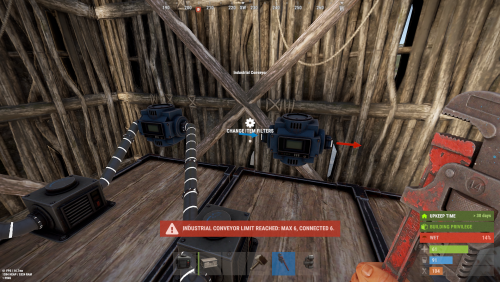
StackModifier: Industrial is an expansion designed to address all industrial-related stacking, splitting bugs, exploits, and issues. It patches the Industrial Conveyor and Industrial Crafter, providing much-needed fixes and improvements. Additionally, it introduces customizable limits that you can set and control to enhance the industrial gameplay experience. It also has blacklist support for the industrial crafter. This plugin will not affect plugins that auto-generate Industrial piping or placing. This plugin only targets players. NOTE: IF a plugin auto generates a farm past 5 daisy chained boxes it will start affecting server performance and cause hook time warnings. Server Defaults: Recommend sticking below vanilla defaults due to performance issues. # Industrial Component | Default | Custom | |-----------------------------|---------|---------| | Industrial Crafter | 6 | 6 | | Industrial Storage Adaptor | 34 | 20 | | Industrial Hopper | 6 | 6 | | Industrial Combiner | 17 | 9 | | Industrial Splitter | 17 | 9 | | Industrial Conveyor | 28 | 14 | |-----------------------------|---------|---------| Configuration File: { "Allow Industrial Crafter to craft random armor slots like normal crafting.": false, "Industrial Conveyor Max Stack Size Per Move Default: 128": 128, "Industrial Conveyor Move Frequency Default: 5, Lower = faster moving": 5, "Maximum difference in seconds that two items with Spoil Timers can have and still be stackable: 3600f < Default = 1-Hour difference": 3600.0, "Limit Industrial linking to improve server performance, adjust as needed.": { "Industrial Crafter": 6, "Industrial Storage Adaptor": 20, "Industrial Hopper": 6, "Industrial Conveyor": 14 }, "Industrial Crafter Black List: Item-Shortnames": [ "spear.wooden", ] } Why Limits Are Needed: Due to heavy server performance issues caused by the Industrial Conveyors being daisy-chained, I've introduced limits to help reduce the strain on server resources. When large industrial systems are built, especially with Auto-Crafters and Auto Bases, the sheer number of items and operations involved can cause significant performance degradation. Here’s an example of how an industrial system affects server performance: Industrial Crafter > Industrial Crafter > Industrial Crafter > Lg Furnace > Elec Furnace > DropBox > DropBox > DropBox > Combiner > Combiner > Combiner > - Combiner > - Splitter > - x3 Splitter > x3 Splitter > x3 Splitter > x3 Splitter > 27x Conveyor > Box Box Box Box Box Box Box Box Box Box Box Box Box Box Box Box Box Box Box Box Box Box Box Box Box Box Box 3x Combiner > 3x Combiner > 3x Combiner > - 3x Combiner > - Combiner > - Splitter > - 3x Splitter > Auto Crafter > Ore to Lg Furnace > Ore to Elec Furnace > Build Summary: 4x Industrial Crafters 34x Storage Adaptors 17x Combiners 17x Splitters 27x Conveyors Each box has 48 slots, and the CanStackItem hook is called for each slot that is used. With 27 boxes, that’s 1,296 calls before the process stops, assuming all boxes are full. This leads to high hook times, warnings, and server lag. The Solution: Limits To mitigate this issue, I’ve implemented a system of limits for these large industrial builds. The new default limit for Conveyors is now 14 (down from the vanilla limit of 28), drastically reducing the number of CanStackItem calls to 672. This helps to reduce the server load and improve performance. These limits are adjustable and can be configured inside the plugin’s settings, allowing you to fine-tune the system to best suit your server's needs. Lang File: { "Title": "<size=14><color=#00CED1>Connection Limits</color></size>\n", "Message": "<color=#FFD700>0</color>\n<color=#FF6347>Max Limit:</color> <color=#FFA07A>1x</color> | <color=#ADFF2F>Detected:</color> <color=#7CFC00>2x</color>", "Blocked": "Connection Blocked: View Chat or F1-Console-Menu for Details.", "Crafter": "Industrial Crafters", "Adaptor": "Industrial Storage Adaptors", "Hopper": "Industrial Hoppers", "Conveyor": "Industrial Conveyors", "Blacklist": "Blacklisted Item 0" }$9.99- 5 comments
- 2 reviews
-
- 2
-
-
-
- #stack modifier
- #industrial
- (and 5 more)
-

Version 1.2.2
109 downloads
About plugin The plugin allows you to conveniently change the stacks of items through the use of a graphical interface Chat Commands (can be changed in config) /stacks - opens the main menu /sethandstack - change item's stack you are holding in your hands Console Commands jstacks.setstack [item shortname] [new stack] - set stack size for item. Example: jstacks.setstack ammo.rifle 256 jstacks.restore - reset all stacks to default values (be careful: there is no confirmation) Permissions jstacks.use - using the plugin Features Changing stacks for the entire category by pressing two buttons Multiple choice option for quick stack change Config { "Can admins use command": true, "Command to open the menu": "stacks", "Command to set stack size of an item in your hands": "sethandstack", "Default icons for categories (in-game only)": { "Ammunition": "assets/icons/ammunition.png", "Attire": "assets/icons/community_servers.png", "Component": "assets/icons/open.png", "Construction": "assets/icons/construction.png", "Electrical": "assets/icons/electric.png", "Food": "assets/icons/food_cooked.png", "Fun": "assets/icons/fun_alt.png", "Items": "assets/icons/extinguish.png", "Medical": "assets/icons/medical.png", "Misc": "assets/icons/menu_dots.png", "Resources": "assets/icons/community_servers.png", "Tool": "assets/icons/tools.png", "Traps": "assets/icons/traps.png", "Weapon": "assets/icons/weapon.png" } }$2.99 -
Version 1.4.2
4,054 downloads
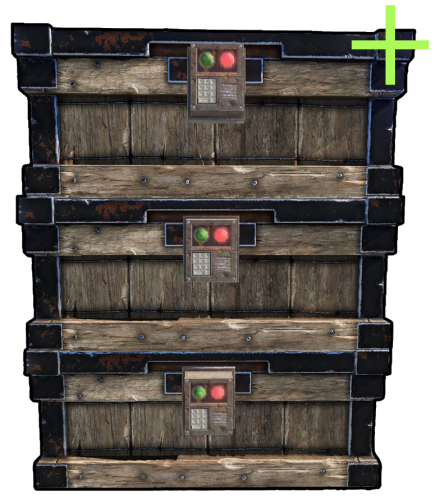
Chest Stacks is a Rust plugin that allows players to stack chests on top of each other! Configuration: { "Building privilege required": true, "Blacklisted Skins": [ 2618923347 ], "Permissions & their amount of stacked chests lmits": { "cheststacks.use": { "Chest type limits": { "SmallBox": 3, "LargeBox": 5 } }, "cheststacks.vip": { "Chest type limits": { "SmallBox": 5, "LargeBox": 10 } } } } Language: { "MaxStackAmount": "You are trying to stack more than {0} boxes!", "OnlyStackSameType": "You can only stack the same type of chests!", "CeilingBlock": "A ceiling is blocking you from stacking this chest!", "BuildingBlock": "You need to be Building Privileged in order to stack chests!" } Permissions: cheststacks.use (Always grant this permission for usage, grant additional permissions for different maximum stack amounts) In order to stack the chests you have to press RIGHT CLICK while looking at the placed chest and being near it! Supports: Small Boxes, Large Boxes$10.00- 72 comments
- 12 reviews
-
- 9
-
-
-
- #rust
- #rust plugin
- (and 9 more)
-
Version 1.0.1
7 downloads
Balanced 2x Config Stack size 2x Removed Junk Loot How to install: Navigate to oxide/data or carbon/data Delete the current "Loottable2" file Upload the extracted Loottable2 file to oxide/data or carbon/data Once everything is loaded, run a plugin reload If you want a different configuration, contact me on Discord: discord.gg/nzDy3gSRd8$6.99 -

Version 2024.5.2.1658
160 downloads
SAVE 10% WHEN BUYING THE BUNDLE SAVE 10% WHEN BUYING THE BUNDLE This high performance patch will allow to set custom item stacks based on: Item name Item category Blacklist items (useful when using the categories) This is a standalone Harmony patch, Oxide installation is optional. Copy the Oxidation.StackManager.dll file into your HarmonyMods folder and restart your server. At the first server start after installing the patch a new configuration file Oxidation.StackManager.X.json will be created at the HarmonyMods folder. What is Harmony ? Harmony is a library for patching .NET code during runtime, it directly manipulates game code (CIL) without any additional abstraction layer such as Oxide. The direct patching of the game's byte code allows more performant modding as developers no longer need to rely on third party code, events or hooks to build custom functionality.$4.99- 5 comments
- 3 reviews
-
- 1
-
-
- #harmony
- #oxidation
- (and 8 more)
-
Version 1.0.5
241 downloads
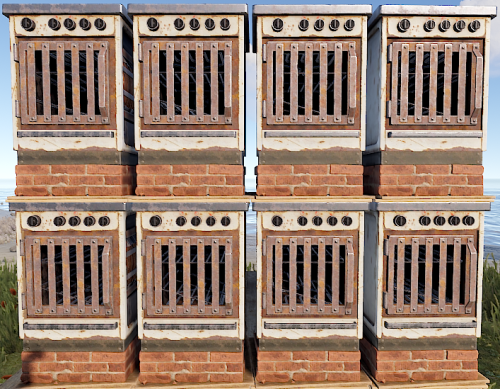
Configuration: { "Only stack furnaces in Building Privileged zones": true, "Permissions & their amount of stacked furnaces allowed": { "furnacestacks.use": 2, "furnacestacks.vip": 4 } } Language: { "MaxStackAmount": "You are trying to stack more than {0} furnaces!", "OnlyStackFurnaces": "You can only stack electric furnaces!", "CeilingBlock": "A ceiling is blocking you from stacking this furnace!", "BuildingBlock": "You need to be Building Privileged in order to stack furnaces!" } Permissions: furnacestacks.use (Always grant this permission for usage, grant additional permissions for different maximum stack amounts) In order to stack the furnaces you have to press RIGHT CLICK while looking at the placed furnace and being near it! Bugs & Questions: If you've found any bugs, have any questions/suggestions please let me know in the support section!$10.00 -

Version 1.0.1
315 downloads
Very basic plugin to make sure that skinned items do not get to lose their added skin when spliting stacks. (no config only a dev debug inside)Free -
Version 1.0.0
11 downloads
Set a weight on each item per category, if the player reaches the weight limit, he will no longer be able to run. Permissions inventoryweight.bypass - You can bypass the weight of the inventory Config$9.99- 4 comments
-
- 1
-
-
- #inventory
- #pve
- (and 7 more)





.thumb.png.ccf8a947948c9eb1445ad21a7931247b.png)