diff <(ssh-keygen -y -f id_rsa) id_rsa.pub
Tag: ssh
Can’t run screen due to “cannot open terminal ‘/dev/pts/1’ – please check” error
Turns out the problem was that I ssh’ed into the machine as root, then changed to the user kramer65 with su kramer65 and then tried to run screen, where screen can only be run by the user that logs in using ssh. So after I added kramer65 to the sudoers file with usermod -aG sudo kramer65
openvpn+ssh+google auth+selinux
The following is the selinux module that can be used if you want to enable openvpn and ssh via google auth:
module openvpncustom 1.0;

require {
type openvpn_t;
type user_home_t;
type auth_home_t;
type sshd_t;
type openvpn_etc_t;
type etc_t;
type user_home_dir_t;
class dir { add_name remove_name write };
class file { create getattr open read rename unlink write };
}

#============= openvpn_t ==============

#!!!! This avc is allowed in the current policy
allow openvpn_t auth_home_t:file { create getattr open read rename unlink write };
allow openvpn_t user_home_t:file open;

#!!!! This avc is allowed in the current policy
allow openvpn_t etc_t:file write;

#!!!! This avc is allowed in the current policy
allow openvpn_t openvpn_etc_t:file write;

#!!!! This avc is allowed in the current policy
allow openvpn_t user_home_dir_t:dir { add_name remove_name write };

#!!!! This avc is allowed in the current policy
allow openvpn_t user_home_dir_t:file { create getattr open read rename unlink write };

#============= sshd_t ==============
#!!!! This avc is allowed in the current policy
allow sshd_t user_home_dir_t:file { open read unlink getattr };
allow sshd_t user_home_t:file unlink;
Save the above in openvpncustom.te
Then execute the following to apply the above selinux module:
yum install selinux-policy-devel
checkmodule -M -m -o openvpncustom.mod openvpncustom.te
semodule_package -o openvpncustom.pp -m openvpncustom.mod
semodule -i openvpncustom.pp
How to run cloud-init manually
1)
$rm -rf /var/lib/cloud/*
OR
$rm -rf /var/lib/cloud/sem/* /var/lib/cloud/instance /var/lib/cloud/instances/*
2)
$cloud-init init
$cloud-init modules -m final
3)
$tail -f /var/log/cloud-init.log
$tail -f /var/log/cloud-init-output.log
OR
The commands have been updated so to re-run you need to clean out the existing config:
sudo cloud-init clean
Then re-run it using the init directive:
sudo cloud-init init
Beware: things like ssh host keys maybe regenerated.
unable to login to a virtual machine
If you want to add a user to a virtual machine without logging into it or change the password of root or any other user, you can use virt-customize.
The virt-customize command-line tool can be used to customize a virtual machine. For example, by installing packages and editing configuration files.
To use virt-customize, the guest virtual machine must be offline, so you must shut it down before running the commands. Note that virt-customize modifies the guest or disk image in place without making a copy of it. If you want to preserve the existing contents of the guest virtual machine, you must snapshot, copy or clone the disk first.
To install virt-customize, run one of the following commands:
sudo yum install libguestfs-tools-csudo apt-get install libguestfs-tools
Please follow the below-mentioned steps:
a. Add a new user:
virt-customize -a centos.img --run-command "adduser user1"

virt-customize -a centos.img --ssh-inject user1:string:<YOUR PUBLICKEY STRING HERE>
Now you can login with user1 and public-key
If you want passwordless sudo access execute the following:
virt-customize -a centos.img --run-command "echo 'user1 ALL=(ALL) NOPASSWD: ALL' >> /etc/sudoers.d/user1-sudo"
b. Change root password:
virt-customize -a centos.img --root-password password:mypass
You can login to the VM with root/mypass
c. Change password of non-root user:
virt-customize -a centos.img --password user1:password:mypass2
You can login to the VM with user1/mypass2
GIT push: permission denied (public key)
GIT: I’m trying to push a file to a repo of a friend but errors on the public key.
git push origin testbranch
Permission denied (publickey).
fatal: Could not read from remote repository.
Where and how do we define public/private keys?
git remote -v returns:
origin  git@github.com:Sesamzaad/NET.git (fetch)
origin  git@github.com:Sesamzaad/NET.git (push)
Use ssh instead of HTTP. Remove origin if its HTTP.
git remote rm origin
Add ssh URL
git remote add origin git@github.com:<username>/<repo>.git
Generate ssh key inside .ssh/ folder. It will ask for path and passphrase where you can just press enter and proceed.
cd ~/.ssh
ssh-keygen
Copy the key. You can view your key using. If you hadn’t specified a different path then this is the default one.
cat ~/.ssh/id_rsa.pub
Add this key to your GitHub account. Next, do
ssh -T git@github.com
You will get a welcome message in your console.
cd into your project folder. git push -u origin master now works!
Tmux not scaling to fill the window
I have a weird issue where tmux isn’t scaling to fill the window it’s in:
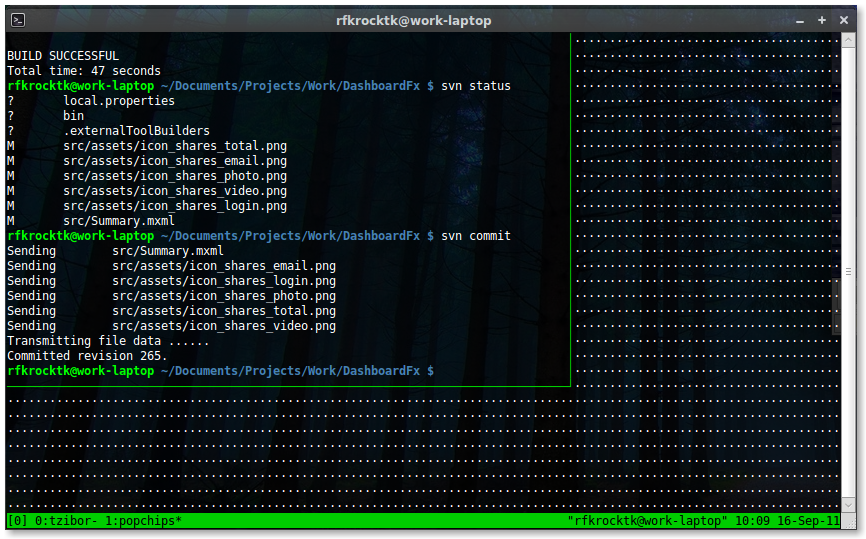
I haven’t had this issue before, is there something I need to do to get it to automatically scale to fill the host window?
The solution to this problem is to detach from all other tmux sessions. You might be having a session open somewhere else and tmux only scales to fit the first connected terminal. Thus execute tmux detach -a. Then attach to your session again.
su – oracle permission denied
Issue:
After SSHed to the container, I tried to “su” to oracle user, I got the following
su: cannot open session: Permission denied
Solution:
this problem is due to missing rights inside of the docker container. Per default a docker container runs with unprivileged rights…
You have multiple possibilities now.
1) Connect directly as oracle using SSH
ssh oracle@localhost -p 2222
2) Using gosu instead of su
Thus the build is bundled with gusu you can use it like:
gosu oracle bash
gosu is required because only containers can run in privileged mode, during build there is no privileged mode so I bundled gosu with this image…
3) Run container with privileged rights
By default, Docker containers are “unprivileged” and cannot, for example, run a Docker daemon inside a Docker container. This is because by default a container is not allowed to access any devices, but a “privileged” container is given access to all devices
So the docker run command would be like:
docker run -d --name <your-docker-container-name> -p <local-ssh-port>:22 -p <local-http-port>:8080 -p <local-db-listener-port>:1521 -v /dev/shm --tmpfs /dev/shm:rw,nosuid,nodev,exec,size=2g --privileged <your-docker-image-name>
4) Run container with more Linux capabilities
This is like –privileged but more selective, you give only higher rights to chosen capabilities instead of running the whole container in privileged mode. If you choose solution 3 or 4 I would go for this solution because it´s more secure to only allow certain capabilities instead of all.
So the docker run command would be like:
docker run -d --name <your-docker-container-name> -p <local-ssh-port>:22 -p <local-http-port>:8080 -p <local-db-listener-port>:1521 -v /dev/shm --tmpfs /dev/shm:rw,nosuid,nodev,exec,size=2g --cap-add SYS_RESOURCE <your-docker-image-name>Safely remembering ssh credentials in bash script
Imagine I have a bash script that executes commands on a remote machine via ssh:
# Do something here
ssh otheruser@host command1
# Do something else
ssh otheruser@host command2
# Do most local tasks
This script prompts me to enter credentials for otheruser@host multiple times. Is there a safe, easy, and accepted way to cache these credentials for the lifetime of the script but guarantee that they are lost after the script ends (either normally or when an error occurs)? Maybe a solution will use ssh-agent?
I am looking for something like this:
special_credential_saving_command_here # This will prompt for credentials
ssh otheruser@host command1 # This will not prompt now
ssh otheruser@host command2 # This will not prompt either
My motivation here is to avoid entering the credentials multiple times in the same script while not running the risk of those credentials persisting after the script has terminated. Not only is entering the credentials cumbersome, it also requires I wait around for the script to finish so that I can enter the credentials rather than leave it to run on its own (it’s a long running script).
Solution:
Use a control socket to share an authenticated connection among multiple processes:
ssh -fNM -S ~/.ssh/sock otheruser@host  # Will prompt for password, then exit
...
ssh -S ~/.ssh/sock otheruser@host command1
ssh -S ~/.ssh/sock otheruser@host command2
...
ssh -S ~/.ssh/sock -O exit otheruser@host  # Close the master connection
See man ssh_config, under the ControlPath option, for information on how to create a unique path for the control socket.
bash list postgresql databases over ssh connection
I am doing some work on a remote Postgresql database.
When I log into the server this command works on bash:
$ psql -c “\l”
Remote login over ssh is possible using:
ssh user@server -C "cd /tmp && su postgres -c psql"
But why doesn’t it work from this command?
ssh user@server -C " cd /tmp && su postgres -c psql -c '\l' "
→   bash: l: command not found
This is working, also “psql -l” but I don’t understand why I have to use backslash 3 times here?
ssh user@server -C " cd /tmp && su postgres -c 'psql -c \\\l' "
Solution:
Use several levels of quoting:
ssh user@server -C "cd /tmp && su postgres -c 'psql -c \"\\l\"'"
 A Passionate Techie