Gitlab Application settings API

Get current application settings

List the current application settings of the GitLab instance.

GET /application/settings
curl --header "PRIVATE-TOKEN: <your_access_token>" https://gitlab.example.com/api/v4/application/settings

Example response:

{
   "default_projects_limit" : 100000,
   "signup_enabled" : true,
   "id" : 1,
   "default_branch_protection" : 2,
   "restricted_visibility_levels" : [],
   "password_authentication_enabled_for_web" : true,
   "after_sign_out_path" : null,
   "max_attachment_size" : 10,
   "user_oauth_applications" : true,
   "updated_at" : "2016-01-04T15:44:55.176Z",
   "session_expire_delay" : 10080,
   "home_page_url" : null,
   "default_snippet_visibility" : "private",
   "outbound_local_requests_whitelist": [],
   "domain_whitelist" : [],
   "domain_blacklist_enabled" : false,
   "domain_blacklist" : [],
   "created_at" : "2016-01-04T15:44:55.176Z",
   "default_project_visibility" : "private",
   "default_group_visibility" : "private",
   "gravatar_enabled" : true,
   "sign_in_text" : null,
   "container_registry_token_expire_delay": 5,
   "repository_storages": ["default"],
   "plantuml_enabled": false,
   "plantuml_url": null,
   "terminal_max_session_time": 0,
   "polling_interval_multiplier": 1.0,
   "rsa_key_restriction": 0,
   "dsa_key_restriction": 0,
   "ecdsa_key_restriction": 0,
   "ed25519_key_restriction": 0,
   "first_day_of_week": 0,
   "enforce_terms": true,
   "terms": "Hello world!",
   "performance_bar_allowed_group_id": 42,
   "instance_statistics_visibility_private": false,
   "user_show_add_ssh_key_message": true,
   "local_markdown_version": 0,
   "allow_local_requests_from_hooks_and_services": true,
   "allow_local_requests_from_web_hooks_and_services": true,
   "allow_local_requests_from_system_hooks": false,
   "asset_proxy_enabled": true,
   "asset_proxy_url": "https://assets.example.com",
   "asset_proxy_whitelist": ["example.com", "*.example.com", "your-instance.com"]
}
fatal: unable to access ‘https://github.com/xxx’: OpenSSL SSL_connect: SSL_ERROR_SYSCALL in connection to github.com:443

If you are behind a proxy, try the following:

git config --global --add remote.origin.proxy ""
git config --global http.sslBackend "openssl"

Install homebrew without sudo in MacOS

Homebrew needs /usr/local to be chown-ed to your user, and you need sudo for that. If you can’t you have to install it elsewhere. Some people use ~/.brew or ~/homebrew; you can use anything but avoid paths with spaces.

Let’s say you want to install in ~/.brew; run the following command:

git clone --depth=1 https://github.com/Homebrew/brew ~/.brew

Then ensure the bin and sbin directories are in your PATH. If you’re using Bash add the following in your ~/.bash_profile:

export PATH="$HOME/.brew/bin:$HOME/.brew/sbin:$PATH"

Run source ~/.bash_profile or restart your shell and run brew doctor to see if it’s installed correctly. It should warn you it’s not installed into /usr/local but that’s expected here.

GIT push: permission denied (public key)

GIT: I’m trying to push a file to a repo of a friend but errors on the public key.

git push origin testbranch
Permission denied (publickey).
fatal: Could not read from remote repository.

Where and how do we define public/private keys?

git remote -v returns:

origin  git@github.com:Sesamzaad/NET.git (fetch)
origin  git@github.com:Sesamzaad/NET.git (push)

Use ssh instead of HTTP. Remove origin if its HTTP.

git remote rm origin

Add ssh URL

git remote add origin git@github.com:<username>/<repo>.git

Generate ssh key inside .ssh/ folder. It will ask for path and passphrase where you can just press enter and proceed.

cd ~/.ssh
ssh-keygen

Copy the key. You can view your key using. If you hadn’t specified a different path then this is the default one.

cat ~/.ssh/id_rsa.pub

Add this key to your GitHub account. Next, do

ssh -T git@github.com

You will get a welcome message in your console.

cd into your project folder. git push -u origin master now works!

fatal: protocol ''https' is not supported in Git

I tried to push the repo to my azure remote by runnng git push azure master. The remote URL is 'https://<myid>@ndas.scm.azurewebsites.net/<myapp>.git'.

The problem is, it says protocol ‘https’ is not supported

Please see the following screenshot:

Solution:

The problem is, it says protocol ‘https’ is not supported

It actually doesn’t say that. Here’s what it actually says:

fatal: protocol ”https’ is not supported

Note the two single quotes at the beginning and one at the end. The first and last are quoting the protocol for the error message, but the second quote is part of the protocol being rejected: 'https.

Note also the full output you see from git remote -v. Your azure remote URLs include literal leading and trailing single quotes while your origin remote URLs (which are presumably working) don’t.

Try running

git remote set-url azure https://poomani98@ndas.scm.azurewebsites.net/ndas.git

to set the remote URL to https://poomani98@ndas.scm.azurewebsites.net/ndas.git instead of 'https://poomani98@ndas.scm.azurewebsites.net/ndas.git', then pushing again.

Git doesn't add my files, even though I add them

After adding files in a bunch of different ways, the files are still not added to the commit, no matter which way I am trying to add them. This is my console output so you understand better:

daniel@padamtuts:~/github/dotfiles$ git status
On branch master
Changes not staged for commit:
  (use "git add <file>..." to update what will be committed)
  (use "git checkout -- <file>..." to discard changes in working    directory)
  (commit or discard the untracked or modified content in submodules)

    modified:   .vim/bundle/auto-pairs (modified content)
    modified:   .vim/bundle/ctrlp.vim (modified content)
    modified:   .vim/bundle/emmet-vim (modified content)
    modified:   .vim/bundle/nerdtree (modified content)
    <a lot of files>

no changes added to commit (use "git add" and/or "git commit -a")
daniel@padamtuts:~/github/dotfiles$ git add *
daniel@padamtuts:~/github/dotfiles$ git add -A
daniel@padamtuts:~/github/dotfiles$ git commit -m "Vim bundles"
On branch master
Changes not staged for commit:
    modified:   .vim/bundle/auto-pairs (modified content)
    ...
    <same files>

no changes added to commitPdaniel@padamtuts:~/github/dotfiles$ git status
On branch master
Changes not staged for commit:
  (use "git add <file>..." to update what will be committed)
  (use "git checkout -- <file>..." to discard changes in working    directory)
  (commit or discard the untracked or modified content in submodules)

    modified:   .vim/bundle/auto-pairs (modified content)
    <same files>

no changes added to commit (use "git add" and/or "git commit -a")
daniel@padamtuts:~/github/dotfiles$ git add *
daniel@padamtuts:~/github/dotfiles$ git add -A
daniel@padamtuts:~/github/dotfiles$ git commit -m "Vim bundles"
On branch master
Changes not staged for commit:
    modified:   .vim/bundle/auto-pairs (modified content)
    <same files>

no changes added to commit

“`

Solution:

Files/directories that begin with . are ‘hidden’ and will be ignored by git when you add with the glob character. You can read about these ‘dotfiles’ if you want to learn more; usually they are configuration files (e.g. for vim) and such that you may not want to interact with directly and by default will not appear in a file explorer, or in the output of ls, etc.

For your purposes, git add . should do the trick.

How to replace github branch inside jenkins job scm from parameter value

I have a jenkins job groovy script like below. I want the Github branch to be taken from the parameter value.

Groovy Script :

 git_url = "git@github.deere.com:ABC/XYZ.git" jenkins_node = "master"
    freeStyleJob('myjob') {
    logRotator(numToKeep = 100)
    parameters {    stringParam("GIT_BRANCH", "master" , "master cert dev")   }
    label(jenkins_node)
    scm {
     git {
      remote { url(git_url) }
      branch($GIT_BRANCH)  
      extensions { }
         }
     }

Solution:

You have to put $GIT_BRANCH variable into single quotes so it is not get parsed by job DSL script. Paste your script to this Job DSL playground app and you will get an exception:

javaposse.jobdsl.dsl.DslScriptException: (script, line 12) No such property: $GIT_BRANCH for class: javaposse.jobdsl.dsl.helpers.scm.GitContext
    at javaposse.jobdsl.dsl.AbstractDslScriptLoader.runScriptEngine(AbstractDslScriptLoader.groovy:112)
    at javaposse.jobdsl.dsl.AbstractDslScriptLoader$_runScripts_closure1.doCall(AbstractDslScriptLoader.groovy:59)
    at javaposse.jobdsl.dsl.AbstractDslScriptLoader.runScripts(AbstractDslScriptLoader.groovy:46)
    at javaposse.jobdsl.dsl.AbstractDslScriptLoader$runScripts$0.callCurrent(Unknown Source)

But if you add single quotes:

branch('$GIT_BRANCH')

then you will get your job XML file generated correctly:

<!-- 1. myjob -->
<project>
    <actions></actions>
    <description></description>
    <keepDependencies>false</keepDependencies>
    <properties>
        <hudson.model.ParametersDefinitionProperty>
            <parameterDefinitions>
                <hudson.model.StringParameterDefinition>
                    <name>GIT_BRANCH</name>
                    <defaultValue>master</defaultValue>
                    <description>master cert dev</description>
                </hudson.model.StringParameterDefinition>
            </parameterDefinitions>
        </hudson.model.ParametersDefinitionProperty>
    </properties>
    <canRoam>false</canRoam>
    <disabled>false</disabled>
    <blockBuildWhenDownstreamBuilding>false</blockBuildWhenDownstreamBuilding>
    <blockBuildWhenUpstreamBuilding>false</blockBuildWhenUpstreamBuilding>
    <triggers></triggers>
    <concurrentBuild>false</concurrentBuild>
    <builders></builders>
    <publishers></publishers>
    <buildWrappers></buildWrappers>
    <logRotator>
        <daysToKeep>100</daysToKeep>
        <numToKeep>-1</numToKeep>
        <artifactDaysToKeep>-1</artifactDaysToKeep>
        <artifactNumToKeep>-1</artifactNumToKeep>
    </logRotator>
    <assignedNode>master</assignedNode>
    <scm class='hudson.plugins.git.GitSCM'>
        <userRemoteConfigs>
            <hudson.plugins.git.UserRemoteConfig>
                <url>git@github.deere.com:ABC/XYZ.git</url>
            </hudson.plugins.git.UserRemoteConfig>
        </userRemoteConfigs>
        <branches>
            <hudson.plugins.git.BranchSpec>
                <name>$GIT_BRANCH</name>
            </hudson.plugins.git.BranchSpec>
        </branches>
        <configVersion>2</configVersion>
        <doGenerateSubmoduleConfigurations>false</doGenerateSubmoduleConfigurations>
        <gitTool>Default</gitTool>
    </scm>
</project>

Here is job DSL I used in the sandbox:

git_url = "git@github.deere.com:ABC/XYZ.git" 
jenkins_node = "master"
freeStyleJob('myjob') {
  logRotator(numToKeep = 100)
  parameters {
    stringParam("GIT_BRANCH", "master" , "master cert dev")   
  }

  label(jenkins_node)
  scm {
    git {
      remote { url(git_url) }
      branch('$GIT_BRANCH')  
      extensions { }
    }
  }
}

Now when you run a job generated from this DSL it will ask you for GIT_BRANCH parameter and the value you pass will be used to set up the branch.

CodeBuild (AWS) from CodePipeline (AWS)

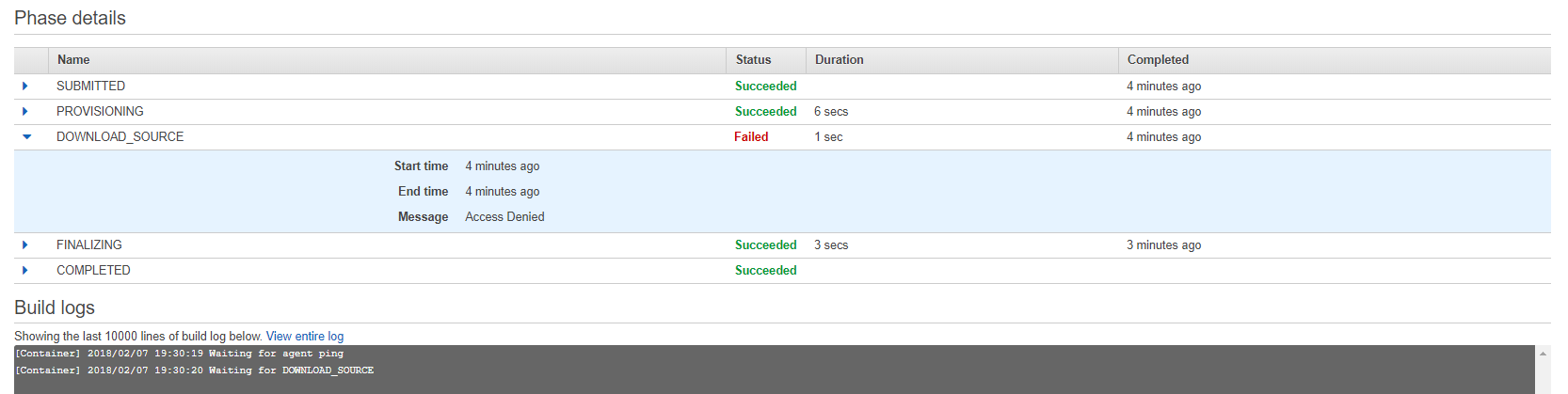
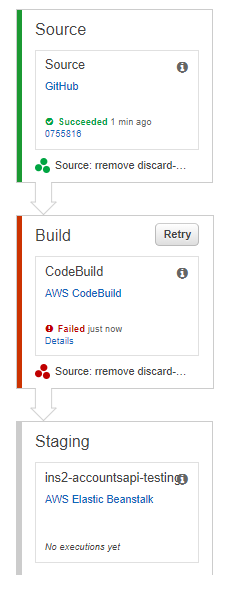
I’m trying to trigger multiple builds with CodePipeline (AWS) and when the pipeline trigger a CodeBuild, the CodeBuild fail with the next error:

[Container] 2018/02/07 19:30:20 Waiting for DOWNLOAD_SOURCE

Message: Access Denied

Extra information:

  • The source is coming from Github
  • If I start the CodeBuild manually works perfectly.

enter image description here


enter image description here

Solution:

I just discovered this the other day. I’m not sure if it’s documented anywhere, but it’s definitely not clear in the Code Pipeline UI.

Any CodeBuild project that CodePipeline initiates must have been created through the CodePipeline UI. It cannot be a “standalone” CodeBuild project.

When you create a CodeBuild project from the CodePipeline UI, the “Source Provider” setting is “AWS CodePipeline”, which is not an available choice when you create the CodeBuild project yourself.

CodePipeline retrieves it’s own source code from GitHub. It then passes that source code to your CodeBuild project. If your project is getting it’s own source code from GitHub, then that seems to cause the issue you describe:

[Container] 2018/02/06 14:58:37 Waiting for agent ping
[Container] 2018/02/06 14:58:37 Waiting for DOWNLOAD_SOURCE

To resolve this issue, you must edit your CodePipeline “build” stage, and choose “Create a new build project” under “AWS CodeBuild, Configure Your Project”. You can copy most settings from your existing project and reuse the buildspec.yml file in your source code.

Github's multiple projects access on Jenkins

I have an Organization level Github and I want to access all its projects with single ssh key or single credential in my Jenkins. Is there any way I can do this?

Solution:

Yes. It is possible. Just follow this instruction to:

Then it should just work as long as your jenkins uses this ssh key to connect to github, download repos etc.

Git: Push a new repository

create a new repository on the command line

echo "# helm-nexus" >> README.md
git init
git add README.md
git commit -m "first commit"
git remote add origin https://github.com/{username}/helm-nexus.git
git push -u origin master

…or push an existing repository from the command line

git remote add origin https://github.com/{username}/helm-nexus.git
git push -u origin master