MDT 2010: ZTIGather.xml

I keep meeting admins who write scripts for MDT that they don’t have to. For example, a script that returns the MAC address of the primary network adapter. The real issue here is not knowing what information MDT collects(Gathers).

There’s an XML file located in the scripts folder of the Deployment Share. It’s called ZTIGather.xml and is where a lot of the built in properties are predefined. MDT uses this file to help gather its local information. Double-click on the ZTIGather.xml and it’ll open in your browser.

This is the data that is collected during the Gather local only task sequence step. Don’t edit this file, I jut think it’s another great starting point in understanding the info that MDT can collect.

Posted in Deployment, MDT 2010 | Tagged , | Leave a comment

MDT 2010: Variables.DAT

I’ve withdrawn todays blog and replaced it as I was exhausted yesterday and pushed out my article incomplete. What I wanted to share was an easy and quick way to access all the variables collected in your deployment. I’ll republish my article on ZTIGather when its complete.

During your deployments, in the folder C:\MININT\SMSOSD\OSDLOGS there’s a file called variables.dat. This is where MDT stores the values for all the properties that it has collected.

Copy this file somewhere and rename it to *.XML then open it in your browser to get an output like this:

image

Going through this is one method of understanding what information MDT collects and also, the variables that you can use in your task sequence conditional statement or script variables. You can also edit this DAT file on the fly and change the values in it, but I’ll talk about that in a future blog.

This will save you reinventing the wheel by scripting information that is already collected.

Posted in Deployment, MDT 2010 | Tagged , | 3 Comments

MDT 2010: BGInfo in WinPE

One thing that I always wanted was to get a BGInfo background in WindowsPE during my Lite-Touch deployments. I did it a while back during a phase of testing when I just wanted to start-up a PC and see if it had obtained an IP address etc. Plus, I wanted to see the MAC Address and UUID without having to run scripts or WMIC every time. Anyway, it looks like this:

UPDATE: There is an x64 version of BGInfo now in MDT 2012 this tip can be replicated for both architectures. To do this for x86, you’ll need to create the following:

  • An ‘Extra Files’ folder in your DeploymentShare
  • A *.BGI customised background for use in Windows PE.
  • a custom Unattend.XML to call the commands

ExtraFiles

  1. Create a folder called ‘ExtraFiles’ in your deployment share.
  2. Next, create a folder called Windows with a subfolder called System32 beneath it.
  3. In the Deployment Workbench, Right-Click on the Deployment Share and select properties. Then click on the Windows PE x86 Settings Tab
  4. In the Windows PE Customizations section browse to the ExtraFiles folder

Customised BGInfo

  1. Boot into your LiteTouchPE_x86 environment
  2. Press F8 to open a command prompt
  3. Type Z:\Tools\x86\BGInfo.exe (or copy it to the x:drive to run it faster)
  4. Customise your desktop background and save it to Z:\ExtraFiles\Windows\System32

Unattend.XML

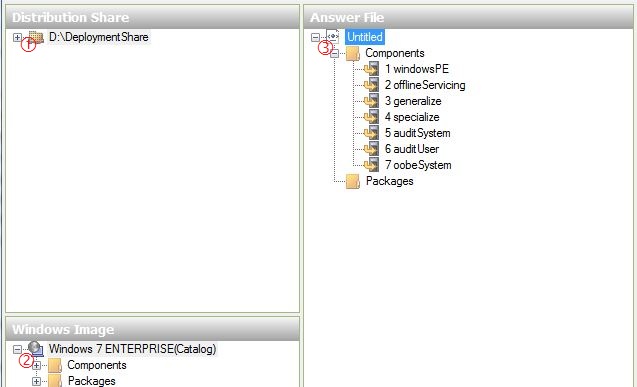
  1. Open Windows System Image Manager and select a DeploymentShare
  2. Then select a Windows Image
  3. Then create a New AnswerFile

  4. Add the following settings to the Answer File in the WindowsPE configuration Pass

Microsoft-Windows-Setup | Display

ColorDepth=16
HorizontalResolution=1024
RefreshRate=60
VerticalResolution=768

Microsoft-Windows-Setup | RunSynchronous | RunSynchronousCommand

Description=Set Background

Order=1
Path=Bginfo.exe Win_PE.bgi /silent /timer:0 /NOLICPROMPT

Description=Lite Touch PE
Order=2
Path=wscript.exe X:\Deploy\Scripts\LiteTouch.wsf

5.  Save the file as z:\ExtraFiles\Unattend.XML

Finally, copy BGInfo.exe to z:\ExtraFiles\Windows\System32\ and update the deployment share to recreate the LiteTouchPE_x86.wim

Posted in Deployment, MDT 2010 | 14 Comments

Windows 7: All Tasks Shortcut

There were links going a year or so ago around about a mythical ‘God Mode’ in Windows 7 that reveals ‘hidden’ features.

What it is really is a link to a special windows folder using a CLSID key found in the registry under HKEY_CLASSES_ROOT\CLSID\{ED7BA470-8E54-465E-825C-99712043E01C}. There was a tip like this in TweakUI for XP that put a control panel shortcut on your start menu or IE on your desktop. There’s a massive list of these special folders and they can be found by simply navigating the afore-mentioned registry key.

To use the ‘god mode’ or the All Tasks if you prefer, simply create a folder on your desktop and rename it to:

All Tasks.{ED7BA470-8E54-465E-825C-99712043E01C}

Now when you open it you get access to a massive list of links that are openly available in Windows 7.

No deity operational subset(God Mode) involved. and better still, your immortal souls are still intact.

Posted in Windows 7 | Tagged , | Leave a comment

MDT2010: Deployment Scenarios

I’ve been asked a few times, which task sequence template to use? Well, when planning your deployments, you should first consider the usage of your task sequences. There are 4 task sequence usage scenarios in MDT 2010, they are New Computer, Refresh, Replace and Upgrade. When choosing which task sequence template to use, consider the deployment scenarios.

NEW COMPUTER

The target computer is a new computer that has never been a member of the network. The Standard Client Task Sequence should be used in this situation. PXE booting and running this task sequence will wipe any out of box image.

  • Bare metal deployment
  • Pre-Boot Execution Environment (PXE) boot using Windows Deployment Services or Boot image CD
  • No user state capture

REFRESH

The target computer is an existing computer on the network that needs the desktop environment standard to be redeployed. The Standard Client Task Sequence is designed to handle care of this scenario.

  • Task Sequence deployment, started from within Operating System
  • Existing OS needs to be refreshed.
  • Requires capture and retention of user state.
  • Applications need to be re-applied, if compatible.

REPLACE

An existing computer on the network is being replaced with a new computer. The user state migration data is transferred from the existing computer to share then back to the new computer. Within MDT this means running 2 task sequences, Replace Client Task Sequence then a task based on the Standard Client Task Sequence template. The Replace Task Sequence will only back up your data and wipe the disk in preparation for disposal/reuse.

  • Task Sequence deployment from within Operating System or Bare Metal
  • Task Sequence run on Source machine captures user state
  • New machine begins using PXE boot or boot image media
  • User state must be stored on a share or state migration point
  • User state and compatible applications re-applied on new machine

UPGRADE

An existing computer on the network is running an earlier version of the Windows operating system and needs to be upgraded to the most current desktop environment standard. The Standard Client Task Sequence template can be used for this scenario.

  • Task Sequence deployment from within Operating System
  • Old OS is stored under a folder named windows.old
  • User state is handled as part of the upgrade
  • Applications do not need to be re-installed
Posted in Deployment, MDT 2010 | Tagged , | 7 Comments

Windows 7 Deployment: Volume Activation Videos

One important aspect of deploying Windows 7 and Office 2010 is activating the products. The actual process is straightforward, but understanding the technology properly requires a little investment in time. I’ve added a few videos below to get started.

Windows 7 Volume Activation

Fundamentals of Volume Activation
Key Management Service (KMS) Activation for Windows 7 and Windows Server 2008 R2
Multiple Activation Key Activation for Windows 7 and Windows Server 2008 R2
Manage Activations Using the Volume Activation Management Tool (VAMT)
Set Up a KMS Host on a Windows Server 2008 R2 Machine

Microsoft Office 2010 Volume Activation

Set Up an Office 2010 KMS Host on an Existing Windows KMS Host
Volume Activation for Windows and Office 2010
Adding Office 2010 to Existing Windows Deployment Using Volume Activation
Deploying Windows and Office 2010 with Volume Activation
Using Slmgr.vbs and Ospp.vbs to Deploy Windows and Office 2010 with Volume Activation

Posted in Deployment, Video Walkthroughs, Windows 7 | Tagged , , | Leave a comment

MCTS: 70-669 – Desktop Virtualization – Exam Video Links

Now that I’ve passed the exam MCTS: 70-669 – Windows Server 2008 R2, Desktop Virtualization I thought I’d share some of the videos that I found useful in my studys. These videos are freely available and mostly on Technet.

Deploying and Managing an Enterprise Desktop Virtualization Environment

Install and configure Windows Virtual PC.
Enable and manage Windows XP Mode.
Windows 7 XP Mode User Experience
An Introduction to Windows XP Mode
How to Install Windows XP Mode
How to Install an Application on Windows XP Mode
Windows XP Mode IT Pro Series

Create a MED-V infrastructure.
Administer a MED-V environment.
1- Preparing a MED-V Image
2 – Testing, Packing, and Uploading a MED-V Image
3 – MED-V Workspace Walkthrough
4 – Publishing Different Applications to Different Users of the Same MED-V
Image
5 – Creating a MED-V Installation Package
6 – MED-V First Time Setup with Domain Join
7 – Monitoring and Troubleshooting Tools in MED-V
8 – Updating a MED-V Image

MED-V v1 SP1 User Experience
Internet Explorer Virtualization with MED-V
Microsoft Enterprise Desktop Virtualization (MED-V) Overview
Optimised Desktop Series : Med-V

Deploying and Managing a Presentation Virtualization Environment

Prepare and manage remote applications.
Access published applications.
Configure client settings to access virtualized desktops.
Part 1: RDS Session Host – Initial Installation & Configuration
Part 2: RDS Web Portal- Initial Installation & Configuration
Part 3: RDS Connection Broker- Initial Installation & Configuration
Part 4: RDS Gateway – Initial Installation & Configuration
Part 5: RDP7 Deep Dive & User Experience

Microsoft VDI Part I: Server Side Configuration
Microsoft VDI Part II: Virtual Desktop Configuration
Microsoft VDI Part III: Client Side Experiences

WindowsServer 2008 R2, Remote Desktop, VDI and Virtualization

Deploying and Managing an Application Virtualization (App-V) Environment

Prepare virtual applications.
Install and configure application virtualization environments.
Manage application virtualization environments.
Application Virtualization (App-V) Video Series

Managing a Virtual Desktop Infrastructure Environment

Configure user state virtualization.
Microsoft User State Virtualization Overview
Roaming User Profiles
Folder Redirection

Manage virtual desktops remotely.
How Do I: Configure the Virtual machine Manager 2008 self service portal

Posted in Certified Training, Desktop Virtualization, Video Walkthroughs | Tagged , , | 10 Comments

MDT 2010: Sample customsettings.ini for Fully Automated LTI Deployments

I get a lot of requests for articles on various deployment techniques. One reader yesterday asked for an example of a customsettings.ini file.

samburattoSam said:

Hey, Thanks for the Blog. Alot of helpfull stuff.
Can you show us an example of a completed\demo customsettings.ini? Cheers

I certainly can,  Sam!

I was going through my backups when I remembered that there were a few samples already in the built-in help file. The samples are designed for each of the various deployment scenarios REFRESH, REPLACE and NEW COMPUTER respectively.

The samples given are fully automated and I’ve highlighted in bold the wizard skip commands. In the upgrade customsettings.ini example the SkipWizard property is used eliminating the need for all the other panes. I’ve posted all 3 customsettings.ini samples below.

Fully Automated LTI Deployment for a Refresh Computer Scenario

[Settings]
Priority=Default
Properties=MyCustomProperty

[Default]
OSInstall=Y
ScanStateArgs=/v:5 /o /c
LoadStateArgs=/v:5 /c /lac /lae

SkipAppsOnUpgrade=YES
SkipCapture=YES
SkipAdminPassword=YES
SkipProductKey=YES

SkipDeploymentType=YES 
DeploymentType=REFRESH

SkipDomainMembership=YES
JoinDomain=DomainName
DomainAdmin=Administrator
DomainAdminDomain=DomainName
DomainAdminPassword=a_secure_password

SkipUserData=YES
UserDataLocation=AUTO
UDShare=\\Servername\Sharename\Directory
UDDir=%ComputerName%

SkipComputerBackup=YES
ComputerBackuplocation=AUTO
BackupShare=\\Servername\Backupsharename
BackupDir=%ComputerName%

SkipTaskSequence=YES
TaskSequenceID=Enterprise

SkipComputerName=YES
OSDComputerName=%ComputerName%

SkipPackageDisplay=YES
LanguagePacks001={3af4e3ce-8122-41a2-9cf9-892145521660}
LanguagePacks002={84fc70d4-db4b-40dc-a660-d546a50bf226}

SkipLocaleSelection=YES
UILanguage=en-GB
UserLocale=en-GB
KeyboardLocale=0809:00000809

SkipTimeZone=YES
TimeZoneName=GMT Standard Time

SkipApplications=YES
Applications001={a26c6358-8db9-4615-90ff-d4511dc2feff}
Applications002={7e9d10a0-42ef-4a0a-9ee2-90eb2f4e4b98}

UserID=Administrator
UserDomain=DomainName
UserPassword=Passw0rd

SkipBitLocker=YES
SkipSummary=YES
Powerusers001=DomainName\ScriptimusPrime

Fully Automated LTI Deployment for an Upgrade Computer Scenario

[Settings]
Priority=Default
Properties=MyCustomProperty

[Default]
OSInstall=Y
ScanStateArgs=/v:5 /o /c
LoadStateArgs=/v:5 /c /lac /lae

SkipWizard=YES
DeploymentType=UPGRADE
TaskSequenceID=Enterprise
OSDComputerName=%ComputerName%

LanguagePacks001={3af4e3ce-8122-41a2-9cf9-892145521660}
LanguagePacks002={84fc70d4-db4b-40dc-a660-d546a50bf226}

UILanguage=en-GB
UserLocale=en-GB
KeyboardLocale=0809:00000809
TimeZoneName=GMT Standard Time

Applications001={a26c6358-8db9-4615-90ff-d4511dc2feff}
Applications002={7e9d10a0-42ef-4a0a-9ee2-90eb2f4e4b98}

UserID=Administrator
UserDomain=DomainName
UserPassword=a_secure_password

Powerusers001=DomainName\ScriptimusPrime

Fully Automated LTI Deployment for a New Computer Scenario

[Settings]
Priority=Default
Properties=MyCustomProperty

[Default]
OSInstall=Y
ScanStateArgs=/v:5 /o /c
LoadStateArgs=/v:5 /c /lac /lae

SkipAppsOnUpgrade=YES

SkipCapture=YES
ComputerBackupLocation=\\ServerName\Backup$\
BackupFile=MyCustomImage.wim

SkipAdminPassword=YES
SkipProductKey=YES
SkipDeploymentType=YES

SkipDomainMembership=YES
JoinDomain=DomainName
DomainAdmin=Administrator
DomainAdminDomain=DomainName
DomainAdminPassword=a_secure_password

SkipUserData=YES
UserDataLocation=\\ServerName\Sharename\Directory\usmtdata

SkipTaskSequence=YES
TaskSequenceID=Enterprise

SkipComputerName=YES
OSDComputerName=%SerialNumber%

SkipPackageDisplay=YES
LanguagePacks001={3af4e3ce-8122-41a2-9cf9-892145521660}
LanguagePacks002={84fc70d4-db4b-40dc-a660-d546a50bf226}

SkipLocaleSelection=YES
UILanguage=en-GB
UserLocale=en-GB
KeyboardLocale=0809:00000809

SkipTimeZone=YES
TimeZoneName=GMT Standard Time

SkipApplications=YES
Applications001={a26c6358-8db9-4615-90ff-d4511dc2feff}
Applications002={7e9d10a0-42ef-4a0a-9ee2-90eb2f4e4b98}

SkipBitLocker=YES

SkipSummary=YES
Powerusers001=DomainName\ScriptimusPrime
CaptureGroups=YES
SLShare=\\ServerName\Sharename\Logs
Home_page=https://scriptimus.wordpress.com
Posted in Deployment, MDT 2010 | Tagged , , , , | 32 Comments

MDT 2010: Creating Task Sequence Step Conditions with Using WMI Queries

This is the last in a series of articles about Task Sequence Step Conditions. For those not frighted away by the title, I’ve simplified it as much as I can.. We’re going to use the WMI Query Language (WQL) to make our Task Sequence Step query based conditions as opposed to just using simple variables.

You may need to use this technique when you come across a situation where MDT does not have a suitable variable(very rare). For this I’ve concocted an issue to tackle.

Now, to begin with we need to look at an example of a WQL query statement. In the MDT documentation this is a WQL example showing the correct syntax.

Select * From Win32_ComputerSystem WHERE Model LIKE "%Dell%%1950%"

There’s an old Microsoft tool to create WQL code called the WMI Code Creator v1.0 and there’s a WQL reference on MSDN. With these resources you should have no problems creating WMI code.

Now, back to the problem. The scenario is you want to install DVD writing software but only on machines that have DVD Writers installed. You have a task sequence step that installs the software and but you want to add a condition to it.

As for the solution, This example shows how to use the WMI Code Creator tool to generate the WQL statement.

  1. Select the Win32 class.
  2. Select the desired property.
  3. Select a value to isolate the query.
  4. Copy the query statement.

Next, in MDT open the Task Sequence and edit the Task Sequence Step. On the Options tab select Query WMI.

Paste in your query statement and click OK.

This step will now only run on computers with DVD writers installed.

Additional resources:
WQL Operators
Win32_CDROMDrive Class
Technet Script Repository

Posted in Deployment, MDT 2010 | Tagged , | 1 Comment

MDT 2010: Create a Lite Touch Deployment USB drive (again!)

I wrote a blog a few weeks back on this subject that used Diskpart. This method is a little easier and without the backing music.

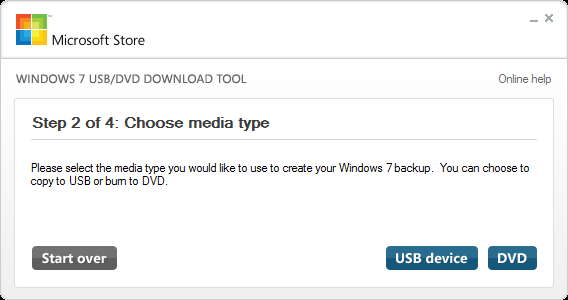
Download and install the Windows 7 USB/DVD Download tool then insert your USB pen and launch the application.

First, browse to your Lite Touch boot ISO file.

Next, click on USB Device.

Select your Flash Drive then click Begin copying.

It will then wipe your flash drive, after a warning, and copy the files.

You will get this error because you’re really supposed to use this on the Windows 7 DVD iso to make it bootable, so ignore the prompt.

And there you go! Couldn’t be easier. This tool can also make a DART recovery disk, apparently. Finally, Xtreme Deployment have a flash drive tool also. It’s located here.

Posted in Deployment, MDT 2010 | 8 Comments