MDT 2010: Managing Packages

Deploying packages in MDT is very straightforward. Simply import them into the Packages node within the deployment workbench and by default they will be installed during the deployment process. You can use selection profiles to control these and ensure that only what you want is deployed.

This is also true is if you are deploying Windows 7 and wish to include Internet Explorer 9 during your deployment. Download the IE9 .MSU from Microsoft Update Catalog and import it into packages node as above and it will be installed as part of your next deployment.

You can automate the process by skipping the wizard and selecing your packages in series by selecting their GUID. Example:

SkipPackageDisplay=TRUE
LanguagePacks001={200d6bbf-bc59-4eea-a82b-255d36f84850}
LanguagePacks002={826d2fa9-ce44-4231-9d2b-82785e9b4dbf}

You can find the GUID’s by double clicking on any imported package:

Posted in Deployment, MDT 2010 | Tagged , , | 1 Comment

MDT 2010: Automating Computernames using Task Sequence Conditions

I’ve updated this post on 1 April 2012 as the screenshots shows the gather as being the first step when in fact the gather has to run after the computername has been set so that it can collect the data. Sorry for that readers.

I’ve come across this issue a few times now so it’s time to post it as a blog. The scenario is that your company wants to automate computer name generation using serial numbers and indicators that show the machine type and location. The end result is that computer names are automatically created during deployments like in these examples:

Birmingham Server computername: B-S-12345
Edinburgh Virtual Machine computername: E-V-12345
Manchester Laptop computername: M-L-12345
London Desktop computername: L-D-12345

One solution to this is to use task sequence conditions in combination with the read only MDT variables DefaultGateway, IsVM, IsLaptop, IsDesktop and IsServer.

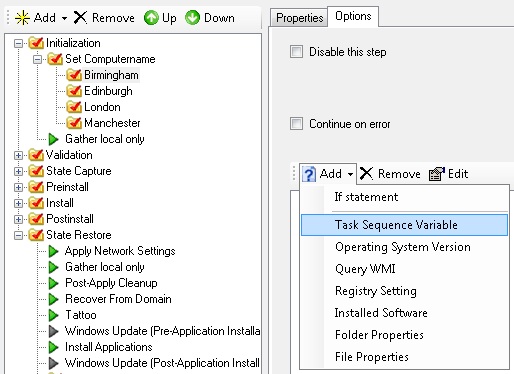
First, create a folder as a container for the various choices and call it Set Computername. Next, create more folders in a tree structure listing each of your site locations. Birmingham, Edinburgh, London and Manchester in my examples.

Click on the first site(Birmingham), then on the Options tab, select add If Statement.

Select Any Conditions and click OK.

Next, add a task sequence variable.

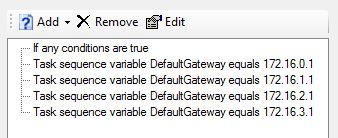
Enter the variable DefaultGateway and use the equals operator and the value of the first sites routers IP address (Default Gateway). 172.16.0.1 in my example.

Repeat this step for any other default gateways on the site. The result should look like this:

Do the same for the remaining sites. This will now detect the site based on the default gateways above.

Next, it’s time to create the optional computer name steps. First, highlight the first site and select General then click Set Task Sequence Variable.

This folder is Birmingham and we want it to target a laptop so under name type Computername Laptop then enter the variable OSDComputername with the value B-L-%SerialNumber%.

Do the same for Desktop, Server and Virtual Machine following the same logic.

Finally, create task sequence conditions for each step as in the examples below:

Computername for Laptop This tells MDT to only process this step if the computer is a Laptop.
Computername for Desktop This tells MDT to only process this step if the computer is a Desktop.
Computername for Server This tells MDT to only process this step if the computer is a Server.
Computername for Virtual Machine This tells MDT to only process this step if the computer is a Virtual Machine.

This process can be repeated for the remaining sites in the organisation. The result is that the computer names are now generated automatically.

Posted in Deployment, MDT 2010 | Tagged , | 8 Comments

MDT 2010: Check for Virtual Machine using Task Sequence Conditions

This is one of a series of blog posts showing examples about executing task sequences steps based upon certain deployment conditions. This post shows how to check for a Virtual Machine using conditions within a task sequence.

Issue:

In the past, one issue I had with MDT was when I tried to deploy an OS on a Virtual Machine, it failed. This was because the Validate step detected the processor speed as 3 mhz which was significantly below the 800 mhz threshold that was set as default. To get past this I would just disable the validation steps. That was until I worked out how to isolate this issue.

Solution:

First, I ran ZTIGather.wsf with the debug switch:

cscript ZTIGather.wsf /debug:True

This script outputs a massive list of Properties and Values that can then be piped into a text file for review. Within the results is the IsVM property which indicates that the machine is a Virtual Machine if the value is TRUE.

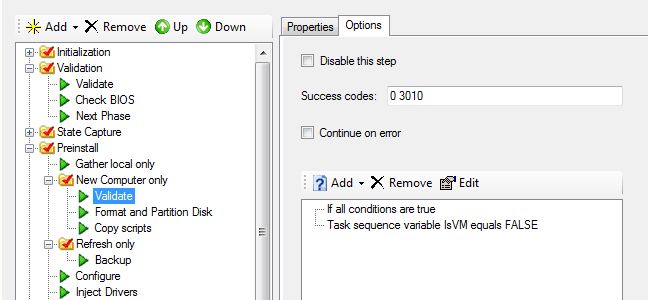
Open the task sequence step and select the Options tab. Add an if Statement like below:

Then add a Task Sequence Variable Condition:

The result is you will have a working conditional statement.

This will prevent the task sequence step from running on a Virtual Machine.

Posted in Deployment, MDT 2010 | Tagged , | 4 Comments

SCCM 2007: Managing Drivers

I’ve been working at Salford Council today performing a Microsoft Desktop Deployment Workshop. Great guys there, very strong techies and have a broad spectrum of experience. They’ve implemented MDT, SCCM, App-V, Lync, Direct Access etc. all well configured so there wasn’t much for me to give them in terms of introducing them to new technology’s. I have however been able to share various deployment techniques with a ‘configuring the MDT Database walk-through’.

One pain point they have is managing drivers in SCCM. I planned to host another workshop showing how to collect and manage drivers. Then I remembered a great article by my friend Johan Arwidmark posted 3 years ago. It’s part of a series and is found here:

http://www.deployvista.com/Blog/tabid/36/EntryID/82/language/en-US/Default.aspx

Thanks Johan! Johan’s written a great book called Deployment Fundamentals: Deploying Windows clients using MDT 2010 Lite Touch (Volume 1)

In addition,  MVP Chris Nackers has put together a huge resource here: http://myitforum.com/cs2/blogs/cnackers/archive/2011/02/09/driver-management-resources.aspx Thanks Chris!

Posted in SCCM | Tagged , | Leave a comment

MDT 2010: Configuring the Telephony API (TAPI)

Dialup is not so widely used these days, however with all the recent hacking going on it may be safer to make a secure direct connection.

If you’re configuring dial-up manually or using the unattend.xml then you can automate this by using these settings.

In the customsettings.ini enter:

AreaCode=0161
CountryCode=044
LongDistanceAccess=9
Dialing=TONE

Dialing can also be set to PULSE. For a list of XP country codes look here.

Posted in Deployment, MDT 2010 | Tagged , , , | Leave a comment

MDT 2010: Do not create 300Mb partition

MDT creates a 300MB partition but it’s only needed for Bitlocker encryption. It can be a minor annoyance in other situations.

You can skip this behaviour in your task sequences or globally in your customsettings.ini if you are not deploying Windows 7 Enterprise (or Vista Business)in your organisation. Here’s an example:

DoNotCreateExtraPartition=YES

Sorted!

Posted in Deployment, MDT 2010 | Tagged , , , | 2 Comments

MDT 2010: Wiping disks

In MDT, there’s a task sequence step that wipes your disk. It’s run at the end of the Replace Computer task sequence after the backup completes successfully.

This step will only run when the property WipeDisk is set to TRUE. Example:

WipeDisk=TRUE

Now for the science. It uses the ZTIWipeDisk.wsf script and formats the drive over 3 passes, filling it with zeroes by running this command line:

cmd /c format {Drive letter} /fs:ntfs /p:3 /Y

I’m not suggesting that the data is unrecoverable after this method because it uses zeroes as opposed to random characters. If you need to wipe data to a government standard you could replace this step with a 3rd party command line tool like Active Kill disk or Darik’s Boot and Nuke.

Other non-software options for ensuring data is unrecoverable include a degausser, an industrial compactor or a large sledgehammer.

Posted in Deployment, MDT 2010 | Tagged , , | Leave a comment

MDT 2010: Fully automated Lite-Touch Deployment

Companies that don’t have SCCM or use 3rd party deployment tools like Altiris sometimes want a way of fully automating the deployment of their operating systems.

In MDT there is a property called SkipWizard which will do exactly that, skip the deployment wizard completely. Below is an example:

[Settings]
Priority=Default

[Default]
SkipWizard=YES

If you use the SkipWizard property then you must ensure that all the necessary wizard steps have answers. If you’ve been reading my blogs about Skipping Deployment Wizards then you’ll know that you can skip the Deployment Wizards and supply the property information in variables during the Lite-Touch deployment process. If you apply all of the techniques described in my articles then you can eliminate the wizards completely using those methods.

SkipWizard’s property’s can’t be used as task sequence variables as they are collected after the wizards run, during the gather script.

The table below will provide you with all the settings and variables you need when skipping the wizard panes. There are also hyperlinks to my articles if further explanation is needed.

Skip this wizard page

Using this property

Configure these properties

Administrator Password

SkipAdminPassword

· AdminPassword

Welcome to the Windows Deployment Wizard

SkipBDDWelcome

Choose a migration type

SkipDeploymentType

· DeploymentType

Configure the computer name

SkipComputerName

· OSDComputerName

Configure the target partition

SkipDestinationDisk

· DestinationDisk

· DestinationPartition

Join the computer to a domain or workgroup

SkipDomainMembership

· JoinWorkgroup

    or

· JoinDomain

· DomainAdmin

· DomainAdminDomain

· DomainAdminPassword

Language and other preferences

SkipLocaleSelection

· KeyboardLocale

· UserLocale

· UILanguage

Operating system deployment completed successfully

SkipFinalSummary

Operating system deployment did not complete successfully

SkipFinalSummary

Packages

SkipPackageDisplay

· LanguagePacks

Ready to begin

SkipSummary

Select a task sequence to execute on this computer

SkipBuild, SkipTaskSequence

· TaskSequenceID

· BuildID

Select one or more applications to install

SkipApplications

· Applications

SkipAppsOnUpgrade

Set the Time Zone

SkipTimeZone

· TimeZone

     or

· TimeZoneName

Specify credentials for connecting to network shares

by providing properties in next column

· UserID

· UserDomain

· UserPassword

Specify the BitLocker configuration

SkipBitLocker

· BDEDriveLetter

· BDEDriveSize

· BDEInstall

· BDEInstallSuppress

· BDERecoveryKey

· TPMOwnerPassword

· OSDBitLockerStartupKeyDrive

· OSDBitLockerWaitForEncryption

Specify the product key needed to install this operating system

SkipProductKey

· ProductKey

or

· OverrideProductKey

Specify where to save a complete computer backup

SkipComputerBackup

· BackupDir

· BackupShare

· ComputerBackupLocation

Specify where to save your data and settings

SkipUserData

· UDDir

· UDShare

· UserDataLocation

Specify whether to capture an image

SkipCapture

· ComputerBackupLocation

Specify whether to restore user data

SkipUserData

· UDDir

· UDShare

· UserDataLocation

Posted in Deployment, MDT 2010 | Tagged , , , | 13 Comments

MDT 2010: Adding users to local groups

One common task when deploying enterprise machines is to add your desktop administrators to the local Administrators security group. You can do this with a task sequence property.

To add users or groups to the local Administrators group list them sequentially in your customsettings.ini like in this example:

Administrators001=SCRIPTIMUSDOMAIN\Desktop Admins
Administrators002=SCRIPTIMUSDOMAIN\Helpdesk Admins

To add users to the Power Users group use this example:

PowerUsers001=SCRIPTIMUSDOMAIN\Scriptimus Prime
PowerUsers002=SCRIPTIMUSDOMAIN\AndrewBarnes

As usual, these are propertys so you can use them in the database or as task sequence variables.

Posted in Deployment, MDT 2010 | Tagged , , | 3 Comments

MDT 2010: Create a Lite Touch Deployment USB drive

This may have been blogged before but never in stereo! I thought you may want to watch a music video while reading todays blog post.

OK, so I’m a little cheesy today. But hey! it’s not like I’m getting paid for this. Right then. you’ve got yourself a mountain of LTI CD’s because you kept updating your bootstrap.ini? No? Well here’s the solution anyway: Dont boot from CD but use a . . . (wait for it! . . .)
Flash Drive! (Aah-haa! Saviour of the universe!). Only 3 simple steps needed:

The “Host” – Prepare your USB Drive

 {Danger, Wil Robinson! This will wipe your flash drive (disk 1). Do not continue if you are not confident in targeting the correct disk.}

Open an elevated Deployment Tools Command Prompt, type Diskpart and press enter. Within the diskpart console type:

select disk 1
clean
create partition primary
select partition 1
active
format fs=fat32 quick
assign
exit

Remember disk 1 may not be your UFD so use List Disk in Diskpart to determine your UFD disk number. This is similar to the Technet article  Walkthrough: Create a Bootable Windows PE RAM Disk on UFD except you dont need to use size=<size of device> just use the whole drive. Also, it’s best to quick format the drive.

The “Shell” – Generate your Windows PE files

Create the directory structure for building your Windows PE disk. Think of this as the ‘shell’ if you like.  Next, use the copype.cmd batch file to create folder structure based on your required architecture. Or in other words type:

copype.cmd x86 c:\winpe_x86

This will create a folder structure in the root of your c: drive like this:

Copy all the files and folders from the ISO folder to your flash drive.

The “Engine” – Update the WIM file

Copy the LiteTouchPE_x86.wim from your Deployment Share\boot folder
to your {Flash Drive}\Sources folder and rename it to Boot.wim. Think of this as the ‘engine’ or the heart of your UFD.

That’s it. You can now boot to your deployment share and perfom Lite-Touch deployments.

Posted in Deployment, MDT 2010 | Tagged , , , | 21 Comments