Windows 8: Windows 8 Consumer Preview is now available for download!

Windows 8 Consumer Preview is now available for download. This is a very exciting day in the IT community. There’s so much chatter on twitter, Google+ etc. You can get it here:

http://windows.microsoft.com/en-GB/windows-8/download

Posted in Deployment, Windows 8 | Tagged , | Leave a comment

Scriptimus Ex Machina: Site updates

Hello readers, I’m back baby!

I’ve taken a break from blogging due to a good few months working all over the UK, this has involved working more with my MDOP skills inc.  App-V, DART 7, MED-V, AGPM etc. I’ve also recently worked on some projects involving PowerShell automation scripts to help manage MDT. I intend to write a few articles sharing my recent experience.

I will also be responding to a backlog of emails and blog comments as well as updating the video links on my blog as Microsoft have made lots of changes and some of the links no longer work.

I also want to say thanks to all my readers and those who have send me positive feedback on my articles.

Thanks for reading.

Andrew

Posted in Uncategorized | 1 Comment

MDT Scripting: Managing Registry Keys

There are times during deployments when you may need to manage the registry. For example, finding out what Internet Explorer version the machine is using. Or also, creating keys to run programs at start-up etc. Fortunately, there is a utility class in the ztiUtility.vbs called the oUtility class that can access pre-written functions to help with these issues.

To begin with, create an MDT Scripting Template (as per previous blogs). Then add the custom code below. The code has clever routines to determine the type of data(eg.REG_SZ, REG_DWORD).

To Read a Registry Key.

Dim sRegValue, sRegKey

sRegKey = "HKEY_LOCAL_MACHINE\SOFTWARE\Microsoft\Internet Explorer\Version"

sRegValue=oUtility.regread(sregkey)
oLogging.CreateEntry "IE Version is " & sRegValue, LogTypeInfo

To Write a Registry Key.

Dim sRegValue, sRegKey, sNewRegValue

sRegKey = "HKEY_LOCAL_MACHINE\SOFTWARE\Microsoft\Windows\CurrentVersion\Run\New Program"
sNewRegValue = "C:\Windows\Notepad.exe"

sRegValue=oUtility.regWrite(sregkey, sNewRegValue)
Posted in MDT 2010, Scripting | Tagged , , | 4 Comments

MDT Scripting: Handling Files

I’ve always wanted to blog about undocumented features and today’s that day. Recently, I’ve been demonstrating how you can save time on scripting by using the various classes in the ZTIUtility.vbs when creating your custom deployment scripts. However, there’s no documentation or examples explaining how to access the file handling functions in the Utility class. In fact the MDT scripts use the oFSO.DeleteFile and oFSO.MoveFile methods to manage files rather than the available file handling functions. So here’s my article on the undocumented file handling methods.

There’s a list of File System Object functions in the ZTIUtility.vbs from lines 3872 to 4065. These can be called by using oFileHandling property and the relative functions as the methods. I could not find any information on Google or anywhere on oFileHandling.

To Delete a file.

I’ve created a file called C:\Test.txt that I intend to delete. The function DeleteFile(sFile) will attempt to delete a target file and create a log file entry displaying either success or failure.

To begin with, create an MDT Scripting Template (as per previous blogs). Then add this custom code.

Dim sTargetFile
sTargetFile = "C:\test.txt"

oFileHandling.DeleteFile sTargetFile

Run the script twice. The first time, your script will be deleted and the second time, you will get an error. You will find this logged under MININT\SMSOSD\OSDLOGS\ and the log file will have the same prefix as your script. This will also be logged in the BDD.log file.

There’s a list of other file handling functions below. I’ve also written some simple code examples to help you get started. You can use these examples to manage all your basic file management tasks.

To Move a File.

Function MoveFile(sFile,sDest)
Usage Example:

Dim sFile, sDest

sFile = "C:\Folder1\test.txt"
sDest = "C:\Folder2\"

'// Move a file.
oFileHandling.MoveFile sFile, sDest

To Copy a File.

Function CopyFile(sFile,sDest, bOverwrite)
Usage Example:

Dim sFile, sDest, bOverwrite

sFile = "C:\Folder1\test.txt"
sDest = "C:\Folder2\"
bOverwrite = True

' // Copy a file.
oFileHandling.CopyFile sFile, sDest, bOverwrite

To Copy a Folder.

Function CopyFolder (sSource, sDest, bOverwrite)
Usage Example:

Dim sSource, sDest, bOverwrite

sSource = "C:\Folder1"
sDest = "C:\Folder2"
bOverwrite = True

' // Copy a folder.
oFileHandling.CopyFolder sSource, sDest, bOverwrite

To Move a Folder.

Function MoveFolder (sSource, sDest )
Usage Example:

Dim sSource, sDest

sSource = "C:\Folder1"
sDest = "C:\Folder2\"

' // Move a folder.
oFileHandling.MoveFolder sSource, sDest

To Delete a Folder and Subdirectorys.

Function RemoveFolder(sPath)
Usage Example:

Dim sPath
sPath = "C:\Folder1"

' // Delete a folder and subfolders.
oFileHandling.RemoveFolder sPath
Posted in MDT 2010, Scripting | Tagged , , | 15 Comments

MDT Scripting: Managing Log Files

During deployments, MDT has a powerful logging process. All the logs generated are in a format similar to SCCM so you can use the Trace32 tool to view the log files in a GUI. Your custom scripts will generate individual log files during execution. In addition, you can write your own custom messages that will appear time stamped as lines within these log files and also in the bdd.log file.

I’m going to demonstrate how to write a few simple information messages to a log file using the ZTIUtility.vbs ologging class with the CreateEntry method. It’s usage is as follows:

oLogging.CreateEntry(sLogMsg, iType)

As usual in your MDT Script Template, add these lines:

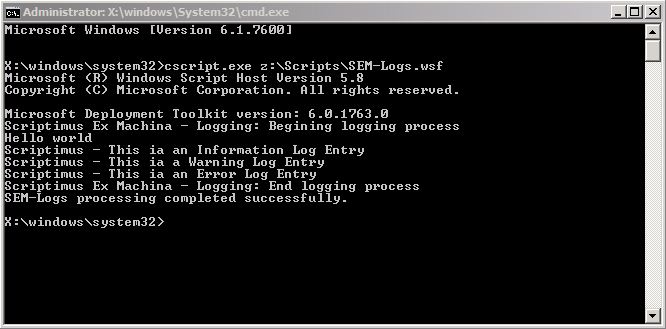
oLogging.CreateEntry "Scriptimus Ex Machina - Logging: Begining logging process", LogTypeInfo
wscript.echo "Hello world"
oLogging.CreateEntry "Scriptimus - This ia an Information Log Entry", LogTypeInfo
oLogging.CreateEntry "Scriptimus - This ia a Warning Log Entry", LogTypeWarning
oLogging.CreateEntry "Scriptimus - This ia an Error Log Entry", LogTypeError
oLogging.CreateEntry "Scriptimus Ex Machina - Logging: End logging process", LogTypeInfo

Run the script and examine the output. As you can see below, the log entrys include an echo to the command line.

These lines each create a log entry using the LogTypeInfo, LogTypeWarning and LogTypeError parameters. There are a number of parameters available for use.

LogTypeInfo        = 1   ‘ Informational Message
LogTypeWarning     = 2   ‘ Warning Message
LogTypeError       = 3   ‘ Error Message
LogTypeVerbose     = 4   ‘ Verbose Messages only logged when Debug has been set.
LogTypeDeprecated  = 5   ‘ Informational Message that is elevated to Error when Debug is set.

In the MININT\SMSOSD\OSDLOGS\ folder you will find a log file with the same name as your script. You can open it with Notepad or Trace32.

In the log file collected below you will see that Information logs have a type of 1, Warnings have a type of 2 and Errors have a type of 3.

<![LOG[Microsoft Deployment Toolkit version: 6.0.1763.0]LOG]!><time="01:00:36.000+000" date="07-21-2011" component="SEM-Logs" context="" type="1" thread="" file="SEM-Logs">
<![LOG[Scriptimus Ex Machina - Logging: Begining logging process]LOG]!><time="01:00:36.000+000" date="07-21-2011" component="SEM-Logs" context="" type="1" thread="" file="SEM-Logs">
<![LOG[Scriptimus - This ia an Information Log Entry]LOG]!><time="01:00:36.000+000" date="07-21-2011" component="SEM-Logs" context="" type="1" thread="" file="SEM-Logs">
<![LOG[Scriptimus - This ia a Warning Log Entry]LOG]!><time="01:00:36.000+000" date="07-21-2011" component="SEM-Logs" context="" type="2" thread="" file="SEM-Logs">
<![LOG[Scriptimus - This ia an Error Log Entry]LOG]!><time="01:00:36.000+000" date="07-21-2011" component="SEM-Logs" context="" type="3" thread="" file="SEM-Logs">
<![LOG[Scriptimus Ex Machina - Logging: End logging process]LOG]!><time="01:00:36.000+000" date="07-21-2011" component="SEM-Logs" context="" type="1" thread="" file="SEM-Logs">
<![LOG[SEM-Logs processing completed successfully.]LOG]!><time="01:00:36.000+000" date="07-21-2011" component="SEM-Logs" context="" type="1" thread="" file="SEM-Logs">

In Trace32 you will see that the warning messages appear in yellow and the error messages appear in red.

Other advanced logging methods are:

oLogging.ReportFailure (sMessage,iError)
Used to perform a structured exit if an unrecoverable error is detected.

oLogging.CreateEvent(iEventID, iType, sMessage, arrParms)
Write a message to the log file, and post the event to a defined server.

Posted in MDT 2010, Scripting | Tagged , , | 2 Comments

MDT Scripting: Managing Environment Variables – Part 2

Continuing with the ZTIUtility Environment Class. I again will assume you have read my getting started article here or have basic knowledge of MDT scripting. This class is used for collecting or changing properties gathered by MDT. You can produce scripts and conditions based around these values.

To Read a value and detect information.

Yesterday we used oEnvironment.Item(sName) to update a property value. We can also use the same method to return a value. oEnvironment.Exists(sName) is used to check if a property is not empty. This example will demonstrate both methods. To begin with paste this example code in your MDT Script Template:

If oEnvironment.Exists("_SMSTSORGNAME") then
       wscript.echo "The Property Value = " & oEnvironment.Item("_SMSTSORGNAME")
Else
       wscript.echo "The Property Value is not set!"
End if

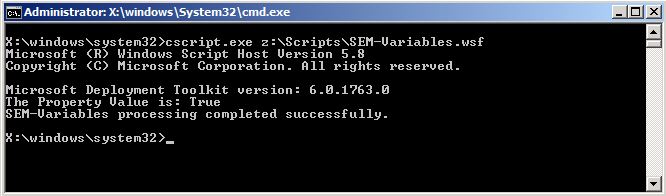
If the _SMSTSORGNAME value has not been set in the customsettings.ini then the script will detect that the _SMSTSORGNAME property has no value and display the prompt as below.

Now, modify the code to use the IsVM property as below and run the script again.

If oEnvironment.Exists("IsVM") then
       wscript.echo "The Property Value = " & oEnvironment.Item("IsVM")
Else
       wscript.echo "The Property Value is not set!"
End if

This time it will return a Boolean value (True or False) depending on whether or not you’re running a virtual machine.

The other methods in the ZTIUtility Environment Class are:

oEnvironment.Substitute(sVal)

Given a string, will expand any variables and/or functions within that string.

oEnvironment.ListItem(sName)

Read/Write a variable of type array to a persistent store.

Posted in MDT 2010, SCCM, Scripting | Tagged , , , | 4 Comments

MDT Scripting: Managing Environment Variables – Part 1

Continuing my scripting series, the ZTIUtility.vbs file has a massive list of functions that can be used to save you the work of creating scripts from scratch. Used in combination with the MDT Template Script you can knock up a working script in minutes that would normally take hours to put together.

MDT collects a lot of environment information. This data can be used in your deployments to make your work a lot easier. Remember, you can get a list of the properties in the ZTIGather.xml file. The Properties and Values are stored in the variables.dat file. You can open this file in a text editor and examine the information that MDT is collecting/using.

Today’s examples will focus on using the ZTIUtility Environment Class. I will assume you have read my getting started article here and are following on. This class is used for collecting or changing properties gathered by MDT. You can base your scripts around these values and produce conditions accordingly.

To write a Property value.

The MDT properties are stored as variables in the file variables.dat and can be manipulated using the oEnvironment.Item method. The example code below changes the computer name to be used. Enter the example code below into your MDT template:

oEnvironment.Item("OSDComputerName") = "PC-01"

If run from a command prompt you will see this:

The same line will appear in the BDD.log file. You can change the value of most properties but should be aware that some are properties are read only with good reason.

Posted in MDT 2010, SCCM, Scripting | Tagged , , , | Leave a comment

MDT Scripting: Hello World

This is a simplified version of my Zero-Touch/Lite-Touch scripting guide. MDT Scripts call functions(smaller script routines) from another script called ZTIUtility.vbs. There is a template that takes care of the connections to make life even easier. In short it’s a 2 step process.

Edit the template.

Download the scripting template from here and rename it to something useful. In my example it’s called Test-HelloWorld.wsf. Then save it to Deployment Share\Scripts with a .wsf extension.

Note: I’ve updated this page and included the template here:


<job id="Z-Sample">
<script language="VBScript" src="ZTIUtility.vbs"/>
<script language="VBScript">

' //***************************************************************************
' // ***** Script Header *****
' //
' // Solution: Solution Accelerator for Microsoft Deployment
' // File: Z-Sample.wsf
' //
' // Purpose: Template
' //
' // Usage: cscript Z-Sample.wsf [/debug:true]
' //
' // Customer Build Version: 1.0.0
' // Customer Script Version: 1.0.0
' // Customer History:
' //
' // ***** End Header *****
' //***************************************************************************

'//----------------------------------------------------------------------------
'//
'// Global constant and variable declarations
'//
'//----------------------------------------------------------------------------

Option Explicit

Dim iRetVal

'//----------------------------------------------------------------------------
'// End declarations
'//----------------------------------------------------------------------------

'//----------------------------------------------------------------------------
'// Main routine
'//----------------------------------------------------------------------------

On Error Resume Next
iRetVal = ZTIProcess
ProcessResults iRetVal
On Error Goto 0

'//---------------------------------------------------------------------------
'//
'// Function: ZTIProcess()
'//
'// Input: None
'//
'// Return: Success - 0
'// Failure - non-zero
'//
'// Purpose: Perform main ZTI processing
'//
'//---------------------------------------------------------------------------
Function ZTIProcess()

iRetVal = Success

ZTIProcess = iRetval

     '!!!!!!!!!!!   INSERT YOUR CODE HERE   !!!!!!!!!!!!

End Function

</script>
</job>

Insert your custom code.

Enter this as your custom code. Replacing the INSERT YOUR CODE HERE  line.

wscript.echo “Hello World”

Test the results.

I suggest first booting into WinPE in a virtual Machine. This will give you a simulated environment where you can be pretty sure that your scripts will function correctly.

Press F8 to bring up a command prompt and type:

cscript.exe z:\scripts\Test-HelloWorld.wsf

You will see the echo returned to the console screen as in the illustration below.

Finally navigate to the logs folder and take a look at the log files. You’ll see a new log file created for your script that you just ran. It’s also referenced in the BDD.log file

I’ll post articles on how to write to the logs in the future. So there you have it. You’re now a bonifide MDT/ZTI/LTI scripter.

Posted in MDT 2010, SCCM, Scripting | Tagged , , | 12 Comments

MDT Scripting: Installing an application

Despite the name of the blog, so far I’ve done very little in the way of actual scripting so its not a wonder some of my readers think that this is just an MDT blog. The fact is I intend to cover many aspects of Windows Deployment over the next 12 months.

As a follow-up to my opening article about scripting using the MDT Script Template, this blog will focus on installing an application and demonstrate the power of the ZTIUtility. I forgot to mention in my last article that I uploaded the template in the Script Repository here so help yourselves. I’ve also uploaded todays script here.

The target application we wish to install today is Adobe Acrobat X. I have use the command line from AppDeploy here. First, lets take a look at the code:

<job id="Install-AdobeReaderX">
<script language="VBScript" src="ZTIUtility.vbs"/>
<script language="VBScript">

' //----------------------------------------------------------------------------
' //
' // Solution: Scriptimus Ex Machina - Deployment Script
' // File: Install-AdobeReaderX.wsf
' //
' // Purpose: This will install Install Adobe Reader X 10.x
' //
' // Author: Scriptimus Prime
' //
' // Usage: cscript Install-AdobeReaderX.wsf [/debug:true]
' //
' //----------------------------------------------------------------------------

'//----------------------------------------------------------------------------
'//
'// Global constant and variable declarations
'//
'//----------------------------------------------------------------------------

Option Explicit

Dim iRetVal

'//----------------------------------------------------------------------------
'// End declarations
'//----------------------------------------------------------------------------

'//----------------------------------------------------------------------------
'// Main routine
'//----------------------------------------------------------------------------

On Error Resume Next
iRetVal = ZTIProcess
ProcessResults iRetVal
On Error Goto 0

'//---------------------------------------------------------------------------
'//
'// Function: ZTIProcess()
'//
'// Input: None
'//
'// Return: Success - 0 or 3010
'// Failure - non-zero
'//
'// Purpose: Perform main ZTI processing
'//
'//---------------------------------------------------------------------------
Function ZTIProcess()

    Dim sFile

    oLogging.CreateEntry "INSTALL ADOBE READER X: Begin ADOBE READER X installation", LogTypeInfo   
    sFile = oUtlity.ScriptDir & "\SourceFiles\AdbeRdr1000_en_US.exe"

    If not oFSO.FileExists(sFile) then
        oLogging.CreateEntry "INSTALL ADOBE READER X " & sFile & " was not found, unable to install ADOBE READER X", LogTypeError
        ZTIProcess = Failure
        Exit Function
    End if

    oEnv("SEE_MASK_NOZONECHECKS") = 1
    iRetVal = oShell.Run("""" & sFile & """ /sAll /rs /msi EULA_ACCEPT=YES", 0, True)

    if (iRetVal = 0) or (iRetVal = 3010) then
        ZTIProcess = Success
    Else         ZTIProcess = Failure
    End If

    oLogging.CreateEntry "INSTALL ADOBE READER X: Return code value = " & iRetVal, LogTypeInfo
    oEnv.Remove("SEE_MASK_NOZONECHECKS")
    oLogging.CreateEntry "INSTALL ADOBE READER X: Completed ADOBE READER X installation", LogTypeInfo   

End Function

</script>
</job>

Ok, time to break it all down. I used the MDT Script template and changed the names etc. then in the main routine, I inserted my custom code.

First, we declare the variables just as we would in any normal Visual Basic Script except we only have to declare sFile as all the other variables have been declared for us in the ZTIUtility.vbs.

Dim sFile

Next, we use the ZTIUtililty Logging Class to create an entry in the log file to show that the installation has begun.

oLogging.CreateEntry "INSTALL ADOBE READER X: Begin ADOBE READER X installation", LogTypeInfo

We place the installation source file in a variable so we can re-use the value.

sFile = oUtlity.ScriptDir & "\SourceFiles\AdbeRdr1000_en_US.exe"

It’s important to test that the source files have not been moved or corrupted. This little routine takes care of that part. It uses the File Scripting Object method already defined in the ZTIUtility. so we can take advantage of it without having to set it up as usual. Also, we use the LogTypeError switch at the end of the logging class line.

If not oFSO.FileExists(sFile) then
oLogging.CreateEntry "INSTALL ADOBE READER X " & sFile & " was not found, unable to install ADOBE READER X", LogTypeError
ZTIProcess = Failure
Exit Function
End if

This time we use the ZTIUtility Environment Class to resolve a common scripting issue. There’s a widely known issue that when you try to use VBScript to run a program that has been downloaded it returns a security popup. It’s described in the Microsoft article KB889815 and you can read all about it here. In short this line will just disable all Zone Checking by setting the environment variable SEE_MASK_NOZONECHECKS to 1.

oEnv("SEE_MASK_NOZONECHECKS") = 1

This line is our run command and it uses the object shell method to execute the command line needed to install Adobe Reader X. The success/failure results are stored in the iRetVal variable.

iRetVal = oShell.Run("""" & sFile & """ /sAll /rs /msi EULA_ACCEPT=YES", 0, True)

This section will set the ZTIProcess variable to the value returned by the application installation. If a zero is returned 0 then the application has installed just fine. If the return value is 3010 then it has installed but a reboot is now required to complete the installation.

if (iRetVal = 0) or (iRetVal = 3010) then
ZTIProcess = Success
Else
ZTIProcess = Failure
End If

The Logging Class in this line creates the log entry stating the return value based on the information returned above.

oLogging.CreateEntry "INSTALL ADOBE READER X: Return code value = " & iRetVal, LogTypeInfo

As part of the winding up process, we will need to set the Zone Checking back to normal. We do that by removing the environment variable and value set earlier.

oEnv.Remove("SEE_MASK_NOZONECHECKS")

Finally, we create a log file entry to show that the installation process has ended. This uses the MDT Logging Class to create an entry.

oLogging.CreateEntry "INSTALL ADOBE READER X: Completed ADOBE READER X installation", LogTypeInfo
Posted in MDT 2010, SCCM, Scripting | Tagged , | 10 Comments

MDT Scripting: Creating custom scripts Getting Started

Although MDT is very powerful, there will still be times when dealing with complex tasks that you will require a custom script. Fortunately you can use your own custom VB scripts in MDT as a task sequence step by calling the command line:

cscript.exe "%SCRIPTROOT%\CustomScripts\MyScript.wsf"

It is however, best practice (and to save time) to use the MDT Custom Script Template to create your custom scripts for use within task sequences. This also applies to Zero-Touch custom scripting in SCCM. The MDT Custom Script Template is a WSF(Windows Scripting Host) script that calls functions (pre-written subroutines) in another script called ZTIUtility.vbs. The template is below:


<job id="Z-Sample">
<script language="VBScript" src="ZTIUtility.vbs"/>
<script language="VBScript">

' //***************************************************************************
' // ***** Script Header *****
' //
' // Solution: Solution Accelerator for Microsoft Deployment
' // File: Z-Sample.wsf
' //
' // Purpose: Template
' //
' // Usage: cscript Z-Sample.wsf [/debug:true]
' //
' // Customer Build Version: 1.0.0
' // Customer Script Version: 1.0.0
' // Customer History:
' //
' // ***** End Header *****
' //***************************************************************************

'//----------------------------------------------------------------------------
'//
'// Global constant and variable declarations
'//
'//----------------------------------------------------------------------------

Option Explicit

Dim iRetVal

'//----------------------------------------------------------------------------
'// End declarations
'//----------------------------------------------------------------------------

'//----------------------------------------------------------------------------
'// Main routine
'//----------------------------------------------------------------------------

On Error Resume Next
iRetVal = ZTIProcess
ProcessResults iRetVal
On Error Goto 0

'//---------------------------------------------------------------------------
'//
'// Function: ZTIProcess()
'//
'// Input: None
'//
'// Return: Success - 0
'// Failure - non-zero
'//
'// Purpose: Perform main ZTI processing
'//
'//---------------------------------------------------------------------------
Function ZTIProcess()

     iRetVal = Success

     ZTIProcess = iRetval

     '!!!!!!!!!!!   INSERT YOUR CODE HERE   !!!!!!!!!!!!

End Function

</script>
</job>

This is nothing new, people have been scripting in MDT and SCCM using this template with the ZTIUtility for a while now. Ben Hunter has an old article on this here. However, some customers that I have encountered recently have not been aware of this so hopefully this article will raise awareness for them and also for my regular blog readers.

Why do this? Well, the ZTIUtility.vbs is full of pre-written functions designed to manage files and folders, registry settings and it can use MDT’s collected variables etc. so you don’t have to waste time designing and generating your own custom code. Plus, there are fantastic logging features available to help with monitoring and debugging.

How does it work? Simply copy the template and save it with a .WSF extension then add custom code at the INSERT YOUR CODE HERE section that calls functions. Here you can call in the ZTIUtility subroutines.

You typically save the script in the scripts folder of your deployment share with a ZTI prefix. Next, create a Run command line task sequence step to call the script in your deployment. eg.

cscript.exe "%SCRIPTROOT%\ZTIMyScript.wsf"

Over the next few blogs, I’m going to explain further and write and post some scripting examples showing how to use the template to tackle everyday real world deployment tasks.

Posted in MDT 2010, Scripting | Tagged , , , | 15 Comments