MDT2012: ZTIGather

In MDT there’s a script called ZTIGather.wsf that collects a massive list of unique data about the machine you’re running a deployment on. To test it out manually, boot up in WinPE and press F8 to open a command prompt, then type this:

cscript Z:\Scripts\ZTIGather.wsf /debug:TRUE

This will output all the event messages to the screen showing all the variables gathered.

This list is full of properties and values that will be used during your deployment.

The infomation is collected from propertys in the CustomSettings.ini, MDT database, ZTIGather.xml, the wizards that are run during lite touch and also builtin scripts that gather information about your environment.

In addition, you can create your own ini file that contains rules and properties, in the same format as customsettings.ini or bootstrap.ini, and use ZTIGather.wsf to import the custom properties and values into your deployment:

cscript ZTIGather.wsf /debug:TRUE /inifile:Settings.ini

It’s recommended that you delete the c:\minint folder (or x:\minint in WinPE) before running these tests to gather fresh data(and after running these tests). Or you could delete the variables.dat as that’s where the data is collected and later gathered in subsequent runs.

This ZTIGather.wsf is the script that’s run several times during the Gather local only task sequence steps(below). The events created by this script are output to the ZTIGather.log file.

The properties and rules collected from the ZTIGather.wsf script control the deployment process so this is crucial to the internal workings of MDT.

Posted in Deployment, MDT 2010, MDT 2012 | Tagged , , , | 3 Comments

MDT 2012: Automating updates in Lite-Touch Deployments

Microsoft Deployment Toolkit has a built-in script designed to update images, with Microsoft Updates, during a Lite-Touch deployment. I’ve been meaning to write this article for a while now but the enormity of the topic has deterred me from seeing it through to completion. This post also applies to MDT 2010.

To be clear, this article does not relate to implementing a patch management strategy. It does however, demonstrate how to deploy fully patched machines during a Lite-Touch deployment. Also, how to create up-to-date reference images or deployment templates. Most organisations recreate their images on a regular basis to ensure that newly deployed machines do not require excessive patching after their initial deployment. This is usually to reduce the load on the WSUS server.

These are the techniques I use in my test-lab and enterprise Lite-Touch deployments to ensure Windows XP, Vista, 7 and 2008 server editions are fully patched at the time of deployment.

Contents:

Enabling updates within your Lite-Touch Deployments

The Windows Update task sequence steps are built into the standard operating system deployment templates but are disabled by default. To use them, simply edit your task sequence and un-tick the ‘Disable this step’ button. Now during your Lite-Touch deployments this Task Sequence Step will download all available updates automagically from Microsoft Update rebooting and resuming as needed.

The task sequence step is repeated post application installation. It can be useful to enable the Windows Update (Post application installation) step during deployments when you’re installing Microsoft Office 2010 or another product that can be patched using Microsoft Update.

How does it work?

The task sequence steps run a script called ZTIWindowsUpdate.wsf. The script uses the Windows Update Agent API to manage the downloading and installation of updates. All audit information is written to the ZTIWindowsUpdate.log file. If you find any unusual error codes in your log returned from the API (although I never have)  you can compare the codes here. The script will also check and update the Windows Update Agent(WUA) as needed at the start.

In its default state, the ZTIWindowsUpdate.wsf script will connect to Microsoft Update then search for and download all available updates including Security Patches, Drivers, Browser Updates and Service Packs. This is essentially the same as opening the GUI and selecting check for updates.

Managing Lite-Touch Deployment updates in the Enterprise

Many corporate environments block Microsoft Update and have an internal Windows Server Update Services (WSUS) server. In these scenarios you can configure MDT to connect to your WSUS server and download the updates internally. This is done in the CustomSettings.ini file by adding a single line targeting the WSUS server as demonstrated in this example:

WSUSServer=http://ScriptimusWSUSServer:8530

What this does is points the client to an internal WSUS server by creating the following registry keys:

HKEY_LOCAL_MACHINE\SOFTWARE\Policies\Microsoft\Windows\WindowsUpdate\WUServer, "http: //ScriptimusWSUSServer", "REG_SZ"
HKEY_LOCAL_MACHINE\SOFTWARE\Policies\Microsoft\Windows\WindowsUpdate\WUStatusServer, "ScriptimusWSUSServer", "REG_SZ"

Skipping updates during your Lite-Touch Deployments

Now, you may not want MDT to download all updates, for example, the latest Internet Explorer or the annoying Microsoft Browser Choice Screen update. In this case you can create an exclusion list using the customsettings.ini property WUMU_ExcludeID or WUMU_ExcludeKB. You can add as many of these lines as you like by incrementing  a number at the end. In this example I use WUMU_ExcludeKB to exclude 3 windows updates.

WUMU_ExcludeKB001=976002 
WUMU_ExcludeKB002=2267621
WUMU_ExcludeKB003=2434419

In the ZTIWIndowsUpdate.log file you can see that it has skipped over them without having installed them.

Checking for updates only

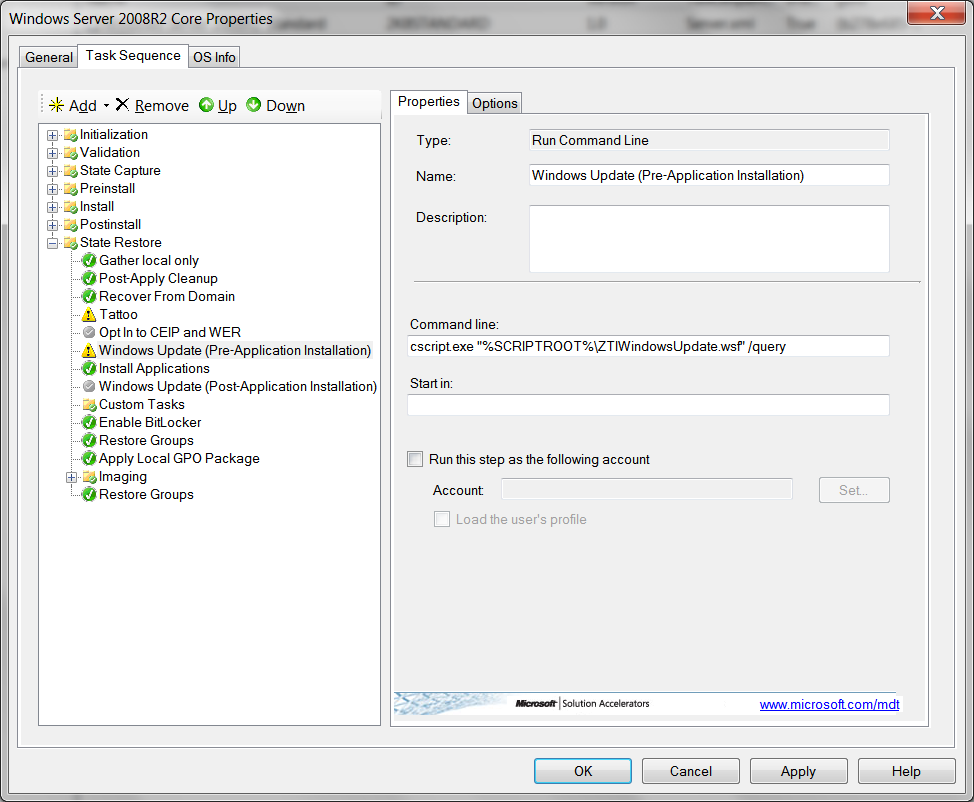
One final tip, is that you may wish to discover which updates are going to be applied during your deployment without actually downloading them. This is done by editing the task sequence step and adding the /query switch to the command line.

The results can be seen in the ZTIWindowsUpdate.log file. It will list which updates will be installed or skipped.

imageYou can test this using a Post OS Installation Task Sequence. It can also be useful to discover which updates are needed to download and place in the Packages folder of your deployment share.

Posted in Deployment, MDT 2010, MDT 2012 | Tagged , , , , , | 56 Comments

PowerShell: Hello World

Alright, it’s time I started blogging about PowerShell. In fact it’s so long overdue that I really don’t know were to get started. There are so many great resources and blogs available now that most people who are motivated to use PowerShell have already gotten off the starting block.

I suppose the best way to get started with PowerShell is to just open the console and start using the DOS or UNIX commands that you may already be used to.

Right, open the PowerShell console and start typing these familiar commands: DIR, CD and MD.

image

As you can see, they all still work. As do CLS, MKDIR, COPY etc. That’s because they are in fact PowerShell Alias’s. This means that they’re just PowerShell commands with familiar names. Here’s a few common ones.

DIR Get-ChildItem
CLS Clear-Host
MKDIR, MD New-Item –ItemType Directory
CD Set-Location
COPY Copy-Item
ECHO Write-Output

Steve Tibbett has created an excellent cheatsheet here. What’s cool is that you can create your own aliases as you go along.

PowerShell commands also have the ability to be run in a script with the .ps1 extension but running scripts are disabled by default for security purposes. Firstly, you will need to set the Execution Policy. The cmdlet Get-ExecutionPolicy will show you that the initial policy is set to ‘Restricted’. This will prevent scripts from running. You can change it with the Set-ExecutionPolicy cmdlet. There are four options Restricted, Remote-signed, Signed and Unrestricted. I recommend Remote-Signed as it will allow you to run the scripts that you have created locally and still keep your machine secure. So, just type

Set-ExecutionPolicy RemoteSigned

Now you can use notepad to create your first script. In Notepad type:

Write-Host "Hello World"

This will need to be saved in a file called something like MyScript.ps1.

Then from a PowerShell console type

.\MyScript.ps1

The reason you need the .\ is because a PowerShell security feature ensures that you are targeting a specific script in a specific location,. And that’s all there is to it.

Congratulations, you’re now a PowerShell scripter! Now, all you need to do is build up your vocabulary.

Posted in PowerShell, Scripting | Tagged , | Leave a comment

TestLab: Setting up the hardware

So far in my TestLab I’ve purchased a HP N40L MicroServer and installed VMWare hypervisor ESXi 5. The purpose of this is to continue my IT training from my home Office at a low budget. This what my setup looks like.

Lab 2

I needed to juice up the Micro Server a little as it only came with 2Gb Ram and 1 on board gigabit nic. I want to run as many VMs as possible and also, I want to isolate my lab from my home network.

I bought 2x4Gb Corsair memory from my local supplier but it was just not compatible. I found myself seeing all the colours of the rainbow. First, the VMWare host would get the Purple Screen of Death, then, my Microsoft guests would Blue Screen of Death. I decided to revisit my supplier who kindly swapped out my incompatible memory for an AMD equivalent. Now it works a treat.

Finding a compatible NIC was not that easy either. I needed a PCI Express, half height, low profile card. Many cards come with both brackets but don’t advertise it within the specs. You can sometimes only go off the picture shown on the suppliers site. After all the looking, I found one with my original server supplier ebuyer. My new NIC arrived in the post last night and I installed it straight away. The only issue was I had to take out all the connections and slide out the motherboard. The new NIC also became NIC 0 so ESX looked for it to obtain a DHCP address.

I don’t intend to purchase a CD or DVD ROM Drive for this server because in todays deployment environments you really don’t need them. I will download ISO images and mount them virtually within my guest machines.

I wont be ordering a keyboard or monitor either as I intend to plug the server into my LAN and manage it remotely from the comfort of my office using my existing laptop and 32” LCD monitor.

So to summarise my physical setup:

HP ProLiant Turion II N40L MicroServer £171.47 (with Cashback from HP) www.ebuyer.com
AMD Memory 4GB DDR3 Entertainment 1333 CL9 £37.32 www.microdirect.co.uk
HP G6 Single Port NC112T PCIe Gigabit Server £47.53 www.ebuyer.com

I’ve posted my total costs above including VAT and postage. Making my lab setup a grand total of £256.32.

The rest of my existing core setup consists of my home broadband router, 2 Gigabit switches, 2 Dell Latitude D610s with 1GB ram. I use the Dells as test clients for image deployment and nothing else. They go for for about £70 on ebay. I got mine from my boss at a previous works as they were paying £10 to dispose of each one. I suggest asking work for old kit. In most cases they will be accommodating especially if you explain you just want to update your skills for the workplace.

Posted in Testlab | Tagged , , , | 4 Comments

MDT Scripting: Deleting Registry Keys

A lot has happened since I wrote my articles on MDT Scripting last year. For one thing, I’ve learned how to compile my code in a script block on my blog.

Two of my readers have asked about deleting registry keys using MDT Scripts but there does not appear to be a function for it in the ZTIUtility.vbs.

I’ve knocked up something quickly. It’s a simple function devoid of error handling. It will delete a key named  “HKEY_LOCAL_MACHINE\SOFTWARE\ScriptimusExMachina\Unwanted Registry Key”

To Delete a Registry Key

<job id="Z-Sample">
<script language="VBScript" src="ZTIUtility.vbs"/>
<script language="VBScript">
' //***************************************************************************
' //
' // Solution: Scriptimus Ex Machina - Example Script
' // File: ZTI-Delete-Key.wsf
' //
' // Purpose: This script will delete a Registry Key
' //
' // Usage: cscript ZTI-Delete-Key.wsf [/debug:true]
' //
' // Customer Build Version: 1.0.0
' // Customer Script Version: 1.0.0
' // Customer History:
' //
' // ***** End Header *****
' //***************************************************************************
'//----------------------------------------------------------------------------
'//
'// Global constant and variable declarations
'//
'//----------------------------------------------------------------------------
Option Explicit
Dim iRetVal
'//----------------------------------------------------------------------------
'// End declarations
'//----------------------------------------------------------------------------
'//----------------------------------------------------------------------------
'// Main routine
'//----------------------------------------------------------------------------
On Error Resume Next
iRetVal = ZTIProcess
ProcessResults iRetVal
On Error Goto 0
'//---------------------------------------------------------------------------
'//
'// Function: ZTIProcess()
'//
'// Input: None
'//
'// Return: Success - 0
'// Failure - non-zero
'//
'// Purpose: Perform main ZTI processing
'//
'//---------------------------------------------------------------------------
' To Delete a Registry Key Value
Function RegDelete( sRegValue )
	RegDelete = oShell.RegDelete ( sRegValue )
end Function

Function ZTIProcess()

     iRetVal = Success
     ZTIProcess = iRetval
		' Call function and delete key
		Dim sRegDeleteValue, sRegKey
		sRegKey = "HKEY_LOCAL_MACHINE\SOFTWARE\ScriptimusExMachina\Unwanted Registry Key"
		oLogging.CreateEntry "Preparing to delete Registry key " & sRegKey, LogTypeInfo
		sRegDeleteValue=regDelete(sRegKey)
End Function
</script>
</job>

Any issues with this, remember to read my first article Hello World.

Posted in MDT 2010, MDT 2012, Scripting | Tagged , | 7 Comments

MDT 2012: Sysprep and Shutdown

With today’s virtualisation technologies, the Windows imaging process of creating and deploying a reference image is not always suitable.

In some scenarios you may just want to deploy Windows, patch it, then sysprep and shutdown a machine without capturing an image. Creating a Virtual Hard Drive Image is such a situation.

Image templates are required in many virtualisation scenarios, such as Hyper-V/VMware server templates, Med-V, VDI. The list is endless.

Previously I would use MDT to build and patch my image. I would then sysprep Windows via a script or use the manual process. Now MDT 2012 can do this for you with a new feature that has been added to the capture options. It is called Sysprep only. In the Lite-Touch deployment wizard it can be manually selected like in the screenshot below:

I am automating the sysprep and shutdown process by adding the following lines to my customsettings.ini file:

SkipCapture=YES
DoCapture=SYSPREP
FinishAction=SHUTDOWN

The above settings sysprep and shut down my servers and desktop virtual machines at the end of my lite-touch deployments. At this point they’re ready for me to convert them into Server templates. Life is good.

Posted in Deployment, MDT 2012 | Tagged , , , , , | Leave a comment

Powershell: Video Walkthroughs

Microsoft Windows PowerShell is so popular now that there’s no shortage of blogs, free ebooks and resources available to get you started. One resource that I recommend  is PowerShell MVP Don Jones. He wrote a book called Learn Windows PowerShell in a Month of Lunches and he also released a CBT Nuggets series on PowerShell.

He also has a number of free videos available on YouTube. I’ve listed the beginners series below:

Ch1 Installing PowerShell

Ch2 Running Commands and PSDrives

Ch3 Reading Syntax Help

Ch4 Exporting Data

Ch5 Importing Modules

Ch6 Using Get-Member

Ch7 Pipeline Binding ByValue

Ch8 Format Right

Ch9 Filter Left

Ch10 1-to-1 PowerShell Remoting

Ch11 Exploring WMI for PowerShell

Ch12 Local Background Jobs

Ch13 PowerShell “Batch” Cmdlets

Ch14 Enabling Scripting in PowerShell

Ch15 PowerShell Variable Basics

Ch16 Using PowerShell’s Read-Host to Collect User Input

Ch17 Making a PowerShell Command into a Parameterized Script

Ch18 Using PowerShell Sessions

Ch19 Simple PowerShell Functions

Ch20 PowerShell’s If Construct

Ch21 PowerShell Pipeline Functions

Ch22 ErrorAction in PowerShell

Ch23 Write-Debug in PowerShell

Ch24 PowerShell Profile Scripts

Posted in PowerShell, Video Walkthroughs | Tagged , | Leave a comment

Testlab: Getting Started

I’ve been meaning to blog about creating a test/training environment for a while and as I’m in the process of rebuilding one, now’s a good a time as ever. I’m going to demonstrate how to cheaply and quickly knock up a fully functional domain environment using a combination of VMware Templates and MDT media.

I ordered this baby earlier this week – HP ProLiant Turion II N40L MicroServer from ebuyer.com. It cost me £260 plus £100 cashback from HP. Seemed like a good investment as I’m planning to do more virtualisation training this year. I’ll need to up the ram (8GB) and stick in an extra hard drive but that wont cost much. Also, a second network card will be needed. There’s a great video review here.

Incidently, yes I could fork out for real server like a G7 but I dont really fancy turning my home into a datacentre, those days are gone. Plus I may get another for testing Hyper-V clustering etc. This may become a NAS or home server at some point. It’s also not as powerful as my laptop or desktops but it is actual server hardware(whatever that’s worth).

Right, I’ve downloaded ESXi 5.0 as an iso. It’s a free download from here, and comes down very quick. Also, because I didn’t fancy burning a DVD I installed it onto a 2Gb usb drive using VMware player. It gave me a few nags but after I bumped the guest memory to 2 Gig and added a 2nd cpu it gave in.

Next, I’m gonna power up and run ESXi 5 booting from to the USB drive. I intend to install a few 2008 guests and see what performance I get out of it.

Posted in Testlab | Tagged , | 2 Comments

MDT 2012: Microsoft Deployment Toolkit 2012 RC1 is now available for download!

Like the post says, Microsoft Deployment Toolkit 2012 RC1 is now available for download! It now supports the Windows 8 Consumer preview and SCCM 2012 RC2.

You can get it from Microsoft connect here. You can read the announcement on the Microsoft Deployment Toolkit Team Blog here.

Posted in MDT 2012 | Tagged , | Leave a comment

Office 2010: Free eBook: Security and Privacy for Microsoft Office 2010 Users

There’s a new free e-book available by Mitch Tulloch. Free eBook: Security and Privacy for Microsoft Office 2010 Users. I’ve found Mitch’s books to be a gold mine of knowledge.

It can be downloaded from Microsofts Website here.

Posted in Deployment | Tagged , | Leave a comment