MDT 2012: DomainOUs List

There’s a feature in MDT that displays a dropdown list of Domain OU’s in the Lite Touch deployment wizard. There are 2 ways to set it up.

First, you can create a list of OU’s in the customsettings.ini by using the DOMAINOUS variable list. This first example demonstrates this:

DomainOUs-Customsettings.ini

This example shows the other method where you create a file in your scripts folder called DomainOUList.xml and list each OU in a separate element:

DomainOUs-DomainOU.XML

The result is you now get a dropdown list button next to the Organizational Unit in the deployment wizard.

DomainOUs-JoinDomainPane

The list displays the OU’s you entered earlier making it easier to select and reduce errors during deployments.

DomainOUs-JoinDomainPane2


There’s also an old post by Keith Garner here that shows how to display friendly names.

Posted in Deployment, MDT 2010, MDT 2012 | Tagged , | 10 Comments

MDT 2012: Missing network drivers during LTI boot

I was contacted last week by a former colleague who is just getting into MDT. He was missing drivers on one model and received this common error page during his boot sequence. Naturally, I had loads of resources to share but sadly the final part was missing from my blog. The error is:

A connection to the deployment share (\\Server\DeploymentShare$)
could not be made.
The following networking device did not have a driver installed.
PCI\VEN_15AD&DEV_07B0&SUBSYS_07B015AD&REV_01

Here’s how to resolve this issue.

Missing Drivers

This error is very helpful in that it shows the hardware ID of the missing network driver. A quick Google search or visit to Microsoft Update Catalog should find the missing drivers.

Create a Driver Store

After you locate and download the correct driver, create an organised driver store on a local or network drive. I posted a script to do this a few months back. MDT Powershell: Creating a Driverstore folder structure

Import Drivers

Next, import the drivers into the desired Windows PE folder and run the script to import the drivers into the deployment workbench. Again, I created another script to do this a few months back. MDT Powershell: Importing device drivers from organised folders My script will not only creates the driver folders but the selection profiles also.

Check the hardware ID of the imported driver and ensure that it matches the error from earlier.

Imported Driver

Apply Selection Profiles

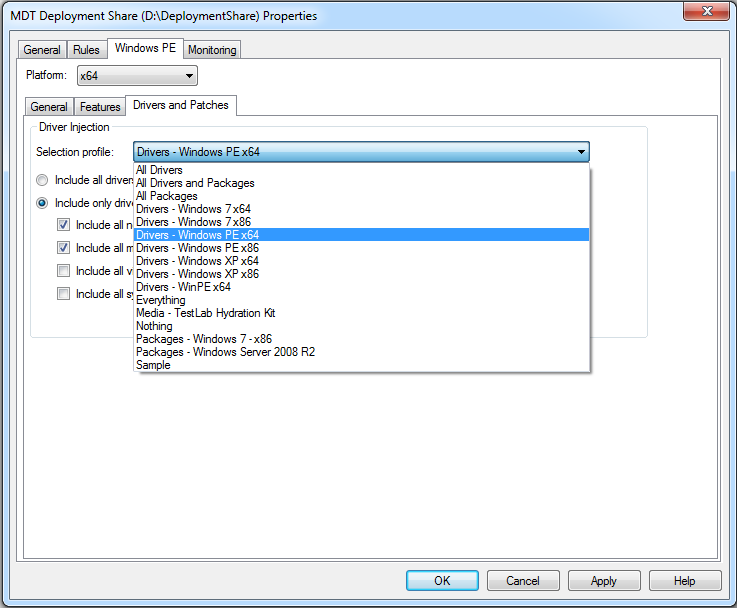
We now need to use selection profiles to ensure that only the Windows PE network drivers get copied to the boot disk, otherwise the boot image can take longer to load.

To do this, right-click the deployment share and select properties. Select the correct platform then the WinPE selection profile.

DriverSelection

Recreate the Boot Image

Finally, recreate the boot image by updating the deployment share.

UpdateDeploymentShare

Update your boot media with the newly updated LiteTouchPE_x64.wim file and reboot your client.

DriversFixed

I recommend implementing selection profiles like this to isolate your boot drivers and ensure that the boot process runs as fast as possible.

Posted in Deployment, MDT 2010, MDT 2012 | Tagged , , , | 19 Comments

Test Lab: Base Configuration – Hydration Kit: Custom Default settings

TLGs_logo

When using the Test Lab:Base Configuration Hydration Kit, you may want to use your own custom domain and server names. After all, it’s your testlab and you might spend a considerable amount of time working there. It makes sense to personalise it. The wizard is designed to allow customisation but this can become cumbersome if you rebuild your own custom labs repeatedly(like me). Here’s my method of customising the defaults in the Hydration kit.

After you’ve built the media folder using the Build-Kit.ps1 script you can edit the customsettings.ini file to change the defaults. If you’re not familiar with MDT, this is the configuration file that stores the default settings. By default the Hydration Kit stores the media customsettings.ini in the C:\TestLab_BaseConfigMedia\Content\Deploy\Control\ folder

EditCustomSettings.ini

Use notepad to make the changes to the server names, domain and IP Scopes if desired. Remember to be consistent with your changes or your deployment will fail. Below is an example of a modified file.

modifiedcustomsettings.ini

Now you can run the create media script to create your customised media file. This command will create a new media file from the default folder with the name CON-TestLabConfig.iso.

.\Create-Media.ps1 -ISOImageName CON-TestLabBaseConfig.iso

CreateCustomImage

Follow the project here on Codeplex for updates.

Posted in Deployment, MDT 2012, Testlab | Tagged , , , | 8 Comments

Test Lab: Base Configuration – Hydration Kit released.

I’ve released my first Codeplex project today. It’s available at http://testlabhydrationkit.codeplex.com

Hydration Kit – Test Lab: Base Configuration for Windows Server 2008 R2

The code is Microsoft Deployment Toolkit standalone media (Hydration Kit) that will configure each of the servers in the Test Lab Guide: Base Configuration. The tool will build your fully functional Test Lab in minutes. Getting this core out of the way allows you to focus on your actual project that you may find in the Test Lab Guide Wiki.

I found myself rebuilding my virtual host which meant rebuilding my lab so I decided to use MDT to automate the process. After I got it working, I decided to put a front end on it and share with the on-line community.

Due to Microsofts redistribution policy, you have to assemble the kit yourself. But my scripts will take care of that for you. The Kit will use 3 scripts to create a deployment media ISO image. You use this image to build your servers in your test lab.

Here’s a quick walkthrough. Once the ISO is inserted into a server, you will get the autorun prompt.

The first screen is the server selection screen. Click next.

Each server has it’s own unique configuration wizard pane. This will allow you to use your own custom naming standards and IP address scopes etc. The defaults will build the standard Contoso domain as detailed in the TLG guides. Accept the defaults and click next.

You will see a confirmation pane allowing you to review the configuration settings before deployment. Click Begin.

The Hydration process will begin, rebooting as needed.

When finished you will be presented with a final summary page.

You’re then able to repeat the process for the next server.

That’s all there is to it. The Kit is available from the codeplex project: http://testlabhydrationkit.codeplex.com

Let me know if you find this useful. Please post any issues/bugs here rather than below on this page and I will address them. Enjoy.

Posted in Deployment, MDT 2012, Testlab | Tagged , , , | 12 Comments

LTI/ZTI Deployments: Add roles and features

I had a post drafted on adding roles and features, to begin a series of posts on server role deployment. However, Michael Neihaus has been kind enough to write up a great article on his blog. You can read it here: MDT 2012 Update 1: Roles and Features improvements

In addition, roles and features can be automated in the customsettings.ini. For a client use OSFeatures and for servers use OSRoles and/or OSRoleServices or OptionalOSRoles(Depricated, I think). These features use the properties in a comma seperated list. Example:

To install both ADDS and DHCP roles on a server.

Add the Install Roles and Features step to your task sequence.

In your customsettings.ini add this line:

OSRoles = AD-Domain-Services,DHCP

Remember this only adds the roles, not configure. That comes later.

You can get a list of the values you can use for roles by using the Server Manager command line tool or the Powershell servermanager module.


Posted in Deployment, MDT 2010, MDT 2012 | Tagged , , | 2 Comments

MDT: Running a single PowerShell Cmdlet from a Task Sequence Step

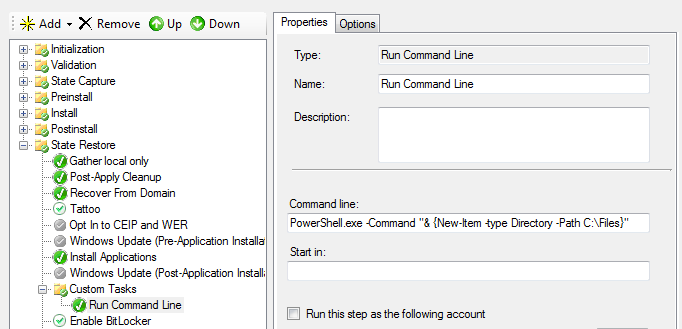
Sometimes I want to perform small tasks that don’t really require a script creation. In those cases I use a Run Command Line task sequence step. It was always easy for cmd.exe and it’s just as easy for PowerShell.exe(once you have the syntax)

This example will create a folder called Files using the New-Item Cmdlet.

PowerShell.exe -Command “& {New-Item -type Directory -Path C:\Files}”

image

The obvious drawback in using this method is that there’s no logging features. The step will return a 0 (success) even if the cmdlet fails. Hmm. so perhaps not so good an idea then. Although, technically the script block {} can handle a pipe line and multiple commands including any error handling(a Try. . Catch for example) that you could construct.

Disclaimer – Use this method only if you know what you’re doing.

MDT team, please add a new task sequence step that runs a single PowerShell cmdlet and handles errors and captures logs etc.

Posted in Deployment, MDT 2010, MDT 2012, PowerShell | Tagged , , | 10 Comments

Testlab: Test Lab Guides

During the start-up charter of my Scriptimus Ex Machina(yeah, pretentious but I had a plan) it was my intention to create in-depth guides on Test Labs as they are the foundation of all IT, from training to Proof of Concepts. Anyway, it turns out that Microsoft had beaten me to the punch.

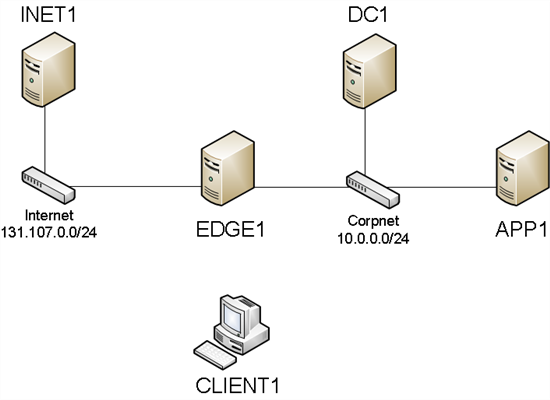
There is a Wiki and blog surrounding Microsofts Test Lab Guides. There’s a Base Configuration guide that gives a blow by blow walkthrough to creating a Test Lab Base Configuration. It sounds basic and it is except it is such a powerful foundation for your training labs. This is the network diagram:

The Base Configuration has a DC with ADDS, DNS, DHCP and ADCS. It starts with a Domain Controller with a Certificate Authority and a fully functional Public Key Infrastructure. There is a corporate network and an internet network for testing technologies such as DirectAccess and Forefront etc. You also have a server that spans both networks emulating a DMZ.

After you create and snapshot your base configuration, you can download guides to build and test your technology. This includes everything from SCCM, Exchange, SQL, Remote Desktop to the entire System Centre range. Wow!

There are over 100 test lab guides currently. There are LAB guides from Microsoft and others produced by community members. I may knock one up myself when I get a chance.

There are 2 TLG Base configurations one for Windows Server 2008 R2 and another for Windows Server 2012.

Now, I’ve produced my own labs for years using my own blueprints and hydration kits but this base configuration is so impressive and sparks so many ideas and possibility’s that I have adopted it as the base configuration for my own labs. For anyone who works with Microsoft systems I would recommend downloading the guides and using them as a foundation to building your labs.

Resources:

TLG Blog
TLG Wiki
Scriptimus Ex Machina TestLab

Posted in Testlab | Tagged , | Leave a comment

MDT: RTFM

There is a help file/manual that comes with MDT. It’s called Microsoft Deployment Toolkit Documentation Library. It’s located in the start menu.

MDT Manual

This documentation is immense. It covers everything from getting started, walkthroughs, App-V, SCCM, Scripting. (and it’s free) I use it as the source for about 90% of my MDT research.

Posted in MDT 2010, MDT 2012 | Tagged | 4 Comments

LTI/ZTI Scripting: MDT Scripting Template

It’s back to VBScript today. I received an email from a reader last week. He had an issue with a deployment script. We thought it would be a good idea to share the solution. For me, a chance to review some of my previous posts. Tony wrote:

I’m trying to run a simple function in my TS to put the Make and Model (from WMI) into the OEM information key of the registry, so it shows up in the System Properties screen.  By itself, the script works normally:

On Error Resume Next
Dim RegShell
Dim objLocator
Dim wmi
Set RegShell = CreateObject("Wscript.Shell")
Set objLocator = CreateObject("WbemScripting.SWbemLocator")
Set wmi = objLocator.ConnectServer(CompName, "root\cimv2",,,,,128)

For Each Instance in wmi.ExecQuery("Select * From Win32_ComputerSystem",,48)
                Make = Instance.Manufacturer
                Model = Instance.Model
Next

Model = Trim(Model)

RegShell.RegWrite "HKLM\SOFTWARE\Microsoft\Windows\CurrentVersion\OEMInformation\Manufacturer", Make, "REG_SZ"
RegShell.RegWrite "HKLM\SOFTWARE\Microsoft\Windows\CurrentVersion\OEMInformation\Model", Model, "REG_SZ"

' Line below used for testing only.
' MsgBox "Computer Make-Model has been written to the Windows System Properties page."
Wscript.Quit(0)

If I try to integrate this into the MDT Script Template, I constantly get an error, in the attached picture. I basically put the same code in the spot where it says ‘Insert Your Code Here!!!!’.

I’ve attached my template copy as well. I’d really like to use the script template for things like this, and I’d also like to figure out the logging aspect as well. First though, I have to figure out why it’s not running. Thanks for any help you might be able to give!

/Tony

So what went wrong? Well Tony’s created a complete (stand alone) script. That would work great in MDT but he’s wrapped it in the deployment template. He’s also created extra work for himself because using the MDT template is supposed to save you time and effort. I’ve blogged extensively on this but perhaps a recap is due.

Ok, where do I begin? Well, I’ve explained where to get and how to use the MDT scripting template here: MDT Scripting: Creating custom scripts Getting Started

After that, there’s just a few things to remember. The script makes a call to another VBScript called ZTIUtility.vbs(Located in the scripts folder of the deployment share). This acts like an engine and takes care of the heavy lifting for you. It contains a huge list of functions and declarations so you don’t have to write them yourself. So when using the MDT Template:

  • Do not create objects for WMI, Windows Scripting host or to read the registry
  • Do use the available functions/subroutines to:

Write a Variable,
Read a Variable,
Write to Log files,
Copy, Move or delete files,
Read or Write Registry Keys,
Delete Registry Keys,

  • Do not insert a whole script on the line that says '!!!!!!!!!!! INSERT YOUR CODE HERE !!!!!!!!!!!!
  • Do Declare all variables
  • Do read my posts to save yourself hours in scripting
  • Do open the file ZTIUtility.vbs and browse the subroutines to learn what it’s doing.
  • Do not edit the ZTIUtility.vbs –Ever!
  • Do open and read the ZTIGather.xml

In the end, I was able to help Tony with these few lines:

	oLogging.CreateEntry "Write Registry Keys Script", LogTypeInfo

	Dim sRegKey, sMakeKey, sMakeRegValue, sModelKey, sModelRegValue

	sRegKey = "HKEY_LOCAL_MACHINE\SOFTWARE\Microsoft\Windows\CurrentVersion\OEMInformation"

	sMakeKey = sRegKey & "\Manufacturer"
	sMakeRegValue=oUtility.regWrite(sMakeKey, oEnvironment.Item("Make"))

	sModelKey = sRegKey & "\Model"
	sModelRegValue=oUtility.regWrite(sModelKey, oEnvironment.Item("Model"))

The code was simply pasted where it says ‘!!!!!!!!!!!   INSERT YOUR CODE HERE   !!!!!!!!!!!!

If the points above dont cover everything needed to script in MDT. You can also read the references below:

You can download a copy of the template from here.
Ben Hunter – BDD 2007 – Tips and Tricks – How to write a custom script.
Xtreme Deployment.


Posted in MDT 2010, MDT 2012, SCCM, Scripting | Tagged , , , , | 3 Comments

LTI/ZTI PowerShell: Outputting Transcript from PowerShell Console

While testing a Lite-Touch deployment, I had an issue with a PowerShell script running in an application package. The error flashed by on the console screen so fast that I could not read it. To top that off, the log file reported the execution as a success. I had to run the deployment 3 times to capture this screen shot.

Transcript - Error

Why run it as an application instead of a Run PowerShell Script? Well the script imports GPO’s and I have a manifest and other files that work with it, so it makes sense to create an application package and keep everything together. The issue is that running the script in this manner takes away the advanced logging features that a Run PowerShell Script task sequence step provides.

I then remembered that there was a PowerShell command that I could employ to help here. It’s called Start-Transcript and its an easy one to use. Here’s an example:

Begin {
 Import-Module GroupPolicy
 Start-Transcript C:\Temp\Transcript.txt
}
Process {
 Import-GPO -BackupGpoName 'Default Domain Policy' -TargetName 'Default Domain Policy' -Path (Get-Location)
}
End {
 Stop-Transcript
}

After running the script, you’re left with a text output of your session.

Transcript - Log

This handy trick helped me track down the issue and get my deployment back on track. In the end my Import GPO issue was quite easy to fix:

Begin {
 Import-Module GroupPolicy
 $AppPath = $PWD.ProviderPath
}
Process {
 Import-GPO -BackupGpoName 'Default Domain Policy' -TargetName 'Default Domain Policy' -Path $AppPath
}
End {}
Posted in MDT 2010, MDT 2012, PowerShell, SCCM, Scripting | Tagged , , , | 6 Comments