
No DHCP? No Problem
In this scenario, the requirement is to boot a lite touch boot image with a static IP address, where is no DHCP available. You can use a custom answer file (unattend.xml) to configure your static IP settings at boot. Below are 2 methods
Method 1 – Netshell
Use the answer file in your extra files folder to run a command line like netsh during boot. I’ve previously explained how to use the extra files for BGInfo and the process is pretty much the same.
- Create a folder called ‘ExtraFiles’ (or Extrafiles64) in your deployment share.
- Next, create a folder called Windows with a subfolder called System32 beneath it.
- In the Deployment Workbench, Right-Click on the Deployment Share and select properties. Then click on the Windows PE x86 Settings (or Windows PE x86 Settings )Tab
- In the Windows PE Customizations section browse to the ExtraFiles (or Extrafiles64) folder

Unattend.XML
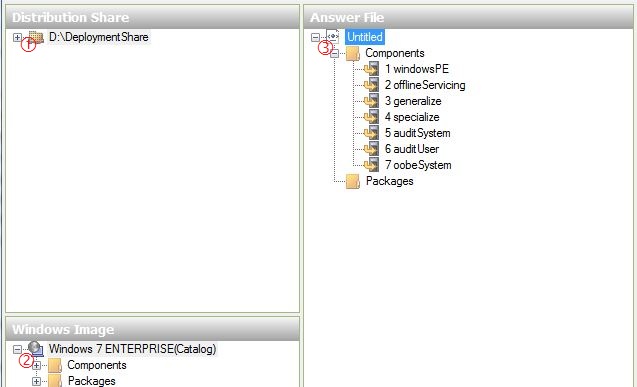
- Open Windows System Image Manager and select a DeploymentShare
- Then select a Windows Image
- Then create a New AnswerFile

- Add the following settings to the Answer File in the WindowsPE configuration Pass
Microsoft-Windows-Setup | RunSynchronous | RunSynchronousCommand

5. Add the following settings:
Description=Set Static IP Address
Order=1
Path=netsh interface ip set address Ethernet static 10.0.0.9 255.255.255.0 127.0.0.1
Description=Set Background
Order=2
Path=Bginfo.exe Win_PE.bgi /silent /timer:0 /NOLICPROMPT
Description=Lite Touch PE
Order=3
Path=wscript.exe X:\Deploy\Scripts\LiteTouch.wsf

In this example I am placing the command before BGInfo and Lite Touch PE. Ommit the BGInfo section if you’ve not configured it.
6. Save the file in your deployment share as \ExtraFiles\Unattend.XML then update the deployment share to recreate the LiteTouchPE_x86.wim (or ISO or x64)
Method 2 – Set a Unicast IP Address
In this method, we use the native settings of the WindowsPE answer file configuration pass.
1. Navigate to Microsoft-Windows-TCPIP | Interfaces | Interface | Ipv4Settings and select Add Setting to Pass 1 windowsPE.

2. Add the following settings:
Ipv4Settings
DhcpEnabled=false
Metric=10
RouterDiscoveryEnabled=false

3. Under Microsoft-Windows-TCPIP | Interfaces | Interface | UnicastIpAddresses
and select Add Setting to Pass 1 windowsPE.

4. Add an IP Address with the following settings:
Key=1
Value=10.0.0.9/24
5. Navigate to Microsoft-Windows-TCPIP | Interfaces | Interface
and change the Identifier to “Ethernet”.

6. Again, save the file in your deployment share as \ExtraFiles\Unattend.XML then update the deployment share to recreate the LiteTouchPE_x86.wim (or ISO or x64)
Be aware that this method only has very basic IP settings.




 Scriptimus Ex Machina