



Battery status indicators in the app
You can check the current battery level of the Classpads in the app under the Device panel section.
When the battery drops below 10%, a yellow highlight and a warning icon will appear in the app. If this happens, it’s recommended to plug the device in to charge to avoid it running out of power during a lesson.

Battery status indicators
The devices indicate their status via the built-in LED.
LED colours meaning:
- White – battery in good condition, device ready to use.
- Red – critical level: battery almost flat and needs charging immediately.
Classpads charging
The devices charge via contact pins in the docking station, so before placing them back, make sure the connectors are clean and free of debris.
Step 1
Place Classpads in the docking station.

Step 2
Connect the docking station to the power supply. Only use the cable and charger included in the kit. Standard phone chargers or a computer USB port may not meet the required specifications, which could shorten the battery life or cause damage.

Step 3
Monitor the charging process.
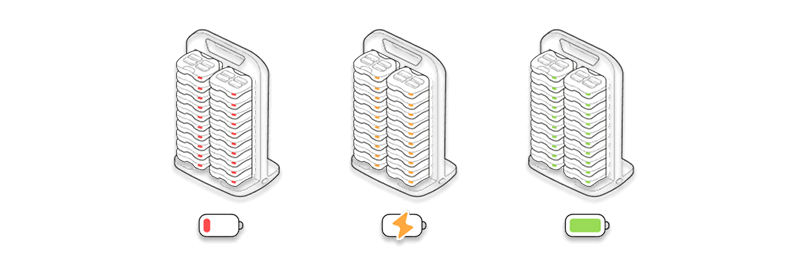
LED colours meaning while charging:
- Red – The inital charging phase (only when the battery is completely drained)
- Orange – Charging in progress
- Gree – fully charged
Best practices
- Charge your Classpads in regular intervals, most preferably at the end of a lesson.
- Don’t let the devices go completely flat.
- Only use the original charging accessories.