


Connecting the Control hub
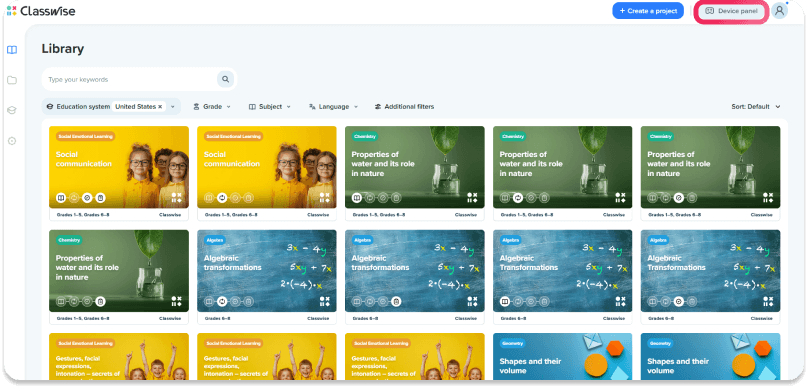
Step 1
In the top right corner of the app, click the Device Panel button. A window with hardware connection instructions will open.
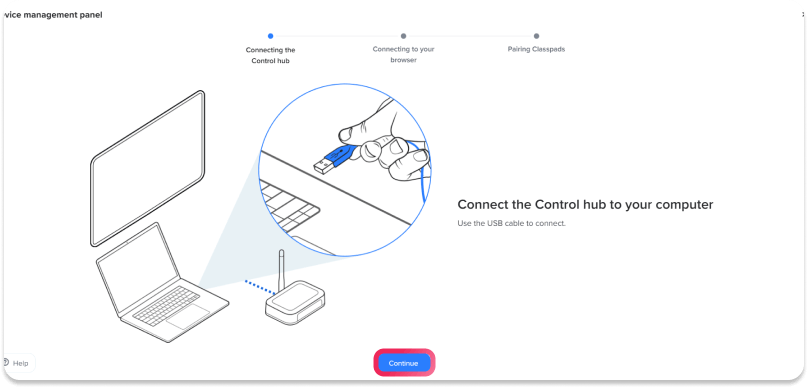
Step 2
Connect the Control hub to a USB port on your computer or interactive display.
If you’re using the app on an Android device, you’ll go straight to automatic Classpad pairing.
If you’re using the app in a browser, you’ll need to confirm the device connection.
Step 3
To connect the Control hub
1. Click Allow
2. Select USB Serial device
3. Click Connect

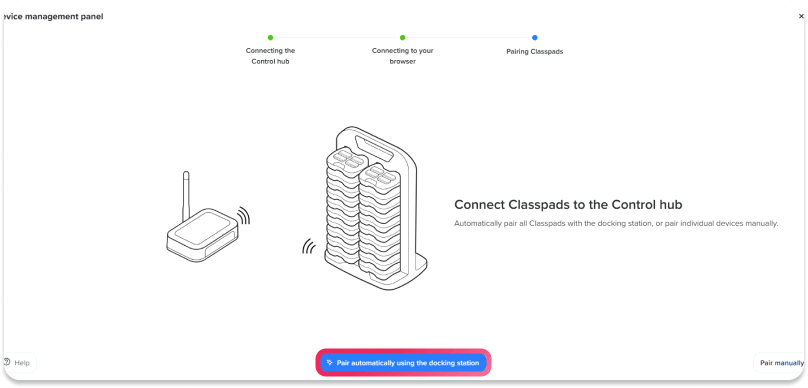
Automatic Classpad pairing
Step 1
Click Pair automatically using the docking station.
Step 2
Insert all Classpads into the station. Once done, click the Inserted button.

Step 3
Press and hold the button at the base of the docking station for about 3 seconds. The Classpad LEDs will begin to flash rapidly. After a moment, the devices will be paired automatically.
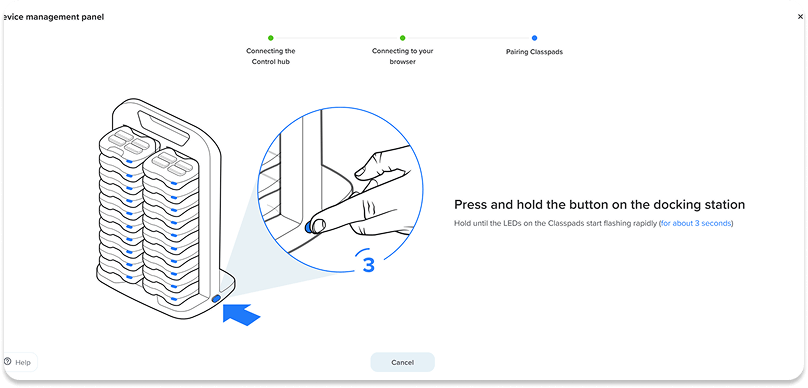

Pairing only needs to be done once. As long as the Classpads remain assigned to the same docking station, there’s no need to repeat the process.
Manual Classpads pairing
If not all devices were paired automatically, you can add them manually.
Read how to manually pair Classpads.