Perl Apache : Perl script displayed as plain text

While configuring with apache and perl cgi scripts, don’t know why index.cgi/index.pl are displayed as plain text instead of executing them.

When browser is printing code of script that means it’s unable to find the application to run the script. Below two lines should be your first steps to solve this. AddHandler will make sure files ending with .cgi and .pl to be treated as cgi scripts. And +ExecCGI option will allow to execute the script. Also make sure your script is pointing to correct perl binary location.

    AddHandler cgi-script .cgi .pl
    Options FollowSymLinks +ExecCGI

Also There are some mistakes/misconfiguration points in your httpd.conf

  • Alias line should point to cgi-bin directory where your cgi scripts are present.

ScriptAlias /cgi-bin/ “D:\webserver\cgi-bin”

  • For same cgi-bin directory following configuration should be in httpd.conf. You should replace your <Directory "D:\webserver"> part with below.
<Directory "D:\webserver\cgi-bin" />
    AddHandler cgi-script .cgi .pl
    Options FollowSymLinks +ExecCGI
    AllowOverride None  
</Directory>
  • Try running your cgi script from command line like below. It should print or run from command line first.

perl test.cgi

  • Make sure you have read-write recursive permissions to cgi-bin directory and your cgi script. And also you can create directory or file with write permissions. If not create a cgi-bindirectory at some other place where you can have write permissions and provide rather its path in alias and directory attributes in httpd.conf instead.
  • Check apache error log for exact error message every time you run into apache conf issues. It will give you good insight into the problem.

Also this link should help you.

(Extra comment, not by the original answerer: You may also need to enable the cgi module. For me, the final step to getting cgi to work on a fresh install of Apache 2 was sudo a2enmod cgi. Before I did that, the website simply showed me the contents of the script.)

sudo a2enmod cgi

How To Use SuExec in Apache to run CGI Scripts on an Ubuntu VPS

Prerequisites

In this guide, we will be configuring an Ubuntu 12.04 VPS with a standard LAMP (Linux, Apache, MySQL, PHP) installation. We assume that you have already installed these basic components and have them working in a basic configuration.

To learn how to install a LAMP stack on Ubuntu, click here.

We will be referencing the software as it is in its initial state following that tutorial.

How To Enable CGI Scripts

In Ubuntu’s Apache configuration, CGI scripts are actually already configured within a specific CGI directory. This directory is empty by default.

CGI scripts can be any program that has the ability to output HTML or other objects or formats that a web browser can render.

If we go to the Apache configuration directory, and look at the modules that Apache has enabled in the mods-enabled directory, we will find a file that enables this functionality:

less /etc/apache2/mods-enabled/cgi.load
LoadModule cgi_module /usr/lib/apache2/modules/mod_cgi.so

This file contains the directive that enables the CGI module. This allows us to use this functionality in our configurations.

Although the module is loaded, it does not actually serve any script content on its own. It must be enabled within a specific web environment explicitly.

We will look at the default Apache virtual host file to see how it does this:

sudo nano /etc/apache2/sites-enabled/000-default

While we are in here, let’s set the server name to reference our domain name or IP address:

<VirutalHost *:80>
    ServerName your_domain_or_IP_address
    ServerAdmin your_email_address
. . .

We can see a bit down in the file the part that is applicable to CGI scripts:

ScriptAlias /cgi-bin/ /usr/lib/cgi-bin/
<Directory "/usr/lib/cgi-bin">
    AllowOverride None
    Options +ExecCGI -MultiViews +SymLinksIfOwnerMatch
    Order allow,deny
    Allow from all
</Directory>

Let’s break down what this portion of the configuration is doing.

The ScriptAlias directive gives Apache permission to execute the scripts contained in a specific directory. In this case, the directory is /usr/lib/cgi-bin/. While the second argument gives the file path to the script directory, the first argument, /cgi-bin/, provides the URL path.

This means that a script called “script.pl” located in the /usr/lib/cgi-bin directory would be executed when you access:

your_domain.com/cgi-bin/script.pl

Its output would be returned to the web browser to render a page.

The Directory container contains rules that apply to the /usr/lib/cgi-bin directory. You will notice an option that mentions CGI:

Options +ExecCGI ...

This option is actually unnecessary since we are setting up options for a directory that has already been declared a CGI directory by ScriptAlias. It does not hurt though, so you can keep it as it is.

If you wished to put CGI files in a directory outside of the ScriptAlias, you will have to add these two options to the directory section:

Options +ExecCGI
AddHandler cgi-script .pl .rb [extensions to be treated as CGI scripts]

When you are done examining the file, save and close it. If you made any changes, restart the web server:

sudo service apache2 restart

Make a Test CGI Script

We will create a basic, trivial CGI script to show the steps necessary to get a script to execute correctly.

As we saw in the last section, the directory designated in our configuration for CGI scripts is /usr/lib/cgi-bin. This directory is not writeable by non-root users, so we will have to use sudo:

sudo nano /usr/lib/cgi-bin/test.pl

We gave the file a “.pl” extension because this will be a Perl script, but Apache will attempt to run any file within this directory and will pass it to the appropriate program based on its first line.

We will specify that the script should be interpreted by Perl by starting the script with:

#!/usr/bin/perl

Following this, the first thing that the script must output is the content-type that will be generated. This is necessary so that the web browser knows how to display the output it is given. We will print out the HTML content type, which is “text/html”, using Perl’s regular print function.

print "Content-type: text/html\n\n";

After this, we can do whatever functions or calculations are necessary to produce the text that we want on our website. In our example, we will not produce anything that wouldn’t be easier as just plain HTML, but you can see that this allows for dynamic content if your script was more complex.

The previous two components and our actual HTML content combine to make the following script:

#!/usr/bin/perl
print "Content-type: text/html\n\n";

print "<html><head><title>Hello There...</title></head>";

print "<body>";

print "<h1>Hello, World.</h1><hr>";
print "<p>This is some regular text.</p>";
print "<p>The possibilities are great.</p>";

print "</body></html>";

Save and close the file.

Now, we have a file, but it isn’t marked as executable. Let’s change that:

sudo chmod 755 /usr/lib/cgi-bin/test.pl

Now, if we navigate to our domain name, followed by the CGI directory (/cgi-bin/), followed by our script name (test.pl), we should see the output of our script.

Point your browser to:

your_domain.com/cgi-bin/test.pl

You should see something that looks like this:
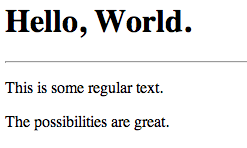
Sample CGI application

Not very exciting, but rendered correctly.

If we choose to view the source of the page, we will see only the arguments given to the print functions, minus the content-type header:

CGI page source

How To Enable SuExec

There are some security concerns implicit in setting a script as executable by anybody. Ideally, a script should only be able to be executed by a single, locked down user. We can set up this situation by using the suexec module.

We will actually install a modified suexec module that allows us to configure the directories in which it operates. Normally, this would not be configurable without recompiling from source.

Install the alternate module with this command:

sudo apt-get install apache2-suexec-custom

Now, we can enable the module by typing:

sudo a2enmod suexec

Next, we will create a new user that will own our script files. If we have multiple sites being served, each can have their own user and group:

sudo adduser script_user

Feel free to enter through all of the prompts (including the password prompt). This user does not need to be fleshed out.

Next, let’s create a scripts directory within this new user’s home directory:

sudo mkdir /home/script_user/scripts

Suexec requires very strict control over who can write to the directory. Let’s transfer ownership to the script_user user and change the permissions so that no one else can write to the directory:

sudo chown script_user:script_user /home/script_user/scripts
sudo chmod 755 /home/script_user/scripts

Next, let’s create a script file and copy and paste our script from above into it:

sudo -u script_user nano /home/script_user/scripts/attempt.pl
#!/usr/bin/perl
print "Content-type: text/html\n\n";

print "<html><head><title>Hello There...</title></head>";

print "<body>";

print "<h1>Hello, World.</h1><hr>";
print "<p>This is some regular text.</p>";
print "<p>The possibilities are great.</p>";

print "</body></html>";

Make it executable next. We will only let our script_user have any permissions on the file. This is what the suexec module allows us to do:

sudo chmod 700 /home/script_user/scripts/attempt.pl

Next, we will edit our Apache virtual host configuration to allow scripts to be executed by our new user.

Open the default virtual host file:

sudo nano /etc/apache2/sites-enabled/000-default

First, let’s make our CGI directory. Instead of using the ScriptAlias directive, as we did above, let’s demonstrate how to use the regular Alias directory combined with the ExecCGI option and the SetHandler directive.

Add this section:

Alias /scripts/ /home/script_user/scripts/
<Directory "/home/script_user/scripts">
    Options +ExecCGI
    SetHandler cgi-script
</Directory>

This allows us to access our CGI scripts by going to the “/scripts” sub-directory. To enable the suexec capabilities, add this line outside of the “Directory” section, but within the “VirtualHost” section:

SuexecUserGroup script_user script_user

Save and close the file.

We also need to specify the places that suexec will consider a valid directory. This is what our customizable version of suexec allows us to do. Open the suexec configuration file:

sudo nano /etc/apache2/suexec/www-data

At the top of this file, we just need to add the path to our scripts directory.

/home/script_user/scripts/

Save and close the file.

Now, all that’s left to do is restart the web server:

sudo service apache2 restart

If we open our browser and navigate here, we can see the results of our script:

your_domain.com/scripts/attempt.pl

Suexec example page

Please note that with suexec configured, your normal CGI directory will not work properly, because it does not pass the rigorous tests that suexec requires. This is intended behavior to control what permissions scripts have.

SSL Client Certificate Authentication with Apache

Creating CA Certificate

We use this certificate for only signing certificates that we use for the clients and our web servers. It should be kept very secure. If it is disclosed other certificates signed with this certificate will be disclosed as well.

openssl genrsa -des3 -out ca.key 4096
openssl req -new -x509 -days 365 -key ca.key -out ca.crt

Creating a Key and CSR for the Client

Creating a client certificate is the same as creating Server certificate.

openssl req -newkey rsa:2048 -nodes -keyout client.key -out client.csr

Signing the client certificate with previously created CA.

Not: Do not forget to change serial each time you sign new certificate, otherwise may get serial conflict error in the web browsers.

[root@centos7 certs]# openssl x509 -req -days 365 -in client.csr -CA ca.crt -CAkey ca.key -set_serial 01 -out client.crt
Signature ok
subject=/C=TR/L=Default City/O=Client Certificate/CN=Client Certificate
Getting CA Private Key
Enter pass phrase for ca.key:


Creating a Key and CSR for the Server(Apache Virtual Host ankara.example.com)

openssl req -newkey rsa:2048 -nodes -keyout ankara.key -out ankara.csr

Signing Server Certificate with previously created CA.

Do not forget to change serial number. As it may conflict with existing one.

openssl x509 -req -days 365 -in ankara.csr -CA ca.crt -CAkey ca.key -set_serial 02 -out ankara.crt

Apache Configuration for the Authentication with Client Certificate

This sample configuration shows how to force server to request client certificate.

<Directory /srv/ankara/www>
	Require all granted
</Directory>

<VirtualHost *:443>
	SSLEngine On
	SSLCertificateFile /etc/httpd/conf.d/certs/ankara.crt
	SSLCertificateKeyFile /etc/httpd/conf.d/certs/ankara.key
	ServerName ankara.example.com
	DocumentRoot /srv/ankara/www 
	SSLVerifyClient require
	SSLVerifyDepth 5
	SSLCACertificateFile "/etc/httpd/conf.d/certs/ca.crt"
</VirtualHost>

The depth actually is the maximum number of intermediate certificate issuers, i.e. the number of CA certificates which are max allowed to be followed while verifying the client certificate. A depth of 0 means that self-signed client certificates are accepted only, the default depth of 1 means the client certificate can be self-signed or has to be signed by a CA which is directly known to the server (i.e. the CA’s certificate is under SSLCACertificatePath), etc.

Reference: https://httpd.apache.org/docs/2.4/mod/mod_ssl.html

Experimenting with Curl

Without specifying the client certificate

gokay@ankara:~/certs$ curl https://ankara.example.com -v
* Rebuilt URL to: https://ankara.example.com/
* Trying 192.168.122.30...
* Connected to ankara.example.com (192.168.122.30) port 443 (#0)
* found 148 certificates in /etc/ssl/certs/ca-certificates.crt
* found 597 certificates in /etc/ssl/certs
* ALPN, offering http/1.1
* gnutls_handshake() failed: Handshake failed
* Closing connection 0
curl: (35) gnutls_handshake() failed: Handshake failed

With client certificate

gokay@ankara:~/certs$ curl https://ankara.example.com --key client.key --cert client.crt --cacert ca.crt -v
* Rebuilt URL to: https://ankara.example.com/
* Trying 192.168.122.30...
* Connected to ankara.example.com (192.168.122.30) port 443 (#0)
* found 1 certificates in ca.crt
* found 597 certificates in /etc/ssl/certs
* ALPN, offering http/1.1
* SSL connection using TLS1.2 / ECDHE_RSA_AES_128_GCM_SHA256
* server certificate verification OK
* server certificate status verification SKIPPED
* common name: ankara.example.com (matched)
* server certificate expiration date OK
* server certificate activation date OK
* certificate public key: RSA
* certificate version: #1
* subject: C=TR,L=Default City,O=Ankara LTD,CN=ankara.example.com
* start date: Sun, 24 Dec 2017 10:00:20 GMT
* expire date: Mon, 24 Dec 2018 10:00:20 GMT
* issuer: C=TR,L=Default City,O=BlueTech CA,OU=CA,CN=BlueTech CA
* compression: NULL
* ALPN, server did not agree to a protocol
> GET / HTTP/1.1
> Host: ankara.example.com
> User-Agent: curl/7.47.0
> Accept: */*
>
< HTTP/1.1 200 OK
< Date: Sun, 24 Dec 2017 10:21:15 GMT
< Server: Apache/2.4.6 (CentOS) OpenSSL/1.0.2k-fips
< Last-Modified: Sun, 24 Dec 2017 10:19:51 GMT
< ETag: "3b-5611363e4a8e0"
< Accept-Ranges: bytes
< Content-Length: 59
< Content-Type: text/html; charset=UTF-8
<
<h1>My Secure Page Ankara</h1>
<h2>ankara.example.com</h2>
* Connection #0 to host ankara.example.com left intact


Apache: Permission denied: exec of ‘/var/www/html/cgi-test/first.pl’ failed

Problem:

So, I’m new to CGI / Perl, I’m trying to move a perl-based web app to a new server.

My new server is CentOS 7, which runs Apache HTTPD 2.4.6.

I’m trying to get a basic Perl CGI working from an HTTP request.

The web request is returning “500 Internal Server Error”

The error log is showing “permission denied”:

[Tue May 12 16:56:44.604660 2015] [cgi:error] [pid 12302] [client 10.0.2.2:56693] AH01215: (13)Permission denied: exec of '/var/www/html/cgi-test/first.pl' failed
[Tue May 12 16:56:44.604708 2015] [cgi:error] [pid 12302] [client 10.0.2.2:56693] End of script output before headers: first.pl

My CGI script is in /var/www/html/cgi-test/first.pl

It looks like this:

#!/usr/bin/perl
print "Content-type: text/html\n\n";
print "Hello, World.";

In the cgi-test directory the permissions look like this:

drwxr-xr-x. 2 root root 21 May 12 16:48 .
drwxr-xr-x. 4 root root 32 May 12 16:48 ..
-r-xr-xr-x. 1 root root 76 May 12 16:48 first.pl

Perl is in the normal place and has I think normal permissions

[root@localhost cgi-test]# ls -al /usr/bin/perl
-rwxr-xr-x. 2 root root 11400 Mar  6 05:07 /usr/bin/perl

My httpd.conf is the default. I’ve just added the following section in order to allow cgi in my cgi-test directory:

<Directory "/var/www/html/cgi-test">
    Options +ExecCGI
    AddHandler cgi-script .cgi .pl
</Directory>

To eliminate the possibility of suexec being the cause of this issue I’ve moved it from /usr/sbin/suexec to another file name.

Httpd is running as user “apache” which is in group “apache”

[root@localhost cgi-test]# ps -Af | grep httpd
root     12298     1  0 16:56 ?        00:00:00 /usr/sbin/httpd -DFOREGROUND
apache   12299 12298  0 16:56 ?        00:00:00 /usr/sbin/httpd -DFOREGROUND
apache   12300 12298  0 16:56 ?        00:00:00 /usr/sbin/httpd -DFOREGROUND
apache   12301 12298  0 16:56 ?        00:00:00 /usr/sbin/httpd -DFOREGROUND
apache   12302 12298  0 16:56 ?        00:00:00 /usr/sbin/httpd -DFOREGROUND
apache   12303 12298  0 16:56 ?        00:00:00 /usr/sbin/httpd -DFOREGROUND
root     12342 12260  0 17:20 pts/0    00:00:00 grep --color=auto httpd
[root@localhost cgi-test]# groups apache
apache : apache

I have tried running the script as apache, it works without any problem.

[root@localhost cgi-test]# su -s /bin/bash apache
bash-4.2$ perl /var/www/html/cgi-test/first.pl 
Content-type: text/html

Hello, World.bash-4.2$

Presumably I’m hitting some security precaution of Apache. Lots of conflicting advice about what this might be. Any help much appreciated.

Solution:

I see from your own answer that it was a SELinux permissions issue due to trying to run CGI scripts from within apache in a non-standard directory.

The proper way to solve the permissions issue while maintaining SELinux in ‘enforcing’ mode, and thus improving your server’s security is to apply the proper context to the files in your custom CGI script directory. If it is to be a permanent directory, you should change the selinux policy to automatically create new files with the proper permissions.

You can check the selinux policy for the cgi-bin directory with the command:

$ semanage fcontext --list | grep cgi-bin 
 (...)
/var/www/[^/]*/cgi-bin(/.*)?                       all files          system_u:object_r:httpd_sys_script_exec_t:s0
/var/www/html/[^/]*/cgi-bin(/.*)?                  all files          system_u:object_r:httpd_sys_script_exec_t:s0
 (...)

This means that every file created inside the standard cgi-bin directories for apache will be automatically given the SELinux type httpd_sys_script_exec_t and be executable by httpd, so this is what your files in the cgi-test directory should have as well.

NOTE: the examples shown below are based on CentOS/RHEL6, it should work just the same for RHEL7 with the eventual tweak.

Temporary solution

You can simply change your perl script’s SELinux context with:

$ chcon -t httpd_sys_script_exec_t /var/www/html/cgi-test/first.pl

Check the file’s SELinux attributes with ls -laZ:

$ ls -laZ /var/www/html/cgi-test/first.pl
-rwxr-xr-x. root root system_u:object_r:httpd_sys_script_exec_t:s0 /var/www/html/cgi-test/first.pl

However, if there’s a SELinux relabel operation on this filesystem, the attributes will be reverted to the defaults and it will stop working again. It will also have to be done every time a new CGI script is added.

Definite solution

You can change the SELinux policy by adding a rule for your custom CGI directory and all contained subdirectories and files.

This is done via the semanage command (available in the policycoreutils-python RPM package):

$ semanage fcontext -a -t httpd_sys_script_exec_t "/var/www/html/cgi-test(/.*)?"

This will take a while to run. After changing the policy any new files created in your custom directory will have the new context. For the ones already there, you can apply the policy manually with:

$ restorecon -R -v /var/www/html/cgi-test

You can check your newly-added rule with:

$ semanage fcontext --list | grep cgi-test