
The netstat command stands for network statistics. It is used to display various network-related information such as active connections, listening ports, routing tables, and interface statistics. System administrators commonly use netstat to monitor network activity and diagnose networking issues.
- Display active network connections (TCP, UDP, and UNIX sockets).
- Identify ports that are in the LISTEN state.
- Show routing tables and interface statistics.
- Find the process (PID) using a particular network port.
- Monitor protocol statistics for TCP, UDP, and other protocols.
Example 1: Display All Network Connections
To list all active network connections and listening ports on the system.
Command:
netstat -a- -a Displays all sockets, including listening and non-listening connections.
Output:

Example 2: Display Listening TCP and UDP Ports
Displaying all TCP and UDP ports that are currently in the LISTEN state. It is commonly used by system administrators to quickly identify which services are accepting incoming network connections on the system.
Command:
netstat -tuln- -t: Displays TCP connections.
- -u: Displays UDP connections.
- -l: Shows only listening sockets.
- -n: Displays addresses and port numbers in numeric format instead of resolving service names.
Output:

Syntax
netstat [options]- netstat: The command used to display network-related information.
- [options]: Optional flags that modify the output. Multiple options can be combined to filter or refine results.
Options Used with netstat
1. -a: Display All Connections and Listening Ports
The -a option displays all network sockets, including both listening ports and established connections. Use this option when you need a complete overview of network activity on the system.
Command:
netstat -aOutput:


Example: Get Port on Which a Program is Running
To find the port on which a specific program, in this case, SSH, is running, use this command.
Command:
netstat -ap | grep sshOutput:

2. -t: Display TCP Connections
The -t option displays only TCP connections. This option is useful when troubleshooting services that use the TCP protocol, such as SSH, HTTP, and FTP.
Syntax:
netstat -tCommand:
netstat -atOutput:

3. -u: Display UDP Connections
The -u option displays only UDP connections. This is helpful when monitoring services such as DNS or DHCP that use the UDP protocol.
Command:
netstat -auOutput:

4. -l : Display Listening Ports
The -l option displays only the ports that are currently listening for incoming connections. This helps administrators identify active services on the system.
Command:
netstat -lOutput:

Example 1: List Only Listening TCP Ports
Narrowing it down further, this command specifically lists the TCP ports that are in a listening state.
Command:
netstat -ltOutput:

Example 2: List Only Listening UDP Ports
Similarly, this command focuses on displaying only the UDP ports that are actively listening.
Command:
netstat -luTo list only the listening udp ports.
Output:

Example 3: List Only Listening UNIX Ports
For those working with UNIX systems, this option shows only the UNIX ports that are in a listening state.
Command:
netstat -lxTo list only the listening UNIX ports.
Output:

5. -p: Display Process ID and Program Name
The -p option displays the Process ID (PID) and program name associated with each network connection. Root privileges are usually required to view this information.
Syntax:
netstat -pCommand:
netstat -ptOutput:

6. -n : Display Numerical Addresses
The -n option displays IP addresses and port numbers in numeric form instead of resolving them to hostnames. This speeds up the command output and avoids DNS lookups.
Syntax:
netstat -nExample: Identify Process Using a Particular Port
This command helps identify the process associated with a given port, such as port 80 in this example.
Command:
netstat -an | grep ':80'Output:

7. -r: Display Kernel Routing Table
The -r option displays the kernel routing table, showing the destination network, gateway, and network interface.
Command:
netstat -rOutput:

8. -i : Display Network Interfaces
The -i option displays information about network interfaces configured on the system.
Command:
netstat -iOutput:

Example: Display Extended Information on Interfaces
For extended information on interfaces, similar to the output of the ifconfig command, use this option to gain comprehensive insights.
Command:
netstat -ie
To display extended information on the interfaces
Output:

9. -s : Display Network Statistics
The -s option displays detailed network statistics for each protocol, including TCP, UDP, and IP.
Command:
netstat -sOutput:

Example 1: List Statistics for TCP Ports
For a more specific breakdown, this command displays statistics exclusively for TCP ports.
Command:
netstat -stTo list the statistics for TCP ports.
Output:

Example 2: List Statistics for UDP Ports
Similarly, this command focuses on the statistical information related to UDP ports.
Command:
netstat -suList the statistics for UDP ports.
Output:

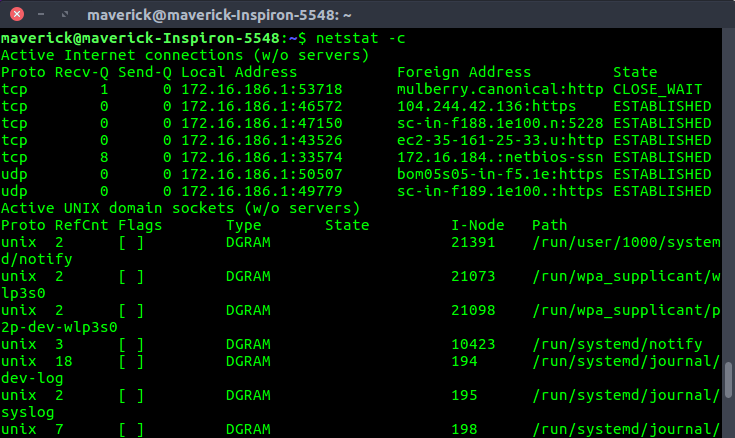
10. -c : Continuous Network Monitoring
The -c option continuously refreshes the netstat output, displaying updated network information at regular intervals.
Command:
netstat -cOutput:
11. --verbose : Display Unsupported Address Families
The --verbose option displays additional information about address families that are not supported by the kernel.
Command:
netstat --verboseTo get the non-supportive address families in the system.
Output:

