Sharraxaad
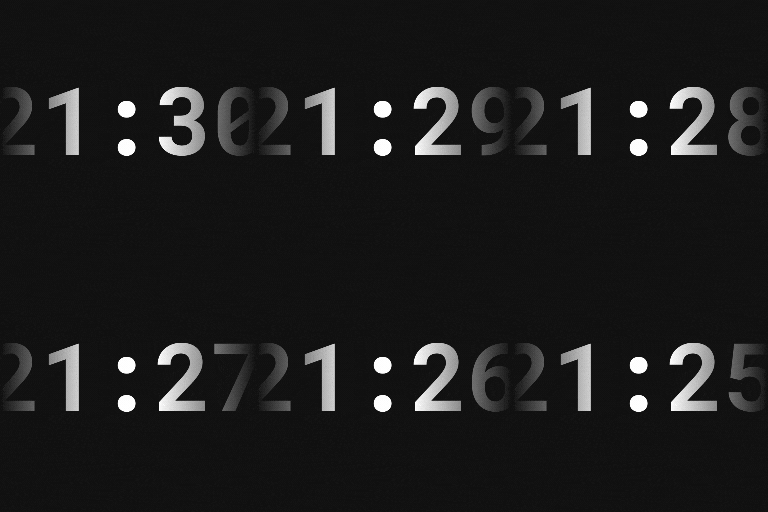
The Countdown Timer offers a user-friendly countdown block that lets you quickly set up a timer for events, product launches, special offers, and more.
Its main features include:
- Designed to be minimal: no unnecessary menu items, just a simple tool under the Tools tab.
- Built for the WordPress ecosystem: uses official components for a seamless experience.
- Customizable time settings: easily set the target time, date, and time zone.
- Flexible units display: choose which units to display – years, months, weeks, days, minutes, seconds.
- Styling options: adjust colors, backgrounds, margins, alignment, border radius, and separators to seamlessly match your site’s design.
- Optimized performance: the plugin separates editor scripts from front-end scripts, ensuring that only the essential code is loaded on the live site.
Usage
- Go to Tools > The Countdown Timer to create a new timer.
- Customize your timer: set the date, time, appearance, and behavior.
- Click Publish to save it.
- Copy the shortcode and paste it anywhere – in a post, page, or widget.
Development
This plugin uses React for its front-end interface. The complete unminified source code is available at:
- GitHub repository: https://github.com/KonstantinPankratov/WordPress-Plugin-Countdown-Timer
To build the plugin from source:
1. Clone the repository
2. Run cd react
3. Run npm install
4. Run npm run build
Sawir-shaashado

Set date, time, and timezone – Easily configure the countdown target time. 
Customize number appearance – Adjust font styles, sizes, and colors for numbers. 
Control unit display – Choose which time units (years, months, days, etc.) to show. 
Modify separators – Customize how the countdown sections are visually divided. 
Style countdown blocks – Fine-tune padding, background, borders, and alignment. 
Set post-expiration display – Define what happens when the countdown reaches zero.
Rakibaad
From within WordPress
- Go to Plugins > Add New.
- Search for The Countdown Timer.
- Install & activate it.
- Go to Tools > The Countdown Timers to add your first timer.
Manually
- Upload the the-countdown-timer folder to the /wp-content/plugins/ directory.
- Go to Plugins & activate The Countdown timer.
- Go to Tools > The Countdown Timers to add your first timer.
SBI
-
How do I configure the countdown timer?
-
After inserting the Countdown Timer block in the editor, use the sidebar options to set the target date, time, time zone, and customize the appearance (fonts, colors, layout, etc.).
Dibu-eegisyo
Ma jiraan wax dibu-eegis ah oo ku saabsan kaabahan.
Ka-qaybgalayaasha & Horumariyayaasha
“The Countdown Timer” waa softiweer il furan. Dadka soo socda ayaa wax ku biiriyay kaabahan.
Ka-qaybgalayaasha
Ku tarjun “The Countdown Timer” luqaddaada.
Ma xiisaynaysaa horumarinta?
Baadh koodka, fiiri bakhaarka SVN, ama iska qor diiwaanka horumarinta adigoo adeegsanaya RSS.
Isbeddellada
1.0.0
- Initial release.