LTI/ZTI PowerShell: Accessing Task Sequence Variables

In order to create more useful scripts in your Lite/Zero-Touch deployments, you will need access to the deployment variables. In MDT 2012 you can now access these Task Sequence variables from 2 new PSDrives called TSEnv: and TSEnvList:.

TSEnv drive

Now these drives only exist while a task sequence is running so Microsoft recommend that you add the line

Import-Module .\ZTIUtility.psm1

to your scripts in order to create the drives for testing. You can also populate these drives with variables that you would expect to find when your script runs. It’s possible to access the variables in real time but to do this you will need to pause the Task Sequence while launching a PowerShell console, then import the module. This is how I do it.

First create a script that generates a message box and run it in a task sequence. This is my sample script. I’ve called it ZTI-MessageBox.ps1 and saved it in the scripts folder on my deployment share.

[System.Reflection.Assembly]::LoadWithPartialName("System.Windows.Forms")
[System.Windows.Forms.MessageBox]::Show("Press ok to continue. . .")

Add it to a Run PowerShell Script task sequence.

script-ts-step

Kick off the deployment from a client machine.

Freeze

The script will now pause until you press ok. Now launch a PowerShell console and import the ZTIUtility by typing the following command:

Import-Module C:\MININT\Modules\ZTIUtility

Now, for this little trick to work you may have to configure the PowerShell script Execution Policy to RemoteSigned. This is because you’e working outside the task sequence in the machines environment. In my case it was a new test VM server.

Set-ExecutionPolicy -ExecutionPolicy RemoteSigned

Now you’ll have access to 2 new PSDrives. TSEnv: and TSEnvList:.

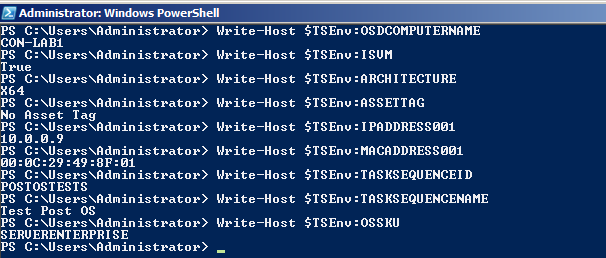
From here you can test your scripts with live data. Below are some sample variables and their values.

Variables

Posted in Deployment, MDT 2010, MDT 2012, SCCM, Scripting | Tagged , , , | 13 Comments

LTI/ZTI PowerShell: Using PowerShell in Task Sequences

Now that we’re in the golden age of PowerShell many administrators will want to take advantage of its features in their deployments. With Lite/Zero-Touch you can do this by using the Run PowerShell Script task sequence step. The great thing is that now any PowerShell script that works in the OS can be coded to run in a task sequence.

This post demonstrates the simplest example of how to run a PowerShell script from within a task sequence. I’ll explain Parameters, Variables, logs, ZTIUtility.psm1 etc in future articles but right now I’m just going to keep it simple.

First, create a simple script.

Write-Output “Hello World” | Out-File $Home\Desktop\Hello.txt

This script outputs the phrase “Hello World” to a text file on the desktop. The reason we’re  outputting to a file is that the console is hidden during a task sequence and a pop-up box will halt the process.

Next, save the script in my deployment share in the scripts folder and call it ZTI-HelloWorld.ps1

Now create a basic Post-OS task sequence and add a the Run PowerShell Script task sequence step.

Run PowerShell Script

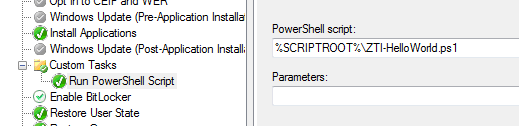
Modify the Task Sequence Step and add this command

%SCRIPTROOT%\ZTI-HelloWorld.ps1

Task Sequence Step

The %SCRIPTROOT% variable points to the Scripts folder on the deployment share or the script folder in the MDT package on SCCM.

Run this script on a test machine(as shown here.). This will create a file called Hello.txt on your desktop, the contents will say “Hello World”. MDT takes care of the Execution Policy for you by running the script unrestricted. MDT will also collect any errors returned by the script and store them in the deployment logs.

Next I’ll post an article about parameters and using variables from the CustomSettings.ini.

Posted in Deployment, MDT 2010, MDT 2012, PowerShell, SCCM, Scripting | Tagged , , , | 5 Comments

LTI/ZTI Deployments: Post OS Task Sequence

One of the useful features of MDT is the Post Operating System Installation Task Sequence. I use it to configure servers after I clone them from templates. If you want to do any of the following tasks then a Post OS Task Sequence is for you. I thought it best to cover this topic as a few of my upcoming posts will centre around this. These are just a few of the useful things you can accomplish:

I would use this feature when performing advanced configurations that can’t be solved by a traditional application deployment. Also when there is a need for consistency. However, I should point out that I wouldn’t implement this as a deployment solution, however I have seen that done before.

So here’s how you do it.

Create a new Sequence step. Give it a unique Task Sequence ID like PostOS etc. and a name eg. Post Install Task Sequence. Click Next.

Wizard 1

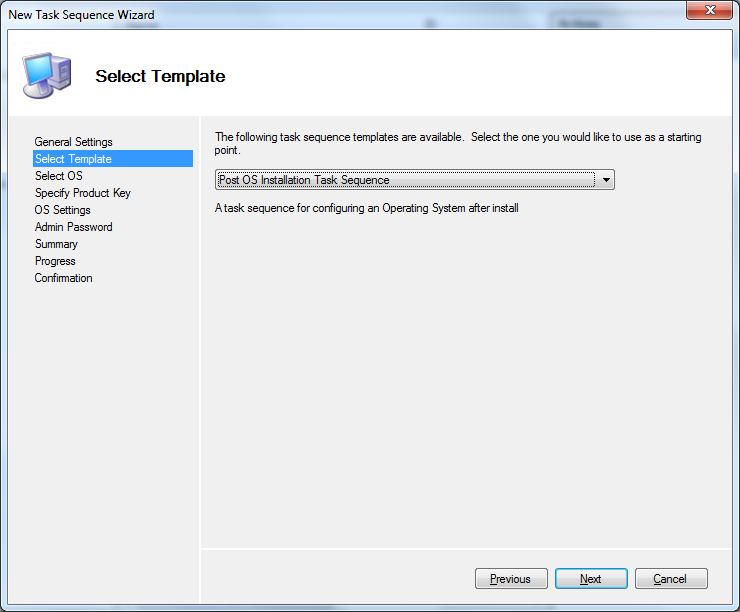
Select Post OS Installation Task Sequence from the list.

Wizard 2

Click Next and Finish.

Wizard 3

When you edit the task sequence you’ll see that it’s a lot simpler than the usual OS deployment Task Sequence. You can enable the Windows Update steps to bring a machine to a fully patched state or add your tasks under the Custom Tasks folder. This task sequence will gather its parameters from the customsettings.ini or database just like any other Task Sequence.

Post OS Install TS

To test it, you can start a deployment from a running PC. From an elevated command prompt connect to the deployment share and run the BDD_Autorun.wsf script.

Run  a Post OS Install TS

Running the Task sequence with no setting will start and end without making any changes. Unless you’re using MDT 2012 then the Apply Local GPO Package will apply a local baseline GPO. Putting ApplyGPOPack=NO in your customsettings.ini should prevent it.

You’re now left with a solution for deploying custom scripts and configurations.

Posted in Deployment, MDT 2010, MDT 2012, SCCM | Tagged , , , | 2 Comments

Microsoft Certified Training: MCSA upgrade for existing MCITPs

New Logos

I got a surprising email today entitled:

Congratulations on Your Microsoft Certification! Access Your Benefits{~12345678:1~}

I found this very odd indeed especially as I haven’t taken any exams recently. It was preceded by another email which said:

Hello!

Soon you will receive an email to congratulate you on your Microsoft Certified Solutions Associate (MCSA): Windows 7 certification you have earned.You may be wondering what the MCSA: Windows 7 certification is and how did you earn it.

In April 2012, Microsoft announced new certifications that have been re-invented for the cloud, covering on-premises skills as well as in the cloud.As part of our efforts to grandfather our existing customers into the new program, we are awarding those individuals a new certification under the new certification program to jump start them towards an expert level certification in the program.For individuals that have already earned the Microsoft Certified IT Professional (MCITP) Enterprise Desktop Administrator or MCITP: Enterprise Desktop Support Technician, they are being granted the MCSA: Windows 7 certification.

The MCSA: Windows 7 certification allows you to upgrade to the MCSA: Windows 8 certification, by taking a single upgrade exam (689 – not yet released).

Review the following page to learn more about the changes in the certification program:http://www.microsoft.com/learning/en/us/certification/cert-overview.aspx

Review the following page to learn more about the MCSA: Windows 7 and Windows 8 certifications: http://www.microsoft.com/learning/en/us/certification/cert-windowsclient.aspx

Thank you for being a valued customer in the Microsoft Certification Program!

Best Regards,

Microsoft Learning

Sounds great, so I logged into my MCP portal sure enough I found I’ve been granted a new certificate and logo.

MCSA - Windows 7

Who says that you don’t get anything for nothing? Thank you Microsoft!

Posted in Certified Training | Tagged , , , | Leave a comment

Powershell: Windows Management Framework 3.0 is now available

Microsoft Windows Management Framework 3.0 is now available for download from the Microsoft Download Centre. This is the download that includes the finished version of  PowerShell 3.0.

The OS versions supported and packages are:

  • Windows 7 Service Pack 1
    • 64-bit versions: WINDOWS6.1-KB2506143-x64.MSU
    • 32-bit versions: WINDOWS6.1-KB2506143-x86.MSU
  • Windows Server 2008 R2 SP1
    • 64-bit versions: WINDOWS6.1-KB2506143-x64.MSU
  • Windows Server 2008 Service Pack 2
    • 64-bit versions: WINDOWS6.0-KB2506146-x64.MSU
    • 32-bit versions: WINDOWS6.0-KB2506146-x86.MSU

The new features include:

Windows PowerShell 3.0
The new features in Windows PowerShell 3.0 include: Workflow, Disconnected Sessions, Robust Session Connectivity, Scheduled Jobs, Delegated Administration, Simplified Language Syntax, Cmdlet Discovery, Updated ISE. Powershell Web Access.

Also,
WMI – Windows Management Framework 3.0, WinRM , Management OData IIS Extensions and Server Manager CIM Provider

Posted in PowerShell | Tagged | Leave a comment

Testlab: Upgrading HP N40L Microserver with an SSD drive

I decided to get a Solid State Drive for my HP Microserver N40L. Great Idea until I tried to install it. I bought a 2.5” drive and the bay is 3.5” so the drive does not fit in the bracket. I bought a bracket kit but that didn’t work either. I then read that many people had the same issue and solved it by running an external SATA cable back inside etc. Crazy.

It turns out that after all my fiddling (and wasting 7 quid on a bracket) that the drive is so light that it can just click into the backplane and suspend without the need for a bracket. It’s safe too as the SSD is kinda weightless and the clip on the backplane grips it tightly.

In the end I also put the bracket back in. It’s only cosmetic but it’s better than having a huge gap there. Win win win!

The SSD is SATA II which is cool as the server is also. Here’s the spec:

Verbatim 128Gb SSD – Black Edition £62.64 (inc. VAT) www.microdirect.co.uk

All in all, I’m very pleased with the upgrade and the drive is fast for my LAB VM’s that require a lot of paging like SCCM 2012.

Posted in Testlab | Tagged , | 4 Comments

MDT 2012: Automating Network Interface Configuration

I’m currently using MDT (and SCCM) to build servers. After I clone templates in VMWare I run a Post OS task sequence that will rename the Server, assign a static IP address, Join the domain, install Apps etc. One server has 2 network interface cards with multiple static TCP/IP addresses on the second card.

OK so this all sounds easy right? Yeah, well wait until you actually try to do it. There’s a couple of issues that I ran into when I tried to configure the second card so I thought I’d share my solutions.

If you have 1 Task Sequence that is only going to deploy 1 server then I suggest using the task sequence step Apply Network Settings. This will handle multiple adapters for you and save you headaches. This runs the script ZTINicConfig.wsf which uses netsh to set its configuration.

However, if you need to use the same Task Sequence for setting static IP addresses in various scenarios then you will need to use the customsettings.ini (or database) to hold the settings. The samples below demonstrate adapter deployment in both uni and multihomed adapter configurations.

Configure a Single NIC with 1 IP Address (Unihomed)

In this example, OSDAdapter0EnableDHCP turns off DHCP. OSDAdapter0Name is the label for the NIC. The rest is really obvious so I’ll just continue with the examples.

OSDAdapter0EnableDHCP=False
OSDAdapter0IPAddressList=10.0.0.2
OSDAdapter0SubnetMask=255.255.255.0
OSDAdapter0Gateways=10.0.0.1
OSDAdapter0DNSServerList=10.0.0.1
OSDAdapter0Name=Corporate LAN
OSDAdapter0DNSSuffix=scriptimus.wordpress.com

Configure a Single NIC with Multiple IP Addresses

In this example, the property OSDAdapter0IPAddressList has a list of IP Addresses delimited by commas. The same goes for the Subnet Mask, Gateway and DNS Servers.

OSDAdapter0EnableDHCP=False
OSDAdapter0IPAddressList=10.0.0.2,15.0.0.7
OSDAdapter0SubnetMask=255.255.255.0,255.255.255.0
OSDAdapter0Gateways=10.0.0.1,15.0.0.1
OSDAdapter0DNSServerList=10.0.0.1
OSDAdapter0Name=Corporate LAN
OSDAdapter0DNSSuffix=scriptimus.wordpress.com

Adding Additional properties

These are the extra properties that can be applied with the default values shown. So unless you need to changed from the below settings, you can omit these lines. They don’t really need explaining.

OSDAdapter0EnableDNSRegistration=False
OSDAdapter0EnableFullDNSRegistration=True
OSDAdapter0EnableTCPIPFiltering=False
OSDAdapter0EnableLMHOSTS=False
OSDAdapter0EnableWINS=False
OSDAdapter0GatewayCostMetric=Automatic
OSDAdapter0TcpipNetbiosOptions=0

Configure Multiple Network Adapters with IP Addresses (Multihomed)

Now here’s where extra the research is needed. The first thing is property OSDAdapterCount has been set to 2. The second set of settings have all been incremented from 0 to 1.

OSDAdapterCount=2
OSDAdapter0MacAddress=%MacAddress001%
OSDAdapter0EnableDHCP=False
OSDAdapter0IPAddressList=10.0.0.2
OSDAdapter0SubnetMask=255.255.255.0
OSDAdapter0DNSServerList=10.0.0.1
OSDAdapter0Name=Corpnet
OSDAdapter0DNSSuffix=continuum.local
OSDAdapter1MacAddress=%MacAddress002%
OSDAdapter1EnableDHCP=False
OSDAdapter1IPAddressList=131.107.0.2,131.107.0.3
OSDAdapter1SubnetMask=255.255.255.0,255.255.255.0
OSDAdapter1Name=Internet
OSDAdapter1DNSSuffix=isp.example.com

Assignment by MAC Address

You’ll see above I’ve added the OSDAdapter0MacAddress property. This allows you to assign a configuration set to a specific card based on its hardware address. The gather process will collect the  MAC Addresses of all enabled adapters and store them in property values incrementing them in series. eg. MacAddress001, MacAddress002 etc. These can be called in the customsettings.ini by enclosing them in %’s. This allows you to  assign which card gets the appropriate config settings.

The Big Gotcha

Before I forget, there’s a major gotcha. By default, MDT is only configured to recognise the first NIC because only Adapter0 has been configured in the ZTIGather.xml. So if you wish to configure multiple adapters then you will need edit the ZTIGather.xml file to add a new section like in the example below.

Posted in Deployment, MDT 2010, MDT 2012 | Tagged , , , , , , | 16 Comments

MDT 2012: Adding PowerShell capability to Lite-Touch boot images

With the new Windows Preinstallation Environment (Windows PE) 4.0 it is now possible to add PowerShell support to your sessions. It is even easier to add it to your LiteTouchPE.wim images using MDT.

WinPE4_1

Here’s the steps:

First, download and install Windows Assessment and Deployment Kit (ADK) for Windows® 8 and Microsoft Deployment Toolkit (MDT) 2012 Update 1. This is because you’ll need WinPE 4 for this to work.

Next, right-click your DeploymentShare and select properties. On the Features tab tick the boxes .Net framework 4 and Windows PowerShell 3.0

You can add a few useful modules also. Select DISM Cmdlets, SecureBoot Cmdlets and Storage Management Cmdlets. These modules are automatically loaded during boot.

MDT-Powershell-Addins

Click ok then Update your deployment share.

UpdateDeploymentShare

Updating the DeploymentShare will recreate/update the boot wim files and ISO’s in the boot folder of your Deployment Share. If you have any issues then just delete the entire contents of boot and update the share as above. This will create the boot images from scratch.

Finally, remember to replace/Update the WIM files on your USB pens or WDS server. If you get stuck, then look at my original guide here.

Posted in MDT 2012, PowerShell | Tagged , , , , | 1 Comment

Windows 8 and Server 2012 RTM!!!

Great day for IT professionals today! Microsoft have announced that Windows 8 and Server 2012 have both been released to manufacturing.

That means the official and final release are being distributed. There should be a version on VLSC within a few days now. Yey! Of course that in real terms is several months of intense training for us techies.

The Windows 8 article is here: Windows 8 has reached the RTM milestone.
The Server 2012 article is here: Windows Server 2012 released to manufacturing!

Posted in Server 2012, Windows 8 | Tagged , , , | Leave a comment

MDT Powershell: Importing device drivers from organised folders

Below is my import drivers to MDT PowerShell script, also uploaded to the script repository here.

My last post focused on creating a driverstore structure. Now it’s time to import your hard work into MDT. This script will import all your device drivers into MDT detecting and replicating the tree structure. It will also generate the device driver selection profiles for each OS and architecture. Respect to Johan Arwidmark and Chris Nackers who both did somthing similar a while back.

<#
.SYNOPSIS
Imports Windows Drivers into Microsoft Deployment Toolkit.
.DESCRIPTION
The Import-MDTDrivers.ps1 script will duplicate a folder tree structure in Microsoft Deployment Toolkit and import the Drivers.
.PARAMETER $DriverPath
The fully qualified path to the folder that contains the device drivers you want to import. example: "C:\Downloads\Drivers". The default is the current folder in the shell.
.PARAMETER PSDriveName
(Optional) MDT Persistent drive name example: "DS002". The default is the Persistent drive of the first Deployment Share.
.PARAMETER DeploymentShare
(Optional) MDT Persistent drive path example: "D:\Depshare". The default is the first Deployment Share.
.EXAMPLE
Import-MDTDrivers.ps1
This will import drivers from the current location to the driverstore of the first detected deploymentshare replicating the tree structure.
.EXAMPLE
Import-MDTDrivers.ps1 -DriverPath C:\Downloads\Drivers -PSDriveName DS001 -DeploymentShare D:\DeploymentShare
This will import the device drivers into MDT from the source folder C:\Downloads\Drivers to the deployment share DS001 located at D:\DeploymentShare
.NOTES
Author: Andrew Barnes
Date: 4 June 2012
Last Modified: 23 July 2012
.LINK
MDT Powershell: Importing device drivers from organised folders
#> Param ( [String]$DriverPath = $PWD, # Device drivers path example: "C:\Downloads\Drivers" [String]$PSDriveName, # MDT Persistent drive name example: "DS002" [String]$DeploymentShare # MDT Persistent drive path example: "D:\Depshare" ) # \\ Import MDT Module Import-Module "C:\Program Files\Microsoft Deployment Toolkit\bin\MicrosoftDeploymentToolkit.psd1" # \\ Detect First MDT PSDrive IF (!$PSDriveName) {$PSDriveName = (Get-MDTPersistentDrive)[0].name} # \\ Detect First MDT Deployment Share IF (!$DeploymentShare) {$DeploymentShare = (Get-MDTPersistentDrive)[0].path} $DSDriverPath = $PSDriveName+':\Out-of-Box Drivers' $DSSelectionProfilePath = $PSDriveName+':\Selection Profiles' # \\ Connect to Deployment Share If (!(Get-PSDrive -Name $PSDriveName -ErrorAction SilentlyContinue)) { New-PSDrive -Name $PSDriveName -PSProvider MDTProvider -Root $DeploymentShare } # \\ Loop through folders and import Drivers Get-ChildItem $DriverPath | foreach { $OS = $_ if (!(Test-Path $DSDriverPath\$OS)) { new-item -path $DSDriverPath -enable "True" -Name $OS -ItemType "folder" -Verbose } if (!(Test-Path $DSSelectionProfilePath"\Drivers - "$OS)) { new-item -path $DSSelectionProfilePath -enable "True" -Name "Drivers - $OS" -Definition "<SelectionProfile><Include path=`"Out-of-Box Drivers\$OS`" /></SelectionProfile>" -ReadOnly "False" -Verbose } Get-ChildItem $_.FullName | foreach { $Make = $_ if (!(Test-Path $DSDriverPath\$OS\$Make)) { new-item -path $DSDriverPath\$OS -enable "True" -Name $Make -ItemType "folder" -Verbose } Get-ChildItem $_.FullName | foreach { $Model = $_ if (!(Test-Path $DSDriverPath\$OS\$Make\$Model)) { new-item -path $DSDriverPath\$OS\$Make -enable "True" -Name $Model -ItemType "folder" -Verbose import-mdtdriver -path $DSDriverPath\$OS\$Make\$Model -SourcePath $_.FullName -Verbose } } } }

The device drivers in the DriverStore need to be expanded to their *.inf files or MDT wont detect them. For example, MDT will not extract a driver from an exe archive. However, if you’ve downloaded your drivers from Microsoft Update Catalog their *.cab files can be used unexploded.

The deployment workbench will now have the exact same tree structure as your local (or server) driver store.

By default the script will import the drivers from the current (working) folder into the first deployment share in the deployment workbench so of the script is run from the location of the drivers then no parameters are needed. Below is a typical example if you only have 1 deployment share on your computer.

.\Import-MDTDrivers.ps1 -DriverPath C:\Downloads\Drivers

If you have multiple deployment shares, the script can be run from the console with the $PSDriveName and $DeploymentShare variables. parameters, like in this example:

.\Import-MDTDrivers.ps1 -DriverPath C:\Downloads\Drivers -PSDriveName DS001 -DeploymentShare D:\DeploymentShare

Here’s how the script works. The script will  browse the device driver directory specified in the $DriverPath variable. It will then create the Operating System folders in MDT if they do not already exist and generate matching Selection Profiles so you can use them later in your task sequences.

At the ‘Make’ level it will create the Manufacturer folder if it does not exist.

At the ‘Model’ folder, if it does not already exist in MDT, it will create the folder and then import the drivers. This means if the script is run a second time it will not create folders if they already exist in MDT. The benefit with this approach is that you can delete any folder(s) and then re-run the script to re-create any element.

If you update the drivers for a particular model you should delete that model in the deployment workbench then run the script again. This will re-create just that model folder and cleanly re-import the drivers again.

Posted in MDT 2010, MDT 2012, PowerShell, Scripting | Tagged , , | 8 Comments