
SSH keys
This tutorial assumes you have already created an empty Repo in github(or similar) and have write access to that Repo. Also, I recommend using SSH keys for authentication and I will assume that is how you are authenticating for this tutorial as well. If you’re unfamiliar with how to work with SSH keys and Git, read the following first: https://www.digitalocean.com/community/tutorials/how-to-set-up-ssh-keys–2
https://help.github.com/en/articles/adding-a-new-ssh-key-to-your-github-account
In Pycharm
In Pycharm go into VCS->Remotes and enter the url that is shown in github when you click Clone or Download. At this point, you should have added your SSH public key to your github account and added the identy using the SSH agent on your local machine.
Start investing in the stock market today with Robinhood. Join Robinhood with my link and we’ll both pick our own free stock 🤝 https://join.robinhood.com/hugog360

If you’re using GitHub, the clone url can be found when you click the Clone or Download button shown below:

You will be shown a popup like the one below. Hit the Plus sign and enter the URL of your git repository.

If you put a password on your SSH Key, enter it when you are prompted as shown below:

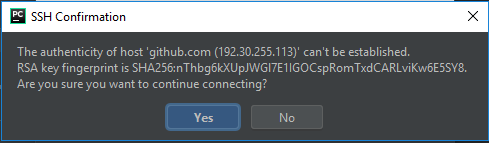
You might get this pop up asking you if you trust te RSA key fingerprint, click Yes
You’ll then want to clone the Repo. It may be empty, but there may also be readme or other important files you want to pull down.
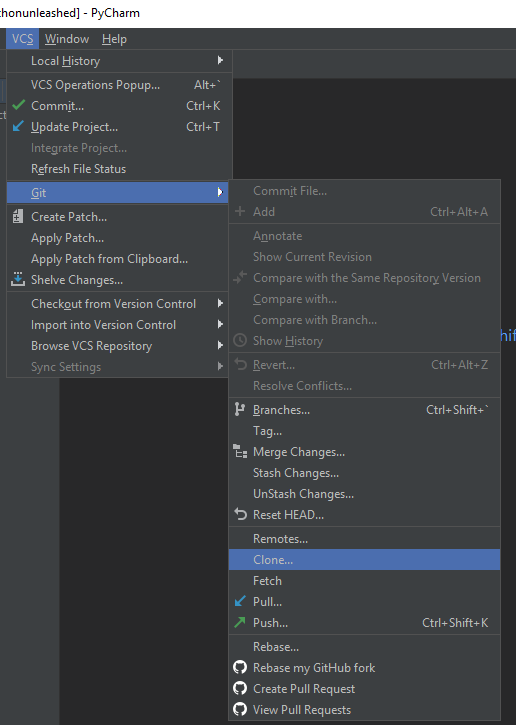
Enter clone URL, and click through to clone the repo.
Add or create a few files to the directory, so that you have something to commit to the repo.
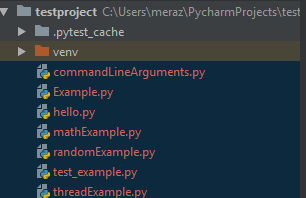
Now its time to commit some files! You’ll notice that all uncommitted files are shown in red text.
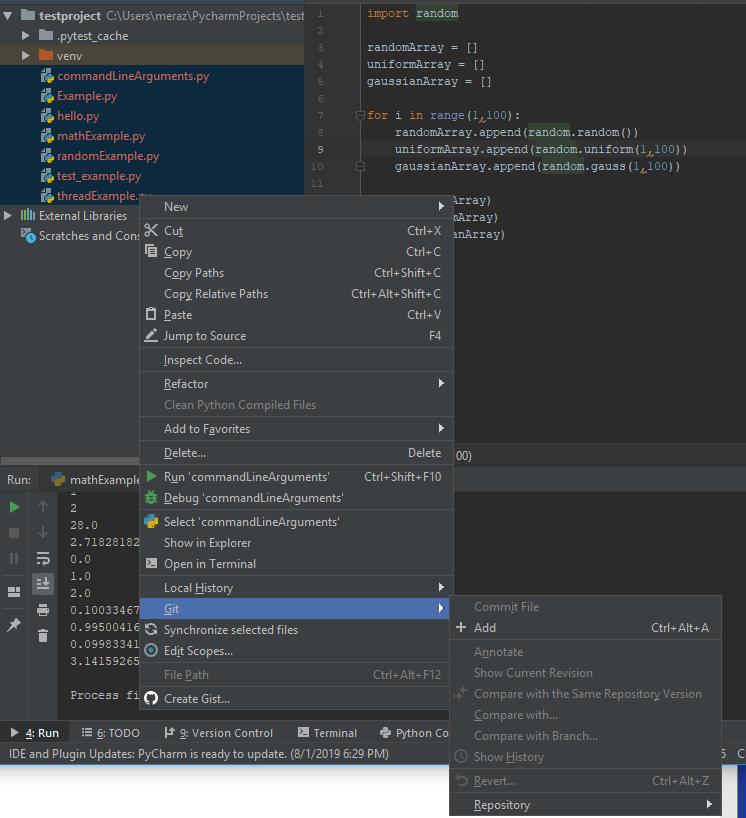
Select all of the files you want to add and right click to find the Git menu and select Add.
They will now show up in green text. Neat huh?!
You’ll notice that on the top right of the screen you’ll now see a small git toolbar. Click on the green check mark to make a commit.

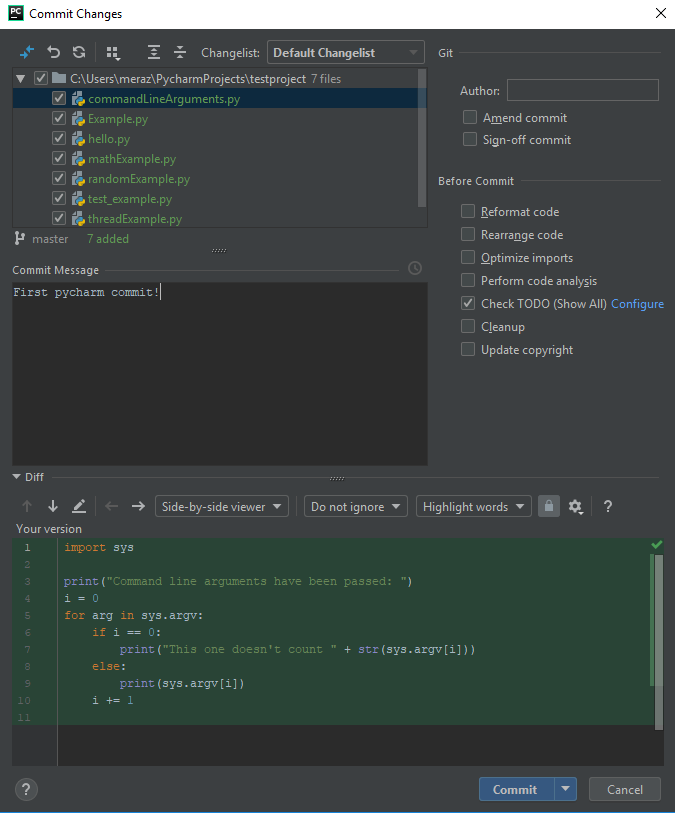
This will actually show you something very similar to what you would see in other GUI based git tools. You will see many options here that will help you perform various tasks in the future. For the scope of this tutorial, all we want to do is get you started with source control in PyCharm, so we are just going to put in a simple commit message and click commit.
You may get this warning about your git user not being defined if it’s your first time. Enter you name and email and click Set and Commit button.

You should see something like this pop up on the bottom of your screen and now it’s time to push!

Before you push your code, do a quick VCS->Git->Fetch and VCS->Git-> Pull. Where it says Branches to merge, select origin/master.

You may have noticed that on the commit screen it gave you the option to commit and push at the same time, which is OK. You can also use the shortcut Ctrl+Shift+K. For this tutorial we are going to use the VCS->Git menu.

You’ll get one final screen with a Push button. Once you press that, viola! Code pushed to your Repo!

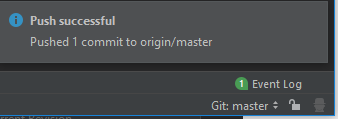
If all goes well, you should see the following message popup on the bottom of your screen.
I hope this short tutorial was helpful. If you have any questions about git and Pycharm, please feel free to leave them in the comments below!
 Python Unleashed