Archive for the ‘System.Windows.Forms.ListBox’ Category
PowerShell Wizard. Round 2. It works!
After posting the wizard sample, I thought – why don’t finish it today? I added
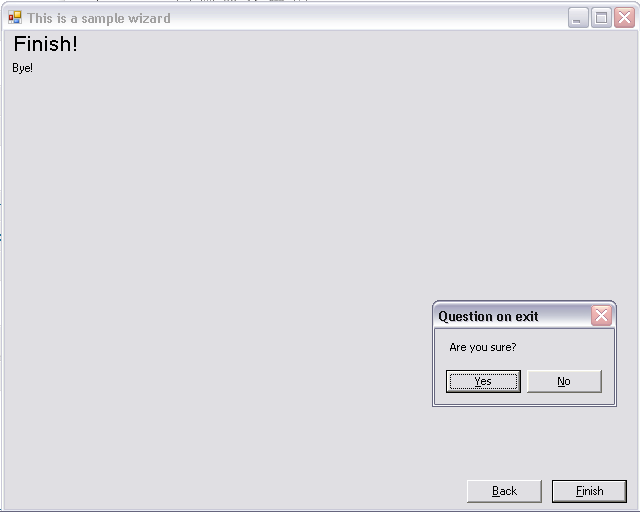
- the Finish and the Cancel buttons in a way that the Finish button asks the user whether one wishes to exit now or not. The Cancel is available on the first step and by clicking this the user quits immediately
- scriptblocks, used as a code that is run on clicking the Next button
- fixed bugs, added comments here and there and a bit of polishing
At first, I’d like to show what the sample does.
It starts the wizard, sets the second step as the first the user sees (just for example) and provides a label saying that the wizard is awaiting for a path to any directory.
 After that the user presses the next button (it stays here if the text box field is empty. The wrong path won’t be accepted too) and goes to the next step called, just for example, the Progress step:
 The step called in the sample as Output contains a list box filled with the files list:
 After all, at the last step can be written something encouradging, or an error log to be shown, or something else. There comes the Finish button, as well as the Cancel button comes at the first step of the wizard:
Now, after we know what this does, I can post the code running the sample:
		# Step 1: Welcome
		New-WizardStep 'Welcome' `
			'This is the first step' `
			'Welcome to the PowerShell Wizard, the our dear customer!';
		# Add a label
		# Please note that we can use the enumeration $steps which is being created runtime
		# on a call of the New-WizardStep function
		Add-ControlToStep $steps.Welcome `
			System.Windows.Forms.Label `
			'lblWelcome' 20 10 50 300 `
			'This Wizard carries you through the steps you need to collect the files from a given path';

		# Step 2
		New-WizardStep 'Input' `
			'Step Two' `
			'Here you type some in controls, plz';
		# Add a label
		Add-ControlToStep $steps.Input `
			System.Windows.Forms.Label `
			'lblInput' 20 10 20 300 `
			'Please type the path to a catalog';
		# Add a text box
		Add-ControlToStep $steps.Input `
			System.Windows.Forms.TextBox `
			'txtInput' 40 10 20 300
		# Add the code which requires that text box was not empty
		Add-CodeToStep $steps.Input `
			-StepCode {
					[string]$private:path = `
						$wzdSteps[$steps.Input].Controls['txtInput'].Text;
					if ($private:path.Length -eq 0)
					{
						# stop the step
						throw;
					}
					if (-not [System.IO.Directory]::Exists($private:path))
					{
						# stop the step
						throw;
					}
				}

		# Step 3
		New-WizardStep 'Progress' `
			'The third one' `
			'Wait, please. Sip a coffee' ;
		# Add a progress bar
		Add-ControlToStep $steps.Progress `
			'System.Windows.Forms.ProgressBar' `
			'pbDir' 200 50 100 400
		Add-CodeToStep $steps.Progress `
			-StepCode {
					# set progress bar maximum
					$wzdSteps[$steps.Progress].Controls['pbDir'].Minimum = 0;
					$wzdSteps[$steps.Progress].Controls['pbDir'].Value = 0;
					$wzdSteps[$steps.Progress].Controls['pbDir'].Maximum = `
						(Get-ChildItem $wzdSteps[$steps.Input].Controls['txtInput'].Text).Length;
					# clear the list box (from the next step)
					$wzdSteps[$steps.Output].Controls['lbxFiles'].Items.Clear();
					# add file names to the list box
					Get-ChildItem $wzdSteps[$steps.Input].Controls['txtInput'].Text | %{
							$wzdSteps[$steps.Progress].Controls['pbDir'].Value++;
							$wzdSteps[$steps.Output].Controls['lbxFiles'].Items.Add($_.Name);
						}
				}

		# Step 4
		New-WizardStep 'Output' 'Fourth' `
			'Now awake and read the output';
		# Add a list box
		Add-ControlToStep $steps.Output `
			System.Windows.Forms.ListBox `
			lbxFiles 50 50 300 400

		# Step 5: Finish
        New-WizardStep 'Finish' 'Finish!' 'Bye!';

		Initialize-Wizard;
		# Set the second step as active
		Invoke-WizardStep -Forward $true;

		$script:frmWizard.ShowDialog() | Out-Null;
The full version is posted in the box at rigth and published on the PoshCode. Ask for a doc or more comments in the code if you need to.
A hand-made script-to-form converter (sooner a sample than a tool)
With eternal love to automation, I began today a small project aiming to help creation of PowerShell GUI forms. This post is the first step, will or won’t I do the next is not clearly even to me.
A year ago I wrote something like this. It was a PropertiesBrowser module/add-on, which I used as the Watches window, typical of any IDE, sometimes. It hasn’t been published, though.
Having today morning an hour or slightly more, I decided to write a post mostly to test the new smartbook I own the third day, but at the same time I caught what I want. A simple form generator.
How should it work? Almost every script produces an output. Strings, numbers, boolean, objects, all what may return a PowerShell code. Why don’t allow the scripter to put it on a form without an effort? Sound like a GUI modeling tool (but looks much more uglyer).
Here it is, the code giving some output and used as a sample:
cls
Set-StrictMode -Version Latest
Import-Module FormGen -Force

[int]$i = 3;
Set-OutputToForm $i
Set-OutputToForm $i -SuppressLabel $true
Set-OutputToForm $i -Description "int"
$f = New-Object System.Windows.Forms.Form
Set-OutputToForm $f;
$a = @("s", "T");
Set-OutputToForm $a $false "Array"
Get-ChildItem | Select-Object -First 3 | %{Set-OutputToForm $_ -Description "fileinfo of $($_.FullName)";}
1..2 | %{Set-OutputToForm $_;}
Get-ChildItem | Select-Object -First 1 | %{Set-OutputToForm $_ -Description "fileinfo of $($_.FullName)" -ControlType 'System.Windows.Forms.ListView';}
Get-ChildItem | Select-Object -First 1 | %{Set-OutputToForm $_ -Description "fileinfo of $($_.FullName)" -ControlType 'System.Windows.Forms.TreeView';}
Get-ChildItem | Select-Object -First 1 | %{Set-OutputToForm $_ -Description "fileinfo of $($_.FullName)" -ControlType 'System.Windows.Forms.ComboBox';}
Show-Result;
As can be seen, there is the FormGen module and two functions exported from it, Set-OutputToForm and Show-Result. While the former adds data to a form still invisible, the latter, to be used once, displays the form.
Set-StrictMode -Version Latest
[int]$script:topPosition = 0;
[System.Windows.Forms.Form]$script:frmMain = `
	New-Object System.Windows.Forms.Form;
$script:frmMain.Width = 500;

function Set-OutputToForm
{
 Set-OutputToForm $data
			PS> 1..10 | %{Set-OutputToForm $_;}
			PS> Get-ChildItem | %{Set-OutputToForm $_ -SuppressLabel $true; $null;}
		.Notes
			Author: Alexander Petrovskiy
	#>
	[CmdletBinding()]
	param([Parameter(Mandatory=$true,ValueFromPipeline=$true)]
    	  [ValidateNotNullOrEmpty()]
		  $InputObject,
		  [bool]$SuppressLabel = $false,
		  [string]$Description = "",
		  [string]$ControlType = ""
		  )
	Begin{}
	Process{
	[bool]$result = $false;
	try{
		if (-not $SuppressLabel)
		{
			[System.Windows.Forms.Label]$private:label = `
				New-Object System.Windows.Forms.Label;
			$script:topPosition += 10;
			$private:label.Top = $script:topPosition;
			$private:label.Left = 50;
            $private:label.Width = $script:frmMain.Width - 50;
            $private:label.Visible = $true;
			if ($Description.Length -gt 0)
			{
				$private:label.Text = $Description;
			}
            else
            {
                $private:label.Text = $InputObject.GetType().ToString();
            }
			$script:frmMain.Controls.Add($private:label);
			$script:topPosition += $private:label.Height;
		}

		[bool]$private:useCustomControl = $false;
		[System.Windows.Forms.Control]$private:ctrl = `
			New-Object System.Windows.Forms.Control;
		if ($ControlType.Length -gt 0)
		{
			try{[System.Windows.Forms.Control]$private:ctrl =
				New-Object $ControlType;
				$private:useCustomControl = $true;
			}catch{$private:useCustomControl = $false;}
		}
		#of which type these data?
		#an array?
		if ($InputObject -is [System.Array])
		{
			if (-not $private:useCustomControl){
				[System.Windows.Forms.ListBox]$private:ctrl = `
					New-Object System.Windows.Forms.ListBox;}
			for($private:i = 0; $private:i -lt $InputObject.Length;
				$private:i++)
			{
				if ($private:ctrl -is [System.Windows.Forms.ListBox] -or `
					$private:ctrl -is [System.Windows.Forms.ComboBox] -or `
					$private:ctrl -is [System.Windows.Forms.ListView]){
						$private:ctrl.Items.Add($InputObject[$private:i]);}
				if ($private:ctrl -is [System.Windows.Forms.TreeView]){
					$private:ctrl.Nodes.Add($InputObject[$private:i]);}
			}
		}
		#a string? int one? other simple type?
		elseif ($InputObject.GetType().BaseType.Name -eq 'ValueType')
		{
			if (-not $private:useCustomControl){
				[System.Windows.Forms.Label]$private:ctrl = `
					New-Object System.Windows.Forms.Label;}
			if ($private:ctrl -is [System.Windows.Forms.ListBox] -or `
				$private:ctrl -is [System.Windows.Forms.ComboBox] -or `
				$private:ctrl -is [System.Windows.Forms.ListView]){
					$private:ctrl.Items.Add($InputObject.ToString());}
			if ($private:ctrl -is [System.Windows.Forms.TreeView]){
				$private:ctrl.Nodes.Add($InputObject.ToString());}
			if ($private:ctrl -is [System.Windows.Forms.Label] -or `
				$private:ctrl -is [System.Windows.Forms.TextBox]){
					$private:ctrl.Text = $InputObject.ToString();}
		}
		else
		{
			if (-not $private:useCustomControl){
				[System.Windows.Forms.PropertyGrid]$private:ctrl = `
					New-Object System.Windows.Forms.PropertyGrid;}
			if ($private:ctrl -is [System.Windows.Forms.PropertyGrid]){
				$private:ctrl.SelectedObject = $InputObject;}
			if ($private:ctrl -is [System.Windows.Forms.ListBox] -or `
				$private:ctrl -is [System.Windows.Forms.ComboBox] -or `
				$private:ctrl -is [System.Windows.Forms.ListView]){
					$private:ctrl.Items.Add($InputObject.ToString());}
			if ($private:ctrl -is [System.Windows.Forms.TreeView]){
				$private:ctrl.Nodes.Add($InputObject.ToString());}
		}
		#common properties
		$private:ctrl.Left = 50;
		$private:ctrl.Top = $script:topPosition;
		$private:ctrl.Visible = $true;
		$script:frmMain.Controls.Add($private:ctrl);
		$script:topPosition += $private:ctrl.Height;
	}catch{}

	$result = $true;
	return $result;}
	End{}
}

function Show-Result
{
	$script:frmMain.Height = $script:topPosition + 40;
	$script:frmMain.ShowDialog() | Out-Null;
}

Export-ModuleMember -Function Set-OutputToForm, Show-Result;
Need to repeat, this is sooner a concept than a ready-to-use tool, so that use it as is. Probably, I’ll update it. The current version attached here.
Although it’s not an advantage for powershellers, I’m proud that at least a half of this code was written on my Android smartbook. This means that I can write from more places than I could before. I have had for two years a netbook, but without 3G and its keyboard was damaged on travel. Gladly, now I can write on the go again, with the actually mobile device.
Which Icons Are Shipped With Object Browser?
Actually, what is the easiest way to display icons? Create a control like ListView? Maybe. Let’s create a handful of windows, just to observe how short the code might be.
First, import both modules, SuiteCore and ObjectBrowser (here and thereafter the PSDevStudioLite modules set is in use).
After that you are able to use the function set shipped with the package. The following simple code creates windows, which in turn demostrate icons.
cls
function createWindows
{
    for($private:i = 0; $private:i -lt $imagesList.Count; $private:i++)
    {
        $tw2 = New-SEToolWindow -Control (([System.Windows.Forms.ListBox]$lb = New-Object System.Windows.Forms.ListBox) | %{$lb;}) `
            -TitleBarText ("aaa" + $private:i) `
            -WindowName ("aaaaa" + $private:i) `
            -Image $imagesList[$imagesList.Keys[$private:i]] `
            -Visible $false -State TabbedDocument;
        Write-Host $private:i $imagesList.Keys[$private:i]
        $se.ToolWindows[("aaaaa" + $private:i)].Visible = $true;
    }
}

createWindows;
In the GUI you might easily see all of them by clicking a triangle, allowing you to make a list of all open documents:
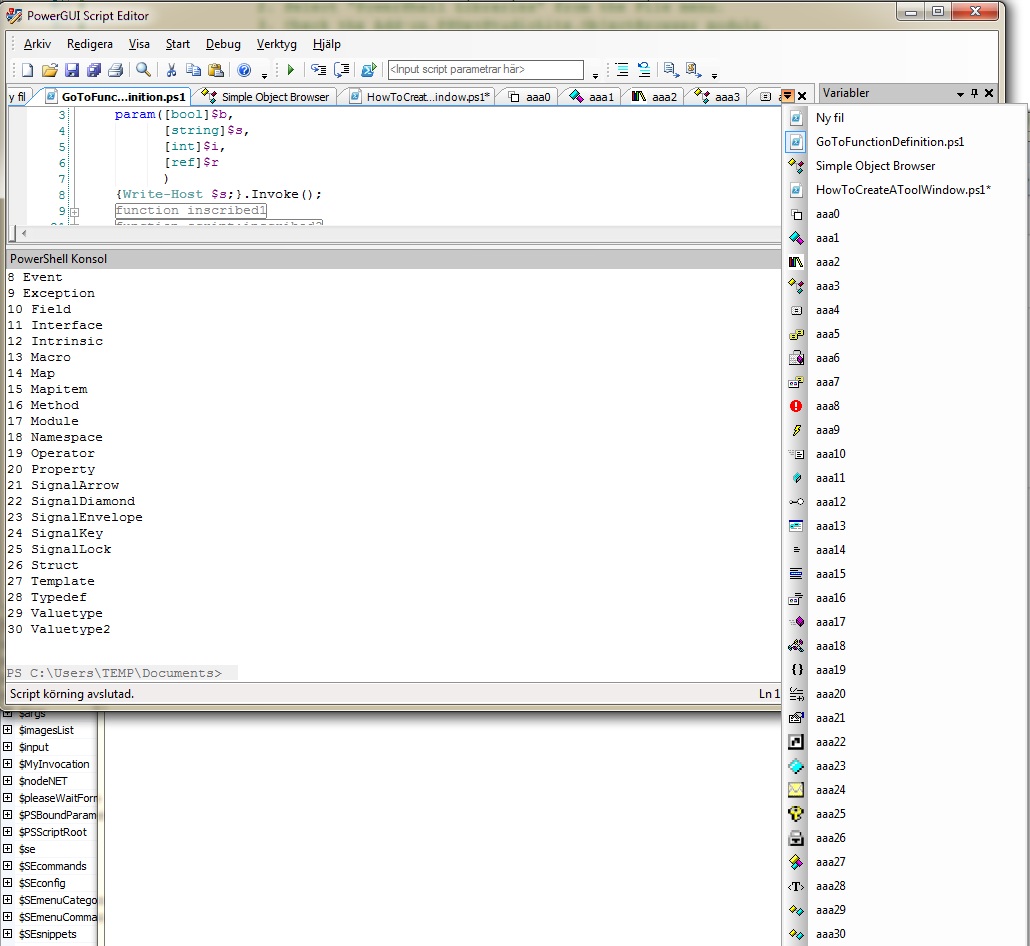
To clean up the document list is also simply, even somewhat simpler that to fill up:
function removeWindows
{
for($private:i = 0; $private:i -lt $imagesList.Count; $private:i++)
{
Remove-SEToolWindow -WindowName ("aaaaa" + $private:i);
}
}

removeWindows;
Requirements: PSDevStudioLite.SuiteCore 1.0.0.4 Beta and higher, PSDevStudioLite.ObjetBrowser 1.0.0.4 Beta ang higher.
http://www.box.net/shared/ot56ct7ngl
Note: all above are never be supported by quest, wasn’t and won’t be.


 PowerShell In GUI Blog