Archive for the ‘Powershell’ Category
OB 1.0.0.3
Object Browser 1.0.0.3 is uploaded to the link http://www.box.net/shared/ot56ct7ngl
This version comprises of two small improvements. The first one is a moving to be used in Strict mode. The second, and resulting the first one, is an improvement in showing private members.
OB 1.0.0.2
As I languidly tested what was released recently as ObjectBrowser 1.0.0.1 July, 12th 2010, I remembered a couple of bugx I always wanted to fix. Today’s 1.0.0.2 shipped with
– search by name
– PleaseWait window
both fixed. As usual, the direct link is the same: ObjectBrowser
Direct links also came
To make downloading as simply as possible, I also give you, who need samples that can be opened in your Powershell IDE, the direct links to the files published since the beginning of this blog.
HowToDealWithAListViewControl.zip described here How to deal with a ListView control
HowToDealWithRoutedEventParameterInWPK.zip illustrating How to deal with -RoutedEvent parameter in WPK
QADinGUI.zip relating to both Using Quest cmdlets from .NET. The complete walkthrough and Using Quest cmdlets from .NET. The complete walkthrough. Part 2
HowToDealWithAComboBoxControl.zip referring to How to deal with a ComboBox control
ObjectBrowser_20100712.zip requested here I’m interested in seeing an Object Explorer…
Hope, that’s all of the mentioned in this blog, otherwise don’t hesitate to write comments to this post asking to add links to something forgotten.
How to deal with a ComboBox control
There is a very simple, but very useful control. It may
– be filled dynamically and manually
– accept user input (to disable user input is also possibly)
– pass its data to another control by user’s choice.
Well, let’s list what we are going to do with a combobox today:
1) accept value from a single textbox (by clicking a button)
2) accept values from multiple textboxes (from two of them by clicking a button)
3) accept user input and add it to the list (and discuss how to disable user input)
4) clear the list
5) use a value of user’s choise to set a value of one another control (the caption of the form)
6) Intellisense on user input
7) sorting items
If it’s enough, now turn to coding. Traditionally, the code bundle is attached in the box at right and it’s named, not surprisingly, HowToDealWithAComboBoxControl.zip.
The first our topic is how to accept user input. The following lines of code are taken from the $handler_button1_Click eventhandler:
    $comboBox1.Items.Add($textBox1.Text);
    $comboBox1.Items.AddRange(($textBox1.Text, $textBox2.Text));
    $comboBox1.Items.Add($comboBox1.Text);
In all three cases, data, usually of string type, is added by using such methods as Add(item) or AddRange(array of items). As can be seen, both methods are very easy to use.
Next, how we can prevent typing into a combobox? The answer is to set the DropDownStyle property:
$comboBox1.DropDownStyle =
    [System.Windows.Forms.ComboBoxStyle]::DropDownList;
After that, how to clean up our combobox?
$comboBox1.Items.Clear();

Next, how to grab a value from inside the user input?
$form1.Text = $comboBox1.Text;
How to sort data?
$comboBox1.Sorted = $true;
At last, how to use Intellisense? Please note, the DropDownStyle property should be set to System.Windows.Forms.ComboBoxStyle]::DropDown.
$comboBox1.AutoCompleteCustomSource.Add("System.Windows.Forms");
$comboBox1.AutoCompleteCustomSource.AddRange(("System.Data", "Microsoft"));
$comboBox1.AutoCompleteMode =
    [System.Windows.Forms.AutoCompleteMode]::SuggestAppend;
$comboBox1.AutoCompleteSource =
    [System.Windows.Forms.AutoCompleteSource]::CustomSource;
To test the Intellisense that is tuned above, type m or s in the combobox.
The whole sample is below:
#Generated Form Function
function GenerateForm {
########################################################################
# Code Generated By: SAPIEN Technologies PrimalForms (Community Edition) v1.0.8.0
# Generated On: 21.07.2010 1:32
# Generated By: Administrator
########################################################################

#region Import the Assemblies
[reflection.assembly]::loadwithpartialname("System.Windows.Forms") | Out-Null
[reflection.assembly]::loadwithpartialname("System.Drawing") | Out-Null
#endregion

#region Generated Form Objects
$form1 = New-Object System.Windows.Forms.Form
$button1 = New-Object System.Windows.Forms.Button
$button2 = New-Object System.Windows.Forms.Button
$textBox2 = New-Object System.Windows.Forms.TextBox
$textBox1 = New-Object System.Windows.Forms.TextBox
$comboBox1 = New-Object System.Windows.Forms.ComboBox
$InitialFormWindowState = New-Object System.Windows.Forms.FormWindowState
#endregion Generated Form Objects

#----------------------------------------------
#Generated Event Script Blocks
#----------------------------------------------
#Provide Custom Code for events specified in PrimalForms.
    #region $handler_comboBox1_SelectedIndexChanged
$handler_comboBox1_SelectedIndexChanged=
{
#TODO: Place custom script here
    try{
    if ($comboBox1.Text.Length -gt 0)
    {
        $form1.Text = $comboBox1.Text;
    }
    }catch{} #in case no items are available
}
    #endregion $handler_comboBox1_SelectedIndexChanged
    #region $handler_button1_Click
$handler_button1_Click=
{
#TODO: Place custom script here
    try{
    #How to add one item
    #$textBox1.Text
    if ($textBox1.Text.Length -gt 0 -and `
        $textBox2.Text.Length -eq 0)
    {
        $comboBox1.Items.Add($textBox1.Text);
        Write-Host "Added " $textBox1.Text "from `$textBox1";
    }
    #$textBox2.Text
    elseif ($textBox1.Text.Length -eq 0 -and `
        $textBox2.Text.Length -gt 0)
    {
        $comboBox1.Items.Add($textBox2.Text);
        Write-Host "Added " $textBox2.Text "from `$textBox2";
    }
    #$textBox1.Text and $textBox2.Text
    elseif ($textBox1.Text.Length -gt 0 -and `
        $textBox2.Text.Length -gt 0)
    {
        $comboBox1.Items.AddRange(($textBox1.Text, $textBox2.Text));
        Write-Host "Added " $textBox1.Text "from `$textBox1";
        Write-Host "Added " $textBox2.Text "from `$textBox2";
    }
    else
    {
        #Nothing to add
        #$textBox1.Text.Length -eq 0
        #$textBox2.Text.Length -eq 0
    }
    #At last, if the user typed something
    if ($comboBox1.Text.Length -gt 0)
    {
        $comboBox1.Items.Add($comboBox1.Text);
        Write-Host "Added " $comboBox1.Text "from `$comboBox1";
    }
    }catch{} #for example, no data in the both textboxes
}
    #endregion $handler_button1_Click
    #region $handler_button2_Click
$handler_button2_Click=
{
#TODO: Place custom script here
    try{
    #Clean up the combo box
    $comboBox1.Items.Clear();
    $comboBox1.Text = "";
    }catch{}
}
    #endregion $handler_button2_Click
$OnLoadForm_StateCorrection=
{#Correct the initial state of the form to prevent the .Net maximized form issue
    $form1.WindowState = $InitialFormWindowState
}

#----------------------------------------------
#region Generated Form Code
    #region $form1
$form1.Text = "Primal Form"
$form1.Name = "form1"
$form1.DataBindings.DefaultDataSourceUpdateMode = 0
$System_Drawing_Size = New-Object System.Drawing.Size
$System_Drawing_Size.Width = 282
$System_Drawing_Size.Height = 220
$form1.ClientSize = $System_Drawing_Size
    #endregion $form1
    #region $button1
$button1.TabIndex = 3
$button1.Name = "button1"
$System_Drawing_Size = New-Object System.Drawing.Size
$System_Drawing_Size.Width = 70
$System_Drawing_Size.Height = 30
$button1.Size = $System_Drawing_Size
$button1.UseVisualStyleBackColor = $True
$button1.Text = "button1"
$System_Drawing_Point = New-Object System.Drawing.Point
$System_Drawing_Point.X = 195
$System_Drawing_Point.Y = 160
$button1.Location = $System_Drawing_Point
$button1.DataBindings.DefaultDataSourceUpdateMode = 0
$button1.add_Click($handler_button1_Click)
$form1.Controls.Add($button1)
    #endregion $button1
    #region $button2
$button2.TabIndex = 4
$button2.Name = "button2"
$System_Drawing_Size = New-Object System.Drawing.Size
$System_Drawing_Size.Width = 70
$System_Drawing_Size.Height = 30
$button2.Size = $System_Drawing_Size
$button2.UseVisualStyleBackColor = $True
$button2.Text = "button2"
$System_Drawing_Point = New-Object System.Drawing.Point
$System_Drawing_Point.X = 15
$System_Drawing_Point.Y = 160
$button2.Location = $System_Drawing_Point
$button2.DataBindings.DefaultDataSourceUpdateMode = 0
$button2.add_Click($handler_button2_Click)
$form1.Controls.Add($button2)
    #endregion $button2
    #region $textBox1
$System_Drawing_Size = New-Object System.Drawing.Size
$System_Drawing_Size.Width = 250
$System_Drawing_Size.Height = 20
$textBox1.Size = $System_Drawing_Size
$textBox1.DataBindings.DefaultDataSourceUpdateMode = 0
$textBox1.Name = "textBox1"
$System_Drawing_Point = New-Object System.Drawing.Point
$System_Drawing_Point.X = 15
$System_Drawing_Point.Y = 70
$textBox1.Location = $System_Drawing_Point
$textBox1.TabIndex = 1
$form1.Controls.Add($textBox1)
    #endregion $textBox1
    #region $textBox2
$System_Drawing_Size = New-Object System.Drawing.Size
$System_Drawing_Size.Width = 250
$System_Drawing_Size.Height = 20
$textBox2.Size = $System_Drawing_Size
$textBox2.DataBindings.DefaultDataSourceUpdateMode = 0
$textBox2.Name = "textBox2"
$System_Drawing_Point = New-Object System.Drawing.Point
$System_Drawing_Point.X = 15
$System_Drawing_Point.Y = 120
$textBox2.Location = $System_Drawing_Point
$textBox2.TabIndex = 2
$form1.Controls.Add($textBox2)
    #endregion $textBox2
    #region $comboBox1
$comboBox1.FormattingEnabled = $True
$System_Drawing_Size = New-Object System.Drawing.Size
$System_Drawing_Size.Width = 250
$System_Drawing_Size.Height = 21
$comboBox1.Size = $System_Drawing_Size
$comboBox1.DataBindings.DefaultDataSourceUpdateMode = 0
$comboBox1.Name = "comboBox1"
$System_Drawing_Point = New-Object System.Drawing.Point
$System_Drawing_Point.X = 15
$System_Drawing_Point.Y = 20
$comboBox1.Location = $System_Drawing_Point
$comboBox1.TabIndex = 0
$comboBox1.add_SelectedIndexChanged($handler_comboBox1_SelectedIndexChanged)

$comboBox1.DropDownStyle =
    [System.Windows.Forms.ComboBoxStyle]::DropDown;
$comboBox1.Sorted = $true;

$comboBox1.AutoCompleteCustomSource.Add("System.Windows.Forms");
$comboBox1.AutoCompleteCustomSource.AddRange(("System.Data", "Microsoft"));
$comboBox1.AutoCompleteMode =
    [System.Windows.Forms.AutoCompleteMode]::SuggestAppend;
$comboBox1.AutoCompleteSource =
    [System.Windows.Forms.AutoCompleteSource]::CustomSource;

$form1.Controls.Add($comboBox1)
    #endregion $comboBox1
#endregion Generated Form Code

#Save the initial state of the form
$InitialFormWindowState = $form1.WindowState
#Init the OnLoad event to correct the initial state of the form
$form1.add_Load($OnLoadForm_StateCorrection)
#Show the Form
$form1.ShowDialog()| Out-Null

} #End Function

#Call the Function
GenerateForm
Using Quest cmdlets from .NET. The complete walkthrough. Part 2
A pair of weeks ago I published a jocular application called ‘QAD in GUI’. Today I’m going to add a bit more controls to that app so as not to feel that I did something useless.
First of all, what does the end user expect? Not surprisingly, that something alike output in a command line console, but represented graphically. This is the first requirement saying that our output should be the same as from command line, but represented in the GUI. As output is usually an array of objects or strings, there might be used a list box, a combo box, a list view and similar controls providing textual information line by line.
Second, the detail view is necessary. The best control doing that is a property grid. Since we could have several results, it’s a good idea to store them in the memory and fill the property grid with a portion of data the user wants.
Of course, scripts in the file system should be supported as well as typed code. WinForms are also to be supported.
Moving to the end of requirements list, what’s about objects? Many of them have hierarchy below and this is also a matter of our interest. There are several controls that might help us, let’s a tree view to be our choice.
The code sample provided below is a typical example of using Windows.Forms so that it’s no need to explain more than done in the comments (however, you may ask for additional info if you need).
Imports System.Management.Automation

Imports System.Management.Automation.Runspaces


Public Partial Class MainForm


       Public Sub New()

             ' The Me.InitializeComponent call is
required for Windows Forms designer support.

             Me.InitializeComponent()

             '

             ' TODO : Add constructor code after InitializeComponents

             '

       End Sub


       Sub
Button1Click(sender As Object, e As EventArgs)

             runCommand

       End Sub


       Sub
runCommand

       'Our commandto run

       Dim strCode As String

             'strCode = Me.textBox1.Text

             strCode = Me.richTextBox_Input.Text

       Me.statusStrip_Info.Text =
"Running"

       'Create runspace condiguration to
add QAD snapin

       Dim conf As RunspaceConfiguration =
RunspaceConfiguration.Create()

       Dim warning As PSSnapInException = Nothing

       Dim
info As PSSnapInInfo

       info
= conf.AddPSSnapIn("Quest.ActiveRoles.ADManagement", warning)

       'A new runspace object

       Dim runspace As Runspace =
RunspaceFactory.CreateRunspace(conf)

             runspace.Open

       'A pipeline

       Dim pipeline As Pipeline =
runspace.CreatePipeline(strCode)

       'Collection for results

       Dim results As System.Collections.ObjectModel.Collection(Of PSObject)

       '

       Try

             'Clean-Up

             Me.comboBox_Output.Items.Clear()

             Me.listBox_Output.Items.Clear()

             Me.listView_Output.Items.Clear()

             If (Me.listView_Output.Columns.Count
= 0) Then

                    Me.listView_Output.Columns.Add("Results")

             End If

             Me.treeView_Output.Nodes.Clear()

             Dim node As TreeNode = Me.treeView_Output.Nodes.Add("Results")

             Me.propertyGrid_Output.SelectedObject = Nothing

             'Run pipeline

             results = pipeline.Invoke()

             'If results are available

             'obtain
them and put to the combo box, the list box,

             'the
tree view, and the list view

             If (results.Count > 0) Then

                    For
Each psObj In results

                           'Add to the combo box

                           Me.comboBox_Output.Items.Add(psObj)

                           'Add to the list box

                           Me.listBox_Output.Items.Add(psObj)

                           'Add to the list view

                           Dim newItem As ListViewItem = _

                                  Me.listView_Output.Items.Add(psObj.ToString())

                           newItem.Tag
= psObj

                           'Add to the tree view

                           Dim newNode As TreeNode = _

                                  Me.treeView_Output.Nodes(0).Nodes.Add(psObj.ToString())

                           newNode.Tag
= psObj

                           'Add hierarchy if available

                           For Each member In psObj.Members

                                  newNode.Nodes.Add(member.ToString())

                           Next

                    Next

             End
If

              Me.listView_Output.AutoResizeColumns(System.Windows.Forms.ColumnHeaderAutoResizeStyle.HeaderSize)

             node.Expand()

             'Set the first item as text in
the combo box

             If (Me.comboBox_Output.Items.Count
> 0) Then

                    Me.comboBox_Output.SelectedIndex =
0

             End If

             'Indicate that processing of
results is finished

             Me.statusStrip_Info.Text = "Ready"

       Catch excp as Exception

             MessageBox.Show("Error:"
& excp.Message)

       End Try


       End
Sub


       Sub
MainFormPaint(sender As Object, e As PaintEventArgs)

             Me.splitContainer_GUI.Height = Me.Height - 2 - Me.statusStrip_Info.Height

             Me.richTextBox_Input.Width = Me.Width - 100

       End Sub


       Sub
ComboBox_OutputSelectedIndexChanged(sender
As Object, e As EventArgs)

             Me.propertyGrid_Output.SelectedObject = Me.comboBox_Output.SelectedItem

       End Sub


       Sub
ListBox_OutputSelectedIndexChanged(sender
As Object, e As EventArgs)

             Me.propertyGrid_Output.SelectedObject = Me.listBox_Output.SelectedItem

       End Sub


       Sub
TreeView_OutputAfterSelect(sender
As Object, e As TreeViewEventArgs)

             Me.propertyGrid_Output.SelectedObject = Me.treeView_Output.SelectedNode.Tag

       End Sub


       Sub
ListView_OutputSelectedIndexChanged(sender
As Object, e As EventArgs)

             Try

                    Me.propertyGrid_Output.SelectedObject
= Me.listView_Output.SelectedItems(0).Tag

             Catch

             End Try

       End Sub

End Class

This sample is also available in the 'My Shared Files' box as 'QADinGUI'.
How to use and How not to use eventhandlers
Today I noticed that sometimes I used eventhandlers in a wrong way.
There are two ways to use standard .NET (also known as ‘CLR’ eventhandlers in WPF) eventhandlers. The first way is very obvious and well-known for everyone used SharpDevelop, Visual Studio and so on. This way consists of two parts: declaring an eventhandler and attaching it to a control.
$handler = {some code;}
$button.add_Click($handler);
The same example can be rewritten in a one-statement way:
$button.add_Click(([System.EventHandler]$handler = {some code;}));
The second way is to use Register-ObjectEvent commandlet:
Register-ObjectEvent -InputObject $button -EventName Click -Action $handler;
or, using a single statement:
Register-ObjectEvent -InputObject $button -EventName Click -Action {some code};
However, things are not so good as they seemed to be. The second way produces delayed events, results of their firing can be seen by using the sample below. The sample is workable in PowerGUI as well as in native powershell.
On clicking buttons 1, 2 or 3, we’ll see both Write-Host message and MessageBox. After clicking 4, 5 or 6, we need to close the form, after that events fire. Eventually, if you click 4, 5, 6 and, for example, 1, events will shot one by one without closing the form.
So that be careful choosing the way whereby you use eventhandlers. 😉
#Generated Form Function
function GenerateForm {
########################################################################
# Code Generated By: SAPIEN Technologies PrimalForms (Community Edition) v1.0.8.0
# Generated On: 14.07.2010 18:37
# Generated By: apetrov1
########################################################################

#region Import the Assemblies
[reflection.assembly]::loadwithpartialname("System.Windows.Forms") | Out-Null
[reflection.assembly]::loadwithpartialname("System.Drawing") | Out-Null
#endregion

#region Generated Form Objects
$form1 = New-Object System.Windows.Forms.Form
$button1 = New-Object System.Windows.Forms.Button
$script:button2 = New-Object System.Windows.Forms.Button
$global:button3 = New-Object System.Windows.Forms.Button
$button4 = New-Object System.Windows.Forms.Button
$script:button5 = New-Object System.Windows.Forms.Button
$global:button6 = New-Object System.Windows.Forms.Button
$InitialFormWindowState = New-Object System.Windows.Forms.FormWindowState
#endregion Generated Form Objects

#----------------------------------------------
#Generated Event Script Blocks
#----------------------------------------------
#Provide Custom Code for events specified in PrimalForms.
    #region handler for buttons
$handler_button_Click=
{
#TODO: Place custom script here
    [string]$output = $this;
    $output += "`r`n";
    $output += $global:this;
    Write-Host $output;
    [System.Windows.Forms.MessageBox]::Show($output);
}
    #endregion handler for buttons
$OnLoadForm_StateCorrection=
{#Correct the initial state of the form to prevent the .Net maximized form issue
    $form1.WindowState = $InitialFormWindowState
}

#----------------------------------------------
##region Generated Form Code
    #region $form1
$form1.Text = "Primal Form"
$form1.Name = "form1"
$form1.DataBindings.DefaultDataSourceUpdateMode = 0
$System_Drawing_Size = New-Object System.Drawing.Size
$System_Drawing_Size.Width = 108
$System_Drawing_Size.Height = 291
$form1.ClientSize = $System_Drawing_Size
    #endregion $form1

    #region $button1
$button1.TabIndex = 0
$button1.Name = "button1"
$System_Drawing_Size = New-Object System.Drawing.Size
$System_Drawing_Size.Width = 80
$System_Drawing_Size.Height = 30
$button1.Size = $System_Drawing_Size
$button1.UseVisualStyleBackColor = $True
$button1.Text = "button1"
$System_Drawing_Point = New-Object System.Drawing.Point
$System_Drawing_Point.X = 15
$System_Drawing_Point.Y = 15
$button1.Location = $System_Drawing_Point
$button1.DataBindings.DefaultDataSourceUpdateMode = 0
$button1.add_Click($handler_button_Click)
$form1.Controls.Add($button1)
    #endregion $button1
    #region $script:button2
$script:button2.TabIndex = 1
$script:button2.Name = "button2"
$System_Drawing_Size = New-Object System.Drawing.Size
$System_Drawing_Size.Width = 80
$System_Drawing_Size.Height = 30
$script:button2.Size = $System_Drawing_Size
$script:button2.UseVisualStyleBackColor = $True
$script:button2.Text = "button2"
$System_Drawing_Point = New-Object System.Drawing.Point
$System_Drawing_Point.X = 15
$System_Drawing_Point.Y = 60
$script:button2.Location = $System_Drawing_Point
$script:button2.DataBindings.DefaultDataSourceUpdateMode = 0
$script:button2.add_Click($handler_button_Click)
$form1.Controls.Add($script:button2)
    #endregion $script:button2
    #region $global:button3
$global:button3.TabIndex = 2
$global:button3.Name = "button3"
$System_Drawing_Size = New-Object System.Drawing.Size
$System_Drawing_Size.Width = 80
$System_Drawing_Size.Height = 30
$global:button3.Size = $System_Drawing_Size
$global:button3.UseVisualStyleBackColor = $True
$global:button3.Text = "button3"
$System_Drawing_Point = New-Object System.Drawing.Point
$System_Drawing_Point.X = 15
$System_Drawing_Point.Y = 105
$global:button3.Location = $System_Drawing_Point
$global:button3.DataBindings.DefaultDataSourceUpdateMode = 0
$global:button3.add_Click($handler_button_Click)
$form1.Controls.Add($global:button3)
    #endregion $global:button3
    #region $button4
$button4.TabIndex = 3
$button4.Name = "button4"
$System_Drawing_Size = New-Object System.Drawing.Size
$System_Drawing_Size.Width = 80
$System_Drawing_Size.Height = 30
$button4.Size = $System_Drawing_Size
$button4.UseVisualStyleBackColor = $True
$button4.Text = "button4"
$System_Drawing_Point = New-Object System.Drawing.Point
$System_Drawing_Point.X = 15
$System_Drawing_Point.Y = 150
$button4.Location = $System_Drawing_Point
$button4.DataBindings.DefaultDataSourceUpdateMode = 0
#$button4.add_Click($handler_button4_Click)
$null = Register-ObjectEvent -InputObject $button4 `
    -EventName Click `
    -Action $handler_button_Click;
$form1.Controls.Add($button4)
    #endregion $button4
    #region $script:button5
$script:button5.TabIndex = 4
$script:button5.Name = "button5"
$System_Drawing_Size = New-Object System.Drawing.Size
$System_Drawing_Size.Width = 80
$System_Drawing_Size.Height = 30
$script:button5.Size = $System_Drawing_Size
$script:button5.UseVisualStyleBackColor = $True
$script:button5.Text = "button5"
$System_Drawing_Point = New-Object System.Drawing.Point
$System_Drawing_Point.X = 15
$System_Drawing_Point.Y = 195
$script:button5.Location = $System_Drawing_Point
$script:button5.DataBindings.DefaultDataSourceUpdateMode = 0
#$script:button5.add_Click($handler_button5_Click)
$null = Register-ObjectEvent -InputObject $script:button5 `
    -EventName Click `
    -Action $handler_button_Click;
$form1.Controls.Add($script:button5)
    #endregion $script:button5
    #region $global:button6
$global:button6.TabIndex = 5
$global:button6.Name = "button6"
$System_Drawing_Size = New-Object System.Drawing.Size
$System_Drawing_Size.Width = 80
$System_Drawing_Size.Height = 30
$global:button6.Size = $System_Drawing_Size
$global:button6.UseVisualStyleBackColor = $True
$global:button6.Text = "button6"
$System_Drawing_Point = New-Object System.Drawing.Point
$System_Drawing_Point.X = 15
$System_Drawing_Point.Y = 240
$global:button6.Location = $System_Drawing_Point
$global:button6.DataBindings.DefaultDataSourceUpdateMode = 0
#$global:button6.add_Click($handler_button6_Click)
$null = Register-ObjectEvent -InputObject $global:button6 `
    -EventName Click `
    -Action $handler_button_Click;
$form1.Controls.Add($global:button6)
    #endregion $global:button6
##endregion Generated Form Code

#Save the initial state of the form
$InitialFormWindowState = $form1.WindowState
#Init the OnLoad event to correct the initial state of the form
$form1.add_Load($OnLoadForm_StateCorrection)
#Show the Form
$form1.ShowDialog()| Out-Null

} #End Function

#Call the Function
GenerateForm
This is my first post done in Firefox as a result of a series of irritating crashes of both my Chrome 6.0.453.1 and 6.0.458.1. I’m currently using Firefox 4.0 Beta 1 from http://portableapps.com/news/2010-07-06_-_firefox_portable_4.0_beta_1 . How it is said here, ‘the flight is good’ or ‘flying well’.
Using Quest cmdlets from .NET. The complete walkthrough
A question had been raised on the possibility of using cmdlet in the VB.NET GUI application. The example below demonstrates how to use cmdlets as .NET classes.
First of all, go to the page http://www.quest.com/powershell/activeroles-server.aspx and download the latest QAD cmdlets.
In case you don’t have an IDE where you are planning to test this example, go to the page http://icsharpcode.com/OpenSource/SD/Download/and download SharpDevelop 2 or 3. Alternatively, you might use Visual Studio Express available here http://www.microsoft.com/express/Downloads/ or any professional edition.
Next, install all the downloaded. I’ll be demonstrating on the Windows 2003 SP2.
On opening an IDE, I’ll be using SharpDevelop 3.2 for this purpose, as do I do almost always, you need to create a solution.
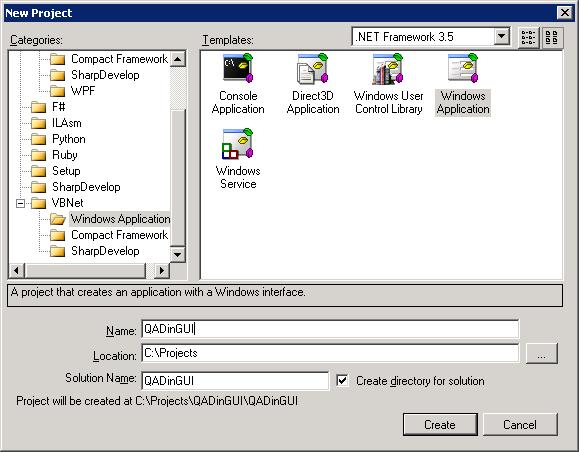
Now, we need discover which libraries do we need to register. The following snippet of code, being run in, for example, PowerGUI ScriptEditor, helps us:
cls [System.Reflection.Assembly[]]$asmArray = [System.AppDomain]::CurrentDomain.GetAssemblies(); foreach($assembly in $asmArray) { if ($assembly.Location.Length -gt 0 -and ` $assembly.Location.Contains('Quest')) { Write-Host $assembly.Location } } The output recommends us to use the following libraries:C:\Program Files\Quest Software\Management Shell for AD\Quest.ActiveRoles.ArsPowerShellSnapIn.dll C:\Program Files\Quest Software\Management Shell for AD\Quest.ActiveRoles.ArsPowerShellSnapIn.DirectoryAccess.dll C:\Program Files\Quest Software\Management Shell for AD\Quest.ActiveRolesServer.Common.dllAlso we must add System.Management.Automation.Note: it's not common to use commandlets directly from their assemblies, so that for the purpose of simplicity we'll be using System.Management.Automation only. However, you might find it useful to browse these assemblies in the Object Browser in an IDE of your choice.After that, we need to add the two following using, I beg your pardon, Imports, statements:Imports System.Management.AutomationImports System.Management.Automation.RunspacesNext, let's add controls to our form: a textbox, a button and a propertygrid:Add to the Click event the following code:Sub Button1Click(sender As Object, e As EventArgs)runCommandEnd SubAnd create the subroutine:Sub runCommand'Our commandto runDim strCode As StringstrCode = Me.textBox1.Text'Create runspace condiguration to add QAD snapinDim conf As RunspaceConfiguration =RunspaceConfiguration.Create()Dim warning As PSSnapInException = NothingDim info As PSSnapInInfoinfo = conf.AddPSSnapIn("Quest.ActiveRoles.ADManagement", warning)'A new runspace objectDim runspace As Runspace = RunspaceFactory.CreateRunspace(conf)runspace.Open'A pipelineDim pipeline As Pipeline = runspace.CreatePipeline(strCode)'Collection for resultsDim results As System.Collections.ObjectModel.Collection(Of PSObject) 'Tryresults = pipeline.Invoke()Me.propertyGrid1.SelectedObject = results(0)Catch excp as ExceptionMessageBox.Show("Error:" & excp.Message)End TryEnd SubAt last, let's run the solution, type Powershell code and enjoy seeing results in the property grid control:Source code can be found here:and in My Shared Files at right (QADinGUI.zip). NB: This post is partly based on the guide: http://p2p.wrox.com/book-professional-windows-powershell-programming-isbn-978-0-470-17393-0-386/


How to put your Powershell code onto WordPress page
Supposing, you use the PowerGUI ScriptEditor. After writing a valuable fragment of code, you wanted to publish it in your WordPress blog. What would you do?
- copy and Paste as Plain Text into your post?
- copy and Paste from Word into your post?
Nope, the easiest way to do that is to
- Save your code As an HTML page
- open the page in any text or HTML editor of your choice
- copy all from <pre> tag to </pre> inclusively (don’t bother about Tools -> Options -> Text Editor -> Tab; both states work)
- activate ‘HTML’ tab in ‘Add New Post’ if you have ‘Visual’ one activated
- paste to Edit Post frame.
Now this code in your blog is ready to be copied and pasted in Editors of your followers; it works immediately without any editing.
How to publish your code from Powershell ISE? Copy and paste it into a new document of PowerGUI ScriptEditor and just follow recipe above…
How to deal with a ListView control
As the answer to a question asked on the forum, ‘How to populate a ListView Control from an Array?’, I’d like to publish a funciton used to fill up with data the top-right listview in the Object Browser.
The general use of this funciton was to add row of data (data for several columns) independently whether it was the first row (clean up of a control is required) or not.
The funciton provided also supports highlighting being called in a loop (depends on a loop writer).
#region function fillDetailedListView
function fillDetailedListView
{
    <#
        .Synopsis
            Creates columns if they are missing and adds a row of data
        .Description
            This function creates add a row based from a string array. It also optionally clear columns and
            adds missing columns
        .Parameter ListView
            A reference to a listview control
        .Parameter CleanUp
            An optional flag to clear columns and data before adding a new row
        .Parameter ColumnName
            A string array used as a list of header names
        .Parameter Data
            A string array used as a list of data to be added to a new row
        .Parameter Color
            A flag of the [System.Drawing.SystemColors]::Window type to apply to the newly created row
        .Example
            fillListView ([ref]$lv) $false (,'Name') (,$key) $null;
        .Notes
            Author: Alexander Petrovskiy
    #>
    param(
        [ref]$ListView,
        [bool]$CleanUp = $false,
        [string[]]$ColumnName,
        [string[]]$Data,
        $Color,
        [int]$ImageIndex = $null,
        [string]$NodeKey = ''
    )
    if ($cleanUp) #if clean-up is required
    {
        ($ListView.Value).Columns.Clear();
    }
    for ($i = 0; $i -lt $ColumnName.Length; $i++)
    {#check whether the Current column exists or not
        if ( -not ([System.Windows.Forms.ListView] `
            ($ListView.Value)).Columns[$ColumnName[$i]])
        {#add only if it's a new one
            ($ListView.Value).Columns.AddRange(
                (($header = New-Object System.Windows.Forms.ColumnHeader) `
                    | %{$header.Text = $ColumnName[$i];
                        $header.Name = $ColumnName[$i];
                        $header;}));
        }
    }
    if ($Color -eq $null -or `
        $Color.GetType().ToString() -ne 'System.Drawing.SystemColors')
    {#input test of the $Color variable
        $Color = [System.Drawing.SystemColors]::Window;
    }
    #adding items aka rows (an item is a single element of a row,
    #a place where a row and a column are intercrossed
    $listViewItem1 = (($listViewItem = New-Object "System.Windows.Forms.ListViewItem") `
        | %{$listViewItem.Text = $Data[0];
            if ($Color -ne [System.Drawing.SystemColors]::Window)
            {#set $Color to all items in the row
                $listViewItem.BackColor = $Color;
                $listViewItem.UseItemStyleForSubItems = $true;
            }
            if ($ImageIndex -ne $null)
            {#if you have an ImageList control in your form
                $listViewItem.ImageIndex = $ImageIndex + 1;
            }
            if ($NodeKey -ne $null -and $NodeKey.Length -gt 0)
            {
                $listViewItem.Tag = $NodeKey;
            }
        #more columns
        for ($i = 1; $i -lt $Data.Length; $i++)
        {#adding data to the row items
            $listViewItem.SubItems.Add((([System.Windows.Forms.ListViewItem`+ListViewSubItem]$subItem = `
                New-Object System.Windows.Forms.ListViewItem`+ListViewSubItem) `
                | %{$subItem.Text = $Data[$i];
                    $subItem;}));
        }
        $listViewItem;}
        )
    ($ListView.Value).Items.Add($listViewItem);
    #setting AutoREsize property
    if ($Data -ne $null -and $Data.Length -gt 1)
    {
        ($ListView.Value).AutoResizeColumns([System.Windows.Forms.ColumnHeaderAutoResizeStyle]::ColumnContent);
    }
    else
    {
        ($ListView.Value).AutoResizeColumns([System.Windows.Forms.ColumnHeaderAutoResizeStyle]::HeaderSize);
    }
}
#endregion function fillDetailedListView


#How to use
fillDetailedListView -ListView ([ref]$lvBottom) `
    -CleanUp $false `
    -ColumnName ('Property','Value') `
    -Data ($key,$properties[$key]) `
    -ImageIndex $null `
    -NodeKey $null;
This code sample simply adds a row with items in the columns ‘Property’ and ‘Value’ and doesn’t clean up existing columns.
It’s considered that the ListView you use here called $lvBottom, otherwise you face the following error:
“[ref] cannot be applied to a variable that does not exist.”
A copy of this code snippet has also been posted here: http://powergui.org/thread.jspa?threadID=12497
How to deal with -RoutedEvent parameter in WPK
After ScriptEditor add-ons having been brought to the World, we were asked by our community enthusiasts about how to handle events.
The problem is that self-contained environments (also known as containers, please refer to about_scopes text file) are not described well. There are in Powershell three more or less contradictory things as follows:
– scopes
– containers that don’t or almost don’t obey the rules of scoping
– three types of variables: user-created, automatic and preference
I’m planning to give an article later this week, but at the moment I’m putting out the immediate example meant to improve the situation.
The story began from a question asked by some guy who created a universal add-on, targeted to work in both powershell_ise and PowerGUI environments. The exact complaint was that ‘my window starts from a command, but in the ise IDE events fired, whereas in the PowerGUI IDE events don’t fire’.
Not planning to spent time right now discussing why MSFT’s containers work better them Quest’s ones, I’d like to grab your attention to the following code sample which is a module, but can also be used as a script:
cls
#Only to be run in the ScriptEditor
if ($host.Name –eq 'PowerGUIScriptEditorHost') {
#region function
function script:Show-TestWindow {
    param($UseGlobal = $false)
    #region event handler
    $global:evt =
    {    #Declaration of event variables
        param(
            $Event,
            $EventSubscriber,
            $Sender,
            $SourceArgs,
            $SourceEventArgs)
        #Variant #1
        if ($Event -ne $null) {Write-Host '001' $Event;}
        if ($EventSubscriber -ne $null) {Write-Host '002' $EventSubscriber;}
        if ($Sender -ne $null) {Write-Host '003' $Sender;}
        if ($SourceArgs -ne $null) {Write-Host '004' $SourceArgs;}
        if ($SourceEventArgs -ne $null) {Write-Host '005' $SourceEventArgs;}
        if ($This -ne $null) {write-host '006' $This;}
        if ($global:Event -ne $null) {Write-Host '011 global' $global:Event;}
        if ($global:EventSubscriber -ne $null)
        {Write-Host '012 global' $global:EventSubscriber;}
        if ($global:Sender -ne $null)
        {Write-Host '013 global' $global:Sender;}
        if ($global:SourceArgs -ne $null)
        {Write-Host '014 global' $global:SourceArgs;}
        if ($global:SourceEventArgs -ne $null)
        {Write-Host '015 global' $global:SourceEventArgs;}
        if ($global:This -ne $null)
        {Write-Host '016 global' $global:This;}
        #An additional demonstrable result
        [System.Windows.Forms.MessageBox]::Show("Event fired!");
    }
    #endregion event handler
    #region RoutedEvent hashtable
    [System.Collections.Hashtable]$global:ht = `
        New-Object System.Collections.Hashtable;
    $global:ht.Add("Click", $global:evt);
    #endregion RoutedEvent hashtable

    #region window
    New-Window -WindowStartupLocation CenterScreen `
        -Width 100 -Height 100 `
        -Show -On_Loaded {
        $global:btnClickMe = $window | Get-ChildControl btnClickMe
        } {
            #region layout
            New-Grid {
                #region button
                New-Button -Name btnClickMe -Margin "20,20,0,0" `
                    -Height 23 -Width 50 `
                    -HorizontalAlignment "Left" `
                    -VerticalAlignment "Top" `
                    -Content "Click Me" `
                    -On_Click $global:evt -RoutedEvent $global:ht
                #endregion button
            }
            #endregion layout
    }
    #endregion window
}
#endregion function

    $se = [Quest.PowerGUI.SDK.ScriptEditorFactory]::CurrentInstance
    $cmd1 = New-Object Quest.PowerGUI.SDK.ItemCommand("Hidden", "EventTestLocal")
    #Using a scriptblock
    $cmd1.ScriptBlock = {script:Show-TestWindow $false;};
    #Or using Invoking or Invoked
    #[System.EventHandler]$global:wh = {script:Show-TestWindow; };
    #$cmd1.add_Invoked($global:wh);
    $keys = [System.Windows.Forms.Keys]::Control -bor `
        [System.Windows.Forms.Keys]::D5
    $cmd1.AddShortcut($keys)
    try{$se.Commands.Remove($cmd1);}catch{}
    $se.Commands.Add($cmd1)

Write-Host "Module WPK.Event.Test loaded";

#We can use this as a script
#Show-TestWindow
}
After turning on the module, you obtain our window by pressing Ctrl+5. Event fires at the moment you click a button providing both command line and messageboxed results.
Please notice the scoping of results printed out into the Console. $This is always global. First, all automatic variables are global. Second, there is a comment in the ‘Writing User Interfaces with WPK’ document shipped with the PowerShellPack. The doc mentioned says that $this, taken in events, ‘is where the event is coming from’.
Why $this is global instead of being script-scoped? Because containers behave slightly differently.
Additional note that I should mention is that you might declare parameters of an event as local (i.e. param($Sender)) or as global ones (that is param($global:Sender)) depending on life cycle of objects you planned.


 PowerShell In GUI Blog