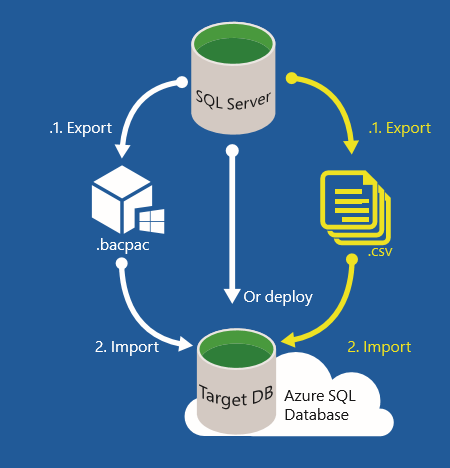
This blogpost will give you the information about migrating Microsoft SQL Server databases to Azure.
I see a lot of questions on the Microsoft TechNet – MSDN forums about how to get my database secure in Microsoft Azure
SQL Server 2012 SP1 CU2 and SQL Server 2014 have built in capability to back up to Windows Azure storage. The SQL Server Backup to Windows Azure tool provides the same functionality for previous versions of SQL Server. It can also be used to provide encryption and compression for your backups.
Using the 3-step wizard, you can specify a rule or set of rules that are applied to any SQL Server backup. One example of a rule could be to redirect all local backups to the specified Windows Azure storage. Another example of a rule would be to use compression or encryption for backups stored in a specific location.
Once you configure the rules, these rules are applied to SQL Server Backup files. If the rule is set to use a Windows Azure storage account, the tool redirects the backups to the specified Windows Azure storage account, but leaves a stub file in the local storage with metadata information to be used during restore.
Benefits:
Support for backups to Windows Azure Storage for SQL Server versions that do not have the built-in capability. Using Windows Azure storage for your backups has several benefits, such as providing off-site storage for disaster recovery, accessibility regardless of location, etc. For more information, see SQL Server Backup and Restore with Windows Azure.
Encryption support for SQL Server versions that do not have the built in capability. Currently only SQL Server 2014 has encryption support.
Compression support for SQL Server versions that do not have the built in capability. Currently, SQL Server 2008 supports compression in Enterprise edition only, but SQL Server 2008 R2 and later, encryption is supported on Enterprise and Standard editions.
SQL Server and Operating Systems Support:
This tool is supported on SQL Server 2005 or later, and Operating System versions: Windows Server 2008 or later for Servers, and Windows 7 or later for Client Operating Systems.
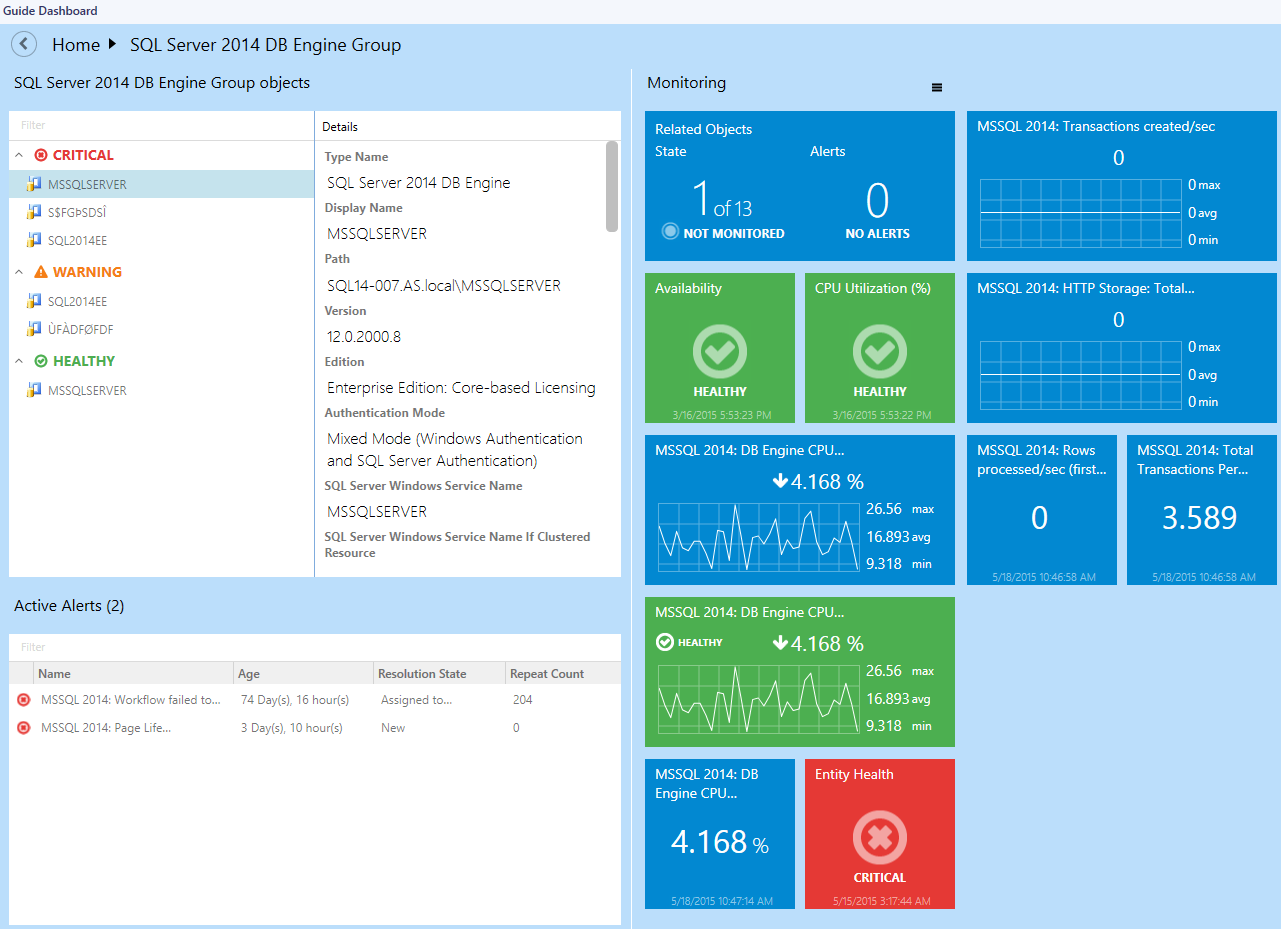
The Management pack for SQL Server provides the capabilities for Operations Manager 2007 R2 and Operations Manager 2012 to discover SQL Server 2005, 2008, 2008 R2, and SQL Server 2012. It monitors SQL Server components such as database engine instances, databases, and SQL Server agents. The monitoring provided by this management pack includes performance, availability, and configuration monitoring, performance data collection, and default thresholds. You can integrate the monitoring of SQL Server components into your service-oriented monitoring scenarios. Feature Summary: The following list gives an overview of the features of the SQL Server management pack. Refer to the SQL Server management pack guide for more details. New features and fixes:
Dashboards were replaced with the new ones
Components of replication functionality are deprecated and disabled by default
SPN monitor now correctly handles disjoined namespaces
Added support for filegroups containing filestreams and partition schemes
Memory Consumption monitor has been fixed
Upgradeability from 6.4.1.0 version is supported
Added CPU Usage monitor and rule for SQL Server 2005
Added ConsecutiveSamples Condition to the Buffer Cache Hit Ratio and Page Life Expectancy monitors
The Open Data protocol (OData) lets you access a data source, such as a database, by browsing to a specially constructed URL. This allows for a simplified approach for connecting to and working with data sources that are hosted within an organization.
There are many OData sources available in enterprise and in cloud:
•SharePoint Foundation 2010
•SharePoint Server 2010
•SQL Azure
•Windows Azure Table Storage
•Windows Azure Marketplace
•SQL Server Reporting Services
•Microsoft Dynamics CRM 2011
•Windows Live
Connecting to OData sources quickly without any coding is the primary design goal of OData Source for SQL Server 2012. The OData Source component enables SSIS packages to communicate with OData sources. Developers can add the component to an SSIS package and configure it to receive data from an OData source without writing any code.
This topic is about reporting SQL 2012 for System Center 2012 SP1 CTP Virtual Machine Manager under Windows “8” Beta Server.
If you open Microsoft SQL 2012 Management Studio and go to the Virtual Machine Manager (VMM) database :
Here you can make the following standard reports by SQL 2012 Server about Virtual Machine Manager :
Disk Usage
Disk Usage by Top Tables
Disk Usage by Table
Disk Usage by Partition
Backup and Restore Events
All Transactions
All Blocking Transactions
Top Transactions by Age
Top Transactions by Blocked Transactions Count
Top Transactions by locks Count
Resource locking statistics by Objects
Obeject Execution Statistics
Database Consistency History
Index Usage Statistics
Index Physical Statistics
Schema Changes History
User Statistics
Here are some examples of the reports you can run with SQL 2012 Management Studio :
This is a report on the disk Usage of the VMM Database running on Windows “8” Server Beta with SQL 2012.
Here you see the User Statistics of System Center Virtual Machine Manager.
Here you see the Usage by Partion of the SQL DataBase of SCVMM.
When you don’t have Microsoft System Center Operations Manager installed, standard reporting of SQL 2012 Server is handy to use.
You can also make your Custom report in SQL 2012 for SCVMM DataBase.

 This blogpost will give you the information about migrating Microsoft SQL Server databases to Azure.




 Cloud and Datacenter Management Blog