

Table of Contents
- Key Terms
- What Is an Email Countdown Timer?
- Why Should You Use a Countdown Timer in Marketing Emails?
- How Do You Create an Email Countdown Timer With HTML?
- How Do You Add a Countdown Timer in Gmail?
- Frequently Asked Questions About Email Countdown Timers
- What is an email countdown timer?
- Why should you use a countdown timer in marketing emails?
- How do you create an email countdown timer with HTML?
- How do you add a countdown timer in Gmail?
- What are the best email countdown timer tools?
- What are common use cases for email countdown timers?
- Can you use an animated GIF instead of an HTML countdown timer?
- Do email countdown timers work on all email clients?
Key Terms
Email Countdown Timer – An embedded visual element in an email that displays a real-time countdown (days, hours, minutes, seconds) to a specific date and time, used to create urgency and drive action.
FOMO (Fear of Missing Out) – A psychological response triggered when a person perceives that others may experience a rewarding event they could miss, commonly leveraged in marketing through limited-time offers and countdown timers.
Click-Through Rate (CTR) – The percentage of email recipients who click a link within the email, calculated by dividing clicks by total delivered emails and multiplying by 100.
Conversion Rate – The percentage of email recipients who complete a desired action (purchase, sign-up, download) after clicking through from the email.
HTML Email Template – A pre-coded email layout built with HTML and inline CSS that defines the structure, design, and content placement of a marketing email.
WYSIWYG Editor – A “What You See Is What You Get” editing interface that allows users to design emails visually without writing code, used in many email marketing platforms.
Email countdown timers are embedded visuals that display a real-time countdown to a specific date and time. They create urgency, increase click-through rates, and drive conversions in sales, event, and product launch emails. This guide covers what email countdown timers are, six reasons to use them, how to create one with HTML in five steps, and how to add one in Gmail.
What Is an Email Countdown Timer?
An email countdown timer works like any other countdown timer, but it is embedded directly in an email. Recipients see a row of numbers with the final column counting down in seconds. The timer represents the total time remaining until a specific event—a sale ending, a product launch, a holiday, or a company announcement.
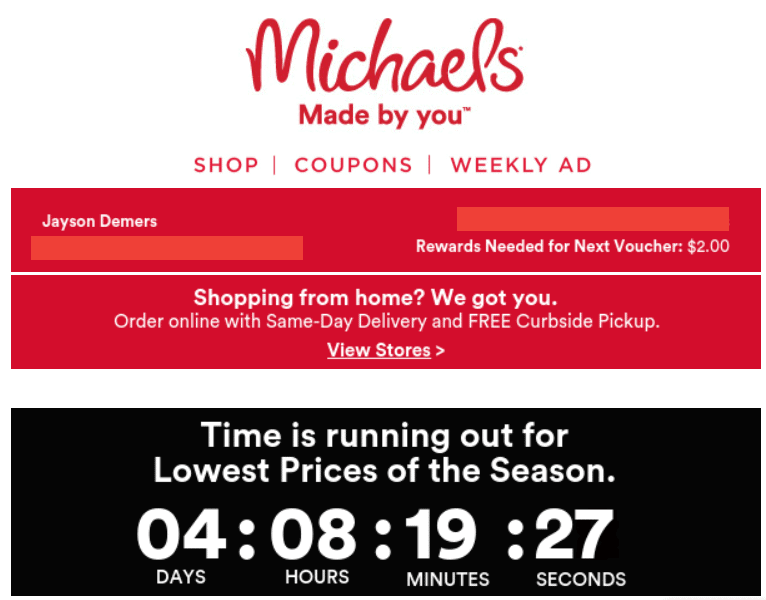
Email countdown timers are commonly used to count down to sales (giving customers a limited window to act), events (seminars, conventions, webinars), product releases (building anticipation for new launches), and announcements (teasing new product models or features). You can also use a looping GIF if you only need the appearance of a countdown timer—here is how to add a GIF to an email. However, an HTML-built timer provides live, real-time functionality that a GIF cannot.
Why Should You Use a Countdown Timer in Marketing Emails?
Create a sense of urgency. Procrastination is a major problem for businesses hoping to sell to consumers. A potential customer may have a need for your product and be willing to buy it, but if they delay the decision, they may never take action. A countdown timer motivates recipients to act rather than delay, especially when ticking down the final moments of an important sale.
Evoke fear of missing out (FOMO). A countdown timer implying that a sale or event is about to end causes people to rush to take advantage before it is too late. When teasing an upcoming announcement or release, the timer drives people to stay engaged so they do not miss the big moment.
Increase click-through rate (CTR). The inclusion of a countdown timer can increase the percentage of email recipients clicking through to your website. The visual urgency compels action that static text alone cannot achieve.
Increase conversion rate. The unique visuals and compelling urgency of a countdown timer often drive people to make decisions and go through with purchases they might otherwise delay.
Provide information in a visual format. Rather than giving people a basic date and time for an event, a countdown timer presents it as an interactive, ever-changing visual. This makes your message more effective and more memorable. Any time a customer wants to verify the date and time, they can glance at the timer.
Build anticipation. Timers are commonly used in applications that require some degree of preexisting hype. Use them to tease an upcoming product, feature, holiday sale, or event and build excitement over time.
How Do You Create an Email Countdown Timer With HTML?
The best way to add an email countdown timer is to create a fully functional timer with HTML code and build that code into your email. Some email marketing tools allow you to create and build countdown timers directly via WYSIWYG editors. For manual creation, follow these five steps:
Step 1: Choose an email countdown timer tool. You can build a countdown timer from scratch, but it is much easier to use an existing tool. MailTimers is one of the best options, allowing you to design a timer for practically any platform and any device. You can also try Sendtric, MotionMail, NiftyImages, EmailTimers, or CountdownMail. Any tool that gives you templates and the ability to design a timer from scratch will work.
Step 2: Choose a time zone and a specific time. Set the date, time, and time zone for your countdown target. This should be the exact moment of your sale ending, event starting, product launching, or announcement going live.
Step 3: Customize the aesthetics. Change the font, positioning, colors, and other design elements to make sure the timer fits with the rest of your email design and brand identity.
Step 4: Generate a code snippet. Using your tool of choice, generate the HTML code snippet that represents your countdown timer. Copy that code.
Step 5: Paste your code into a template. Paste the copied HTML code into your email template. You may need to make minor tweaks to ensure it fits with your existing formatting and layout.
How Do You Add a Countdown Timer in Gmail?
There are two methods for adding a countdown timer in Gmail:
Method 1: HTML paste. Follow the five steps above to generate an HTML countdown timer code snippet. Display the full page of your HTML email code in a web browser. Select all content, copy, and paste into the Gmail compose window. Double check to ensure it loads correctly.
Method 2: Image link insertion. This method works well for GIF-based countdown timers:
1. Create a countdown timer with one of the tools above and generate a linkable version (usually in GIF format).
2. Open a Compose window in Gmail and click “Insert photo.”
3. Click the “Web Address (URL)” tab.
4. Paste the countdown timer link. You will be able to see a preview before applying it.
5. Finish your email, proofread, and send.
Frequently Asked Questions About Email Countdown Timers
What is an email countdown timer?
An email countdown timer is an embedded visual element that displays a real-time countdown (days, hours, minutes, seconds) to a specific date and time within an email. It is typically built with HTML code or displayed as an animated GIF and is used to create urgency around sales, events, product releases, and announcements.
Why should you use a countdown timer in marketing emails?
Countdown timers offer six key benefits: they create urgency that motivates action, evoke FOMO (fear of missing out), increase click-through rates, improve conversion rates, provide event timing in a visual and memorable format, and build anticipation for upcoming releases or announcements.
How do you create an email countdown timer with HTML?
Follow five steps: (1) Choose a timer tool like MailTimers, Sendtric, MotionMail, NiftyImages, EmailTimers, or CountdownMail. (2) Set the target time zone, date, and time. (3) Customize fonts, colors, and positioning to match your email design. (4) Generate the HTML code snippet. (5) Paste the code into your email template.
How do you add a countdown timer in Gmail?
Two methods: (1) Generate an HTML timer, display the full page in a browser, select all, copy, and paste into the Gmail compose window. (2) Create a linkable GIF timer, open a compose window in Gmail, click Insert Photo, select Web Address (URL), and paste the timer link.
What are the best email countdown timer tools?
Top tools include MailTimers (robust design options for any platform), Sendtric (free basic timer), MotionMail, NiftyImages (also offers personalized images), EmailTimers, and CountdownMail. All provide templates and customization for designing timers that generate embeddable HTML code.
What are common use cases for email countdown timers?
Common uses include sales (counting down to a sale start or end), events (teasing upcoming seminars or webinars), product releases (building anticipation for launches), and announcements (generating excitement before revealing new products or features).
Can you use an animated GIF instead of an HTML countdown timer?
Yes. A looping GIF can simulate the appearance of a countdown timer and is easier to embed in some email clients. However, a GIF is not a real-time countdown—it loops the same animation regardless of when the email is opened. An HTML-built timer provides live, accurate functionality that updates in real time.
Do email countdown timers work on all email clients?
Most HTML-based countdown timers render as animated images (GIFs) that are compatible with the majority of email clients including Gmail, Outlook, Apple Mail, and Yahoo Mail. Some older or text-only clients may not display the timer correctly. Timer tools like MailTimers are designed to maximize compatibility across platforms and devices.

Jayson is a long-time columnist for Forbes, Entrepreneur, BusinessInsider, Inc.com, and various other major media publications, where he has authored over 1,000 articles since 2012, covering technology, marketing, and entrepreneurship. He keynoted the 2013 MarketingProfs University, and won the “Entrepreneur Blogger of the Year” award in 2015 from the Oxford Center for Entrepreneurs. In 2010, he founded a marketing agency that appeared on the Inc. 5000 before selling it in January of 2019, and he is now the CEO of EmailAnalytics and OutreachBloom.


