
How to Hide the Author on WordPress Posts via 3 Easy Ways


Ever wonder how to hide the author on WordPress posts without making your site crash or doing anything complicated? Maybe you’re a solo blogger who is sick of seeing your own name on each post, or your brand just wants content to feel more cohesive; either way, showing the author’s name isn’t always necessary.
The only issue? Most WordPress themes show author information as the default setup, and figuring out a clean way to remove it that isn’t a SEO problem can be confusing.
In this practical guide, we will look at 3 tried and true methods to hide the author on WordPress posts — with plugins, CSS changes, or minor changes to theme files, there is honestly something for everyone, regardless of the skill level.
So let’s go through it step-by-step, so you can give your content that polished look it deserves.
What is an Author on WordPress Posts?
In WordPress, the author is the person (or user account) attributed to creating and publishing blog posts. By default, when you create a post in WordPress, an author is assigned to the post, and depending on your theme, the author’s name will display on the blog in one of a few areas – above the title, below the post, or in the post meta (next to the date and category).
You can expect, in most cases, to see the author in one of the following areas:
You’ll commonly find the author displayed in one or more of these areas:
- Right below the post title (e.g., by Admin)
- In the blog post metadata line (alongside date, tags, or category)
- Inside an author bio box at the bottom of the article
- On dedicated author archive pages (e.g., /author/john-doe/)
That’s useful when you want to assign credit, enforce authority, or show who wrote what in the case of multiple authors, but if you’re running a branded content site (or curated content) or your blog, displaying the author most likely seems unnecessary (or inconveniently distracting).
That’s when knowing how to hide the author on posts in WordPress comes in handy.
Reasons to Hide the Author on WordPress Posts
So, what would cause someone to hide the author on WordPress posts? There are quite a number of legitimate purposes, which can change based on the goals of the site, style of content, and expectations of the audience.
Let’s look at some of the more common ones:
- Author Privacy: When covering sensitive topics, such as personal finance, legal issues, mental health, or whistleblower-type articles, it is imperative not to identify the author. Removing the author’s name protects contributors from unwanted exposure or harassment.
- Brand at Stake: If you are writing on a corporate blog or following a business name, in many cases, it is more advantageous to focus on the brand as a voice of authority, rather than your individual team members. Hiding the name of the author immediately reduces concern over credit for contributions and where the focus goes, i.e., your brand identity!
- Aggregated or Outsourced Content: If you repeatedly aggregate or repurpose content from outside sources, or your blog post has been written by ghostwriters, you should question whether listing a particular author is misleading or pointless.
- Your Theme Displays Author Data Inconsistently: WordPress automatically inserts author metadata next to posts in a way that can be unique depending on the theme you use. Some place this under the post, some above, and if you have ever installed another plugin or custom block, then it is even more of a mess. Hiding author meta removes some inconsistency in the layout of your site.
- You Are The Only Author: If you are a solo blogger and all the posts are from your hand, then the author’s name is going to become redundant and somewhat unnecessary anyway. Hiding the author’s name helps in distinguishing your site’s layout without any fatal loss of context as it relates to your blog.
- Better Mobile Experience: Author metadata can sometimes be ugly on small screens, especially when using a theme that may not be responsive for mobile use. Hiding the name of the author is a simple way to clean it up and improve the user experience.
Pro Tip: If you are worried about affecting your SEO, don’t be — many successful blogs hide author names and have good rankings. Just ensure that your content provides structure and authority via other means (such as structure, factual content, and internal linking).
How To Hide The Author On WordPress Posts: 3 Methods That Work
If you’re looking for clear instructions on how to hide the author on WordPress posts, you’re in luck. There are several possibilities – some simpler to do, some more technical – depending on how comfortable you are and how permanent you want the change to be.
We are going to show you three different techniques to remove the author name from your WordPress site:
- Using a Plugin (the easiest)
- Adding Custom CSS (the cleanest and quickest)
- Editing Theme Files (the most complete and for developers).
We will go step by step so you can decide what fits best for you.
Method 1: Use a Plugin (Simple for Beginners and Straightforward)
The safest and simplest method to hide author information on your posts is to use a plugin if you are not comfortable with editing code.
The Suggested Plugin: WP Meta and Date Remover
Because this plugin is relatively lightweight, it will remove all metadata, including author names, dates, and more, automatically without having to modify files in your theme.
How to Install and Use
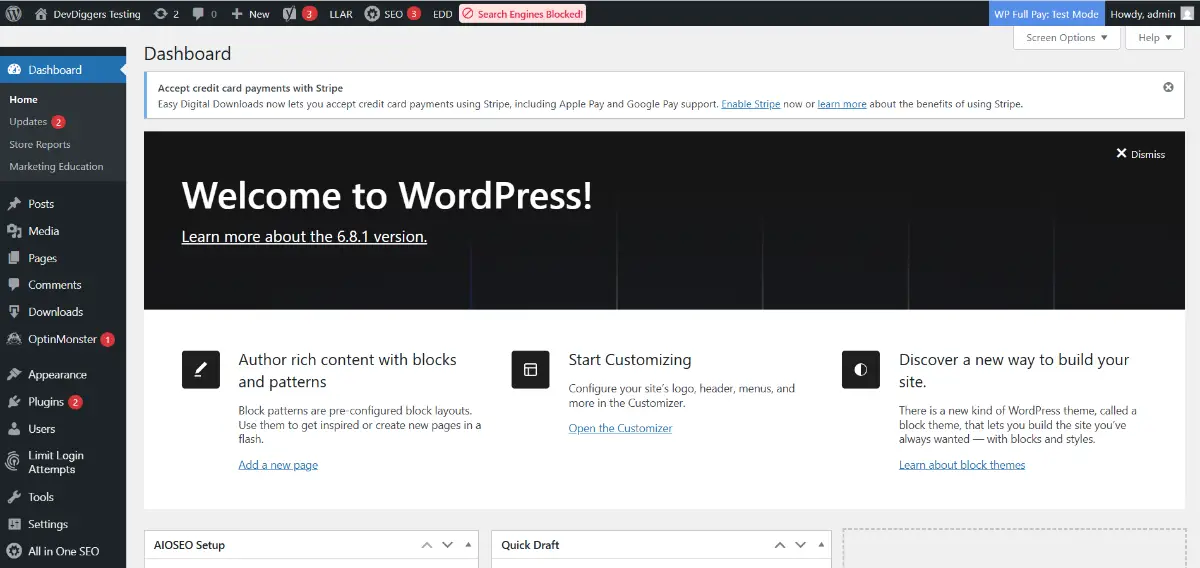
- Log in to your WordPress dashboard.

- Next, go to Plugins > Add Plugin.

- In the search bar, enter WP Meta and Date Remover.

- Then click Install Now and Activate.

- The plugin will instantly remove the author names and dates from your theme.


What it Does
- Remove author and date from the front-end view
- Compatible with most themes in WordPress
- Doesn’t break layout and SEO
Pro Tip
If the plugin does not work with your theme, try these alternatives:
- Meta Tag Manager
- Hide/Remove Metadata
- WP Author, Date, and Meta Remover
Pros
- No coding experience required
- One-click solution to hide metadata authorship
- Can be undone at any time
Cons
- May not be compatible with more customized or obscure themes
- Adds another plugin to the repertoire (some users do not want to do this)
Method 2: Use CSS to Simply Hide the Author
Do you need an easy and plugin-free solution to hiding the author on WordPress posts? CSS is an effective and reversible way to visually hide the author while preserving the code.
Note: This does not delete the author data, simply makes it visible to your visitors.
Step-by-Step Instructions:
- Go to your WordPress dashboard.

- Navigate to Appearance > Customize.

- Click Additional CSS.

- Paste the following code:


.byline, .author, .post-author, .entry-author {
    display: none !important;
}
- Click Publish.


Important
These CSS class names may differ from the theme you are using (like .byline, .post-author). To find the precise selector:
- Right-click the author’s name on your site.
- Click Inspect Element.
- Locate the CSS class that wraps the author.
Pros
- No plugin necessary
- An immediate visual change
- Does not alter the structure of the page or break your layout
Cons
- Author data is still in the HTML, meaning it may still be crawled by search engines.
- A little technical if you have never used CSS.
- Once you update your theme, there may be a chance that class names will change, so you may have to make adjustments over time.
Method 3: Edit Theme Files (Best for Developers, Permanent)
If you know how to access and edit your theme’s code, you can edit theme files to add, show, and remove author info exactly how and where you want.
This means one time, permanent, all-encompassing change that doesn’t use CSS or a plugin!
Warning: Always use a child theme or a backup before you start editing theme files.
Common Theme Files That Display Author Info
single.phpcontent.phpindex.phparchive.phptemplate-parts/content.php(especially in block themes)
What to Look For:
When you open the relevant file in your theme editor or FTP client, look for the following PHP snippets:
the_author();
echo get_the_author();
get_the_author_meta();
These will be the functions that output your author name. You can just comment them out or delete them, like so:
// echo get_the_author();
Or you could just nuke the entire block if all of the associated HTML outputs the author meta.
Example Before
<span class="post-author">By <?php the_author(); ?></span>
Example After
<!-- Author name removed -->
Where to Edit
- Single Post pages:
single.php. - Blog loop:
index.phporhome.php. - For Block themes, you can use template parts or edit with Full Site Editing (FSE).
Pros
- Cleans up your site and removes author Info completely.
- Independence of plugins or extra CSS (better performance).
Cons
- Requires technical skill.
- A mistake could destroy your layout.
- You will have to redo everything.
Bonus: Disable Author Archives (Optional)
Even if you hide the author name from posts, WordPress still creates author archive pages by default – like yoursite.com/author/john/.
To disable these (we recommend this for SEO purposes if you are hiding authorship completely):
Use a plugin like Yoast SEO or Rank Math:
Yoast SEO Steps:
- Go to SEO > Search Appearance > Archives.
- Under Author archives, select Disable.
That’s it! Now your author pages will either return a 404 or redirect them, depending on your SEO settings.
Final Thoughts: Which Method Should You Choose?
When it comes to how to hide the author on WordPress posts, the “best” method to use all depends on your overall purpose/goal, the display of your technical skills, and the setup of your theme.
Here is a summary of the three methods:
- If you would like a fast, no-code method to hide the author, a plugin is the way to go. It is usually the best way to start, especially for someone just getting started with WordPress, and it works with most themes.
- If you don’t want to add even more plugins to your site and are looking for a more lightweight option, you may want to consider custom CSS. Just remember—it does not remove the author altogether, it just hides him! CSS styles how posts are displayed, but the post is still intact behind the scenes.
- If you are looking for total control and a true permanent removal, then editing the theme files is a great option! This option is especially useful if you are a developer or agency.
If you want a branded blog layout that is not focused on authors and takes little maintenance, then you definitely have three options to consider—all dependent on your ability.
Just don’t forget to do the following:
- Backup your entire site before editing files in your theme.
- Consider testing on both mobile and desktop devices to ensure everything appears consistently.
- Make sure to check author archive URLs and delete them if you are trying to clean them up for SEO purposes.
Now that you are ready to go with your option of choice, your content will be cleaner, more brand-focused, and more user experience-oriented.
Frequently Asked Questions
Q1. Is it possible for me to hide an author’s name from WordPress posts?
It is possible to hide an author’s name with a plugin, custom CSS, or by editing your theme files. The methods differ between easy/hard and temporary/permanent.
Q2. Is it safe to remove the author from WordPress posts?
Yes, it is safe to remove an author, just be sure to back up your site first before you start editing theme files, or you could use a plugin, which is a safer alternative.
Q3. Will it impact my SEO if I hide the author?
In general, no, it won’t. But if your niche had author credibility as a signal to the user (i.e., health, finance, etc.), it may impact trust signals.
Q4. Can I hide the author’s name on some posts and not others?
Yes, some plugins will allow you to control on a per-post basis, or you could use conditions in your own theme to selectively hide an author.
Q5. Do I need to install a plugin to remove an author in WordPress?
No. While plugins do offer an easier way to remove authors, you could also do it manually with custom CSS or by editing theme files to remove authors.
Ekta Lamba
Ekta Lamba is a content writer at DevDiggers covering WordPress, WooCommerce, web development, and emerging tech. From fixing plugin errors to breaking down ChatGPT model updates, she writes guides that make technical topics approachable for developers and store owners alike. If it involves WordPress or the web, there is a good chance she has written about it.
Join thousands of readers getting smarter every week.
Leave a Reply