Search the Community
Showing results for tags 'theme'.
Found 12 results
-
Version 1.0.1
13 downloads
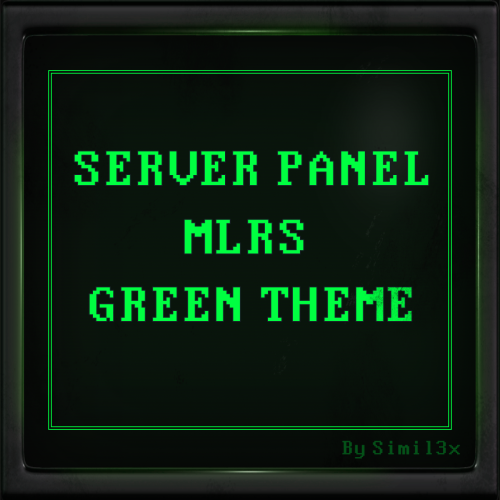
MLRS Green Theme for Server Panel by Simil3x Turn your Rust server interface into a tactical command terminal! This UI is inspired by the in-game MLRS system and classic DOS-style aesthetics. ⚙ Features ● Ready-to-use JSON configuration - no coding required ● Complete visual redesign of the Server Panel UI ● Authentic MLRS/DOS-style layout with terminal-like visuals ● Displays player name, SteamID, coordinates, and players count ● Server info panel with wipe schedule and color highlights ● Fast navigation tabs: Home, Server Binds, Rules, Commands ● Interactive Discord and website links (easy to copy) ● Scalable layout with multi-page support Installation 1. Download the provided .zip archive 2. Extract its contents into your server’s oxide folder 3. Restart the plugin Done - your new interface is now active! 🛠 Editable Without Coding Easily customize content in-game with the Server Panel’s intuitive editor - no need to modify JSON files manually. Need a Custom UI? Looking for a completely unique design? I offer full-service UI development for Rust plugins - from concept and Figma prototypes to game-ready implementation. Contact Discord: Simil3x Telegram: @Simil3x_dm ✔ Compatibility Fully compatible with the latest version of the Server Panel plugin. Easy setup - instant results. After purchase, contact me on Discord or Telegram to insert your server name into the template.$16.99 -
Version 1.0.1
31 downloads
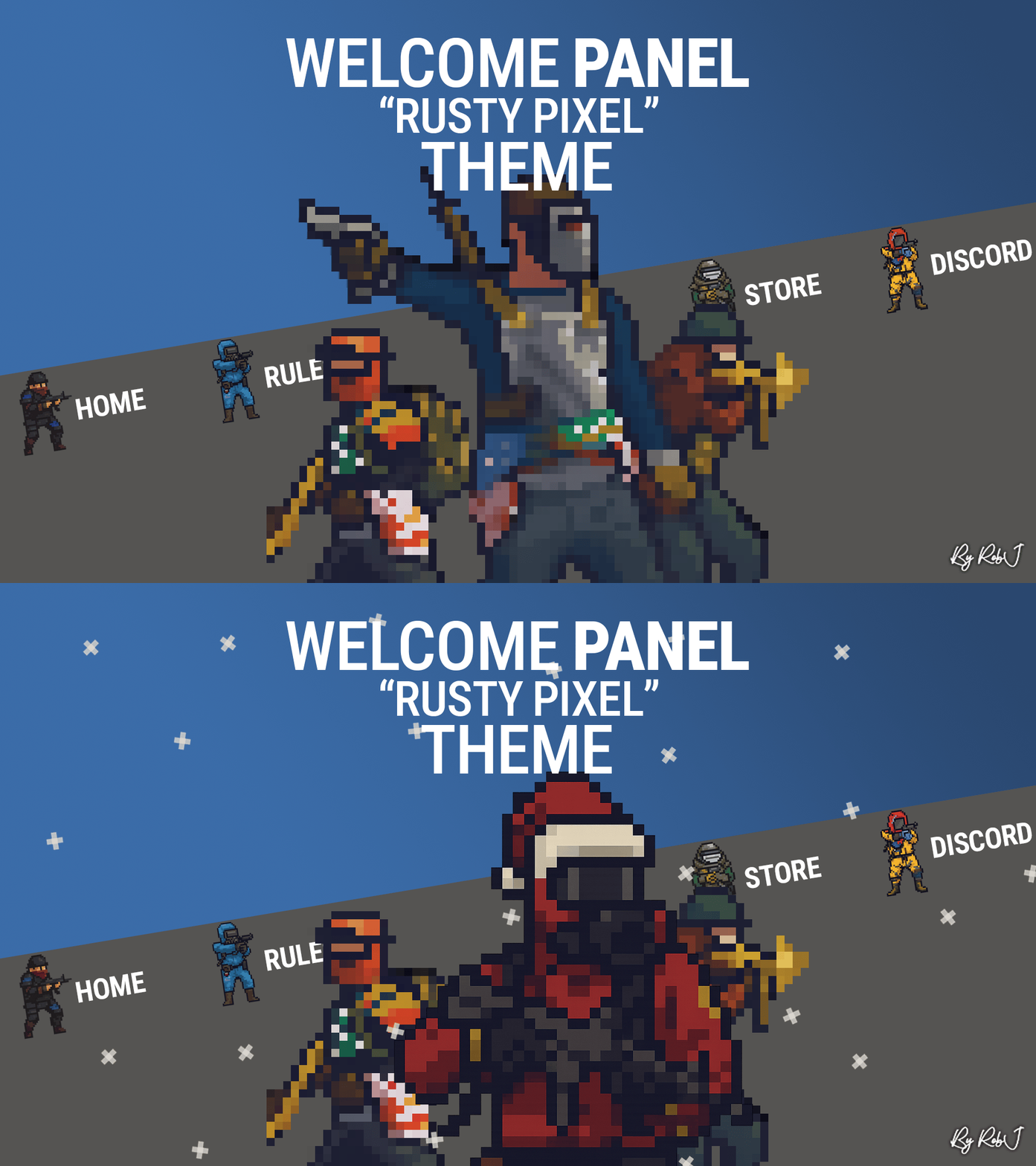
Welcome to my new theme for the popular WelcomePanel plugin—Featuring an updated button layout, custom icons inspired by characters from the game, coordinated wallpaper, and a refreshed color palette. Don’t worry: all WelcomePanel functions and addons continue to work as they should Christmas Version Included The package now includes two versions: the standard year-round version for general use and a Christmas edition specifically for the holiday season. UI Colors Hazmat Rubber Blue (#337bab - 0.200 0.482 0.671 1) Quick Start Unload Welcome Panel (If you have it already) Extract the zip file. Place the JSON file in the Oxide/Config folder on your server. Install or Restart the Welcome Panel Plugin The theme should be active now. Adjust the logo and text to align with your server's preferences. Contact And Help If you need to contact me discord is best: RobJ2210#2553 For help/support my discord group is best: Join RobJ Maps Discord$12.99-
- 1
-

-
- #welcomeui
- #welcome menu
- (and 6 more)
-
Version 1.0.0
13 downloads
Introducing the Ultimate Azuriom Rust Plugin Bundle, an all-in-one package designed to elevate your Azuriom platform with unparalleled features and seamless integration. This comprehensive bundle includes five powerful plugins that will enhance your Rust gaming community's experience, offering everything from dynamic themes to detailed player statistics and ban management. Explore each plugin's unique features and discover how this bundle can transform your Azuriom site into a vibrant, user-friendly hub for your Rust players. Save $25 When You Buy the Bundle for Only $79! 1. Azuriom Rust Theme Transform your Azuriom platform with the Rust Theme, inspired by the rugged, immersive world of Rust. This theme offers a unique, visually appealing user interface that will captivate your gaming community. Features: Stylish Design: Rustic yet modern aesthetics for an engaging user experience. Easy Installation: Simple setup with a step-by-step guide. Customizable Configuration: Personalize with homepage selection, background settings, and custom header images for up to 8 servers. One-Click Server Connection: Effortless connection with a single click. Ongoing Enhancements: Regular updates to keep your theme current. Optimized User-Friendliness: Balances visual appeal with usability. 2. Azuriom Player Ranks Integration Showcase your players' prowess with the Player Ranks Integration plugin, which displays detailed statistics for PVE, PVP, Farming, and Raiding on your website. Features: Real-time Leaderboard: Highlights player achievements. Multilingual Support: Available in English and German. Seamless Integration: Quick and easy setup. Theme Compatibility: Blends perfectly with all Azuriom themes. Online-Offline Display: Shows player status when logged in. Personal Statistics: Visible only to logged-in players with sufficient playtime. Live Search Function: Instant player search capability. Customizable Pagination: Adjust leaderboard rows as needed. 3. Azuriom BattleMetrics Bans Plugin Keep your community informed about player bans with the BattleMetrics Bans Plugin, integrating ban lists directly onto your Azuriom site. Features: User-Triggered Updates: Automatic updates of the last 50 ban entries with a 10-minute buffer. Download ALL Bans: Admins can download and save all ban entries. SQL Database: Stores ban information securely. Multilingual Support: Available in both English and German. Easy Integration: Seamless setup and integration. Customizable Title: Changeable ban page title via the dashboard. Required: API Token and Banlist ID from BattleMetrics. 4. Azuriom RaidableBases Integration Showcase your Rust players' RaidableBases achievements with the RaidableBases Integration plugin, providing a sleek leaderboard for raid statistics. Features: Highlighting the Elite: Top 3 performers prominently displayed. Real-time Leaderboard: Live ranking updates. Multilingual Support: English and German supported. Seamless Integration: Easy to set up and blends perfectly with Azuriom themes. Web Dashboard Integration: Quick access to player stats via the Azuriom dashboard. Future-Proof: Continuous updates and new features. 5. RaidableBases DataBase SQL An essential addition to the RaidableBases plugin, this tool efficiently tracks and updates player statistics, storing them in an SQL database. Features: Automatic Updates: Stores player statistics after each raid. Manual Updates: Use "rb.update" command with SteamID for targeted updates. Effortless Management: Simplifies tracking of player progress. Why Choose the Ultimate Azuriom Rust Plugin Bundle? This bundle is designed to provide a comprehensive solution for managing your Azuriom platform, enhancing user engagement, and streamlining administrative tasks. With seamless integration, real-time updates, and extensive customization options, the Ultimate Azuriom Rust Plugin Bundle is the perfect choice for any Rust gaming community looking to elevate their platform to new heights. Get it now and transform your Azuriom site into the ultimate Rust hub! Special Bundle Price: $79 (Save $25!)$79.00 -
Version 1.0.0
32 downloads
Explore the Rust Theme for Azuriom! Enhance the aesthetics of your Azuriom platform with our exclusive Rust Theme. Inspired by the Rust world, this theme provides a unique and engaging user interface that perfectly complements your gaming community. Features: Stylish Design: Immerse your users in a visually appealing Rust atmosphere. The theme has been carefully crafted to offer a rustic yet modern look. Easy Installation: Thanks to our step-by-step guide, installation is a breeze. Download the theme, copy it to the theme directory, activate it in the Admin Dashboard, and your Azuriom with the Rust Theme is ready. Customizable Configuration: Tailor the theme to your preferences. Choose pages for the homepage, enable the page background set in `Settings/Global`, and add individual header images for up to 8 servers. One-Click Server Connection: Clicking the "Connect" button automatically copies the connection link to the clipboard. Paste it effortlessly into Rust in the console and initiate the gaming experience seamlessly. Ongoing Enhancements: Our Rust Theme is continually updated and expanded with new features. Benefit from regular updates to ensure your Azuriom stays up-to-date with the latest Rust aesthetics. Optimized User-Friendliness: The Rust Theme not only offers an impressive appearance but also optimized user-friendliness. Your gaming platform will not only look good but also feel great. Make your Azuriom unique and distinctive – get the Rust Theme now and immerse your gaming community in a new dimension of design! Installation and Configuration Guide for the Rust Theme in Azuriom ## Step 1: Copy Theme to the Theme Directory 1. Download the `Rust Theme` if not done already. 2. Copy the `rust` folder into the theme directory of your Azuriom installation. Typically, you can find this directory under `resources/themes` in your Azuriom root. ## Step 2: Activate Theme in Azuriom Admin Dashboard 1. Log in to the Azuriom Admin Dashboard. 2. Navigate to the "Designs" section. 3. Locate the `Rust Theme` in the list and click on "Enable." ## Step 3: Configure Theme 1. Navigate to the "Designs" section. 2. Click on "Edit Configuration" at the top. 3. In the first section, you can activate the page title. Choose a page created under "Pages" to be displayed on the homepage. Alternatively, deactivate it here if you don't want any page to be shown. 4. The page background set in `Settings/Global` can be activated here on all pages. Otherwise, it will only be displayed on the homepage. Note that a page background is mandatory. 5. In the following section, depending on the number of servers you've set up in Azuriom, you'll have the option to insert the header image for each server (up to 8 servers). Tip: Under "Content -> Images" in Azuriom, you can upload images. After uploading, find the link in the "File" column. Right-click on it, choose "Copy link address," and paste the link here.$24.00- 2 comments
- 2 reviews
-
- 1
-
-
- #rust theme
- #rust design
- (and 11 more)
-
Version 1.0.0
1 download
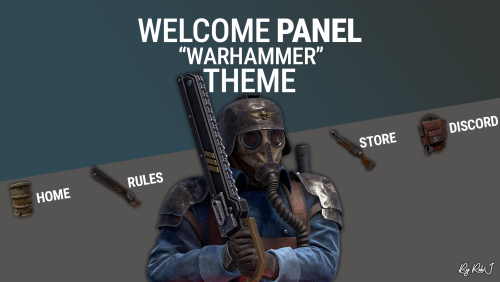
Welcome to my new theme for the popular WelcomePanel plugin — featuring a completely refreshed design inspired by the grim aesthetic of the Death Korps of Krieg from the Warhammer universe. This update includes: A redesigned button layout with 9 fully customized buttons Unique icons modeled after in-game items A coordinated wallpaper and refined color palette for a cohesive look All existing WelcomePanel functions and addons remain fully compatible — now wrapped in a darker, battle-worn Krieg theme. Please note: This is a theme configuration, not the plugin itself. You’ll need the WelcomePanel plugin installed for this theme to work. Quick Start Unload Welcome Panel (If you have it already) Extract the zip file. Place the JSON file in the Oxide/Config folder on your server. Install or Restart the Welcome Panel Plugin The theme should be active now. Adjust the logo and text to align with your server's preferences. Contact And Help If you need to contact me discord is best: RobJ2210#2553 For help/support my discord group is best: Join RobJ Maps Discord$12.99-
- 1
-

-
- #welcomeui
- #welcome ui
- (and 4 more)
-
Version 1.1.0
29 downloads
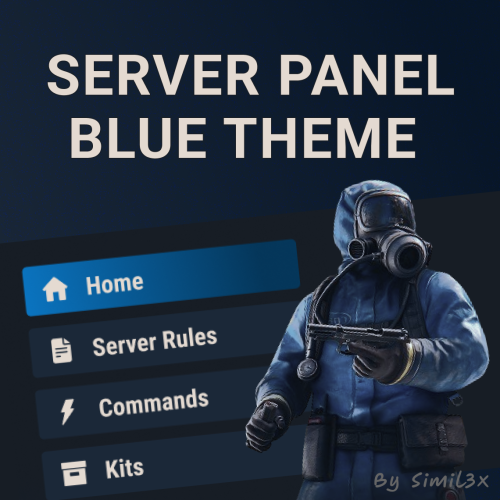
Blue Theme for Server Panel by Simil3x Transform your server interface with a modern look using this clean blue-themed UI for the Server Panel plugin. Designed to enhance clarity and usability while keeping all core features intact. What's Included: ● Ready-to-use JSON configuration - no coding required ● Complete visual redesign of the Server Panel UI ● Calm blue color palette with improved contrast ● Streamlined layout with consistent spacing and alignment ● Enhanced readability for commands and settings Installation: 1. Make sure you have the latest version of the Server Panel plugin installed. 2, Use the /sp.install command and install the V5 template. 3, Download the theme archive. 4, Extract the contents of the archive into your oxide folder. 5, Reload Server Panel plugin Done - your new interface is live! Why Choose This Theme? This isn't just a recolor - it’s a full UI refresh. Every element, from headers to buttons, was rebuilt with usability and clean aesthetics in mind. Whether you're managing kits, commands, or player stats, this layout makes interactions smoother and more intuitive. You can modify content without touching JSON files, plugin includes an intuitive in-game editor. Looking for custom plugin design? Need something completely unique? I offer full-service UI design for any Rust plugin. From initial concept and Figma prototypes to final game-ready implementation - professional custom interfaces tailored to your needs. Contact me: Discord: Simil3x Telegram: @Simil3x_dm Compatible with the latest version of the Server Panel plugin. Easy installation, instant results.$16.99 -
Version 1.0.0
12 downloads
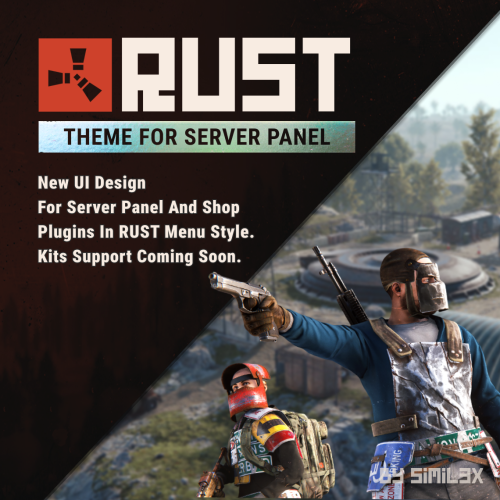
RUST Menu Theme for Server Panel & Shop A custom theme for Server Panel and Shop, inspired by the in-game RUST menu. Give your server’s interface a native look and feel that blends seamlessly with the game world. Familiar, immersive, and user-friendly for your players. Ready-to-use JSON configuration - no coding required. Simply install and enjoy a fully styled UI in minutes. 1. Install the Server Panel plugin using the chat command: /sp.install — select the FULLSCREEN V2 template. 2. Install the Shop plugin using the chat command: /shop.install — select the Mevent Rust Styled Template V2. 3. Download the theme archive. 4. Extract its contents into your /oxide folder, overwriting existing files. 5. Open \oxide\data\ServerPanel\Categories.json, find "menu_shop" and change it to "shop". 6. Open \oxide\config\Shop.json and disable "Additional Economics": Replace "Enabled": true, with "Enabled": false,. 7. Reload both plugins using the following commands: o.reload Shop o.reload ServerPanel You're all set! Need a Custom UI? Looking for a completely unique design? I offer full-service UI development for Rust plugins - from concept and Figma prototypes to game-ready implementation. Contact Discord: Simil3x Telegram: @Simil3x_dm Compatibility Fully compatible with the latest version of the Server Panel plugin. Easy setup - instant results.$20.00 -
Version 1.0.0
6 downloads
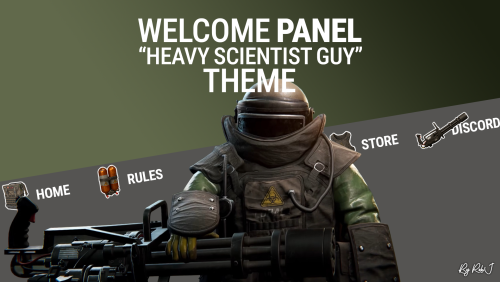
Welcome to my new theme for the popular WelcomePanel plugin—featuring a revamped button layout, custom icons inspired by Heavy Scientists gear, matching wallpaper, and a new color palette. Don’t worry: all WelcomePanel functions and addons continue to work as they should UI Colors Hazmat Patch Yellow Hazmat Rubber Green Quick Start Unload Welcome Panel (If you have it already) Extract the zip file. Place the JSON file in the Oxide/Config folder on your server. Install or Restart the Welcome Panel Plugin The theme should be active now. Adjust the logo and text to align with your server's preferences. Contact And Help If you need to contact me discord is best: RobJ2210#2553 For help/support my discord group is best: Join RobJ Maps Discord$12.99 -
Version 25.6.1968
153 downloads
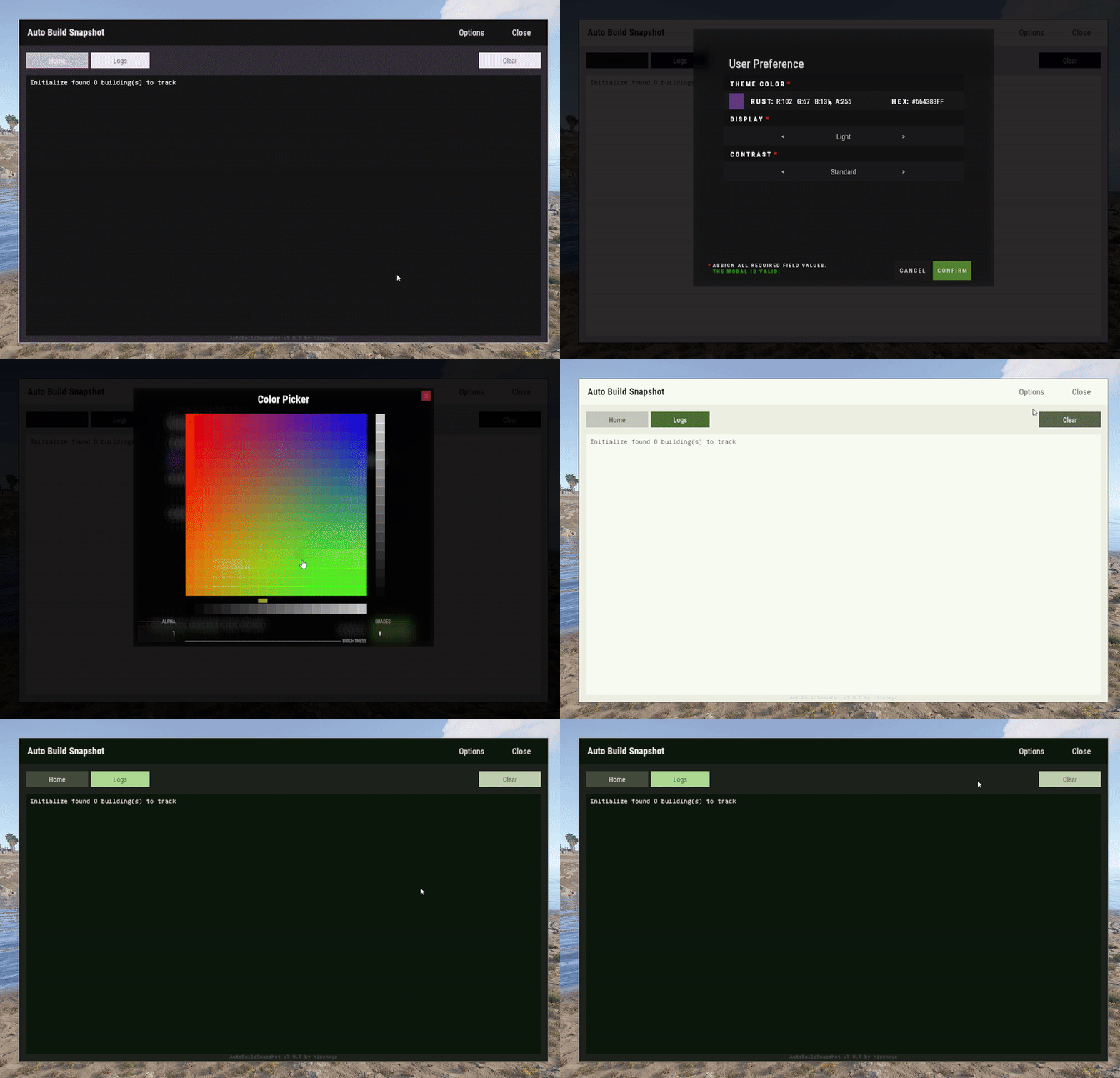
User Preference is an extension that enables plugin developers to provide a way for their users to customize their interface. Plugins can use this extension by placing a button in their application that calls the API to show the user interface options modal. Donations You won't get any extra colors, but if it makes you feel better!- Ko-fi: https://ko-fi.com/hizenxyz Note: If you want this to be optional, plugins should use the EXTENSION_USER_PREFERENCE region directive. See usage example below. Example 1 (optional dependency, recommended, using region directives): #if EXTENSION_USER_PREFERENCE using HizenLabs.Extensions.UserPreference.Data; #endif ... void Init() { #if EXTENSION_USER_PREFERENCE UserPreferenceData.SetDefaultTheme(this, MaterialTheme.CreateFromRgbHex("#FFFFFF", isDarkMode: true)); #endif } ... void ShowMenu(BasePlayer player) { #if EXTENSION_USER_PREFERENCE var userPreference = UserPreferenceData.Load(_instance, player); var theme = userPreference.Theme; string primary = theme.Primary; string onPrimary = theme.OnPrimary; var userPreferenceButton = CreateButton(cui, player, userPreference, container: headerButtons, position: new(optionsButtonX - .005f, 0, closeButtonX - .005f, 1), offset: LuiOffset.None, color: primary, textColor: primary, textKey: LangKeys.StringEmpty, commandName: nameof(CommandMenuSettings), fontSize: 14 ); #else string primary = "0.2 0.2 0.1 1"; string onPrimary = "0.9 0.9 0.9 1"; #endif // do ui stuff, using the defined color variables ... } #if EXTENSION_USER_PREFERENCE [ProtectedCommand(CommandPrefix + nameof(CommandMenuSettings))] private void CommandMenuSettings(BasePlayer player, string command, string[] args) { UserPreferenceUI.Show(this, player, onConfirm: () => UserInterface.ShowMenu(player)); } #endif For a complete example of how far you can take this, see the AutoBuildSnapshot implementation: https://github.com/HizenLabs/Plugins.Free/blob/main/src/Carbon.Plugins/Active/AutoBuildSnapshot/AutoBuildSnapshot.UserInterface.cs Example 2 (optional dependency, using PluginReference): [Info("Plugin Test", "hizenxyz", "1.0.0")] [Description("A plugin to test things.")] public class PluginTest : CarbonPlugin { [PluginReference("UserPreferencePlugin")] private CarbonPlugin userPreference; [ChatCommand("test")] private void TestCommand(BasePlayer player, string command, string[] args) { if (userPreference == null) { // Show the selection UI. userPreference.Call("Show", this, player, () => ShowConfirm(player)); } } private void ShowConfirm(BasePlayer player) { // Use the resulting values in the UI var primary = userPreference.Call<string>("GetPrimary", this, player); player.ChatMessage($"Primary: {primary}"); var secondary45Percent = userPreference.Call<string>("GetSecondary", this, player, 0.45f); player.ChatMessage($"Secondary (45% Opacity): {secondary45Percent}"); } } Example 3 (hard dependency): UserPreferenceUI.Show(this, player, onConfirm: () => Puts("Player clicked confirm!"); Example 3 continued in theme: var userPreference = UserPreferenceData.Load(this, player); var theme = userPreference.Theme; cui.v2.CreatePanel( container: parent, position: LuiPosition.MiddleCenter, offset: new(-450, -275, 450, 275), color: theme.SurfaceContainer ); cui.v2.CreateText( container: parent, position: LuiPosition.Top, offset: LuiOffset.None, color: theme.OnBackground, fontSize: 16, text: "Welcome!", alignment: TextAnchor.UpperCenter ); Themes (color palettes) are based on Material Design 3 (Material You) - https://material-foundation.github.io/material-theme-builder/ The user simply selects a color, a display mode (light/dark), and a contrast level, and a palette will be automatically generated off their selections. The available colors for use in theme are as follows: Primary Colors Primary OnPrimary PrimaryContainer OnPrimaryContainer InversePrimary Secondary Colors Secondary OnSecondary SecondaryContainer OnSecondaryContainer Tertiary Colors Tertiary OnTertiary TertiaryContainer OnTertiaryContainer Error Colors Error OnError ErrorContainer OnErrorContainer Surface & Background Surface SurfaceBright SurfaceContainerLowest SurfaceContainerLow SurfaceContainer SurfaceContainerHigh SurfaceContainerHighest SurfaceVariant OnSurface OnSurfaceVariant Background OnBackground InverseSurface InverseOnSurface Outline & Effects Outline OutlineVariant SurfaceTint Shadow Scrim Transparent (static 0 opacity black) You can either use these directly as properties of MaterialTheme, or all of these can be called from the plugin with userPref.Call<string>("Get[Option]") where [Option] is the color option above. It is recommended to use them directly and just use the #if EXTENSION_USER_PREFERENCE constant to toggle functionality.Free -
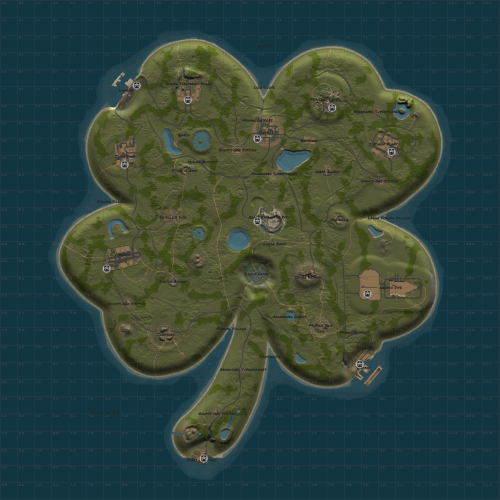
Version 1.0.2
7 downloads
St. Patrick's Day 4 Leaf Clover Map – A Rolling Hills Adventure! Experience the luck of the Irish in the harsh world of Rust! This St. Patrick's Day inspired 4 leaf clover-shaped map brings a fresh twist to your survival experience with expansive green fields and rolling hills; perfect for building, scavenging, and surviving. The peaceful, lush terrain offers a unique contrast to the usual Rust environment, while still providing all the challenges you'd expect. Explore the rolling hills, set up your base, and take advantage of the natural beauty of this Irish-inspired landscape. Perfect for celebrating St. Patrick's Day or just adding some green to your Rust world! 4250 Map Size Almost All Native Monuments Included: Abandoned Supermarket Airfield Bandit Camp Caves Excavator Ferry Terminal Fishing Villages Gas Station Harbor HQM Quarry Junkyard Large Oil Rig Launch Site Lighthouse Military Tunnels Mining Outpost Missile Silo Oil Rig Outpost Power Plant Rad Town Ranches Sewer Branch Satellite Dish Stone Quarry Sulfur Quarry Swamps The Dome Water Treatment Plant *Arctic Research Base is not included as no Arctic region on this map. Railroad, Roads, Dirt Paths, and Train Tunnels also present! For any issues with the map, please submit a ticket. Thank you, Good Luck, and Happy St. Patrick's Day!$30.00- 3 comments
-
- 2
-
-
- #clover
- #st.patricks day
- (and 7 more)
-
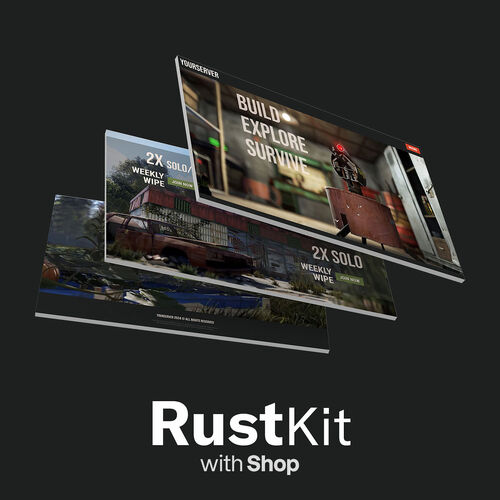
Version 2.0.0
19 downloads
Bring your website to life with this Rust-inspired Elementor kit (w/ shop)! Shows all important information about your server & sell your VIP packs through the shop! This kit is set to the official Rust colors and includes Header, Footer, Home, Shop & Account page. Everything is completely editable. Demo content and template are included & Installation guide provided. ___ * ___ *To link your WordPress/WooCommerce site with your game server, you will need WooBridge. Upcoming Update: Full Responsive Adaptation$10.00 -
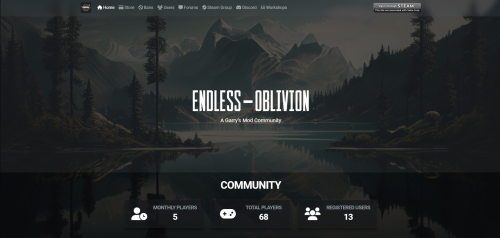
Version 1.0.1
35 downloads
About Ember Themes V2 These themes will separate you from the competition. I have put together some great themes for you and your community! For users that have already purchased the Themes For Ember contact me on discord and I will give you 50% off the new theme Discord exoticccc Dependencies Ember (Required) https://www.gmodstore.com/market/view/5620 Preview Rustafic Current Themes Transparent Blue Transparent Green Transparent Red Transparent Orange Transparent Custom Color How to install one of the themes! 1. Select your theme 2. Open the CSS File(Example [red.css]) 3. Go to your admin General settings(Location: [website.com/admin/general] Replace your "website.com" with your domain) 4. Select Color Scheme (Dark) 5. Press "Custom CSS" 6. Copy the text from your CSS File 7. Paste it into the "Custom CSS" Field 8. Press "Save" 9. Reload your page 10. You have completed the installation Any issues? Contact me on discord! Discord exoticccc$7.50
.thumb.gif.b68fcc45abe70ab7d7235dffc8a0c770.gif)