Search the Community
Showing results for tags 'figma to rust'.
Found 2 results
-
Version 1.0.0
47 downloads
Discover the Figma to Rust UI Export Plugin, a powerful tool designed to streamline the process of converting Figma interfaces into UI code compatible with Rust game plugins. This plugin enables designers and developers to seamlessly translate their Figma designs into functional UI elements for Rust-based games, enhancing workflow efficiency and maintaining design consistency. Guidelines Use Frames, Not Groups Why: Groups with rectangles won’t export correctly. Frames with fills ensure proper Rust UI hierarchy. How: Always use Frames (Shift + A) for containers. Apply fills directly to the frame (not nested rectangles). Frame Example: Icons: Vector or PNG Only Why: Nested icon frames cause export errors. How: Flatten icons into a single vector shape (Combine paths) or export as PNG. Right-click icon layers → Flatten Selection or export via Export Settings. Parent Naming Conventions Why: Rust requires parent layers to be named Overlay or Hud (case-sensitive). How: Rename root frames in Figma to exactly Overlay or Hud in the Layers panel. Constraints Configuration Why: Defines how elements scale/position in Rust’s UI system. Horizontal Constraints: Left/Right/Center: Anchors to screen edges. Scale: Full-width (AnchorMin="0 0" AnchorMax="1 1"). Vertical Constraints: Top/Bottom/Center: Anchors to top/bottom edges. Scale: Full-height (AnchorMin="0 0" AnchorMax="1 1"). Constraints Example: Pro Tips Test constraints in Figma’s Prototype mode to preview scaling behavior. Avoid mixed constraints (e.g., Left + Scale) unless intentional. Use Auto Layout for responsive elements (supports padding/spacing). Troubleshooting Export fails? Check for unnamed parents or nested groups. Icons missing? Ensure they’re flattened vectors or PNGs. UI misaligned in Rust? Re-validate constraints and parent names.$45.00- 1 review
-
- 9
-

-

-
- #ui exporter
- #figma plugin
- (and 4 more)
-
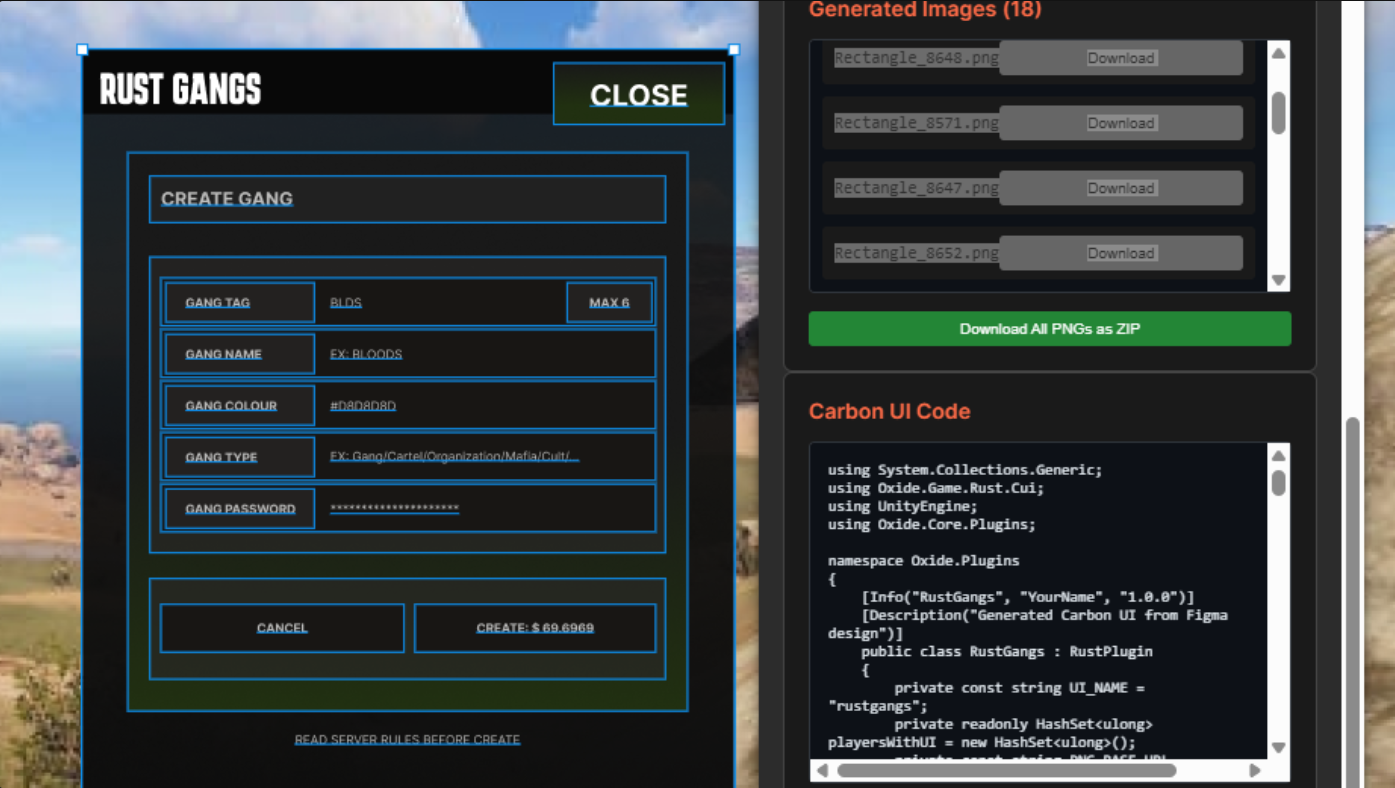
Transform your Figma designs into production-ready Rust Carbon UI code instantly. This plugin bridges the gap between design and development for Rust game servers and applications. Key Features: Smart Export System - Visual elements (shapes, groups, frames) automatically export as PNG images, while text converts to Carbon UI labels and buttons PNG Optimization - Elements with identical names share the same PNG file, eliminating duplicates and reducing file sizes Image Library Integration - Built-in support for Rust's Image Library plugin for faster loading times One-Click Downloads - Download all generated PNGs as a ZIP file plus the complete .cs Carbon UI plugin code Precise Positioning - Maintains exact positioning, colors, fonts, and styling from your Figma design Button Detection - Automatically identifies button elements and generates proper click handlers Web-Ready URLs - Configure your PNG base URL for seamless web server integration Perfect for: Rust game server UI development Carbon UI plugin creators Game developers using Oxide framework Teams wanting to streamline design-to-code workflow How it works: Design your UI in Figma Select the elements you want to export Configure your PNG base URL and class name Export to get optimized PNGs + complete Carbon UI C# code Upload PNGs to your server and deploy the generated plugin No manual UI coding required - go from Figma design to functional Rust UI in seconds! Usage Guide How Button Detection Works The plugin automatically detects elements as buttons if their name: Button Types Text Buttons: Text elements with button names become transparent clickable buttons Visual Button Groups: Groups/frames with button names export as PNG backgrounds with invisible clickable overlays Requirements & Dependencies 1. ImageLibrary Plugin (Recommended) Install ImageLibrary on your Rust server for better performance: Faster image loading Memory caching Better server optimization 2. PNG Hosting (Required) You must upload exported PNG files to a publicly accessible location: Web server (recommended): http://yourserver.com/ui-images/ Dropbox public links: https://dl.dropboxusercontent.com/... GitHub Pages/CDN: https://cdn.jsdelivr.net/... Local server (testing): http://localhost/images/ Important Rules Unique Names Only: Every element must have a unique name in Figma to avoid conflicts and PNG overwrites Elements with identical names share the same PNG file (optimization feature) Setup Process The plugin generates complete Carbon UI code with automatic click handlers for all button elements. Figma to Rust - Figma Communty