Windows Cheatsheet for Linux Engineers

Most dev-op engineers are either Windows or Linux expert but not both. This article provides you with resources on commonly used command and documentations.

Please note that this article shows close command equivalent only; the commands do not necessarily give you the exact same kind of data.

Frequently Used Commands

Shell on Linux Powershell on Windows
cat cat
cd cd
date date or Get-Date
df -hi Get-PSDrive
env Get-ChildItem Env:
... | grep ... | findstr
history history
ifconfig ipconfig
ls ls or Get-Children
nslookup nslookup or Resolve-DnsName
netstat netstat
ping ping
ps ps or Get-Process
ssh Enter-PSSession
systemctl start docker Start-Service docker
systemctl stop docker Stop-Service docker
... | tail -n 5 ... | Select-Object -Last 5
top While(1) {ps | sort -des cpu | select -f 15 | ft -a; sleep 2; cls}
tree tree
vivimgedit notepad

Important Directories (defaults)

Linux Windows
client binary /usr/bin/docker C:\Program Files\Docker\docker.exe
daemon binary /usr/bin/dockerd C:\Program Files\Docker\dockerd.exe
daemon config /etc/docker C:\ProgramData\docker\config
data root dir /var/lib/docker C:\ProgramData\docker
host file /etc/hosts C:\Windows\System32\drivers\etc\hosts

Access linux paths in windows git powershell

I am running a Windows Powershell provided through the git for windows installation. This shell provides many unix style commands (i.e. “ls”, “mv”, etc.).

My question is: How do I access Unix style paths from the powershell cmd line on Windows?

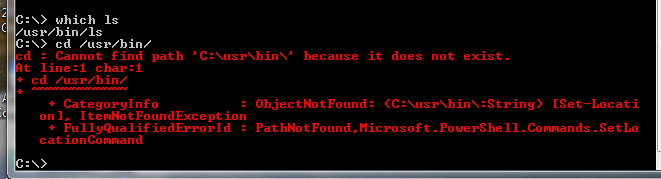
Consider this example: the “ls” program is installed and works in the powershell. The path is shown as “/usr/bin/ls” if I type “which ls” as the cmd prompt. But if I try to change my current directory using “cd /usr/bin/”, the shell complains that the path is not found.

enter image description here

I can’t see any mounted volumes or anything like that using “mount” (perhaps in PowerShell it is a different command?).

I’m asking this question because I have other files that I need to get to which are listed under unix-style paths, and right now I can’t get to anything. I figure if I can get to /usr/bin, then I can figure out how to get where I really need to go.

Solution:

Powershell is not Unix. It may have a few familiar commands like “ls” and “ps”, but that’s where the similarity ends.

When you installed Git For Windows, you likely installed the Git Bash shell as well. Run that instead to get a more Unix like atmosphere. (Re-install Git For Windows if you didn’t select this option on install).

But even with Git Bash, there’s still no such folder as /usr/bin. That folder doesn’t exist on Windows. If you want a Unix emulation on Windows that includes the traditional folder structure, use Cygwin. And you can run Git on that environment too and access an emulated /usr/bin folder.

How to replace Import-CSV to use a single command pipeline

I have a powershell script that generates a report on AWS IAM users password and access key last usage.

My question is how to replace Import-Csv so that the intermediate CSV file is not created and a single pipeline is used.

My code:

$desiredColumns = 'user', 'arn', 'password_last_used', 'access_key_1_last_used_date', 'access_key_2_last_used_date'

# Request the creation of a credential report
Request-IAMCredentialReport

# Get the credential report and save as a CSV file
Get-IAMCredentialReport -AsTextArray > credential_report.csv

# Import the CSV file, select the desired columns and output as an HTML file
Import-Csv credential_report.csv | Select $desiredColumns | ConvertTo-Html > credential_report.html

# Launch the default web browser to view the credential report
start credential_report.html

[Upate after veefu’s correct answer]

Here is the final code:

$desiredColumns = 'user', 'arn', 'password_last_used', 'access_key_1_last_used_date', 'access_key_2_last_used_date'

$reportFile = "credential_report.html"

# Request the creation of a credential report
Request-IAMCredentialReport

# Get the credential report and save as a variable
$data = Get-IAMCredentialReport -AsTextArray

# Process the variable, select the desired columns and output as an HTML file
$data | ConvertFrom-Csv | Select $desiredColumns | ConvertTo-Html > $reportFile

# Launch the default web browser to view the credential report
Invoke-Item $reportFile

Solution:

Did you try piping the output to ConvertFrom-CSV?

Get-IAMCredentialReport -AsTextArray |ConvertFrom-CSV | Select $desiredColumns | ConvertTo-Html > credential_report.html

PowerShell says “execution of scripts is disabled on this system.”

I am trying to run the a .cmd file that calls a PowerShell script from the command prompt, and I am getting the below error:

Management_Install.ps1 cannot be loaded because the execution of scripts is disabled on this system.

I have ran set-executionpolicy unrestricted and when I run get-executionpolicy from PowerShell I get unrestricted back.

//Output from Powershell

PS C:\Users\Administrator> get-executionpolicy

Unrestricted

//Output from DOS

C:\Projects\Microsoft.Practices.ESB\Source\Samples\Management Portal\Install\Scr

ipts>powershell .\Management_Install.ps1 1

WARNING: Running x86 PowerShell…

File C:\Projects\Microsoft.Practices.ESB\Source\Samples\Management Portal\Install\Scripts\Management_Install.ps1 cannot be loaded because the execution of scripts is disabled on this system. Please see “get-help about_signing” for more details.

At line:1 char:25

  • .\Management_Install.ps1 <<<< 1
    • CategoryInfo : NotSpecified: (:) [], PSSecurityException
    • FullyQualifiedErrorId : RuntimeException

C:\Projects\Microsoft.Practices.ESB\Source\Samples\Management Portal\Install\Scripts>pause

Press any key to continue . . .

The system is Windows Server 2008 R2.

Solution:

If you’re using Windows Server 2008 R2 then there is an x64 and x86 version of PowerShell both of which have to have their execution policies set. Did you set the execution policy on both hosts?

As an Administrator, you can set the execution policy by typing this into your PowerShell window:

Set-ExecutionPolicy RemoteSigned

For more information, see Using the Set-ExecutionPolicy Cmdlet.

Is there a way to capture powershell script executed output without using System.Management.Automation

The below method launches a powershell script and executes it

 private static void LaunchPowershell()
    {
        string exeDir = "H:\\aws-newAPIKey";

        ProcessStartInfo startInfo = new ProcessStartInfo();
        startInfo.CreateNoWindow = false;
        startInfo.UseShellExecute = false;
        startInfo.FileName = @"C:\Windows\system32\WindowsPowerShell\v1.0\powershell.exe";
        startInfo.Arguments = exeDir + "\\newApiKey_wh1.ps1";
        startInfo.WorkingDirectory = exeDir;

        Process process = new Process();
        process.StartInfo = startInfo;
        process.Start();
        process.WaitForExit();
    }

This results in the following output in the command line:

CreatedDate     : 1/3/2018 7:20:16 PM
CustomerId      : 
Description     : This is api key for customer
Enabled         : True
Id              : qraj84yl5h
LastUpdatedDate : 1/3/2018 7:20:16 PM
Name            : newAPIKey7
StageKeys       : {}
Value           : 2LBtWluNX1XbgtDG0SPY1IQgnVDkZTwzmgY3kd60

What I want to do is to obtain the Value of the API key created in C#. Is there a way to do this without using System.Management.Autmomation library?

Solution:

If you want to retrieve complex data from powershell by executing a process, then you could use ConvertTo-Json on the powershell object, and parse it in C#

Although it looks like you’re trying to create an API key for AWS, so why not just use the AWS SDK for .NET?