aws lambda function timed out when querying data from MySQL database

I have an index.js file which contains code like the following:

const dbConfig = require('./config/dbConfig')
const mysql = require('mysql')

var con = mysql.createConnection({
  host: dbConfig.host,
  user: dbConfig.username,
  password: dbConfig.password,
  database: dbConfig.database
})

function readMessages (event, context, callback) {
  console.log('function triggered')
  con.connect((err) => {
    if (err) {
      console.error(err)
      callback(err)
    } else {
      console.log('Connected!')
      con.query('SELECT * FROM Messages WHERE isDeleted = 0;', (err, result, fields) => {
        if (err) {
          console.error(err)
          callback(err)
        } else {
          console.log(result)
          con.end()
          callback(null, result)
        }
      })
    }
  })
}

exports.handler = readMessages

The code correctly gets data from the mysql database and displays them on the screen when I run it on my local machine.

However, I got Task timed out after 7.01 seconds error when it is run on aws-lambda.

The code and its dependencies are packaged in a file named app.zip, then uploaded to aws-lambda.

app.zip
├── config
│   └── dbConfig.js
├── index.js
└── node_modules

The only log message being printed by my function is function triggered. I cannot find other log messages generated by my function in the cloud watch log.

Why does the function timed out on aws-lambda?

Solution:

If I had to guess it is a permissions issue, when you run locally it is going to grab credentials from your local machine/environment – when you run this in lambda you need to assign a role to the lambda that has the permissions it needs to access the mysql database.

Also, make sure that the mysql database is accessible to the lamba – i.e. your not trying to access a mysql database that is local to your machine from the lambda function (I was assuming you were using rds).
S3 signature does not match on getSignedUrl serverside node

I’m trying to put a video file to my bucket using a pre-signed url in angular4.

Node:

let s3 = new AWS.S3();
      s3.config.update({
        accessKeyId: process.env.VIDEO_ACCESS_KEY,
        secretAccessKey: process.env.VIDEO_SECRET_KEY
      })
      let videoId = await Video.createVideo()
      let params = {
        ACL: "public-read",
        Bucket: process.env.BUCKET_NAME,
        ContentType: 'video/mp4',
        Expires: 100,
        Key: req.jwt.username+"/"+videoId,
      }
      return s3.getSignedUrl('putObject', params, function (err, url) {
        if(!err) {
          console.log(url);
          res.status(200);
          res.json({
            url: url,
            reference: `${process.env.BUCKET_NAME}/${req.jwt.username}/${videoId}`,
            acl: params.ACL,
            bucket: params.Bucket,
            key: params.Key,
            contentType: params.ContentType,
          });
        } else {
          console.log(err);
          res.status(400);
          res.json({
            message: "Something went wrong"
          })
        }
      });

This successfully generates a url for me, and I try to use it in my post request in the front end.

Angular:

this.auth.fileUpload().subscribe((result) => {
        console.log(result["key"], result["acl"], result["bucket"], result["contentType"])
        if(!result["message"]) {
          let formData = new FormData();
          formData.append('file', file.files[0]);
          const httpOptions = {
            headers: new HttpHeaders({
              "Key": result["key"],
              "ACL": result["acl"],
              "Bucket": result["bucket"],
              "Content-Type": result["contentType"],
            })
          };
          this.http.post(result["url"], formData, httpOptions ).subscribe((response) => {
            console.log("response");
            console.log(response);
            let reference = `https://s3.amazonaws.com/${result["reference"]}`
            this.auth.makeVideo(result["reference"]).subscribe((result) => {
              console.log(result);
            });
          }, (error) => {
            console.log("error");
            console.log(error);
          })

But this generates an error.

SignatureDoesNotMatch
The request signature we calculated does not match the signature you provided. Check your key and signing method

Here’s the URL that I generate

https://MY_BUCKET_HERE.s3.amazonaws.com/admin/87f314f1-9f2e-462e-84ff-25cba958ac50?AWSAccessKeyId=MY_ACCESS_KEY_HERE&Content-Type=video%2Fmp4&Expires=1520368428&Signature=Ks0wfzGyXmBTiAxGkHNgcYblpX8%3D&x-amz-acl=public-read

I’m pretty sure I’m just making a simple mistake, but I can’t figure it out for the life of me. Do I need to do something with my headers? Do I need to change the way I read the file for the post? I’ve gotten it to work with a public bucket with FormData and a simple post request with no headers, but now that I’m working with Policies and a private bucket, my understanding is much less. What am I doing wrong?

Solution:

If you generate a pre-signed URL for PutObject then you should use the HTTP PUT method to upload your file to that pre-signed URL. The POST method won’t work (it’s designed for browser uploads).

Also, don’t supply HTTP headers when you invoke the PUT. They should be supplied when generating the pre-signed URL, but not when using the pre-signed URL.

How to keep ChildProcess from running out of memory? Electron/Node.js

Using Electron and Node.js to write a simple user interface to a process that generates data, and then allows the user to call gnuplot to show the data. Here is the code in main.js that calls gnuplot (gnuplot5-qt).

var menu = Menu.buildFromTemplate([
  {
      label: 'Run Graph',
      click() {
        commandLine()
      }
  },
// Other code
function commandLine () {
    var child = require('child_process').execFile;
    var executablePath = "/usr/bin/gnuplot";
    var parameters = ["-p","-e","filename='/home/prog1/PP_Logs/log1.txt'","/home/prog1/plot_log.p"];

    child(executablePath, parameters, function(err, data) {
      console.log(err);
      console.log(data.toString());
    });

gnuplot always opens, sometimes it stays open and I can exit it normally, but randomly it will close immediately after opening and prints the following error:

{ Error: Command failed: /usr/bin/gnuplot -p -e filename='/home/prog1/PP_Logs/log1.txt' /home/prog1/plot_log.p

at ChildProcess.exithandler (child_process.js:282:12)
at emitTwo (events.js:125:13)
at ChildProcess.emit (events.js:213:7)
at maybeClose (internal/child_process.js:921:16)
at Socket.stream.socket.on (internal/child_process.js:348:11)
at emitOne (events.js:115:13)
at Socket.emit (events.js:210:7)
at Pipe._handle.close [as _onclose] (net.js:549:12)
killed: false,
code: null,
signal: 'SIGSEGV',
cmd: '/usr/bin/gnuplot -p -e filename=\'/home/prog1/PP_Logs/log1.txt\' /home/prog1/plot_log.p' }

This same code works without issue if gimp is launched instead of gnuplot:

 var executablePath = "/usr/bin/gimp";
 var parameters = ["-s","/home/geenweb/Pictures/lgcm110.jpg"];

Given the SIGSEGV, I’m assuming that gnuplot is running out of memory when it crashes. Is there some way to allocate more memory? Is there a better way to call gnuplot? I’m just learning Electron, Node.js, and javascript. Thanks for your help.

Solution:

Firstly, you should make sure you’re running the current LTS version of Node, which at the time of this writing is v8.9.4.

ChildProcess.execFile() runs your command in a new process by default which might be the cause of your error. You may wish to specify that your command be run in a newly spawned shell by setting the shell flag in the options you pass to execFile() to either true which will cause the default /bin/sh shell to be used or to a path to the shell you wish to use.

Running your process in a /bin/sh or /bin/bash shell will give you access to the shell ulimit built-in command which will provide you a means to modify resource limits for the shell. See Setting Limits With ulimit for information about the ulimit command and how to use it.

If this is the case, you’ll need to wrap your command invocation in a shell-script that first runs ulimit with the correct limits.

See Limit Memory Usage For A Single Linux Process for further discussion on this topic.

Your problem might also be caused by the default allocated size of the buffers used to transfer the running command’s output via stdout and stderr.

If this is the case and the program’s output exceeds 200*1024 bytes, you can use the maxBuffer in the options you pass to execFile() to increase the size of these buffers.

node, how do I kill/stop node process? Ubuntu 16.04 LTS

I’ve been trying to kill node process but always get error.

ps aux | grep node

root     21960  0.0  0.0  16976   972 pts/3    S+   00:58   0:00 grep --color=auto node

when I tried to kill using -9 and even -2 I get this-bash: kill: (21960) – No such process

 kill -9 21960
-bash: kill: (21960) - No such process

 kill -2 21960
 -bash: kill: (21960) - No such process

 kill -9 16976
 -bash: kill: (16976) - No such process

 kill -2 16976
 -bash: kill: (16976) - No such process 

Solution:

You can tell the PID you are receiving is from the grep process by the returned value

grep --color=auto node

You can always use pidof to get your node pids

pidof node

Or you could just kill all of the node pids outright

pkill node

But based on the returned value of your ps aux, it doesn’t look like a node process is running.

How to get the thumbnail of base64 encoded video file in nodejs

I am developing a web application using Nodejs. I am using Amazon S3 bucket to store files. What I am doing now is that when I upload a video file (mp4) to the S3 bucket, I will get the thumbnail photo of the video file from the lambda function. For fetching the thumbnail photo of the video file, I am using this package – https://www.npmjs.com/package/ffmpeg. I tested the package locally on my laptop and it is working.

Here is my code tested on my laptop

var ffmpeg = require('ffmpeg');

module.exports.createVideoThumbnail = function(req, res)
{
    try {
        var process = new ffmpeg('public/lalaland.mp4');
        process.then(function (video) {

            video.fnExtractFrameToJPG('public', {
                frame_rate : 1,
                number : 5,
                file_name : 'my_frame_%t_%s'
            }, function (error, files) {
                if (!error)
                    console.log('Frames: ' + files);
                else
                    console.log(error)
            });

        }, function (err) {
            console.log('Error: ' + err);
        });
    } catch (e) {
        console.log(e.code);
        console.log(e.msg);
    }
    res.json({ status : true , message: "Video thumbnail created." });
}

The above code works well. It gave me the thumbnail photos of the video file (mp4). Now, I am trying to use that code in the AWS lambda function. The issue is the above code is using video file path as the parameter to fetch the thumbnails. In the lambda function, I can only fetch the base 64 encoded format of the file. I can get id (s3 path) of the file, but I cannot use it as the parameter (file path) to fetch the thumbnails as my s3 bucket does not allow public access. So, what I tried to do was that I tried to save the base 64 encoded video file locally in the lambda function project itself and then passed the file path as the parameter for fetching the thumbnails. But the issue was that aws lamda function file system is read-only. So I cannot write any file to the file system. So what I am trying to do right now is to retrieve the thumbnails directly from the base 64 encoded video file. How can I possibly do it, please?

Solution:

Looks like you are using a wrong file location,

/tmp/* is your writable location for temporary files and limited to 512MB

Checkout the tutorial that does the same as you like to do.

https://concrete5.co.jp/blog/creating-video-thumbnails-aws-lambda-your-s3-bucket

Lambda Docs:

https://docs.aws.amazon.com/lambda/latest/dg/limits.html

Ephemeral disk capacity (“/tmp” space) 512 MB

Hope it helps.

context.awsRequestId from lambda

Is the uuid from context.awsRequestId really unique? I want to use it in association with the creation of a resource, so I can now when the resource was created:

const uuid = require('uuid');
const AWS = require('aws-sdk');

const dynamoDb = new AWS.DynamoDB.DocumentClient();

module.exports.create = (event, context, callback) => {
  const timestamp = new Date().getTime();
  const data = JSON.parse(event.body);
  if (typeof data.text !== 'string') {
    console.error('Validation Failed');
    callback(null, {
      statusCode: 400,
      headers: { 'Content-Type': 'text/plain' },
      body: 'Couldn\'t create the todo item.',
    });
    return;
  }

  const params = {
    TableName: process.env.DYNAMODB_TABLE,
    Item: {
      id: context.awsRequestId,
      text: data.text,
      checked: false,
      createdAt: timestamp,
      updatedAt: timestamp,
    },
  };

  // write the todo to the database
  dynamoDb.put(params, (error) => {
    // handle potential errors
    if (error) {
      console.error(error);
      callback(null, {
        statusCode: error.statusCode || 501,
        headers: { 'Content-Type': 'text/plain' },
        body: 'Couldn\'t create the todo item.',
      });
      return;
    }

    // create a response
    const response = {
      statusCode: 200,
      body: JSON.stringify(params.Item),
    };
    callback(null, response);
  });
};

Thank you.

Solution:

I don’t think this is clearly documented, but based on observations, these UUIDs do not appear to be randomly generated (which is good for uniqueness). Instead, they look like they are a variant of Type 1 UUIDs, where most of the bytes actually represent a timestamp, so it would appear to be a safe assumption that they are both spatially and temporally unique.

When the digit M in xxxxxxxx-xxxx-Mxxx-xxxx-xxxxxxxxxxxx is set to 1, the UUID should be a Type 1 and should represent a high resolution timestamp and “node” identifier, although in this case the node component seems to carry no meaningful information… but the timestamps seem close to real time (though not precisely so).

Recommended way to get temporary AWS credentials? AWS.config or STS?

I’m using a third-party SDK that needs temporary AWS credentials to access AWS services. I’m using this SDK as part of an application that is running on EC2. All SDKs in my application need access to the same role, which is attached to my the EC2 instance. Below, I have listed two options I have found for getting temporary credentials. Which one of these options is the recommended way for getting temporary credentials for my third-party SDK?

AWS.config

var AWS = require("aws-sdk");
AWS.config.getCredentials();
var creds = AWS.config.credentials

Security Token Service (STS)

var sts = new AWS.STS();
var params = {
    RoleArn: "arn:aws:iam::123456789012:role/demo",
    RoleSessionName: "Bob",
};
sts.assumeRole(params, function(err, data) {
    var creds = data.Credentials;
});

Solution:

Should in this case is a bit fluid, but when you launch an EC2 instance and assign it an instance profile, (somewhat) temporary credentials are made available as instance metadata. You access instance metadata via a local HTTP server bound on 169.254.169.254

e.g.
curl http://169.254.169.254/latest/meta-data/ami-id

returns the AMI-ID of the running instance. AWS credentials associated with the instance profile assigned to the instance can be accessed in this manner.

Anything running on the instance can access this data, meaning that if you’re trying to isolate the third-party SDK from your instance profile, you’ve already failed.

However, it doesn’t sound like that’s what you’re trying to do. When you execute AWS.config.getCredentials();, it uses the instance metadata (among other things) to look up the credentials. This is advantageous because it allows you to supply the credentials in a variety of manners without changing the code that looks them up.

The STS use case, however, is if you want to temporarily change a given user to a particular role. The user you’re going to elevate must have the sts:AssumeRole permission. This can be used for auditing purposes, etc.

How do you download a file from AWS S3 to a client's device?

Have looked at all the tutorials on how to download files from S3 to local disk. I have followed all the solutions and what they do is download the file to the server and not to the client. The code I currently have is

app.get('/download_file', function(req, res) {
  var file = fs.createWriteStream('/Users/arthurlecalvez/Downloads/file.csv');
  file.on('close', function(){console.log('done'); });
  s3.getObject({ Bucket: 'data.pool.al14835', Key: req.query.filename }).on('error', function (err) {
   console.log(err);
   }).on('httpData', function (chunk) {
      file.write(chunk);
   }).on('httpDone', function () {
       file.end();
   }).send();

  res.send('success')

 })

How do I then send this to the client so that it is downloaded onto their device?

Solution:

S3 supports the ability to generate a pre-signed URL via the AWS Javascript API. Users can then GET this URL to download the S3 object to their local device.

See this question for a Node.js code sample.

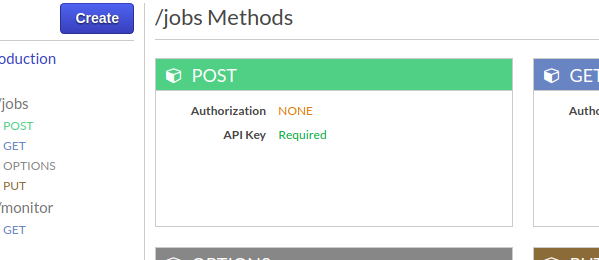
How to enable apiKey required to true using the aws-sdk?

I have been stuck here for too long. How do I enable API Key for the particular REST method using the aws-sdk? I could enable it using the console, but not finding a method to achieve this using the nodejs sdk. So basically want to setup the secret key for specified API Endpoint + Resource + Method.

In the following snapshot, I enabled the api-key required to true from the console.

enter image description here

Docs referred: AWS Nodejs Doc

Here is what I have been able to do so far:

    // CREATE API KEY
    async function create() {
    try {
        const apiKey = await apigateway.createApiKeyAsync({
            enabled: true,
            generateDistinctId: true,
            name: NAME_OF_KEY
        });

        /**
         * @see https://docs.aws.amazon.com/AWSJavaScriptSDK/latest/AWS/APIGateway.html#createUsagePlan-property
         */
        // CREATE USAGE PLAN AND LINK API
        const usagePlan = await apigateway.createUsagePlanAsync({
            name: NAME_OF_USAGE_PLAN,
            apiStages: [
                {
                    apiId: API_ID,
                    stage: STAGE
                },
                /* more items */
            ],
            quota: QUOTA_INFO,
            throttle: THROTTLE_INFO
        });

        /**
         * Creates a usage plan key for adding an existing API key to a usage plan.
         */
        // LINK API KEY AND USAGE PLAN
        await apigateway.createUsagePlanKeyAsync({
            keyId: apiKey.id,
            keyType: 'API_KEY',
            usagePlanId: usagePlan.id
        });

        return Promise.resolve(apiKey);
    } catch (err) {
        return Promise.reject(err);
    }
}

Solution:

You need to call the function updateMethod to update your method request:

Reference: Class: AWS.APIGateway

var params = {
  httpMethod: 'STRING_VALUE', /* required */
  resourceId: 'STRING_VALUE', /* required */
  restApiId: 'STRING_VALUE', /* required */
  patchOperations: [
    {
      from: 'STRING_VALUE',
      op: add | remove | replace | move | copy | test,
      path: 'STRING_VALUE',
      value: 'STRING_VALUE'
    },
    /* more items */
  ]
};
apigateway.updateMethod(params, function(err, data) {
  if (err) console.log(err, err.stack); // an error occurred
  else     console.log(data);           // successful response
});

So you can do the following:

var apigateway = new AWS.APIGateway({apiVersion: '2015-07-09'});

var params = {
  httpMethod: 'POST',
  resourceId: 'resource id',
  restApiId: API_ID,
  patchOperations: [
    {
      op: 'replace',
      path: '/apiKeyRequired',
      value: 'true' || 'false'
    },
  ]
};

apigateway.updateMethod(params, function(err, data) {
  if (err) cb(err, err.stack); // an error occurred
  else     cb(null, data);           // successful response
});

Hope it helps!

How to run executable file in Ubuntu as a command or service (with Node.js child_process.spawn())?

First, similar questions, no answers:

Node.js child_process.spawn() fail to run executable file

node.js child_process.spawn ENOENT error – only under supervisord

I have an executable file with .linux extension. It is http server.

service.linux

I can run it like this:

$ ./service.linux
2018/01/11 18:32:56 listening on port 8080

But since it is not a command, I cannot start it as a spawned process:

let cp = spawn('service.linux', [], { cwd: __dirname });

The errors I get is:

service.linux: command not found

ERROR: Error: spawn service.linux ENOENT

How can I run it as a command? Or should I use some other command to run it, like:

$ start service.linux

UPD:

$ file service.linux 
service.linux: ELF 64-bit LSB executable, x86-64, version 1 (SYSV), statically linked, not stripped

UPD:

It needs absolute path:

const path = require('path');
let cp = spawn(path.resolve(__dirname, `service.linux`), [], { cwd: __dirname });

Solution:

This is a path issue, node is unable to find service.linux file, use absolute path, issue will be resolved