Dokumentation für Wohltätigkeitsorganisationen

Erfahren Sie, wie Sie mit klaren Schritt-für-Schritt-Anleitungen das Beste aus Charitable herausholen.

So erlauben und verwalten Sie Spenderkommentare

Do you want to give donors an option to leave a message with their donation?

This Donor Comments feature lets you do that with just a few clicks. Once enabled, donor comments can help build community engagement and transparency by giving donors a voice to share their support.

This guide will walk you through the process of enabling and managing donor comments on your donation campaigns.

Inhaltsverzeichnis

Enabling Donor Comments

To allow donor comments on your campaigns, go to the Charitable » Settings page. Here, open the Donors tab and then choose Donor Comments from the submenu.

In this settings page, you’ll see “Enable Donor Comments” with a toggle button next to it. Click this button to enable donor comments feature in the Charitable plugin.
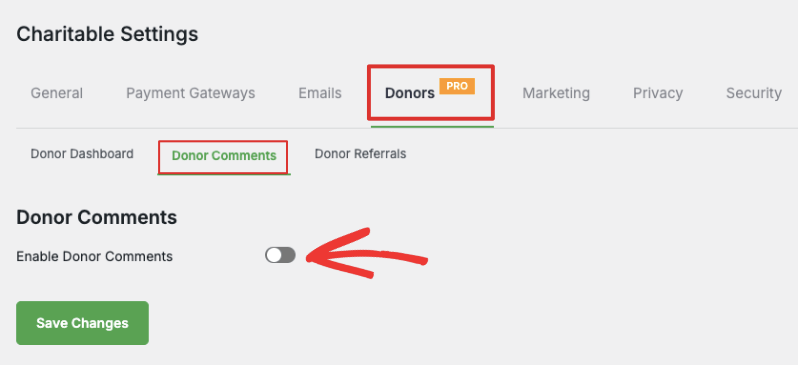
Enable donor comments

Make sure you hit the ‘Save Changes’ button to store your changes.

Configure Donor Comments Settings

When you enable donor comments, new settings will appear on the same page. There are two options here: Show donor comments and comment instructions.

Show Donor Comments in Campaign
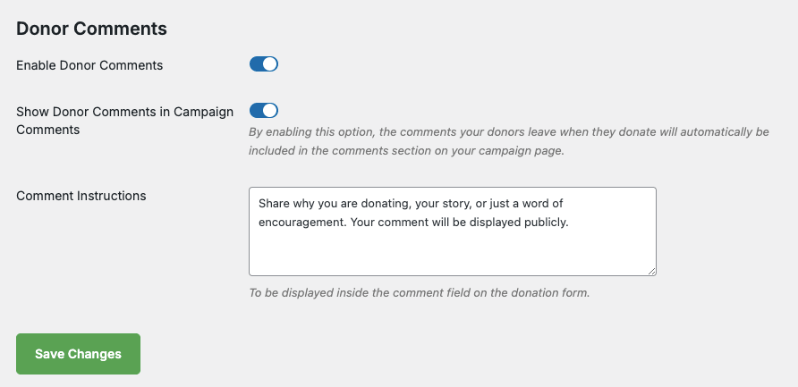
Donor Comments settings page

You can show or hide donor comments on Campaign Pages.

  • Hide: If you choose to hide donor comments, donors can leave messages but only you and your team will be able to view these comments in the donor management system. The donor can view their comments inside their own donor dashboard (if you’ve enabled it).
  • Show: If you choose to show comments, then comments will be publicly viewable. So anyone who can view your campaign page, can also view comments from donors.

Add Comment Instructions

Below this, there is a field called ‘Comment Instruction’. You can enter custom instructions that will appear to your donors inside the comment field in the donation form.

A default message has already been entered for you, but you can edit this as per your needs.

Hit the ‘Save Changes’ button to store your changes.

Now you’ve enabled and configured the donor comments feature on your website. Next, Charitable lets you enable/disable it on individual campaigns that you create. We’ll learn how to do that next.

Important Note: Charitable gives you the flexibility to choose which campaigns can have comments. For this reason, the plugin does not automatically enable the comments section on all campaigns. You need to switch on comments inside the settings of individual campaigns.

Enable Comments in Campaign

Head over to Charitable » Campaigns. Here, you can create a new campaign or edit an existing one.

Inside the campaign builder, in the left menu, choose the Settings » General Settings tab.

On this page, you’ll see a toggle button to enable Donor Comments for this campaign. Click the button to enable comments for this campaign.
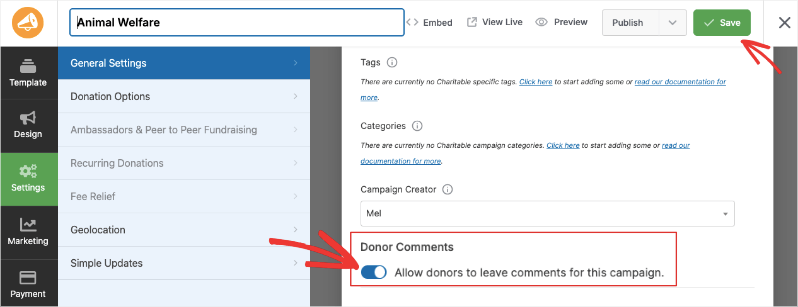
Allow donor comments in campaign settings

Now you can save and publish the campaign.

When a donor chooses to make a contribution, they will see an option to Leave a Comment in the donation form.

Here is an example of that:
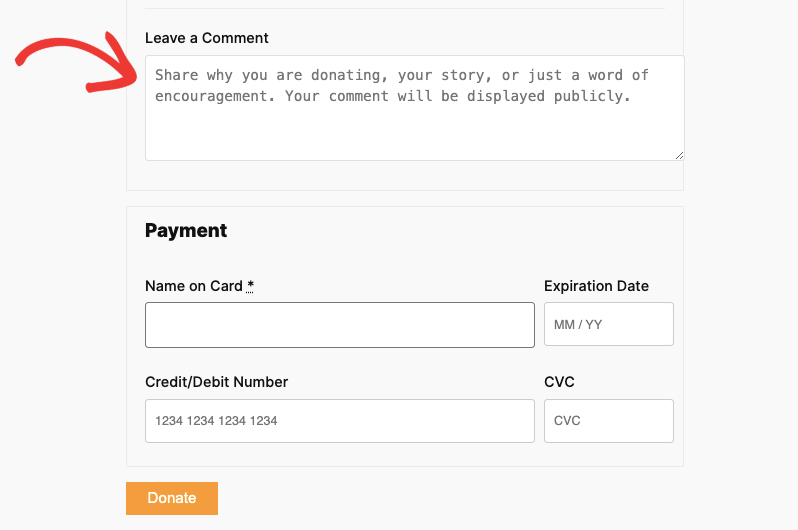
Leave a comment in donation form

Displaying Comments Section in Your Campaign

To display the donor comments in your campaign for the public to view, in the campaign builder, go to the Design tab. Scroll to the Pro section in the left panel.

Select the Donor Comments field and drag and drop into your campaign where you would like it to appear.
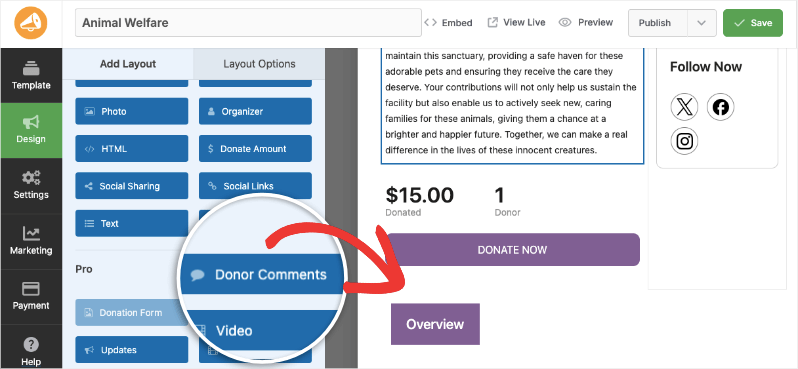
Add donor comments to campaign

When you save your campaign, the comments section will appear in the campaign.

Managing Comments

Charitable Comments can be managed through the default WordPress Comments page as well as inside the Charitable dashboard.

Managing Donor Comments in WordPress

In the left menu of your WordPress menu, open the Comments page. You’ll see a list of all comments donors have left. You can see the donor name, comment text, the campaign, and the date.

Here, you can approve, reject, edit or reply to comments directly from the WordPress dashboard. You can also send them to spam or trash.

Manage comments in WordPress

Note: Since donor comments are added as regular comments, they will automatically go through the same Akismet SPAM filtering that regular comments do, if you have Akismet installed.

Managing Donor Comments in Charitable

Inside the Charitable dashboard, go to the Donors tab and edit any donor. Scroll down and you’ll see a section with options to view different tabs: Donations, Campaigns, Comments, Social, Logs, and Notes.

Under the Comments tab, you can view, edit, and delete all comments left by the donor.

Kommentare im Spender-Dashboard

Let Donors View & Manage Their Own Comments

If you want to allow donors to manage their own comments, you need to enable the Donor Dashboard. Follow this guide to Enable and Manage the Donor Dashboard »

Once done, your donors can log into their donor account and view all their donations, manage recurring contributions, view comments, and download their donation receipts.

To view comments, donors can log into their account and open the donor dashboard. They’ll see a Comments tab under which all their comments will appear.
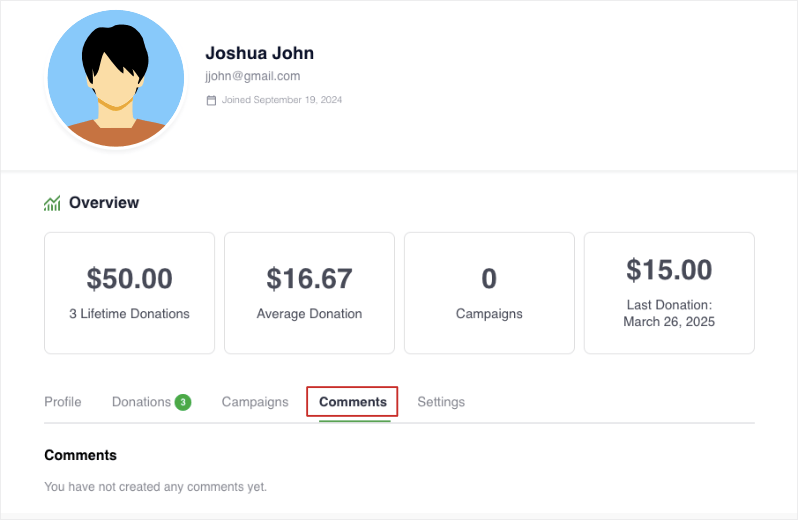
Kommentare im Spender-Dashboard

That’s it. You’ve learned how to allow and manage comments in Charitable.

To maximize this feature, head over to the full breakdown of Donor Comments »

Next, you may also want to learn how to use the Donor Management System and explore Donor Referrals and what they can do for your cause.

Haben Sie noch Fragen? Wir helfen Ihnen gerne weiter!

Zuletzt geändert:

Was ist neu bei Charitable

Die neuesten Updates anzeigen
🔔 Abonnieren Sie, um unsere neuesten Updates zu erhalten
📧 E-Mails abonnieren

E-Mail-Abonnement

Abonnieren Sie unseren Newsletter

Wir werden Sie nicht spammen. Wir senden nur eine E-Mail, wenn wir glauben, dass sie Ihnen wirklich hilft. Abmeldung jederzeit möglich!

Verbesserung Zahlungen

📱 Turn Mobile Scrollers Into Donors: Meet Charitable’s Mollie Upgrade

Losing mobile supporters because they hate typing out long card numbers on their phones? Charitable’s updated Mollie integration features:

⚡ One-Tap Wallet Checkout: Enable donors to complete their gifts instantly using Apple Pay or Google Pay with a simple face scan, fingerprint, or tap.

💰 No Extra PCI Burden: Skip complex domain verification and security compliance since all wallet transactions run safely through Mollie’s hosted checkout.

🛠️ Custom Cancel Routing: Keep the experience predictable by automatically sending donors who back out to your cancellation page, or use developer filters to route them to a custom page.

Visit this page to learn more.

ambassadors improved Neu

Moderation and Directory Screens In Ambassadors 3.0

Ambassadors 3.0 has new features: moderation and directory screens… now easily see those who are earning donations on your peer to peer network – including campaign creators that might need to be verified – all in one place. Generate reports, email ambassadors and campaign creators directly and more.

🚀 See when campaign creators and ambassadors have updated their campaigns, what donors/donation they have brought in and more.

🎉 Manually add ambassadors and campaign creators, and approve them in one-click!

Besuchen Sie diese Seite, um mehr zu erfahren.

Neu Zahlungen

⚡ Unlock India-Based Donations: Meet Charitable’s Native Razorpay Integration

Trying to collect donations in India? Charitable’s native Razorpay integration features:

⚡ Instant UPI Integration: Accept fast, local donations directly inside your form via apps like PhonePe, Google Pay, Paytm, and BHIM without sending donors away from your site.

📲 Auto-Generated Campaign QRs: Instantly render scannable QR codes encoding a UPI deep link directly on your public campaign pages and sidebars for an effortless “scan-to-give” experience.

💰 Dual Local & Global Reach: Headline your campaigns in INR while seamlessly accepting major international currencies like USD, EUR, GBP, and CAD to maximize global support.

🔁 Seamless Recurring Giving: Fully integrates with the Charitable Recurring addon to manage automatic monthly subscriptions directly through Razorpay without extra code.

↩️ Automatic Two-Way Sync: Keep your books perfectly clean with two-way refund syncing—issue a refund inside WordPress or your Razorpay dashboard and both sides update automatically.

🔒 Webhook-Verified Security: Automatically protect your donation records using HMAC-signed webhook verification to ensure every status update represents real money cleared on the rails.

Besuchen Sie diese Seite, um mehr zu erfahren.

Integration Neu

🎉 New Built-in PushEngage Integration

Struggling with falling email open rates and rising ad costs just to keep your supporters engaged? Charitable’s built-in PushEngage integration features:

🔔 Zero-Fee Direct Messaging: Deliver crisp, instant pop-up notifications straight to your donors’ desktops and mobile devices.

⏱️ Four Smart Automated Triggers: Automatically send updates for immediate donation thank yous, full-list campaign launches, urgent “ending soon” alerts, and goal milestone celebrations.

📈 Group Momentum Broadcasts: Turn private milestones into public wins by automatically broadcasting alerts to your entire subscriber list the moment a campaign hits 50%, 75%, or 100% of its goal.

📊 Automatic Analytics Tracking: Monitor exactly where your incoming notification traffic is coming from with built-in attribution that requires zero complex configuration.

Besuchen Sie diese Seite, um mehr zu erfahren.

Neu Sicherheit

💂‍♂️ Neues DonationGuard 🛡️ Schützt Ihre Spenden automatisch!

Machen Sie sich Sorgen über Karten-Testangriffe oder Spam-Bots, die Ihre Spendenformulare überfluten, aber Sie möchten das Spenden-Erlebnis für Ihre echten Unterstützer nicht beeinträchtigen? Die DonationGuard-Funktionen von Charitable:

🛡️ Echtzeit-Bot-Erkennung: Überwacht aktiv jede Spendeneinreichung auf fünf verschiedene Angriffssignale, ohne Ihre menschlichen Spender zu verlangsamen.

📊 Intelligente Traffic-Bewertung: Bewertet sofort die Aktivität anhand einer erlernten Basislinie der normalen Spendenrhythmen Ihrer Website, um heimliche, langsame Karten-Tests zu erkennen.

🚨 Schweregrad-gestufte Warnungen: Öffnet sofort strukturierte „Angriffsdatensätze“ und benachrichtigt Sie per E-Mail und Admin-Benachrichtigungen, sobald eine Kampagne unter Beschuss gerät.

🎯 Ein-Klick-Abwehr: Setzen Sie sofortige Sicherheit mit der Voreinstellung „Empfohlene Einstellungen“ ein, um Honeypot-, Time Trap- und Rate Limit-Module gleichzeitig zu aktivieren.

🚫 Automatisierte Blocklisten: Stoppen Sie wiederholte Täter dauerhaft, indem Sie verdächtige E-Mail-Adressen automatisch basierend auf Ihren benutzerdefinierten Regeln blockieren.

Besuchen Sie diese Seite, um mehr zu erfahren.