
Select your cookie preferences
We use cookies and similar tools that are necessary to enhance your experiences on Amazon video services, enable you to make purchases, and provide our services, as detailed in our Cookie Notice. We also use these cookies to understand how customers use our services (for example, by measuring visits to our service) so we can make improvements.
If you agree, we'll also use cookies to complement your viewing experience across Amazon video services as described in our Cookie Notice. Your choice applies to using first- and third-party advertising cookies on this service. Cookies store or access standard device information like a unique identifier. Up to 103 third parties use cookies on this service for their purposes of displaying and measuring personalized ads, generating audience insights, and developing and improving products.
To learn more about the personal information Amazon uses for advertising purposes (like Store order history, Prime Video Watch history, or demographic information) and cookies, see our Privacy Notice and Cookie Notice.
Click Decline to reject or Customize to make more detailed advertising choices or learn about how to change your choices.
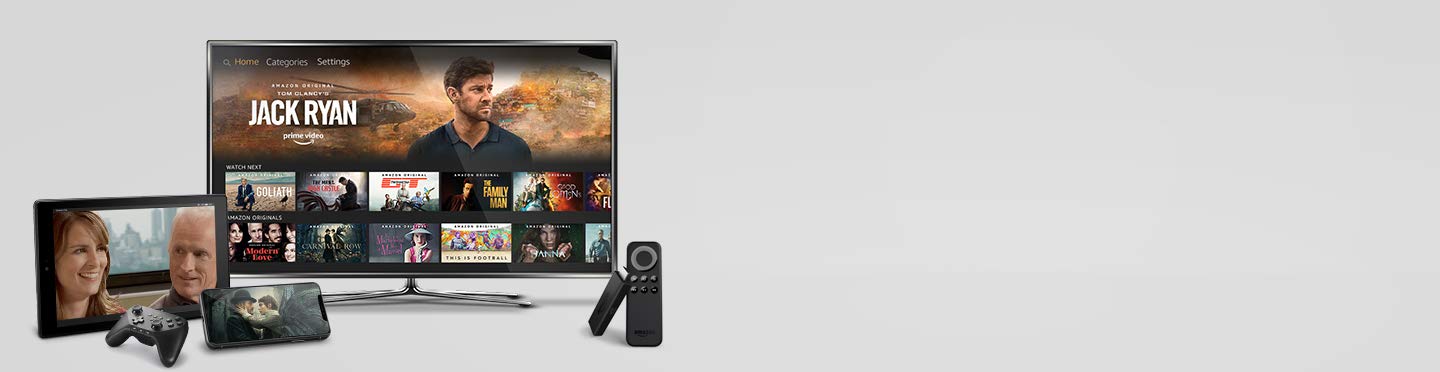
Watch anywhere, anytime
Start watching Prime Video on your favorite devices anywhere, anytime
It's easy to watch Prime Video on your device.
Locate your device below, follow the simple instructions and you'll be able to start watching instantly. To learn more, go to Devices Compatible with Prime Video.
Smart TV or Blu-Ray Player
1. If the Amazon Prime Video app isn't pre-installed on your Smart TV or Blu-ray player, download it from your device's app store.
2. Open the Amazon Prime Video app and sign in with your Amazon Prime or Prime Video account.
3. Choose a movie or TV Show and start streaming.
Streaming Media Player
1. Open the Prime Video app. If the app is not pre-installed, you can download it from your streaming media player's app store.
2. Register your streaming media player in one of two ways:
Select "Sign in and start watching" to enter your account information directly on your device.
-or-
Choose "Register on the Amazon Website" to get a 5-6 character code.
Sign in to your Amazon account and enter your code
Game console
1. If the Amazon Prime Video app is not pre-installed on your console, download it from your console’s app store.
2. Open the Amazon Prime Video app and sign in with your Amazon Prime or Prime Video account.
3. Choose a movie or TV Show and start streaming.
Fire Tablet
1. Go to the Video of your tablet.
2. Choose a movie or TV Show and start streaming.
iOS Phone or Tablet
1. Go to the Apple app store on your device and download the Amazon Prime Video app.
2. Open the Amazon Prime Video app and sign in with your Amazon Prime or Prime Video account.
3. Choose a movie or TV Show and start streaming directly from the app.
Android Phone or Tablet
1. Go to the Google Play app store on your device and download the Amazon Prime Video app.
2. Open the Amazon Prime Video app and sign in with your Amazon Prime or Prime Video account.
3. Choose a movie or TV Show and start streaming directly from the app.
Google Chromecast
1. From the Prime Video app, select the Cast icon.
2. Select the Chromecast device you want to use. Note: Your iOS or Android device must be connected to the same Wi-Fi network as your Chromecast.
3. Select a title you want to watch. The title you have selected is shown on the TV that the Chromecast is connected to.
Windows PC or Tablet
1. On your device, go to the Microsoft Store and download the Amazon Prime Video app.
2. Open the Amazon Prime Video app and sign in with your Amazon Prime or Prime Video account.
3. Choose a movie or TV show and watch in the app.
Get the app


