For years, bloggers have been looking for a solution to automatically tweet on X (Twitter) for their scheduled posts. Since social channels give authors the chance to reach out to a wider audience, it is absolutely crucial to share content on popular media on a regular basis. Hence, it is not surprising to see people sharing their articles on X (Twitter) or Facebook to generate more views on their website. For WordPress users, you will have to do this manually or rely on third-party plugins for the same case.

However, with SchedulePress, you no longer have to use additional plugins to automatically tweet on X (Twitter). Along with its amazing scheduling features, you can now share your scheduled WordPress posts on your X (Twitter) account, all from one place. By using this tool, you can certainly increase your productivity and help your blogging site to perform well. Let us take a deep dive into how you can easily share your scheduled WordPress blog post automatically on X (Twitter).
How to Increase Blog Engagement Using Twitter?
After finishing an article, the first concern for bloggers is how quickly they can increase engagement and share it as much as they can. One of the most popular ways to increase engagement on your Blogging site is by sharing blogs on X (Twitter). Since it opens up the opportunity to reach out to a far wider audience, it is a great way to engage more users on your WordPress website. Not only that, you can easily get new customers, active readers and make them follow you in the process.
It allows you to get connected with a variety of people over this platform to share your latest news and spread it in a wider range. Adding instant social proof can massively help to increase the blog engagement rate. This is why you should definitely consider using tools to automatically tweet on your X (Twitter) account.
With the help of SchedulePress, you can now easily take care of this hassle and share your scheduled blog posts on your X (Twitter) profile in an automated process.
How to Automatically Tweet on X (Twitter) & Share Your WordPress Posts?
SchedulePress allows you to automatically share your scheduled WordPress posts on your X (Twitter) account. By connecting X (Twitter) with SchedulePress, you can automatically tweet on X for sharing your blog posts at the scheduled time. Besides, with its ‘Instant Share’ flexibility, you can also share your post on X (Twitter) any time you want.
Follow the guidelines below to share your WordPress posts on your Twitter account.
Step 1: Connect X (Twitter) with SchedulePress
First of all, make sure that you have created an App from your Twitter Developer account.
Afterwards, navigate to SchedulPress → Settings from your WordPress dashboard. Then, open the ‘Social Profile’ tab and switch to the ‘Twitter’ option. Make sure that the ‘Twitter’ option is enabled. Afterward, click ‘Add New Profile’ to connect your Twitter profile with SchedulePress.

After hitting the ‘Add New’ button, you will have to insert your X (Twitter) App ID and App Secret Key.
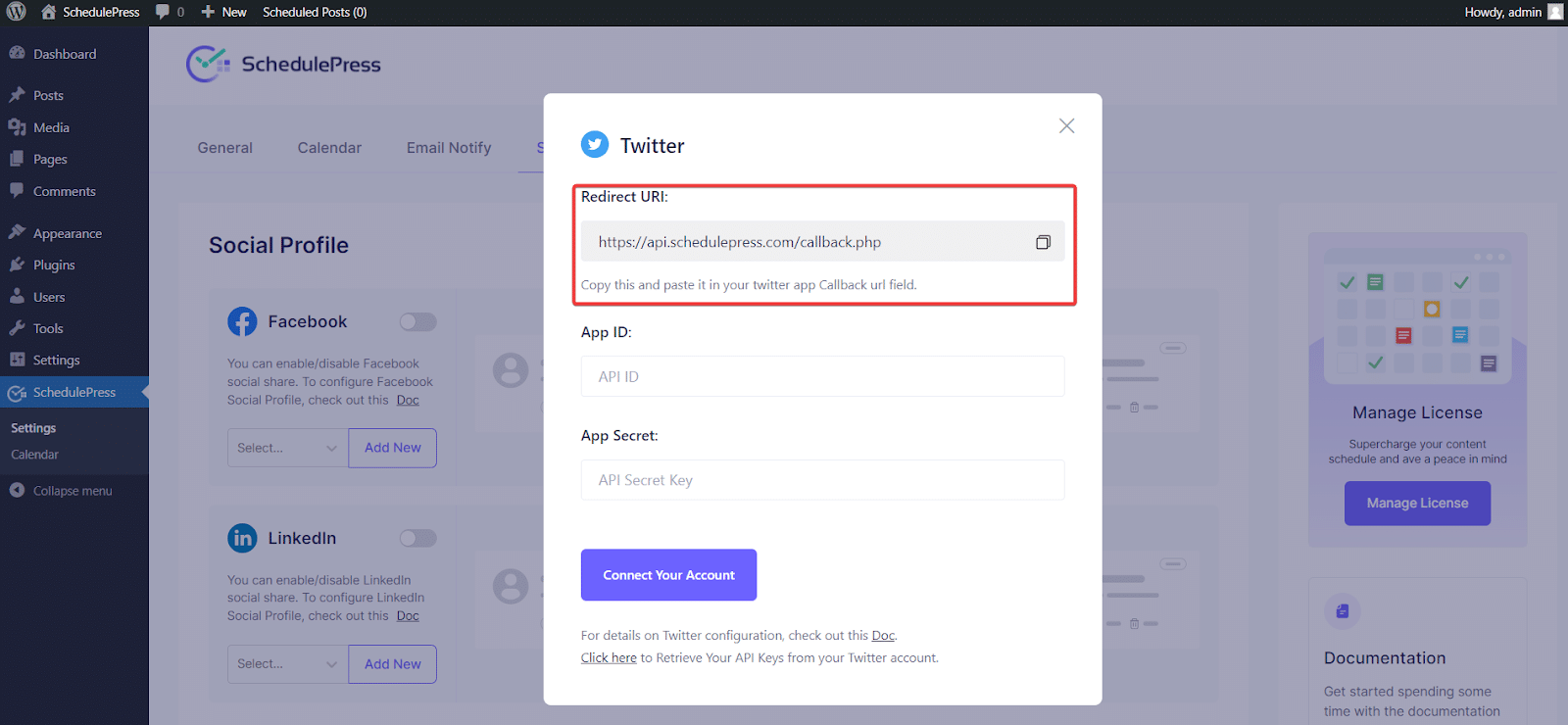
Now, go to your X (Twitter) Developer account. From the developer console, go to the Apps section. Here, you will need an app and its credentials to connect to SchedulePress.
You can either create a new app or use an existing app’s data. For tutorial purposes, we are creating a new app here. For that, tap the ‘Create App’ button.

Here, set your application name and select the environment as Production. Once done, hit the ‘Create New Client Application’ button. Your app will be created in a few seconds.

Now, on the next pop-up, you will be provided with three keys: Consumer Key, Secret Key and Bearer Token. Copy and save those keys somewhere for later purposes and close the pop-up.
You will see your created app on the apps page. From here, select your app and under ‘User Authentication Settings,’ tap the ‘Set Up’ button. For the App permissions, select Read and write and Direct message.

Then, select Web App, Automated App or Bot for the Type of App. Next, under the App info, provide the callback URL available in the SchedulePress dashboard. Under it, provide your website URL. Once done, hit the ‘Save Changes’ button.

A pop-up will appear with the OAuth 2.0 Client Secret keys. You can also save these keys for later purposes.
Afterward, switch back to your WordPress website. Simply paste the consumer key in the App ID field and the secret key in the App Secret field. Then, hit the ‘Connect Your Account’ and your Twitter account will be successfully connected to SchedulePress.

By simply following the previous steps, you can add a new profile and connect multiple Twitter accounts with SchedulePress as well.
Step 2: Configure Social Templates
Switch to the ‘Social Templates’ tab to make changes to your Tweet settings. You can configure the Tweet Template Settings and place around content parameters the way you want to tweet on X and appear. You can show your tags and categories as ‘Hashtags’ from here.

Enable ‘Show Post Thumbnail’ to display the featured image of your post as a thumbnail image in the Twitter share. You can even enable ‘Content Source’ to display your excerpt or content in the posts and set your ‘Tweet Limit’ accordingly. After making all the changes as per your preferences, hit the ‘Save’ button.
Step 3: Use Template & Automatically Share to X (Twitter)
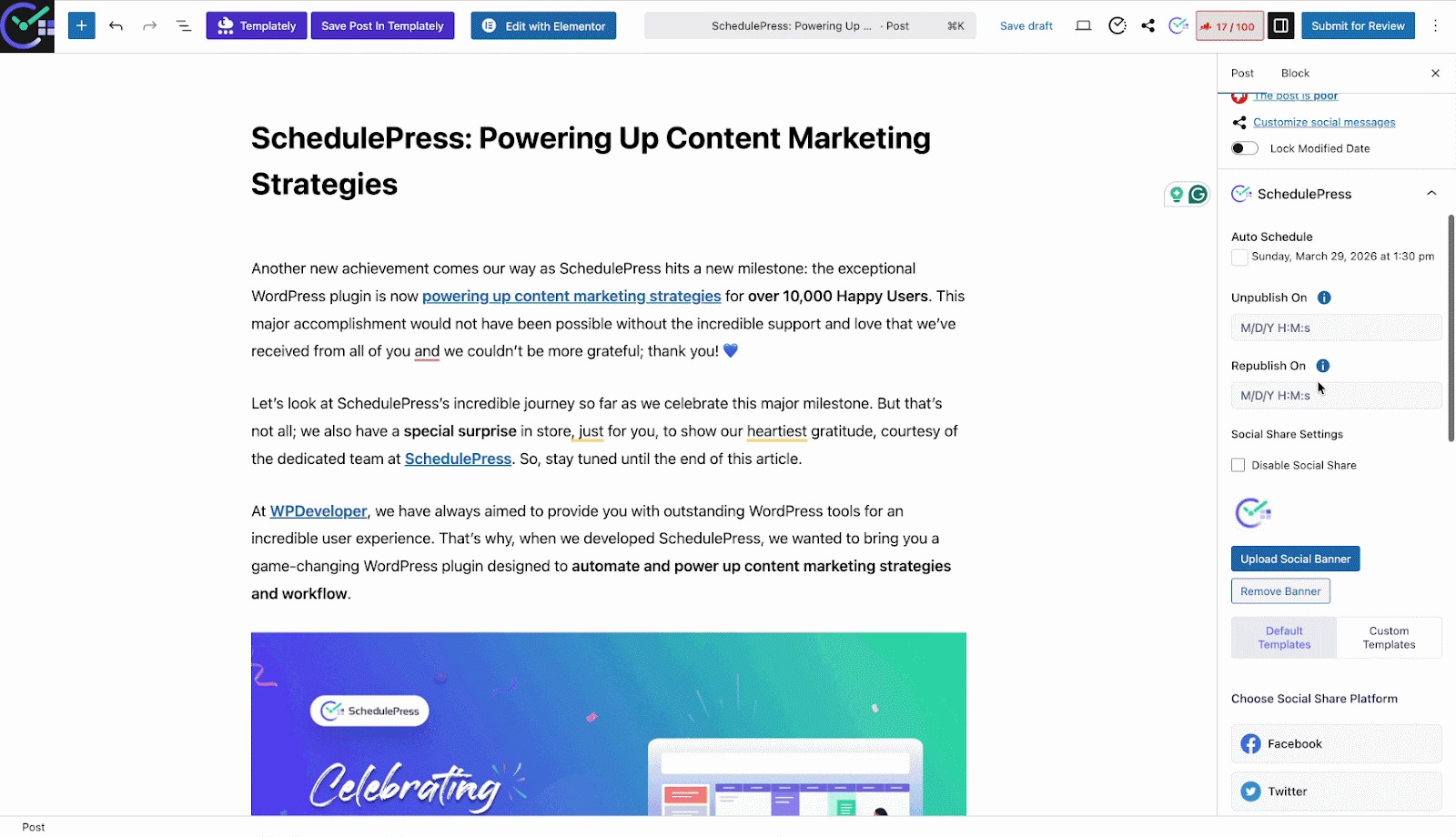
Now, open the post that you want to share instantly or upon scheduling. If you schedule your WordPress post, it will automatically be shared on the Twitter account. Besides, if you want, you can even instantly share your live post on Twitter as well.
To do that, go to your post and navigate to SchedulePress → Click Social Share Platform and choose ‘Twitter’ from the default templates. You can also choose custom social templates and write your own message. Besides, you can even upload a custom ‘Social Share Banner’ for your tweet.
Final Outcome
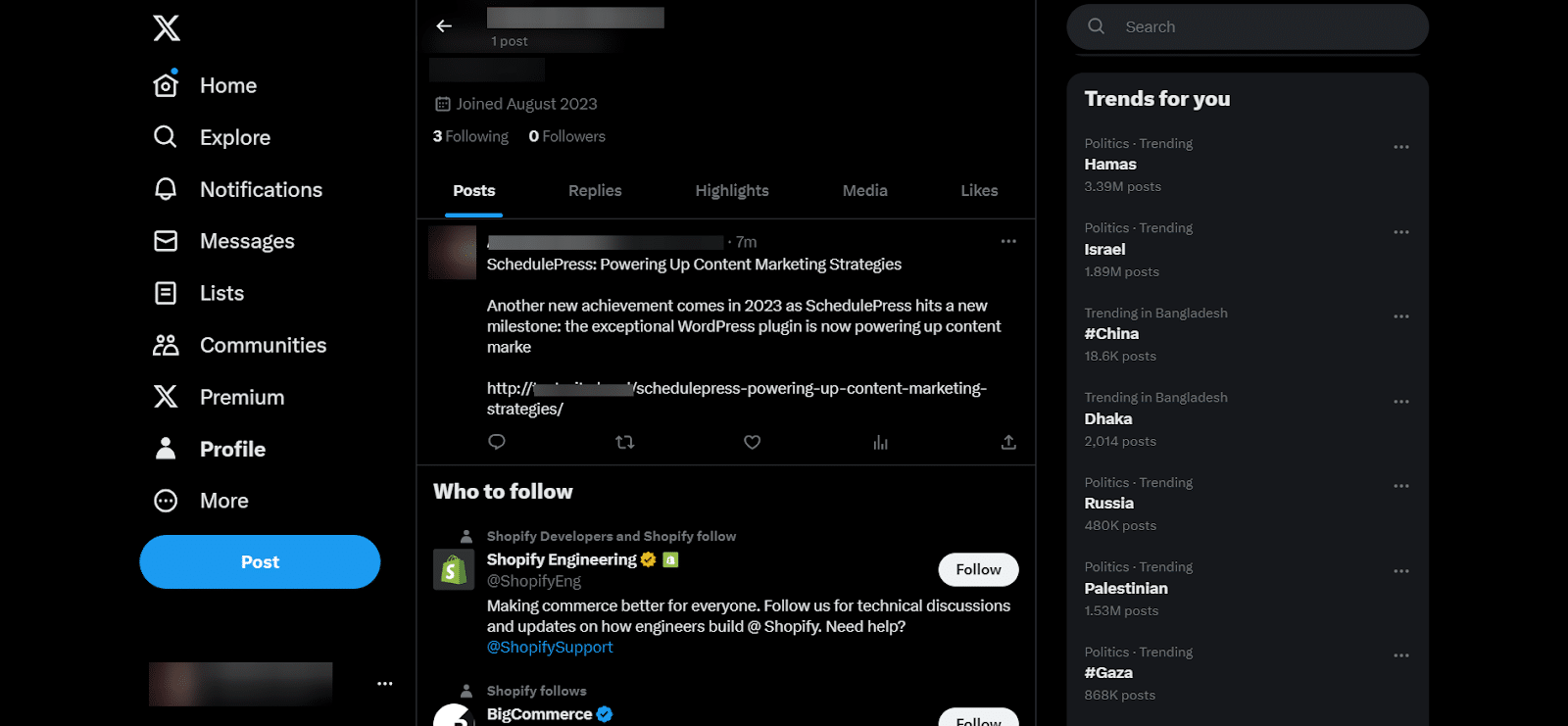
After all of these previous steps are finished, your scheduled WordPress posts will be automatically shared on your Twitter account when they go live. This is how it will appear on your Twitter account:
By using SchedulePress, you can also instantly tweet your WordPress posts to your multiple Twitter accounts without any effort.
Exclusive Features of SchedulePress
Apart from the social share integration, SchedulePress makes your content planning process smooth with its amazing features. You will get your hands on four advanced features, such as Auto Scheduler, Manual Scheduler, Schedule Calendar, and Missed Schedule Alert. It is the ultimate all-in-one tool that can massively boost your content planning strategy. Even with the free version, you can take a glance at the contents you have scheduled so far and make your thought process easy in the process. Overall, by using SchedulePress, you do not ever have to rely on additional plugins for your content planning ever again.
Wrapping Up
To sum this up, the social share integration is a remarkable feature of SchedulePress. Especially if you are running a blogging platform, you should definitely consider trying it out on your site and engaging viewers by sharing your WordPress blog posts on X (Twitter). With its automated process, it is gonna take away a lot of the workload and save a lot of your productivity.
Have you not tried out SchedulePress yet? Get started with the free version and share your experience with us in the comments section. If you want more tips and tutorials like this, be sure to subscribe to our blog and join our friendly Facebook Community to stay updated with the latest WordPress trends and social media marketing insights.