

Managing links properly is crucial for your website’s SEO and user experience. However, if you’re using WordPress’s Classic Editor and want to add custom attributes like classes, IDs, nofollow tags, or check if your links are broken, you need the right tool. In this guide, I’ll show you exactly how to add link attributes in WordPress without touching any code.
Table of Contents
You can read this content in your language:
- What Are Link Attributes and Why Do They Matter?
- The Problem with WordPress’s Default Link Editor
- Extend Link Plugin
- How to Add Link Attributes in WordPress (Step-by-Step)
- Advanced Use Cases
- Common Questions About Link Attributes
- Why Link Attributes Matter for SEO
- Best Practices for Using Link Attributes
- Conclusion
What Are Link Attributes and Why Do They Matter?
Link attributes are additional properties you can add to hyperlinks to control their behavior and appearance. In other words, think of them as settings for your links that tell browsers and search engines how to handle them.
The most common link attributes include:
- Class: Applies custom styling to make your link look different (like a button)
- ID: Creates a unique identifier for targeting specific links
- Title: Shows helpful tooltip text when users hover over the link
- Rel: Controls how search engines treat the link (nofollow, noreferrer, noopener)
- Target: Opens links in new tabs instead of the current window
- Download: Forces browsers to download files instead of opening them
Without these attributes, you’re missing out on important SEO opportunities. Furthermore, you can’t fully control how your links work.
The Problem with WordPress’s Default Link Editor
WordPress’s built-in link editor is extremely basic. In fact, it only lets you:
- Add a URL
- Type link text
- Choose whether to open in a new tab
That’s it. Unfortunately, if you want to add CSS classes, nofollow tags, custom IDs, or check if your links are broken, you’re completely stuck. Moreover, the Gutenberg block editor has similar limitations, leaving users frustrated when they need more control.
Extend Link Plugin
The Extend Link Plugin transforms WordPress’s simple link editor into a powerful tool that gives you complete control over your link attributes. Best of all, it’s completely free and works seamlessly with both the Classic Editor and Classic Block in Gutenberg.

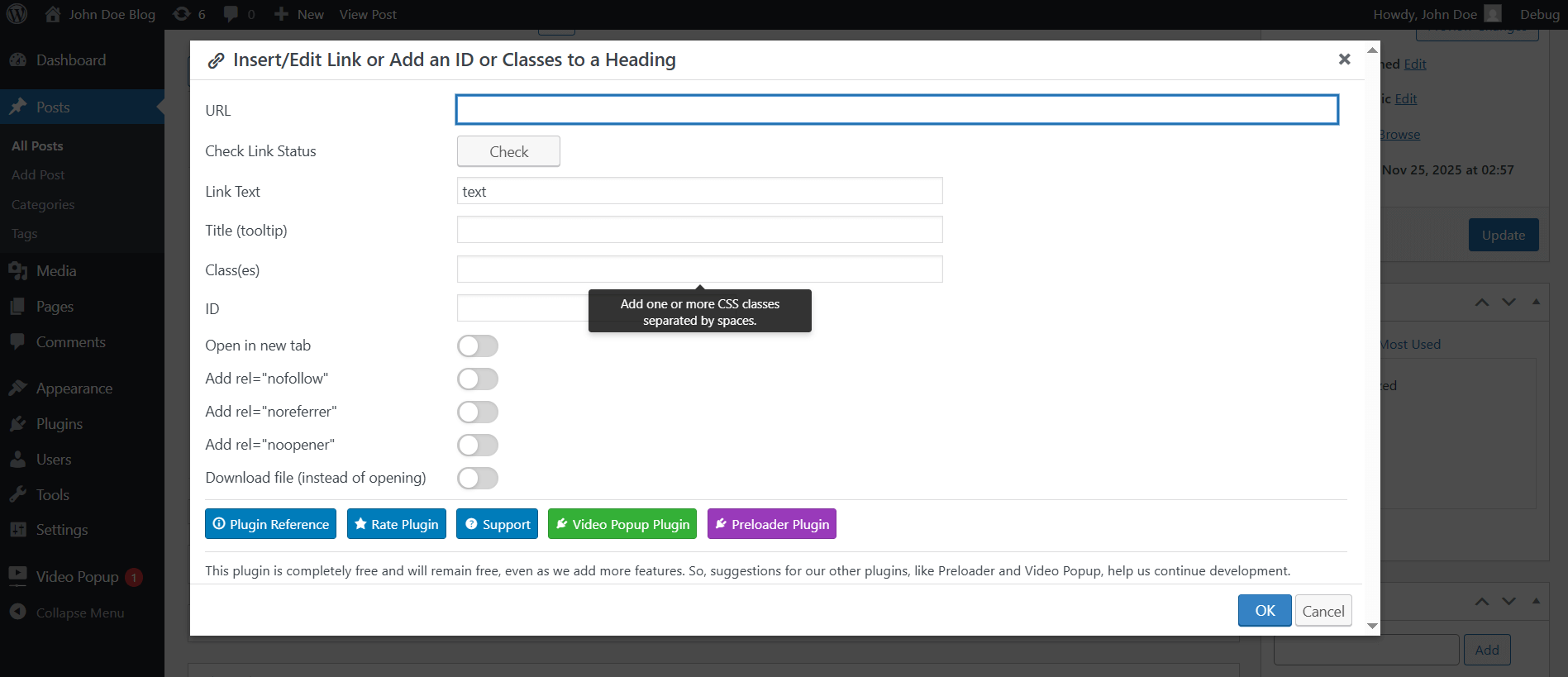
Key Features You’ll Love
Complete Link Control: First and foremost, you can add classes, IDs, titles, and all rel attributes (nofollow, noreferrer, noopener) directly from one convenient dialog box.
Built-in Link Checker: Additionally, you can verify whether your links are working or broken with a single click. The plugin checks the HTTP status code and tells you immediately if there’s a problem – which is crucial for maintaining good SEO.
Heading Support: Furthermore, you can add IDs and classes to your H1-H6 headings without creating links. This is perfect for creating anchor links and table of contents functionality.
Download Control: Moreover, you can force browsers to download files like PDFs, videos, or documents instead of opening them in the browser.
No Coding Required: Finally, everything works through a simple, intuitive interface with helpful tooltips explaining each option.
How to Add Link Attributes in WordPress (Step-by-Step)
Step 1: Install the Extend Link Plugin
First, go to your WordPress dashboard and navigate to Plugins → Add New. Next, search for “Extend Link” and click Install Now, then Activate. As a result, the plugin is now ready to use with zero configuration needed.
Step 2: Create or Edit a Link
After installation, open any post or page in the Classic Editor, or add a Classic Block if you’re using Gutenberg. Then, select the text you want to turn into a link, or click on an existing link to edit it.
Step 3: Open the Extend Link Dialog
Now, look for the “Extend Link” button in your editor toolbar. Simply click it to open the enhanced link dialog where all the magic happens.
Step 4: Configure Your Link Attributes
At this point, you can customize your link with these options:
URL: Enter your link destination as normal.
Link Text: The clickable text that appears on your page.
Title: Add tooltip text that appears when users hover over the link. This is particularly great for accessibility and providing extra context.
Class(es): Add one or more CSS classes separated by spaces. For example, if you want your link styled as a button, you might add “btn btn-primary custom-button”.
ID: Add a unique identifier for the link. This is especially useful for targeting specific links with CSS or JavaScript.
Open in new tab: Check this box to make the link open in a separate browser tab.
Rel Attributes: Choose from nofollow (tells search engines not to follow the link), noreferrer (hides referrer information), or noopener (improves security for links opening in new tabs).
Download file: Enable this to force browsers to download the linked file instead of displaying it.
Step 5: Check Your Link Status (Optional but Recommended)
Before saving, click the “Check” button next to the URL field. The plugin will then verify whether your link is working or broken by checking its HTTP status code. Working links return codes between 200-399, while broken links return 400+ codes. Therefore, this helps you catch dead links before they hurt your SEO.
Step 6: Save Your Link
Finally, click the Save button and your link is now inserted with all the attributes you specified. It’s that simple.
Advanced Use Cases
Adding Nofollow to External Links for SEO
When linking to external websites, especially in sponsored content or user-generated areas, you should add the nofollow attribute. In other words, this tells search engines not to pass ranking authority to those links.
To do this, select your external link, open the Extend Link dialog, and check the “Add rel=nofollow” option. Additionally, for maximum protection, also enable noreferrer and noopener when the link opens in a new tab.
Creating Anchor Links with Heading IDs
Want to create a table of contents that jumps to specific sections of your page? Here’s how:
First, select a heading (like an H2 or H3), then click the Extend Link button, and add a unique ID like “section-benefits” in the ID field. Next, leave the URL field empty and click Save. Now you can link to that section from anywhere using #section-benefits as your URL.
Styling Links as Buttons
If you want a link to look like a button, simply add your theme’s button classes. For instance, common examples include “btn btn-primary” for Bootstrap themes or “button” for many WordPress themes. However, the exact class names depend on your theme’s CSS framework.
Forcing PDF Downloads
When linking to PDF files, you might want users to download them instead of viewing them in their browser. To achieve this, add your PDF link normally, then check the “Download file (instead of opening)” option. Note that this works best with direct file URLs and may not work on all browsers due to security restrictions.
Common Questions About Link Attributes
Can I add multiple CSS classes to one link?
Absolutely. Just separate each class with a space in the Classes field. For example: “primary-link external-link btn-style”.
Will this work with Gutenberg?
Yes, but you need to use the Classic Block. First, add a Classic Block to your page, then you’ll see the Extend Link button in that block’s toolbar.
Do I need coding knowledge?
Not at all. In fact, the plugin provides a simple interface with tooltips explaining each option. Therefore, no technical knowledge is required.
How accurate is the link status checker?
Very accurate. It checks the actual HTTP response from the URL and shows you the exact status code. In other words, this is the same method professional SEO tools use.
Can I edit attributes on existing links?
Yes. Simply click on any existing link and open the Extend Link dialog. As a result, all current attributes will be pre-filled, and you can modify or add new ones.
Is noopener necessary for links opening in new tabs?
Yes, it’s highly recommended for security. When links open in new tabs without noopener, the new page can potentially access your page through JavaScript. Therefore, adding noopener prevents this security risk.
Why Link Attributes Matter for SEO
Search engines pay close attention to how you use links. In fact, proper link attributes help Google understand your content structure and which links to trust.
The nofollow attribute is particularly important. For instance, you should use it on paid links, user-generated content, and links to sites you don’t fully trust. As a result, this protects your site’s SEO reputation and follows Google’s guidelines.
Moreover, the link checker feature helps you maintain healthy SEO by catching broken links before they hurt your rankings. Search engines penalize sites with too many dead links because they provide poor user experience.
Furthermore, custom IDs on headings enable proper anchor links, which Google can display as jump links in search results. Therefore, this improves your click-through rate and helps users navigate your content.
Best Practices for Using Link Attributes
First, always add title attributes to provide context, especially for accessibility. Screen readers use these to help visually impaired users understand where links lead.
Second, use noopener whenever you add target=”_blank” to links. This combination is now considered essential for security and is recommended by WordPress itself.
Third, check your links periodically, especially on older content. The built-in link checker makes this process quick and painless.
Additionally, keep class names semantic and consistent. For example, instead of “blue-button”, use “primary-cta” so your styling remains consistent even if you change colors later.
Finally, don’t overuse nofollow. Only apply it to links that genuinely shouldn’t pass SEO authority. In fact, overusing nofollow can actually harm your site’s SEO by making your linking patterns look unnatural.
Conclusion
In conclusion, adding link attributes in WordPress doesn’t have to be complicated. With the Extend Link plugin, you get a professional-grade link management tool that’s completely free and requires zero coding knowledge.
To summarize, the plugin gives you everything you need: custom classes and IDs, SEO-friendly rel attributes, a built-in link checker, heading support, and download control. All through one simple interface that anyone can use.
Whether you’re managing SEO, creating styled buttons, building anchor links, or simply want more control over your links, Extend Link is the solution you’ve been looking for.
Therefore, install the Extend Link plugin today and take complete control of your WordPress links. Your SEO and your visitors will thank you. By the way, take a look at the Video Popup (or premium) and Preloader plugin, you may like it.


