<?xml version="1.0" encoding="utf-8"?><feed xmlns="http://www.w3.org/2005/Atom" ><generator uri="https://jekyllrb.com/" version="3.10.0">Jekyll</generator><link href="https://ucasligang.github.io/feed.xml" rel="self" type="application/atom+xml" /><link href="https://ucasligang.github.io/" rel="alternate" type="text/html" /><updated>2025-04-06T04:35:50-07:00</updated><id>https://ucasligang.github.io/feed.xml</id><title type="html">Gang Li</title><subtitle>Ph.D. candidate at Institute of Software, Chinese Academy of Sciences</subtitle><author><name>Gang Li (李港)</name><email>ucasligang[a.t.]gmail.com</email><uri>https://ucasligang.github.io/</uri></author><entry><title type="html">学术搜索技巧</title><link href="https://ucasligang.github.io/posts/2018/12/scholar-search-tricks/" rel="alternate" type="text/html" title="学术搜索技巧" /><published>2018-12-15T00:00:00-08:00</published><updated>2018-12-15T00:00:00-08:00</updated><id>https://ucasligang.github.io/posts/2018/12/scholar-search-tricks</id><content type="html" xml:base="https://ucasligang.github.io/posts/2018/12/scholar-search-tricks/"><![CDATA[<h2 id="1-搜索技巧">1. 搜索技巧</h2>
<p><a href="https://scholar.google.com/">Google scholar</a>本质上还是一个搜索引擎，所以可以将搜索引擎常用的关键词、技巧加以应用</p>
<ol>
  <li>site: 搜索指定的网站<br />
如<code class="language-plaintext highlighter-rouge">"kernel method" site:nips.cc</code>，搜索<code class="language-plaintext highlighter-rouge">nips</code>包含<code class="language-plaintext highlighter-rouge">kernel method</code>全部论文</li>
  <li>source: 搜索指定来源，与site类似，有时site范围太广，使用source更精确。
如<code class="language-plaintext highlighter-rouge">"kernel method" source:"Advances in Neural Information Processing"</code>，搜索<code class="language-plaintext highlighter-rouge">nips</code>包含<code class="language-plaintext highlighter-rouge">kernel method</code>全部论文</li>
  <li>filetype：搜索制定的文件类型 <br />
如<code class="language-plaintext highlighter-rouge">"kernel method" filetype:pdf</code>，搜索包含<code class="language-plaintext highlighter-rouge">kernel method</code>且有pdf的论文</li>
  <li>双引号完全匹配<br />
如<code class="language-plaintext highlighter-rouge">"kernel method"</code>而不是<code class="language-plaintext highlighter-rouge">kernel method</code>，搜索包含<code class="language-plaintext highlighter-rouge">kernel method</code>的论文</li>
  <li>intile：限定标题<br />
如<code class="language-plaintext highlighter-rouge">intitle:"kernel method"</code></li>
  <li>intext: 限定内容
如<code class="language-plaintext highlighter-rouge">intext:("kernel method" -"semi-supervised learning")</code>，搜索内容中包含<code class="language-plaintext highlighter-rouge">kernel mehtod</code>且不包含<code class="language-plaintext highlighter-rouge">semi-supervised learning</code>的论文</li>
  <li>author: 限定作者<br />
如<code class="language-plaintext highlighter-rouge">author:"Jian Li" AND intitle:"Multi-class"</code></li>
  <li><code class="language-plaintext highlighter-rouge">AND &amp; + , </code>空格都表示“与”关系</li>
  <li><code class="language-plaintext highlighter-rouge">OR |</code>表示“或”关系</li>
  <li><code class="language-plaintext highlighter-rouge">NOT -</code>表示“非”关系</li>
  <li>使用左侧选择时间限制及排序条件</li>
  <li>对于某网址对应多个期刊的情况，使用<code class="language-plaintext highlighter-rouge">source</code>而不是<code class="language-plaintext highlighter-rouge">site</code>进行界定。如TPAMI对应网址<code class="language-plaintext highlighter-rouge">ieee.org</code>有很多期刊，而其对应来源为<code class="language-plaintext highlighter-rouge">IEEE Transactions on Pattern Analysis and Machine Intelligence</code></li>
</ol>

<h2 id="2-举例说明">2. 举例说明</h2>

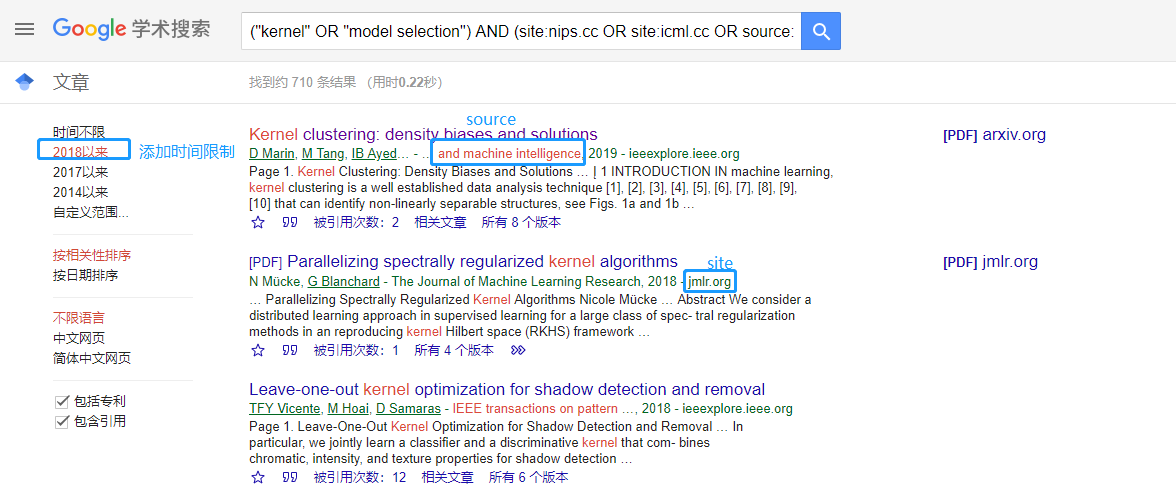
<p>如下语句含义为搜索<code class="language-plaintext highlighter-rouge">nips、icml、TPAMI、JMLR、IJCAI、AAAI</code>中包含<code class="language-plaintext highlighter-rouge">random feature</code>或<code class="language-plaintext highlighter-rouge">kernel selection</code>的文章，并在左侧选择<code class="language-plaintext highlighter-rouge">2018年以来</code>进行时间限制</p>

<div class="language-plaintext highlighter-rouge"><div class="highlight"><pre class="highlight"><code>("random feature" OR "kernel selection") AND (site:nips.cc OR site:icml.cc OR source:"IEEE Transactions on Pattern Analysis and Machine Intelligence" OR site:jmlr.org OR site:ijcai.org OR site:aaai.org)
</code></pre></div></div>

<p><img src="https://lijian.ac.cn/files/posts/scholar_search_strick.png" alt="" /></p>
<h2 id="3-机器学习领域顶会网址site">3. 机器学习领域顶会网址(site)</h2>

<table>
  <thead>
    <tr>
      <th style="text-align: left">刊物缩写</th>
      <th style="text-align: left">网址site</th>
    </tr>
  </thead>
  <tbody>
    <tr>
      <td style="text-align: left">nips</td>
      <td style="text-align: left">nips.cc</td>
    </tr>
    <tr>
      <td style="text-align: left">icml</td>
      <td style="text-align: left">icml.cc</td>
    </tr>
    <tr>
      <td style="text-align: left">jmlr</td>
      <td style="text-align: left">jmlr.org</td>
    </tr>
    <tr>
      <td style="text-align: left">ijcai</td>
      <td style="text-align: left">ijcai.org</td>
    </tr>
    <tr>
      <td style="text-align: left">aaai</td>
      <td style="text-align: left">aaai.org</td>
    </tr>
    <tr>
      <td style="text-align: left">uai</td>
      <td style="text-align: left">uai.org</td>
    </tr>
    <tr>
      <td style="text-align: left">ML汇刊</td>
      <td style="text-align: left">proceedings.mlr.press</td>
    </tr>
    <tr>
      <td style="text-align: left">Springer下刊物</td>
      <td style="text-align: left">link.springer.com</td>
    </tr>
    <tr>
      <td style="text-align: left">IEEE下刊物</td>
      <td style="text-align: left">ieeexplore.ieee.org</td>
    </tr>
  </tbody>
</table>

<h2 id="4-机器学习领域顶会来源source">4. 机器学习领域顶会来源(source)</h2>

<table>
  <thead>
    <tr>
      <th style="text-align: left">刊物缩写</th>
      <th style="text-align: left">刊物source</th>
    </tr>
  </thead>
  <tbody>
    <tr>
      <td style="text-align: left">AI</td>
      <td style="text-align: left">Artificial Intelligence</td>
    </tr>
    <tr>
      <td style="text-align: left">TPAMI</td>
      <td style="text-align: left">IEEE Transactions on Pattern Analysis and Machine Intelligence</td>
    </tr>
    <tr>
      <td style="text-align: left">JMLR</td>
      <td style="text-align: left">Journal of Machine Learning Research</td>
    </tr>
    <tr>
      <td style="text-align: left">TNNLS</td>
      <td style="text-align: left">IEEE Transactions on Neural Networks and learning systems</td>
    </tr>
    <tr>
      <td style="text-align: left">Cybernetics</td>
      <td style="text-align: left">IEEE Transactions on Cybernetics</td>
    </tr>
    <tr>
      <td style="text-align: left">NIPS</td>
      <td style="text-align: left">Advances in Neural Information Processing Systems</td>
    </tr>
    <tr>
      <td style="text-align: left">ICML</td>
      <td style="text-align: left">International Conference on Machine Learning</td>
    </tr>
    <tr>
      <td style="text-align: left">IJCAI</td>
      <td style="text-align: left">International Joint Conference on Artificial Intelligence</td>
    </tr>
    <tr>
      <td style="text-align: left">AAAI</td>
      <td style="text-align: left">AAAI Conference on Artificial Intelligence</td>
    </tr>
    <tr>
      <td style="text-align: left">COLT</td>
      <td style="text-align: left">Annual Conference on Computational Learning Theory</td>
    </tr>
    <tr>
      <td style="text-align: left">UAI</td>
      <td style="text-align: left">Conference on Uncertainty in Artificial Intelligence</td>
    </tr>
  </tbody>
</table>

<h2 id="5-总结">5. 总结</h2>

<p>灵活使用<code class="language-plaintext highlighter-rouge">site</code>、<code class="language-plaintext highlighter-rouge">source</code>及左侧时间限制，可以避免挨个会议查找过于耗时，及只查标题漏掉相关论文的问题。</p>]]></content><author><name>Gang Li (李港)</name><email>ucasligang[a.t.]gmail.com</email><uri>https://ucasligang.github.io/</uri></author><category term="中文" /><category term="Google Scholar" /><category term="学术" /><summary type="html"><![CDATA[1. 搜索技巧 Google scholar本质上还是一个搜索引擎，所以可以将搜索引擎常用的关键词、技巧加以应用 site: 搜索指定的网站 如"kernel method" site:nips.cc，搜索nips包含kernel method全部论文 source: 搜索指定来源，与site类似，有时site范围太广，使用source更精确。 如"kernel method" source:"Advances in Neural Information Processing"，搜索nips包含kernel method全部论文 filetype：搜索制定的文件类型 如"kernel method" filetype:pdf，搜索包含kernel method且有pdf的论文 双引号完全匹配 如"kernel method"而不是kernel method，搜索包含kernel method的论文 intile：限定标题 如intitle:"kernel method" intext: 限定内容 如intext:("kernel method" -"semi-supervised learning")，搜索内容中包含kernel mehtod且不包含semi-supervised learning的论文 author: 限定作者 如author:"Jian Li" AND intitle:"Multi-class" AND &amp; + , 空格都表示“与”关系 OR |表示“或”关系 NOT -表示“非”关系 使用左侧选择时间限制及排序条件 对于某网址对应多个期刊的情况，使用source而不是site进行界定。如TPAMI对应网址ieee.org有很多期刊，而其对应来源为IEEE Transactions on Pattern Analysis and Machine Intelligence]]></summary></entry><entry><title type="html">使用IPv6免流量上网</title><link href="https://ucasligang.github.io/posts/2018/12/netflow/" rel="alternate" type="text/html" title="使用IPv6免流量上网" /><published>2018-12-01T00:00:00-08:00</published><updated>2018-12-01T00:00:00-08:00</updated><id>https://ucasligang.github.io/posts/2018/12/netflow</id><content type="html" xml:base="https://ucasligang.github.io/posts/2018/12/netflow/"><![CDATA[<h2 id="1-背景">1. 背景</h2>

<p>我们学校校园网一致都有些小窍门来免流量，比如“反斜杠”、“汉字+反斜杠”等。然后上个月的某一个，“汉字+反斜杠”也开始计费，学校免费流量只有10G，我的流量无悬念地在离月底还有很久的时候用光了。12月的第一天，上网已经习惯了大手大脚的我，就已经把流量用到只剩3G。。。<br />
然后我想到了IPv6这个好东西(毕竟IPv6是支撑我上学这么久的一个重要因素)。</p>

<video src="https://lijian.ac.cn/files/posts/ipv6_vps.mp4" width="320" height="240" controls="controls">
Your browser does not support the video tag.
</video>

<h2 id="2-适用情况">2. 适用情况</h2>

<ul>
  <li>流量有限且网络费用较高</li>
  <li>网络支持IPv6</li>
</ul>

<h2 id="3-基础工具">3. 基础工具</h2>

<ul>
  <li>境外VPS</li>
  <li>科学上网工具shadowsocks</li>
</ul>

<p>使用VPS+SS进行科学上网可以参见<a href="https://lijian.ac.cn/posts/2018/06/vps-ss/">这篇博客</a>。相关资料一查一大堆，我就不赘述了。非Google VPS可以直接看第5步，直接将IPv6地址在SS配置文件中配置一下即可。</p>

<h2 id="4-为vps绑定公网ipv6地址">4. 为VPS绑定公网IPv6地址</h2>
<h3 id="41-vultr搬瓦工digital-ocean简单">4.1 Vultr、搬瓦工、Digital Ocean，简单</h3>
<p>在购买VPS时可以附带选择公网IPv6地址；<br />
  或者在创建实例后添加IPv6地址。</p>
<h3 id="42-google-vps麻烦">4.2 Google VPS，麻烦</h3>
<p>配置IPv6比较麻烦，需要<a href="https://cloud.google.com/compute/docs/load-balancing/ipv6">在负载均衡中进行设置</a>，下面详细介绍一下。</p>
<ol>
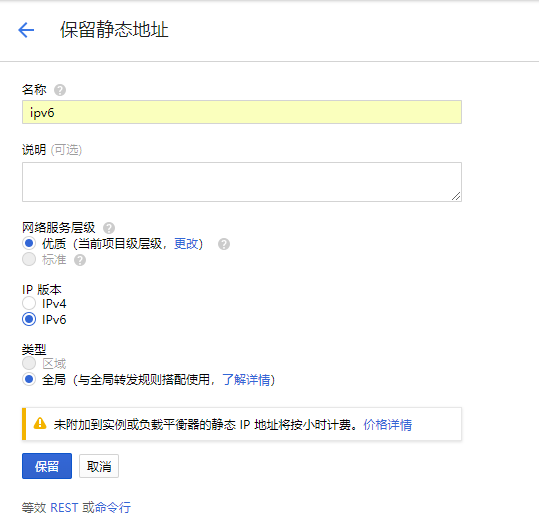
  <li>申请公网IPv6地址：VPC网络-&gt;外部IP-&gt;保留静态网络<br />
<img src="https://lijian.ac.cn/files/posts/ipv6-public.png" alt="" /></li>
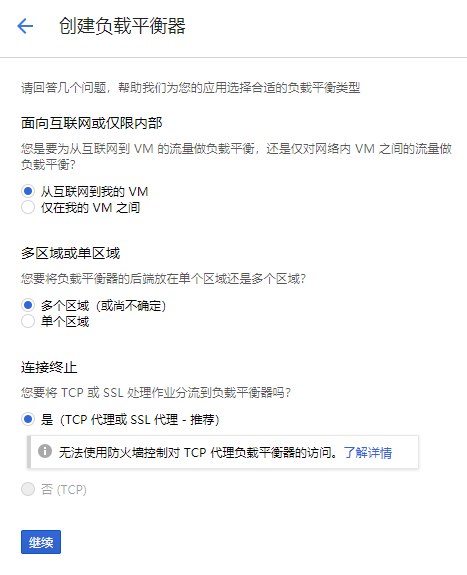
  <li>创建TCP代理：网络服务-&gt;负载均衡-&gt;创建负载平衡器-&gt;TCP负载平衡
    <ul>
      <li>创建<br />
<img src="https://lijian.ac.cn/files/posts/create_balancing.png" alt="" /></li>
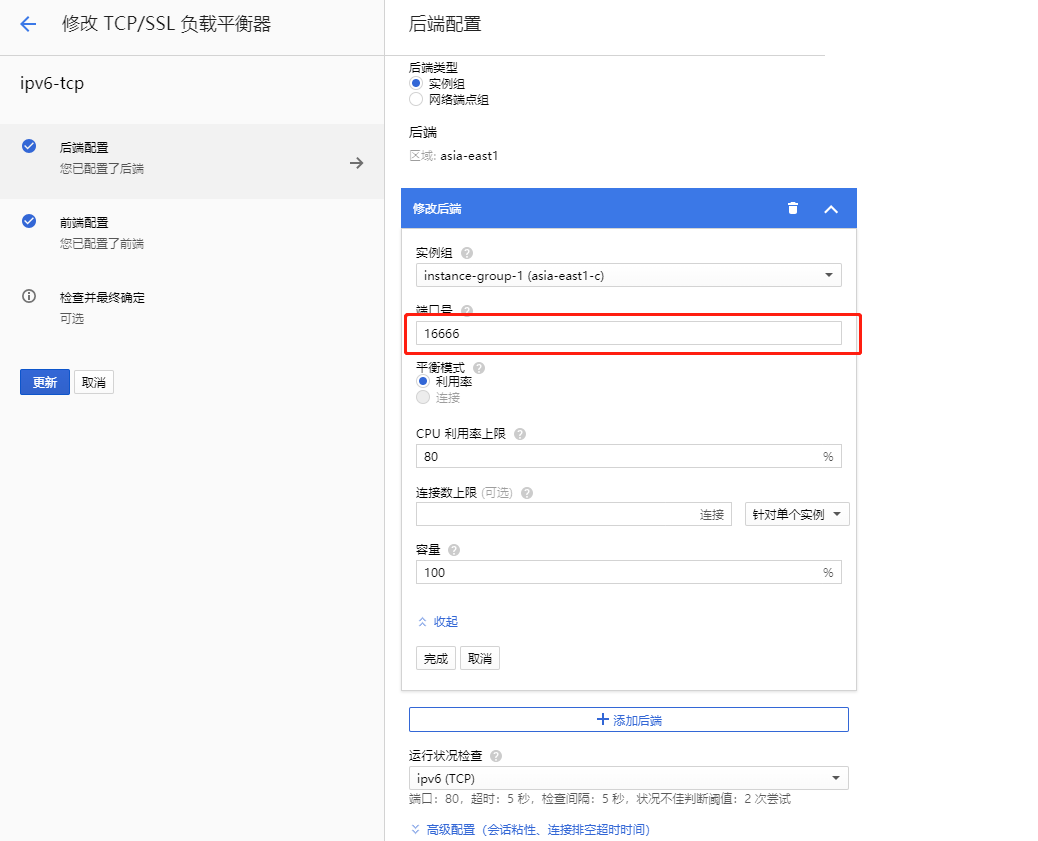
      <li>进行后端配置(端口为SS中要填写的端口)<br />
<img src="https://lijian.ac.cn/files/posts/backend.png" alt="" /></li>
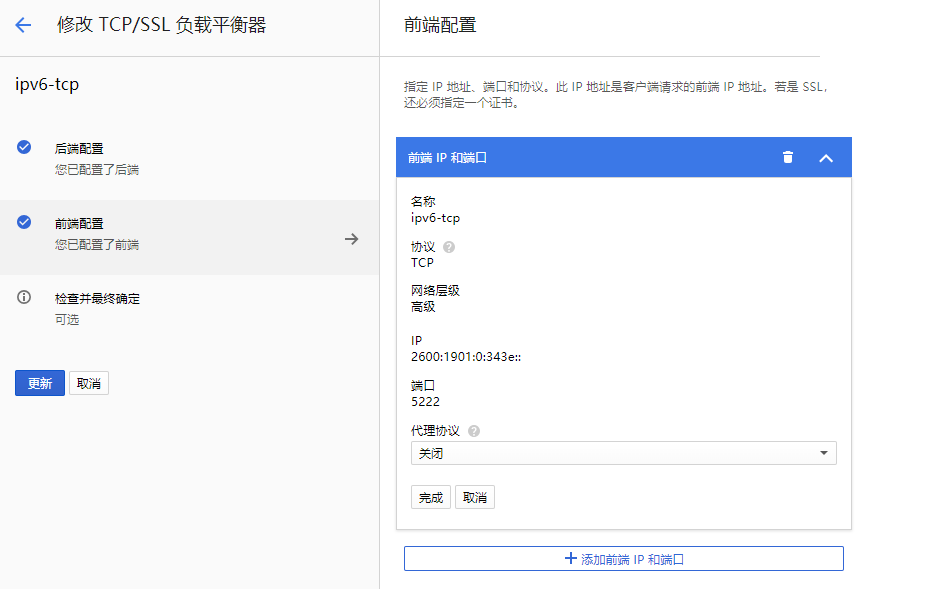
      <li>进行前度配置(IP设置之前申请的公网IPv6地址，端口为客户端访问时的端口)<br />
<img src="https://lijian.ac.cn/files/posts/frontend.png" alt="" /></li>
    </ul>
  </li>
</ol>

<h2 id="5-在shadowsocks中添加配置">5. 在shadowsocks中添加配置</h2>
<p>在SS中添加后端配置中设置的端口</p>
<ul>
  <li>打开配置文件
<code class="language-plaintext highlighter-rouge">vim /etc/shadowsocks/config.json</code></li>
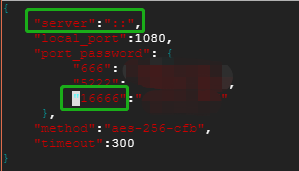
  <li>进行如下修改：将<code class="language-plaintext highlighter-rouge">server</code>设置为<code class="language-plaintext highlighter-rouge">::</code>，添加后端配置的端口<br />
<img src="https://lijian.ac.cn/files/posts/ss_config.png" alt="" />
    <div class="language-plaintext highlighter-rouge"><div class="highlight"><pre class="highlight"><code>{
  "server":"::",
  "local_port":1080,
  "port_password": {
       "16666":"********"
   },
  "method":"aes-256-cfb",
  "timeout":300
}
</code></pre></div>    </div>
  </li>
  <li>重启服务
<code class="language-plaintext highlighter-rouge">service shadowsocks restart</code></li>
</ul>

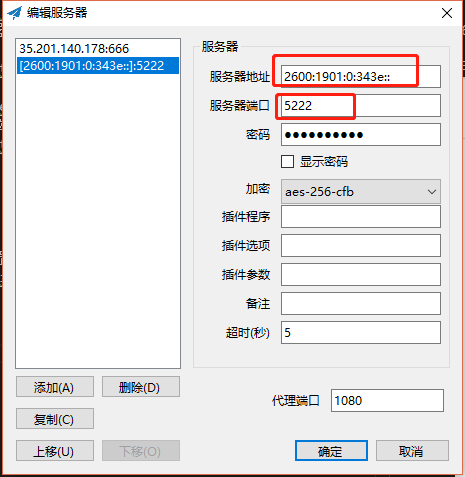
<h2 id="6-在本地ss客户端中进行设置">6. 在本地SS客户端中进行设置</h2>
<p>此处设置与负载均衡前端配置一致，IP为公网IPv6地址，端口为前端端口。<br />
<img src="https://lijian.ac.cn/files/posts/ss_client_config.png" alt="" /></p>

<h2 id="7-其他">7. 其他</h2>
<ul>
  <li>使用国内支持IPv6的VPS访问会更快，缺点是无法访问外网。</li>
  <li>购买境外VPS尽量买东亚，比如台湾、香港、日本、韩国的，速度会快一些。</li>
  <li>IPv6目前还没普及，所以距离收费应该还有很远。使用SS+IPv6来来上网，可以一劳永逸地解决流量不足问题，而其他小窍门总有一天会被封。</li>
  <li>使用IPv6还可以BT网站如<a href="http://bt.neu.edu.cn/">六维空间</a>、<a href="https://bt.byr.cn/">北邮人</a>等，下载速度一般在50M+；网络电视如<a href="http://hdtv.neu6.edu.cn/">东北大学</a>、<a href="http://tv.byr.cn/">北邮人</a>、<a href="http://ipv6.bjtu.edu.cn/">北交</a>等，央视、地方卫视都有，而且都是高清，回播无广告。</li>
</ul>]]></content><author><name>Gang Li (李港)</name><email>ucasligang[a.t.]gmail.com</email><uri>https://ucasligang.github.io/</uri></author><category term="中文" /><category term="IPv6" /><category term="Shadowsocks" /><category term="免流量上网" /><summary type="html"><![CDATA[1. 背景]]></summary></entry><entry><title type="html">个人网站搭建</title><link href="https://ucasligang.github.io/posts/2018/11/homepage/" rel="alternate" type="text/html" title="个人网站搭建" /><published>2018-11-06T00:00:00-08:00</published><updated>2018-11-06T00:00:00-08:00</updated><id>https://ucasligang.github.io/posts/2018/11/homepage</id><content type="html" xml:base="https://ucasligang.github.io/posts/2018/11/homepage/"><![CDATA[<h2 id="1-博客分类">1. 博客分类</h2>
<p>常见的博客平台有几种：</p>
<ul>
  <li>类似新浪博客、网易博客这样的网页版博客</li>
  <li>自己购买主机、域名，用WordPress搭建博客</li>
  <li>在GitHub等网站上使用其Pages功能搭建静态博客</li>
</ul>

<p>本次使用第二种、第三种，也就是先使用GitHub Pages搭建个人主页（单页面主要是个人简介、paperlist），再使用WordPress搭建个人网站（多页面包括技术分享、学术分享等）。其实可以不购买主机，只购买域名，将域名映射到Github Pages构建的静态博客上即可。但对于.cn网站的备案必须要有国内的服务器，所以可以买个很短时间的服务器来备案。</p>

<h2 id="2-搭建个人主页">2. 搭建个人主页</h2>
<blockquote>
  <p>参考文献<br />
<a href="http://www.ruanyifeng.com/blog/2012/08/blogging_with_jekyll.html">搭建一个免费的，无限流量的Blog—-github Pages和Jekyll入门</a><br />
<a href="https://pages.github.com/">GitHub Pages</a><br />
<a href="https://www.jianshu.com/p/ce1619874d34">静态博客框架之Hexo &amp; Jekyll</a><br />
<a href="https://blog.csdn.net/u011475210/article/details/79023429">我的个人博客之旅：从jekyll到hexo</a></p>
</blockquote>

<h3 id="21-需求">2.1 需求</h3>
<p>很久之前我的指导老师就跟我说整个个人主页及小组主页，来介绍我们的工作。主要是因为我俩的名字太常见了，直接使用搜索引擎很难搜到个人介绍，及准确的文章列表。<br />
其实这个需求很简单，不用像常见的个人博客那样麻烦，个人博客的重点在于不断更新博客文章，而且要有复杂的分类。而我们的个人主页仅需个人简介、研究介绍、个人经历、文章列表、参与项目、所获荣誉等几大模块，更新东西很少的。参考<a href="https://homes.cs.washington.edu/~tqchen/">陈天奇的个人主页</a>。</p>

<h3 id="22-工具选择">2.2 工具选择</h3>
<blockquote>
  <p><a href="http://www.ruanyifeng.com/blog/2012/08/blogging_with_jekyll.html">阮一峰 - 喜欢写Blog的人，会经历三个阶段</a></p>
  <ul>
    <li>第一阶段，刚接触Blog，觉得很新鲜，试着选择一个免费空间来写。</li>
    <li>第二阶段，发现免费空间限制太多，就自己购买域名和空间，搭建独立博客。</li>
    <li>第三阶段，觉得独立博客的管理太麻烦，最好在保留控制权的前提下，让别人来管，自己只负责写文章。<br />
…</li>
  </ul>

  <p>但是两年前，情况出现变化，一些程序员开始在github网站上搭建blog。他们既拥有绝对管理权，又享受github带来的便利—-不管何时何地，只要向主机提交commit，就能发布新文章。更妙的是，这一切还是免费的，github提供无限流量，世界各地都有理想的访问速度。</p>
</blockquote>

<p>正如文中所说，使用GitHub Pages可以用于绝对的控制权，有避免了个人管理独立博客的麻烦。所以个人主页搭建工具上选择<strong>GitHub Pages</strong>.</p>

<p>实际上，我并不需要构建静态博客的框架，因为我只需要构建一个单页面，不会需要使用Markdown更新博客。所以使用HTML+CSS这种完全静态的方式编写就可以。</p>

<h3 id="23-模板选择使用">2.3 模板选择&amp;使用</h3>

<p>使用 https://academicpages.github.io 给出的学术模板，比较成功的案例是一位与我同龄大牛<a href="lantaoyu.github.io">于文涛的个人主页</a>，他是SeqGAN的发明人。</p>

<p>该模板是基于Jekyll主题Minimal Mistakes主题修改而来，所以需要使用Jekyll框架。
该框架的内容、meta数据都是使用Markdown文件间存储，提供很多不同的将内容、meta数据转换成不同的HTML页面。每次commit、push对github仓库进行更新时，Github Pages服务都会将上述页面转换成静态的HTML页面。</p>

<p>具体步骤：</p>

<ol>
  <li>Fork<a href="https://academicpages.github.io">该仓库</a>.</li>
  <li>在仓库Setting中修改仓库名称为<code class="language-plaintext highlighter-rouge">[your_name].github.io</code>，该名称将会成为你个人主页的网址。</li>
  <li>设置侧边内容、生成content&amp;metadata。
    <ul>
      <li>Site-wide configuration : 主要的配置信息及侧边信息在<code class="language-plaintext highlighter-rouge">_config.yml</code>中，top menu的配置在<code class="language-plaintext highlighter-rouge">_data/navigation.yml</code>中，对于不需要的选项可以删除。</li>
      <li>Create contenet &amp; metadata : 网站内容都存储在对应文件夹(如_publications, posts等)下的markdown文件中，这些markdown文件的顶部是yaml格式来定义结构化内容。</li>
      <li>根据该主题的<a href="https://academicpages.github.io/markdown/">Guide</a>，可以根据关键文件的位置进行内容修改，直接修改md文件即可<strong>不必安装Jekyll</strong>。很多教程中的第一步就是安装Jekyll，其实没有必要安装该框架，因为Github提供了Jekyll的服务环境，会自动利用Jekell生成站点，用户只需要修改关注md文件即可。</li>
      <li>关键文件位置及路径
        <ul>
          <li>Basic config options: _config.yml</li>
          <li>Top navigation bar config: _data/navigation.yml</li>
          <li>Single pages: _pages/</li>
          <li>Collections of pages are .md or .html files in:
            <ul>
              <li>_publications/</li>
              <li>_portfolio/</li>
              <li>_posts/</li>
              <li>_teaching/</li>
              <li>_talks/</li>
            </ul>
          </li>
          <li>Footer: _includes/footer.html</li>
          <li>Static files (like PDFs): /files/</li>
          <li>Profile image (can set in _config.yml): images/profile.png</li>
        </ul>
      </li>
    </ul>
  </li>
  <li>上传文件（pdf, zip等文件）至<code class="language-plaintext highlighter-rouge">files/directory</code>下，会出现在<code class="language-plaintext highlighter-rouge">https://[your name].github.io</code>下。</li>
  <li>在设置页面修改完善”GitHub pages”页面</li>
</ol>

<p>目前搭建好的个人主页可以直接访问<code class="language-plaintext highlighter-rouge">[your_name].github.io</code>，如我的个人主页<code class="language-plaintext highlighter-rouge">superlj666.github.io</code>。但如果想要使用独有的个性域名还需要额外步骤。</p>

<h2 id="3-域名购买备案">3. 域名购买、备案</h2>

<p>不同域名服务商直接域名转入转出较为麻烦，所以最好是购买云服务器和域名使用同一家云服务商。另外，<code class="language-plaintext highlighter-rouge">.cn</code>等域名需要备案，使用阿里云、腾讯云可以很方便地进行备案。最终我选用了腾讯云。</p>

<ol>
  <li>域名购买
可以先使用万网（阿里云）、dnspod（腾讯云）、Godaddy（国外受监管少）等域名服务商查询想要的域名，不管个人还是企业能买到<code class="language-plaintext highlighter-rouge">.com</code>肯定是最好的，而<code class="language-plaintext highlighter-rouge">.cn</code>等后缀域名需要备案而且管理，但想要的<code class="language-plaintext highlighter-rouge">.com</code>往往已经被占用。
比如我使用<code class="language-plaintext highlighter-rouge">lijian</code>作为前缀查询，最终想要的就剩<code class="language-plaintext highlighter-rouge">lijian.ac.cn</code>，该域名常用于科研机构，而且和我所在的研究所、科学院的后缀一样，所以最终购买了该域名。     购买时可以先买一年的，<a href="https://www.iqshw.com/qita/139560.html">注册绑定coding，可以领券腾讯云100元代金券</a>，使用该优惠券再续费几年。同时，域名实名认证后腾讯云送的代金券中有续费可以使用的打折券，再续费一波。最终，我的<code class="language-plaintext highlighter-rouge">lijian.ac.cn</code>域名总共花费100元，有效期变为了6年。</li>
  <li>域名备案<br />
购买域名后，尽早进行实名认证，认证之后再能进行备案。备案成功后的有效期是无限的，但存在不定期抽查。
进行域名备案，必须在大陆有云服务器或者主机，域名接入商会帮助进行备案。<br />
比如，我的域名、云服务器都是在腾讯云上购买的，腾讯云会帮我完成备案（审核、幕布邮寄等），阿里云也类似。</li>
</ol>

<h2 id="4-域名邮箱">4. 域名邮箱</h2>

<p>有了域名、云服务器之后，想要使用域名邮箱，比如我使用的<code class="language-plaintext highlighter-rouge">me@lijian.ac.cn</code>。可以自己搭建邮箱服务器，但这样费时费力而且垃圾邮件过滤、分类等都太麻烦了。还可以使用企业云邮箱，<a href="https://qiye.aliyun.com/">阿里</a>、<a href="https://qiye.163.com/login/">网易</a>、<a href="https://exmail.qq.com/login">腾讯</a>等有提供，这里我也是使用的腾讯的企业邮箱，优点是账号上限为50个以及邮件有微信推送。</p>

<p>使用域名邮箱会在域名解析中添加两条<code class="language-plaintext highlighter-rouge">@MX</code>解析。</p>

<h2 id="5-域名网站">5. 域名网站</h2>

<p>由于我的域名<code class="language-plaintext highlighter-rouge">lijian.ac.cn</code>使用企业云邮箱来做个人邮箱，所以会使用<code class="language-plaintext highlighter-rouge">@MX</code>解析，然后就遇到了<code class="language-plaintext highlighter-rouge">@MX</code>与<code class="language-plaintext highlighter-rouge">@CNAME</code>不能共存的问题。查了很多资料，发现这个问题是个历史遗留问题不好解决。比较好的方案是</p>

<ul>
  <li>在云服务器上搭建Jekyll环境并自动抓取Github对应仓库的更新(Web Hook)，然后自动编译、发布(Jekyll-Hook)。详见<a href="http://blog.rickysu.com/2015/02/jekyll-deploy">Jekyll 同时使用 Github Page 和阿里云</a>。该方案比较麻烦，需要自己搭建环境而且还需要额外的云服务器。</li>
  <li>不使用裸域<code class="language-plaintext highlighter-rouge">lijian.ac.cn</code>而是使用<code class="language-plaintext highlighter-rouge">www.lijian.ac.cn</code>。该方案不可行，因为Jekyll默认是CNAME到裸域的，而且必须加www不符合使用习惯。</li>
</ul>

<p>之后发现了<a href="https://www.zhihu.com/question/31377141/answer/103056861">github怎么绑定自己的域名？ - 严晟嘉的回答 - 知乎</a>，<code class="language-plaintext highlighter-rouge">ping superlj666.github.io</code>得到ip地址，然后使用<code class="language-plaintext highlighter-rouge">@A</code>记录从而避免<code class="language-plaintext highlighter-rouge">@CNAME</code>，目前Github支持自定义域名的HTTPS请求（需配置，详见<a href="https://blog.github.com/2018-05-01-github-pages-custom-domains-https/">Custom domains on GitHub Pages gain support for HTTPS</a>，将assets中的http改为https）。</p>
<h3 id="具体步骤如下">具体步骤如下</h3>
<ol>
  <li>修改根目录下<code class="language-plaintext highlighter-rouge">CNAME</code>文件内容为<code class="language-plaintext highlighter-rouge">lijian.ac.cn</code>，注意此处无<code class="language-plaintext highlighter-rouge">www</code>、无<code class="language-plaintext highlighter-rouge">https</code>。</li>
  <li>在<code class="language-plaintext highlighter-rouge">Setting</code>中开启<code class="language-plaintext highlighter-rouge">Enforce https</code></li>
  <li>到域名服务商处，添加如下域名解析：
    <ul>
      <li>主机记录为<code class="language-plaintext highlighter-rouge">www</code>，记录类型为<code class="language-plaintext highlighter-rouge">CNAME</code>，记录值为<code class="language-plaintext highlighter-rouge">superlj666.github.io</code></li>
      <li>主机记录为<code class="language-plaintext highlighter-rouge">@</code>，记录类型为<code class="language-plaintext highlighter-rouge">A</code>，记录值可为如下四个（可以添加多条）
        <ul>
          <li><code class="language-plaintext highlighter-rouge">185.199.108.153</code></li>
          <li><code class="language-plaintext highlighter-rouge">185.199.109.153</code></li>
          <li><code class="language-plaintext highlighter-rouge">185.199.110.153</code></li>
          <li><code class="language-plaintext highlighter-rouge">185.199.111.153</code></li>
        </ul>
      </li>
    </ul>
  </li>
</ol>

<h2 id="6-seo">6. SEO</h2>
<blockquote>
  <p><a href="https://juejin.im/post/590b451a0ce46300588c43a0">hexo高阶教程：教你怎么让你的hexo博客在搜索引擎中排第一</a><br />
<a href="https://evanli.github.io/blog/2018/10/25/let-jekyll-github-pages-be-searched-by-google/">让Google搜索到用Jekyll搭建在Github Pages上的博客</a></p>
</blockquote>

<p>个人主页搭建好后，由于存在较少的链接指向，造成搜索引擎的爬虫无法抓到。可以在Google或者Baidu中搜索<code class="language-plaintext highlighter-rouge">site:https://maxwellyue.github.io/ </code>查看收录结果。如果没有则需要在<a href="https://www.google.com/webmasters">Google Webmasters</a>或<a href="https://ziyuan.baidu.com/">百度站长</a>进行网站注册</p>
<ul>
  <li>百度站长
    <ol>
      <li>验证网站所有权，点击<a href="https://ziyuan.baidu.com/site/index">添加网站</a>，百度站长支持三种验证方式
        <ul>
          <li>文件验证</li>
          <li>html验证</li>
          <li>cname验证</li>
        </ul>

        <p>最简单是cname，我采用这种方式。</p>
      </li>
      <li>添加Sitemap<br />
  使用Github Pages默认使用Jekyll –safe模式，所以无法使用插件，从而生成sitemap.xml。使用<a href="https://www.xml-sitemaps.com/">sitemap生成工具</a>，输入网站URL生成即可xml并将其放在根目录下。使用个性化域名生成的</li>
      <li>在<a href="https://ziyuan.baidu.com/linksubmit/">百度站长链接提交</a>中sitemap中提交<code class="language-plaintext highlighter-rouge">https://www.lijian.ac.cn/sitemap.xml</code>，然后就是等待收录了。</li>
    </ol>
  </li>
  <li>Google Webmaster
    <ol>
      <li>验证网站所有权，点击<a href="https://www.google.com/webmasters/tools/home">Search Console</a>添加网站，下载HTML文件并上传至网站首页后点击验证。</li>
      <li>添加Sitemap<br />
  使用Github Pages默认使用Jekyll –safe模式，所以无法使用插件，从而生成sitemap.xml。使用<a href="https://www.xml-sitemaps.com/">sitemap生成工具</a>，输入网站URL生成即可xml并将其放在根目录下。</li>
      <li>点击”网站URL”-“抓取”-“站点地图”，测试、提交sitemap.xml即可。</li>
    </ol>
  </li>
</ul>

<h2 id="7-个人网站的使用中遇到的问题">7. 个人网站的使用中遇到的问题</h2>
<ul>
  <li>开启<code class="language-plaintext highlighter-rouge">https</code>后显示不正确的问题<br />
解决：将<code class="language-plaintext highlighter-rouge">assets</code>文件夹下所有<code class="language-plaintext highlighter-rouge">http://</code>改为<code class="language-plaintext highlighter-rouge">https://</code></li>
  <li><code class="language-plaintext highlighter-rouge">https://lijian.ac.cn</code>可以访问但<code class="language-plaintext highlighter-rouge">http://lijian.ac.cn</code>无法访问<br />
解决：发邮件询问Github工作人员得知，commit后需要一定时间进行build，使用它们的CND传播也需要一定时间，耐心等待即可。如果仍无法解决，可以尝试将<code class="language-plaintext highlighter-rouge">CNAME</code>值清空，将域名解析中设置的<code class="language-plaintext highlighter-rouge">CNAME</code>、<code class="language-plaintext highlighter-rouge">A</code>记录暂停，build一遍网站，此时<code class="language-plaintext highlighter-rouge">https://lijian.ac.cn</code>是访问不了的；再重新填写<code class="language-plaintext highlighter-rouge">CNAME</code>，开启域名解析，build网站；上述操作类似于重启。</li>
  <li>commit后网站没有更新<br />
解决：首先要到Github commits查看提交是否成功了，如果失败会有原因提示；如果成功，清缓存刷新网站。</li>
  <li>Top bar的修改<br />
解决：在<code class="language-plaintext highlighter-rouge">_data/navigation.yml</code>中进行修改，并在<code class="language-plaintext highlighter-rouge">_pages</code>文件夹下添加文件，注意link要对应。</li>
  <li>Markdown语法无错误，但代码段高亮报错<br />
解决：这是因为Jekyll将所有的[//]: # ()<code class="language-plaintext highlighter-rouge">{{ text }}</code>、<code class="language-plaintext highlighter-rouge">{% text %}</code> [//]: # ()等视为Liquid标签。使用如下方式即可解决
    <div class="language-plaintext highlighter-rouge"><div class="highlight"><pre class="highlight"><code>[//]: # ()
your code here
[//]: # ()
</code></pre></div>    </div>
  </li>
  <li>代码高亮后字体太小
解决：在<code class="language-plaintext highlighter-rouge">_sass/_syntax.scss</code>中进行修改，将<code class="language-plaintext highlighter-rouge">font-size: $type-size-7</code>改为<code class="language-plaintext highlighter-rouge">14pt</code>，如下所示
    <div class="language-css highlighter-rouge"><div class="highlight"><pre class="highlight"><code><span class="nc">.highlight</span> <span class="p">{</span>
  <span class="nl">margin</span><span class="p">:</span> <span class="m">0</span><span class="p">;</span>
  <span class="nl">padding</span><span class="p">:</span> <span class="m">1em</span><span class="p">;</span>
  <span class="nl">font-family</span><span class="p">:</span> <span class="err">$</span><span class="nb">monospace</span><span class="p">;</span>
  <span class="nl">font-size</span><span class="p">:</span> <span class="m">14pt</span><span class="p">;</span>
  <span class="nl">line-height</span><span class="p">:</span> <span class="m">1.8</span><span class="p">;</span>
<span class="p">}</span>
</code></pre></div>    </div>
  </li>
</ul>

<h2 id="8-总结">8. 总结</h2>

<p>通过上面的步骤，我可以得到</p>

<ul>
  <li>访问：可以通过<code class="language-plaintext highlighter-rouge">superlj666.github.io</code>或<code class="language-plaintext highlighter-rouge">lijian.ac.cn</code>访问个人主页。</li>
  <li>编辑：使用Markdown、yml编辑想要的效果，然后使用push命令发布到Github上。</li>
  <li>部署：Github Pages自动编译部署，无需本地安装Jekyll。</li>
  <li>个性化邮箱：很好记的邮箱地址<code class="language-plaintext highlighter-rouge">me@lijian.ac.cn</code>。</li>
</ul>]]></content><author><name>Gang Li (李港)</name><email>ucasligang[a.t.]gmail.com</email><uri>https://ucasligang.github.io/</uri></author><category term="中文" /><category term="个人网站" /><category term="域名" /><category term="Github Pages" /><summary type="html"><![CDATA[1. 博客分类 常见的博客平台有几种： 类似新浪博客、网易博客这样的网页版博客 自己购买主机、域名，用WordPress搭建博客 在GitHub等网站上使用其Pages功能搭建静态博客]]></summary></entry><entry><title type="html">Tensorflow安装</title><link href="https://ucasligang.github.io/posts/2018/10/tensorflow-install/" rel="alternate" type="text/html" title="Tensorflow安装" /><published>2018-10-10T00:00:00-07:00</published><updated>2018-10-10T00:00:00-07:00</updated><id>https://ucasligang.github.io/posts/2018/10/tensorFlow-install</id><content type="html" xml:base="https://ucasligang.github.io/posts/2018/10/tensorflow-install/"><![CDATA[<h2 id="基础环境环境">基础环境环境</h2>

<ol>
  <li>CPU : 32  Intel(R) Xeon(R) CPU E5-2667 v3 @ 3.20GHz<br />
<code class="language-plaintext highlighter-rouge">cat /proc/cpuinfo | grep name | cut -f2 -d: | uniq -c</code></li>
  <li>GPU :  两块Tesla K80 (12GB显存)<br />
<code class="language-plaintext highlighter-rouge">lspci|grep -i nvidia</code><br />
<code class="language-plaintext highlighter-rouge">nvidia-smi</code>可以查看显卡信息及运行情况</li>
  <li>内存 : 256G<br />
<code class="language-plaintext highlighter-rouge">cat /proc/meminfo 或者 free -m</code></li>
</ol>

<h2 id="步骤">步骤</h2>

<blockquote>
  <p>参考<a href="https://www.tensorflow.org/install/pip?hl=zh-cn">TensorFlow安装教程</a></p>
</blockquote>

<ol>
  <li>安装Anaconda</li>
  <li>安装NVIDIA显卡驱动，查看版本<code class="language-plaintext highlighter-rouge">cat /proc/driver/nvidia/version</code>.</li>
  <li>安装CUDA，查看版本<code class="language-plaintext highlighter-rouge">cat /usr/local/cuda/version.txt</code>.</li>
  <li>安装cuDNN，查看版本<code class="language-plaintext highlighter-rouge">cat /usr/local/cuda/include/cudnn.h | grep CUDNN_MAJOR -A 2</code></li>
  <li>使用预编译版本直接安装
    <ul>
      <li>pip</li>
      <li>Docker</li>
    </ul>
  </li>
  <li>从源码编译
    <ul>
      <li>安装gcc、bazel，编译TensorFlow源代码</li>
      <li>生成pip安装包并安装</li>
      <li>查看安装TensorFlow版本</li>
    </ul>
  </li>
</ol>

<p><code class="language-plaintext highlighter-rouge">python3 -c 'import tensorflow as tf; print(tf.__version__)'</code></p>

<blockquote>
  <p>需要注意的是, 234机没拿到root权限, 安装软件很受限, 不能使用yum、docker。只能使用wget，编译、安装、加入PATH的方式。</p>
</blockquote>

<h2 id="非root用户使用pip虚拟环境安装最新版">非root用户使用pip虚拟环境安装最新版</h2>

<blockquote>
  <p>参考 https://www.tensorflow.org/install/pip?hl=zh-cn</p>
</blockquote>

<ol>
  <li>
    <p>前置条件：python3/pip3/virtualenv, 下载安装anaconda都可以解决前两个</p>

    <div class="language-shell highlighter-rouge"><div class="highlight"><pre class="highlight"><code>wget https://repo.anaconda.com/archive/Anaconda3-5.3.0-Linux-x86_64.sh
bash Anaconda3-5.3.0-Linux-x86_64.sh
</code></pre></div>    </div>

    <p>安装viertualenv</p>
    <div class="language-plaintext highlighter-rouge"><div class="highlight"><pre class="highlight"><code> $ curl -O https://pypi.python.org/packages/source/v/virtualenv/virtualenv-X.X.tar.gz
 $ tar xvfz virtualenv-X.X.tar.gz
 $ cd virtualenv-X.X
 $ [sudo] python setup.py install
</code></pre></div>    </div>
  </li>
  <li>使用虚拟环境安装软件
    <div class="language-shell highlighter-rouge"><div class="highlight"><pre class="highlight"><code>virtualenv <span class="nt">--system-site-packages</span> <span class="nt">-p</span> python3 ./venv
<span class="nb">source</span> ./venv/bin/activate  <span class="c"># sh, bash, ksh, or zsh</span>
</code></pre></div>    </div>
    <p>该虚拟环境与主机环境互不影响，但主机安装的软件该环境可以使用，<a href="https://virtualenv.pypa.io/en/stable/">介绍</a>。</p>
  </li>
  <li>后续下载安装如果使用pip命令很慢可以，使用idm下载whl文件到本地PC上，然后拷贝到234机上并看需要什么安装什么
    <div class="language-shell highlighter-rouge"><div class="highlight"><pre class="highlight"><code> pip <span class="nb">install </span>https://storage.googleapis.com/tensorflow/linux/cpu/tensorflow-1.11.0-cp36-cp36m-linux_x86_64.whl
</code></pre></div>    </div>
  </li>
  <li>最新版本TensorFlow需要
    <ul>
      <li>NVIDIA® GPU drivers —CUDA 9.0 requires 384.x or higher.</li>
      <li>CUDA® Toolkit —TensorFlow supports CUDA 9.0.</li>
      <li>CUPTI ships with the CUDA Toolkit.</li>
      <li>cuDNN SDK (&gt;= 7.2)</li>
      <li>(Optional) NCCL 2.2 for multiple GPU support.</li>
      <li>(Optional) TensorRT 4.0 to improve latency and throughput for inference on some models.</li>
    </ul>

    <p>受到显卡驱动限制（234机显卡驱动为375.x版本），所以后续步骤都无法进行。</p>
  </li>
</ol>]]></content><author><name>Gang Li (李港)</name><email>ucasligang[a.t.]gmail.com</email><uri>https://ucasligang.github.io/</uri></author><category term="中文" /><category term="Tensorflow" /><summary type="html"><![CDATA[基础环境环境]]></summary></entry><entry><title type="html">使用Google的免费K80</title><link href="https://ucasligang.github.io/posts/2018/09/google-k80/" rel="alternate" type="text/html" title="使用Google的免费K80" /><published>2018-09-22T00:00:00-07:00</published><updated>2018-09-22T00:00:00-07:00</updated><id>https://ucasligang.github.io/posts/2018/09/google-k80</id><content type="html" xml:base="https://ucasligang.github.io/posts/2018/09/google-k80/"><![CDATA[<blockquote>
  <p>参考<a href="https://zhuanlan.zhihu.com/p/33344222">薅资本主义羊毛，用Google免费GPU</a></p>
</blockquote>

<ol>
  <li>在<a href="https://drive.google.com/drive/">Google Drive</a>中新建文件夹，并在文件夹中右击然后再点击更多，点击Colaboratory。获得类似于jupyter notebook的IPython使用界面。</li>
  <li>设置免费GPU，Edit-&gt;Notebook settings(编辑-&gt;笔记本设置)，在Hardware accelerator(硬件加速器)中选择GPU</li>
  <li>查看配置
    <ul>
      <li>使用<code class="language-plaintext highlighter-rouge">import tensorflow as tf; print(tf.__version__)</code>查看tf版本</li>
      <li>使用<code class="language-plaintext highlighter-rouge">!nvidia-smi</code>查看显卡及显存使用情况</li>
    </ul>
  </li>
  <li>用Colab运行.py文件
    <ul>
      <li>先运行下面这些代码，来安装必要的库、执行授权。</li>
    </ul>

    <div class="language-python highlighter-rouge"><div class="highlight"><pre class="highlight"><code> <span class="err">!</span><span class="n">apt</span><span class="o">-</span><span class="n">get</span> <span class="n">install</span> <span class="o">-</span><span class="n">y</span> <span class="o">-</span><span class="n">qq</span> <span class="n">software</span><span class="o">-</span><span class="n">properties</span><span class="o">-</span><span class="n">common</span> <span class="n">python</span><span class="o">-</span><span class="n">software</span><span class="o">-</span><span class="n">properties</span> <span class="n">module</span><span class="o">-</span><span class="n">init</span><span class="o">-</span><span class="n">tools</span>
 <span class="err">!</span><span class="n">add</span><span class="o">-</span><span class="n">apt</span><span class="o">-</span><span class="n">repository</span> <span class="o">-</span><span class="n">y</span> <span class="n">ppa</span><span class="p">:</span><span class="n">alessandro</span><span class="o">-</span><span class="n">strada</span><span class="o">/</span><span class="n">ppa</span> <span class="mi">2</span><span class="o">&gt;&amp;</span><span class="mi">1</span> <span class="o">&gt;</span> <span class="o">/</span><span class="n">dev</span><span class="o">/</span><span class="n">null</span>
 <span class="err">!</span><span class="n">apt</span><span class="o">-</span><span class="n">get</span> <span class="n">update</span> <span class="o">-</span><span class="n">qq</span> <span class="mi">2</span><span class="o">&gt;&amp;</span><span class="mi">1</span> <span class="o">&gt;</span> <span class="o">/</span><span class="n">dev</span><span class="o">/</span><span class="n">null</span>
 <span class="err">!</span><span class="n">apt</span><span class="o">-</span><span class="n">get</span> <span class="o">-</span><span class="n">y</span> <span class="n">install</span> <span class="o">-</span><span class="n">qq</span> <span class="n">google</span><span class="o">-</span><span class="n">drive</span><span class="o">-</span><span class="n">ocamlfuse</span> <span class="n">fuse</span>
 <span class="kn">from</span> <span class="nn">google.colab</span> <span class="kn">import</span> <span class="n">auth</span>
 <span class="n">auth</span><span class="p">.</span><span class="n">authenticate_user</span><span class="p">()</span>
 <span class="kn">from</span> <span class="nn">oauth2client.client</span> <span class="kn">import</span> <span class="n">GoogleCredentials</span>
 <span class="n">creds</span> <span class="o">=</span> <span class="n">GoogleCredentials</span><span class="p">.</span><span class="n">get_application_default</span><span class="p">()</span>
 <span class="kn">import</span> <span class="nn">getpass</span>
 <span class="err">!</span><span class="n">google</span><span class="o">-</span><span class="n">drive</span><span class="o">-</span><span class="n">ocamlfuse</span> <span class="o">-</span><span class="n">headless</span> <span class="o">-</span><span class="nb">id</span><span class="o">=</span><span class="p">{</span><span class="n">creds</span><span class="p">.</span><span class="n">client_id</span><span class="p">}</span> <span class="o">-</span><span class="n">secret</span><span class="o">=</span><span class="p">{</span><span class="n">creds</span><span class="p">.</span><span class="n">client_secret</span><span class="p">}</span> <span class="o">&lt;</span> <span class="o">/</span><span class="n">dev</span><span class="o">/</span><span class="n">null</span> <span class="mi">2</span><span class="o">&gt;&amp;</span><span class="mi">1</span> <span class="o">|</span> <span class="n">grep</span> <span class="n">URL</span>
 <span class="n">vcode</span> <span class="o">=</span> <span class="n">getpass</span><span class="p">.</span><span class="n">getpass</span><span class="p">()</span>
 <span class="err">!</span><span class="n">echo</span> <span class="p">{</span><span class="n">vcode</span><span class="p">}</span> <span class="o">|</span> <span class="n">google</span><span class="o">-</span><span class="n">drive</span><span class="o">-</span><span class="n">ocamlfuse</span> <span class="o">-</span><span class="n">headless</span> <span class="o">-</span><span class="nb">id</span><span class="o">=</span><span class="p">{</span><span class="n">creds</span><span class="p">.</span><span class="n">client_id</span><span class="p">}</span> <span class="o">-</span><span class="n">secret</span><span class="o">=</span><span class="p">{</span><span class="n">creds</span><span class="p">.</span><span class="n">client_secret</span><span class="p">}</span>
</code></pre></div>    </div>

    <ul>
      <li>授权完成后，挂载Google Drive</li>
    </ul>

    <div class="language-python highlighter-rouge"><div class="highlight"><pre class="highlight"><code> <span class="err">!</span><span class="n">mkdir</span> <span class="o">-</span><span class="n">p</span> <span class="n">drive</span>
 <span class="err">!</span><span class="n">google</span><span class="o">-</span><span class="n">drive</span><span class="o">-</span><span class="n">ocamlfuse</span> <span class="n">drive</span>
</code></pre></div>    </div>

    <ul>
      <li>安装Keras</li>
    </ul>

    <div class="language-python highlighter-rouge"><div class="highlight"><pre class="highlight"><code> <span class="err">!</span><span class="n">pip</span> <span class="n">install</span> <span class="o">-</span><span class="n">q</span> <span class="n">keras</span>
</code></pre></div>    </div>
  </li>
</ol>]]></content><author><name>Gang Li (李港)</name><email>ucasligang[a.t.]gmail.com</email><uri>https://ucasligang.github.io/</uri></author><category term="中文" /><category term="Google GPU" /><category term="Colab" /><summary type="html"><![CDATA[参考薅资本主义羊毛，用Google免费GPU]]></summary></entry><entry><title type="html">Linux查看CPU信息，机器型号，内存等信息</title><link href="https://ucasligang.github.io/posts/2018/09/linux-information/" rel="alternate" type="text/html" title="Linux查看CPU信息，机器型号，内存等信息" /><published>2018-09-10T00:00:00-07:00</published><updated>2018-09-10T00:00:00-07:00</updated><id>https://ucasligang.github.io/posts/2018/09/linux-information</id><content type="html" xml:base="https://ucasligang.github.io/posts/2018/09/linux-information/"><![CDATA[<h2 id="1-系统">1. 系统</h2>

<table>
  <thead>
    <tr>
      <th style="text-align: left">命令</th>
      <th style="text-align: left">含义</th>
    </tr>
  </thead>
  <tbody>
    <tr>
      <td style="text-align: left">uname -a</td>
      <td style="text-align: left">查看内核/操作系统/CPU信息</td>
    </tr>
    <tr>
      <td style="text-align: left">head -n 1 /etc/issue</td>
      <td style="text-align: left">查看操作系统版本</td>
    </tr>
    <tr>
      <td style="text-align: left">cat /proc/cpuinfo</td>
      <td style="text-align: left">查看CPU信息</td>
    </tr>
    <tr>
      <td style="text-align: left">hostname</td>
      <td style="text-align: left">查看计算机名</td>
    </tr>
    <tr>
      <td style="text-align: left">lspci -tv</td>
      <td style="text-align: left">列出所有PCI设备</td>
    </tr>
    <tr>
      <td style="text-align: left">lsusb -tv</td>
      <td style="text-align: left">列出所有USB设备</td>
    </tr>
    <tr>
      <td style="text-align: left">lsmod</td>
      <td style="text-align: left">列出加载的内核模块</td>
    </tr>
    <tr>
      <td style="text-align: left">env</td>
      <td style="text-align: left">查看环境变量</td>
    </tr>
    <tr>
      <td style="text-align: left">lspci | grep -i nvidia</td>
      <td style="text-align: left">查看NVIDIA显卡</td>
    </tr>
  </tbody>
</table>

<hr />

<h2 id="2-资源">2. 资源</h2>

<table>
  <thead>
    <tr>
      <th style="text-align: left">命令</th>
      <th style="text-align: left">含义</th>
    </tr>
  </thead>
  <tbody>
    <tr>
      <td style="text-align: left">free -m</td>
      <td style="text-align: left">查看内存使用量和交换区使用量</td>
    </tr>
    <tr>
      <td style="text-align: left">df -h</td>
      <td style="text-align: left">查看各分区使用情况</td>
    </tr>
    <tr>
      <td style="text-align: left">du -sh <目录名></目录名></td>
      <td style="text-align: left">查看指定目录的大小</td>
    </tr>
    <tr>
      <td style="text-align: left">grep MemTotal /proc/meminfo</td>
      <td style="text-align: left">查看内存总量</td>
    </tr>
    <tr>
      <td style="text-align: left">grep MemFree /proc/meminfo</td>
      <td style="text-align: left">查看空闲内存量</td>
    </tr>
    <tr>
      <td style="text-align: left">uptime</td>
      <td style="text-align: left">查看系统运行时间、用户数、负载</td>
    </tr>
    <tr>
      <td style="text-align: left">cat /proc/loadavg</td>
      <td style="text-align: left">查看系统负载</td>
    </tr>
  </tbody>
</table>

<hr />

<h2 id="3-磁盘和分区">3. 磁盘和分区</h2>

<table>
  <thead>
    <tr>
      <th style="text-align: left">命令</th>
      <th style="text-align: left">含义</th>
      <th> </th>
    </tr>
  </thead>
  <tbody>
    <tr>
      <td style="text-align: left">mount</td>
      <td style="text-align: left">column -t</td>
      <td>查看挂接的分区状态</td>
    </tr>
    <tr>
      <td style="text-align: left">fdisk -l</td>
      <td style="text-align: left">查看所有分区</td>
      <td> </td>
    </tr>
    <tr>
      <td style="text-align: left">swapon -s</td>
      <td style="text-align: left">查看所有交换分区</td>
      <td> </td>
    </tr>
    <tr>
      <td style="text-align: left">hdparm -i /dev/hda</td>
      <td style="text-align: left">查看磁盘参数(仅适用于IDE设备)</td>
      <td> </td>
    </tr>
    <tr>
      <td style="text-align: left">dmesg</td>
      <td style="text-align: left">grep IDE</td>
      <td>查看启动时IDE设备检测状况</td>
    </tr>
  </tbody>
</table>

<hr />

<h2 id="4-网络">4. 网络</h2>

<table>
  <thead>
    <tr>
      <th style="text-align: left">命令</th>
      <th style="text-align: left">含义</th>
    </tr>
  </thead>
  <tbody>
    <tr>
      <td style="text-align: left">ifconfig</td>
      <td style="text-align: left">查看所有网络接口的属性</td>
    </tr>
    <tr>
      <td style="text-align: left">iptables -L</td>
      <td style="text-align: left">查看防火墙设置</td>
    </tr>
    <tr>
      <td style="text-align: left">route -n</td>
      <td style="text-align: left">查看路由表</td>
    </tr>
    <tr>
      <td style="text-align: left">netstat -lntp</td>
      <td style="text-align: left">查看所有监听端口</td>
    </tr>
    <tr>
      <td style="text-align: left">netstat -antp</td>
      <td style="text-align: left">查看所有已经建立的连接</td>
    </tr>
    <tr>
      <td style="text-align: left">netstat -s</td>
      <td style="text-align: left">查看网络统计信息</td>
    </tr>
  </tbody>
</table>

<hr />

<h2 id="5-进程">5. 进程</h2>

<table>
  <thead>
    <tr>
      <th style="text-align: left">命令</th>
      <th style="text-align: left">含义</th>
    </tr>
  </thead>
  <tbody>
    <tr>
      <td style="text-align: left">ps -ef</td>
      <td style="text-align: left">查看所有进程</td>
    </tr>
    <tr>
      <td style="text-align: left">top</td>
      <td style="text-align: left">实时显示进程状态</td>
    </tr>
  </tbody>
</table>

<hr />

<h2 id="6-用户">6. 用户</h2>

<table>
  <thead>
    <tr>
      <th style="text-align: left">命令</th>
      <th style="text-align: left">含义</th>
    </tr>
  </thead>
  <tbody>
    <tr>
      <td style="text-align: left">w</td>
      <td style="text-align: left">查看活动用户</td>
    </tr>
    <tr>
      <td style="text-align: left">id <用户名></用户名></td>
      <td style="text-align: left">查看指定用户信息</td>
    </tr>
    <tr>
      <td style="text-align: left">last</td>
      <td style="text-align: left">查看用户登录日志</td>
    </tr>
    <tr>
      <td style="text-align: left">cut -d: -f1 /etc/passwd</td>
      <td style="text-align: left">查看系统所有用户</td>
    </tr>
    <tr>
      <td style="text-align: left">cut -d: -f1 /etc/group</td>
      <td style="text-align: left">查看系统所有组</td>
    </tr>
    <tr>
      <td style="text-align: left">crontab -l</td>
      <td style="text-align: left">查看当前用户的计划任务</td>
    </tr>
  </tbody>
</table>

<hr />

<h2 id="7-服务">7. 服务</h2>

<table>
  <thead>
    <tr>
      <th style="text-align: left">命令</th>
      <th style="text-align: left">含义</th>
    </tr>
  </thead>
  <tbody>
    <tr>
      <td style="text-align: left">chkconfig –list</td>
      <td style="text-align: left">列出所有系统服务</td>
    </tr>
    <tr>
      <td style="text-align: left">chkconfig –list | grep on</td>
      <td style="text-align: left">列出所有启动的系统服务</td>
    </tr>
  </tbody>
</table>

<hr />

<h2 id="8-程序">8. 程序</h2>

<table>
  <thead>
    <tr>
      <th style="text-align: left">命令</th>
      <th style="text-align: left">含义</th>
    </tr>
  </thead>
  <tbody>
    <tr>
      <td style="text-align: left">rpm -qa</td>
      <td style="text-align: left">查看所有安装的软件包</td>
    </tr>
  </tbody>
</table>

<hr />

<h2 id="9-查看cpu信息型号">9. 查看CPU信息（型号）</h2>

<ul>
  <li>
    <p>CPU型号 <br />
<code class="language-plaintext highlighter-rouge">cat /proc/cpuinfo | grep name | cut -f2 -d: | uniq -c</code></p>
  </li>
  <li>
    <p>几颗核心<br />
<code class="language-plaintext highlighter-rouge">cat /proc/cpuinfo | grep physical | uniq -c </code></p>
  </li>
  <li>
    <p>查看CPU模式<br />
<code class="language-plaintext highlighter-rouge">getconf LONG_BIT</code></p>
  </li>
  <li>
    <p>查看CPU运算flags<br />
<code class="language-plaintext highlighter-rouge">cat /proc/cpuinfo | grep flags | grep ' lm ' | wc -l</code></p>
  </li>
  <li>
    <p>完整看cpu详细信息<br />
<code class="language-plaintext highlighter-rouge">dmidecode | grep 'Processor Information</code></p>
  </li>
  <li>
    <p>查看内存信息<br />
<code class="language-plaintext highlighter-rouge">cat /proc/meminfo</code></p>
  </li>
  <li>
    <p>查看当前操作系统内核信息<br />
<code class="language-plaintext highlighter-rouge">uname -a</code></p>
  </li>
  <li>
    <p>查看当前操作系统发行版信息<br />
<code class="language-plaintext highlighter-rouge">cat /etc/issue | grep Linux</code></p>
  </li>
  <li>
    <p>查看机器型号<br />
<code class="language-plaintext highlighter-rouge">dmidecode | grep "Product Name</code></p>
  </li>
  <li>
    <p>查看网卡信息<br />
<code class="language-plaintext highlighter-rouge">dmesg | grep -i eth</code></p>
  </li>
</ul>

<h2 id="10-gpu相关命令">10. GPU相关命令</h2>

<ul>
  <li>查看显卡信息<br />
<code class="language-plaintext highlighter-rouge">lspci | grep -i vga</code></li>
  <li>若使用NVIDIA显卡<br />
<code class="language-plaintext highlighter-rouge">lspci | grep -i nvidia</code></li>
  <li>查看显卡详情<br />
<code class="language-plaintext highlighter-rouge">lspci -v -s 00:0f.0</code></li>
  <li>查看显存使用情况<br />
<code class="language-plaintext highlighter-rouge">nvidia-smi</code></li>
  <li>周期性输出显卡使用情况<br />
<code class="language-plaintext highlighter-rouge">watch -n 10 nvidia-smi</code></li>
  <li>查看cuda版本<br />
<code class="language-plaintext highlighter-rouge">cat /usr/local/cuda/version.txt</code></li>
  <li>查看cudnn版本<br />
<code class="language-plaintext highlighter-rouge">cat /usr/local/cuda/include/cudnn.h | grep CUDNN_MAJOR -A 2</code></li>
</ul>]]></content><author><name>Gang Li (李港)</name><email>ucasligang[a.t.]gmail.com</email><uri>https://ucasligang.github.io/</uri></author><category term="中文" /><category term="LeetCode" /><category term="Algorithms" /><summary type="html"><![CDATA[1. 系统]]></summary></entry><entry><title type="html">科学上网</title><link href="https://ucasligang.github.io/posts/2018/06/vps-ss/" rel="alternate" type="text/html" title="科学上网" /><published>2018-06-04T00:00:00-07:00</published><updated>2018-06-04T00:00:00-07:00</updated><id>https://ucasligang.github.io/posts/2018/06/vps-ss</id><content type="html" xml:base="https://ucasligang.github.io/posts/2018/06/vps-ss/"><![CDATA[<blockquote>
  <p>参考资料：<a href="https://github.com/sirzdy/shadowsocks">使用 Vultr 搭建 ShadowSocks /VPS搭建SS（超详细）</a></p>
</blockquote>

<ol>
  <li>购买境外VPS
    <ul>
      <li><a href="https://zhuanlan.zhihu.com/p/28923315">优惠情况</a></li>
      <li>Vultr (2.5刀每年, 充10刀送25刀)</li>
      <li><a href="https://console.cloud.google.com/compute/instances?folder=&amp;organizationId=&amp;project=molten-nirvana-212205">Google cloud (一年免费)</a></li>
      <li>搬瓦工</li>
      <li>Linode</li>
    </ul>
  </li>
  <li>安装Shadowsock
    <ul>
      <li>下载安装</li>
    </ul>

    <div class="language-shell highlighter-rouge"><div class="highlight"><pre class="highlight"><code> yum <span class="nb">install </span>m2crypto python-setuptools
 easy_install pip
 pip <span class="nb">install </span>shadowsocks
</code></pre></div>    </div>

    <ul>
      <li>修改配置信息</li>
    </ul>

    <div class="language-shell highlighter-rouge"><div class="highlight"><pre class="highlight"><code> vi  /etc/shadowsocks.json
</code></pre></div>    </div>

    <ul>
      <li>启动服务</li>
    </ul>

    <div class="language-shell highlighter-rouge"><div class="highlight"><pre class="highlight"><code> <span class="c"># 后台运行</span>
 ssserver <span class="nt">-c</span> /etc/shadowsocks.json <span class="nt">-d</span> start
 <span class="c"># 或者</span>
 service shadowsocks start
    
 <span class="c"># 调试时使用下面命令，实时查看日志</span>
 ssserver <span class="nt">-c</span> /etc/shadowsocks.json
</code></pre></div>    </div>
  </li>
  <li>安装加速器<br />
<a href="https://github.com/dlxg/Linux-NetSpeed">加速脚本</a></li>
  <li>安装客户端
    <ul>
      <li><a href="https://github.com/shadowsocks/shadowsocks-windows/releases">Windows</a></li>
      <li><a href="https://github.com/shadowsocks/shadowsocks-iOS/releases">MacOS</a></li>
      <li><a href="https://github.com/shadowsocks/shadowsocks-android/releases">Andriod</a></li>
      <li>IOS: SuperWingy</li>
    </ul>
  </li>
</ol>]]></content><author><name>Gang Li (李港)</name><email>ucasligang[a.t.]gmail.com</email><uri>https://ucasligang.github.io/</uri></author><category term="中文" /><category term="IPv6" /><category term="Shadowsocks" /><category term="VPS" /><summary type="html"><![CDATA[参考资料：使用 Vultr 搭建 ShadowSocks /VPS搭建SS（超详细）]]></summary></entry><entry><title type="html">使用Jupyter Notebook</title><link href="https://ucasligang.github.io/posts/2017/11/jupter-using/" rel="alternate" type="text/html" title="使用Jupyter Notebook" /><published>2017-11-18T00:00:00-08:00</published><updated>2017-11-18T00:00:00-08:00</updated><id>https://ucasligang.github.io/posts/2017/11/jupyter-using</id><content type="html" xml:base="https://ucasligang.github.io/posts/2017/11/jupter-using/"><![CDATA[<h2 id="1-安装">1. 安装</h2>

<ul>
  <li>最简单的方式是通过Anaconda进行安装。
    <div class="language-shell highlighter-rouge"><div class="highlight"><pre class="highlight"><code>anaconda <span class="nb">install </span>jupyter
</code></pre></div>    </div>
  </li>
</ul>

<blockquote>
  <p>Anaconda是Python的一个科学计算发行版，内置了数百个Python经常会使用的库，也包括很多做机器学习或数据挖掘的库，包括Scikit-learn、Numpy、Scipy和Pandas等，也有些TensorFlow的依赖库。</p>
</blockquote>

<ul>
  <li>使用pip进行安装
    <div class="language-shell highlighter-rouge"><div class="highlight"><pre class="highlight"><code>python3 <span class="nt">-m</span> pip <span class="nb">install</span> <span class="nt">--upgrade</span> pip
python3 <span class="nt">-m</span> pip <span class="nb">install </span>jupyter
</code></pre></div>    </div>
  </li>
</ul>

<h2 id="2-使用">2. 使用</h2>

<ol>
  <li>设置可远程访问
    <ul>
      <li>生成一个notebook配置文件<br />
 <code class="language-plaintext highlighter-rouge">jupyter notebook --generate-config</code><br />
 非root用户的配置文件位置即为当前文件夹下<code class="language-plaintext highlighter-rouge">.jupyter/jupyter_notebook_config.py</code></li>
      <li>生成密码<br />
 <code class="language-plaintext highlighter-rouge">jupyter notebook password</code></li>
      <li>修改配置文件<br />
 在<code class="language-plaintext highlighter-rouge">jupyter_notebook_config.py</code>中找到下面的行，取消注释并修改
        <div class="language-vim highlighter-rouge"><div class="highlight"><pre class="highlight"><code> <span class="k">c</span><span class="p">.</span>NotebookApp<span class="p">.</span>ip<span class="p">=</span><span class="s1">'*'</span> # 设置可远程访问
 <span class="k">c</span><span class="p">.</span>NotebookApp<span class="p">.</span>open_browser <span class="p">=</span> False
 <span class="k">c</span><span class="p">.</span>NotebookApp<span class="p">.</span>port <span class="p">=</span><span class="m">8888</span> # 默认端口
 <span class="k">c</span><span class="p">.</span>NotebookApp<span class="p">.</span>allow_root <span class="p">=</span> False
</code></pre></div>        </div>
      </li>
      <li>查看帮助<br />
 <code class="language-plaintext highlighter-rouge">jupyter notebook --help</code></li>
    </ul>
  </li>
  <li>
    <p>启动</p>

    <ul>
      <li>脚本启动
        <div class="language-shell highlighter-rouge"><div class="highlight"><pre class="highlight"><code> jupyter notebook <span class="nt">--no-browser</span> <span class="nt">--port</span> 9999
</code></pre></div>        </div>
      </li>
      <li>后台运行
        <div class="language-shell highlighter-rouge"><div class="highlight"><pre class="highlight"><code> <span class="nb">nohup </span>jupyter notebook <span class="nt">--no-browser</span> <span class="nt">--port</span> 9999 <span class="o">&gt;</span> jupyter.out 2&gt;&amp;1 &amp;
</code></pre></div>        </div>
      </li>
    </ul>
  </li>
</ol>]]></content><author><name>Gang Li (李港)</name><email>ucasligang[a.t.]gmail.com</email><uri>https://ucasligang.github.io/</uri></author><category term="中文" /><category term="Jupyter Notebook" /><category term="Python" /><summary type="html"><![CDATA[1. 安装]]></summary></entry><entry><title type="html">VSCode使用</title><link href="https://ucasligang.github.io/posts/2017/10/vscode/" rel="alternate" type="text/html" title="VSCode使用" /><published>2017-10-24T00:00:00-07:00</published><updated>2017-10-24T00:00:00-07:00</updated><id>https://ucasligang.github.io/posts/2017/10/vscode</id><content type="html" xml:base="https://ucasligang.github.io/posts/2017/10/vscode/"><![CDATA[<h2 id="1-常用命令">1. 常用命令</h2>

<table>
  <thead>
    <tr>
      <th style="text-align: left">快捷键</th>
      <th style="text-align: left">命令</th>
    </tr>
  </thead>
  <tbody>
    <tr>
      <td style="text-align: left">ctrl+shift+P或F1</td>
      <td style="text-align: left">打开全部命令</td>
    </tr>
    <tr>
      <td style="text-align: left">ctrl+,</td>
      <td style="text-align: left">打开首选项</td>
    </tr>
    <tr>
      <td style="text-align: left">alt+shit+左键</td>
      <td style="text-align: left">列操作</td>
    </tr>
    <tr>
      <td style="text-align: left">ctrl+N</td>
      <td style="text-align: left">新建文件</td>
    </tr>
  </tbody>
</table>]]></content><author><name>Gang Li (李港)</name><email>ucasligang[a.t.]gmail.com</email><uri>https://ucasligang.github.io/</uri></author><category term="中文" /><category term="vscode" /><summary type="html"><![CDATA[1. 常用命令]]></summary></entry><entry><title type="html">Linux Clean</title><link href="https://ucasligang.github.io/linux-clean/" rel="alternate" type="text/html" title="Linux Clean" /><published>2017-10-11T00:00:00-07:00</published><updated>2017-10-11T00:00:00-07:00</updated><id>https://ucasligang.github.io/linux-clean</id><content type="html" xml:base="https://ucasligang.github.io/linux-clean/"><![CDATA[<p>title: ‘Linxu存储空间清理’
date: 2017-10-11
permalink: /posts/2017/10/linux-clean/
tags:</p>
<ul>
  <li>中文</li>
  <li>
    <h2 id="linux-storage">Linux storage</h2>
  </li>
</ul>

<ol>
  <li><code class="language-plaintext highlighter-rouge">df -h</code> ，这个命令用于查看服务器空间</li>
  <li><code class="language-plaintext highlighter-rouge">du -h --max-depth=1</code>，这个命令用于查看当前目录，哪个文件占用最大，运行效果如下：</li>
  <li><code class="language-plaintext highlighter-rouge">du -sh *</code>，这个命令也用于查看当前目录下各文件及文件夹占用大小，</li>
  <li>如果是日志文件占用空间过大，可以使用如下三个命令进行清理
    <ul>
      <li><code class="language-plaintext highlighter-rouge">echo "" &gt; /var/log/logfile</code></li>
      <li><code class="language-plaintext highlighter-rouge">cat  /dev/null &gt;  /var/log/logfile</code></li>
      <li><code class="language-plaintext highlighter-rouge">echo -n  "" | sudo  tee /var/log/logfile</code></li>
    </ul>
  </li>
  <li>使用脚本清理日志文件
    <div class="language-shell highlighter-rouge"><div class="highlight"><pre class="highlight"><code> <span class="c">#!/bin/sh</span>
    
 <span class="nb">sudo </span>apt-get auto-clean
 <span class="nb">sudo </span>apt-get clean
 <span class="nb">sudo </span>apt-get autoremove
    
 <span class="nb">echo</span> <span class="nt">-n</span> <span class="s2">""</span> | <span class="nb">sudo tee</span> /var/log/messages
 <span class="nb">echo</span> <span class="nt">-n</span> <span class="s2">""</span> | <span class="nb">sudo tee</span> /var/log/user.log
 <span class="nb">echo</span> <span class="nt">-n</span> <span class="s2">""</span> | <span class="nb">sudo tee</span> /var/log/auth.log
 <span class="nb">echo</span> <span class="nt">-n</span> <span class="s2">""</span> | <span class="nb">sudo tee</span> /var/log/syslog
 <span class="nb">echo</span> <span class="nt">-n</span> <span class="s2">""</span> | <span class="nb">sudo tee</span> /var/log/apache2/access.log
 <span class="nb">echo</span> <span class="nt">-n</span> <span class="s2">""</span> | <span class="nb">sudo tee</span> /usr/local/nginx/logs/access.log
 <span class="nb">echo</span> <span class="nt">-n</span> <span class="s2">""</span> | <span class="nb">sudo tee</span> /usr/local/nginx/logs/error.log
    
 <span class="nb">exit</span>
</code></pre></div>    </div>
  </li>
</ol>]]></content><author><name>Gang Li (李港)</name><email>ucasligang[a.t.]gmail.com</email><uri>https://ucasligang.github.io/</uri></author><summary type="html"><![CDATA[title: ‘Linxu存储空间清理’ date: 2017-10-11 permalink: /posts/2017/10/linux-clean/ tags: 中文 Linux storage]]></summary></entry></feed>