

Is your Firestick Remote Not Working? The following guide will explain this issue and provide numerous methods to fix this device.
We will also provide you with various tips and tricks to help you get the most out of your remote.
First of all, if you are having problems with your remote not working when navigating apps and APKs, use the button guide below.

Users of all variations of this remote have experienced issues with device functionality and more. In the guide below, we will show you how to fix a Firestick remote not working. We will also provide you with instructions to pair your device in 3 steps or less.
For those who are having constant issues with Amazon’s provided remote, you may want to consider an alternative remote.
This includes the popular Fire TV Remote App that is available for installation on any smartphone or tablet.
When users remote is not working, it is usually a simple and quick fix. Occasionally, however, these devices can be broken beyond repair.
Hide Your Digital Fingerprint
If that is the case for you, you may need to purchase a new remote.
Table of Contents
Firestick Remote Not Working? Try This First
If you find your remote is not working with your compatible device, try these tips first:
- Unplug your device from the outlet for up to 1 minute and plug it back in
Oftentimes, a quick restart of the Firestick or Fire TV will put your remote back in working fashion. Should problems persist, your remote may require a new set of batteries or some battery cleaning.
Battery acid leakage is a common issue among Firestick remotes. In such cases, remove the batteries, clean the compartment, and reinsert them.
- Remove batteries from the back of the remote and put them back in (after cleaning)
Still having trouble? Try using a fresh set of batteries instead.
- Insert new batteries into the remote and try again

If you are experiencing any issues with your remote at all, try changing the batteries.
Installing a brand new set of batteries may be required versus a working set from another device. If you are still unable to access your Firestick, we may need to re-pair this gadget.
This article will provide you with the fastest, simplest way to pair a Firestick remote to your Fire TV device. Many firestick owners experience trouble syncing the provided remote and shown below are a few solutions to fix this problem.
Exclusive Surfshark Discount
Your online activity is currently monitored by your ISP, app/addon/IPTV developers, government agencies, and the websites you visit.
- Become 100% anonymous while streaming and downloading.
- Use on Unlimited Devices & share 1 account with the entire family.
- Save 88% with the 24-Month Plan + Get 3 FREE Months.
This same tutorial can be used for those who own a Fire TV or Fire TV Cube as well.
Pair Firestick Remote Guide
1. To turn on your Fire TV/Stick, unplug and plug back in your device.
2. From the home screen, press and hold down the Home Button on your remote for up to 20 seconds.
3. You will then see a blinking light in the upper right-hand corner of your remote as pictured below.

Congrats, your remote is now paired!
If it does not, press and hold the Home button again for up to 20 seconds. Repeat this process until the remote is paired. This may take up to 10 tries.
You can see your connected remote within the settings of any Fire TV device.

The process shown above is a guide to pairing the original Amazon Fire TV remote.
While this is a great remote that usually works flawlessly, there are many other remotes compatible with the Firestick & Fire TV.
TROYPOINT has created a list of Replacement Remotes for Fire TV/Stick that all work just as good if not better than the original.
If you are still having issues with your Fire Stick remote not working, you may have something blocking the signal.
Remote Not Working Due to Obstruction
Oftentimes, users encounter issues with their firestick remote not working due to an obstruction or distance from the device.
The Firestick used infrared light, so there can’t be anything blocking it and it also has to be close enough to the Fire TV box.

Make sure you have a clear range of view between the remote and the device. This will ensure that it is the remote that is encountering issues and not something obstructing it.
Remote App
For those of you who like to keep things as simple as possible, Amazon also has a Firestick/Fire TV Remote app that can be installed on your iPhone, Android Phone, iPad, or other tablets.
This application is located in the Google Play Store and Apple App Store and is 100% free. Use links below for direct download:
Android/Google Pixel Remote App
This app is the exact same as the remote with a couple of extra bonuses, which leads many people to find this app better and more convenient.
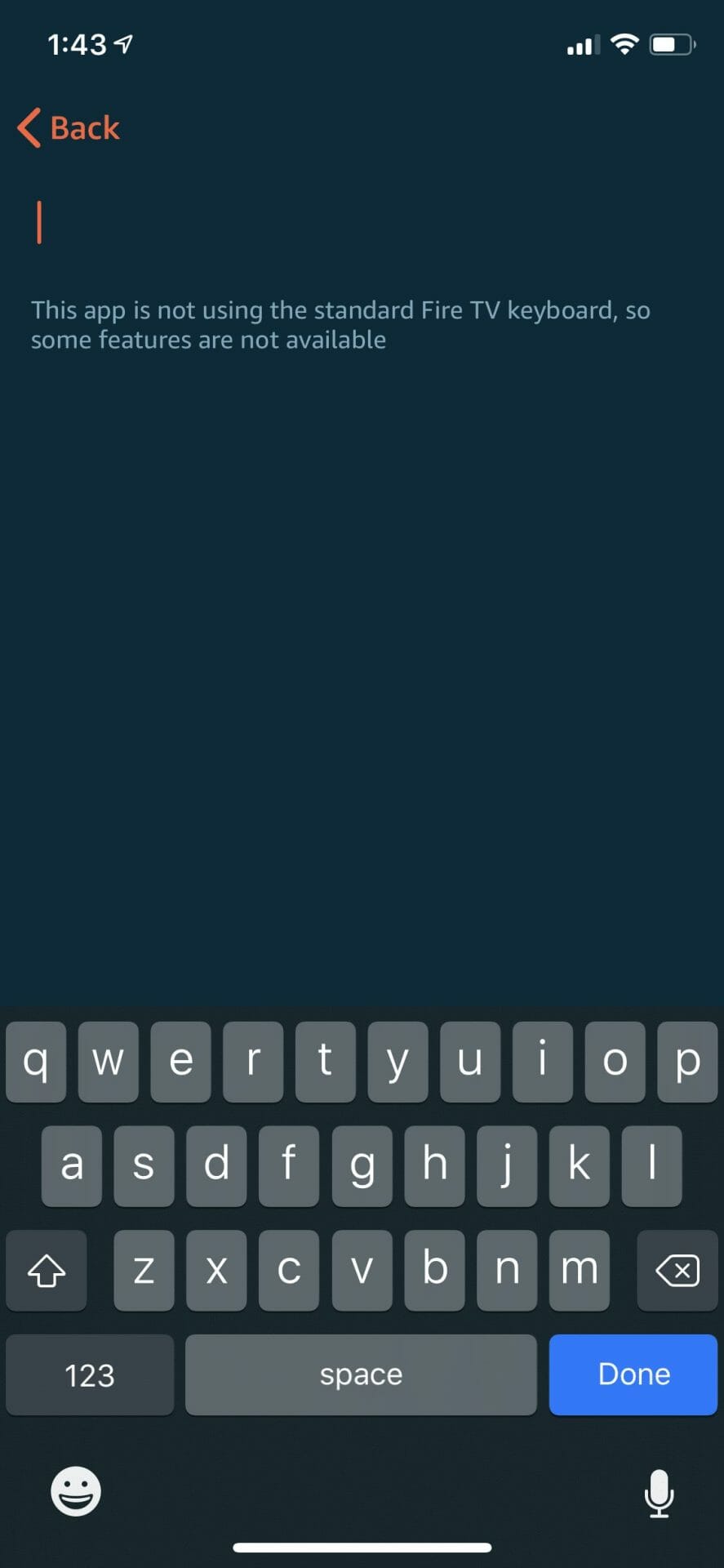
One of the greatest features of the app is the keyboard it provides. This makes it much faster to type when searching.
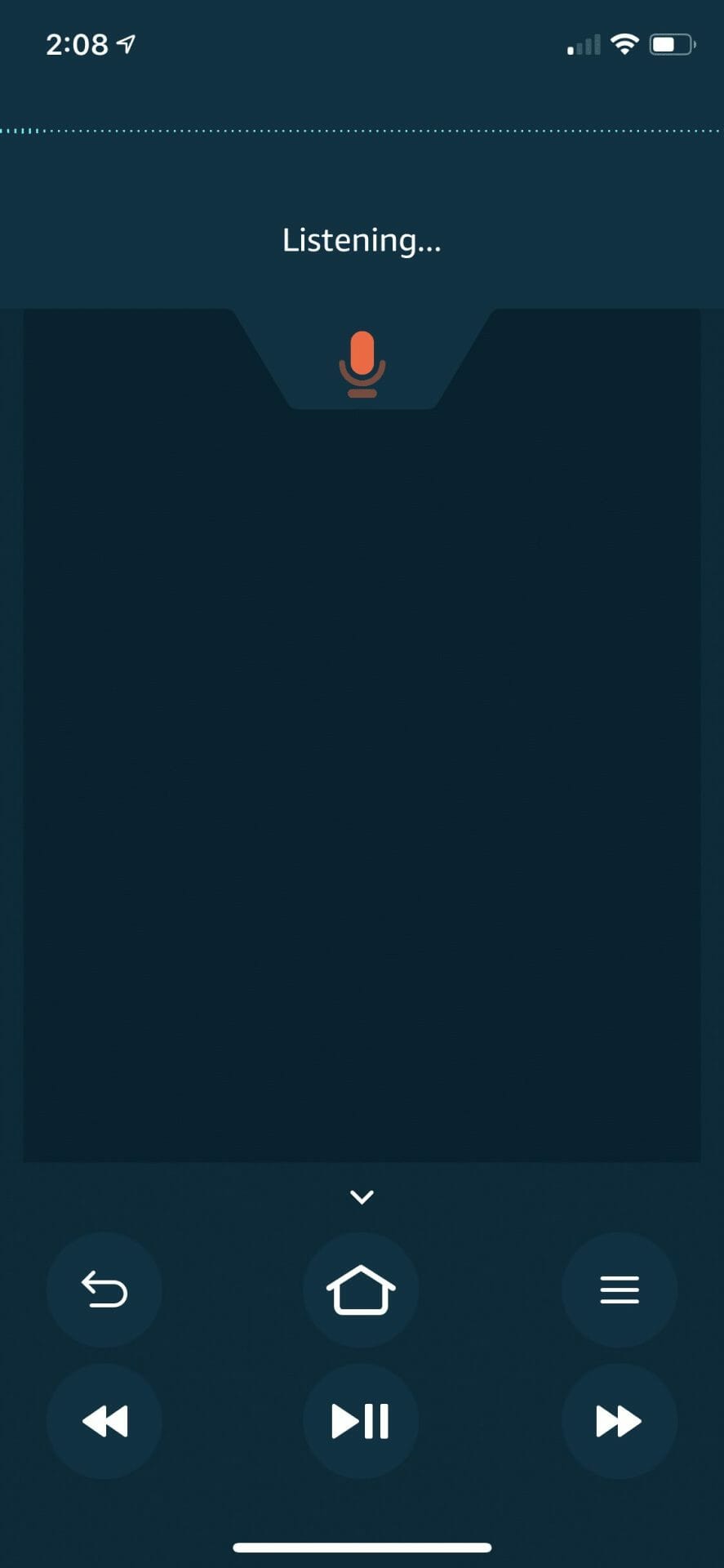
Another benefit of using the Firestick Remote app is the provided Alexa Voice control button.
Older Firestick and Fire TV devices do not have the Alexa feature making the app a great choice to upgrade your remote.
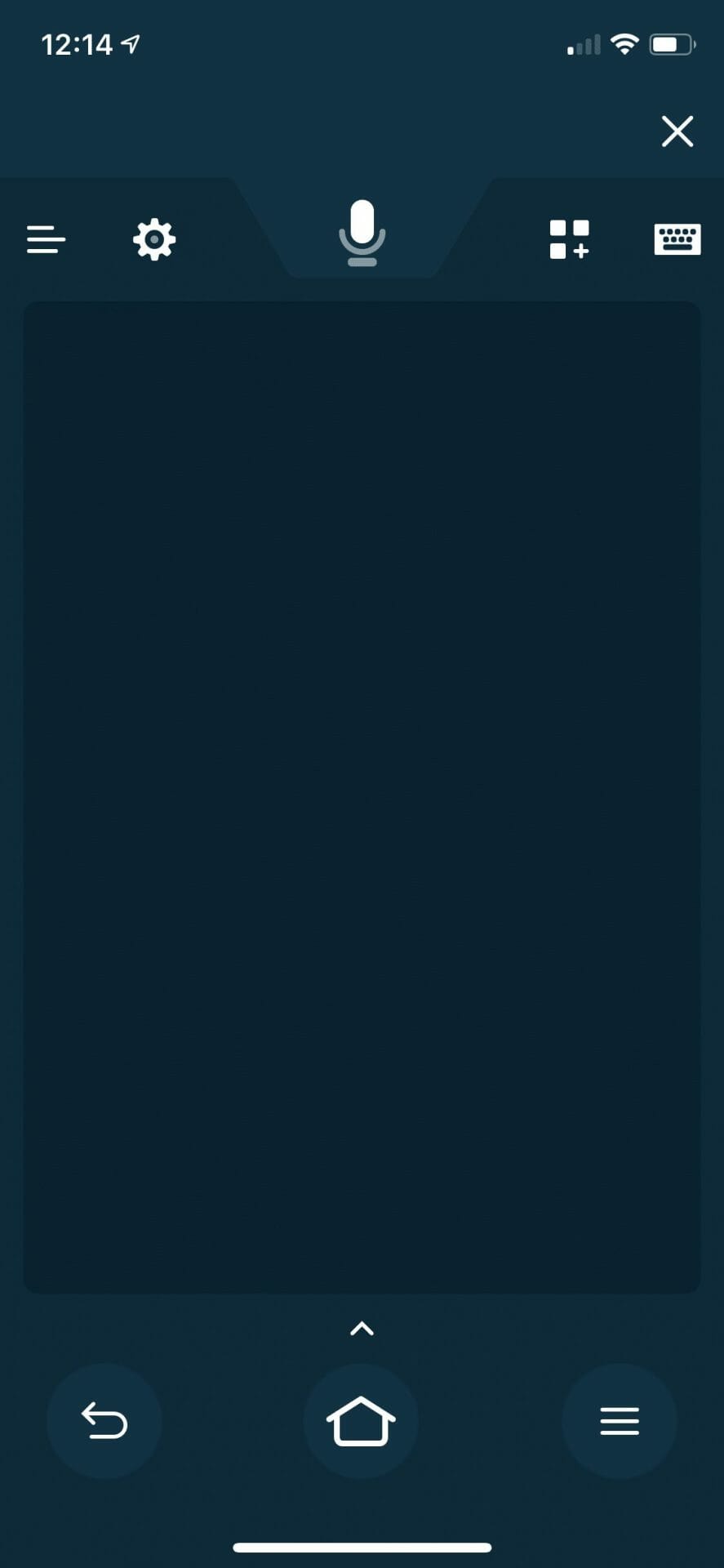
Shown below is the home screen of the app itself on an iPhone XS:

If you choose to download and use the Remote app, you must also pair this with your Fire TV device. Use the steps below to do so:
- Open the app and choose your Firestick/Fire TV Device (If you have multiple, you must select the correct one)
- A 4 digit code will appear on your screen
- A message will be displayed within the app prompting you to enter the 4 digit code
- Upon recognition, your app and device are now paired
REMINDER: If you do not see your preferred option in the device list, you may need to connect to wireless internet.
To pair, you must have your phone/tablet paired to the same wireless network as the Fire TV/Stick you are trying to match.
App Screenshots
Click the image below for a closer look at the Firestick Remote App:

If you are looking to pair an additional remote to your device, keep reading.
How to Pair Old Fire TV Stick Remote
Oftentimes, users find their provided firestick remote not working correctly with their device.
Luckily, Amazon has made nearly all versions of the remote compatible with all variances of the Fire TV Stick.
This means if you have an old firestick remote laying around, you can likely pair it with the firestick that is not functioning properly.
To do this, however, you will likely need the firestick remote app or functioning original remote.
Use the guide below to pair an old or second firestick remote to a Fire TV.
1. From the home screen, open Settings

2. Choose Controllers & Bluetooth Devices

3. Click Amazon Fire TV Remotes

4. Choose Add New Remote

5. Press the home button for 10 seconds on the remote you wish to pair

6. After the remote is found, click the select button on your original remote

7. Your old firestick remote is now paired for use

Enjoy!
Remote Alternatives
Besides the handy application, a few other remotes are compatible with Amazon’s Fire TV lineup.
Bluetooth and USB keyboards are a fantastic choice for any streaming device and work particularly well with the Firestick.

One of the most popular replacement remotes is the iPazzPort Mini Wireless Keyboard. iPazzPort has numerous keyboards available, including both a Bluetooth and USB model.
If you want the Bluetooth model, it’s important to order the proper keyboard and our links below should help with that.
iPazzPort Bluetooth Mini Wireless Keyboard
iPazzPort USB Mini Wireless Keyboard
Note: The USB model requires an OTG cable so you can connect the dongle to your Fire TV Stick or Fire TV Cube.
To pair a Bluetooth Keyboard with a Firestick, follow the steps below:
1. Make sure the Bluetooth option is on if using a Bluetooth remote.
2. Go to Settings and Click Controllers & Bluetooth Devices.
3. Click Other Bluetooth devices.
4. Click Add Bluetooth devices.
5. The Fire TV will now scan for your compatible remote. After found, select the remote and it is ready for use.
This page includes affiliate links where TROYPOINT may receive a commission at no extra cost to you. Many times, visitors will receive a discount due to the special arrangements made for our fans. Learn more on my Affiliate Disclaimer page.


