

Learn How to Install and Use AppLinked with our step-by-step instructional guide below.
AppLinked is a FileLinked Clone and 3rd party app store that allows users to side-load thousands of free media apps on nearly any device they prefer.
This includes streaming devices such as the popular Amazon Firestick, Fire TV, Android TV, Google TV devices, and more.
For many, installing AppLinked is one of the key elements of jailbreaking their device for unrestricted streaming content. AppLinked uses various codes to unlock huge libraries full of streaming applications that users can take full advantage of. This includes options for free Movies, TV Shows, Games, Live TV, and more.
In the guide below, we provide instructions for installing and using AppLinked on a Fire TV Stick 4K Max. This app is also available for installation on nearly any device you prefer including Android TV/Google TV such as NVIDIA SHIELD, MECOOL, Buzz TV, onn. Google TV Box, and phones/tablets.
Table of Contents
How to Install AppLinked on Firestick/Android TV/Google TV
Step 1: Prepare Your Streaming Device
1. From the home screen of your device, hover over the Find button and then click the Search box.

2. Search for and select Downloader.
Hide Your Digital Fingerprint

3. Choose the Downloader app.

4. Click Get or Download.

5. Wait for the app to install.

6. You will then see the Downloader Ready to launch! message.

7. Return to the home screen to hover over Settings and click My Fire TV.
Exclusive Surfshark Discount
Your online activity is currently monitored by your ISP, app/addon/IPTV developers, government agencies, and the websites you visit.
- Become 100% anonymous while streaming and downloading.
- Use on Unlimited Devices & share 1 account with the entire family.
- Save 88% with the 24-Month Plan + Get 3 FREE Months.

8. Choose Developer Options.
IMPORTANT: Please see the notes below if you don’t see Developer Options on your screen.

9. Click Install unknown apps.

10. Find Downloader and select it.

11. Make sure Unknown Sources is set to ON to allow the installation of 3rd party applications.

Developer Options Not Available
If you are unable to locate developer options within settings, follow the instructions below to enable this to use the Downloader App.
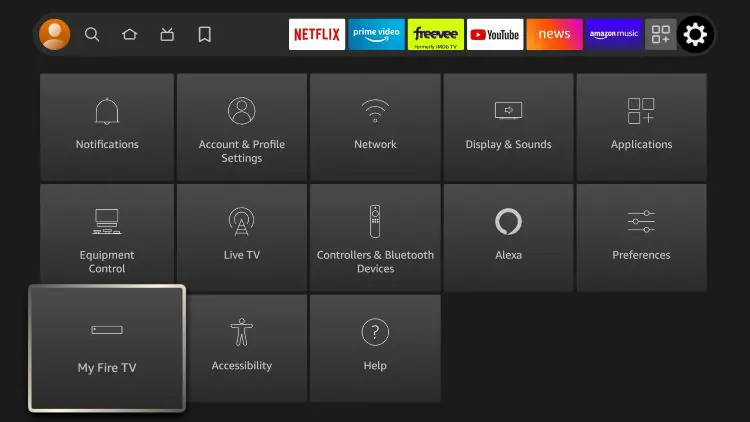
1. Hover over the Settings icon and click My Fire TV.
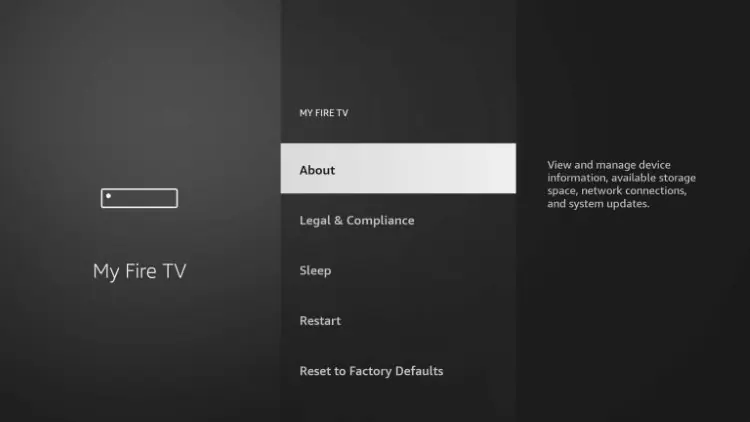
2. Click About.
Note: Notice Developer Options is missing.
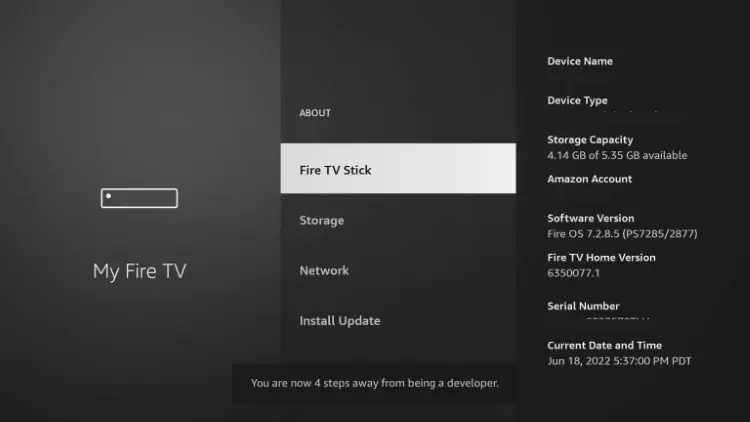
3. Hover over Fire TV Stick and click the OK button on your remote 7 times to become a developer.
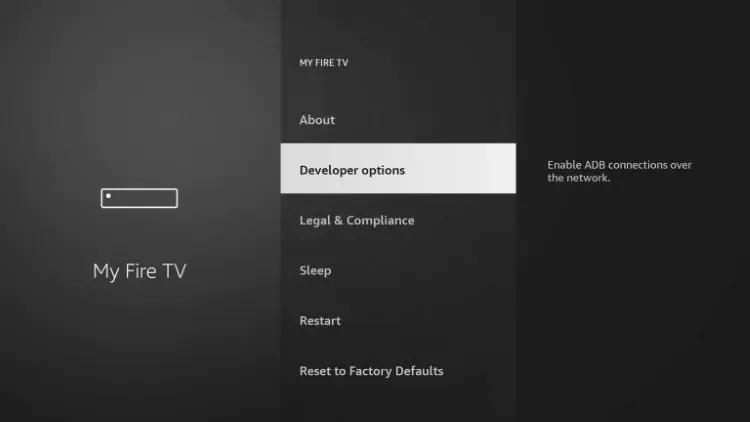
4. Click the back button on your remote and you will notice Developer Options is now showing within My Fire TV.
Step 2: Install AppLinked APK
We will now use Downloader to install AppLinked on your preferred media device.
1. Open Downloader.

2. Hover over the URL Bar and click the select button on your remote.

3. Type applinked.store and click Go. This is the official website of this application.

4. Scroll down and click Download.

5. Click Install.

6. AppLinked has now been installed. Click Done.

7. Select Delete to remove the installation file.

8. Click Delete Again.

Step 3: Move to Front of Apps List
We recommend moving AppLinked to the front of your apps list for quick access.
1. Open your Apps list and scroll down to find the app. Click the menu button on your remote.

2. Choose Move or Move to Front.

3. Place AppLinked in your preferred spot.

Installation is now complete! Continue reading for more information including how to access AppLinked App Stores.
How to Use AppLinked
AppLinked does not work without various AppLinked Codes which host thousands of streaming apps for installation. Use the guide below to learn how to use AppLinked on your preferred streaming device.
- From the home screen, click Add a Store

- Enter the Code of your choice and click Submit. In this instance, we have entered 5555.

- Choose Saved Stores.

- Click Select a Store.

- Choose your Store and click Open.

- You can now browse through various applications for quick installation.

Enjoy!
AppLinked Features & Details
After installing, you can open AppLinked to see the various category options it provides.

Similar to Unlinked and other FileLinked clones, users can create their own codes or stores of their choice. If you want to create your own code, you can now register on Applinked’s official website.
One of the best features of this application is the ability to browse pre-installed categories for Movies, Shows, Live TV, Sports, Gaming, and more. This is something we do not see in other 3rd party app stores.
Overall, AppLinked is a great resource for Firestick/Android TV users to find some of the best apps available today. We suggest installing and navigating the app to see how you can make the most out of it on your streaming device.
Is Applinked Safe to Use?
Before using this unverified application, it is important to scan the official Android APK installation file with VirusTotal.
Here is the screenshot of the scan results.

VirusTotal did not find any malicious viruses/malware within the official AppLinked APK URL.
However, this does not mean we shouldn’t protect ourselves when using this unverified application on our devices.
We always preach about the importance of using a VPN with unverified applications like this to protect our data from 3rd party developers.
How to Install Best VPN on Firestick/Android
Frequently Asked Questions
What is AppLinked?
AppLinked is a FileLinked clone that gives you access to the most popular apps not available within the Amazon App Store or Google Play Store.
Is AppLinked legal?
Yes. AppLinked is legal to install and use. However, some content provided may be illegal. To ensure you are not illegally streaming, make sure to only watch Movies and TV Shows in the public domain.
Is AppLinked safe to use?
Yes, AppLinked is safe to use after scanning the official file with VirusTotal. However, using a VPN is recommended to protect your data from 3rd party app developers.
What devices can this App be installed on?
AppLinked is available for installation on tons of devices including the Amazon Firestick which is the most popular streaming device available. Users can also download on Android and more.
This page includes affiliate links where TROYPOINT may receive a commission at no extra cost to you. Many times, visitors will receive a discount due to the special arrangements made for our fans. Learn more on my Affiliate Disclaimer page.


