
Learn how to use the Print Tool to export a printable image file of the current map extent with features such as a title and scale bar. This feature will capture the entire extent of the map currently visible in the app, so be sure to position the map and apply any filters before clicking Print.
Topics covered in this tutorial:
- Navigating to the Print Feature
- Print Tool Properties
- How to Print
- Known Limitations

Navigating to the Print Tool:
- Navigate to the HUB in the upper lefthand corner of you application
- Scroll down to the Map Tools menu
- Select the PRINT option

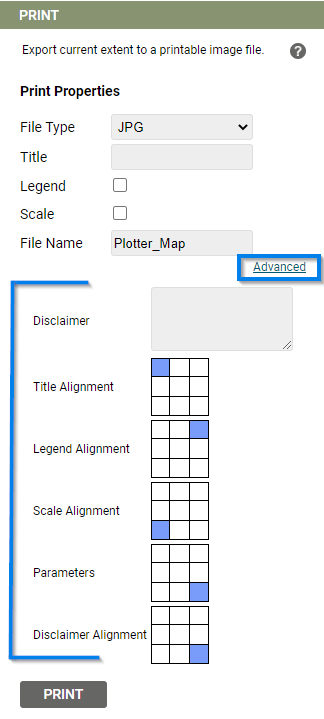
Print Tool Properties
- Choose file type
- JPG
- PNG
- Add a Title
- Choose to toggle on
- Legend (determined by the Display by in the Legend)
- Scale (mirrored from the map extent)
- Give the file a custom name
- Advanced options:
- Disclamer
- Arrange the location of the Title, Legend, Scale, and Disclaimer
Known Limitations:
- If nothing happens when clicking Print, check to see if your browser has a pop up blocker activated
- If it works with a base map of Google, but not with OS maps, please let the Support team know and they will fix this for you.