I tried to map <Alt+D> to <Ctrl+D> by adding the below line to .vimrc, but it doesn't work. I checked the .vimrc is loaded by Vim.
map <Alt-D> <C-D>
Is there any error in this mapping?
I tried to map <Alt+D> to <Ctrl+D> by adding the below line to .vimrc, but it doesn't work. I checked the .vimrc is loaded by Vim.
map <Alt-D> <C-D>
Is there any error in this mapping?
To Mac users out there: for mapping ALT+hjkl, use instead the real character generated (find out which character using the combination while in INSERT mode), for example with my keyboard I get:
<ALT+j> ==> ª
<ALT+k> ==> º
and so on. Solution found here on StackOverflow.
I used this to move lines up and down with ALT+k\j, using this on my .vimrc:
nnoremap ª :m .+1<CR>==
nnoremap º :m .-2<CR>==

inoremap ª <Esc>:m .+1<CR>==gi
inoremap º <Esc>:m .-2<CR>==gi

vnoremap ª :m '>+1<CR>gv=gv
vnoremap º :m '<-2<CR>gv=gv
as explained here.
Hope it's useful, enjoy Vim :)
ADDENDUM BY Dylan_Larkin (2019): For this to work on a Mac, "Use Option as Meta Key" must be turned OFF in Terminal->Preferences->Keyboard
UPDATE 09/2021
I recently switched from a "British" keyboard to "ABC - Extended" and noticed this configuration doesn't work as expected.
As an alternative, I mapped the <up> and <down> keys to do the same operation (which, I guess, also solves most of the complexity explained in other answers of this very question):
nnoremap <down> :m .+1<CR>==
nnoremap <up> :m .-2<CR>==

inoremap <down> <Esc>:m .+1<CR>==gi
inoremap <up> <Esc>:m .-2<CR>==gi

vnoremap <down> :m '>+1<CR>gv=gv
vnoremap <up> :m '<-2<CR>gv=gv
This is also a great way for beginners to rewire the habit of using the arrows and instead learn the much more efficient Vim motion way to move around the code. ;)
You can complete your transition mapping <left> and <right> to quickly move between tabs with:
nnoremap <left> gT
nnoremap <right> gt
Or whatever you fancy (even a brutal <NOP>, like I did at the beginning of my journey).


cat. Simply type cat and inside the cat window the key combination you want. Found out that alt + brackets is ‘ and “ on my mac.
nmap ˙ <C-w><Left> nmap ¬ <C-w><Right> nmap ˚ <C-w><Up> nmap ∆ <C-w><Down>
sed -n l to see the output of <A-k> and <A-j> before you configure the mapping. In my case <A-j> is ∆ and <A-k> is ˚
Use Option as Meta Key or on iTerm profile ⌥ key to Esc+ will behave as the traditionally way (like on Linux/Unix). So you don't need to set on Vim the map to <^[j>, just map it to <A+j> or <M+j> and it works.:help key-notation describes what format needs to be used to map different keys. In the case of alt, you can use either <A- or <M-. So your mapping would be
map <M-d> <C-d>
I'd also recommend using the nore variant of :map (e.g., noremap) unless you explicitly want to allow the right-hand side to be re-evaluated for mappings.


<A-d>. You probably need to change your terminal's settings so it sends <A-d> as <Esc>d.

<A-j> works well in idea vim on Mac.
I'm not sure is "possible" anymore. Please read the update below.
Yes, you can even in terminal vim, but there's no real catch all answer. You basically have to follow two steps:
Make sure the <M-d> notation exists, and map exactly what your terminal inputs (^[ is the escape character):
$ cat
^[d
$

" in your .vimrc
execute "set <M-d>=\ed"
" you have to use double quotes!
Map something to your newly "created" combination:
noremap <M-d> :echo "m-d works!"<cr>
Understanding how it works, you can expand this "trick" to other "strange" combinations, for instance, I'm using termite, and vim doesn't recognize <S-F1>, using cat I get ^[[1;2P. Then, in my vimrc I do: execute "set <S-F1>=\e[1;2P", and then I can map it to anything.
Note: I don't know why, but for some people using \<Esc> works instead of \e.
Update (february 2016)
Depending on the terminfo your terminal runs, maybe you could... in most terminals, "alt + h", for example, is mapped to ^[h, which is: "escape + h". So it could overwrite keys. I've just tried (again) and it seems to work, but I believe it's a very buggy and error prone implementation.
Nevertheless, for the brave enough, here's an experimental plugin:


execute "set... stuff, you can just directly use set <M-d>=^[d. The ^[ is actually an escape character entered with C-v-Esc. This was necessary in rxvt/urxvt, but xterm shouldn’t need the special treatment. More info on this topic in the vim wiki.

Map Alt Key in Vim on Mac OSx:
Start by viewing the key code your terminal is sending to vim:
$ sed -n l
^[[1;9D
In the above example, I ran the command and pressed Alt + Left.
The ^[[1;9D is the escaped sequence being sent to vim, so we can user that for our mapping.
map <Esc>[1;9D


Option key (⌥) configured as Esc+ in iTerm2, I could map alt+q to quit vim: nnoremap <silent> <Esc>q :qa!<cr>
Use:
map <A-D> <C-D>
See :help key-notation.

gvim on Windows)
My Terminal would produce ^[x commands (e.g. for alt-x). What got it to work inside Vim was this small script from vim.wikia.com:
for i in range(97,122)
  let c = nr2char(i)
  exec "map \e".c." <M-".c.">"
  exec "map! \e".c." <M-".c.">"
endfor
Add to .vimrc to fix all alt key mappings.
as a follow up to Bruno's answer for Mac users, try making sure your option key is mapped to Esc+.
This will give you the "normal" behavior of the option (A) key in Vim.
For example, in iterm2, this option can be found under Preferences > Profiles > Keys:


nnoremap <Esc>j :m .+1<CR>== and similar...Your terminal might not transmit "properly" the Alt-D. You can use C-V to actually get the actual escape sequence send to Vim and use it to create your mapping. Ie, edit your .vimrc and replace the actual by typing the following sequence "C-V Alt-D" so you'll have the correct escape sequence in your vimrc. That won't work if your terminal doesn't send anything to vim.
Find out key mapping by putting following command in your vim editor
:help key-notation
It will display all the key mapping.
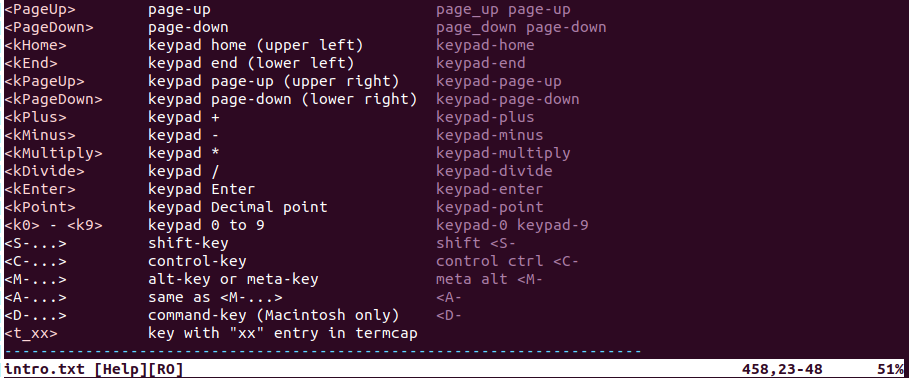
In my ubuntu system for Alt it is <M-...>. It is possible for your version mapping might be different. If you too have same mapping then following should work.
map <M-D> <C-D>
Hello after no good solution after years of testing all the above on mac, I kept searching.
Here is my solution:
To create a combination keystroke including Alt you have to declare the combination in the preference > keyboard and use that combination in the vim setup file (check use option as meta key).
The output must be an unusual character (no a for example) so that you're not overriding a regular character.
In the example below you should be able to quite vim with ALT-Up.
vim setting:

mac setting:
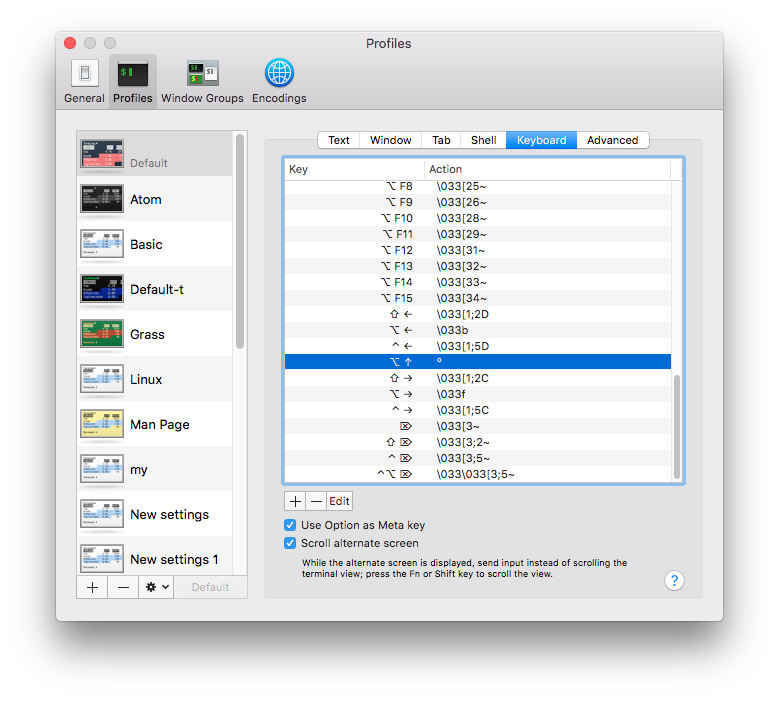
Another good option in 2024 for MacOS is to first disable international character support for the Option key; if that is acceptable, you can check out the solution here How to disable generating special characters when pressing the `alt+a`/`option+a` keybinding in Mac OS (`⌥+a` )?
Once that is done, set your terminal (e.g. iTerm2) to Esc+. Now the shortcuts will work.
If your terminal emulator supports the kitty keyboard protocol (most modern terminals do) vim / neovim will ask your terminal to send keyboard sequences according to said protocol for the session. This finally allows you to remap sequences. Here are some example mappings that work for both vim and neovim (A is Alt, S is Shift):
" Move current line or selected block of lines up
vnoremap <A-k> mz:m '<-2<CR>gv=gv`z
nnoremap <A-k> mz:m .-2<CR>`z

" Move current line or selected block of lines down
vnoremap <A-j> mz:m '>+1<CR>gv=gv`z
nnoremap <A-j> mz:m .+1<CR>`z

" Copy current selection up or down
nnoremap <A-S-K> :t .-1<CR>==
nnoremap <A-S-J> :t .<CR>==
xnoremap <A-S-K> :t '<-1<CR>V'[
xnoremap <A-S-J> :t '><CR>V'[

" Move current line or selected block of lines up
vnoremap <A-k> mz:m '<-2<CR>gv=gv`z
nnoremap <A-k> mz:m .-2<CR>`z

" Move current line or selected block of lines down
vnoremap <A-j> mz:m '>+1<CR>gv=gv`z
nnoremap <A-j> mz:m .+1<CR>`z

" Copy current selection up or down
nnoremap <A-S-K> :t .-1<CR>==
nnoremap <A-S-J> :t .<CR>==
xnoremap <A-S-K> :t '<-1<CR>V'[
xnoremap <A-S-J> :t '><CR>V'[

" Enter newline without entering insert mode
nnoremap <S-CR> O<ESC>
nnoremap <CR> o<ESC>
Make sure your vim/neovim version is current enough. Using vim9 and neovim 0.11 should get you there.


encodingchanges after the mapping runs, what you get out of your Alt keys may not match what you initially set.control+v, then your key comboalt+d& it should insert^[d. So you end up withmap ^[d <C-D>or what have you. Note that TYPING^[ddoes not do the same thing.Alt-dkeystroke and performed an action that produced no visible change (New-Bookmark?). Find your OSsystem settings->keymapstool and remove all keymaps associated withAlt-d. Again do this with keybindings defined in your Terminalsettings->keymaps. Now vim is able to receive yourAlt-d.