18

I created my first organization and invited a user to it. The user receives the email invitation and appears as a member of the organisation and project. However, when they click join in the email invitation they are denied access.

The organisation is not connected to Azure Active Directory as suggested in Invited user Azure Devops project but they are unable to access it.

We have also tried troubleshooting connectivity as outlined by Microsoft docs.

2
  • Did you ask the user if while clicking the link it was previously logged already with some credentials to the Azure account? Commented Jun 5, 2020 at 10:48
  • I did ask but they were adamant they used one account. Anyways it's working now by using an incognito browser but thank you for your reply. Commented Jun 6, 2020 at 9:33

5 Answers 5

27

You can try to create a new incognito window and sign in to your organization : https://dev.azure.com/{organizationName} with the invited account in this incognito window.

This is because when the user clicked the email invitation, this will automatically jump to the browser to use the default account cached by the browser to log in to the organization, and this default account could not be the invited account.

enter image description here

Sign up to request clarification or add additional context in comments.

5 Comments

Somehow this worked despite having tried this yesterday as per the troubleshoot connectivity steps in MS docs. Thank you!
also try with different browser. some of browsers have not real incognito mode.
I was tried @Gnyasha answer after this and problem was solved! Congratulations to Microsoft!!!
I finally tried firefox for this problem and solved my problem.
tried in incognito mode and worked for me
6

You can clear browser cache ctrl + shift + R

1 Comment

That worked for me. The big problem is that when I refresh the org page sometimes it shows 401, sometimes it shows the correct page, but I believe this is temporarily as I just joined this new organization...
2

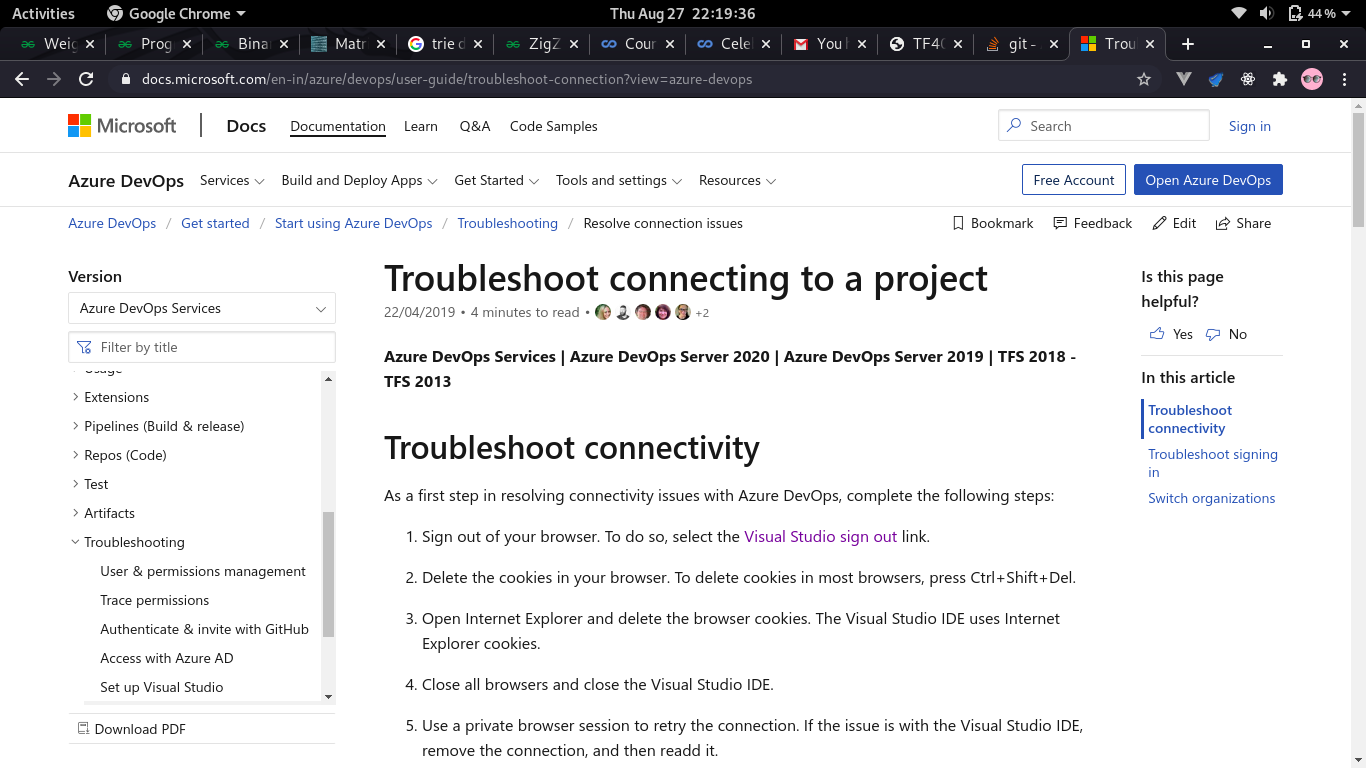
Go to this link trouble shooting and there will be visual studio signout option and signout from there page pic

And you will be directed to azure.dev page where there will be two sign in options(one on the top right and other in the body. First sign in from top one and then from the one in the body(you will be redirected to previous page after signing up first one) and then you are good to go.

Even then if you are getting the same issue then try in incognito. It should work

Comments

0

What worked for me (on Chrome) was:

  1. First sign out of Azure DevOps
  2. Then close all Azure DevOp tabs
  3. Quit the browser application completely (i.e., actually right-clicking on the browser icon and clicking "quit"--not just closing all tabs)
  4. Start the browser application back up
  5. Try clicking on the email link again

I assume quitting of the browser application here accomplishes the same thing that clearing the cache might do. I'll add that I didn't have any other browsers open--I was only using Chrome. If you have multiple browsers open, you should quit all of them too.

Comments

0

This problem is fixed once you clear browser cache ctrl + shift + R

Comments

Your Answer

By clicking “Post Your Answer”, you agree to our terms of service and acknowledge you have read our privacy policy.

Start asking to get answers

Find the answer to your question by asking.

Ask question

Explore related questions

See similar questions with these tags.