120

I am trying out Flutter and I am trying to change the colour of the BottomNavigationBar on the app but all I could achieve was change the colour of the BottomNavigationItem (icon and text).

Here is where i declare my BottomNavigationBar:

class _BottomNavigationState extends State<BottomNavigationHolder>{

  @override
  Widget build(BuildContext context) {
    return new Scaffold(
      appBar: null,
      body: pages(),
      bottomNavigationBar:new BottomNavigationBar(
        items: <BottomNavigationBarItem>[
          new BottomNavigationBarItem(
              icon: const Icon(Icons.home),
              title: new Text("Home")
          ),
          new BottomNavigationBarItem(
              icon: const Icon(Icons.work),
              title: new Text("Self Help")
          ),
          new BottomNavigationBarItem(
              icon: const Icon(Icons.face),
              title: new Text("Profile")
          )
        ],
        currentIndex: index,
        onTap: (int i){setState((){index = i;});},
        fixedColor: Colors.white,
      ),
    );
  }

Earlier I thought I had it figured out by editing canvasColor to green on my main app theme but it messed up the entire app colour scheme:

class MyApp extends StatelessWidget {
  // This widget is the root of your application.
  @override
  Widget build(BuildContext context) {
    return new MaterialApp(
      title: 'Flutter Demo',
      theme: new ThemeData(
        primarySwatch: Colors.blue,
        canvasColor: Colors.green
      ),
      home: new FirstScreen(),
    );
  }
}
1
  • I also wanted to change much of the bottomnav, I ended up just copying all the code of the bottomnav and change what I wanted. I guess that is one of the main benefits of Flutter, the openness and ease to do that. I made this: pbs.twimg.com/media/DPkoxKWX0AEg9tF.jpg:large Commented Mar 16, 2018 at 9:21

15 Answers 15

169

There is no option to specify the background color of BottomNavigationBar but to change the canvasColor. One way you can achieve it without messing up the whole app would be by wrapping BottomNavigationBar in a Theme with desired canvasColor.

Example:

  bottomNavigationBar: new Theme(
    data: Theme.of(context).copyWith(
        // sets the background color of the `BottomNavigationBar`
        canvasColor: Colors.green,
        // sets the active color of the `BottomNavigationBar` if `Brightness` is light
        primaryColor: Colors.red,
        textTheme: Theme
            .of(context)
            .textTheme
            .copyWith(caption: new TextStyle(color: Colors.yellow))), // sets the inactive color of the `BottomNavigationBar`
    child: new BottomNavigationBar(
      type: BottomNavigationBarType.fixed,
      currentIndex: 0,
      items: [
        new BottomNavigationBarItem(
          icon: new Icon(Icons.add),
          title: new Text("Add"),
        ),
        new BottomNavigationBarItem(
          icon: new Icon(Icons.delete),
          title: new Text("Delete"),
        )
      ],
    ),
  ),
Sign up to request clarification or add additional context in comments.

10 Comments

Thank you so much good Sir. Worked perfectly. Do you know anyway of changing the colours of the inactive icons on the bottom navigation bar?
ThemeData has a disabledColor property, try setting it.
I have actually tried setting all the available attributes under ThemeData to change the inactive icon colour and none of them had an effect hey. Even disabledColor
Actually the disabled color is fetched from caption of textTheme. I've updated my answer to show how can you achive it. Hope that helps!
man you the best! Thank you so much.. I doubt I would've figured that out by myself honestly! Thank you so so much!!
|
155

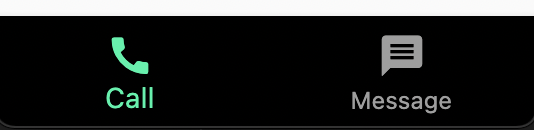
BottomNavigationBar could be either fixed or moving (shifting). It is fixed if there are 3 items and changes to shifting for 4 or more items. We can override this behavior by setting BottomNavigationBar.type parameter.

  • Fixed BottomNavigationBar

    enter image description here

    BottomNavigationBar(
      type: BottomNavigationBarType.fixed, // Fixed 
      backgroundColor: Colors.black, // <-- This works for fixed
      selectedItemColor: Colors.greenAccent,
      unselectedItemColor: Colors.grey,
      items: [
        BottomNavigationBarItem(
          icon: Icon(Icons.call),
          label: 'Call',
        ),
        BottomNavigationBarItem(
          icon: Icon(Icons.message),
          label: 'Message',
        ),
      ],
    )
    

  • Shifting BottomNavigationBar:

    enter image description here

    BottomNavigationBar(
      type: BottomNavigationBarType.shifting, // Shifting
      selectedItemColor: Colors.white,
      unselectedItemColor: Colors.grey,
      items: [
        BottomNavigationBarItem(
          icon: Icon(Icons.call),
          label: 'Call',
          backgroundColor: Colors.blue, // <-- This works for shifting
        ),
        BottomNavigationBarItem(
          icon: Icon(Icons.message),
          label: 'Message',
          backgroundColor: Colors.green, // <-- This works for shifting
        ),
      ],
    )
    

1 Comment

That's works, Thanks. And BTW dont forget to remove the icon color in BottomNavigationBarItem.
88

The accepted answer isn't entirely wrong. However, BottomNavigationBar does in-fact have a property of backgroundColor. As per the documentation

If type is BottomNavigationBarType.shifting and the itemss, have BottomNavigationBarItem.backgroundColor set, the item's backgroundColor will splash and overwrite this color.

What this means is that the BottomNavigation's backgroundColor will be overriden by the individual items backgroundColor because the default type is BottomNavigationBarType.shifting.

To fix this, simply add the following property to the declared BottomNavigationbar widget.

type: BottomNavigationBarType.fixed,

Note: If you do, however, want the shifting effect you will have to declare colors for each item, or wrap the widget that allows the overriding of the child widget(s) background color.

i.e Something like Container widget.

2 Comments

i changed type: BottomNavigationBarType.shifting by type: BottomNavigationBarType.fixed. this worked for me, thanks
i had an issue with backgroundColor being changed to white automatically as soon as i add 4 children. After setting the navBar type to fixed, it stopped changing automatically.
19

can change by setting colors to backgroundColor property if type is fixed.

BottomNavigationBar(
          backgroundColor: Colors.red,
          type: BottomNavigationBarType.fixed,
          items: [
            BottomNavigationBarItem(
                icon:Icon(Icons.home, color: Color.fromARGB(255, 255, 255, 255)),
                title: new Text('Home'),),
            BottomNavigationBarItem(
                icon: Icon(Icons.work,color: Color.fromARGB(255, 255, 255, 255)),
                title: new Text('Self Help'),),
            BottomNavigationBarItem(
                icon:Icon(Icons.face, color: Color.fromARGB(255, 255, 255, 255)),
                title: new Text('Profile'),),
          ]
        )

If the type is shifting it will use color inside bottomNavigationBarItem.

BottomNavigationBar(
          backgroundColor: Colors.red,
          type: BottomNavigationBarType.shifting,
          items: [
            BottomNavigationBarItem(
                icon:Icon(Icons.home, color: Color.fromARGB(255, 255, 255, 255)),
                title: new Text('Home'),
                backgroundColor: Colors.red),
            BottomNavigationBarItem(
                icon: Icon(Icons.work,color: Color.fromARGB(255, 255, 255, 255)),
                title: new Text('Self Help'),
                backgroundColor: Colors.blue),
            BottomNavigationBarItem(
                icon:Icon(Icons.face, color: Color.fromARGB(255, 255, 255, 255)),
                title: new Text('Profile'),
                backgroundColor: Colors.amber),
          ]

        )

You can see even though I have set backgroundColor property it does not apply that colors and the background color inside BottomNavigationBarItem widget will override that.

Found from here

1 Comment

title is now deprecated, it says to use label instead which takes a String
13

You can currently style them BottomNavigationBar directly from the Theme, like this:

ThemeData(
    bottomNavigationBarTheme: BottomNavigationBarThemeData(
        backgroundColor: Colors.grey[900],
        elevation: 10,
        selectedLabelStyle: TextStyle(
            color: Color(0xFFA67926), fontFamily: 'Montserrat', fontSize: 14.0
        ),
        unselectedLabelStyle: TextStyle(
            color: Colors.grey[600], fontFamily: 'Montserrat', fontSize: 12.0
        ),
        selectedItemColor: Color(0xFFA67926),
        unselectedItemColor: Colors.grey[600],
        showUnselectedLabels: true,
    ),
)

2 Comments

This is the proper way to do it with themes. Thanks!
This should be the accepted answer. It took me ages of searching to find this. Thanks for putting me out of my misery xD
12

Set following properties to change the background, selected and unselected colors

bottomNavigationBar: BottomNavigationBar(
        backgroundColor: Colors.blue,
        selectedItemColor: Colors.black,
        unselectedItemColor: Colors.white,
        type: BottomNavigationBarType.fixed,
        ...
)

1 Comment

type: BottomNavigationBarType.fixed, this property is very important
5

The title is deprecated. We use label instead.
For label, we can use corresponding attributes: selectedLabelStyle, unselectedLabelStyle.
For example:

bottomNavigationBar: BottomNavigationBar(
          type: BottomNavigationBarType.fixed,
          selectedItemColor: Theme.of(context).accentColor,
          selectedFontSize: 0,
          unselectedFontSize: 0,
          iconSize: 22,
          elevation: 0,
          backgroundColor: Colors.transparent,
          selectedIconTheme: IconThemeData(size: 28),
          unselectedItemColor: Theme.of(context).focusColor.withOpacity(1),
          selectedLabelStyle: Theme.of(context).textTheme.bodyText1.merge(TextStyle(fontSize: 12)),
          unselectedLabelStyle: Theme.of(context).textTheme.button.merge(TextStyle(fontSize: 11)),
          showUnselectedLabels: true,
          currentIndex: widget.currentTabIdx,
          onTap: (int i) {
            this._selectTab(i);
          },
          showSelectedLabels: true,
          // this will be set when a new tab is tapped
          items: [
            BottomNavigationBarItem(
              icon: SvgPicture.asset(IMAGE_ASSETS_ICONS_HOME) ,
              activeIcon: SvgPicture.asset(IMAGE_ASSETS_ICONS_HOME, color: Theme.of(context).accentColor),
              label: 'Home',
            ),
            BottomNavigationBarItem(
                label: 'Categories',
              icon: SvgPicture.asset(IMAGE_ASSETS_ICONS_CATEGORY),
              activeIcon: SvgPicture.asset(IMAGE_ASSETS_ICONS_CATEGORY, color: Theme.of(context).accentColor) ,
            ),
            BottomNavigationBarItem(
              icon: SvgPicture.asset(IMAGE_ASSETS_ICONS_ORDER_HISTORY, ) ,
              activeIcon: SvgPicture.asset(IMAGE_ASSETS_ICONS_ORDER_HISTORY, color: Theme.of(context).accentColor ) ,
              label: 'Order History',
            ),
            BottomNavigationBarItem(
              icon: SvgPicture.asset(IMAGE_ASSETS_ICONS_CART,) ,
              activeIcon: SvgPicture.asset(IMAGE_ASSETS_ICONS_CART, color: Theme.of(context).accentColor) ,
              label: 'Cart',
            ),
          ],

1 Comment

This was the exact answer I was looking for. I wanted to style the labels and using this answer, I was able to.
5

Try wrapping your BottomNavigationBar in a Container then set its color.

Example:

@override
  Widget build(BuildContext context) {
    return Scaffold(
      body: pages(),
      bottomNavigationBar:new Container(
        color: Colors.green,
        child: BottomNavigationBar(
          items: <BottomNavigationBarItem>[
            BottomNavigationBarItem(
                icon: const Icon(Icons.home),
                title: Text("Home")
            ),
            BottomNavigationBarItem(
                icon: const Icon(Icons.work),
                title: Text("Self Help")
            ),
            BottomNavigationBarItem(
                icon: const Icon(Icons.face),
                title: Text("Profile")
            )
          ],
        currentIndex: index,
        onTap: (int i){setState((){index = i;});},
        fixedColor: Colors.white,
        ),
      );
    );
  };

2 Comments

don't set appBar at all if you're just making it null. it probably has a default value
Worked. I like this solution better.
4

Just follow the given below code to customize according to your requirements. You just need to set the parent of NavigationBar with Theme and set canvasColor to change the background color

      bottomNavigationBar: Theme(
    data: Theme.of(context).copyWith(
      canvasColor: kOrangeMaterialColor
    ),
    child: BottomNavigationBar(
      type: BottomNavigationBarType.shifting,
      currentIndex: _currentIndex,
      onTap: _onTapItem,

      items: [
        BottomNavigationBarItem(icon: Icon(Icons.home,
        color: kWhiteColor,),
        label: ''),
        BottomNavigationBarItem(icon: Icon(Icons.notifications,
        color: kWhiteColor,),
        label: ''),
        // BottomNavigationBarItem(icon: Icon(Icons.favorite_border,
        // color: kWhiteColor,),
       // label: ''),
        BottomNavigationBarItem(icon: Icon(Icons.account_circle,
        color: kWhiteColor,),
        label: ''),
        BottomNavigationBarItem(icon: Icon(Icons.settings,
        color: kWhiteColor,),
        label: ''),
      ],
    ),
  ),

Comments

4

You can use this code :

BottomNavigationBar (
backgroundColor: Colors.red,
type: BottomNavigationBarType.fixed
)

Or warp BottomNavigation with Theme widget and change canvasColor.

Theme(
    data: Theme.of(context).copyWith(canvasColor: Colors.green),
    child: BottomNavigationBar(
      // add your code ...
        )
      ],
    ),
  ),

Comments

1

Simply add the backgroundColor property to BottomNavigationBarwidget.

@override
  Widget build(BuildContext context) {
    return new Scaffold(
      appBar: null,
      body: pages(),
      bottomNavigationBar:new BottomNavigationBar(
        items: <BottomNavigationBarItem>[
          new BottomNavigationBarItem(
              icon: const Icon(Icons.home),
              title: new Text("Home")
          ),
          new BottomNavigationBarItem(
              icon: const Icon(Icons.work),
              title: new Text("Self Help")
          ),
          new BottomNavigationBarItem(
              icon: const Icon(Icons.face),
              title: new Text("Profile")
          )
        ],
        currentIndex: index,
        onTap: (int i){setState((){index = i;});},
        fixedColor: Colors.white,
        backgroundColor: Colors.black45,
      ),
    );
  }

Comments

1

// it will work like this backgound color

import 'package:flutter/material.dart';
import 'package:pedometer/widgets/const.dart';
import 'package:pedometer/widgets/icon.dart';

import 'dashbord.dart';

class MyStatefulWidget extends StatefulWidget {
  const MyStatefulWidget({Key? key}) : super(key: key);

  @override
  State<MyStatefulWidget> createState() => _MyStatefulWidgetState();
}

class _MyStatefulWidgetState extends State<MyStatefulWidget> {
  int _selectedIndex = 0;
  static const TextStyle optionStyle =
      TextStyle(fontSize: 30, fontWeight: FontWeight.bold);
  static const List<Widget> _widgetOptions = <Widget>[
   DashbordScreen(),
  DashbordScreen(),
  DashbordScreen(),
  DashbordScreen(),
  ];

  void _onItemTapped(int index) {
    setState(() {
      _selectedIndex = index;
    });
  }

  @override
  Widget build(BuildContext context) {
    return Scaffold(
      body: Center(
        child: _widgetOptions.elementAt(_selectedIndex),
      ),
      bottomNavigationBar: BottomNavigationBar(
         backgroundColor: const Color.fromARGB(255, 6, 17, 93),
         type: BottomNavigationBarType.fixed,
        items: const <BottomNavigationBarItem>[
          BottomNavigationBarItem(
           // iconFun(path:Icons.home,context: context )
            icon: Icon(Icons.home,color: Colors.white,size: 35,),
            label: 'Home',
          //  backgroundColor: Colors.red,
          ),
          BottomNavigationBarItem(
            icon: Icon(Icons.auto_graph_outlined,color: Colors.white,size: 35),
            label: 'Business',
            backgroundColor: Colors.green,
          ),
          BottomNavigationBarItem(
            icon: Icon(Icons.health_and_safety,color: Colors.white,size: 35),
            label: 'School',
           // backgroundColor: Colors.purple,
          ),
          BottomNavigationBarItem(
            icon: Icon(Icons.settings,color: Colors.white,size: 35),
            label: 'Settings',
         //   backgroundColor: Colors.pink,
          ),
        ],
        currentIndex: _selectedIndex,
        selectedItemColor: Colors.white,
        onTap: _onItemTapped,
      ),
    );
  }
}

Comments

1
BottomNavigationBar(
  type: BottomNavigationBarType.fixed, 
  backgroundColor: Colors.black.withOpacity(0.5), 
  selectedItemColor: Colors.greenAccent,
  unselectedItemColor: Colors.grey,
  elevation: 0,
)

It's important to set elevation to zero to get the exact color especially when you set an opacity to the color

1 Comment

Helped with transparent background, [elevation : 0], makes the background match the Scaffold background.
0

use

BottomNavigationBar (
backgroundColor: Colors.red,
)

If not changing color with this wrap with material widget.

Material(
child:
BottomNavigationBar (
backgroundColor: Colors.red,
),
)

Comments

0

To style the BottomNavigationBar globally, use the bottomNavigationBarTheme property in ThemeData. Define custom BottomNavigationBarThemeData and set properties like backgroundColor, selectedItemColor, unselectedItemColor, elevation, etc.

ThemeData(
    bottomNavigationBarTheme: BottomNavigationBarThemeData(
      backgroundColor: Colors.blue, // Change the background color here
      selectedItemColor: Colors.white, // Change the selected item color
      unselectedItemColor: Colors.grey, // Change the unselected item color
      elevation: 10, // Change the elevation of the bar
      type: BottomNavigationBarType.fixed,
    ),
  ),

Please Note: The backgroundColor property only works with the BottomNavigationBarType.fixed. If you're using the BottomNavigationBarType.shifting, you'll need to use a different approach to change the background color. you can set the color to each BottomNavigationBarItem.

BottomNavigationBar(
        ... code here.
        items: [
          BottomNavigationBarItem(
            icon: Icon(Icons.dashboard_outlined),
            label: 'Dashboard',
            backgroundColor: Colors.blue,
          ),
          BottomNavigationBarItem(
            icon: Icon(Icons.format_shapes_outlined),
            label: 'Forms',
            backgroundColor: Colors.blue,
          ),
          BottomNavigationBarItem(
            icon: Icon(Icons.family_restroom_outlined),
            label: 'Family',
            backgroundColor: Colors.blue,
          ),
          BottomNavigationBarItem(
            icon: Icon(Icons.settings),
            label: 'Settings',
            backgroundColor: Colors.blue,
          ),
        ],
      );

As per the Flutter documentation.

Comments

Your Answer

By clicking “Post Your Answer”, you agree to our terms of service and acknowledge you have read our privacy policy.

Start asking to get answers

Find the answer to your question by asking.

Ask question

Explore related questions

See similar questions with these tags.