All posts by Basavaraj Biradar

How to change Sql Server ErrorLog files location

By default Sql Server ErrorLog files are located in the same drive/path which is used/selected during Sql Server Installation. You may like to store Sql Server Error log files in a drive or path which is other than the one used for Sql Server installation, to avoid filling up of that particular drive. To change the Sql Server ErrorLog files location you may like to follow the following steps:

[ALSO READ] How to find the location of the Sql Server Error Log File
STEP I: Open the Sql Server Configuration Manager

Go to Sql Server Configuration Manager as shown in the below image:

sql-server-configuration-manager

Alternatively, you can go to the Sql Server Configuration Manager exe location as listed in the below table and then double click on it.

sql-server-configuration-manager-loation
STEP II: Change the Sql Server Error Log Path

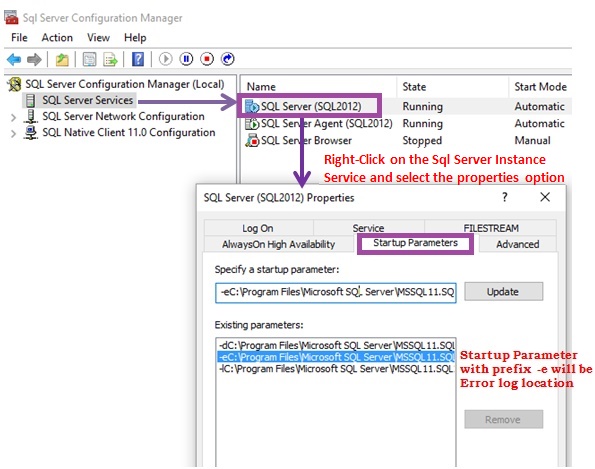
Once the Sql Server Configuration Manager is opened, then follow the Steps in the Sequence as listed in the below image to change the Sql Server Error logs Path.

change-sql-server-error-log-loation-1

Below is the description of each of the sequence of steps which we need to follow in the Sql Server Configuration manager to change the Sql Server Error Log files location.

  1. Select the Sql Server Services in the left pane of the Sql Server Configuration Manager
  2. In the right pane right click on the Sql Server Instance Service and in the context menu click on the Properties option.
  3. In the properties window, select the Startup Parameters tab
  4. Then in the Existing parameters list, select the entry which is pre-fixed with -e in my instance this entry is as below:
    -eC:\Program Files\Microsoft SQL Server\MSSQL11.SQL2012\MSSQL\Log\ERRORLOG
    The path after the prefix character -e is the current error logs path.

    Below image explains parts of the Sql Servers error log Startup Parameter:
    error-log-startup-parameter

  5. Change the path to the desired location. In this case I am changing the current Error Logs location to -eD:\SqlLog\Errors\ERRORLOG. And then click the update button to update the error logs location.
  6. Then click Apply
  7. And finally click Ok

Step III: Re-Start the Sql Server Service

Now the changes to the error logs location are saved but they are not still-in effect. If you want these changes to take effect, you need to restart the Sql Server Service.

Note: Any mistake in this startup parameter path will result in failure to start Sql Service once service or the server restarts. And you will come to know about this issue only after making this change and after restarting the Service. Please make sure you are taking into consideration the following points while changing the Sql Server Error Log location.
Make sure that you are not removing the prefix –e
There shouldn’t be any space between the prefix –e and the following path
Make sure that the new folder location which you are specifying should already exists.
Make sure that you are not changing the current error log file path (i.e. ERRORLOG)

How to find the location of the Sql Server Error Log File

Sql Server Error Log is very helpful to diagnose and troubleshoot problems. Error log files contain user-defined events and certain system events, which are very helpful for troubleshooting.

In this article, I will explain various alternative approaches to find the location of the Sql Server Error Log file.

Approach 1: Identify Sql Server Error Log file location using SERVERPROPERTY function

If you are able to connect to the Sql Server, then you can use the SERVERPROPERTY function as shown below to find the location of the Sql Server ERRORLOG file:

SELECT SERVERPROPERTY('ErrorLogFileName') 
               AS 'Error log file location'

RESULT:
sql-error-log-file-location-using-serverproperty-function

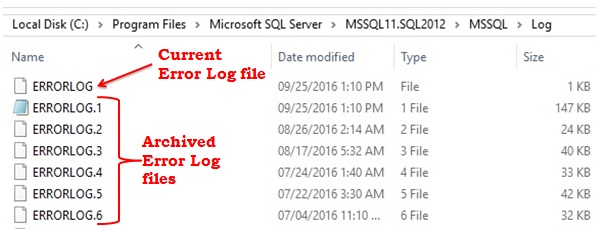
Below image shows the Sql Server ErrorLog folder with error log files. Here ERRORLOG is the current error log file and remaining six files are the archived SQL Server Error Logs. By default sql server maintains six archived Error log files.

sql-server-error-log-folder
[ALSO READ] How to change Sql Server ErrorLog files location

Approach 2: Finding Sql Server Error Log file location using system stored procedure SP_READERRORLOG

This is one more option to find the location of the Sql Server Error Log file, if you are able to connect to the Sql Server. This system stored procedure can be used to view the content of the Error Log file. The information about the Sql Server ErrorLog file location will be present in the first couple of rows in this sp’s result as shown below

EXECUTE SP_READERRORLOG

RESULT:
sql-error-log-file-location-using-sp-readerrorlog

If you don’t want to search the location of the error log file in the result of this SP. Then you can execute the stored procedure SP_READERRORLOG with the optional parameters values as shown below to get the Sql Server Error log file location:

EXEC SP_READERRORLOG 0, 1,N'Logging SQL Server messages in file'

RESULT:
sql-error-log-file-location-using-sp-readerrorlog-with-parameters

This stored procedure takes four parameters and below is the description for each of these parameters:

Parameter 1: The log file which you want to read. Value 0 means current Error log file, 1 means the Archived Error log file ERRORLOG.1, 2 means the Archived Error log file ERRORLOG.2 and so.on.
Parameter 2: This parameter specifies whether you want to read Sql Server Error Log file or Sql Server Agent Log file. This parameter value 1/NULL means Sql Server error log file, 2 means Sql Server Agent log file.
Parameter 3:First string you want to searh in the error log
Parameter 4:Second string you want to search for to further filter the result

Approach 3: Locate Sql Server Log file location using Sql Server Configuration Manager (An option if you are not able to connect to Sql Server)

If you are not able to connect to Sql Server, then this approach will be very hand in identifying the location of the Sql Server Error Log. Go to Sql Server Configuration Manager as shown in the below image:

sql-server-configuration-manager

Alternatively, you can go to the Sql Server Configuration Manager exe location as listed in the below table and then double click on it.

sql-server-configuration-manager-loation

In the Sql Server Configuration Manager as shown in the below image. Select the Sql Server Service and then right click the Sql Server service in the right pan and select the properties option. It will bring-up the Sql Server Service properties dialog, in the dialog go to the Startup Parameters tab. In the Startup Parameter tab, the existing parameter with prefix -e will be the location of the Sql Server Error log (i.e. the path appearing after the prefix parameter -e).

sql-server-configuration-manager-properties-1

Approach 4: Locate Sql Server ErrorLog file loation using XP_READERRRORLOG extended stored procedure

If you are able to connect to Sql Server, then you can use the extended stored procedure XP_READERRRORLOG to find the location of the Sql Server ErrorLog file location as shown below. By the way the system stored procedure SP_READERRORLOG internally calls this extended stored procedure only.

xp_readerrorlog 0, 1, N'Logging SQL Server messages in file', 
                        NULL, NULL, NULL, N'asc' 

RESULT:
xp_readerrorlog

This extended stored procedure takes seven parameters and below is the description for each of these parameters:

Parameter 1: The log file which you want to read. Value 0 means current Error log file, 1 means the Archived Error log file ERRORLOG.1, 2 means the Archived Error log file ERRORLOG.2 and so.on.
Parameter 2: This parameter specifies whether you want to read Sql Server Error Log file or Sql Server Agent Log file. This parameter value 1/NULL means Sql Server error log file, 2 means Sql Server Agent log file.
Parameter 3:First string you want to searh in the error log
Parameter 4:Second string you want to search for to further filter the result
Parameter 5: Here we can specify the time, if we specify it will search the error log entries which are captured from this time.
Parameter 6: Here if we specify the time, then it will search the error log entries which are captured till this time.
Parameter 7: This parameter specify the sort order of the result, for ascending sort order we need to pass parameter value as N’asc’ and for descending sort order we have to pass this parameter value as N’desc’.

[ALSO READ] 100 Frequently used queries in Sql Server

How to get Sql Server Version, Edition, Product Level etc

Many times we come across a scenario where we need to know the Sql Server Version Name (i.e. like Sql Server 2005, Sql Server 2012, Sql Server 2014, Sql Server 2016 etc), Version (i.e. like 11.0.2100.60 it is of the format major.minor.build.revision), Edition (i.e. like Express Edition, Developer Edition, Enterprise Edition etc), Product Level (i.e. like RTM, SP, CTP etc) etc. This article explains how we can get all this information.

Approach 1: Using @@VERSION global variable

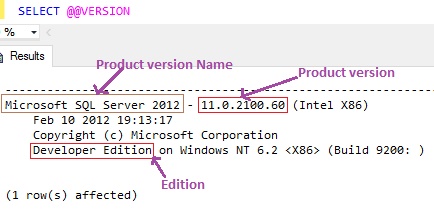
We can use the @@VERSION global variable like below to get the Sql Server Version name, Version, Edition etc

SELECT @@VERSION

RESULT:
sql-server-version

Approach 2: Using SERVERPROPERTY function

We can use the SERVERPROPERTY function to get various information like Sql Server Version name, Version, Edition etc

How to get Server Version Name using SERVERPROPERTY function

DECLARE @Version NVARCHAR(128) 
SET @Version = 
    CONVERT(NVARCHAR(128),SERVERPROPERTY ('ProductVersion'))
SELECT
  CASE 
     WHEN @Version like '8%'	THEN 'SQL SERVER 2000'
     WHEN @Version like '9%'	THEN 'SQL SERVER 2005'
     WHEN @Version like '10.0%' THEN 'SQL SERVER 2008'
     WHEN @Version like '10.5%' THEN 'SQL SERVER 2008 R2'
     WHEN @Version like '11%'	THEN 'SQL SERVER 2012'
     WHEN @Version like '12%'	THEN 'SQL SERVER 2014'
     WHEN @Version like '13%'	THEN 'SQL SERVER 2016'     
     ELSE 'Unknown'
  END AS 'Sql Server Version Name',
  SERVERPROPERTY('ProductVersion') AS ProductVersion,
  SERVERPROPERTY('Edition') AS Edition,
  SERVERPROPERTY('ProductLevel') AS ProductLevel

RESULT:
sql-server-version-details-using-serverproperty-function

Version to Sql Server Product mapping

Below table lists out the Sql Server Version to Product mapping

verion-to-product-mapping

[ALSO READ] 100 Frequently used queries in Sql Server