MDT 2010: Backup, Capture and P2V explained

One of the advantages that MDT gives over the traditional ghosting is the ability to backup your volumes during the task sequence. This, like everything requires planning. Backup, Capture and P2V can use some the some of the same settings so it makes sense to explain them together.

Performing Backups

There’s a task sequence script that takes care of this in MDT called ZTIBackup.wsf. As a starting point for most situations use the following default settings in your customsettings.ini.

ComputerBackupLocation=AUTO
BackupShare=\\Server\Share$
BackupDir=Captures
BackupFile=%OSDComputerName%.wim

ComputerBackupLocation=AUTO will use the network locations provided if the image can’t be backed up locally. You can change this to NETWORK to always backup to the network or NONE to disable backups.

ZTIBackup.wsf will target disk 0 partition 1 by default.  You can change this behaviour like in this example to backup all local volumes:

BackupDrive=ALL

You can also target a specific volume by selecting it’s letter eg:

BackupDrive=C:

To Capture a WIM file

Use the default starting point settings described above in the following scenarios:

Standard Client Task Sequence – When build and capturing a reference image the above settings will capture the WIM file to the network using the settings specified in the BackupShare, BackupDir and BackupFile lines. DoCapture=YES must be used as a property in the customsettings.ini, a task sequence variable or capture selected manually during the Lite-Touch wizard panes. The flags are set automatically during the capture sequence. Also if the same WIM file is targeted then the original is appended not overwritten.

Sysprep and Capture – In this situation the WIM file will be captured to the network in the same way as above.

Performing P2V Migrations

As before the settings specified in the BackupShare, BackupDir and BackupFile lines will need to be set first(as above). Then for each scenario follow these instructions below:

Standard Client Task Sequence(with P2V) A P2V migration will use the script ZTIRetro.wsf and will capture in a VHD format so the BackupFile setting will need to have a .vhd suffix like this:

BackupFile=%OSDComputerName%.VHD

Replace Computer (inc P2V) – The image will be backed up to the network just as above.

Restoring a P2V image – When returning a captured VHD to a new machine, edit command line of the RESTORE VHD task sequene to include the following

/BackupPath:\\Server\Share\Folder\%OSDComputerName%.vhd

If this is not set, the task will look for the VHD in the locations specified in the UserDataLocation and ComputerBackupLocation variables. You should add the task sequence variable ComputerBackupLocation=NONE to the task sequence used for your VHD restores.

The best approach I find to get all the scenarios working together is to use common backup locations and set task sequence variables when the default settings don’t suit my purpose.

Posted in Deployment, MDT 2010 | Tagged , , , , , , , , | 8 Comments

MCTS: 70-680 – Windows 7 Exam Study Video Links

Below is a list of freely available videos to  help with this exam. Most of them are on the Microsoft Techcenter or Microsoft Edge. I’m frequently asked about resources to help with the Windows 7, Configuring exam. For many IT professionals, this is their first starting point at Microsoft Certified Training. I’ve put together this list of video resources to help with each of the modules.

My study process is Watch it, Do it, Read about it, (then do it again properly) in that order. This resource will help with the first part but remember that these videos should be accompanied by reading the appropriate articles on Microsoft Technet.

I strongly recommend actually doing each of the objectives when training, even if it appears straight forward, at least you can honestly say you have practical experience.

Installing, Upgrading, and Migrating to Windows 7 (14 percent)

Perform a clean installation.
TechNet Video: How Do I: Preparing for Windows 7
TechNet Video: How Do I: Basic Windows 7 Deployment
TechNet Video: How Do I: Bare Metal Installation of Windows 7
TechNet Video: How Do I: USB Installation of Windows 7
Deploying Windows 7 with Windows Deployment Services
TechNet Video: How Do I: Deploying Windows 7 with Windows Deployment Services
How Microsoft Does IT: Deploying Windows 7

Upgrade to Windows 7  from previous versions of Windows.
Upgrading to Windows 7 from Windows Vista
Migrating Windows XP to Windows 7 Using Windows Easy Transfer and USMT

Migrate user profiles.
Migration From Windows XP to Windows 7
User State Migration Tool
TechNet Video: (Part 1 of 5) Overview of User State Migration Tool
TechNet Video: (Part 2 of 5) What’s New in the User State Migration Tool 4.0
TechNet Video: (Part 3 of 5) User State Migration Tool Scenarios
TechNet Video: (Part 4 of 5) Hard-link Migration in the USMT 4.0
TechNet Video: (Part 5 of 5) Offline User State Capture in the USMT 4.0

Deploying Windows 7 (13 percent)

Capture a system image.
TechNet Video: How Do I: Creating a Dual-Boot System with Windows 7
Step 1 – Create an Answer File
Step 2 – Build a Reference Installation
Step 3 – Create a Bootable Windows PE CD-ROM
Step 4 – Capture the Customized Windows Installation
Step 5 – Deploy the Windows Image from a Network Share
Windows 7 Image Engineering Using the Windows Automated Installation Kit?
Windows 7 Offline Image Servicing
Exploring the Windows Automated Installation Kit (Windows AIK) 2.0
Deployment Tools, Preparing an Image Using Sysprep and ImageX
Preparing an Image Using Sysprep and ImageX
Image Servicing with DISM

Deploy a system image.
Automating Windows 7 Deployment
TechNet Video: (Part 1 of 8 ) Windows 7 Deployment – Introduction to Deployment
TechNet Video: (Part 2 of 8 ) Windows 7 Deployment – Deployment Tools
TechNet Video: (Part 3 of 8 ) Windows 7 Deployment – MDT 2010 Deployment Process
TechNet Video: (Part 4 of 8 ) Windows 7 Deployment – Step 1: Gather Required Software
TechNet Video: (Part 5 of 8 ) Windows 7 Deployment – Step 2: Prepare the MDT 2010
Environment

TechNet Video: (Part 6 of 8 ) Windows 7 Deployment – Step 3: Create the Reference Computer
TechNet Video: (Part 7 of 8 ) Windows 7 Deployment – Step 4: Deploy Windows 7 and Capture Reference Computer Image
TechNet Video: (Part 8 of 8 ) Windows 7 Deployment – Step 5: Deploy Windows 7 to Target Computer

Configure a VHD.
Windows 7 VHD Boot Demonstration
TechNet Video: Thrive Live! IT Pro Virtualization Tour (Part 2 of 4): VHD Native Boot

Configuring Hardware and Applications (14 percent)

Configure devices.
Configuring Devices in Windows 7

Configure application compatibility.
TechNet Video: Part 1 of 6 – Configuring the Application Compatibility Tool Kit 5.6
TechNet Video: Part 2 of 6 – Collecting Inventory and Compatibility Data (DCP’s)
TechNet Video: Part 3 of 6 – Organizing Inventory by Assigning Categories and
Priorities

TechNet Video: Part 4 of 6 – Creating a Custom Solution
TechNet Video: Part 5 of 6 – Exploring the Compatibility Administrator (32-bit)
TechNet Video: Part 6 of 6 – Installing a Custom Patch using SDINST Tool
TechNet Video: Bytes by TechNet: Aaron Tiensivu and Keith Combs discuss Windows 7,
Virtualization and the Application Compatibility Toolkit

TechNet Video: How Do I: Mitigate Application Issues in Windows 7 Using Shims?
TechNet Video: How Do I: Introduction to Application Compatibility Toolkit 5.5?
Getting Started with the Application Compatibility Toolkit (Part 1)
Creating Data Collection Packages to Generate an Application Inventory (Part 2)
Analyzing Compatibility Data Returned by Data Collection Packages (Part 3)
Mitigating Application Compatibility Issues with Common Compatibility Fixes (Part 4)
Detecting and Mitigating Administrative Privilege Requirements with the Standard User Analyzer (Part 5)
TechNet Video: How Do I: Application Compatibility Manager
TechNet Video: How Do I: Compatibility Administrator

Configure application restrictions.
TechNet Video: How Do I: Software Restriction Policies in Windows 7

Configure Internet Explorer.
TechNet Video: How Do I: Configuring Internet Explorer 8
Internet Explorer 8 and Windows 7
Deploying and Managing Windows Internet Explorer 8?
Windows Internet Explorer 8

Configuring Network Connectivity (14 percent)

Configure IPv4 network settings.
TechNet Video: How Do I: Windows 7 and Network Connectivity
Creating a Firewall Rule to Allow ICMPv4 Echo Requests
Wireless Networking
Networking home computers running different versions of Windows
Choosing a network location

Configure IPv6 network settings.
Michael Surkan: Introduction to IPV6
Introduction to Internet Protocol Version 6

Configure networking settings.
Windows 7 and Network Connectivity
View and connect to available wireless networks

Configure Windows Firewall.
Windows 7 Screencast – Resource Monitor (resmon)
Allow a program to communicate through Windows Firewall

Configure remote management.
TechNet Video: Using Windows PowerShell 2.0
TechNet Video: Administering Windows PowerShell Remotely
TechNet Video: How Do I: Remote Management of Windows 7 with Windows PowerShell
TechNet Video: Windows 7 Powershell

Configuring Access to Resources (13 percent)

Configure shared resources.
TechNet Video: How Do I: Accessing Local and Network Resources in Windows 7
Microsoft User State Virtualization Overview
Folder Redirection
Roaming User Profiles
Windows 7 HomeGroup

Configure file and folder access.
Getting started with the Encrypting File System

Configure user account control (UAC).
Learning Snack: Implementing User Account Control in Windows 7
User Account Control
Accessing Local and Network Resources in Windows 7
TechNet Video: Windows 7 Security and Control Overview
TechNet Video: Windows 7 Security Overview
What’s new in Group Policy for Windows 7?

Configure authentication and authorization.

Configure BranchCache.
BranchCache
TechNet Video: How Do I:Reduce WAN costs with Windows Server 2008 R2, Windows 7 and BranchCache?
TechNet Video: Using Windows 7 BranchCache
Branch Cache in Windows 7

Configuring Mobile Computing (10 percent)

Configure BitLocker and BitLocker To Go.
Firestarter: Encrypt Your Drives with BitLocker and Bitlocker-to-Go
TechNet Video: How Do I: BitLocker and BitLocker To Go in Windows 7
BitLocker and BitLocker To Go
Windows 7 Screencast – BitLocker To Go
Windows 7: How to use Bitlocker-to-go
Windows 7 Screencast – BitLocker To Go
BitLocker in Win7
Bitlocker Screencast
BitLocker Drive Encryption with BitLocker to Go Overview

Configure DirectAccess.
TechNet Video: Introducing DirectAccess
TechNet Video: Using Windows 7 Direct Access
DirectAccess
Enabling Secure Always-on Connectivity using DirectAccess Video 1 of 2
Enabling Secure Always-on Connectivity using DirectAccess Video 2 of 2
DirectAccess with Devrim
Windows 7 DirectAccess User Experience
TechNet Video: Windows Firestarter Events (Part 2 of 5): Windows 7: Diving Deeper –
DirectAccess and RAS Features

TechNet Video: Windows 7 Firestarter Event (Part 2 of 4): Why VPN? Connect Seamlessly
with DirectAccess

TechNet Video: TechNet Radio Community Corner: John Weston and Doug Spindler discuss DirectAccess and IPv6
TechNet Video: How Do I: Windows 7 and DirectAccess

Configure mobility options.
TechNet Video: How Do I: Offline Files in Windows 7
TechNet Video: How Do I: Using PowerCfg in Windows 7?

Power Management in Windows 7 Overview

Configure remote connections.

Monitoring and Maintaining Systems that Run Windows 7 (11 percent)

Configure updates to Windows 7.

Manage disks.
Delete a hard disk partition

Monitor systems.
How  Do I: Create and Configure Events Centrally?

Configure performance settings.
Power Management in Windows 7
Power Management in Windows 7 – Video 1 of 2
Power Management in Windows 7 – Video 2 of 2
How much power does your PC consume?
Power Management and Troubleshooting Group Policy
Power Management in Windows 7 Overview
Configuring Devices in Windows 7

Configuring Backup and Recovery Options (11 percent)

Configure backup.
Advanced Backup in Windows 7

Configure system recovery options.
Create a system repair disc
Backup and Restore
Back up your files

Posted in Certified Training, Video Walkthroughs | Tagged , | 31 Comments

MDT 2010: Set UK Keyboard in WinPE

One annoyance with MDT is that WinPE is set to the US keyboard layout. There were times when I expected to find the ” above the number 2 but found myself having to rewrite command lines. Usually after typing a lengthy line of code. It turned out that there was a setting in MDT to put it right all along.

To set the keyboard to UK just edit the bootstrap.ini and add the following line:

KeyboardLocalePE=0809:00000809

The manual says to set it in the customsettings.ini also but it work’s without it. The setting will kick in when Wizard.hta starts so be patient.

For other countries there is a list of default input locales here.

Posted in MDT 2010 | Tagged , , , , , , | 1 Comment

MDT 2010: Microsoft Deployment Toolkit Video Walkthrough

I planned on making a video walk-through series to help with MDT but just found out that the excellent John Baker has already done one.

It’s an 8 part series and is awesome for getting started or for those who are using MDT 2010 and want to polish up their skills. The links are below.

Introduction to Deployment (Part 1 of 8 )
Deployment Tools (Part 2 of 8 )
MDT 2010 Deployment Process (Part 3 of 8 )
Deployment Step 1: Gather Required Software (Part 4 of 8 )
Deployment Step 2: Prepare the MDT 2010 Environment (Part 5 of 8 )
Deployment Step 3: Create the Reference Computer (Part 6 of 8 )
Deployment Step 4: Deploy Windows 7 and Capture Reference Image (Part 7 of 8 )
Deployment Step 5: Deploy Windows 7 to Target Computer (Part 8 of 8 )

And when you get bored with that you can move onto Advanced Deployment Scenarios using the Microsoft Deployment Toolkit 2010:

Part 1 of 7 – Reviewing the Available Options in the Deployment Workbench
Part 2 of 7 – Create and Explore the Configuration Database
Part 3 of 7 – Configuring Role Methods in the Configuration Database
Part 4 of 7 – Configuring Other Methods in the Configuration Database
Part 5 of 7 – Configuring the Deployment Point to Use the Configuration Database
Part 6 of 7 – Using Linked Deployment Points
Part 7 of 7 – Custom Edit the Deployment Wizard to Add a New Page

Excellent work, John.

Posted in MDT 2010, Video Walkthroughs | Tagged , , , , , , | 1 Comment

MDT 2010: Windows XP Regional Settings UK

Building new Windows XP images is still a requirement for many IT professionals. Many company s haven’t gone to Windows 7 and others are building MED-V Clients. Now, getting the region settings perfect in MDT can be frustrating and waste so much time.

I’ve seen this question posted in the forums so many times now, I just have to blog about it. I’ve seen people just give up and decide to use workarounds like reg hacks or custom scripts etc. After much testing here are my settings using MDT 2010:

In the CustomSettings.ini add:

InputLocale=0809:00000809

In the Unattend.txt Modify these 3 lines:

Keyboardlayout = "United Kingdom"
Language = 0809    ; language locale to be installed
LanguageGroup = 2    ; Language Group to be installed

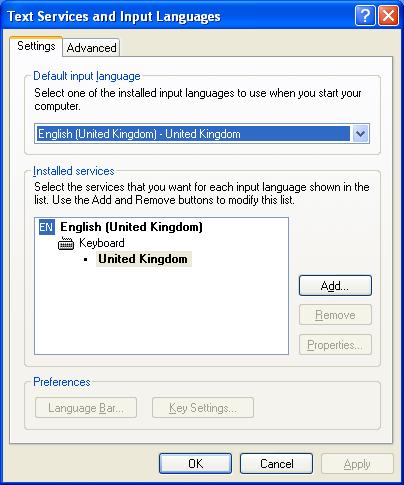
That’s it! Your region settings will look like this:

For those still interested (or are not in the UK), I spent 2 days testing various scenarios and here’s what I learned(some of you have probably learned this years ago, I certainly should have).

KeyboardLocale setting is only for Windows 7/Vista/2008

InputLocale=0809:00000809 is the correct setting for Windows XP

UserLocale=en-GB had no effect on Windows XP deployments during my tests

SystemLocale=0809:00000809 XP setting (in MDT 2010) that gets most of it done

By only using MDT though I could only get the Keyboard set and not remove the US so it looked like this:

Adding Keyboardlayout = “United Kingdom” to the unattend .txt will set the UK region from the outset so you don’t end up with the US Keyboard included.

I also couldn’t get the location set until I added both Language = 0809 and
LanguageGroup = 2 to the Unattend.txt.

When you see  0809:00000809 this represents locale_ID:keyboard layout ID and there’s a list of codes here:
Locale IDs
National Language Support (NLS) API Reference
LanguageGroup ID’s

In the [Windows XP Professional SP3 CD]\SUPPORT\TOOLS\DEPLOY.CAB there’s a help file called ref.chm which documents the unattend.txt settings and shows the syntax for the region codes. Also, I found this useful from Microsoft’s website KB 289125:

Unattend.txt Settings

// The following settings are relevant for an Unattend.txt file when you configure Windows MultiLanguage version-related settings during an unattended installation:

[RegionalSettings]
Language = locale ID
LanguageGroup = language group ID, language group ID
SystemLocale = locale ID
UserLocale = locale ID
InputLocale = locale ID:keyboard layout ID, locale ID:keyboard layout ID
UserLocale_DefaultUser = locale ID
InputLocale_DefaultUser = locale ID:keyboard layout ID

Two settings are ignored in
Unattend.txt and Sysprep.inf, and are specific to computers that have the MultiLingual User Interface Packs installed. You can use these settings only by invoking the Regional and Language Options control panel applet in an unattended fashion:

MUILanguage = language
ID
MUILanguage_DefaultUser = language ID

Now, some commands can only be used in HEX and others in text. To explain this I created a table based on what I found in the manuals.

I’ve posted links for the region codes above to help with other country’s. Hopefully now, I’ll never see this question posted in the forums again or at least not so many reg hacks, custom scripts or workarounds..

Posted in Deployment, MDT 2010 | Tagged , , , , , | 10 Comments

MCTS: 70-681 – Exam Study Video Links

Below is a list of freely available videos to  help with this exam. Most of them are on the Microsoft Techcenter or Microsoft Edge.

This exam is mainly aimed at Microsoft Partners who will need this as a requirement to deliver Desktop Deployment Planning Services(DDPS). The exam is also great for those who want to show their expertise in MDT 2010 and Windows 7 deployment.

I’ll update the missing links as I find them.

Configuring a Deployment Infrastructure (24%)

Configure the Microsoft Deployment Toolkit (MDT) environment. deployment database, deployment share, task sequences, create deployment points
•Configure networking for deployment. :Dynamic Host Configuration Protocol (DHCP), IP Helper, Windows Deployment Services, PXE boot, multicast
Configure activation.Windows 7, Office 2010, Key Management Service (KMS), Multiple Activation Key (MAK), Volume Activation Management Tool (VAMT)
Configure the SCCM OSD environment. :System Center Configuration Manager and MDT integration; build an operating system installation, a boot image, and driver
packages

Creating and Configuring Images (25%)

Create and capture an image. modify a WIM file, modify a Windows PE boot image, build a base image
Create automated installation scripts. silent install scripts, unattended answer files, join a domain, customize user settings, configure auto-naming
Create and customize task sequences. installation tasks for Office 2010 and additional applications
Customize default operating system settings. environment settings, user settings, configure local Group Policy, Windows Internet Explorer settings
Add applications to an image. modify or install on a base image
Configure application compatibility.configure applications for User Access Control (UAC), create and deploy shims

Deploying Windows 7 (27%)

Perform a Lite Touch Installation of Windows 7staggered deployment, permissions
Perform a Zero Touch Installation of Windows 7 : permissions, configure a task sequence, configure scheduling
Migrate user settings and data Windows Vista, Windows XP, local store vs. remote store
•Configure post–operating system deployment tasks. : configure run-once scripts, identify appropriate log  files, deploy language packs and security updates
•Customize hardware settings. inject drivers, install hardware-specific applications,
configure Windows BitLocker Drive Encryption

Configuring and Deploying Office 2010 (24%)

•Configure Office 2010 user-specific settings. configure Microsoft Outlook settings, configure Microsoft Office Communicator settings, set display languages, set editing
languages, set default file locations
Configure Office 2010 application-specific settings. configure compatibility settings, add or remove applications, add language packs, configure application add-ins, security  settings, updates, and KMS
Deploy Office 2010clean install, Group Policy Startup script, installation package in System Center Configuration Manager, upgrade from Office 2003, upgrade from Office 2007; migrate user settings, 32 or 64 bit

Posted in Certified Training, Video Walkthroughs | Tagged , , , , , , , , | 7 Comments

MDT 2010: Certification

I’ve been asked if there is a certification in MDT 2010 update 1 to replace the older BDD Exam 70-624. The answer is yes, the 70-681 TS: Windows 7 and Office 2010, Deploying.

I passed this exam on 7 March with 960/1000. The exam will heavily test MDT 2010 update 1, AIK, SCCM integration, Zero touch deployments, Office 2010 deployment and image engineering and a little Volume Activation.

Sadly there are no preparation materials listed on Microsoft’s exam but there are an infinite number of resources available to help pass this exam. I’m going to post a blog giving video links to each of the objectives, but for now here’s a few good places to get you started.

Microsoft Springboard Techcenter
Technet Edge
Technet Library
The Deployment Guys

I’d also recommend posting any questions in the Microsoft Deployment Toolkit Forum.

Posted in Certified Training, Deployment, MDT 2010 | Tagged , , , , , , | Leave a comment

MDT 2010: Setting the default Computername

Most organisations have some sort of PC naming convention in place. Sometimes the human factor can mess it up. Fortunately, MDT can provide semi or full automation as required.

In the customsettings.ini type:

SkipComputerName=NO
OSDComputerName=PC_%SerialNumber%

In this example, the SkipComputerName is set to NO so a value can be set and  changed during LTI deployment using the wizard pane. Setting the value to YES will hide the computername wizard pane so the value set in OSDComputername will be forced.

The OSDComputername setting contains the name that the computer will be called during the deployment. You are able to use a combination of settings/values. The example above will build the pc (in my case) as PC_G183F7K.

You can use a mixture of variables and ASCII key combinations to construct your computername as your organisation dictates. More variable examples can be found in  the variables.dat file, but here are a few that could be useful in computer naming:

“ARCHITECTURE”=X86
“SERIALNUMBER”=G183F7K
“MAKE”=Dell Inc.
“MODEL”=Latitude D610
“PRODUCT”=0M7181
“ASSETTAG”=

Posted in MDT 2010 | Tagged , , , , , , | 40 Comments

Scriptimus Deus Ex Machina

Don’t we all just love an ex machina ending? I certainly do. I just sometimes wish there was an ex machina solution to those massive workloads we IT professionals find ourselves faced with on a daily basis. I think the closest we’re gonna get there for now is scripting through Powershell or VBScript or time saving utilities like Microsoft’s Solution Accelerators. I’ve rebranded my blog to reflect that and will focus on anything and everything that will help to reduce workloads. This should de-obfuscate the new title.

There’s a full list of current Solution Accelerators here.

Posted in Deployment | Tagged , , | Leave a comment

MDT 2010: UK Regional Settings (Windows 7/Vista)

Getting the regional settings right is one of the first things to configure in your image build. I’ve come across this issue many times in the Windows 7 and Vista forums. I’ve also seen solutions such as custom reg hacks and scripts, all a load of unnecessary hard work. If you configure MDT 2010 right then it will take care of it all for you.

For the Windows 7/Vista in the UK, edit the CustomSettings.ini file  and add the following lines:

 SkipLocaleSelection=YES
 KeyboardLocale=0809:00000809
 UserLocale=en-GB
 UILanguage=en-GB

 SkipTimeZone=YES
 TimeZoneName=GMT Standard Time

With that done now, there is no need to edit the unattend.xml or enter the settings in the wizard. In fact the lines SkipLocaleSelection=YES and SkipTimeZone=YES will hide the panes during the Lite-touch deployment wizard.

For other country’s, you can get a list of:

  • Language codes here
  • Locale IDs and  Input Locales here
  • Time Zone Index Values here

Remember these settings can also be used as task sequence variables if you are supporting multiple regions. For Windows XP read my article here.

Posted in Deployment, MDT 2010 | Tagged , , , , , , , | Comments Off on MDT 2010: UK Regional Settings (Windows 7/Vista)