Writing a Human Task UI in .Net (C#/ASP.NET) or in fact anything other than ADF

As you know, you can create the user interfaces for your human tasks using ADF.  JDeveloper allows you to auto-generate a human task user interface (form) and it also includes a wizard that gives you a bit more control over what it produced.  Now ADF is a fine framework, but some people already have a pretty heavy investment in some other framework and a lot of these people would really like to be able to use their framework of choice to build their human task user interfaces.  And the good news it, they can!  And its not that hard to do, once you know how 🙂

In this article, we will look at how you build a human task user interface using C# and ASP.NET.  This human task UI will show up right there in BPM workspace, just like the ADF ones do.  Here’s what it will look like when it is done:

Those red arrows wont be there!  They are just to show you where it is.  That part there where you normally see the ADF task form, that is a .Net application.

Now, as I said, you can use any framework to do this – as long as it is capable of calling Java APIs or web services and reading some data from the HTTP Request object’s Query String.

In this post we will build a UI that is specific to the task in question – like the ADF ones that you generate are.  But it would not be a long way from here to building a generator so that you could auto-generate .Net user interfaces just like you can for ADF.

What you need

To follow along this post you are going to need a couple of things:

  • JDeveloper with the SOA and BPM extensions installed, at least version 11.1.1.5 plus the Feature Pack patch,
  • A BPM server, the same version as JDeveloper,
  • A copy of Visual Studio with the C# and web applications options installed.  I used Visual Studio 2010 Professional, but the free Visual Studio Express editions will also work if you don’t own a copy of Visual Studio.  Just make sure you get one with web applications and C# included, and
  • either a lot of time and patience to type boring bolierplate code, or a copy of AutoMapper from here.  I recommend you take the AutoMapper option…

If you want to get a feel for calling the BPM/HWF APIs/web services from .Net, you might want to review this post.

Creating the composite

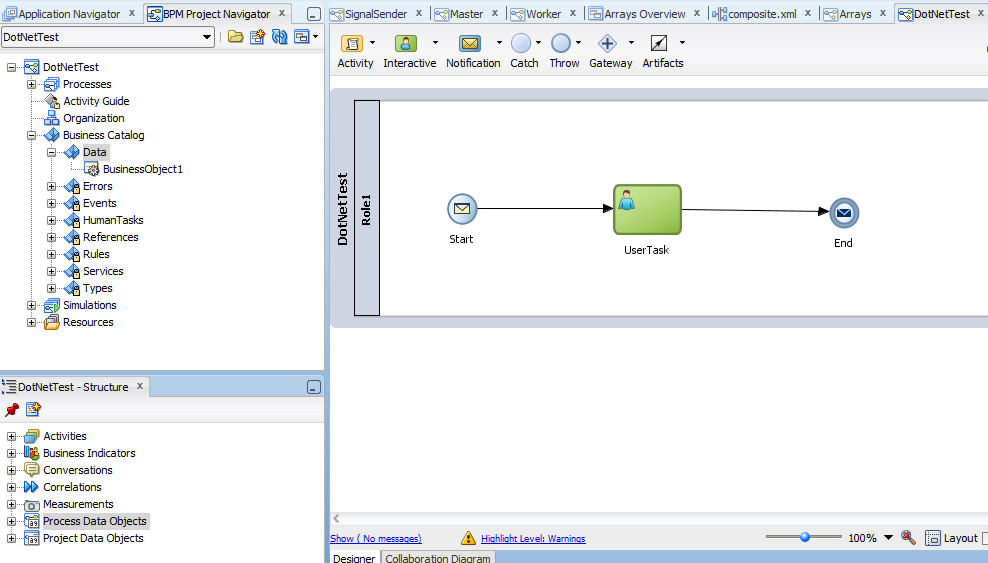
First thing we are going to want is a composite to play with.  We can just make a really simple one with just a human task in it.  That will be enough to do what we want to do here.  In fact, something as simple as this will do admirably:

To create this, open up JDeveloper and create a new BPM Application by selecting New from the Application menu.  In the wizard choose BPM Application in the Application Template section and give your application a name.  I called mine DotNetTest.  Then click on Next.  Give your project a name, I used the same name.  Then click on Next.  Choose Composite with BPMN Process and click on Finish.

In the next dialog, give your process a name, I called mine DotNetTest too.  Then take the defaults and continue.

Drag a User Task into your process from the component palette and drop it on the line between the Start and End nodes, as shown in the diagram above.  Notice that the line turns blue when you hover above it in the right spot.  If you don’t see the component palette, you can open it from the View menu.

Apologies that my names of things in this sample are not super imaginative…

Now we need to create some data definitions.  Open the BPM Project Navigator.  If you don’t see it, you can open it from the View menu.  Expand out your project and the Business Catalog.  Right click on the Business Catalog and choose New then Module from the popup menu.  Call the module Data.

Then right click on your new module and select New then Business Object from the popup menu.  Name your new business object.  I called mine BusinessObject1 (told you there were not very imaginative).  Then click on the green plus icon in the Attributes section to add two new attributes.  Make them both of type String.  I called mine attribute1 and attribute2. Go ahead and save your work (select Save All from the File menu.)

Now return to your process.  Click on the background of the process to make sure the structure pane shows the structure of the process.  It should look a bit like this:
Now right click on the Process Data Objects in the structure pane and select New from the popup menu.  Give it a name, I chose dataObject1, and choose <Component> for the Type.  Then click on the little magnifying glass icon and choose the business object you just defined.

Go ahead and create a second variable (process data object) of type String called dataObject2.

Now let’s set up our data in this process.  Right click on the Start node and open its Properties from the popup menu.  Go to the Implementation tab and add an argument by clicking on the little green plus icon in the Arguments Definition section. I called mine argument1.  Set the type to your business object (Data.BusinessObject1 if you used the same names as me.)

Now click on the Data Associations link.  Map your argument1 into your dataObject1 as shown in the image below.  Then right click on dataObject2 and choose Expression from the popup menu.  Enter “hello” (with the quotes) as the expression.  Your data associations should now look a little like this:

That takes care of our inputs.  When you start the process you will type in the two strings that get put into dataObject1 and dataObject2 will get set to “hello.”

Now, let’s set up the human task.  To make it interesting we are going to allow editing of some data but not of others.

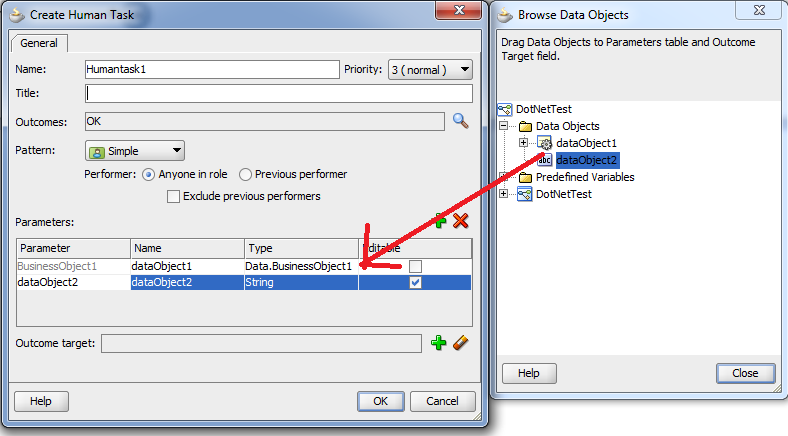
Open the human task properties and go the the Implementation tab.  Click on the green plus icon to create a new human task.  Give it a name, I called mine Humantask1.  Click on the little magnifying glass icon next to Outcomes and set the outcomes to just one option – OK.  Then click on the plus icon next to Parameters to open the Browse Data Objects window that you see on the right hand side of the image below.  Drag your two data objects into the Parameters area as indicated by the red arrow.  Tick the box to make only dataObject2 editable.  Then click on OK to complete the human task definition.  We will take the defaults for everything else.
Now click on the Data Associations link.  Set up the input and output mappings as shown:

Right, now we are ready to go ahead and deploy our composite to our server instance.  You can do this back in the Application Navigator using the Deploy option in the popup menu on the project.
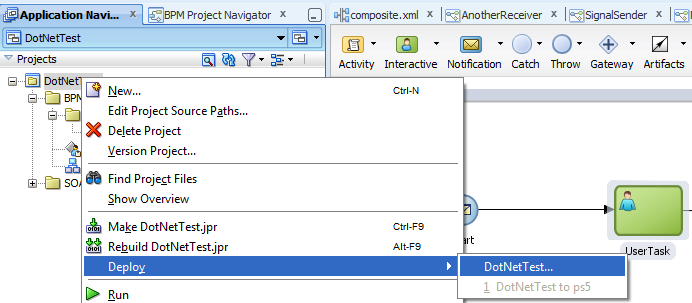
Follow through the wizard, I assume that you know how to do this by now if you are a regular reader.  If not, you can go ahead and take the defaults on this one.

When the deployment is finished, go to Enterprise Manager (at http://yourserver:7001/em) and login as an administrative user (like weblogic) and then navigate into the SOA folder and you should see your shiny new composite there.  Something like this:
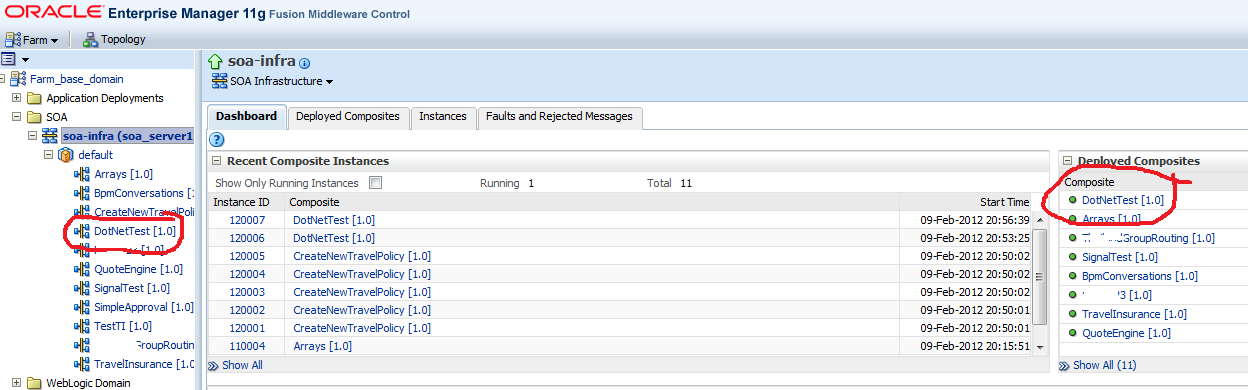
Click on it to open the composite page, then click on the Test button and go ahead and launch a couple of instances.  We will use them later.

While we are here, let’s tell the runtime that we are planning to use our own user interface for this task.  We have not created it yet, but we have a pretty good idea what the details will be.  Go back to the composites main page.  Down the bottom you should see a list of the components in the composite, including your Humantask1.  Click on that to bring up the settings for that component.  Then open the Administration tab in these settings.

Click on the green plus icon next to Add URI.  Provide the values you see in the image above.  We are just going to use the built in test environment in Visual Studio in this post.  No need to install IIS for this.  Of course in real life you would install it and deploy your web applications to IIS.  Make sure you click on the Apply button when you are done to save your changes.

The .Net Application

Now, let’s get to work on the fun part!

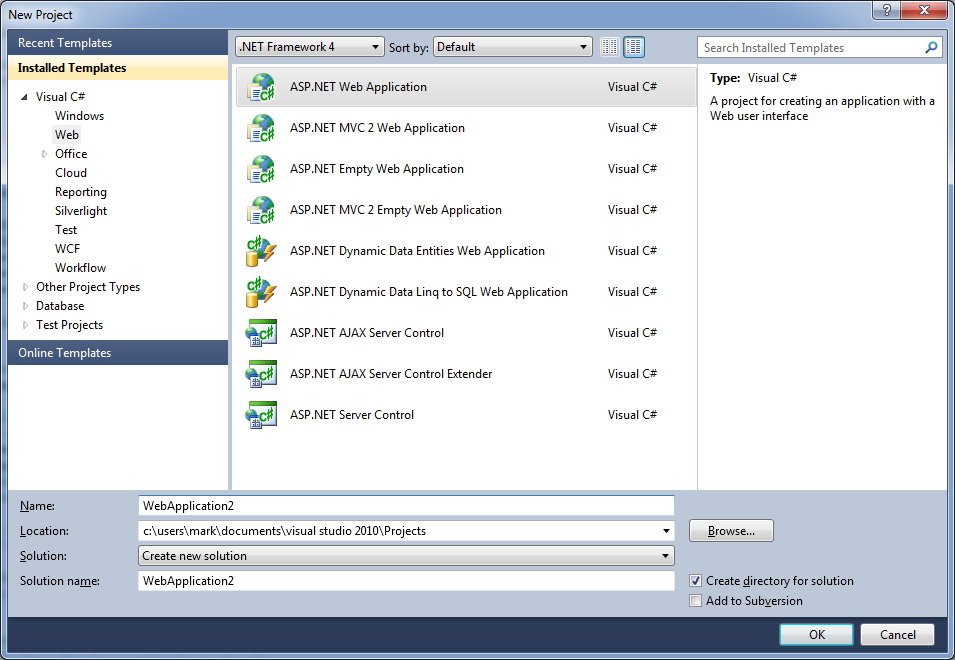
Open Visual Studio and start a new project by choosing New then Project from the File menu.  In the New Project dialog box, open the Visual C# folder and select the Web category.  Make sure you have .Net Framework 4 selected (you will have installed this with Visual Studio most likely – if not, stop and go install it now) and choose the ASP.NET Web Application template.  Give your project a name, I called mine WebApplication2.  Click on OK to create your application.
We need to tell our project about AutoMapper. First of all, go extract the AutoMapper.zip into your project directory, e.g. c:\users\mark\documents\visual studio 2010\Projects\WebApplication2\WebApplication2.  This will give you three files – AutoMapper.dll, AutoMapper.pdb and AutoMapper.xml.  For a discussion of what AutoMapper is and why we want it – see this post.

In the Solution Explorer, right click on the References folder and choose Add Reference… from the popup menu.

In the Add Reference window, go to the Browse tab.  You should see the AutoMapper.dll that you just unzipped right there in your project directory.  Select it and click on OK to add a reference to your project.

Now, we need to add references to the services that we will be using.  We need to get the WSDL addresses for the TaskService and the TaskQueryService.  You can work these out using the following examples:

http://yourserver:8001/integration/services/TaskQueryService/TaskQueryService?wsdl
http://yourserver:8001/integration/services/TaskService/TaskServicePort?wsdl

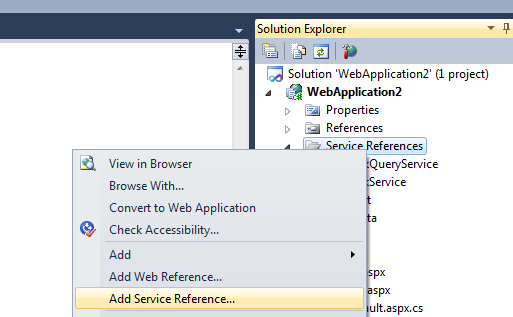
To add the references, right click on the Service References folder and select Add Service Reference… from the popup menu.
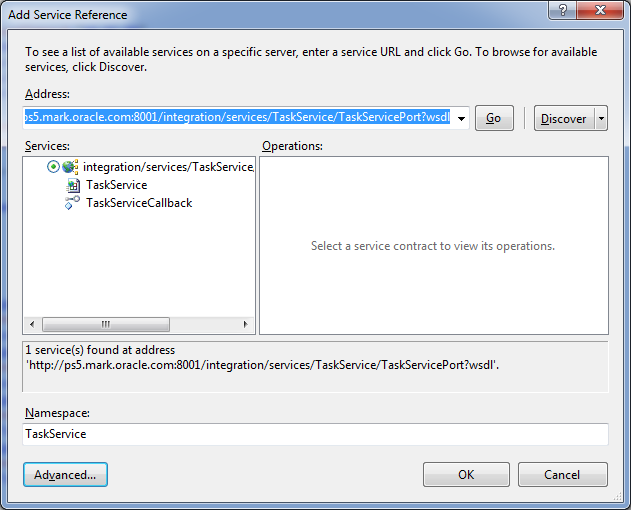
Add the two web services (one at a time).  Enter the WSDL URL in the Address field, then click on the Go button.  You will see a description of the services avilable as shown in the image below.  Enter a name for the service in the Namespace field and then click on the OK button.  I called mine TaskService and TaskQueryService.
Now, because these two services use WS-Security, we need to tell .Net to use WS-Security.  This is done by editing the web.config file.  You should see it right there in the Solution Explorer, go ahead and open it and scroll down to the bottom.  Here is the part we are interested in:

 <bindings>
      <basicHttpBinding>
        <binding name="TaskQueryServiceSOAPBinding" closeTimeout="00:01:00"
          openTimeout="00:01:00" receiveTimeout="00:10:00" sendTimeout="00:01:00"
          allowCookies="false" bypassProxyOnLocal="false" hostNameComparisonMode="StrongWildcard"
          maxBufferSize="65536" maxBufferPoolSize="524288" maxReceivedMessageSize="65536"
          messageEncoding="Text" textEncoding="utf-8" transferMode="Buffered"
          useDefaultWebProxy="true">
          <readerQuotas maxDepth="32" maxStringContentLength="8192" maxArrayLength="16384"
            maxBytesPerRead="4096" maxNameTableCharCount="16384" />
          <security mode="None">
            <transport clientCredentialType="None" proxyCredentialType="None"
              realm="" />
            <message clientCredentialType="UserName" algorithmSuite="Default" />
          </security>
        </binding>
        <binding name="TaskServiceSOAPBinding" closeTimeout="00:01:00"
          openTimeout="00:01:00" receiveTimeout="00:10:00" sendTimeout="00:01:00"
          allowCookies="false" bypassProxyOnLocal="false" hostNameComparisonMode="StrongWildcard"
          maxBufferSize="65536" maxBufferPoolSize="524288" maxReceivedMessageSize="65536"
          messageEncoding="Text" textEncoding="utf-8" transferMode="Buffered"
          useDefaultWebProxy="true">
          <readerQuotas maxDepth="32" maxStringContentLength="8192" maxArrayLength="16384"
            maxBytesPerRead="4096" maxNameTableCharCount="16384" />
          <security mode="None">
            <transport clientCredentialType="None" proxyCredentialType="None"
              realm="" />
            <message clientCredentialType="UserName" algorithmSuite="Default" />
          </security>
        </binding>
      </basicHttpBinding>
    </bindings>
    <client>
      <endpoint address="http://ps5.mark.oracle.com:8001/integration/services/TaskQueryService/TaskQueryService2/*"
        binding="basicHttpBinding" bindingConfiguration="TaskQueryServiceSOAPBinding"
        contract="TaskQueryService.TaskQueryService" name="TaskQueryServicePortSAML" />
      <endpoint address="http://ps5.mark.oracle.com:8001/integration/services/TaskQueryService/TaskQueryService"
        binding="basicHttpBinding" bindingConfiguration="TaskQueryServiceSOAPBinding"
        contract="TaskQueryService.TaskQueryService" name="TaskQueryServicePort" />
      <endpoint address="http://ps5.mark.oracle.com:8001/integration/services/TaskService/TaskServicePort"
        binding="basicHttpBinding" bindingConfiguration="TaskServiceSOAPBinding"
        contract="TaskService.TaskService" name="TaskServicePort" />
      <endpoint address="http://ps5.mark.oracle.com:8001/integration/services/TaskService/TaskServicePortSAML/*"
        binding="basicHttpBinding" bindingConfiguration="TaskServiceSOAPBinding"
        contract="TaskService.TaskService" name="TaskServicePortSAML" />
    </client>

For each of the two bindings you will need to update the security section as shown above to use UserName credentials and the Default algorithm for message security.  Not transport, message – make sure you get the right one!

Also, which we are here, you might want to note a couple of things in the client section.  First, this is where you will go and change the endpoint addresses if you want to use a different server later on.  Second, notice that there are two endpoints for each service.  One is SAML and one is not.  We are going to use the ones that are not SAML in this example.  You can make a note of the value in the name attribute for each attribute.  We will need those later.

Ok, that takes care of our services.  Now let’s do the user interface.  We will start by customising the template (Site.Master) first.  You don’t strictly need to do this, but it is best to get rid of some of that extra stuff that might cuase confusion.  Here is the template I used:

<%@ Master Language="C#" AutoEventWireup="true" CodeBehind="Site.master.cs" Inherits="WebApplication2.SiteMaster" %>

<!DOCTYPE html PUBLIC "-//W3C//DTD XHTML 1.0 Strict//EN" "http://www.w3.org/TR/xhtml1/DTD/xhtml1-strict.dtd">
<html xmlns="http://www.w3.org/1999/xhtml" xml:lang="en">
<head runat="server">
    <title></title>
    <link href="~/Styles/Site.css" rel="stylesheet" type="text/css" />
    <asp:ContentPlaceHolder ID="HeadContent" runat="server">
    </asp:ContentPlaceHolder>
</head>
<body>
    <form runat="server">
    <div class="page">
        <div class="header">
            <div class="title">
                <h1>
                    Sample C#/ASP.NET Task form
                </h1>
            </div>
            <div class="loginDisplay">
                        [ <a href="#" id="HeadLoginView_HeadLoginStatus">Sample</a> ]
            </div>
        </div>
        <div class="main">
            <asp:ContentPlaceHolder ID="MainContent" runat="server"/>
        </div>
        <div class="clear">
        </div>
    </div>
    <div class="footer">
    </div>
    </form>
</body>
</html>

Note that we are running this at the server, not the client, for those who know enough about .Net to care about the difference 🙂

Great, now le’s set up our main page.  Open up the Default.aspx page.  Here is how we want it to look:

If you want to, you can go and drag and drop everything into place and edit the properties.  But in the interest of making this easier for you, and to make sure the names of the UI components match the sample code below, it would be better to copy the code below into the source view.

<%@ Page Title="Home Page" Language="C#" MasterPageFile="~/Site.master" AutoEventWireup="true"
    CodeBehind="Default.aspx.cs" Inherits="WebApplication2.QueryStringRecipient" %>

<asp:Content ID="HeaderContent" runat="server" ContentPlaceHolderID="HeadContent">
</asp:Content>
<asp:Content ID="BodyContent" runat="server" ContentPlaceHolderID="MainContent">
    <h2>
        Task Details
    </h2>
<table>
  <tr><td>Task Title:</td><td><asp:TextBox ID="TextBox1" runat="server"
          Enabled="False"></asp:TextBox></td></tr>
  <tr><td>Task State:</td><td><asp:TextBox ID="TextBox2" runat="server"
          Enabled="False"></asp:TextBox></td></tr>
  <tr><td>Task Number:</td><td><asp:TextBox ID="TextBox3" runat="server"
          Enabled="False"></asp:TextBox></td></tr>
</table>
    <h2>
        Payload
    </h2>
<table>
  <tr><td>Updatable Payload Data:</td><td>
      <asp:TextBox ID="TextBox4" runat="server" AutoPostBack="True"></asp:TextBox></td></tr>
  <tr><td>Read Only Payload Data:d Only Payload Data:</td><td><asp:TextBox ID="TextBox5" runat="server"
          Enabled="False"></asp:TextBox></td></tr>
</table>
    <h2>
        Actions
    </h2>
    <asp:Button ID="Button1" runat="server" Text="OK" onclick="Button1_Click"  />
</asp:Content>

Great, that’s the UI taken care of.  Now let’s put in the code behind it.  This is where the really interesting stuff happens 🙂

Go ahead and open up your Default.aspx.cs file and put this code into it:

using System;
using System.Collections;
using System.Collections.Generic;
using System.ComponentModel;
using System.Data;
using System.Drawing;
using System.Linq;
using System.Web;
using System.Web.SessionState;
using System.Web.UI;
using System.Web.UI.HtmlControls;
using System.Web.UI.WebControls;

namespace WebApplication2
{

    public partial class QueryStringRecipient : System.Web.UI.Page
    {
        protected System.Web.UI.WebControls.Label lblInfo;

        private string taskId;
        private string ctxId;
        private TaskQueryService.workflowContextType ctx;
        private TaskQueryService.TaskQueryServiceClient tqs;
        private TaskQueryService.task task;

        private void Page_Load(object sender, System.EventArgs e)
        {

                // setup the automapper
                setupAutoMapper();

                // BPM will pass us the taskID and the ctx token
                // need to read these out of the http request's query string
                taskId = Request.QueryString["bpmWorklistTaskId"];
                ctxId = Request.QueryString["bpmWorklistContext"];
                //System.Diagnostics.Debug.WriteLine("Task ID:\n" + taskId);
                //System.Diagnostics.Debug.WriteLine("Context:\n" + ctxId);

                // if this is running outside of the worklist, just exit
                if (taskId == null)
                {
                    // looks like we dont have a task
                    return;
                }

                // set up the BPM context
                ctx = new TaskQueryService.workflowContextType();
                ctx.token = ctxId;

                // get the TQS
                tqs = new TaskQueryService.TaskQueryServiceClient("TaskQueryServicePort");

                // set up the request to get the task
                TaskQueryService.taskDetailsByIdRequestType getTaskRequest = new TaskQueryService.taskDetailsByIdRequestType();
                getTaskRequest.workflowContext = ctx;
                getTaskRequest.taskId = taskId;

                // get the task
                task = tqs.getTaskDetailsById(getTaskRequest);
                //System.Diagnostics.Debug.WriteLine("task title:\n" + task.title);

                // populate the UI with task details
                TextBox1.Text = task.title;
                TextBox2.Text = task.systemAttributes.state.ToString();
                TextBox3.Text = task.systemAttributes.taskNumber;

                if (!Page.IsPostBack)
                {
                    // populate the UI with current payload data
                    System.Xml.XmlNode[] payload = (System.Xml.XmlNode[])task.payload;
                    TextBox4.Text = payload.ElementAt(0).ChildNodes.Item(1).InnerText;
                    TextBox5.Text = payload.ElementAt(1).ChildNodes.Item(0).InnerText;
                }

        }

        #region Web Form Designer generated code
        override protected void OnInit(EventArgs e)
        {
            //
            // CODEGEN: This call is required by the ASP.NET Web Form Designer.
            //
            InitializeComponent();
            base.OnInit(e);
        }

        /// <summary>
        /// Required method for Designer support - do not modify
        /// the contents of this method with the code editor.
        /// </summary>
        private void InitializeComponent()
        {
            this.Load += new System.EventHandler(this.Page_Load);

        }
        #endregion

        protected void Button1_Click(object sender, EventArgs e)
        {
            System.Diagnostics.Debug.WriteLine("PRESSED OK");

            // update the task payload from the UI
            System.Xml.XmlNode[] payload = (System.Xml.XmlNode[])task.payload;
            payload.ElementAt(0).ChildNodes.Item(1).InnerText = TextBox4.Text;
            task.payload = payload;

            // get the TS
            TaskService.TaskServiceClient ts = new TaskService.TaskServiceClient("TaskServicePort");

            // update task
            TaskService.taskServiceContextTaskBaseType updateTaskRequest = new TaskService.taskServiceContextTaskBaseType();
            updateTaskRequest.workflowContext = AutoMapper.Mapper.Map<TaskQueryService.workflowContextType, TaskService.workflowContextType>(ctx);
            updateTaskRequest.task = AutoMapper.Mapper.Map<TaskQueryService.task, TaskService.task>(task);
            TaskService.task updatedTask = ts.updateTask(updateTaskRequest);

            // complete task
            TaskService.updateTaskOutcomeType updateTaskOutcomeRequest = new TaskService.updateTaskOutcomeType();
            updateTaskOutcomeRequest.workflowContext = AutoMapper.Mapper.Map<TaskQueryService.workflowContextType, TaskService.workflowContextType>(ctx);
            updateTaskOutcomeRequest.outcome = "OK";
            updateTaskOutcomeRequest.Item = updatedTask;
            ts.updateTaskOutcome(updateTaskOutcomeRequest);

            // redirect to empty page
            Response.Redirect("/Empty.htm");
        }

        private void setupAutoMapper()
        {
            // set up the automapper
            AutoMapper.Mapper.CreateMap<TaskQueryService.workflowContextType, TaskService.workflowContextType>();
            AutoMapper.Mapper.CreateMap<TaskQueryService.credentialType, TaskService.credentialType>();

            AutoMapper.Mapper.CreateMap<TaskQueryService.task, TaskService.task>();
            AutoMapper.Mapper.CreateMap<TaskQueryService.attachmentType, TaskService.attachmentType>();
            AutoMapper.Mapper.CreateMap<TaskQueryService.callbackType, TaskService.callbackType>();
            AutoMapper.Mapper.CreateMap<TaskQueryService.customAttributesType, TaskService.customAttributesType>();
            AutoMapper.Mapper.CreateMap<TaskQueryService.documentType, TaskService.documentType>();
            AutoMapper.Mapper.CreateMap<TaskQueryService.EvidenceType, TaskService.EvidenceType>();
            AutoMapper.Mapper.CreateMap<TaskQueryService.processType, TaskService.processType>();
            AutoMapper.Mapper.CreateMap<TaskQueryService.commentType, TaskService.commentType>();
            AutoMapper.Mapper.CreateMap<TaskQueryService.identityType, TaskService.identityType>();
            AutoMapper.Mapper.CreateMap<TaskQueryService.ucmMetadataItemType, TaskService.ucmMetadataItemType>();
            AutoMapper.Mapper.CreateMap<TaskQueryService.systemAttributesType, TaskService.systemAttributesType>();
            AutoMapper.Mapper.CreateMap<TaskQueryService.actionType, TaskService.actionType>();
            AutoMapper.Mapper.CreateMap<TaskQueryService.displayInfoType, TaskService.displayInfoType>();
            AutoMapper.Mapper.CreateMap<TaskQueryService.shortHistoryTaskType, TaskService.shortHistoryTaskType>();
            AutoMapper.Mapper.CreateMap<TaskQueryService.assignmentContextType, TaskService.assignmentContextType>();
            AutoMapper.Mapper.CreateMap<TaskQueryService.assignmentContextTypeValueType, TaskService.assignmentContextTypeValueType>();
            AutoMapper.Mapper.CreateMap<TaskQueryService.collectionTargetType, TaskService.collectionTargetType>();
            AutoMapper.Mapper.CreateMap<TaskQueryService.collectionTargetActionType, TaskService.collectionTargetActionType>();
            AutoMapper.Mapper.CreateMap<TaskQueryService.preActionUserStepType, TaskService.preActionUserStepType>();
            AutoMapper.Mapper.CreateMap<TaskQueryService.systemMessageAttributesType, TaskService.systemMessageAttributesType>();
            AutoMapper.Mapper.CreateMap<TaskQueryService.flexfieldMappingType, TaskService.flexfieldMappingType>();
            AutoMapper.Mapper.CreateMap<TaskQueryService.scaType, TaskService.scaType>();
            AutoMapper.Mapper.CreateMap<TaskQueryService.UpdatableEvidenceAttributesType, TaskService.UpdatableEvidenceAttributesType>();

            // check automapper config is valid
            AutoMapper.Mapper.AssertConfigurationIsValid();
        }

    }
}

Now let’s walk through and understand what is happening here. First we declare some variables that we will use.  Notice that some of these are from the namespaces we just created with our web service references.  We are going to be using the TaskQueryServiceClient and the workflowContextType (the credentials that we use to authenticate to the BPM server).  We also will be using the task object.  We define these at the class level as we want them to be avialable for the whole lifecycle of the page.

        private string taskId;
        private string ctxId;
        private TaskQueryService.workflowContextType ctx;
        private TaskQueryService.TaskQueryServiceClient tqs;
        private TaskQueryService.task task;

As for the class, we are extending the class QueryStringRecipient and extending System.Web.UI.Page.  We say partial class because this class is already defined elsewhere (in the .Net libraries) and we are just adding some extra logic to it.  We use this class so that we can get access to the Query String from the HTTP Request.

    public partial class QueryStringRecipient : System.Web.UI.Page

Now let’s take a look at the Page_Load method.  This gets run (as you might guess) when the page is loaded.  Every time the page is loaded – even post backs.  So you have to be careful not to overwrite data from the user in here.  This method is probably doing more work than it needs to on each page load the way I have it implemented – I guess you can optimise it some more 🙂  The first thing we need to do is set up the AutoMapper.  This is done by calling a convenience method setupAutoMapper() which is down the bottom of the source file to hide all that ugliness.  As I mentioned earlier, why and how we are using AutoMapper is discussed over here.

       private void Page_Load(object sender, System.EventArgs e)
        {

                // setup the automapper
                setupAutoMapper();

Next, we need to read the data that BPM sends us in the Query String.  When we configure a URI for a human task, like we did earlier in this post, BPM will append some data into the Query String for us.  This is the data we want to read now:

  • bpmWorklistTaskId is the taskId for the particular task instance we are interested in, and
  • bpmWorklistConext is the BPM workflow context (security token) for the currently logged on user (logged on to BPM Workspace that is).

With these two pieces of information, we are able to do everything we need to do to that task – get its details, payload, take an action on it (system or custom actions), update it, etc.  Here is the code to grab these from the Query String:

                // BPM will pass us the taskID and the ctx token
                // need to read these out of the http request's query string
                taskId = Request.QueryString["bpmWorklistTaskId"];
                ctxId = Request.QueryString["bpmWorklistContext"];

Now we are ready to start talking to BPM.  We should first check that we actually got a task ID in the previous step, otherwise, we probably got called from outside of BPM Workspace, so we should just stop.

Then we can create our workflowContextType.  To use the details that BPM sent us, all we need to do is put them into the token property of this type, as you see below.  Then we are ready to create our TaskQueryServiceClient, note that we pass in to the constructor the name of the port we want – you wrote that down earlier, didn’t you? 🙂

                // if this is running outside of the worklist, just exit
                if (taskId == null)
                {
                    // looks like we dont have a task
                    return;
                }

                // set up the BPM context
                ctx = new TaskQueryService.workflowContextType();
                ctx.token = ctxId;

                // get the TQS
                tqs = new TaskQueryService.TaskQueryServiceClient("TaskQueryServicePort");

Next, we want to retrieve the task.  We do this by calling the getTaskDetailsById() method on the TaskQueryServiceClient.  First, we need to set up our inputs.  This is done by creating a TaskQueryService.taskDetailsByIdRequestType and setting its workflowContext and taskId properties using the values we retrieved from the Query String earlier.  Then we can call the method.  We get back a task object.

                // set up the request to get the task
                TaskQueryService.taskDetailsByIdRequestType getTaskRequest = new TaskQueryService.taskDetailsByIdRequestType();
                getTaskRequest.workflowContext = ctx;
                getTaskRequest.taskId = taskId;

                // get the task
                task = tqs.getTaskDetailsById(getTaskRequest);

Now, let’s read the data out of the task and populate our UI components.  Here we set the various text boxes to the task metadata we have chosen to show – title, status and task number.

Then we set the other group of text boxes (the ones for the payload) to those parts of the payload that we are interested in.  Of course, we don’t need to display everything, just the fields we are interested in.  In this example, we are going to take one of the two String fields from our dataObject1 and the String dataObject2.  You can see that we access the payload through a System.ml.XmlNode[] – we can just cast the payload property of the task to this type and then we can easily read the payload data.  You can see from the code here that this is specific to the payload type – so in this case we do need to know the structure of the payload.  We could of course be a bit smarter and introspect the payload to find the data we want, but for now, hardcoding it will serve our purpose here.

Notice that we only want to populate the payload UI fields from the task payload the first time we load the page.  That is why we check if (!Page.IsPostBack) – otherwise any changes that the user had made would be overwritten when they post back those very changes.

                // populate the UI with task details
                TextBox1.Text = task.title;
                TextBox2.Text = task.systemAttributes.state.ToString();
                TextBox3.Text = task.systemAttributes.taskNumber;

                if (!Page.IsPostBack)
                {
                    // populate the UI with current payload data
                    System.Xml.XmlNode[] payload = (System.Xml.XmlNode[])task.payload;
                    TextBox4.Text = payload.ElementAt(0).ChildNodes.Item(1).InnerText;
                    TextBox5.Text = payload.ElementAt(1).ChildNodes.Item(0).InnerText;
                }

That completes the Page_Load method.  Now, let’s take a look at what happens when the user clicks on the OK button on our page.  That button represents the OK (custom) action (or outcome) for that task.

The first thing we want to do is update the payload with the data that the user has entered in the form (if any).  Note that only one of the two payload fields that we are displaying is editable – you may remember when we created our task that we set only one of the two parameters to be editable.  That is why we are only taking the value from one of the TextBox components and updating the payload.  If you tried to update the non-updatable field, you would get an exception (as you might expect.)  Updating the payload is pretty mush the reverse of reading the payload:

        protected void Button1_Click(object sender, EventArgs e)
        {
            System.Diagnostics.Debug.WriteLine("PRESSED OK");

            // update the task payload from the UI
            System.Xml.XmlNode[] payload = (System.Xml.XmlNode[])task.payload;
            payload.ElementAt(0).ChildNodes.Item(1).InnerText = TextBox4.Text;
            task.payload = payload;

Now we have actually just updated the payload in our local copy of the task, we need to actually tell BPM to update the ‘real’ task on the server.  We do this by calling the updateTask() method on the TaskService.  Just like we did earlier for the TaskQueryService, we create an instance of the TaskService and pass in the name of the port we want to use.

Then we create the input for the updateTask() method, which is the oddly named TaskService.taskServiceContextBaseType.  We can then populate it with the workflowContext we got from the Query String, and our newly updated task object.

Notice how we use the AutoMapper to convert between types in the two different namespaces created for our services.

The updateTask() method returns to us a new task object, which is represents the newly updated task object on the server.  We will need to use this new object to take any further actions on this task, our old task object is now no longer of any use to us.

            // get the TS
            TaskService.TaskServiceClient ts = new TaskService.TaskServiceClient("TaskServicePort");

            // update task
            TaskService.taskServiceContextTaskBaseType updateTaskRequest = new TaskService.taskServiceContextTaskBaseType();
            updateTaskRequest.workflowContext = AutoMapper.Mapper.Map<TaskQueryService.workflowContextType, TaskService.workflowContextType>(ctx);
            updateTaskRequest.task = AutoMapper.Mapper.Map<TaskQueryService.task, TaskService.task>(task);
            TaskService.task updatedTask = ts.updateTask(updateTaskRequest);

Finally, we can complete the task by setting the outcome to “OK” using the updateTaskOutcome() method on the TaskService.  I won’t go through all the details, but you can see we create the input, populate it and the call the method.

Once this is done, we can redirect the browser to an empty page – just like the auto-generated ADF task forms do – so we maintain the normal user exerpience in the BPM Workspace.  This is done with the Response.Redirect(“/Empty.htm”) call on the last line.

            // complete task
            TaskService.updateTaskOutcomeType updateTaskOutcomeRequest = new TaskService.updateTaskOutcomeType();
            updateTaskOutcomeRequest.workflowContext = AutoMapper.Mapper.Map<TaskQueryService.workflowContextType, TaskService.workflowContextType>(ctx);
            updateTaskOutcomeRequest.outcome = "OK";
            updateTaskOutcomeRequest.Item = updatedTask;
            ts.updateTaskOutcome(updateTaskOutcomeRequest);

            // redirect to empty page
            Response.Redirect("/Empty.htm");

Now obviously we need to have such a page, so go ahead and create a new HTML page called Empty.htm and put the following code into it:

<!DOCTYPE html PUBLIC "-//W3C//DTD XHTML 1.0 Transitional//EN" "http://www.w3.org/TR/xhtml1/DTD/xhtml1-transitional.dtd">
<html xmlns="http://www.w3.org/1999/xhtml">
<head>
    <title></title>
</head>
<body>

</body>
</html>

Ok, so that completes our .Net project.  Go ahead and run itusing the ‘big green arrow’ icon.  This will start up the embedded .Net server and run the project.  It will probably open a browser window and show you the page.  Just close this, we don’t need it.

Now, go and log in to BPM Workspace as an administrative user (like weblogic) and click on the Administration link in the top right corner.  Select the role this task is assigned to, mine is DotNetTest.Role1 and then click on the little ‘new’ icon (highlighted in the image below) to assign some users to this role.

In the popup box, serach for weblogic and then move it across from Available to Selected.  Then click on OK and then on Apply to save this new mapping.  Now these tasks can be routed to the weblogic user.

Log out of the BPM Workspace and back in again so that it will refresh the mappings.  You should now see the DotNetTest tasks that you created earlier in Enterprise Manager sitting in weblogic‘s queue.  Click on one of them and your shiny new .Net task form will load.  It should look a little like this:

Try it out!  You can update the payload data, and then click on the OK button to action the task.  After you do that, go take a look at the instance flow trace in Enterprise Manager and you can verify that the payload data was in fact changed.

So there you have it, a .Net task form fully integrated into the BPM Workspace application.  Enjoy!

Thanks go to Carlos Casares for giving me the incentive to write this in the first place and to my reader in Saint Petersburg for giving me the incentive to publish it.

Posted in Uncategorized | Tagged , , , , , | 26 Comments

SOA/BPM 11g purging whitepaper

The long awaited whitepaper on purging SOA/BPM 11g databases by Michael Bousamra with Deepak Arora and Sai Sudarsan Pogaru has been released and is available here.

I recommend you take a look!


Posted in Uncategorized | Tagged , , , , , | Leave a comment

Installing OSB and its IDE on 64-bit Linux

We often hear people ask how to install Oracle Service Bus, and also its integrated development environment (which is based on Eclipse) on 64-bit systems.  The confusion comes from the apparent unavailability of the 64-bit installer for the WebLogic and Oracle Enterprise Pack for Eclipse installer – leading to the perception that the IDE can only be run in 32-bit mode.

In this post, we will attempt to quell the confusion by showing you how to easily install both OSB 11.1.1.5 and the IDE in 64-bit mode on 64-bit Oracle Linux.

Getting ready

First, you will need to download the necessary files.  You will need the following:

  • A 64-bit version of the JDK, we recommend 1.6.0_26
    jdk-6u26-linux-x64.bin
  • The 64-bit version of OEPE – note that this must be this exact version
    oepe-helios-all-in-one-11.1.1.7.2.201103302044-linux-gtk-x86_64.zip
  • The ‘generic’ version of the Oracle Service Bus 11.1.1.5 installer
    ofm_osb_generic_11.1.1.5.0_disk1_1of1.zip
  • The ‘generic’ version of WebLogic Server 10.3.5
    wls1035_generic.jar
  • And the Linux version of the Repository Creation Utility
    ofm_rcu_linux_11.1.1.5.0_disk1_1of1.zip

The key thing here is to make sure you get the correct version of the Oracle Enterprise Pack for Eclipse (OEPE) installer.  You need to get the exact version mentioned here, not an older version like 11.1.1.5, not a newer version like 11.1.1.8, but the exact version we have listed.  You can find the OEPE download page on Oracle Technology Network here.  Yes, we can understand your confusion 🙂

Update:  For OSB 11.1.1.7, you need OEPE 11.1.1.8.  You can get it from here:

oepe-download

Prepare your system and install a database

We have covered this before in other posts, so we wont repeat all the details here, but you will need to prepare your system by making sure it is up to date, install the oracle-validated package (using yum install oracle-validated) and then install a suitable database.  On our system, we are using Oracle Database 11gR2 (11.2.0.1) for 64-bit Linux.  You will also want to make sure your database is configured with adequate sessions and processes.

If you need more information, this is covered in this older post.

Install Java

Our first step is to install the Java Development Kit.  We recommend that you use 1.6.0_26.  We have seen some issues with later releases of the JDK and this version of OSB.  Install the JDK using the following command:

sh ./path_to_download/jdk-6u26-linux-x64.bin

When this is complete, you need to edit your .profile to add this JDK to your PATH variable.  You will need to add a line like this:

PATH="$HOME/jdk1.6.0_26/bin:$PATH"

You should then source the .profile in your current shell, or just close it and open a new shell.  The use the following commands to confirm you are finding the correct version of the JDK:

which java
java –version

The output should show you that you are using the 64-bit version of JDK 1.6.0_26 that you just installed.  If not, go back and check that you set your path correctly.

Prepare your database

Next we need to prepare our datbase by running the Repository Creation Utility (RCU).  Unzip the rcu file you downloaded into a temporary directory, then change into this directory, then the rcuHome/bin directory and run rcu:

cd /path_to_unzipped_rcu
cd rcuHome/bin
./rcu

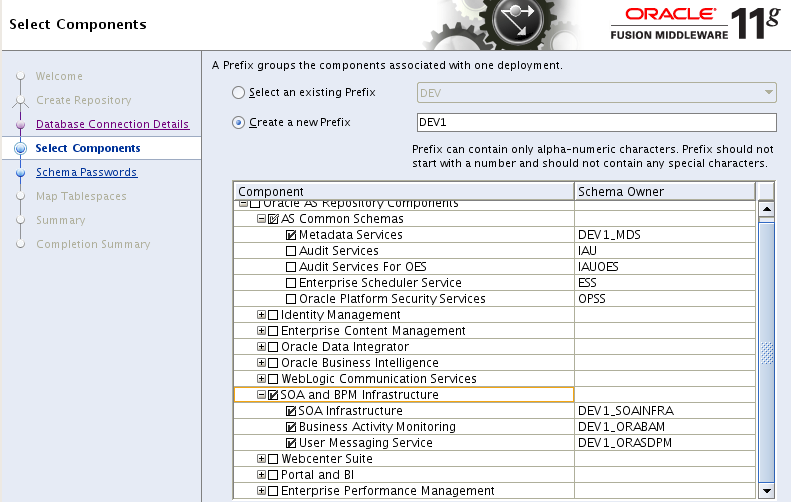
Again, we have been through the whole RCU process in earlier posts, like the one mentioned above, so we will just present highlights here.  When you get to the Select Components screen, as shown below, you just need to select the category called SOA and BPM infrastructure.  This will select all of the necessary options for Service Bus.

Install WebLogic Server

Now we need to install WebLogic Server.  OSB 11.1.1.5 works with WebLogic Server 10.3.5, and we want to use the ‘generic’ version so that we will get a 64-bit install.  The generic version will produce a 64-bit runtime if you install it with a 64-bit JDK or a 32-bit runtime if you install it with a 32-bit JDK.  So be careful you have the right JDK on your path!  You can start the installation using this command:

java –jar wls1035_generic.jar

Update: You should also use the -d64 argument to make ‘extra sure’ that you get a 64-bit WebLogic Server.  Personally I have only seen this needed on Solaris, however Jian tells me that you can run into problems trying to deploy web services developed in eclipse to WebLogic Server if you don’t use this switch.

Again, we have covered this a number of times before, so we will just review the highlights.  Click on Next on the first screen, then select you middleware home, then click on Next, bypass the email notification screens (or fill it in if you want to) and click on Next, choose a typical install and clicck on Next, choose your 64-bit JDK and click on Next, check the directories and click on Next, review the summary and click on Next.  WebLogic Server will now be installed.  When it is done, deselect the box to run quickstart and then click on Done.

Install Oracle Enterprise Pack for Eclipse

Next we want to install the OEPE using the full bundled installer that we downloaded earlier.  Check once more that you have the exact right version, then we will go ahead and install it.

Create a directory inside your newly created middleware home to hold OEPE, for example using the command:

mkdir ~/fmwhome/oepe

No change into that directory and unzip the OEPE bundle, for example:

unzip ~/path_to/oepe-helios-all-in-one-11.1.1.7.2.201103302044-linux-gtk-x86_64.zip

Install Oracle Service Bus

Now we have all the prerequisites in place and we are ready to install the OSB itself.  Make a temporary directory to hold the OSB installer and unzip the OSB installer that you downloaded into this new directory.  Now change into this directory and run the installer, for example using the following commands:

mkdir osb
cd osb
unzip ../ofm_osb_generic_11.1.1.5.0_disk1_1of1.zip
cd Disk1
./runInstaller

When you are prompted, enter your JDK location, then the installer will start.  If you are prompted to create the Oracle Inventory directory and/or to run some scripts as root, go ahead and do this now.

Proceed through the installer as follows:  On the first page, click on Next, skip the software updates section and click on Next, choose your Oracle middleware home and click on Next, choose a custom installation and click on Next, deselect the samples, we do not want to install them, then click on Next, now you will see that it has found your WebLogic Server and OEPE install locations – if you installed the wrong version of OEPE then you would see and empty box here and you would need to go back and get the right version of OEPE isntalled and try again – otherwise, click on Next and then Install to continue.

Now OSB will be installed.  When it is done, click on Next then Finish.

Setting up an OSB domain

Now you are ready to create your OSB domain.  This is done using the domain creation wizard.  Again we have covered this before, so just the highlights.  Start the domain creation wizard with the following command:

/path_to_middleware_home/oracle_common/common/bin/config.sh

Follow through the steps, which should be fairly self explanatory.  Select an OSB for Developers installation and add in the Enterprise Manager.  You can just take the defaults for everything else for the purposes of this post.  This will create a new single server OSB domain for you in /path_to_middleware_home/user_projects/domains/base_domain.

Start up your OSB server

Now we can start the OSB server using the following command:

/path_to_middleware_home/user_projects/domains/base_domain/startWebLogic.sh

When the server is up and running, you can access its WebLogic Server console at http://yourserver:7001/console and the OSB console at http://yourserver:7001/sbconsole.  Try these to make sure they work.

Setup the IDE

Now we are ready to set up OEPE.  Start it up using the following command:

/path_to_middleware_home/oepe/eclipse &

Once it starts up, open the Oracle Service Bus perspective by choosingWindow then Open Perspective then Other from the main menu bar.  In the dialog box, choose Oracle Service Bus and click on OK.

In the Servers window, in the bottom pane, right click and select New then Server from the pop up menu.

In the dialog box (shown above) select Oracle WebLogic Server 11gR1 PatchSet 4 as the server type, and then enter the hostname, a name for your server (this is just the name it will be known by in eclipse) and then find the correct runtime environment.  Then click on Next.

On this page (above) you need to enter the domain directory.  Note that yours will probably be different to the one shown in the example.  We recommend that you leave the Disable automatic publishing to server option selected, otherwise you will have to wait for eclipse to go republish every time you touch anything, which can get very tiring.

You should now see your shiny new 64-bit OSB server in eclipse:

Yours obviously wont have any projects deployed on it yet, but you are now all ready to go and define some and deploy them.

So, there you have a 64-bit version of Oracle Service Bus and a 64-bit version of its IDE running on eclipse on 64-bit Linux.  A special thanks to Jian Liang for his assistance with this process.

http://www.oracle.com/technetwork/developer-tools/eclipse/downloads/oepe-archive-1716547.html

Posted in Uncategorized | Tagged | 2 Comments

Updating a task from .Net

In this previous post I showed how to use the TaskQueryService to query tasks.  In this post, I am going to take this one step further and update the task payload and process the task.  In order to do this, we need to use both the TaskQueryService and the TaskService.  This introduces a couple of new challenges that we need to deal with.

Let’s take a look at the basic outline of the code first, then drill into the challenges.  First, we need to authenticate to the engine, as we did in the previous example.  This is done by calling the authenticate operation on the TaskQueryService web service.

TaskQueryServiceClient tqs = new TaskQueryServiceClient("TaskQueryServicePort");

// provide credentials for ws-security authentication to WLS to call the web service
tqs.ClientCredentials.UserName.UserName = "weblogic";
tqs.ClientCredentials.UserName.Password = "welcome1";

// set up the application level credentials that will be used to get a session on BPM (not WLS)
credentialType cred = new credentialType();
cred.login = "weblogic";
cred.password = "welcome1";
cred.identityContext = "jazn.com";

// authenticate to BPM
Console.WriteLine("Authenticating...");
workflowContextType ctx = tqs.authenticate(cred);
Console.WriteLine("Authenticated to TaskQueryService");

Next, we need to retrieve the task that we want to update.  In this example, I am just hard coding the task number.  Then we call the getTaskDetailsByNumber operation on the TaskQueryService web service, passing in the context we got back from the authenticate operation, and the task number.

taskDetailsByNumberRequestType request = new taskDetailsByNumberRequestType();
request.taskNumber = "200873";
request.workflowContext = ctx;
task task = tqs.getTaskDetailsByNumber(request);

Now that we have the task, we want to update the payload.  In this example, I up just updating one of the string parameters in the payload to contain the text “changed in .net” and then updating the payload in our local copy of the task.

TaskService.TaskServiceClient ts = new TaskService.TaskServiceClient("TaskServicePort");
System.Xml.XmlNode[] payload = (System.Xml.XmlNode[])task.payload;
payload.ElementAt(0).ChildNodes.Item(1).InnerText = "changed in .net";
task.payload = payload;

Now to actually update the real task on the server, we need to call the updateTask operation on the TaskService web service and pass it our locally updated task.  This call will return back a new task object which represents the updated task.

// update task
TaskService.taskServiceContextTaskBaseType updateTaskRequest = new TaskService.taskServiceContextTaskBaseType();
updateTaskRequest.workflowContext = ctx;
updateTaskRequest.task = task;
TaskService.task updatedTask = ts.updateTask(updateTaskRequest);

Now, we want to take an action on the task, in this case I have just hardcoded the “OK” action.  To have the task processed, we call the updateTaskOutcome operation on the TaskService web service, again we pass in the context and the updated task object.

// complete task
TaskService.updateTaskOutcomeType updateTaskOutcomeRequest = new TaskService.updateTaskOutcomeType();
updateTaskOutcomeRequest.workflowContext = ctx;
updateTaskOutcomeRequest.outcome = "OK";
updateTaskOutcomeRequest.Item = updatedTask;
ts.updateTaskOutcome(updateTaskOutcomeRequest);

So, this all looks relatively straight forward and if you have followed our custom worklist sample then the code probably looks pretty similar to the Java code in that sample.  But unfortunately, this code will not work as is.

The problem we have here is to do with the way web services work in .Net.  For each of the two web services that we want to use, the TaskQueryService and the TaskService, we need to add a service reference to our .Net solution.  When we add the service reference, we need to create a namespace, and they need to be unique.  So we end up with two definitions of task in two different namespaces, i.e. we get a TaskQueryService.task and a TaskService.task.  These are in fact exactly the same and came from the same Java object, but because of the way web service references work, .Net does not think they are the same object, and you cannot cast from one to the other.

This creates an issue for us, as we get our workflowContext object from the TaskQueryService but we need to provide it to the TaskService.  There is no way to get it from the TaskService.  If you invest five or ten minutes into searching the web, you will discover this is a fairly common issue encountered in .Net when using web services.

So what do we do?

My initial approach was to just write some logic to manually convert the objects.  That looked something like this:

public static TaskService.workflowContextType convertWorkflowContextType(TaskQueryService.workflowContextType input)
{
  TaskService.workflowContextType output = new TaskService.workflowContextType();
  output.credential = convertCredentialType(input.credential);
  output.locale = input.locale;
  output.timeZone = input.timeZone;
  output.token = input.token;
  return output;
}

This does not look too bad, but the issue is in the size of these objects.  Notice that the credential is a complex type and I need another method like this to copy it.  So in order to actually implement this method for just the workflowContext and the task objects, we would need several hundred lines of ugly boring boilerplate code.  So I gave up on this method.

My second approach was to use reflection to do a deep copy on the objects.  This looked promising and I found several samples online, but again, I ran into issues.  First, it had problems with arrays.  Once I fixed this, it then had problems with enumerated types.  Again, this was getting pretty ugly, so I abandoned this method too.

Next, I turned to an open source (MIT-license) project called AutoMapper which addresses this very issue.  I found that investing a few minutes in learning how to use AutoMapper resolved my issues completely.  So this is the approach I have adopted.  Here is the code that configures the AutoMapper to handle our two types we are discussing, and all of the embedded subtypes we need:

// set up the automapper
AutoMapper.Mapper.CreateMap<TaskQueryService.workflowContextType, TaskService.workflowContextType>();
AutoMapper.Mapper.CreateMap<TaskQueryService.credentialType, TaskService.credentialType>();

AutoMapper.Mapper.CreateMap<TaskQueryService.task, TaskService.task>();
AutoMapper.Mapper.CreateMap<TaskQueryService.attachmentType, TaskService.attachmentType>();
AutoMapper.Mapper.CreateMap<TaskQueryService.callbackType, TaskService.callbackType1>();
AutoMapper.Mapper.CreateMap<TaskQueryService.customAttributesType, TaskService.customAttributesType>();
AutoMapper.Mapper.CreateMap<TaskQueryService.documentType, TaskService.documentType>();
AutoMapper.Mapper.CreateMap<TaskQueryService.EvidenceType, TaskService.EvidenceType>();
AutoMapper.Mapper.CreateMap<TaskQueryService.processType, TaskService.processType>();
AutoMapper.Mapper.CreateMap<TaskQueryService.commentType, TaskService.commentType>();
AutoMapper.Mapper.CreateMap<TaskQueryService.identityType, TaskService.identityType>();
AutoMapper.Mapper.CreateMap<TaskQueryService.ucmMetadataItemType, TaskService.ucmMetadataItemType>();
AutoMapper.Mapper.CreateMap<TaskQueryService.systemAttributesType, TaskService.systemAttributesType>();
AutoMapper.Mapper.CreateMap<TaskQueryService.actionType, TaskService.actionType2>();
AutoMapper.Mapper.CreateMap<TaskQueryService.displayInfoType, TaskService.displayInfoType>();
AutoMapper.Mapper.CreateMap<TaskQueryService.shortHistoryTaskType, TaskService.shortHistoryTaskType>();
AutoMapper.Mapper.CreateMap<TaskQueryService.assignmentContextType, TaskService.assignmentContextType1>();
AutoMapper.Mapper.CreateMap<TaskQueryService.assignmentContextTypeValueType, TaskService.assignmentContextTypeValueType1>();
AutoMapper.Mapper.CreateMap<TaskQueryService.collectionTargetType, TaskService.collectionTargetType>();
AutoMapper.Mapper.CreateMap<TaskQueryService.collectionTargetActionType, TaskService.collectionTargetActionType>();
AutoMapper.Mapper.CreateMap<TaskQueryService.preActionUserStepType, TaskService.preActionUserStepType>();
AutoMapper.Mapper.CreateMap<TaskQueryService.systemMessageAttributesType, TaskService.systemMessageAttributesType>();
AutoMapper.Mapper.CreateMap<TaskQueryService.flexfieldMappingType, TaskService.flexfieldMappingType>();
AutoMapper.Mapper.CreateMap<TaskQueryService.scaType, TaskService.scaType>();
AutoMapper.Mapper.CreateMap<TaskQueryService.UpdatableEvidenceAttributesType, TaskService.UpdatableEvidenceAttributesType>();

// check automapper config is valid
AutoMapper.Mapper.AssertConfigurationIsValid();

But I really don’t want to have all the AutoMapper code messing up my nice clean class.  So I went one step further and implemented some implicit operators so that I can write my code like I showed at the start of this article and pretend that this issue does not even exist.  Here is the code to implement implicit operators to covert from TaskQueryService.task to TaskService.task and from TaskQueryService.workflowContext to TaskService.workflowContext:

namespace TaskService
{
  partial class workflowContextType
  {
    public static implicit operator workflowContextType(TaskQueryService.workflowContextType from)
    {
      return AutoMapper.Mapper.Map(from);
    }
  }

  partial class task
  {
    public static implicit operator task(TaskQueryService.task from)
    {
      return AutoMapper.Mapper.Map(from);
    }
  }
}

So here is the completed class:

using System;
using System.Collections.Generic;
using System.Linq;
using System.Text;
using ConsoleApplication1.TaskQueryService;
using System.Web.Services;
using System.ServiceModel.Security;
using System.ServiceModel.Security.Tokens;

namespace ConsoleApplication1
{
    class Class1
    {
        static void Main(string[] args)
        {
            Console.WriteLine("Sample C# TaskQueryService client");
            init();

            // set up the TaskQueryService client
            // Note that this constructor refers to an endpoint configuration that is defined in the app.config
            // which was created by Visual Studio when you added the web service reference.
            // You have to edit the app.config to set the security mode to "TransportCredentialOnly"
            // and the transport clientCredentialType to "Basic"
            TaskQueryServiceClient tqs = new TaskQueryServiceClient("TaskQueryServicePort");
            // provide credentials for ws-security authentication to WLS to call the web service
            tqs.ClientCredentials.UserName.UserName = "weblogic";
            tqs.ClientCredentials.UserName.Password = "welcome1";

            // set up the application level credentials that will be used to get a session on BPM (not WLS)
            credentialType cred = new credentialType();
            cred.login = "weblogic";
            cred.password = "welcome1";
            cred.identityContext = "jazn.com";

            // authenticate to BPM
            Console.WriteLine("Authenticating...");
            workflowContextType ctx = tqs.authenticate(cred);
            Console.WriteLine("Authenticated to TaskQueryService");

            // get task
            taskDetailsByNumberRequestType request = new taskDetailsByNumberRequestType();
            request.taskNumber = "200873";
            request.workflowContext = ctx;
            task task = tqs.getTaskDetailsByNumber(request);

            // get TaskService
            TaskService.TaskServiceClient ts = new TaskService.TaskServiceClient("TaskServicePort");

            // update the payload
            System.Xml.XmlNode[] payload = (System.Xml.XmlNode[])task.payload;
            payload.ElementAt(0).ChildNodes.Item(1).InnerText = "changed in .net";
            task.payload = payload;

            // update task
            TaskService.taskServiceContextTaskBaseType updateTaskRequest = new TaskService.taskServiceContextTaskBaseType();
            updateTaskRequest.workflowContext = ctx;
            updateTaskRequest.task = task;
            TaskService.task updatedTask = ts.updateTask(updateTaskRequest);

            // complete task
            TaskService.updateTaskOutcomeType updateTaskOutcomeRequest = new TaskService.updateTaskOutcomeType();
            updateTaskOutcomeRequest.workflowContext = ctx;
            updateTaskOutcomeRequest.outcome = "OK";
            updateTaskOutcomeRequest.Item = updatedTask;
            ts.updateTaskOutcome(updateTaskOutcomeRequest);

            // all done
            Console.WriteLine();
            Console.WriteLine("Press enter to exit");
            Console.Read();
        }

        private static void init()
        {
            // set up the automapper
            AutoMapper.Mapper.CreateMap<TaskQueryService.workflowContextType, TaskService.workflowContextType>();
            AutoMapper.Mapper.CreateMap<TaskQueryService.credentialType, TaskService.credentialType>();

            AutoMapper.Mapper.CreateMap<TaskQueryService.task, TaskService.task>();
            AutoMapper.Mapper.CreateMap<TaskQueryService.attachmentType, TaskService.attachmentType>();
            AutoMapper.Mapper.CreateMap<TaskQueryService.callbackType, TaskService.callbackType1>();
            AutoMapper.Mapper.CreateMap<TaskQueryService.customAttributesType, TaskService.customAttributesType>();
            AutoMapper.Mapper.CreateMap<TaskQueryService.documentType, TaskService.documentType>();
            AutoMapper.Mapper.CreateMap<TaskQueryService.EvidenceType, TaskService.EvidenceType>();
            AutoMapper.Mapper.CreateMap<TaskQueryService.processType, TaskService.processType>();
            AutoMapper.Mapper.CreateMap<TaskQueryService.commentType, TaskService.commentType>();
            AutoMapper.Mapper.CreateMap<TaskQueryService.identityType, TaskService.identityType>();
            AutoMapper.Mapper.CreateMap<TaskQueryService.ucmMetadataItemType, TaskService.ucmMetadataItemType>();
            AutoMapper.Mapper.CreateMap<TaskQueryService.systemAttributesType, TaskService.systemAttributesType>();
            AutoMapper.Mapper.CreateMap<TaskQueryService.actionType, TaskService.actionType2>();
            AutoMapper.Mapper.CreateMap<TaskQueryService.displayInfoType, TaskService.displayInfoType>();
            AutoMapper.Mapper.CreateMap<TaskQueryService.shortHistoryTaskType, TaskService.shortHistoryTaskType>();
            AutoMapper.Mapper.CreateMap<TaskQueryService.assignmentContextType, TaskService.assignmentContextType1>();
            AutoMapper.Mapper.CreateMap<TaskQueryService.assignmentContextTypeValueType, TaskService.assignmentContextTypeValueType1>();
            AutoMapper.Mapper.CreateMap<TaskQueryService.collectionTargetType, TaskService.collectionTargetType>();
            AutoMapper.Mapper.CreateMap<TaskQueryService.collectionTargetActionType, TaskService.collectionTargetActionType>();
            AutoMapper.Mapper.CreateMap<TaskQueryService.preActionUserStepType, TaskService.preActionUserStepType>();
            AutoMapper.Mapper.CreateMap<TaskQueryService.systemMessageAttributesType, TaskService.systemMessageAttributesType>();
            AutoMapper.Mapper.CreateMap<TaskQueryService.flexfieldMappingType, TaskService.flexfieldMappingType>();
            AutoMapper.Mapper.CreateMap<TaskQueryService.scaType, TaskService.scaType>();
            AutoMapper.Mapper.CreateMap<TaskQueryService.UpdatableEvidenceAttributesType, TaskService.UpdatableEvidenceAttributesType>();

            // check automapper config is valid
            AutoMapper.Mapper.AssertConfigurationIsValid();
        }
    }

    namespace TaskService
    {
        partial class workflowContextType
        {
            public static implicit operator workflowContextType(TaskQueryService.workflowContextType from)
            {
                return AutoMapper.Mapper.Map<TaskQueryService.workflowContextType, workflowContextType>(from);
            }
        }

        partial class task
        {
            public static implicit operator task(TaskQueryService.task from)
            {
                return AutoMapper.Mapper.Map<TaskQueryService.task, task>(from);
            }
        }
    }
}

Where to next? My next step is to take this approach and apply it to writing a human task user interface in ASP.NET C# and integrate that into the BPM Workspace as shown in the example below.

Posted in Uncategorized | Tagged , , , , | 11 Comments

WebLogic 12c Released

Just a quick post the let you all know that WebLogic Server 12c is now generally available and can be downloaded from OTN.


Posted in Uncategorized | Tagged , | Leave a comment

New build of custom worklist for BPM 11.1.1.5 ‘Feature Pack’ patched systems

I have just uploaded a new build of the custom worklist sample which is compiled against (and will therefore work with) BPM 11.1.1.5 systems which have the feature pack patch installed.  You can download this from the links on the main worklist page.

Posted in Uncategorized | Tagged , , | 2 Comments

New blog – BPM in Practice – launched

Oracle North America Consulting’s BPM practice has set up a new blog where they plan to host articles from a variety of guest bloggers (me included) covering practical aspects of BPM implementation.  I would encourage you to take a look over the next few weeks as they start to get some material posted there.  The blog is located at http://blogs.oracle.com/practicalbpm/

From their newly launched site:

[This new space on] Oracle blogs is dedicated to practical implementation of Oracle’s BPM Suite and surrounding technologies.  This space is designed to host dozens of guest bloggers from the ranks of Oracle engineers, field solutions consultants, architects and general developers.  The goal is to disseminate practical guidelines and examples from actual implementations or proof of concept exercises.  Our hope is that it not only promotes greater use but better and more defined use of Oracle’s BPM Suite by those who have engaged it’s powerful capabilities.

As best practices, design patterns and common use cases emerge or are refined they will be discussed in detail here for the good of the BPM community.  Technical deep dives and short hands-on lab-like posts will also be a regular part of the menu so stay tuned and enjoy.

Posted in Uncategorized | Tagged | Leave a comment

Using the TaskQueryService from .Net (C#)

As regular readers will know, I am working on a .Net version of the custom worklist sample.  As I work on this, I am playing with a few different things in .Net along the way, and it seemed like it would be worth sharing these.

Ardent readers will recall that the Human Workflow APIs (generally under oracle.bpel package) have web services exposed, but the BPM APIs (generally under oracle.bpm) do not.  In this post, we are looking only at the Human Workflow APIs, so this is not an issue for us (yet…)

Arguably the most interesting of the Human Workflow APIs/web services is the TaskQueryService.  This lets us get information about, and take action on, tasks in the workflow system.  In this first example, let us take a look at using the TaskQueryService (web service) from .Net to get a list of tasks.

I am using Visual Studio 2010 Professional on Windows 7 Ultimate 64-bit with .Net Framework 4.0.30319 and my language of choice is (of course) C#.  If you don’t have a ‘full use’ version of Visual Studio, you could download the free ‘Express’ version and still be able to build this sample.

To keep things simple, we will use a ‘console’ (command line) application.  From the File menu, select New then Project.  Select a Console Application from the gallery.

Click on OK to create the new project.  Next, we want to add a couple of references that we will need.  In the Solution Explorer pane (on the right hand side) right click on the References entry and select Add Reference…

In the dialog box, navigate to the .Net tab.  You need to add the System.Web.Services component.  Select it from the list and then press OK.  Then go and add a second reference, to the System.ServiceModel component.

These two .Net components (libraries) are needed to allow us to call Web Services and use WS-Security, which we will need to do to call the TaskQueryService.

Next, we need to add a reference to the web service itself.  Right click on the References entry again and this time select Add Service Reference…  In the Add Service Reference dialog box, enter the address of the TaskQueryService in the Address box and click on OK.  The address should look like this:

http://server:8001/integration/services/TaskQueryService/TaskQueryService?wsdl

You will obviously need to update the server name and make sure you have the right port.

Enter a Namespace, I called mine TaskQueryService, and click on OK.  Visual Studio will create some resources for you.  You will see the new reference listed in the solution explorer and you may also notice that you get a new source file and an app.config file.  We will come to these later.

Now we are ready to start writing our code.  We need to add a couple of using statements to reference those three references that we just added:

using ConsoleApplication1.TaskQueryService;
using System.Web.Services;
using System.ServiceModel.Security;
using System.ServiceModel.Security.Tokens;

Here is the code, with some comments in it to explain what it is doing:

using System;
using System.Collections.Generic;
using System.Linq;
using System.Text;
using ConsoleApplication1.TaskQueryService;
using System.Web.Services;
using System.ServiceModel.Security;
using System.ServiceModel.Security.Tokens;

namespace ConsoleApplication1
{
    class Program
    {
        static void Main(string[] args)
        {
            Console.WriteLine("Sample C# TaskQueryService client");

            // set up the TaskQueryService client
            // Note that this constructor refers to an endpoint configuration that is defined in the app.config
            // which was created by Visual Studio when you added the web service reference.
            // You have to edit the app.config to set the security mode to "TransportCredentialOnly"
            // and the transport clientCredentialType to "Basic"
            TaskQueryServiceClient tqs = new TaskQueryServiceClient("TaskQueryServicePort");
            // provide credentials for ws-security authentication to WLS to call the web service
            tqs.ClientCredentials.UserName.UserName = "weblogic";
            tqs.ClientCredentials.UserName.Password = "welcome1";

            // set up the application level credentials that will be used to get a session on BPM (not WLS)
            credentialType cred = new credentialType();
            cred.login = "weblogic";
            cred.password = "welcome1";
            cred.identityContext = "jazn.com";

            // authenticate to BPM
            Console.WriteLine("Authenticating...");
            workflowContextType ctx = tqs.authenticate(cred);
            Console.WriteLine("Authenticated to TaskQueryService");

            // now we need to build the request ... there is a whole bunch of stuff
            // we have to specify in here ... a WHOLE bunch of stuff...
            taskListRequestType request = new taskListRequestType();
            request.workflowContext = ctx;
            // predicate
            taskPredicateQueryType pred = new taskPredicateQueryType();
            // predicate->order - e.g. ascending by column called "TITLE"
            orderingClauseType order = new orderingClauseType();
            order.sortOrder = sortOrderEnum.ASCENDING;
            order.nullFirst = false;
            order.Items = new string[] { "TITLE" };
            order.ItemsElementName = new ItemsChoiceType1[] { ItemsChoiceType1.column };
            orderingClauseType[] orders = new orderingClauseType[] { order };
            pred.ordering = orders;
            // predicate->paging controls - remember TQS.queryTasks only returns 200 maximum rows
            // you have to loop/page to get more than 200
            pred.startRow = "0";
            pred.endRow = "200";
            // predicate->task predicate
            taskPredicateType tpred = new taskPredicateType();
            // predicate->task predicate->assignment filter - e.g. "ALL" users
            tpred.assignmentFilter = assignmentFilterEnum.All;
            tpred.assignmentFilterSpecified = true;
            // predicate->task predicate->clause - e.g. column "STATE" equals "ASSIGNED"
            predicateClauseType[] clauses = new predicateClauseType[1];
            clauses[0] = new predicateClauseType();
            clauses[0].column = "STATE";
            clauses[0].@operator = predicateOperationEnum.EQ;
            clauses[0].Item = "ASSIGNED";
            tpred.Items = clauses;
            pred.predicate = tpred;
            // items->display columns
            displayColumnType columns = new displayColumnType();
            columns.displayColumn = new string[] { "TITLE" };
            // items->presentation id
            string presentationId = "";
            // items->optional info
            taskOptionalInfoType opt = new taskOptionalInfoType();
            object[] items = new object[] { columns, opt, presentationId };
            pred.Items = items;
            request.taskPredicateQuery = pred;

            // get the list of tasks
            Console.WriteLine("Getting task list...");
            task[] tasks = tqs.queryTasks(request);

            // display our results with a bit of formatting
            Console.WriteLine();
            Console.WriteLine("Title                                    State           Number");
            Console.WriteLine("---------------------------------------- --------------- ----------");

            foreach (task task in tasks) {

                Console.WriteLine(
                    string.Format("{0,-40}", task.title)
                    + " "
                    + string.Format("{0,-15}", task.systemAttributes.state)
                    + " "
                    + string.Format("{0,-10}", task.systemAttributes.taskNumber)
                );

            }

            // get rid of the context
            tqs.destroyWorkflowContext(ctx);

            // all done
            Console.WriteLine();
            Console.WriteLine("Press enter to exit");
            Console.Read();

        }
    }
}

In order to run this, we also need to set up WS-Security.  Go ahead and open up the app.config file.  It should look similar to the following example:

<?xml version="1.0" encoding="utf-8" ?>
<configuration>
  <system.serviceModel>
    <bindings>
      <basicHttpBinding>
        <binding name="TaskQueryServiceSOAPBinding" closeTimeout="00:01:00"
          openTimeout="00:01:00" receiveTimeout="00:10:00" sendTimeout="00:01:00"
          allowCookies="false" bypassProxyOnLocal="false" hostNameComparisonMode="StrongWildcard"
          maxBufferSize="65536" maxBufferPoolSize="524288" maxReceivedMessageSize="65536"
          messageEncoding="Text" textEncoding="utf-8" transferMode="Buffered"
          useDefaultWebProxy="true">
          <readerQuotas maxDepth="32" maxStringContentLength="8192" maxArrayLength="16384"
          maxBytesPerRead="4096" maxNameTableCharCount="16384" />
          <security mode="TransportCredentialOnly">
            <transport clientCredentialType="Basic" proxyCredentialType="None"
              realm="" />
            <message clientCredentialType="UserName" algorithmSuite="Default"  />
          </security>
        </binding>
      </basicHttpBinding>
    </bindings>
    <client>
      <endpoint address="http://192.168.174.132:8001/integration/services/TaskQueryService/TaskQueryService2/*"
        binding="basicHttpBinding" bindingConfiguration="TaskQueryServiceSOAPBinding"
        contract="TaskQueryService.TaskQueryService" name="TaskQueryServicePortSAML" />
      <endpoint address="http://192.168.174.132:8001/integration/services/TaskQueryService/TaskQueryService"
        binding="basicHttpBinding" bindingConfiguration="TaskQueryServiceSOAPBinding"
        contract="TaskQueryService.TaskQueryService" name="TaskQueryServicePort" />
    </client>
  </system.serviceModel>
</configuration>

The section that you will need to update is the security section (shown below).  You need to change the security mode to TransportCredentialOnly, the clientCredentialType to Basic in the transport section, and in the message section to UserName.  This will allow .Net to call the WS-Security web service with username token policy on the BPM server.

<security mode="TransportCredentialOnly">
  <transport clientCredentialType="Basic" proxyCredentialType="None"
    realm="" />
  <message clientCredentialType="UserName" algorithmSuite="Default"  />
</security>

That’s all we need.  Now you can go ahead and build and run the solution.  You should get a window open with output like the following:

Sample C# TaskQueryService client
Authenticating...
Authenticated to TaskQueryService
Getting task list...

Title                                    State           Number
---------------------------------------- --------------- ----------
Choose Next User                         ASSIGNED        200401
Claim This Task                          ASSIGNED        200435
Do Something                             ASSIGNED        200393
Do Something                             ASSIGNED        200396
DotNetTest                               ASSIGNED        200750
MTLChooseNextUser                        ASSIGNED        200293
UserTaskWithUCMContent                   ASSIGNED        200385

Press enter to exit

Enjoy, and stay tuned for more .Net articles.

Posted in Uncategorized | Tagged , , , , , | 3 Comments

Getting started with tuning your SOA/BPM database using AWR

Update:  When I initially published this post, I was relying on information from a single source inside Oracle, however since publishing it, I have been discussing the content further with other sources in the Oracle community, and in the course of doing so, have identified some improvements and updated the post to reflect them.  I will continue to update this post as better information comes to hand, and to make as clear, balanced and accurate as possible.

Special thanks to Jacco H. Landlust, Software Architect, Web-DBA and Oracle ACE for his highly valuable input.

In order to continue to get good performance from your SOA or BPM 11g server, you will want to periodically check your database – the one you are storing your SOAINFRA schema in – to see if there are any performance issues there.  You need to keep doing this, as the workload changes and the usage of space in the database changes.  Depending on the volume of traffic going through your system, you might want to think about tuning the database every week or every month for example.

Tuning an Oracle database is a specialist task.  It requires a highly trained and experienced DBA to do it well.  It is not the kind of thing that you can learn from a short blog post, like this one for example.  This post is not intended to teach you how to tune an Oracle database, but rather to just give a few pointers that might help your DBA, or that you can experiment with in your own environment if you don’t have the services of a good DBA.

If you are lucky enough to have a good DBA running your SOAINFRA database, then they will probably already know how to use AWR to tune and Oracle database.  If this is the case, you should just let them know that common issues in SOA/BPM databases are SGA sizing, statistics, missing indexes and high watermark contention.  They should know what to do with that information.

If, however you do not have a good DBA managing your database, perhaps you only have the database because it is needed for SOA/BPM, and it is being managed by a middleware-style systems administrator, then you might want to read on…  but please keep in mind that this advise is not intended to replace the need for a well trained specialist.  You should probably try to get a DBA on staff, or contract, to keep your database performing well.

This article provides a very brief introduction to the use of the Automatic Workload Repository (AWR) in the Oracle Database and what to look for in the reports for your SOA/BPM environment.

Before you start playing with AWR, it is a good idea to go and read a bit about it.  A good place to start would be Overview of the Automatic Workload Repository and Managing the Automatic Workload Repository.  You should pay particular attention to making sure you develop an understanding of the concept of ‘DB TIME,’ without which extracting much meaning from AWR reports will be difficult.

AWR is a built in feature of the Oracle Database.  Your database will automatically collect performance information and create snapshots every hour.  It will also automatically age and remove these over time.

You can also tell the database to take a snapshot manually using this command, which you will need to issue as a SYSDBA user in SQLPlus:

SELECT DBMS_WORKLOAD_REPOSITORY.Create_Snapshot FROM DUAL;

So the process is as follows:

  1. Create a snapshot (using the SQL above),
  2. Run your tests,
  3. Create another snapshot.

Your tests should be some kind of representative and repeatable workload if you are doing this in a test environment.

It is also safe to run these reports against your production environment.  In this case, you need not create the snapshots manually, you can just use the hourly ones that the database creates for you automatically.

Once you have your snapshots, you are ready to create a report.  You use the following command, again as a SYSDBA, to create the report:

@?/rdbms/admin/awrrpt.sql

This will ask you to select the start and end snapshots and for other details like the format and file name for the output.

After you have done this, open up your report and take a look.  Be warned – it is a pretty big report.

Here is an example of the first page of the report, this is from a VM with BPM 11.1.1.5 plus the Feature Pack, running on Oracle Linux 5, with 10GB of memory, everything in the one VM – so not an ideal production environment, which is good, because we should be able to see some issues in the report.


WORKLOAD REPOSITORY report for

DB Name         DB Id    Instance     Inst Num Startup Time    Release     RAC
------------ ----------- ------------ -------- --------------- ----------- ---
ORCL          1292287891 orcl                1 24-Nov-11 11:03 11.2.0.1.0  NO

Host Name        Platform                         CPUs Cores Sockets Memory(GB)
---------------- -------------------------------- ---- ----- ------- ----------
bpmfp.mark.oracl Linux x86 64-bit                    8     8       2       9.78

              Snap Id      Snap Time      Sessions Curs/Sess
            --------- ------------------- -------- ---------
Begin Snap:       468 24-Nov-11 11:27:20        41       5.0
  End Snap:       469 24-Nov-11 11:33:44        42       6.8
   Elapsed:                6.41 (mins)
   DB Time:                0.42 (mins)

Cache Sizes                       Begin        End
~~~~~~~~~~~                  ---------- ----------
               Buffer Cache:       252M       252M  Std Block Size:         8K
           Shared Pool Size:       396M       396M      Log Buffer:     5,424K

Load Profile              Per Second    Per Transaction   Per Exec   Per Call
~~~~~~~~~~~~         ---------------    --------------- ---------- ----------
      DB Time(s):                0.1                0.0       0.00       0.00
       DB CPU(s):                0.0                0.0       0.00       0.00
       Redo size:           36,700.2            7,761.1
   Logical reads:              244.9               51.8
   Block changes:              158.5               33.5
  Physical reads:                1.2                0.3
 Physical writes:                3.6                0.8
      User calls:              242.8               51.3
          Parses:               33.9                7.2
     Hard parses:                0.5                0.1
W/A MB processed:                0.1                0.0
          Logons:                0.1                0.0
        Executes:               69.1               14.6
       Rollbacks:                0.8                0.2
    Transactions:                4.7

Instance Efficiency Percentages (Target 100%)
~~~~~~~~~~~~~~~~~~~~~~~~~~~~~~~~~~~~~~~~~~~~~
            Buffer Nowait %:   99.82       Redo NoWait %:  100.00
            Buffer  Hit   %:   99.52    In-memory Sort %:  100.00
            Library Hit   %:   98.63        Soft Parse %:   98.60
         Execute to Parse %:   50.96         Latch Hit %:   98.16
Parse CPU to Parse Elapsd %:   66.67     % Non-Parse CPU:   97.75

 Shared Pool Statistics        Begin    End
                              ------  ------
             Memory Usage %:   41.73   43.63
    % SQL with executions>1:   85.59   85.23
  % Memory for SQL w/exec>1:   78.53   80.89

Top 5 Timed Foreground Events
~~~~~~~~~~~~~~~~~~~~~~~~~~~~~
                                                           Avg
                                                          wait   % DB
Event                                 Waits     Time(s)   (ms)   time Wait Class
------------------------------ ------------ ----------- ------ ------ ----------
DB CPU                                               15          59.9
log file sync                         1,592           8      5   32.3 Commit
sort segment request                      1           1   1001    4.0 Configurat
db file sequential read                 216           1      4    3.6 User I/O
db file scattered read                   64           0      6    1.5 User I/O
Host CPU (CPUs:    8 Cores:    8 Sockets:    2)
~~~~~~~~         Load Average
               Begin       End     %User   %System      %WIO     %Idle
           --------- --------- --------- --------- --------- ---------
                0.11      0.13       3.3       0.5       0.4      95.8

Instance CPU
~~~~~~~~~~~~
              % of total CPU for Instance:       0.5
              % of busy  CPU for Instance:      12.9
  %DB time waiting for CPU - Resource Mgr:       0.0

Memory Statistics
~~~~~~~~~~~~~~~~~                       Begin          End
                  Host Mem (MB):     10,017.1     10,017.1
                   SGA use (MB):        668.0        668.0
                   PGA use (MB):         87.9         94.0
    % Host Mem used for SGA+PGA:         7.55         7.61

Tips for SOA/BPM database tuning

Here are some specific areas to check.  Please keep in mind that these are specifically for the SOAINFRA database, and would not necessarily apply to any other workloads.  Also, remember that there is not really any globally applicable set of settings that will work for everyone.  These are just some guidelines – if you are serious about tuning your database, you need to get a good DBA to do it.

Redo logs

There will normally be a lot of redo activity on the SOA database.  You need to make sure your redo logs are ‘large enough.’  One (simplistic) way to do this is to check the number of log switches.  When the system is running at peak workload, one log switch every twenty minutes is ideal, more than this is too high and you should make the redo logs larger to reduce the number of switches.  Your DBA will know better ways to tune the redo log size.

If you are using ‘plain old-fashioned’ disks in your server, as opposed to a SAN or ASM, you should place your redo logs on a different disk to the database files.  You should probably also consider moving to ASM and SAN storage if your workload justifies it.

You can find the log switches in the Instance Activity Stats part of the report, here is an example:

Instance Activity Stats - Thread Activity   DB/Inst: ORCL/orcl  Snaps: 468-469
-> Statistics identified by '(derived)' come from sources other than SYSSTAT

Statistic                                     Total  per Hour
-------------------------------- ------------------ ---------
log switches (derived)                            0       .00
-------------------------------------------------------------

You can see in this system there are no log switches, which is good.  So this tells us the redo logs are large enough, or that we did not run for a long enough period of time to get any meaningful results – this report comes from a six minute test run.

Parsing

Check the hard parsing amount.  It should be zero.  If it is not, this could indicate that your SGA is too small.  (It could also indicate other things.)  You should try increasing the size of SGA and testing again.  Hard parsing can be caused by use of literals in SQL (as opposed to bind variables).

If the queries in question are your own, e.g. in a database adapter, then you should consider changing them to use bind variables and retesting.  Note that there are other approaches to addressing this issue, your DBA will be able to adivse you.  Also, you probably should not have your own queries running in the same database that is hosting SOAINFRA, except perhaps if you are in a development environment.

You can find this information on the first page.

Load Profile              Per Second    Per Transaction   Per Exec   Per Call
~~~~~~~~~~~~         ---------------    --------------- ---------- ----------
...
          Parses:               33.9                7.2
     Hard parses:                0.5                0.1
...

You can see in this system the hard parses is almost zero, which is good.

SGA

Check the buffer hit and library hit percentages.  We want them to be 100%, if not you should increase the size of SGA.  This is also on the first page:

Instance Efficiency Percentages (Target 100%)
~~~~~~~~~~~~~~~~~~~~~~~~~~~~~~~~~~~~~~~~~~~~~
            Buffer Nowait %:   99.82       Redo NoWait %:  100.00
            Buffer  Hit   %:   99.52    In-memory Sort %:  100.00
            Library Hit   %:   98.63        Soft Parse %:   98.60
         Execute to Parse %:   50.96         Latch Hit %:   98.16
Parse CPU to Parse Elapsd %:   66.67     % Non-Parse CPU:   97.75

In this case they are also good.

You should be aware that the usefuleness or otherwise of the buffer hit ratio is a matter of some debate in Oracle circles.  For an overview of the pro’s and con’s, please see this article by Richard Foote.

Top 5

Check the average wait times.  Anything over 5ms indicates a problem.  If you see database CPU events in the Top 5, this could potentially indicate that SGA is too small in some circumstances, but it may not be a problem at all.  You may also be missing indexes.  Check the optimizer statistics.

Here are the Top 5 from my environment:

Top 5 Timed Foreground Events
~~~~~~~~~~~~~~~~~~~~~~~~~~~~~
                                                           Avg
                                                          wait   % DB
Event                                 Waits     Time(s)   (ms)   time Wait Class
------------------------------ ------------ ----------- ------ ------ ----------
DB CPU                                               15          59.9
log file sync                         1,592           8      5   32.3 Commit
sort segment request                      1           1   1001    4.0 Configurat
db file sequential read                 216           1      4    3.6 User I/O
db file scattered read                   64           0      6    1.5 User I/O

You can see here that the top event is DB CPU, which could potentially indicate that SGA is too small.  However, in this case it does not.  It is high because this report was run on a VM with the database and BPM sharing the CPU and disk, so the CPU was busy doing ‘other stuff’ like running BPM and WebLogic.  Database activities like sorting and logical I/O (reading memory) also shows up as DB CPU.

Database file sequential/scattered read

These indicate time spent doing table scans and index scans (respectively).  If these are high (over 5ms), you should consider moving your data files to reduce disk I/O contention, or move them to faster disks.  You can see these values in the previous example too.

Enqueue high watermark

This indicates enqueue high watermark contention that occurs when there are multiple users inserting into LOB segments at once while the database is trying to reclaim unused space.  You should consider enabling secure files to improve LOB performance (SECURE_FILES=ALWAYS).  Note that you would have to do this before you run RCU to create the schemas.  It is possible to move LOBs after creation, but this is not a procedure that a novice DBA should attempt (unless they are confident with backup and restore first).  The procedure involves the use of the DBMS_REDEFINITION package.

You cannot see enqueue high watermark contention in my example report, because this was not a problem in my environment, so it did not make it into the Top 5.  If it did, you would see an event called:

enq: HW - contention

Some other considerations…

There are some database configuration parameters that can have an impact on performance.  The use or otherwise of these parameters is a matter of much debate.

If you are doing a performance benchmark, where your goal is to get the best possible performance, then you might want to consider not using MEMORY_TARGET and AUDIT_TRAIL.  However, keep in mind that running a performance benchmark is a lot different to running a production system.

MEMORY_TARGET

This setting allows the database to automatically tune its own memory usage.  If you do not use this setting, you will need to have your DBA tune the memory usage manually.  There is an argument that a DBA manually tuning the database will result in a better tuned database.  There is a counter argument though, that not many DBA’s have the time to sit around tuning the database constantly, and you might be better off letting the database do it itself.  If you do not use this setting, you should start with 60% of physical memory allocated to SGA and 20% to PGA.

AUDIT_TRAIL

There is an argument that you should not use this setting if you are going for absolute best performance.  However, the overhead is very low, and and benefit of having the audit trail will most likely outweight the slight performance cost in almost all situations.

Posted in Uncategorized | Tagged , , , | Leave a comment

Finding which activities will execute next in a process instance

We have had a few queries lately about how to find out what activity (or activities) will be the next to execute in a particular process instance.  It is possible to do this, however you will need to use a couple of undocumented APIs.  That means that they could (and probably will) change in some future release and break your code.  If you understand the risks of using undocumented APIs and are prepared to accept that risk, read on…

The way to do this is to look at two things:

  • The model of the process itself, i.e. what tasks and connections exist in the process model, and
  • The audit trail for the specific process instance the we are interested in.

By comparing these two pieces of information, we can work out where the process instance is currently (by finding all the activities that have started but have not yet ended) and what the next activities are (by following the connections that start with these unfinsihed activities to see where they go).

I am using plurals here because, of course, you can have multiple parallel execution paths in a process, for example when you use an inclusive or complex gateway, or a multi-instance embedded subprocess, or even a non-interupting event subprocess.

Here is the sample code.  You will need to edit this to suit your own environment.


package nextactivity;

import java.util.ArrayList;
import java.util.HashMap;
import java.util.List;
import java.util.Map;

import oracle.bpel.services.bpm.common.IBPMContext;
import oracle.bpel.services.workflow.client.IWorkflowServiceClientConstants;

import oracle.bpm.client.BPMServiceClientFactory;
import oracle.bpm.project.SequenceFlowImpl;
import oracle.bpm.project.model.ProjectObject;
import oracle.bpm.services.client.IBPMServiceClient;
import oracle.bpm.services.instancemanagement.model.IProcessInstance;
import oracle.bpm.services.instancequery.IAuditInstance;
import oracle.bpm.services.instancequery.IInstanceQueryService;
import oracle.bpm.services.internal.processmodel.model.IProcessModelPackage;

public class NextActivity {

    private static BPMServiceClientFactory bpmscf;

    public NextActivity() {
        super();
    }

    public static void main(String[] args) {

        try {

            // check that we have a process instance ID
            if (args.length != 1) {
                System.out.println("You must specify the instance ID");
                System.exit(0);
            }
            String instanceId = args[0];

            // get the BPMServiceClient
            IBPMServiceClient bpmServiceClient =
                getBPMServiceClientFactory().getBPMServiceClient();

            // authenticate to the BPM engine
            IBPMContext bpmContext =
                getBPMServiceClientFactory()
                .getBPMUserAuthenticationService()
                .authenticate("weblogic", "welcome1".toCharArray(), null);

            // get details of the process instance
            IInstanceQueryService instanceQueryService =
                bpmServiceClient.getInstanceQueryService();
            IProcessInstance processInstance =
                instanceQueryService.getProcessInstance(bpmContext,
                                                        instanceId);

            if (processInstance == null) {
                System.out.println("Could not find instance, aborting");
                System.exit(0);
            }

            // get details of the process (not a specific instance of it,
            // but the actual process definition itself)
            // WARNING WARNING WARNING
            // The ProcessModelService is an UNDOCUMENTED API - this means
            // that it could (and probably will) change in some future
            // release - you SHOULD NOT build any code that relies on it,
            // unless you understand and accept the risks of using an
            // undocumented API.
            IProcessModelPackage processModelPackage =
                bpmServiceClient
                .getProcessModelService()
                .getProcessModel(bpmContext,
                                 processInstance.getSca().getCompositeDN(),
                                 processInstance.getSca().getComponentName());

            // get a list of the audit events that have occurred in this instance
            List auditInstances =
                bpmServiceClient
                .getInstanceQueryService()
                .queryAuditInstanceByProcessId(bpmContext, instanceId);

            // work out which activities have not finished
            List started = new ArrayList();
            for (IAuditInstance a1 : auditInstances) {
                if (a1.getAuditInstanceType().compareTo("START") == 0) {
                    // ingore the process instance itself, we only care
                    // about tasks in the process
                    if (a1.getActivityName().compareTo("PROCESS") != 0) {
                        started.add(a1);
                    }
                }
            }
            next:
            for (IAuditInstance a2 : auditInstances) {
                if (a2.getAuditInstanceType().compareTo("END") == 0) {
                    for (int i = 0; i < started.size(); i++) {
                        if (a2.getActivityId()
                              .compareTo(started.get(i).getActivityId()) == 0) {
                            started.remove(i);
                            continue next;
                        }
                    }
                }
            }
            System.out.println("\n\nLooks like the following have started but not ended:");
            for (IAuditInstance s : started) {
                System.out.println(s.getActivityId() + "\nwhich is a "
                                   + s.getActivityName() + "\ncalled "
                                   + s.getLabel() + "\n");
            }

            // now we need to find what is after these activities...
            // WARNING WARNING WARNING
            // The ProcessModel, ProcessObject, etc. are UNDOCUMENTED APIs -
            // this means that they could (and probably will) change
            // in some future release - you SHOULD NOT build any code
            // that relies on them, unless you understand and
            // accept the risks of using undocumented APIs.
            List nextActivities = new ArrayList();
            next2:
            for (ProjectObject po : processModelPackage.getProcessModel().getChildren()) {
                if (po instanceof SequenceFlowImpl) {
                    for (IAuditInstance s2 : started) {
                        if (((SequenceFlowImpl)po).getSource()
                                                  .getId().compareTo(s2.getActivityId()) == 0) {
                            nextActivities.add(po);
                            continue next2;
                        }
                    }
                }
            }
            System.out.println("\n\nLooks like the next activities are:");
            for (ProjectObject po2 : nextActivities) {
                System.out.println(((SequenceFlowImpl)po2).getTarget().getId() 
                                   + "\nwhich is a "
                                   + ((SequenceFlowImpl)po2).getTarget().getBpmnType() 
                                   + "\ncalled "
                                   + ((SequenceFlowImpl)po2).getTarget().getDefaultLabel() 
                                   + "\n");
            }

        } catch (Exception e) {
            e.printStackTrace();
        }
    }

    protected static BPMServiceClientFactory getBPMServiceClientFactory() {

        if (bpmscf == null) {

            Map properties = new HashMap();
            properties.put(IWorkflowServiceClientConstants.CONNECTION_PROPERTY.CLIENT_TYPE,
                           IWorkflowServiceClientConstants.CLIENT_TYPE_REMOTE);
            properties.put(IWorkflowServiceClientConstants.CONNECTION_PROPERTY.EJB_PROVIDER_URL,
                           "t3://bpmfp:8001");
            properties.put(IWorkflowServiceClientConstants.CONNECTION_PROPERTY.EJB_SECURITY_CREDENTIALS,
                           "welcome1");
            properties.put(IWorkflowServiceClientConstants.CONNECTION_PROPERTY.EJB_SECURITY_PRINCIPAL,
                           "weblogic");

            bpmscf = BPMServiceClientFactory.getInstance(properties, null, null);

        }
        return bpmscf;

    }

}

To run the sample, you will need to put some JAR files on the CLASSPATH.  These may not all be needed, but here are the ones I am using:

Oracle_SOA1\soa\modules\oracle.soa.workflow_11.1.1\bpm-services.jar
Oracle_SOA1\soa\modules\oracle.soa.fabric_11.1.1\bpm-infra.jar  
Oracle_SOA1\soa\modules\oracle.bpm.client_11.1.1\oracle.bpm.bpm-services.client.jar  
Oracle_SOA1\soa\modules\oracle.bpm.client_11.1.1\oracle.bpm.bpm-services.interface.jar  
oracle_common\webservices\wsclient_extended.jar   
oracle_common\modules\oracle.xdk_11.1.0\xmlparserv2.jar
oracle_common\modules\oracle.xdk_11.1.0\xml.jar
wlserver_10.3\server\lib\wlthint3client.jar
Oracle_SOA1\soa\modules\oracle.bpm.project_11.1.1\oracle.bpm.project.model.jar
Oracle_SOA1\soa\modules\oracle.bpm.project_11.1.1\oracle.bpm.project.io.jar
Oracle_SOA1\soa\modules\oracle.bpm.project_11.1.1\oracle.bpm.project.ui.jar
Oracle_SOA1\soa\modules\oracle.bpm.project_11.1.1\oracle.bpm.project.draw.jar
Oracle_SOA1\soa\modules\oracle.bpm.project_11.1.1\oracle.bpm.diagram.draw.jar
Oracle_SOA1\soa\modules\oracle.bpm.workspace_11.1.1\oracle.bpm.ui.jar
Oracle_SOA1\soa\modules\oracle.bpm.project_11.1.1\oracle.bpm.project.compile.jar
Oracle_SOA1\soa\modules\oracle.bpm.project_11.1.1\oracle.bpm.project.catalog.jar
Oracle_SOA1\soa\modules\oracle.bpm.project_11.1.1\oracle.bpm.project.jar
Oracle_SOA1\soa\modules\oracle.bpm.runtime_11.1.1\oracle.bpm.core.jar
Oracle_SOA1\soa\modules\oracle.bpm.runtime_11.1.1\oracle.bpm.lib.jar
Oracle_SOA1\soa\modules\oracle.bpm.runtime_11.1.1\oracle.bpm.xml.jar

This will produce output like this:

Looks like the following have started but not ended:
ABSTRACT_ACTIVITY1824320344446
which is a USER_TASK
called ChooseNextUser

Looks like the next activities are:
ABSTRACT_ACTIVITY1824321141176
which is a USER_TASK
called DoSomething

When run on a process like this:

Posted in Uncategorized | Tagged , | Leave a comment