What is Raspberry Pi Pico? Everything You Need to Know
The Raspberry Pi Pico is a recent addition to the Raspberry Pi family. It has almost nothing in common with the other models, so you might be a little confused as to what you can actually do with it. Well, let me give you an introduction.
The main difference between the Raspberry Pico and other models is that it is a microcontroller and not a single-board computer. That is why this model is smaller and less costly. It cannot run an operating system but can still be used in many electronic projects.
By the end of this article, you’ll know everything there is to know about the Raspberry Pi Pico. I’ll start with the hardware specifications, explaining the differences with the other Raspberry Pi, explain what you can do (or not) with it, and give you some tips to get started.
If you’re looking for inspiration for your next Raspberry Pi project, I’ve put together a list of 75+ ideas with full descriptions, difficulty ratings, and links to tutorials. Whether you’re a beginner or more advanced, there’s something here for you. Grab the list for free here!
What is a Raspberry Pi Pico?
The Raspberry Pi Pico is a microcontroller board, created by the Raspberry Pi Foundation and released in January 2021. It’s a tiny electronic device that is available for less than $5.
Introduction

It was a surprise, as it’s the first time the Foundation released a microcontroller, which is way different from the small computers we are used to. Smaller and cheaper than the Raspberry Pi Zero, it’s also a completely new product in their line-up.
You can see it as a competitor for the Arduino. As explained in detail in this article, a microcontroller is a chip that is optimized to control electronic devices. It is found in a single integrated circuit that is dedicated to performing a specific task.
The other Raspberry Pi models come with a microprocessor, making them closer to a standard computer: you can install an operating system on them, and they have memory, storage and traditional ports (USB, HDMI, audio, etc.).
To sum up, the Raspberry Pi Zero and Pico, even if they’re almost the same size, are completely different (learn more here).
Specifications
If you look through the specifications, you’ll feel as if you’re reading the configuration of a computer from the last century. But don’t worry, it’s completely normal, and we don’t need more for the kind of tasks the Pico is designed for.
Members get an ad-free version of every guide, plus exclusive project support.
Join the Community | Sign In
Here are the specs for the latest model, the Raspberry Pi Pico 2:
| Type | Component |
|---|---|
| Processor | RP2350, 2x Arm Cortex-M33 (150 MHz) |
| Memory | 520 KB SRAM |
| Storage | 4 MB flash memory |
| Connectivity | 2x 20 GPIO pins (20 on each side), as: – 26x multifunction GPIO Pins – 2x UART – 2x SPI – 2x I2C controllers – 16x PWM channels – 3x ADC channels – 12x programmable I/IO (PIO) |
| Wireless | (Raspberry Pi Pico 2W only) Wi-Fi 4 (802.11n, 2.4GHz) Bluetooth 5.2 |
| Power | 1x Micro USB Support 1.8 to 5.5V DC |
| Dimensions | 21 mm x 51 mm |
To clarify, there are different versions of the Raspberry Pi Pico available. There’s the original, the Pico, which were sold in 4 variants. The core components are the same, but there are some slight differences:
- Raspberry Pi Pico: The original version.
- Raspberry Pi Pico W: stands for “Wireless”, as it includes Wi-Fi support (802.11n).
- Raspberry Pi Pico H & WH: the H stands for “Header”, as it comes with pre-soldered headers on the GPIO pins. WH has Wi-Fi, while the H version doesn’t.
Then they released an upgraded version, the Pico 2, which also comes in 4 variants:
- Raspberry Pi Pico 2: An upgraded version, with a faster processor and more RAM.
- Raspberry Pi Pico 2W: stands for “Wireless,” including both Wi-Fi and Bluetooth support.
- Raspberry Pi Pico 2 H & WH: the H stands for “Header”, as it comes with pre-soldered headers on the GPIO pins. WH has Wi-Fi & Bluetooth, while the H version doesn’t.
If you’re used to the Raspberry Pi Zero model names, you shouldn’t be lost with these versions. The Raspberry Pi Foundation uses the same nomenclature for the Pico.
Differences with Other Models
The Raspberry Pi Pico is powered by a tiny processor (133 or 150 MhZ), has almost no RAM (264 or 520 KB), very limited storage (2 or 4MB) and can’t use most of the external accessories we are used to with other models: no SD card, no display, no keyboard, mouse or any other USB device.
The idea is not to build an extremely cheap computer that can do nothing. The typical use of the Pico is just entirely different from what you’d use another Raspberry Pi for.
For example, with a Raspberry Pi 4, you’ll install an operating system (a Linux distribution in general), and install applications and services. It’s built for multitasking. You can use it as a desktop computer, a server or in electronic projects (robots, home automation, etc.).
Bonus tip: If the terminal still feels confusing, I made a simple cheat sheet with 74 commands explained in plain English. You can grab it here for free..
The Raspberry Pi Pico will typically have only one tiny program (no operating system, no applications). The program is created to run a very specific task and can interact with external devices like sensors, lights and motors via the GPIO pins.
I will now give you a few examples of what you can do with the Raspberry Pi Pico, before explaining in more detail what you CAN’T do.
What Can You Do with a Raspberry Pi Pico?
Even if a Raspberry Pi Pico is limited due to its manufacturing, it can still be used in a wide range of projects. Basically, if an electronic device is available and can be controlled with a simple Python script, you can use a Raspberry Pi Pico for the project.
Start with Simple GPIO Projects
The best way to get started with a Raspberry Pi Pico is to learn via the same mini electronic project examples you may be used to with any Raspberry Pi model: light a LED, use a button, and get data from sensors.
Check this: Need a clear GPIO pinout diagram? Here's mine.

To get started, you’ll need a few additional components (I give my recommendations at the end of this article). If you are used to how the GPIO pins work on another Raspberry Pi model, it won’t be that different.
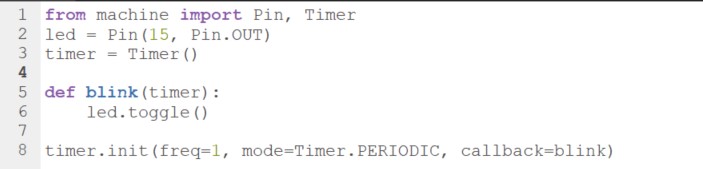
The main difference, though, is that the Raspberry Pi Pico uses MicroPython, a light adaptation of Python created to program microcontrollers. The libraries are slightly different, and you may need some time to get used to them, but if you know Python, it shouldn’t be that complicated.
I have an article on this website explaining how to get started with Raspberry Pi Pico. It includes the simple example you can see in the picture, so feel free to click on the link to see how it works or test it directly.
Perfect to Learn Electronics and Experiment with Programming
With the current situation in the supply chain, where it’s very hard to get any Raspberry Pi in stock at a decent price (more about this situation here), the Raspberry Pi Pico can be a solution if you want to learn programming and electronics. Or simply if you have a project where you don’t need a full computer.
- Get a Raspberry Pi Pico.
- Get a breadboard, a few wires, LED and resistors.
- Learn to program with concrete and visual projects.
- Then get a full Raspberry Pi when it’s back in stock at the normal prices.
This way, you won’t waste time waiting for the latest model. And when it’s finally available, you’ll already know Python and will enjoy even more the power of the other Raspberry Pi models, to build more complex projects.
I generally recommend learning Linux before Python (click on the link to read why I’m saying this). But given the situation, I think it’s not a bad idea to start with a Pico. Also, you’ll write the code on your current computer, so you don’t need to learn Linux to use a Raspberry Pi Pico.
Other Raspberry Pi Pico Projects
Once you know the basics, you’ll understand that if there is a component available that you can plug into the GPIO pins and program in MicroPython, it’s a potential project you can build with a Raspberry Pico.
Check this: 15 Easy Projects for Raspberry Pi Beginners
Here are a few examples to give you a better idea of the possibilities:
- Plant monitor or waterer: A Raspberry Pi Pico can be plugged into a soil moisture sensor and send you the data. But it can also act autonomously when the value goes below a certain threshold and releases water via a connected water pump. You can find an example on the official Raspberry Pi blog.
- Wearable: Given the size of the Raspberry Pi Pico and the low power input required, it’s the perfect choice for wearables. Whether you want to have lights on your caps, a small display on your t-shirt or anything else, it should do the job (examples here).
- Control lights: A typical use would be to control lights at home with it. In the RaspberryTips community, one of the members (Dimitar) explains how he lights up his hallway when somebody walks through it in the evening. He plugged an LDR photo-resistor, PIR motion sensors and LED strips into it. Amazing!
- Garage door opener: A more complicated project can be to use a Raspberry Pi Pico to open the garage door (project details here). Connected to the house’s Wi-Fi, the Pico receives the signal to open or close the door and sends it to the door motor via the GPIO pins. It’s more of an electricity project than a programming challenge, requiring different skills, but it’s completely doable.
- Weather station: The most common sensors are the ones measuring temperature and humidity. So, you can basically build a weather station with only a Raspberry Pi Pico, you don’t necessarily need to have a full Raspberry Pi for this (even if it might be easier to store the data on it). Plug in a display to get the info in real-time, or send the data via Wi-Fi to another device.
- Robot: Basically, Raspberry Pi robot kits listed on this website are just a computer connected to a bunch of sensors and motors running a Python script. That’s the definition of what a Raspberry Pi Pico can do. I guess there are some limitations in this case, but a simple robot can be controlled by a Pico (example here).
You can get more ideas from our dedicated article on Raspberry Pi Pico projects.
Or check out this short video:
Want even more ideas? I put together a free resource with over 75 Raspberry Pi project ideas, each with a quick description, tutorial link, and hardware requirements. Whether you’re just starting out or looking for something to do this weekend, this list will keep you busy for a while. Just click here to get instant access.
The list can go on and on, but I hope you now have a better idea of the possibilities. If it’s simple enough, and the accessories you want to use are controllable via MicroPython, then you can use a Raspberry Pi Pico.
Let’s take a look at the downsides of the Raspberry Pi Pico now.
What are the Limits of the Raspberry Pi Pico?
Even if the Raspberry Pi Pico has nice potential and can be used in many electronic projects, it’s not the magical solution for all situations.
If you’ve read the whole article, you may have this impression but I’m not trying to sell you the Raspberry Pi Pico. It’s a good choice in some specific cases, but a terrible choice in others. Here is why:
You might also like: 7 Surprising Uses for a Raspberry Pi
- You can’t install an operating system on the Raspberry Pi Pico.
There is no storage, no real processor and not enough memory.
So, another model is required if an operating system is needed for your use case. - The Raspberry Pi Pico resources are very limited.
Any project requiring heavy calculation won’t work well on it.
For the same reason, multitasking with a Raspberry Pi Pico is generally a bad idea. - The GPIO pins are the only ports available on a Raspberry Pi Pico.
If you need USB devices or a traditional display (via HDMI), the Pico is not a good choice.
You can’t plug anything into it (no mouse, no keyboard, no display).
Also, there is no SD card slot, so you can’t store anything more than the 2 MB of flash memory available (which is tiny).
If the Raspberry Pi Pico is not a good fit for your project given these limitations, the Raspberry Pi Zero (and especially the Zero 2W) is probably your best choice. With a similar size, the Pi Zero 2W is powered by a real microprocessor and can run an operating system with the usual applications and services.
Then a Raspberry Pi 4 needs to be considered if you need to plug in more USB accessories or require something even more powerful. It’s not the same price, but you won’t be limited. All projects can run with a Raspberry Pi 4.
Getting Started with a Raspberry Pi Pico
As with anything new in tech, you might need some guidance to get started with a Raspberry Pi Pico. Here are a few tips to help you start the right way.
Get your Raspberry Pi Pico
Download the free PDF, keep it open, and stop wasting time on Google.
Download now
The normal price of a Raspberry Pi Pico should be between $4 and $7 depending on the version you want. Remember that they all look the same, but some have a Wi-Fi adapter or pre-soldered GPIO pins, so make sure to pick the right one.
As a general rule, it’s cheaper to get your Raspberry Pi from the official resellers, but the Pico is so cheap that it doesn’t really matter. Unlike the Raspberry Pi 4, if you have to pay 2 or 3 times the price, it’s not a big deal.
You can find it here on Amazon, for example, at a decent price (click on the link to see the actual price), and if you have free delivery it’ll be the same thing (and generally faster) than the other resellers.
Recommended Software and Tools
You don’t need that many things to get started with a Raspberry Pi Pico: no SD card, no display, no mouse or keyboard and so fewer cables overall. But you still need a few things:
You might also like: No screen? No problem! Here's how to setup a Pi without one.
- A computer: The Raspberry Pi Pico is not a computer, so you can’t program on it directly.
You’ll plug it into your computer and only store the script on it. So make sure you have a computer available for this (any OS is fine). - A micro-USB cable to power it: I use a USB to micro-USB cable (like this one on Amazon). I use the cable to plug the Raspberry Pi Pico into my computer and to transfer the code.
- Thonny: Thonny is the Python editor you’ll use with it. You can download it here, it’s available on all systems and will auto-detect the Raspberry Pi Pico when you plug it in.
- Breadboard, wires and sensors: Most projects require some electronic components you’ll use all the time. You can buy them separately, but I find the easiest solution is to get a kit with everything in it. I like the starter kit from SunFounder for example, as it’s more than 100 projects you can do with it, all documented.
You can find it here on Amazon, or directly on their website.
Note: A Raspberry Pi Pico W is included in the kit!
From there, you can go crazy and get even more accessories, but that’s the essentials you need to get started. I’d recommend starting small and ordering more when you have concrete ideas in mind. For now, the goal is just to learn the basics and discover the potential.
Learn the Basics
As mentioned earlier, I have an article introducing how the GPIO pins work on a Raspberry Pi Pico. It’s slightly different from what you may be used to with other Raspberry Pi models. Reading this article would be a good starting point, as I also give an example with MicroPython.
On RaspberryTips, you’ll mostly find projects and tutorials for the other Raspberry Pi models, but I’ll try to add more Raspberry Pi Pico resources in the future.
Here’s our guide to getting started with Raspberry Pi Pico. The official website is also a good starting point to find simple projects you can try (direct link).
Stuck on this project? Ask me or other Pi users in the RaspberryTips Community. We help each other out and you'll get answers quick. Join and fix it together.
FAQ
Can I run Linux on a Raspberry Pi Pico?
The Raspberry Pi Pico can’t run Linux. It’s a microcontroller, so no operating system can be installed on it.
If you need Linux for a project, another Raspberry Pi model, more powerful, should be used (like the Raspberry Pi 4).
Does the Raspberry Pi Pico have Bluetooth?
It depends on which model you have:
- Raspberry Pi Pico 2W: yes, a Bluetooth adapter is built-in.
- Raspberry Pi Pico and Pi Pico W: no, not built-in. For Bluetooth support, an external module must be added. Here is an example on Amazon. You can plug this module into the Raspberry Pi Pico GPIO pins to get Bluetooth on it.
What’s the difference between the Raspberry Pi Pico and Arduino?
The Raspberry Pi Pico is a more recent product than the Arduino. So, the Arduino community is bigger, with more projects and libraries available. But the Pico is overall more powerful than most Arduino boards, and exclusive features like a built-in temperature sensor.
With the Pico, the Raspberry Pi Foundation is trying to compete with Arduino, while until now, it was a different market. We’ll see how Arduino reacts in the coming years, but it should be interesting.
I’ve written more on this topic here: Raspberry Pi Pico vs Arduino: Which One Should You Use? Given the price of the Pico, I have the impression that it’s a safe bet to try it first when in doubt.
Where do I buy a Raspberry Pi Pico?
The Raspberry Pi Pico is available from official Raspberry Pi resellers, but also from big online stores like Amazon or Walmart.
You can find it here on Amazon, for example, at a decent price (click on the link to see the actual price), and if you have free delivery it’ll be the same thing (and generally faster) than the other resellers.
Whenever you’re ready, here are other ways I can help you:
Test Your Raspberry Pi Level (Free): Not sure why everything takes so long on your Raspberry Pi? Take this free 3-minute assessment and see what’s causing the problems.
The RaspberryTips Community: Need help or want to discuss your Raspberry Pi projects with others who actually get it? Join the RaspberryTips Community and get access to private forums, exclusive lessons, and direct help.
Master your Raspberry Pi in 30 days: If you are looking for the best tips to become an expert on Raspberry Pi, this book is for you. Learn useful Linux skills and practice multiple projects with step-by-step guides.
Master Python on Raspberry Pi: Create, understand, and improve any Python script for your Raspberry Pi. Learn the essentials step-by-step without losing time understanding useless concepts.
You can also find all my recommendations for tools and hardware on this page.