
RecentFilesView is a free, portable utility for Windows that displays a detailed list of all recently opened files on a system. It works by scanning multiple data sources - including the Windows registry and the Recent folder - to surface file activity that may not be visible through standard Windows interfaces. Users can then delete unwanted entries or export the full list as TXT, HTML, XML, or CSV.
Quick summary: Download, extract, and run the executable - no installation required. The tool immediately generates a sortable list of recently accessed files, showing filename, path, extension, size, timestamps, and the application used to open each file.
RecentFilesView: View Recently Opened Files on Windows
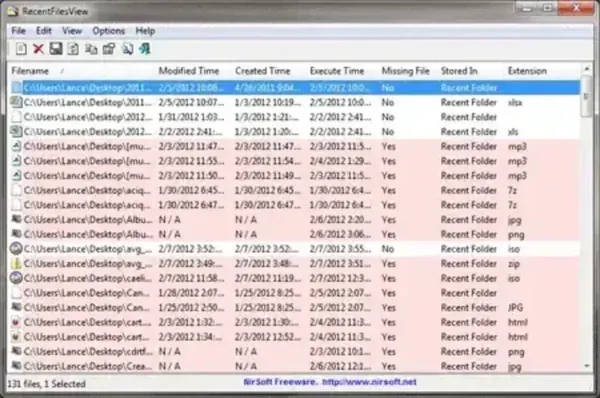
RecentFilesView provides a centralized view of file usage history that is normally scattered across several system locations. Unlike the Windows built-in Recent Items list - which typically shows only the last 20 or so files - this tool aggregates information from multiple registry keys and system folders into a single, sortable interface. This makes it significantly more useful for auditing user activity, conducting privacy checks, or identifying recently accessed documents during troubleshooting.
Where Does Windows Store Recently Opened Files?
Windows records recently opened file activity in several locations simultaneously:
- The Recent folder (
%APPDATA%\Microsoft\Windows\Recent) - stores shortcut (.lnk) files pointing to recently used documents - The Windows registry - particularly the
RecentDocskey underHKEY_CURRENT_USER\Software\Microsoft\Windows\CurrentVersion\Explorer - Application-specific MRU (Most Recently Used) lists - stored separately by programs such as Microsoft Office, PDF readers, and media players
RecentFilesView reads all of these locations and consolidates them into one unified list, which is why it often reveals file activity that has already been cleared from the standard Windows Recent view.
Key Features
- Recently Opened File Listing: Displays files opened from common applications such as Word, Excel, PDF readers, media players, and more.
- Multiple Data Sources: Reads information from the registry, Recent folder, and other system locations used by Windows.
- File Metadata Display: Shows filename, full path, extension, file size, and timestamps.
- Application Source: Identifies which program was used to open each file.
- Deletion Capability: Allows removal of selected recent file entries to clean up activity traces.
- Export Options: Save results as TXT, HTML, XML, or CSV for reports or audits.
- Portable: No installation required - runs directly from the extracted executable.
Common Use Cases
RecentFilesView is frequently used in the following scenarios:
- Privacy checks to see what files were recently accessed on your own or a shared machine
- System troubleshooting to identify recently used documents before a crash or problem
- Digital forensics and investigations requiring a comprehensive file access history
- IT support and diagnostics on managed workstations
- Cleaning up recent file traces on shared or public computers before handing them back
- Auditing and compliance - exporting activity logs in CSV or HTML for records
How It Works
The tool scans system-maintained data rather than monitoring activity in real time. Because Windows records recent file information across multiple locations, RecentFilesView reads each of those locations and reconstructs a usable activity list. This approach makes it fast, lightweight, and reliable without needing background services, kernel hooks, or elevated permissions beyond normal user access.
Because it reads existing system records, it can often surface files that no longer appear in the standard Windows Recent list - including entries cleared through normal means but still present in registry subkeys.
How to Use RecentFilesView
- Download the utility from NirSoft using the link below.
- Extract the ZIP file to any folder or USB flash drive.
- Run the executable file - no installation needed.
- Review the automatically generated list of recently opened files.
- Click any column header to sort by filename, date, application, or path.
- Select entries to delete or use File > Save to export the list as needed.
Privacy and Safety Notes
RecentFilesView is a read-only analysis tool unless you actively choose to delete entries. It does not transmit data, log activity in real time, or require an internet connection. As with most NirSoft utilities, some antivirus programs may flag it due to its system inspection capabilities. This is a well-documented false positive common to administrative and forensic tools - the utility is safe and widely used in professional IT environments.
Specifications | Official Site | Download
- Developer: NirSoft
- Author's Website: Project Page
- Extracted Size: 56 KB
- License: Freeware
- Supported OS: Windows
- Application Category: File Activity and Privacy Tool
- Rating: 4 Star
- Download: Get this Recently Opened File Viewer here: RecentFilesView Download
Frequently Asked Questions
What is RecentFilesView and what does it do?
RecentFilesView is a free, portable Windows utility from NirSoft that displays a complete list of recently opened files by scanning multiple system data sources, including the Windows registry and the Recent folder. It shows each file's name, path, size, timestamps, and the application used to open it, and lets you delete entries or export the list.
How is RecentFilesView different from the Windows Recent Items list?
The built-in Windows Recent Items view typically shows only the last 20 or so files and pulls from a limited set of sources. RecentFilesView reads multiple registry keys, the Recent folder, and application-specific MRU lists simultaneously, often revealing far more file history - including entries that have been removed from the standard Windows view but are still present in registry subkeys.
Does RecentFilesView show files opened by all applications?
It shows files recorded by Windows and by applications that register their activity in standard Windows locations such as the registry and the Recent folder. Files opened by applications that store their own history in private locations outside these standard paths may not appear.
Can I use RecentFilesView to clear my recent file history?
Yes. Select any entries in the list and delete them to remove those records from the underlying system data sources. This is useful for cleaning up activity traces on shared or public computers before returning them.
Is RecentFilesView safe to use? Why do antivirus programs flag it?
Yes, it is safe. RecentFilesView is a read-only diagnostic tool that does not transmit data or install anything. Antivirus programs sometimes flag NirSoft utilities as potentially unwanted because of their system inspection capabilities - this is a false positive common to administrative and forensic tools, not an indication of malicious behavior.
Does RecentFilesView require installation or administrator rights?
No installation is required. It runs directly from the extracted executable. Standard user rights are sufficient for reading recent file data from user-specific registry keys and folders. Some system-level data sources may require running as Administrator to access.
Can I export the recently opened file list for auditing or documentation?
Yes. Use File > Save (or the export options in the toolbar) to save the full list as a TXT, HTML, XML, or CSV file. CSV export is particularly useful for importing into spreadsheets for audit trails or compliance documentation.
Does it work on Windows 10 and Windows 11?
Yes. RecentFilesView is compatible with Windows 10 and Windows 11, as well as older versions going back to Windows 2000, per the NirSoft project page.
Final Verdict
RecentFilesView is a compact but capable utility for viewing and managing recently opened files on Windows. Its ability to pull data from multiple system sources - the registry, the Recent folder, and application MRU lists - makes it significantly more informative than the standard Windows recent file view. At 56 KB and fully portable, it is an ideal addition to any USB diagnostic toolkit or IT forensics kit.
For users who value privacy awareness, file activity auditing, or need a fast way to inspect or clean up recent file history on any Windows machine, RecentFilesView earns its 4-star rating as one of the most effective free tools available for this purpose.